
The AI Intent Detection action analyzes text to automatically determine sentiment and categorize it as POSITIVE, NEGATIVE, or NONE. This premium workflow action replaces legacy intent detection inside conditional logic and provides a simpler, more accurate way to automate responses based on customer sentiment.
By automatically creating three routing branches, this action allows you to personalize follow-ups, escalate negative responses, and streamline workflow logic without building complex IF/Else conditions.
TABLE OF CONTENTS
- What Is AI Intent Detection?
- Key Benefits
- How to Set Up AI Intent Detection
- Example Use Cases
- Post-Purchase Follow-Up
- Pricing
- Frequently Asked Questions
- Need Help?
What Is AI Intent Detection?
AI Intent Detection is an AI-powered workflow action that evaluates text input and determines its overall sentiment. It processes text from messages, form submissions, surveys, or other stored fields and routes contacts into one of three branches:
POSITIVE — expresses satisfaction, agreement, or favorable sentiment
NEGATIVE — conveys dissatisfaction, complaint, or negative sentiment
NONE — neutral or unclear sentiment
When added to a workflow, the action automatically creates these three branches so you can build different automation paths based on detected sentiment.
Key Benefits
Automated Sentiment Classification
Instantly categorize customer responses without manual review.
Improved Accuracy
More reliable than traditional IF/Else text matching logic.
Simplified Workflow Design
Automatic branch creation reduces the need for nested conditional steps.
Real-Time Response Automation
Trigger follow-ups immediately based on detected sentiment.
Scalable Automation
Process large volumes of messages without human intervention.
How to Set Up AI Intent Detection
Step 1: Add the AI Intent Detection Action
Open your workflow.
Click Add Action (or the + icon).
Search for AI Intent Detection.
Select the action and add it to your workflow.
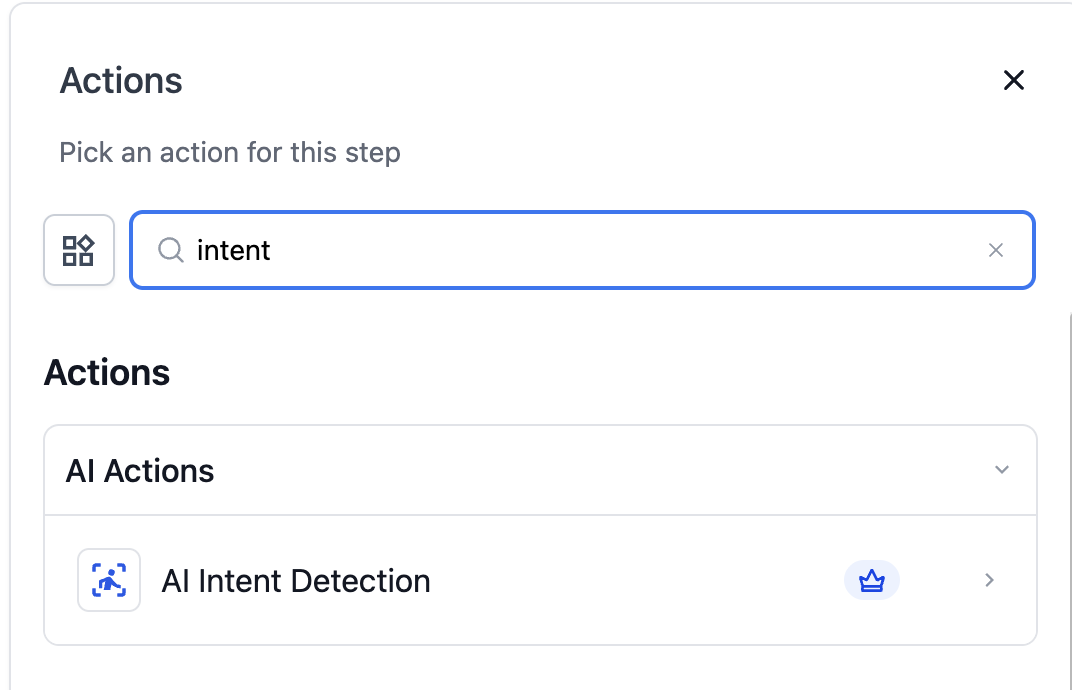
This screenshot should show the Actions panel with AI Intent Detection visible under AI Actions.
Instruction for screenshot: Click the AI Intent Detection action to insert it into the workflow.
Step 2: Configure the Action
After adding the action:
Enter a descriptive Action Name (for example: Analyze Customer Sentiment).
In Input Text, specify the text to analyze.
You may use:
Static text
A dynamic variable such as {{message.body}}
Any custom field storing text
Click Save Action once configured.
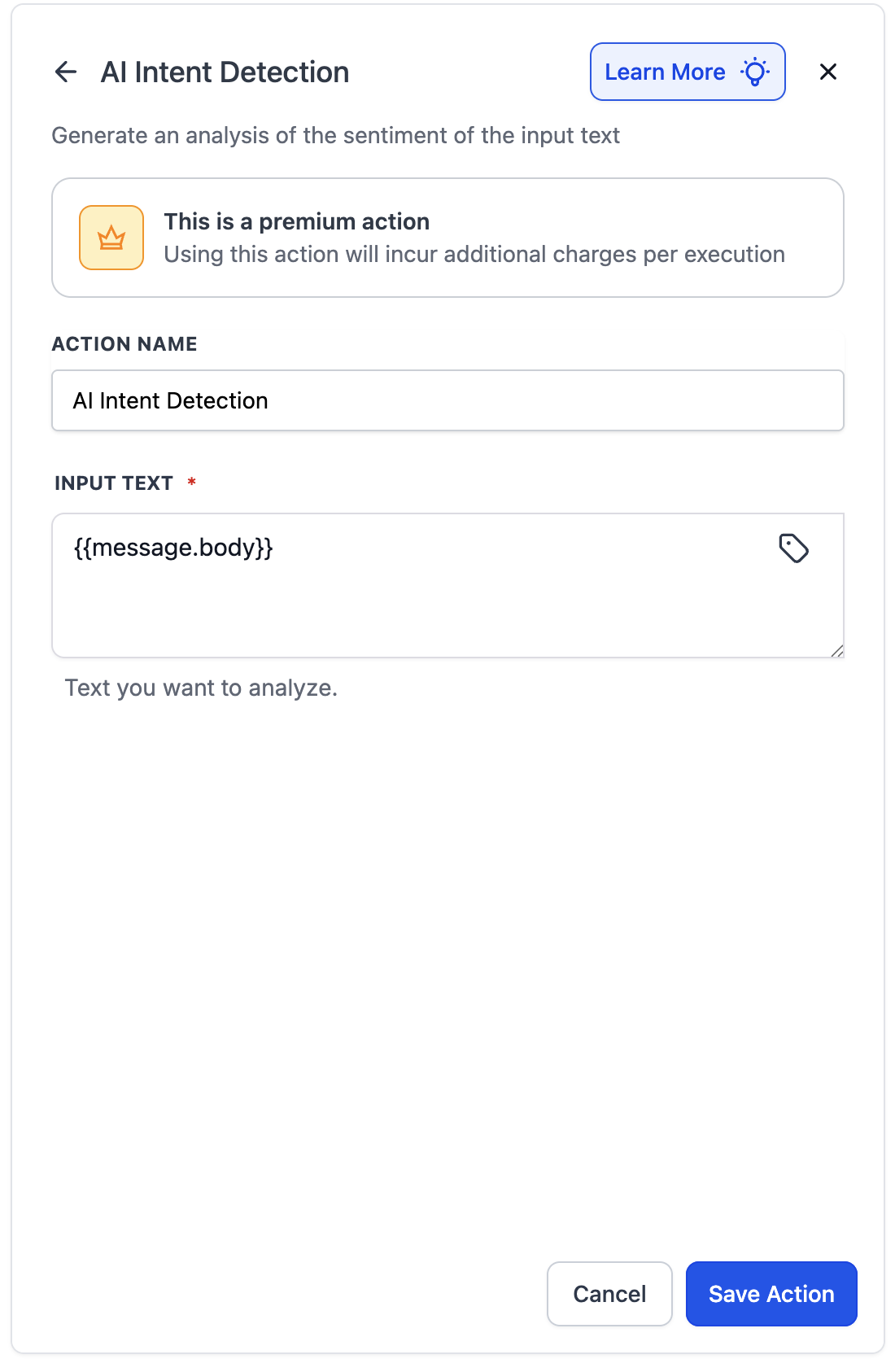
This screenshot should show the configuration panel with Action Name and Input Text fields visible.
Instruction for screenshot: Enter the action name and select or insert the variable for the text you want analyzed.
Step 3: Set Up Branch Actions
Once saved, three branches are created automatically:
Positive
Negative
None
Add follow-up actions under each branch based on your workflow goals.
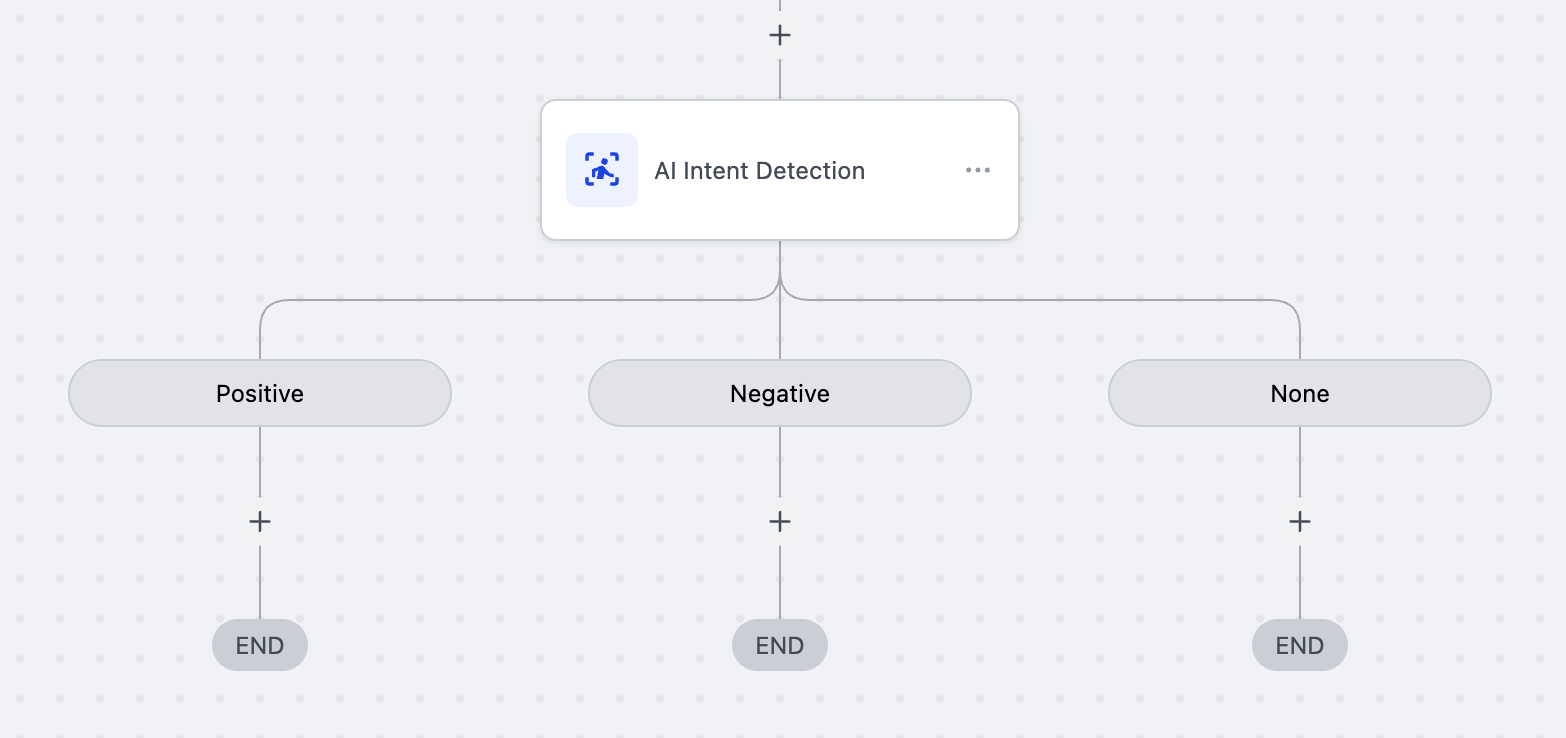
This screenshot should show the workflow canvas with Positive, Negative, and None branches.
Instruction for screenshot: Add actions under each branch to complete your routing logic.
Example Use Cases
Customer Feedback Management
Trigger: Survey or feedback form submission
POSITIVE: Send a thank-you message and request a review.
NEGATIVE: Create a support task and notify your team.
NONE: Send follow-up questions for clarification.
Post-Purchase Follow-Up
Trigger: Delivery confirmation or follow-up message
POSITIVE: Request testimonial or product review.
NEGATIVE: Trigger refund or escalation workflow.
NONE: Send product tips or additional engagement content.
Pricing
Cost: $0.01 per execution
Part of the Premium Actions suite
Premium workflow billing rules apply.
Frequently Asked Questions
Q: How is this different from legacy IF/Else intent detection?
AI Intent Detection uses advanced AI models to classify sentiment and automatically creates three workflow branches, eliminating the need for complex conditional setup.
Q: Can I use multiple AI Intent Detection actions in one workflow?
Yes. You can chain multiple actions to analyze different text inputs or build multi-step sentiment routing.
Q: What happens if text contains mixed sentiments?
The system evaluates the dominant sentiment. If no clear sentiment is detected, it routes to the NONE branch.
Q: Can I test this before publishing?
Yes. Use workflow test mode with sample inputs to verify sentiment classification before going live.
Q: Can I see why text was categorized a certain way?
Currently, the action provides the classification result only. Detailed reasoning or confidence scoring may be available in future updates.
Need Help?
If AI Intent Detection is not routing as expected:
Confirm the correct variable is selected in the Input Text field.
Ensure the workflow is published.
Verify the action is properly configured.
Review the workflow Execution Logs for routing details.
If issues persist, gather your workflow configuration and a sample input message before contacting suppo