
Managing opportunities efficiently is essential for maintaining an organized and effective sales pipeline. The Opportunity Changed workflow trigger allows you to automate actions whenever an opportunity record is updated. This ensures real-time responsiveness when changes occur within your pipeline.
Unlike the Opportunity Status Changed trigger, which only tracks status updates, Opportunity Changed detects broader modifications such as lead value adjustments, pipeline changes, reassignments, tag updates, and custom field updates. This guide explains how the trigger works, how to configure filters, and how to use it to streamline automation.
TABLE OF CONTENTS
- What Is Opportunity Changed Workflow Trigger?
- Key Benefits
- How to Configure the Opportunity Changed Trigger
- Available Filter Types
- Setting Up Workflow Actions
- Frequently Asked Questions
- Need Help?
What Is Opportunity Changed Workflow Trigger?
The Opportunity Changed workflow trigger activates whenever any update occurs within an opportunity record.
This includes:
Assignment changes
Pipeline movements
Lead value updates
Lost reason updates
Status changes
Tag updates
Custom field modifications
Because it tracks all opportunity field changes (not just status), it provides more flexibility for automation compared to status-only triggers.
Key Benefits
Comprehensive Tracking
Trigger automation based on any opportunity update — not just status changes.
Real-Time Notifications
Instantly notify team members when important opportunity changes occur.
Improved Pipeline Visibility
Keep sales and operations teams aligned when records are updated.
Customizable Automation
Apply filters to control exactly when workflows execute.
Flexible Operators
Use operators such as Equals, Has Changed, and Has Changed To for precise control.
How to Configure the Opportunity Changed Trigger
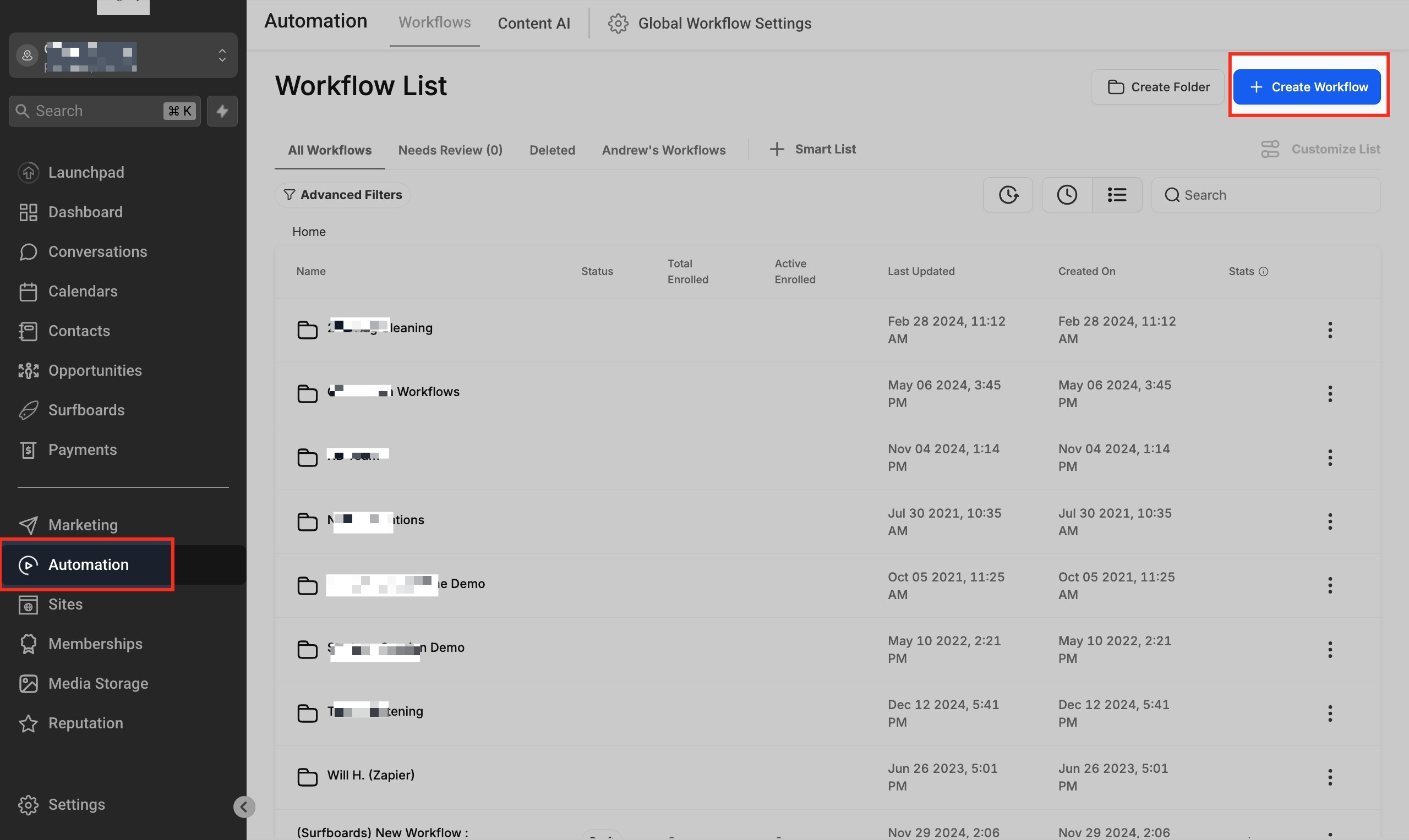
Step 1: Access Workflows
Navigate to Automation.
Click Workflows.
Select an existing workflow or click Create Workflow.
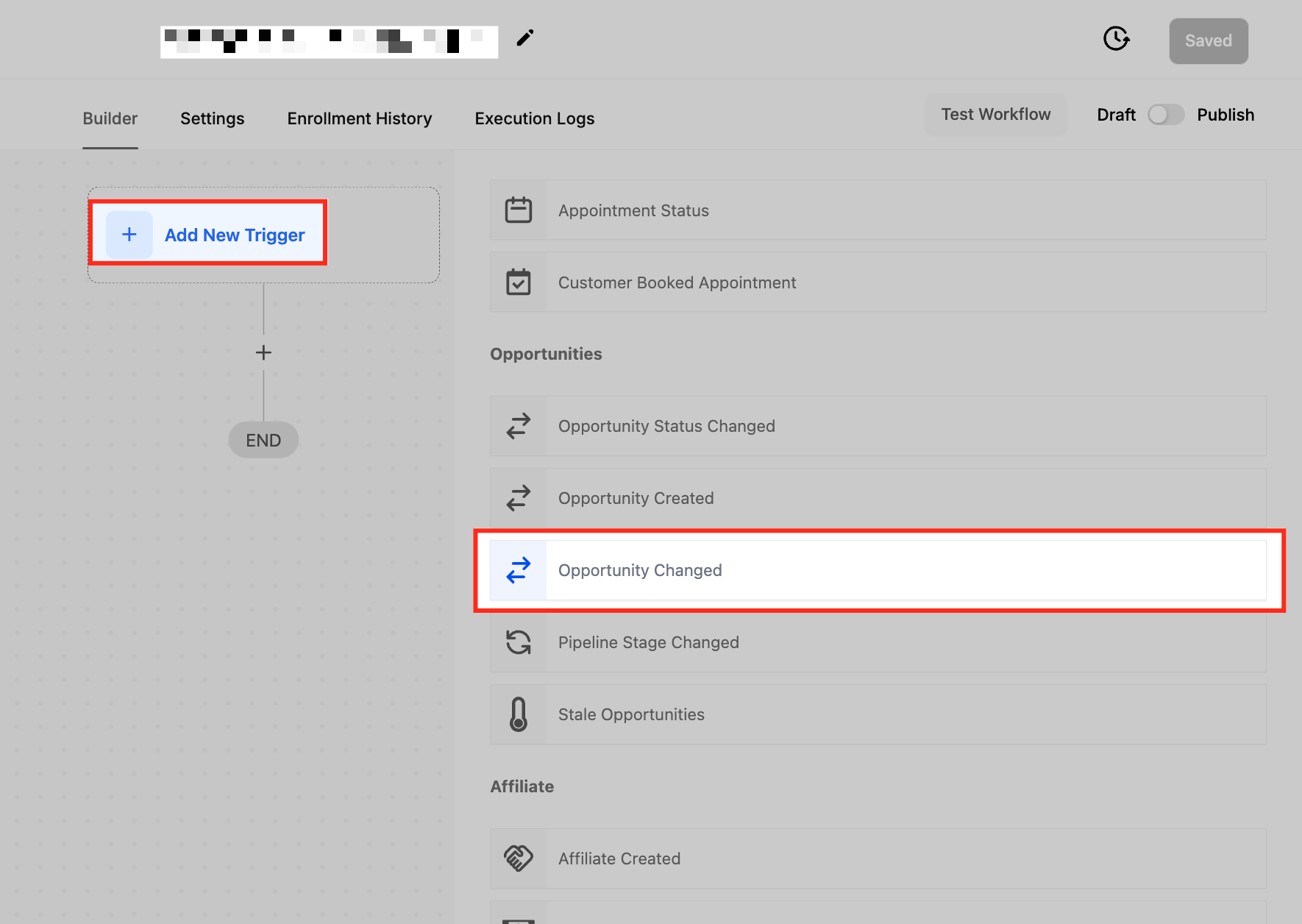
Step 2: Add the Opportunity Changed Trigger
Click Add New Trigger.
Search for Opportunity Changed.
Select it from the list.
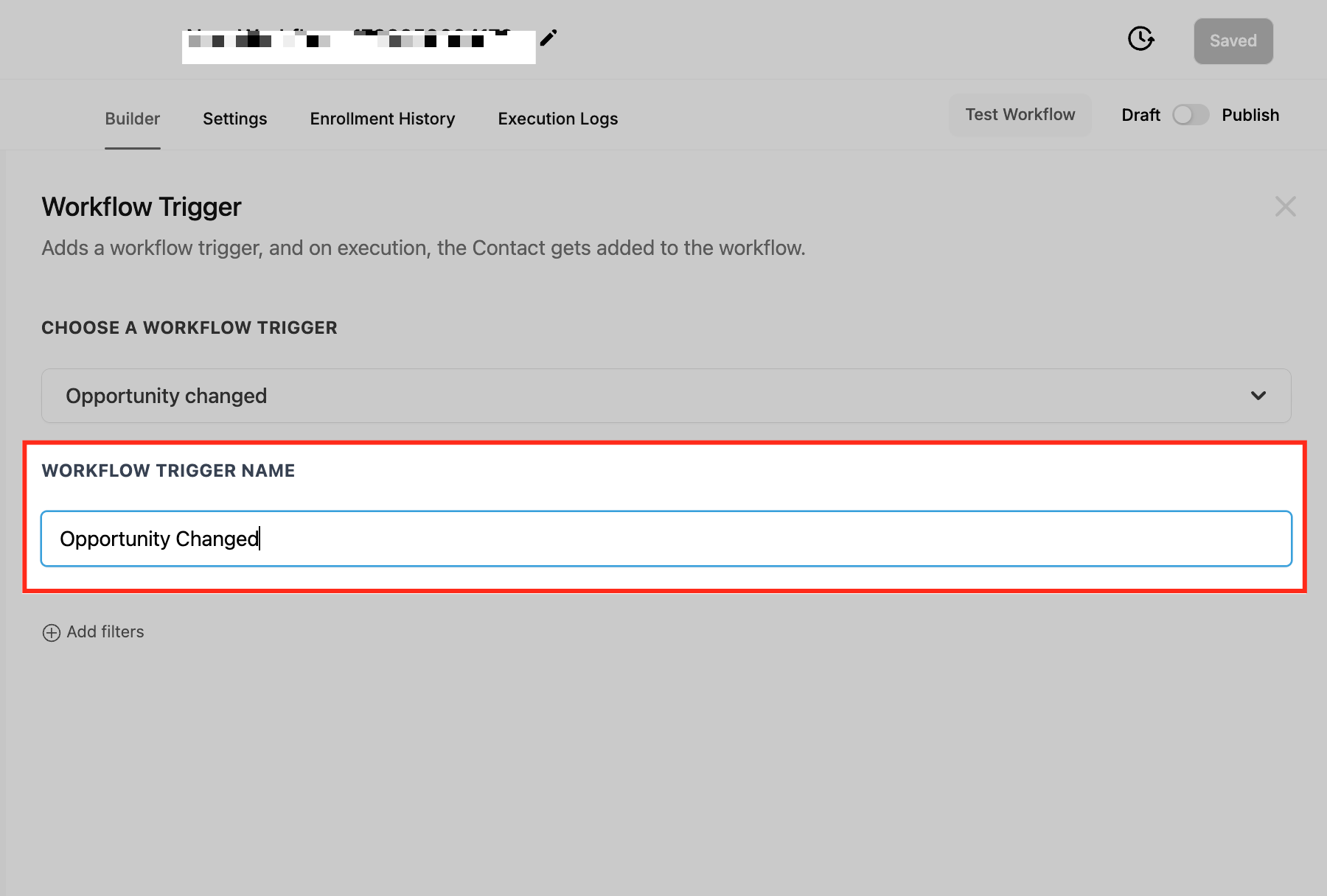
Step 3: Name the Trigger
Enter a descriptive name in the Workflow Trigger Name field.
Clear naming helps when managing multiple workflows.
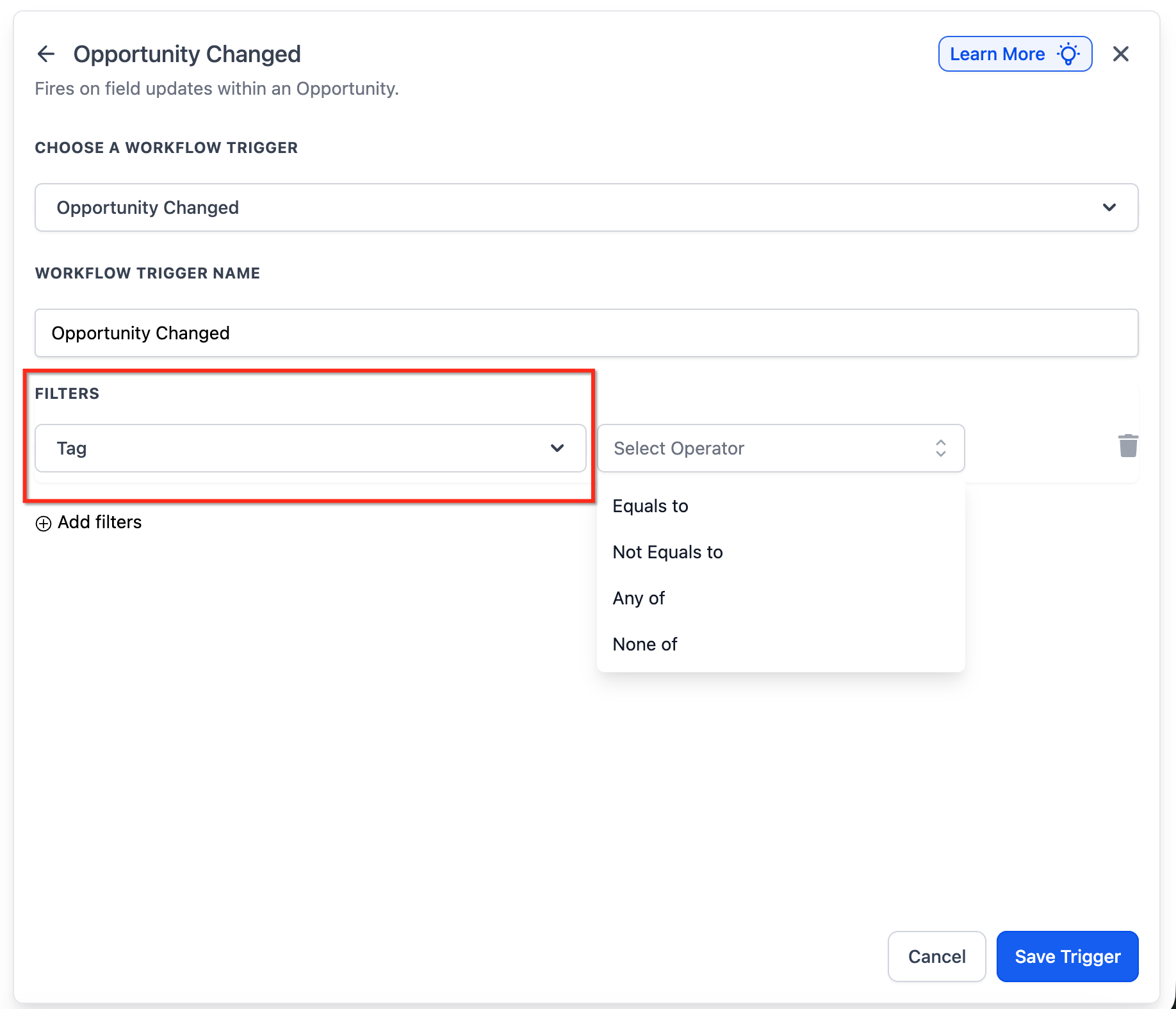
Step 4: Apply Filters
Filters define when the workflow should execute.
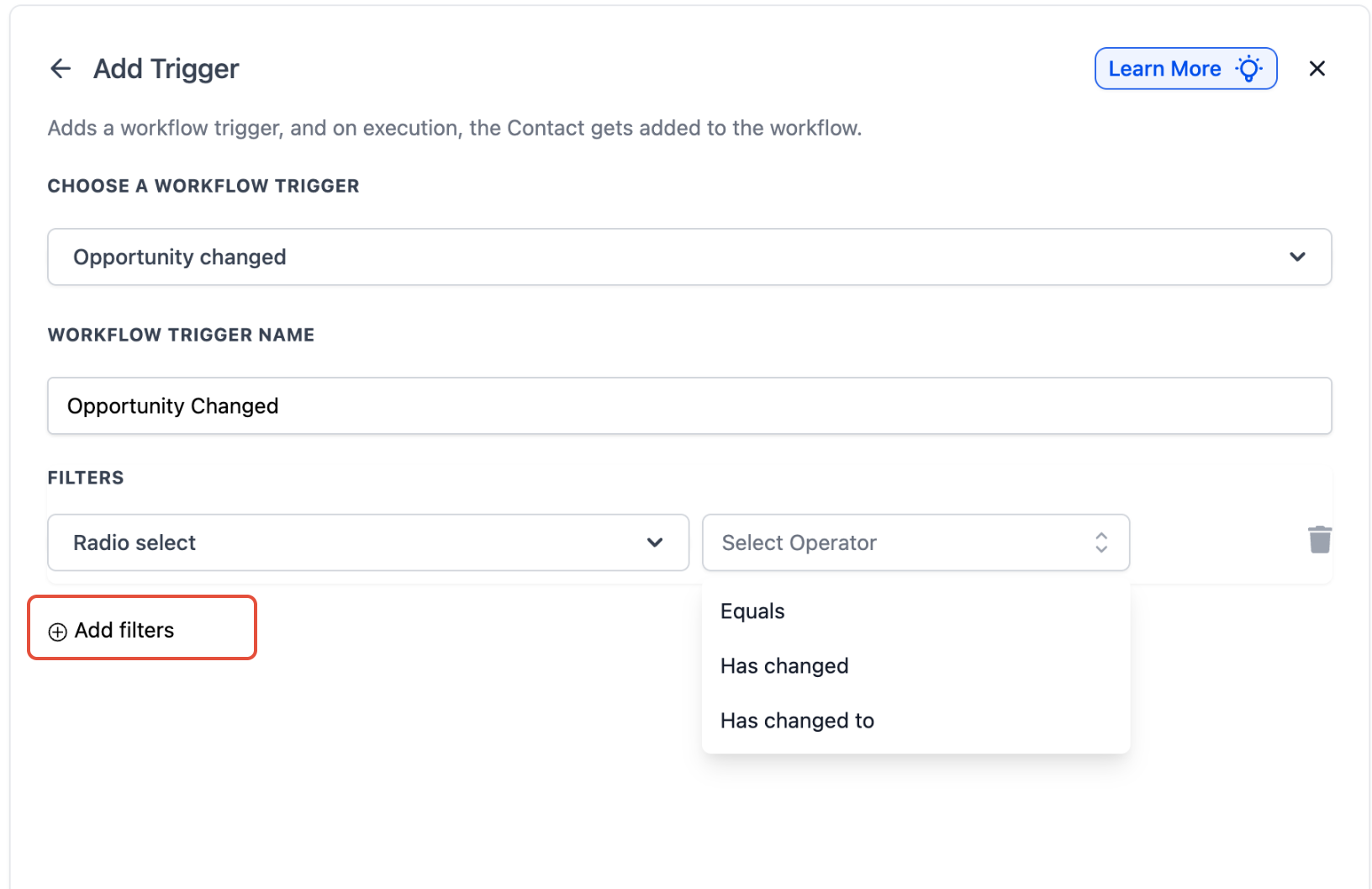
Click Add Filters to refine trigger behavior.
Available Filter Types
Below are the most commonly used filters and how they work.
Assigned To Filter
Triggers when ownership of an opportunity changes.
Available operators:
Has Changed — fires when assigned user changes to anyone
Has Changed To — fires only when assigned to a specific user
Equals — fires when changes occur on opportunities assigned to a selected user
Tag Filter
Triggers when opportunity tags are updated.
Use this to automate based on applied tags like:
Hot Lead
Follow-Up Needed
VIP
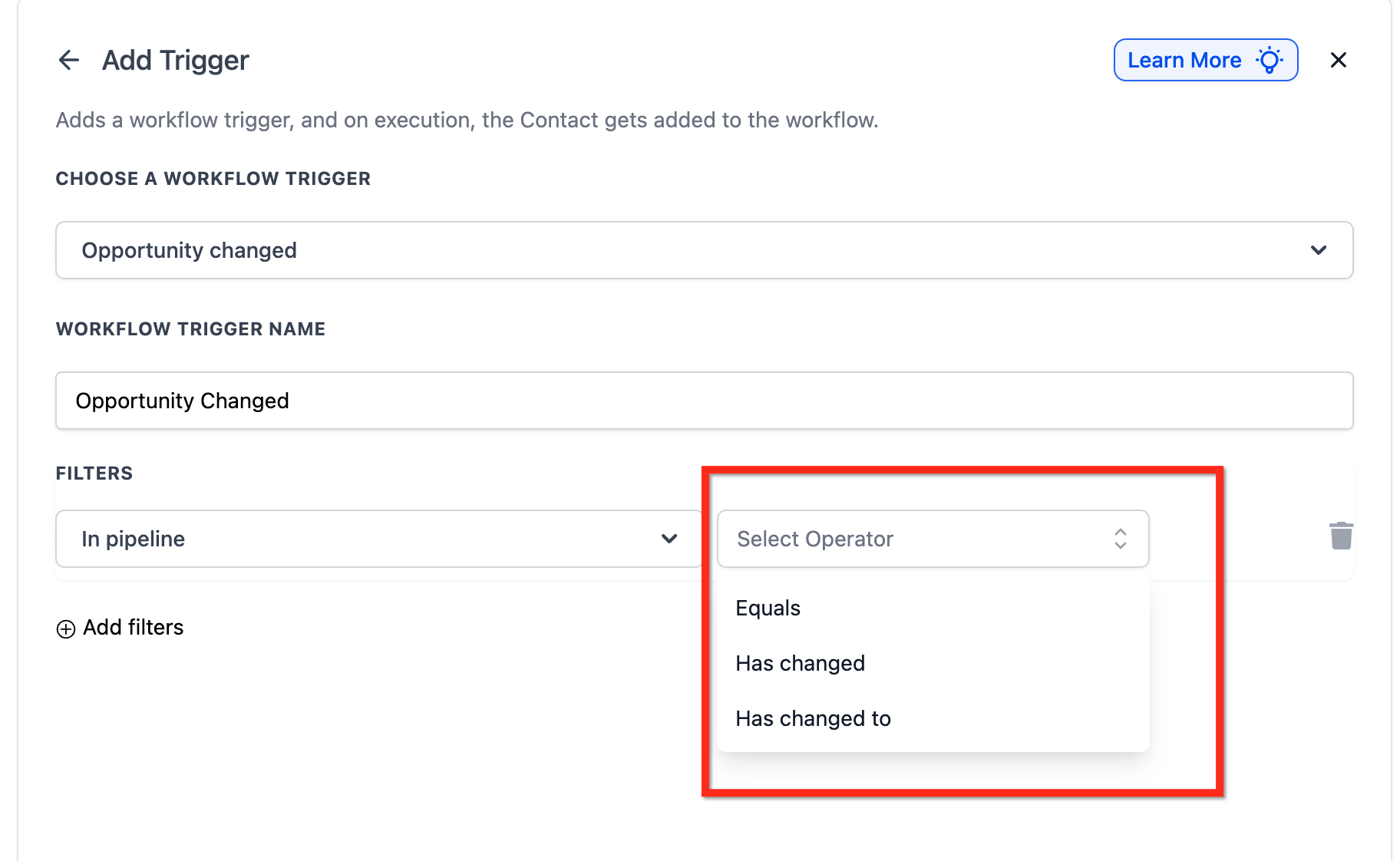
In Pipeline Filter
Controls execution based on pipeline changes.
Operators:
Has Changed
Has Changed To
Equals
Useful when managing multiple pipelines (Sales, Support, Retention).
Lead Value Filter
Triggers when opportunity monetary value changes.
Use this to:
Alert sales managers when value increases
Trigger review workflows when value drops
Route high-value leads differently
Operators include:
Equals
Greater than
Less than
Has Changed
Lost Reason Filter
Triggers when a lost reason is added or updated.
Operators:
Has Changed
Has Changed To
Equals
Example: Automatically send a discount follow-up if Lost Reason equals “Price Too High.”
Status Filter
Triggers when opportunity status changes.
Operators:
Is
Is Not
Has Changed
Has Changed To
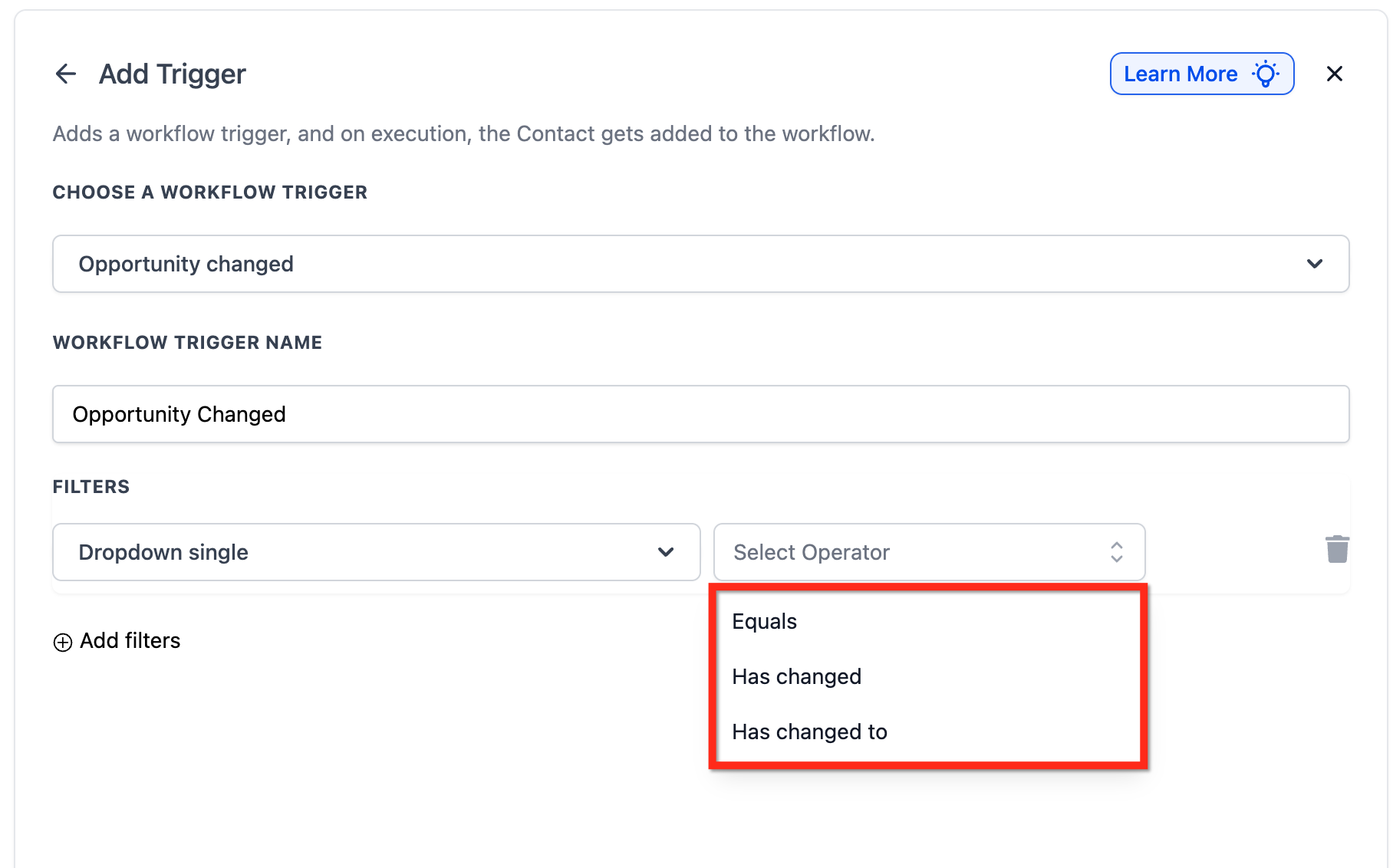
Custom Field Filters
Custom opportunity fields can also be used as filters.
Supported field types:
Checkbox Fields
Added
Removed
Equals
Radio Select Fields
Has Changed
Has Changed To
Equals
Dropdown Fields (Single & Multi-Select)
Has Changed
Has Changed To
Equals
Date Fields
Has Changed
Has Changed To
Equals
These allow precise automation based on structured data changes.
Setting Up Workflow Actions
After configuring the trigger and filters:
Click Save Trigger.
Add the desired workflow actions.
Common actions include:
Send Email or SMS
Create or Update Task
Update Contact Record
Move Opportunity
Trigger another workflow
Click Save.
Use Test Workflow.
Toggle Publish to activate automation.
Frequently Asked Questions
Q: How is this different from Opportunity Status Changed?
Opportunity Changed tracks any update within an opportunity record. Opportunity Status Changed only tracks status modifications.
Q: Can I use multiple filters?
Yes. Multiple filters can be combined to refine execution conditions.
Q: How do I test the trigger?
Update an opportunity manually and review the Execution Logs tab.
Q: Does this work with custom fields?
Yes. All opportunity custom fields can be used as filters.
Q: What is the difference between Has Changed and Has Changed To?
Has Changed fires when the field changes to any value.Has Changed To fires only when it changes to a specific selected value.
Need Help?
If the Opportunity Changed trigger is not behaving as expected:
Confirm the correct filters are configured
Ensure the workflow is published
Review the Execution Logs
Verify field values are updating correctly
If issues persist, gather your workflow configuration details and provide a sample opportunity update when contacting support.