
Experience faster, more consistent workflow building with the ability to copy workflow actions across workflows. Reuse single actions or entire action blocks within the same account, paste with a click, and maintain standardized setups without rebuilding steps from scratch.
TABLE OF CONTENTS
- What is Copy Workflow Actions Across Workflows?
- Key Benefits of Copy Workflow Actions Between Workflows
- How To Use Copy Workflow Actions Between Workflows
- Clipboard & Retention Rules
- Frequently Asked Questions
- Related Articles
What is Copy Workflow Actions Across Workflows?
Copying actions between workflows allows you to duplicate existing steps—either a single action or a sequence—and paste them into another workflow within the same account. This accelerates workflow creation, reduces repetitive configuration, and helps maintain consistent automation standards across projects.
Key Benefits of Copy Workflow Actions Between Workflows
Speed: Paste preconfigured steps in seconds instead of rebuilding from scratch.
Multi-paste window: Reuse copied actions across multiple workflows during the 15-minute clipboard window.
Consistency: Keep naming, settings, and logic uniform across workflows to reduce errors.
Cross-tab convenience: Copy in one tab and paste in another without losing your place.
Same account scope: Ensure compatibility because assets exist in the same environment.
Lower error risk: Start from proven steps and tweak only what’s unique.
How To Use Copy Workflow Actions Between Workflows
Follow these steps to reuse existing workflow logic efficiently.
Step 1: Open Automation → Workflows
Navigate to Automation.
Select Workflows.
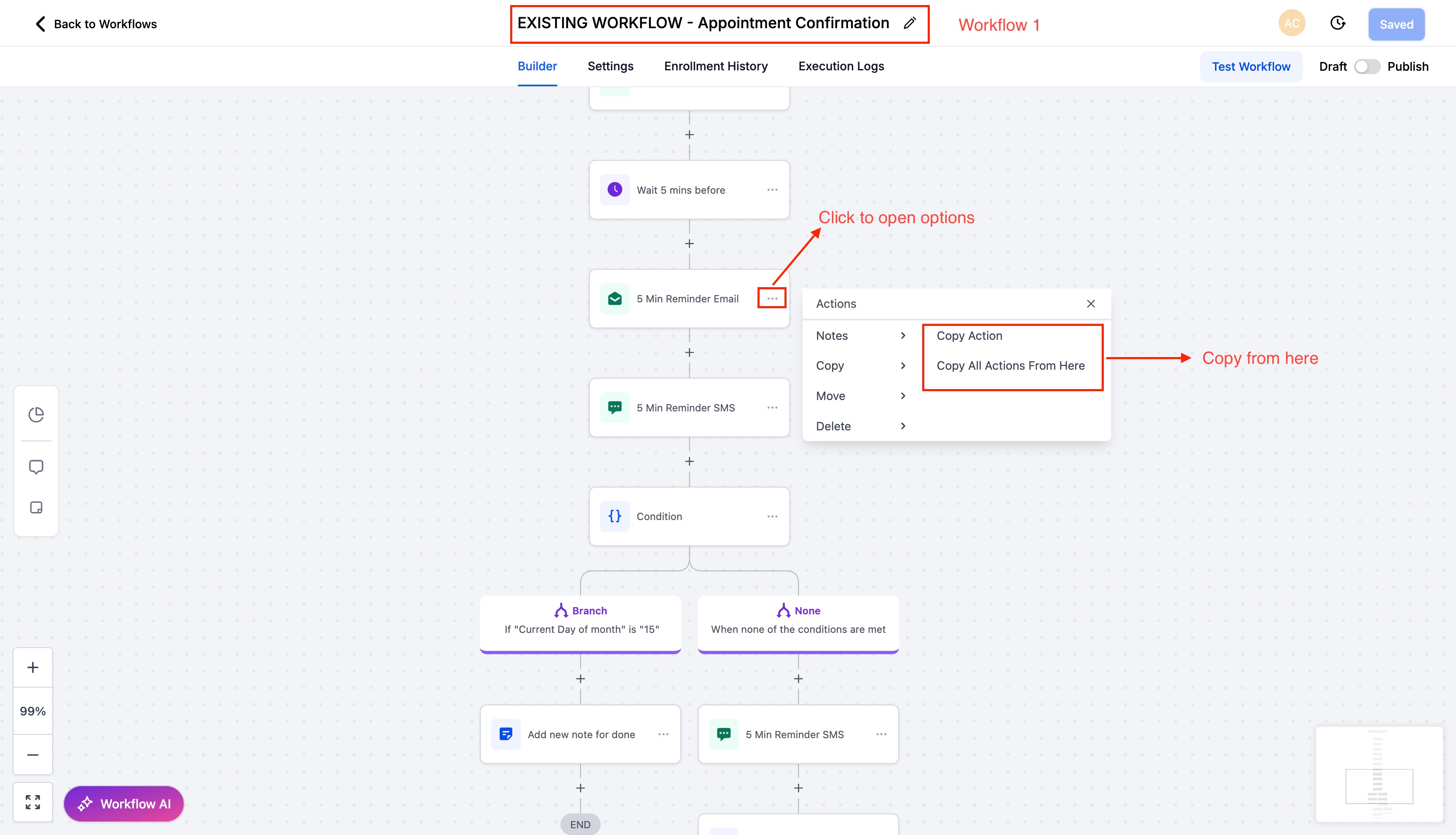
Open the workflow containing the action you want to copy.
Locate the action.
Click the three-dot menu.
Choose:
Copy Action (single step), or
Copy All Actions From Here (copies a block starting at that action).
Step 2: Navigate to the Target Workflow
Open the workflow where you want to paste the copied actions (same tab or another tab within the same account).
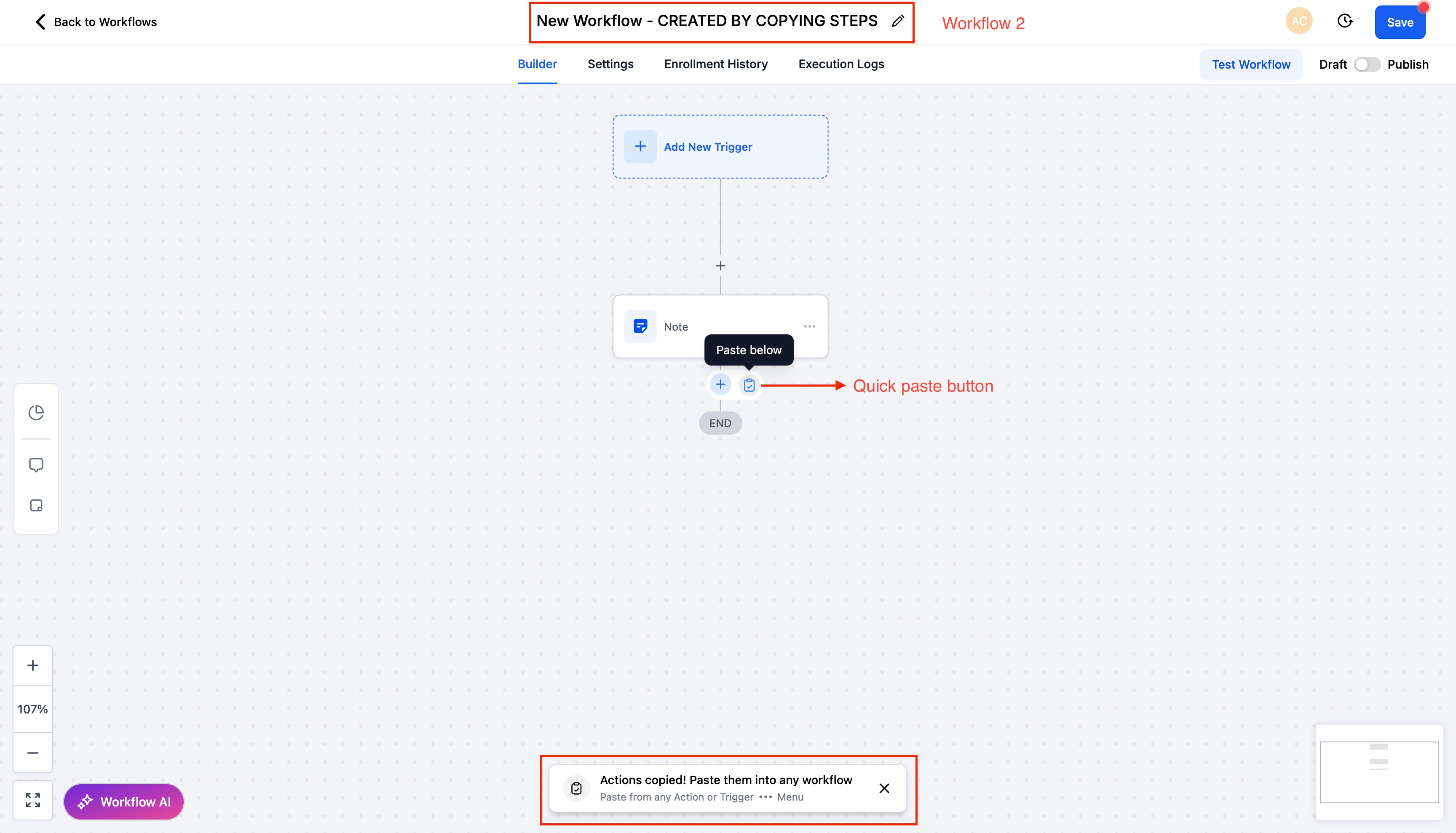
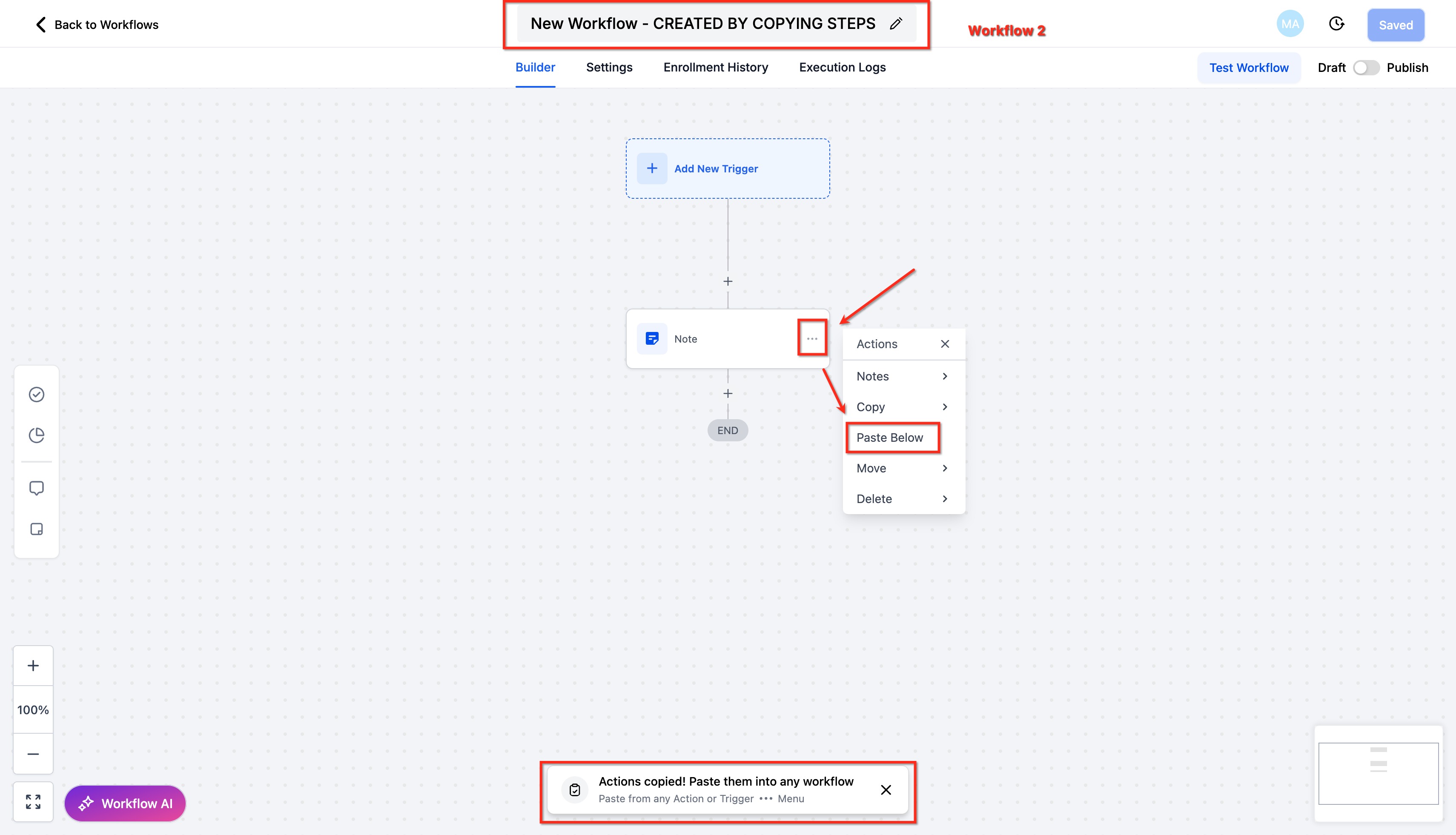
To paste, either:
Click Quick Paste next to the + button where you add new actions, or
- Open any action's three-dot menu and select Paste Below
Step 3: Review and Save
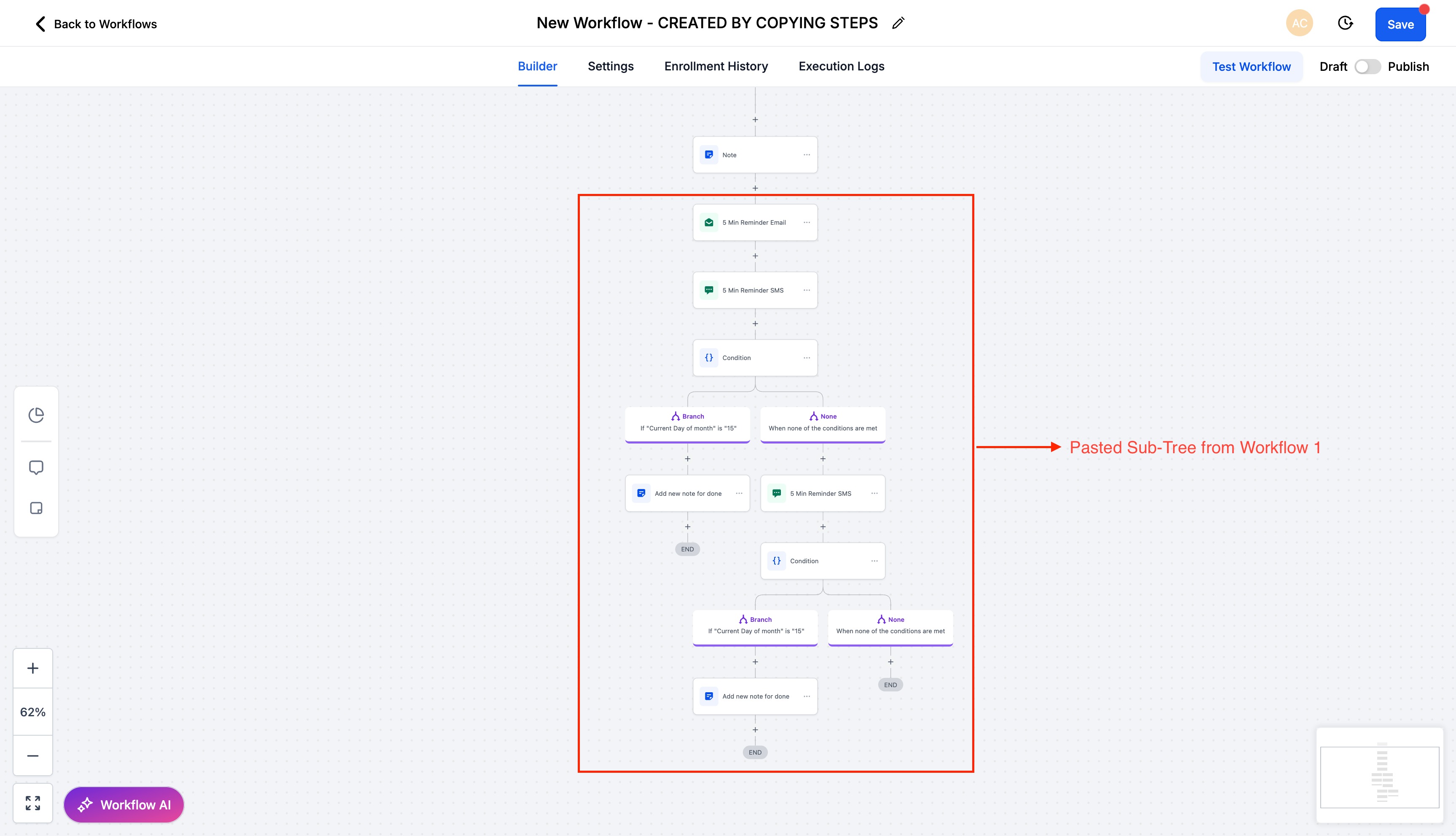
Review the pasted actions.
Confirm that assets and logic are correct.
Click Save to finalize the workflow.
Clipboard & Retention Rules
Copied actions remain available to paste for 15 minutes.
You can paste multiple times during the retention window.
When the window expires, paste options will no longer insert copied content.
To continue after expiration, copy the actions again.
Copying and pasting works across browser tabs as long as you remain signed in to the same account.
Frequently Asked Questions
Q: Can I copy multiple actions at once?
Yes. Use “Copy All Actions From Here” to copy a block starting at the selected action.
Q: Can I paste in another browser tab?
Yes. You can copy in one tab and paste in another within the same account during the 15-minute window.
Q: Are triggers copied?
No. Copying actions does not include triggers.
Q: Will asset references carry over?
If the referenced assets exist in the same account, references persist. Always review after pasting.
Q: How long are copied actions available?
15 minutes. You may paste multiple times during this window.
Q: Can I undo a paste?
Before saving, you can delete or move pasted actions. Confirm placement and settings before saving.
Q: Does this work across accounts?
No. Action copy works within the same account only.
Need Help?
If copying and pasting actions does not behave as expected:
Confirm you are within the same account.
Ensure the 15-minute clipboard window has not expired.
Verify referenced assets exist in the destination workflow.
Refresh the workflow builder if paste options do not appear.
If issues persist, gather workflow details before contacting support.