
Funnels help you guide visitors through a focused set of pages, capture contact details, and direct people to a specific next action. This article explains how to create a funnel from a template, add or select a form, and connect a custom domain so your funnel can be shared publicly.
TABLE OF CONTENTS
- Before You Begin
- Choose a Funnel Template
- Start a New Funnel
- Add the Template to Your Account
- Create a New Form
- Select an Existing Form
- Connect a Custom Domain
- FAQ
- Need Help?
Before You Begin
Make sure you can:
Access the Sites area in your account
Sign in to your domain registrar (the website where you manage your domain’s DNS records), if you plan to connect a custom domain
Choose a Funnel Template
Templates help you start with a ready-to-edit layout.
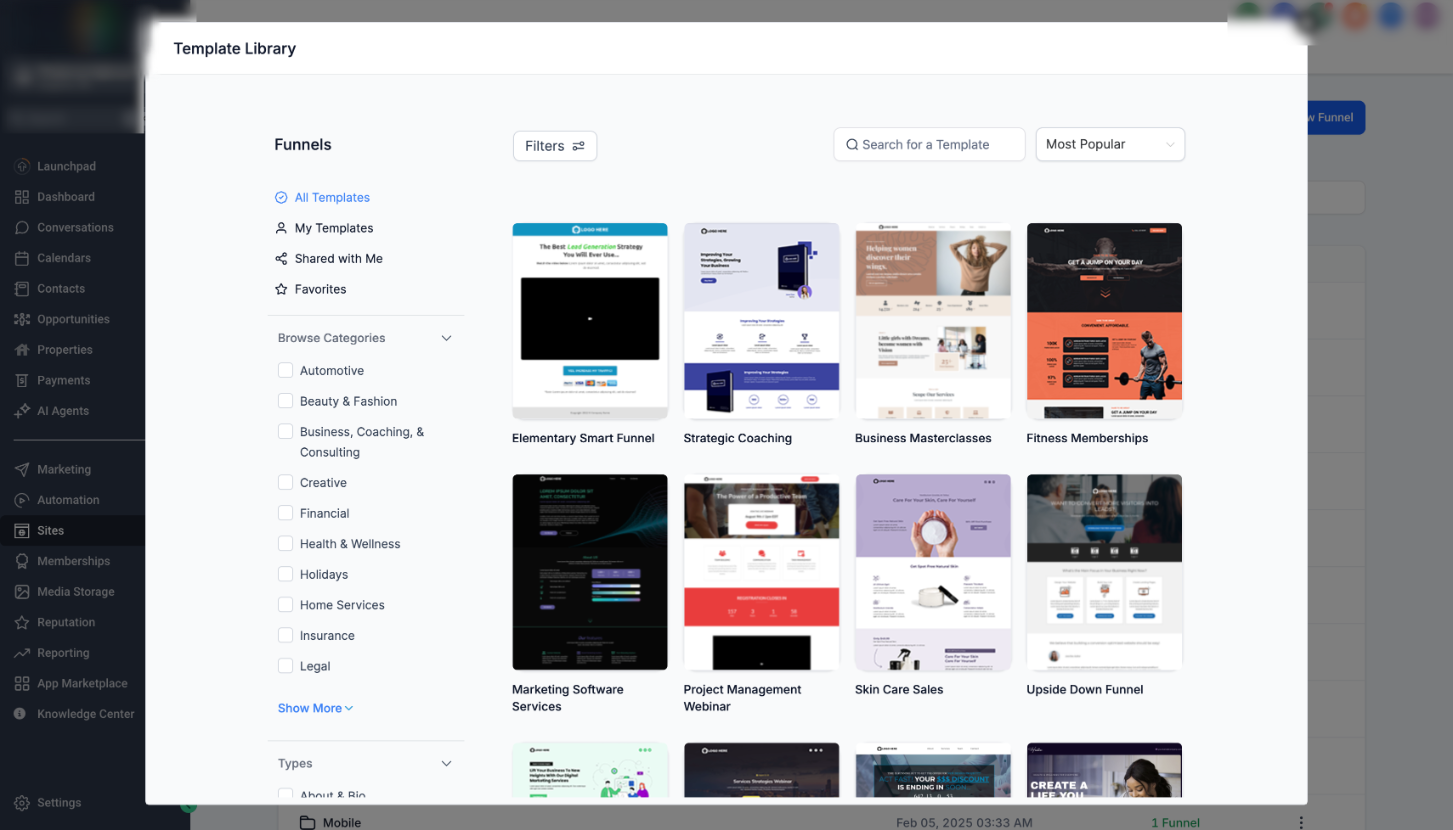
Use Filters, the search bar, and the sort dropdown to find a template that matches what you want to build.
Start a New Funnel
Create a new funnel and choose a build option.
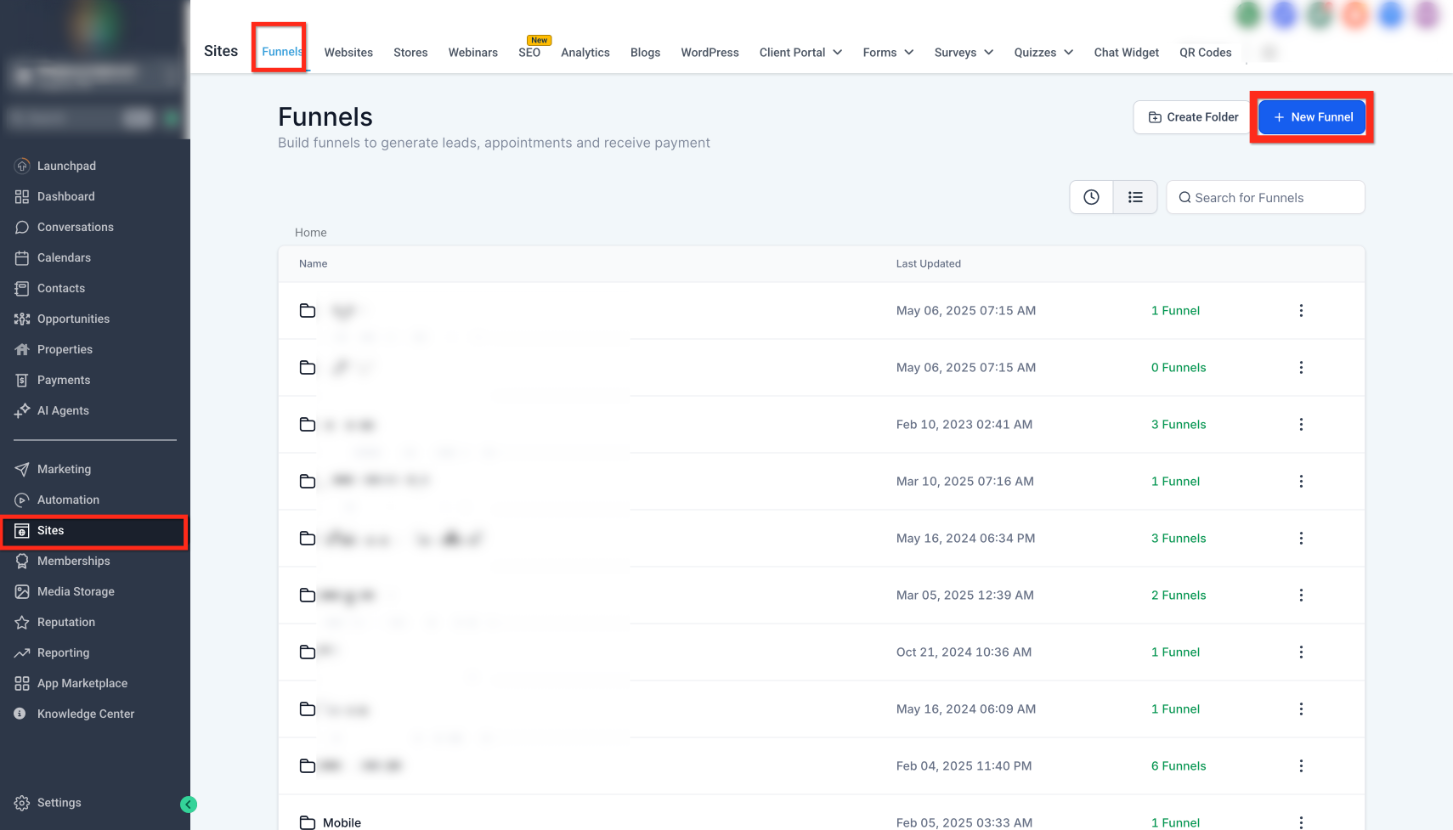
On the Funnels page, click New Funnel in the top-right corner.
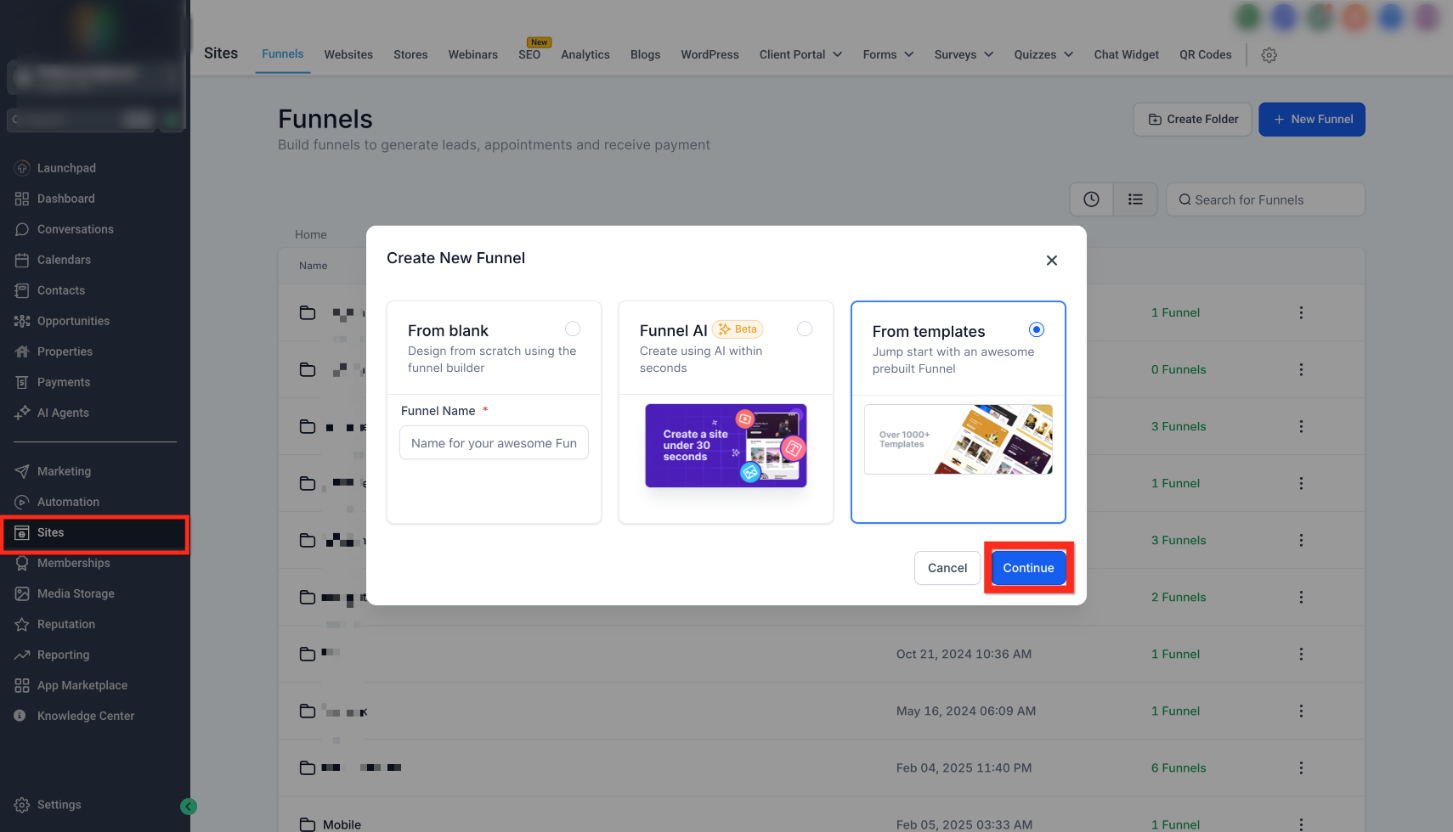
In the “Create New Funnel” window, select From templates, then click Continue.
Add the Template to Your Account
After you pick a template, confirm your selection and load it into the editor.
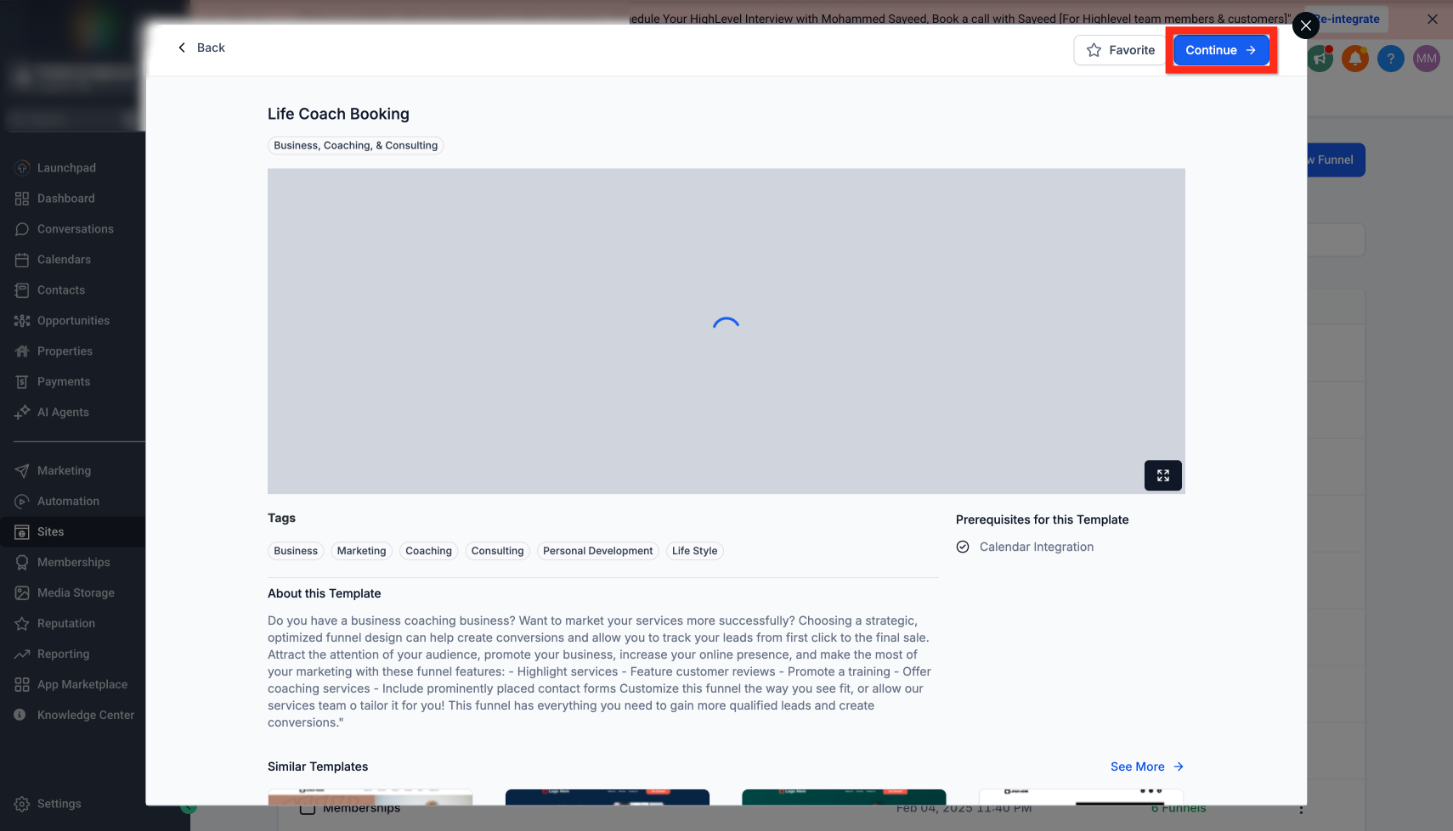
Review the template preview page, then click Continue in the top-right corner.
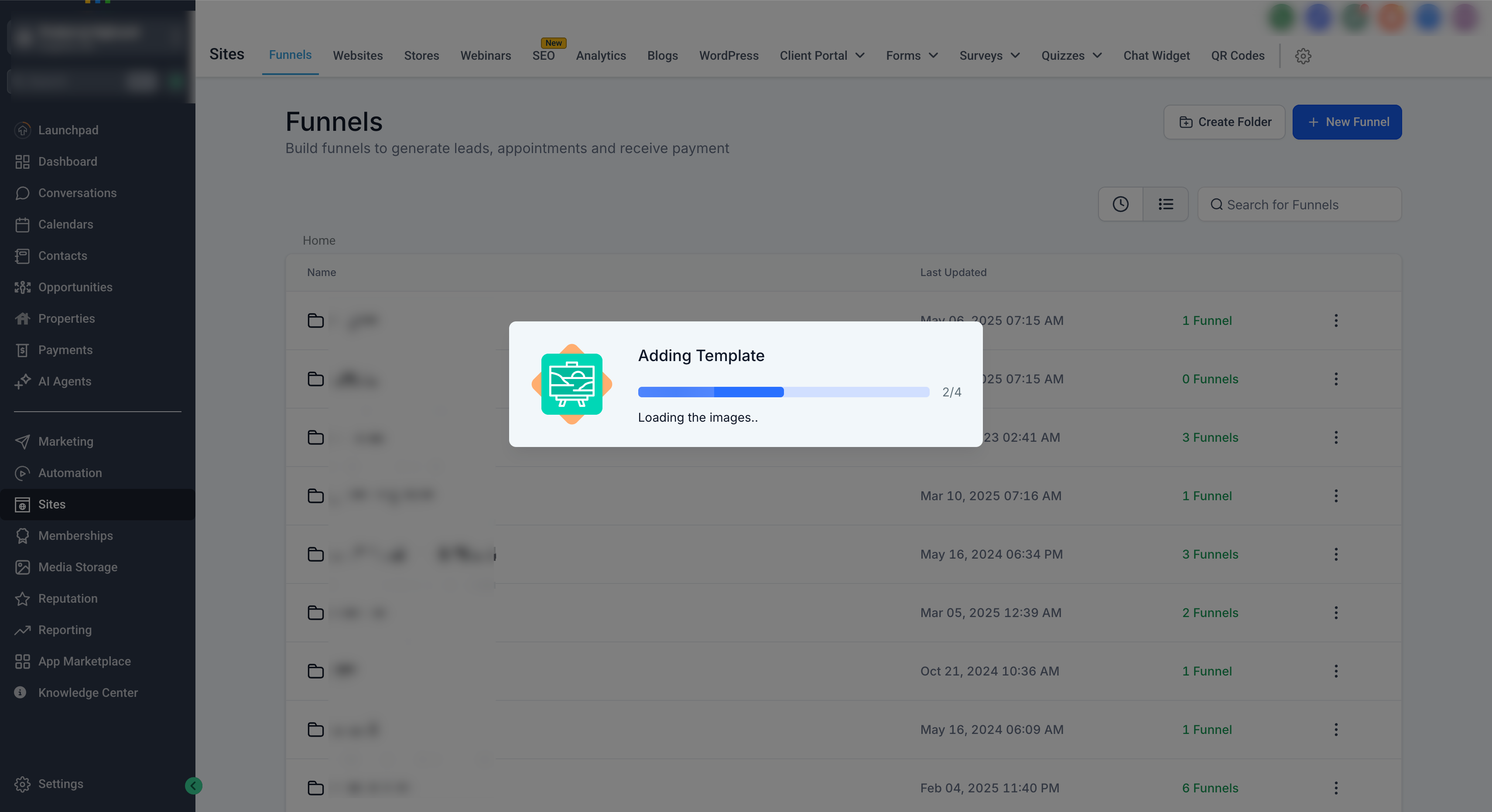
Keep the window open while the template loads. When loading completes, the funnel editor opens so you can customize and save.
Create a New Form
Forms collect visitor information (such as name, email, or phone number). You can create a new form from the Forms area.
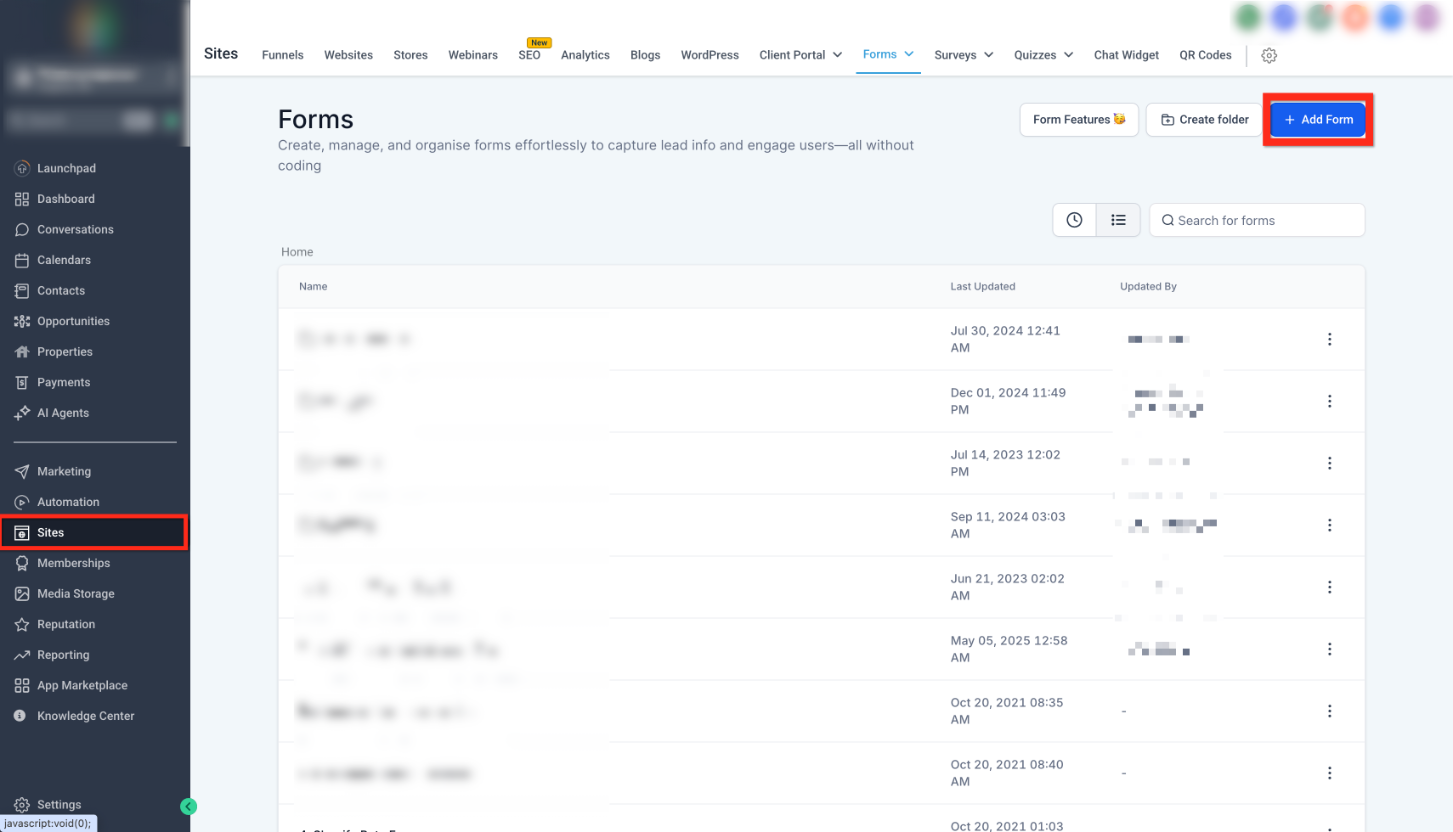
On the Forms page, click Add Form in the top-right corner to start creating a form.
After you create the form, adjust the fields and styling as needed, then save the form.
Select an Existing Form
If you already have a form, you can open it to review or update it before using it in your funnel.
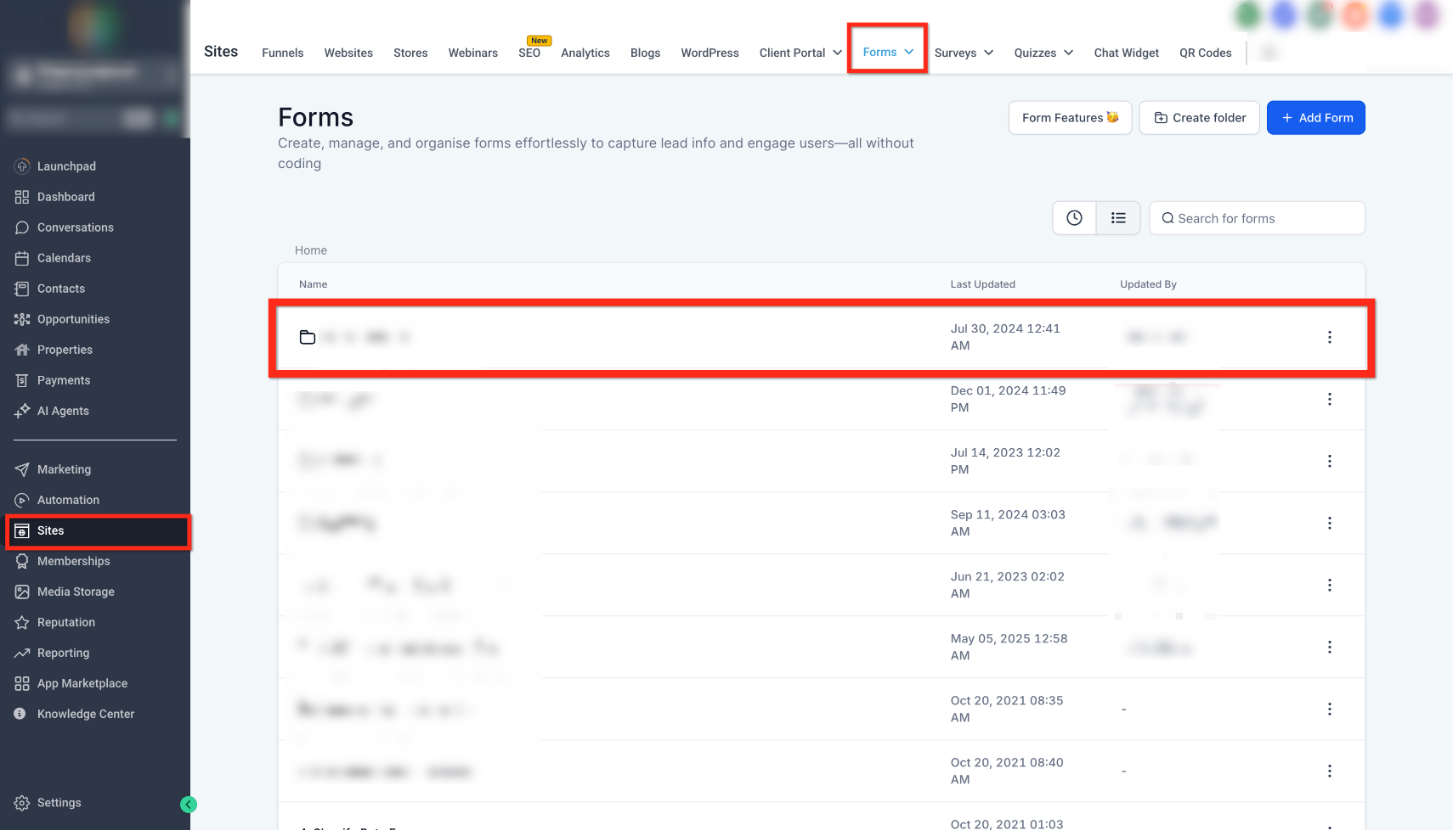
From the forms list, click the form you want to use to open it and confirm the fields are correct.
Connect a Custom Domain
A custom domain lets you publish your funnel using a URL you control.
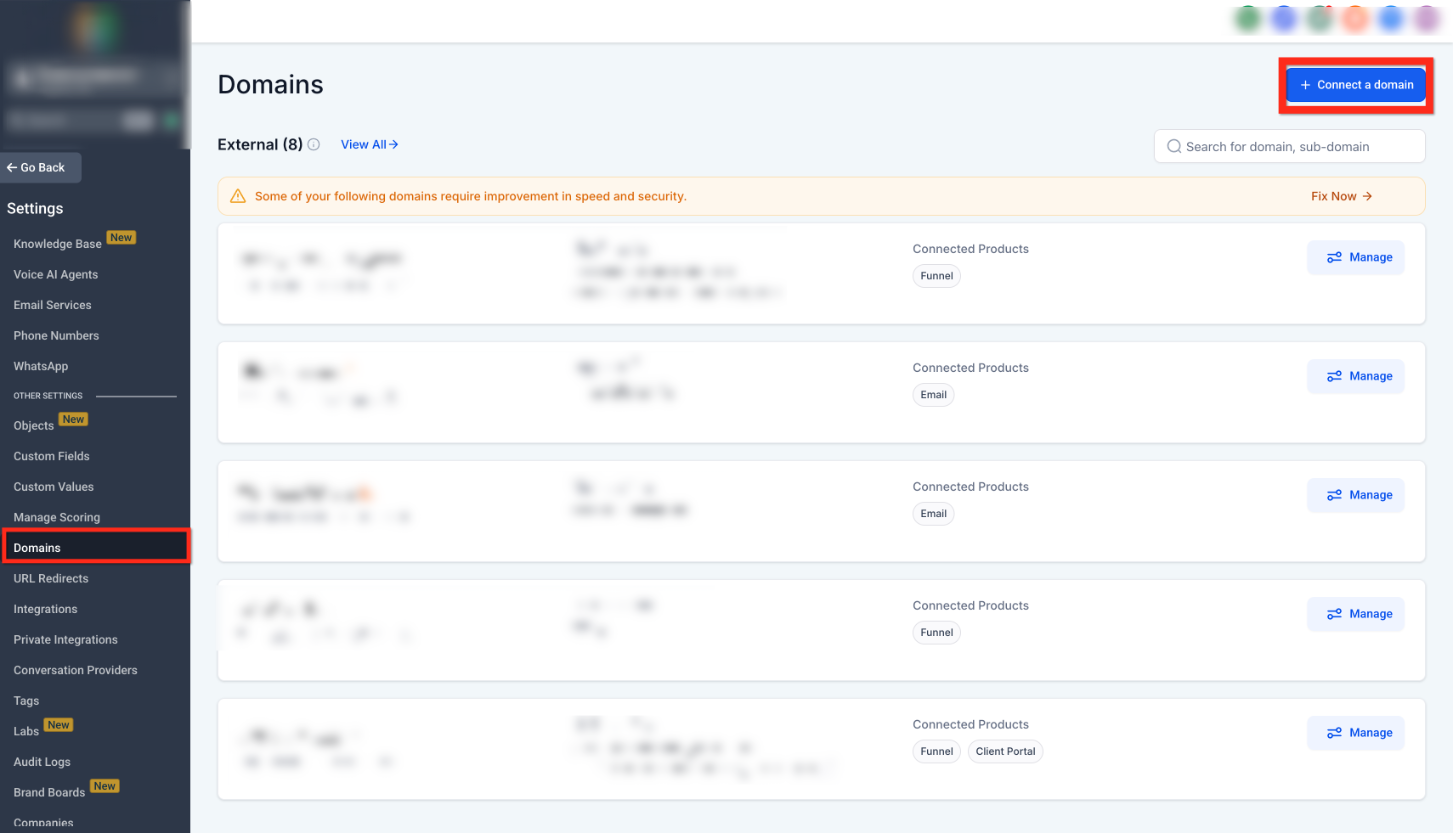
On the Domains page, click Connect a domain in the top-right corner to begin.
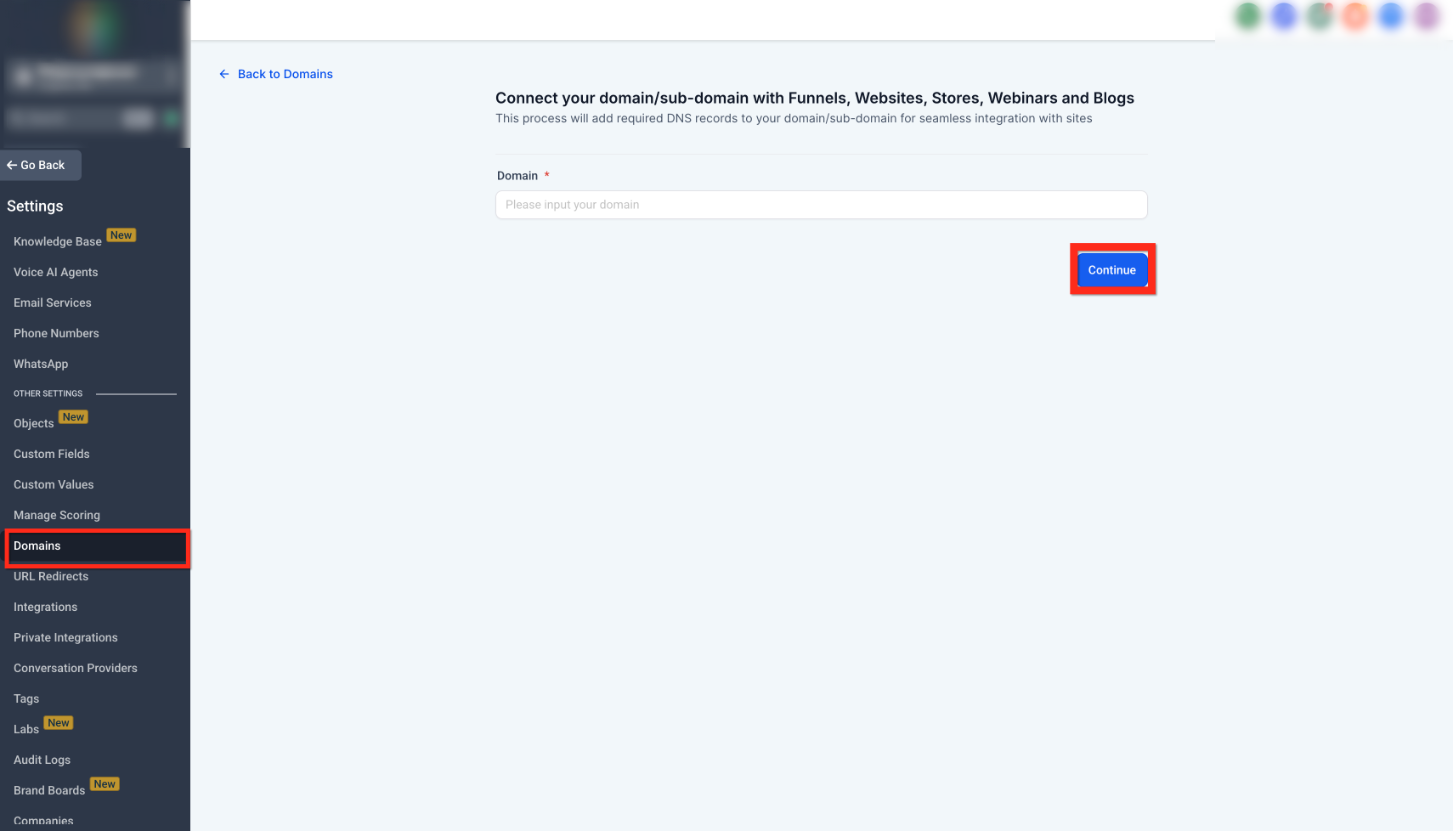
Type your domain into the Domain field, then click Continue.
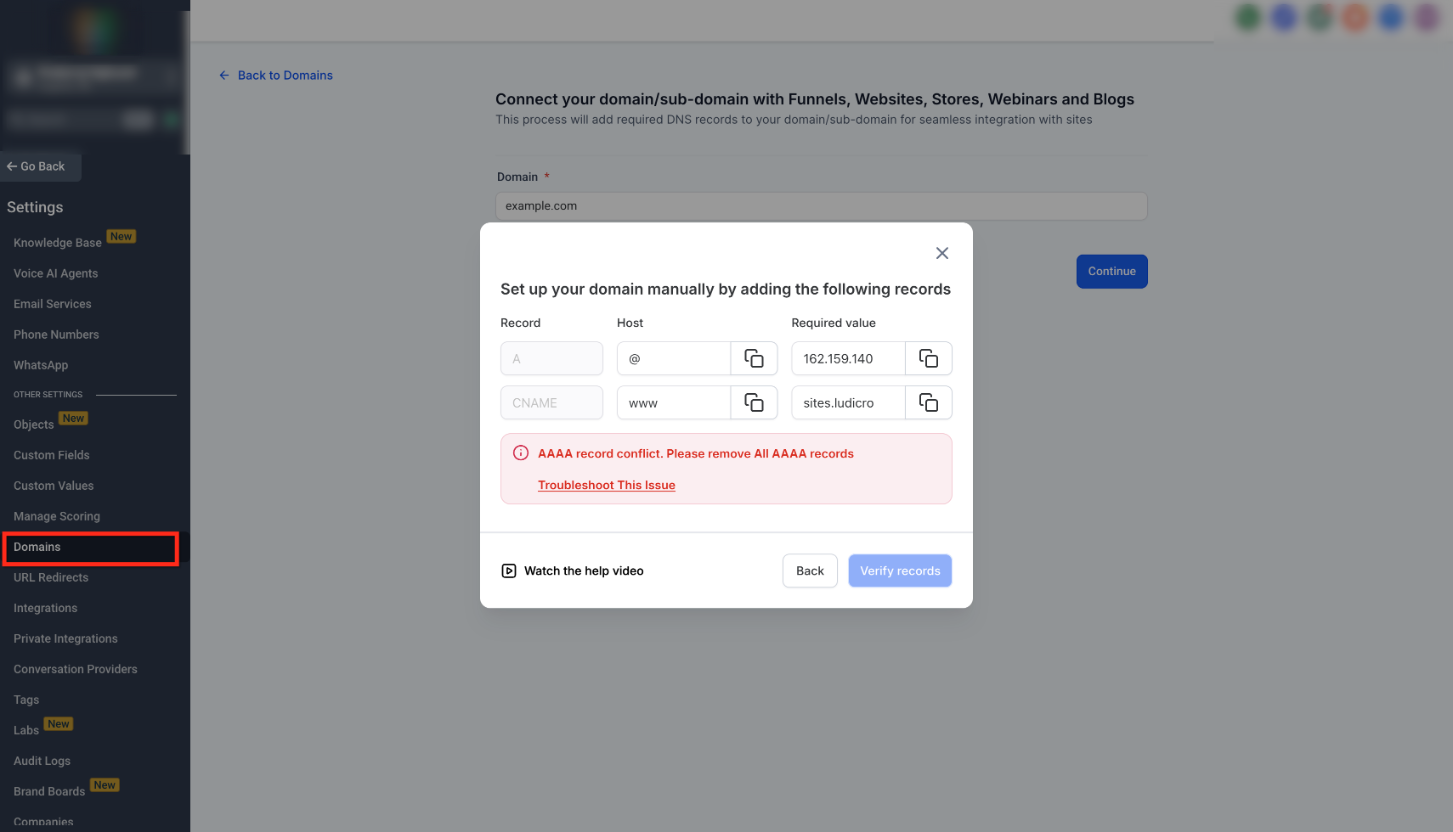
Copy each DNS record shown into your domain registrar’s DNS settings. After saving your DNS changes, return to this screen and click Verify records.
When verification succeeds, finish the domain connection flow and select the connected domain when publishing your funnel.
FAQ
Q: What is a funnel used for?
A funnel guides visitors through a focused flow, such as collecting contact details or directing people to a specific next action.
Q: Do I have to use a template?
No. Templates are optional, but they help you start faster by providing a ready-to-edit layout.
Q: Can I use an existing form instead of creating a new one?
Yes. You can open an existing form from your forms list to review or update it before using it.
Q: Why should I connect a custom domain?
A custom domain lets you publish your funnel on a URL you control, which helps keep links consistent and recognizable.
Q: What should I do if domain verification fails?
Double-check that each DNS record matches exactly. If everything looks correct, allow time for DNS changes to apply, then try verifying again.
Need Help?
If you run into issues while setting up your funnel, try these quick checks.
You can’t find the menu options shown: Your account may not have access to that area. Ask an account admin to review your permissions.
A page won’t load or buttons don’t respond: Refresh the page, try an incognito/private window, or clear your browser cache.
Template loading appears stuck: Wait a little longer, then refresh and try again. If it repeatedly fails, try a different browser.
Domain verification fails: Confirm the DNS record type, host/name, and value match exactly. Also confirm you saved the DNS changes and allow time for DNS updates to apply.