
Agent Studio Router helps you control how conversations move between nodes in Agent Studio. As the name implies, a router directs the workflow from one node to the next based on specific logic or conditions. This article explains how to use AI Router, Conditional Router, and No Condition routing to build smarter conversation paths based on intent, logic, or an always-on transition.
TABLE OF CONTENTS
- What is the Router Tool in Agent Studio?
- Key Benefits of the Router Tool in Agent Studio
- Using AI Router
- Using Conditional Router
- Using No Condition
- Using Router Inside Sequential Nodes
- How To Use the Routing Tool in Agent Studio
- Best Practices
- Frequently Asked Questions
What is the Router Tool in Agent Studio?
Agent Studio Router controls how an agent moves from one node to another based on conversation context or logic. It helps you create flexible paths inside your graph so the next step is chosen based on what the user says, what data has been captured, or whether the flow should always continue to the next node.
The Router supports three routing approaches:
- AI Router: Uses natural language intent to decide which path to take.
- Conditional Router: Uses saved variables and logic rules to determine the next node.
- No Condition: Always moves to the next connected node without evaluating intent or logic.
The Router can be used in agent flows and inside Sequential Nodes, which allows a linear process to branch when needed before continuing.
Key Benefits of the Router Tool in Agent Studio
- Smarter branching: Route users based on what they mean, not just fixed keywords.
- More control: Use variables and logic rules to move contacts to the right next step.
- Cleaner graph design: Connect nodes more intentionally instead of forcing everything into one path.
- Flexible flow building: Combine AI routing, conditional logic, and always-on routing in the same agent.
- Better user experience: Help contacts reach the right outcome faster with fewer unnecessary steps.
- Support for advanced automations: Add dynamic decision-making inside Agent Studio and Sequential Nodes.
Using AI Router
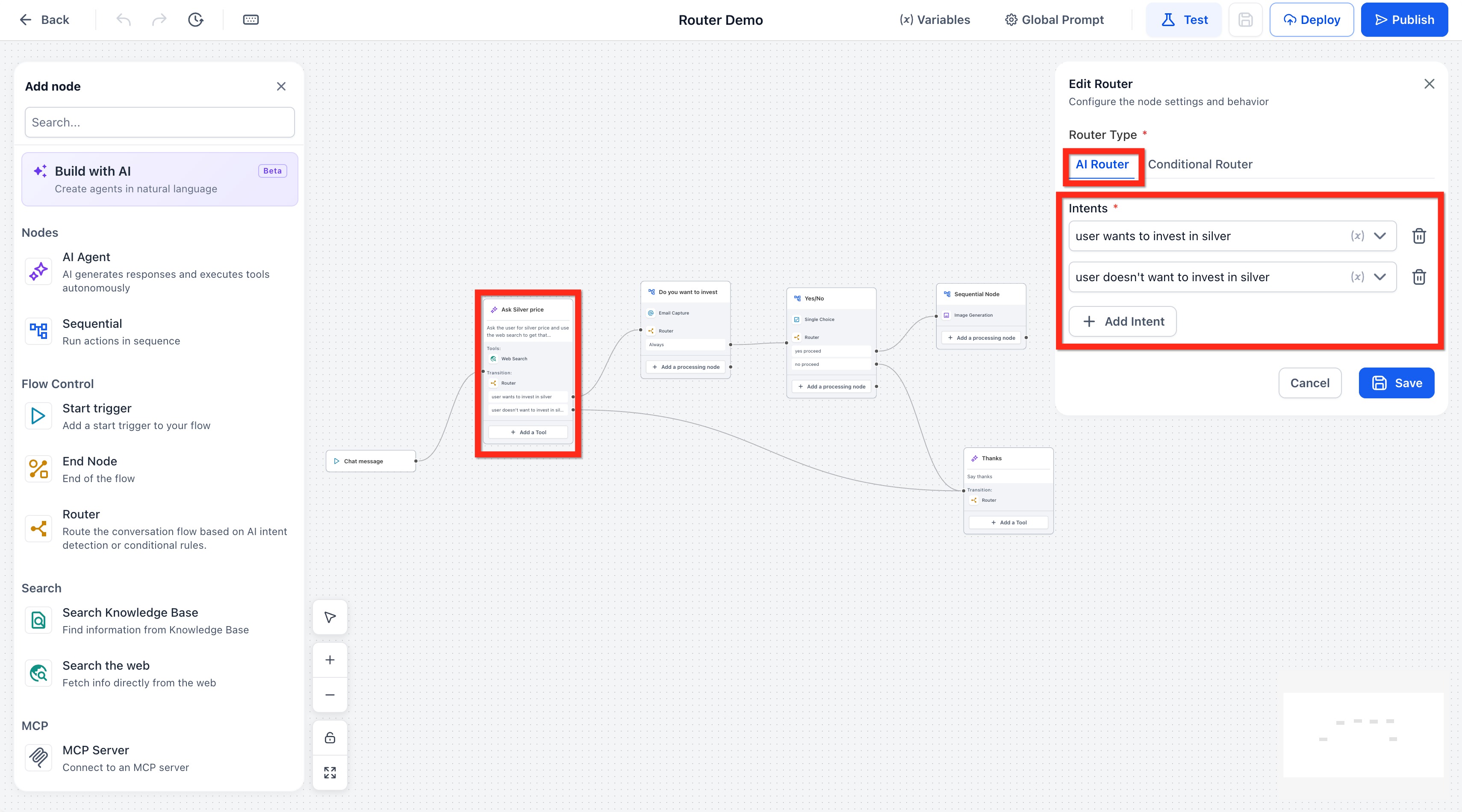
AI Router is best when the next step depends on what the user means in natural language. Instead of checking for an exact value, the AI reviews the user’s message and matches it to the most appropriate intent you define.
Use AI Router when:
- users may respond in different ways that mean the same thing
- you want to branch based on interest, sentiment, or conversational intent
- the path should be chosen from natural language instead of a stored variable
Example intents:
- User wants to invest in silver
- User does not want to invest in silver
In this setup, the Router evaluates the user’s last message and sends the conversation to the matching connected node.
Using Conditional Router
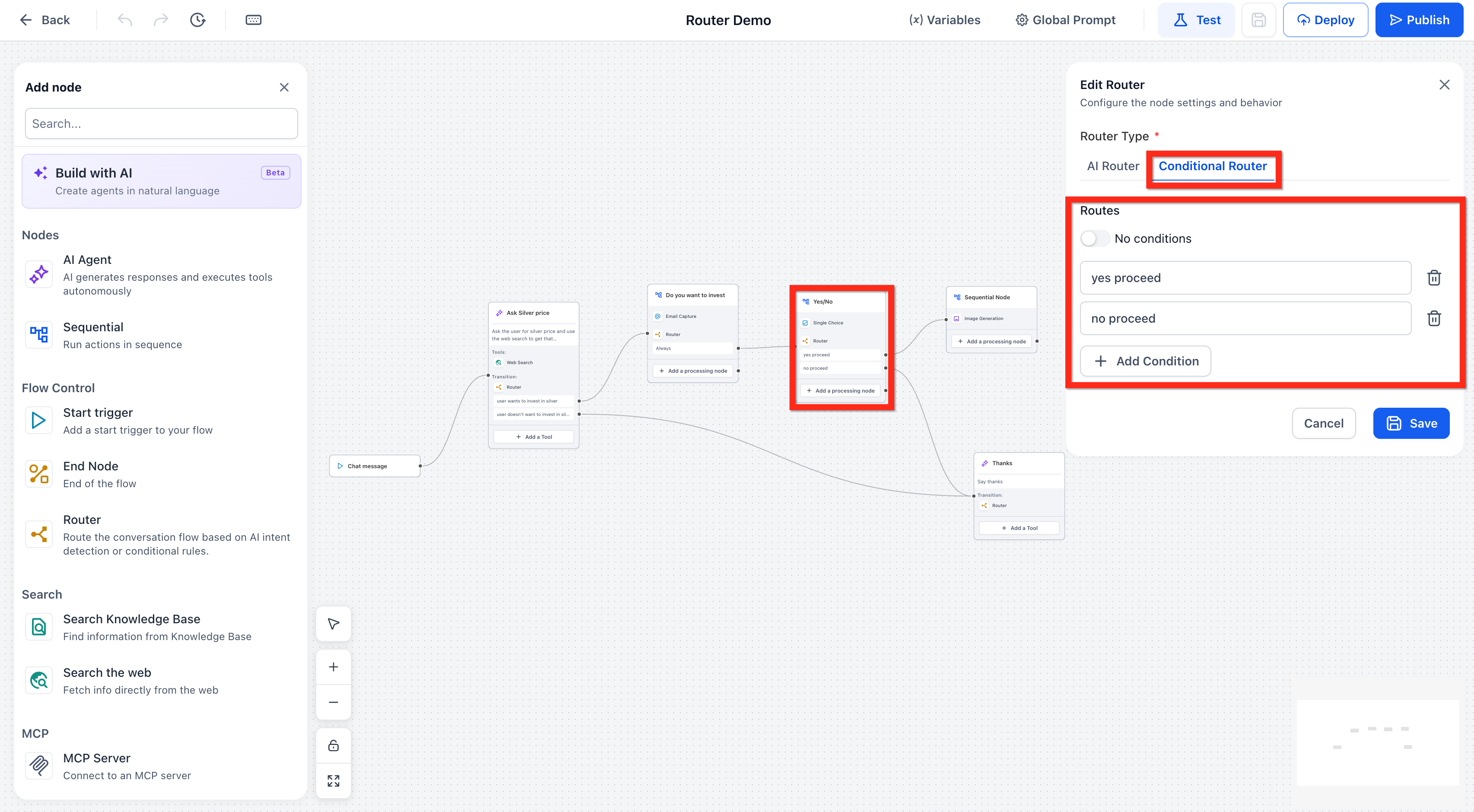
Conditional Router is best when routing depends on a known value that has already been captured in the conversation. This is useful when a tool, form field, choice, or earlier node stores a value that can be evaluated with logic.
Use Conditional Router when:
- you already have a saved variable to evaluate
- the route depends on a fixed value such as Yes, No, positive, or negative
- you need explicit rule-based branching instead of AI interpretation
Conditional routes use logic fields such as:
- Variable
- Operator
- Value
Example:
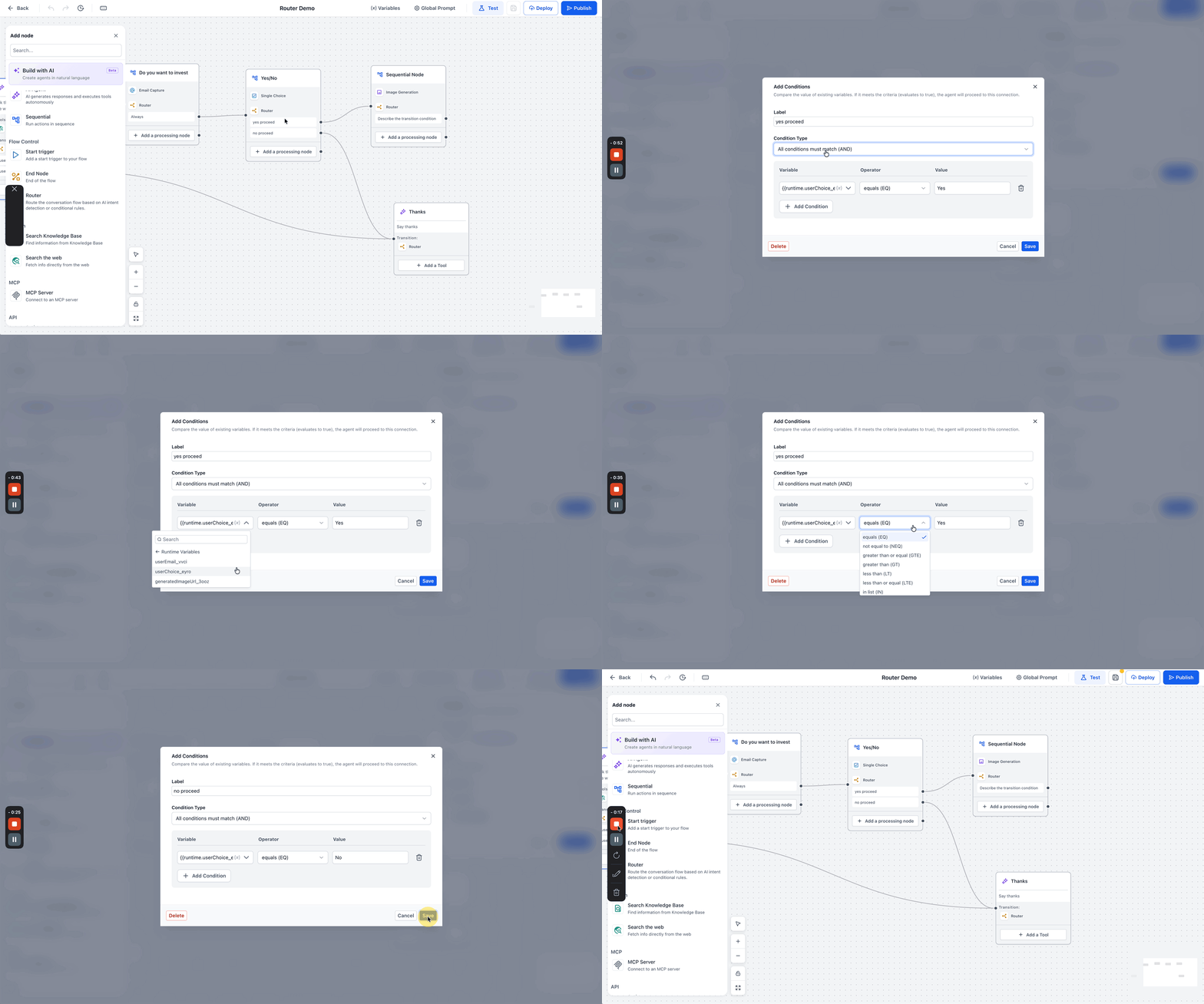
- Variable:
{{runtime.userChoice_eyro}} - Operator:
equals (EQ) - Value:
Yes
That route can send the user to a proceed path, while another condition can send them to a different node.
Using No Condition
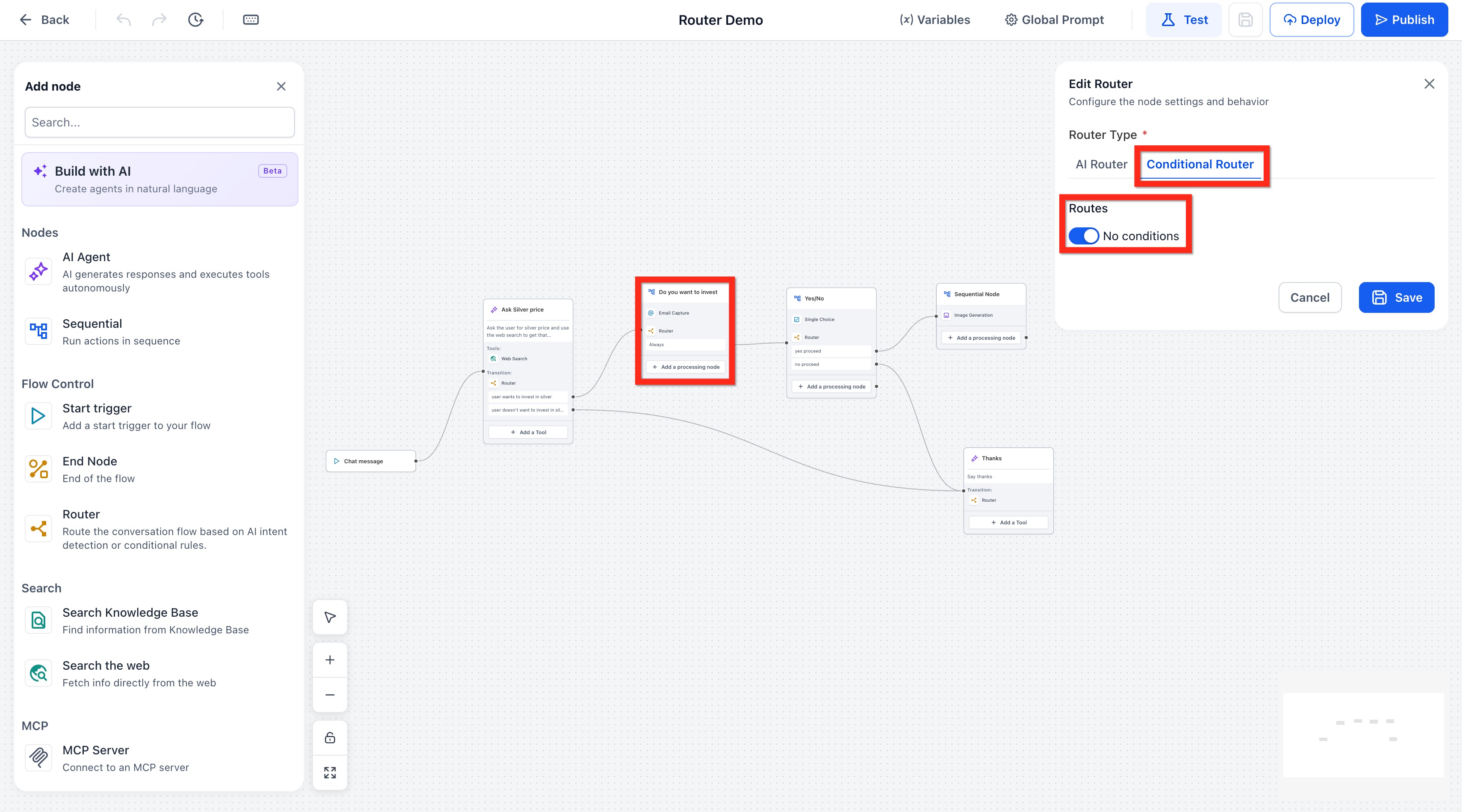
No Condition is useful when you want the Router to move forward every time without evaluating intent or logic. This creates an always-on route and works well as a bridge between steps in a larger conversation flow.
Use No Condition when:
- the next node should always run after the current one
- you want a simple transition between nodes
- a step has already collected the needed information and should now continue automatically
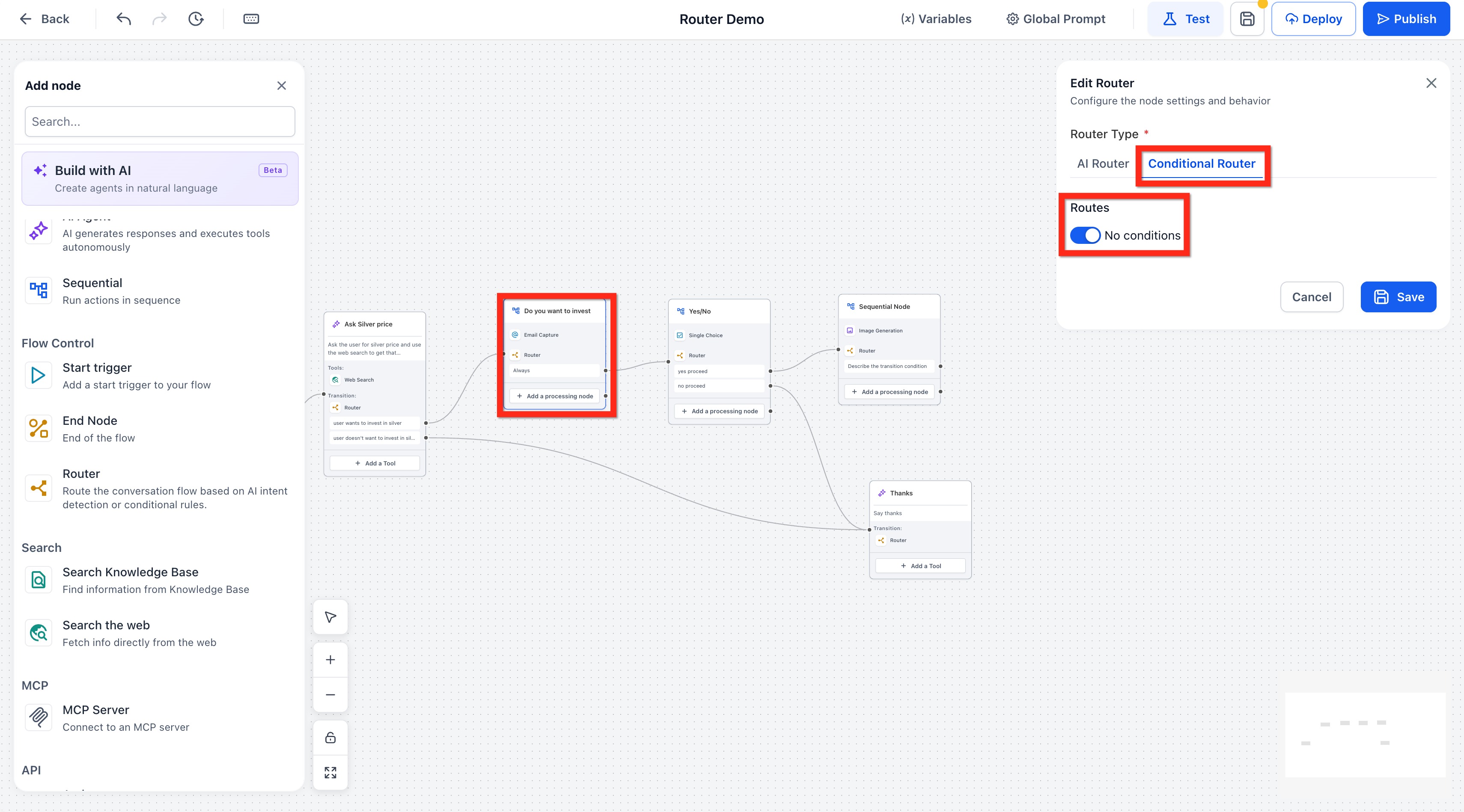
When enabled, the route acts as an always path to the next connected node.
Using Router Inside Sequential Nodes
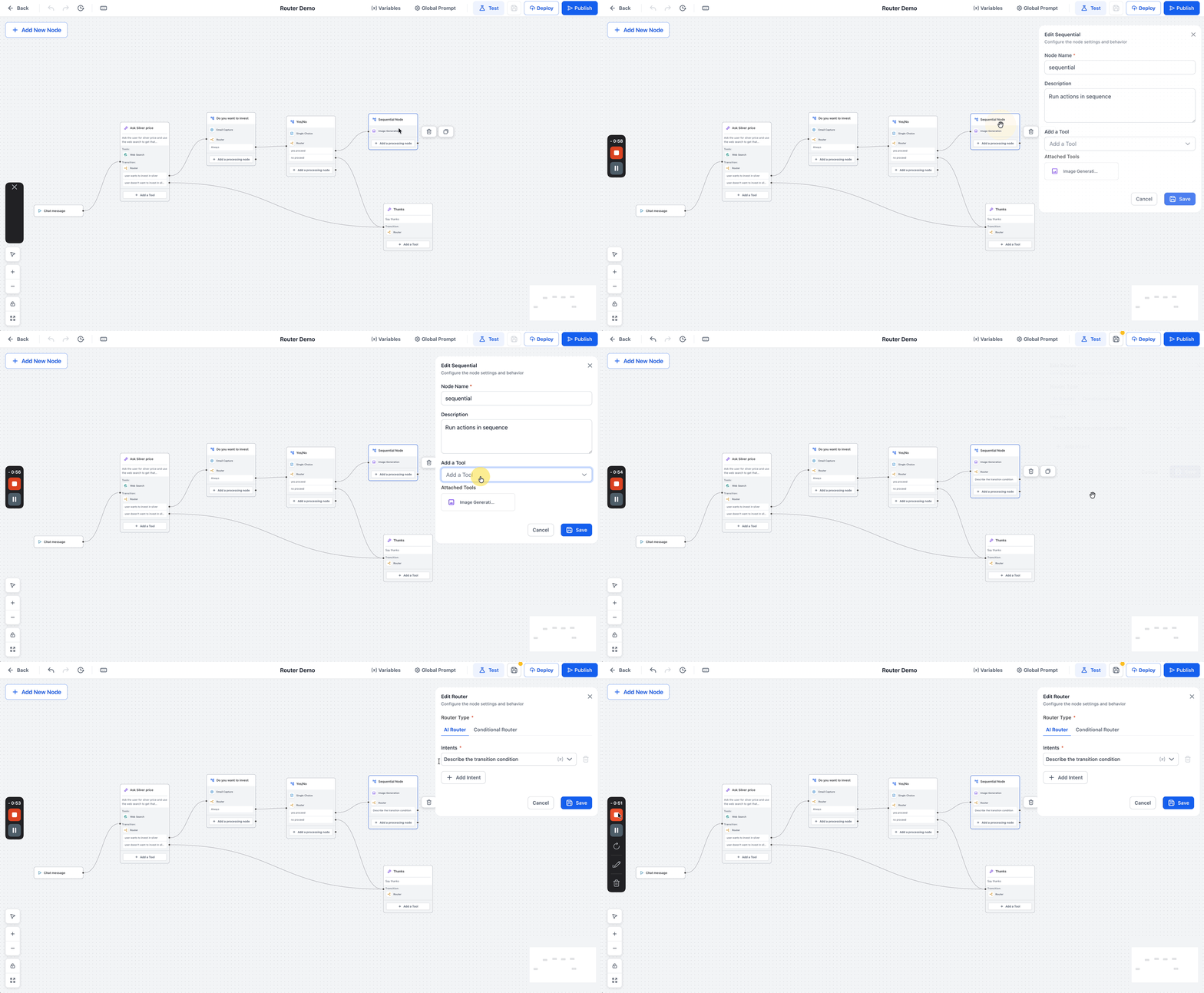
Router can also be used inside Sequential Nodes, which allows a mostly linear flow to branch when needed. This is helpful when a sequence should continue in order but still needs an AI-based or logic-based decision before moving forward.
This approach works well when:
- a sequence needs a decision point before the next step
- a user’s answer should redirect them to different outcomes
- you want to combine structured flows with dynamic routing
How To Use the Routing Tool in Agent Studio
A well-structured Router setup ensures conversations move intelligently based on user intent or defined logic. Follow the steps below to configure both AI-based and rule-based routing inside your agent.
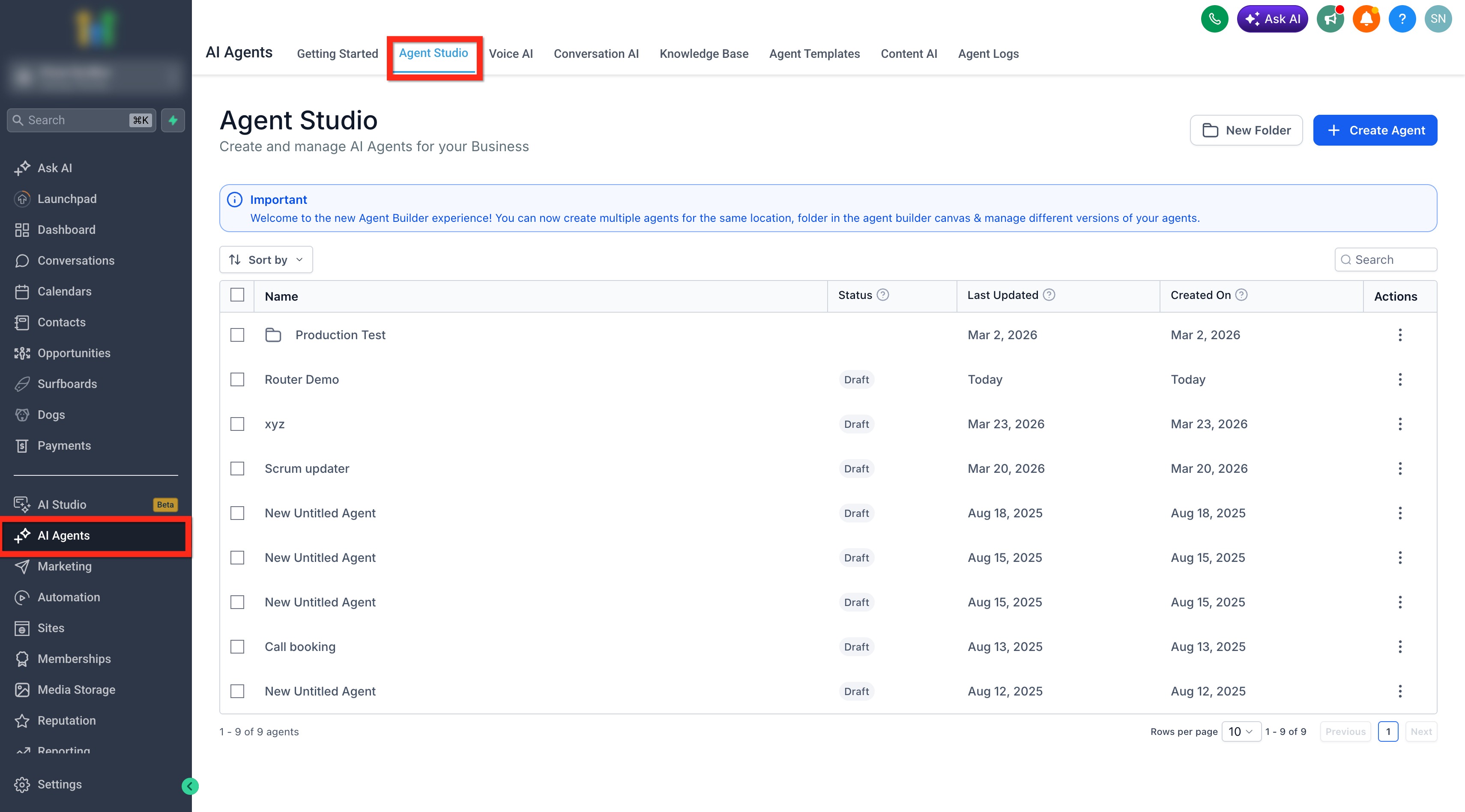
- Go to AI Agents, then select the Agent Studio tab at the top of the page.
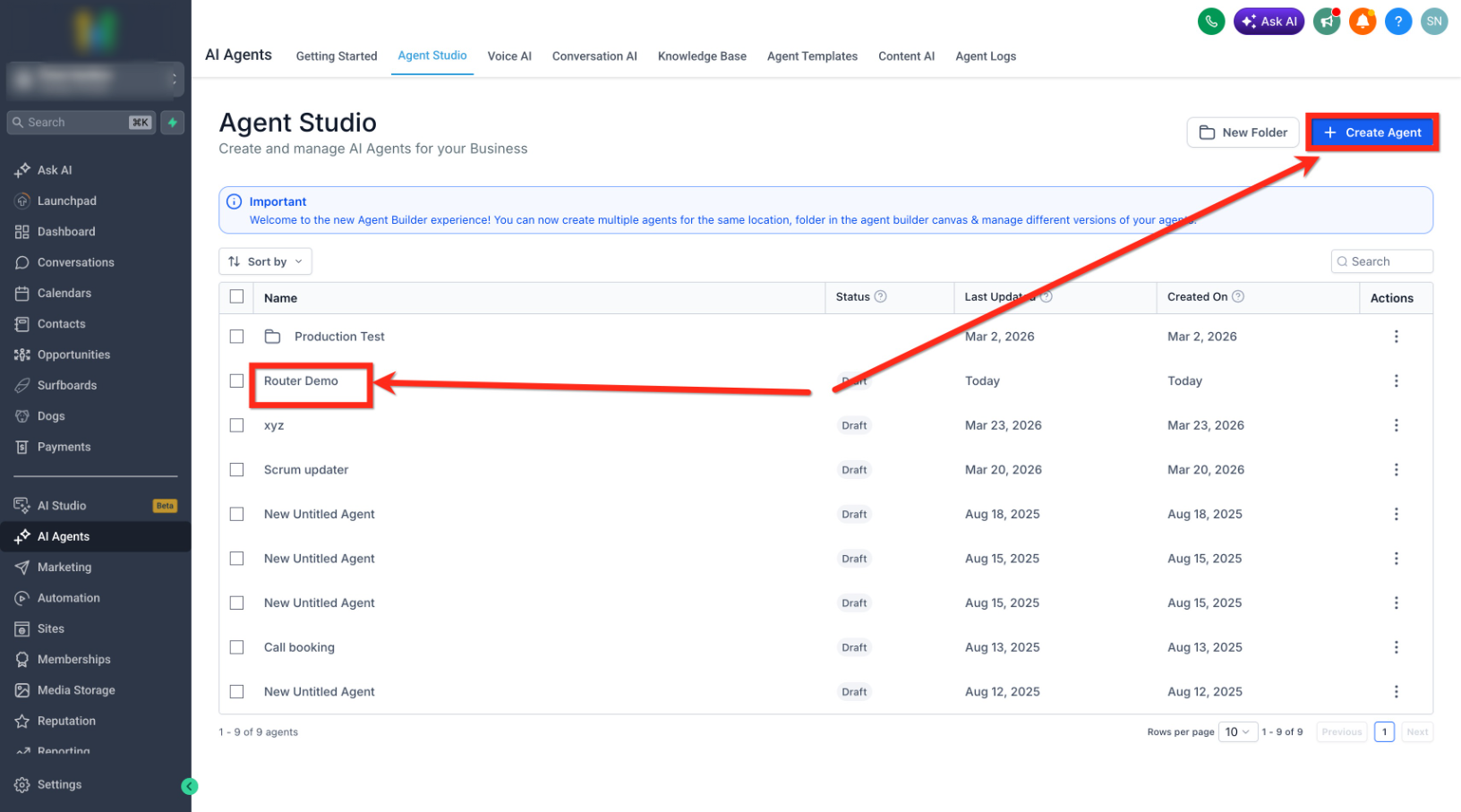
- Create a New Agent or click an existing agent name to open it.
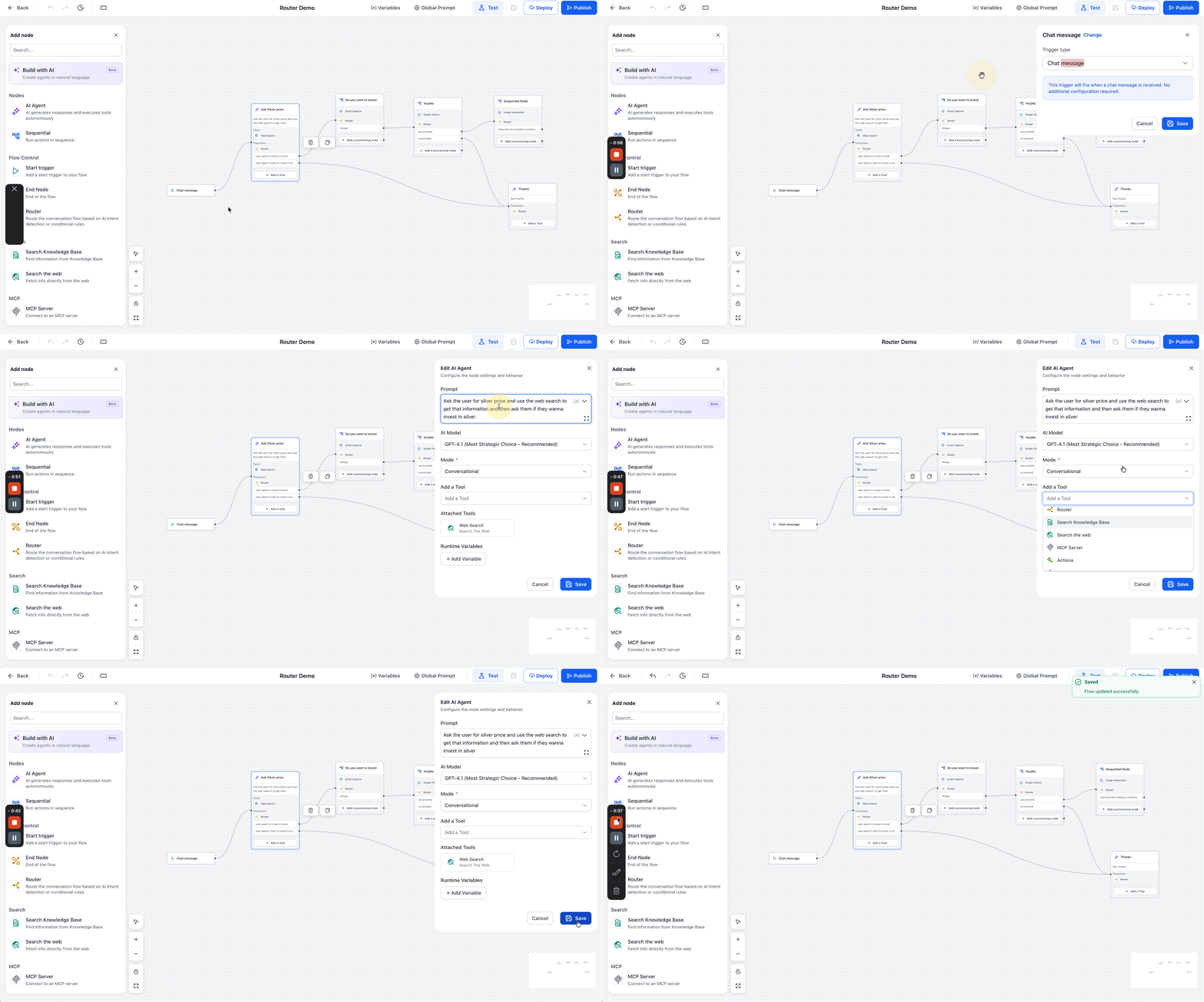
- Add a Trigger (for example, Chat Message or Form Submitted).
- Add an AI Agent node and configure it.
- From the Flow Control panel on the left, drag the Router node onto the canvas to insert a decision point in your conversation flow.
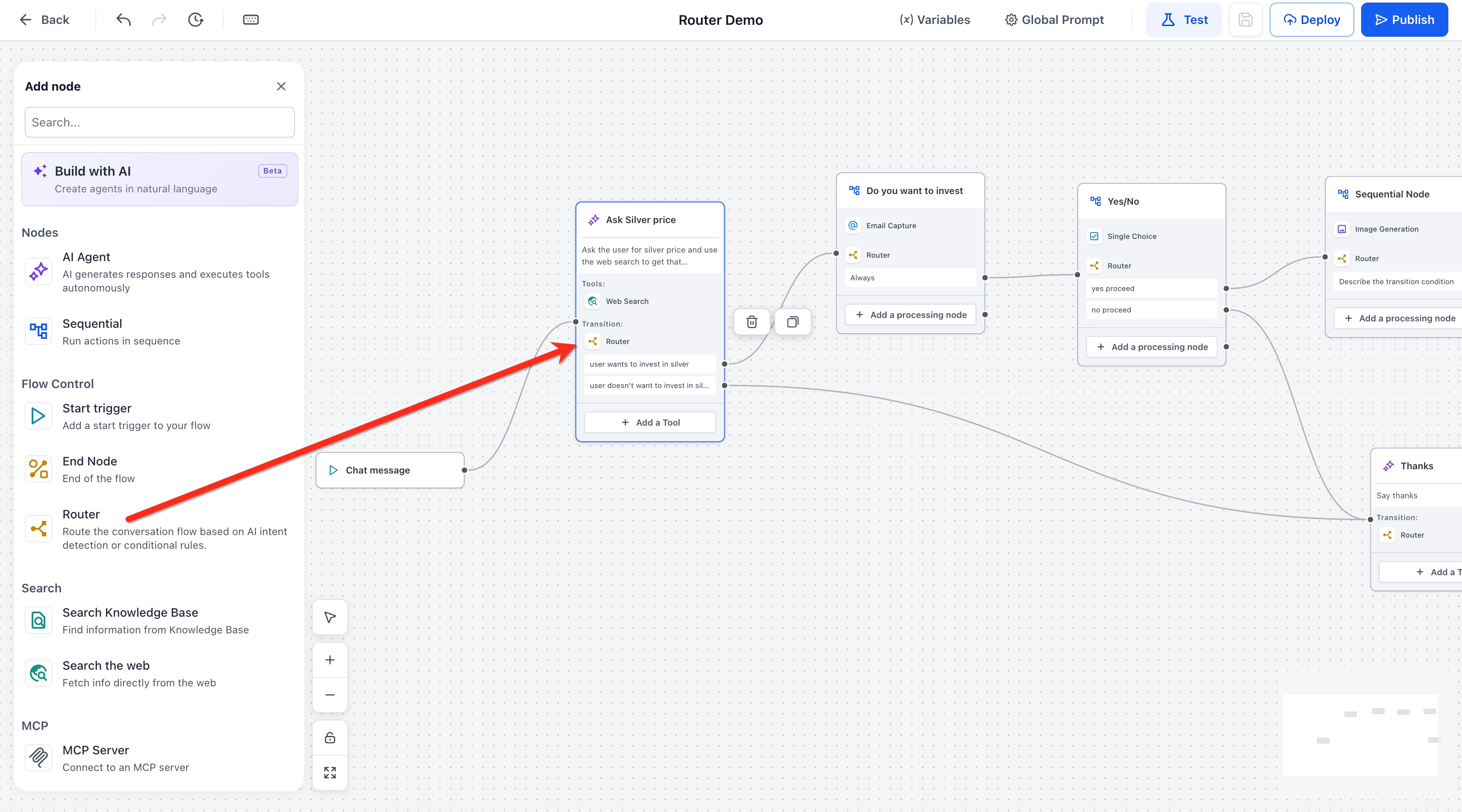
- Once placed, the Edit Router panel opens on the right, where you can choose the routing mode and configure how the conversation should branch.
- In the Router configuration panel, choose between AI Router and Conditional Router under Router Type. This determines whether the routing decision is based on intent detection or rule-based logic.
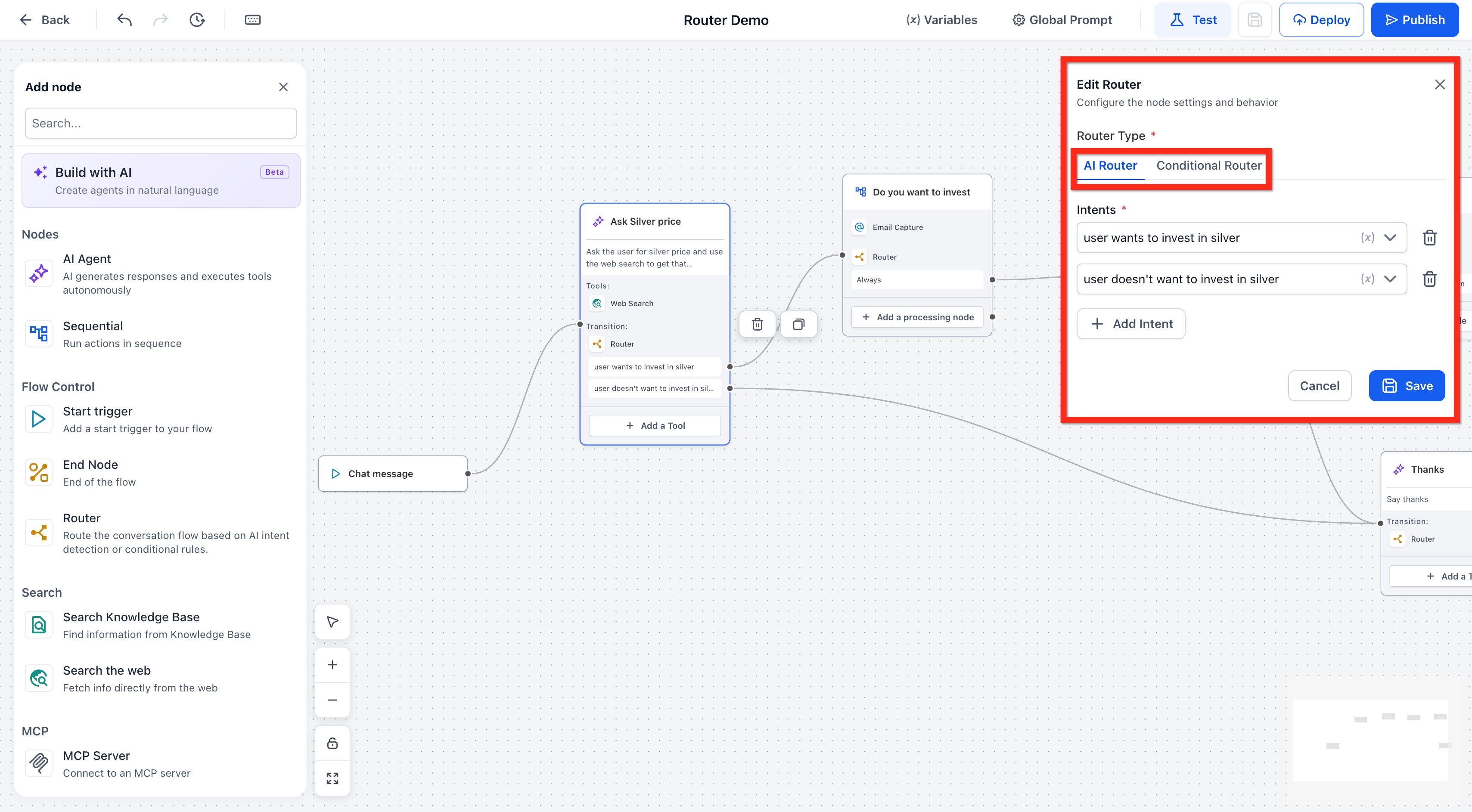
- Configure the router:
- For AI Router: Add the intents that should determine each path. Each intent represents a branch the conversation can follow when the AI detects matching intent from the user’s message.
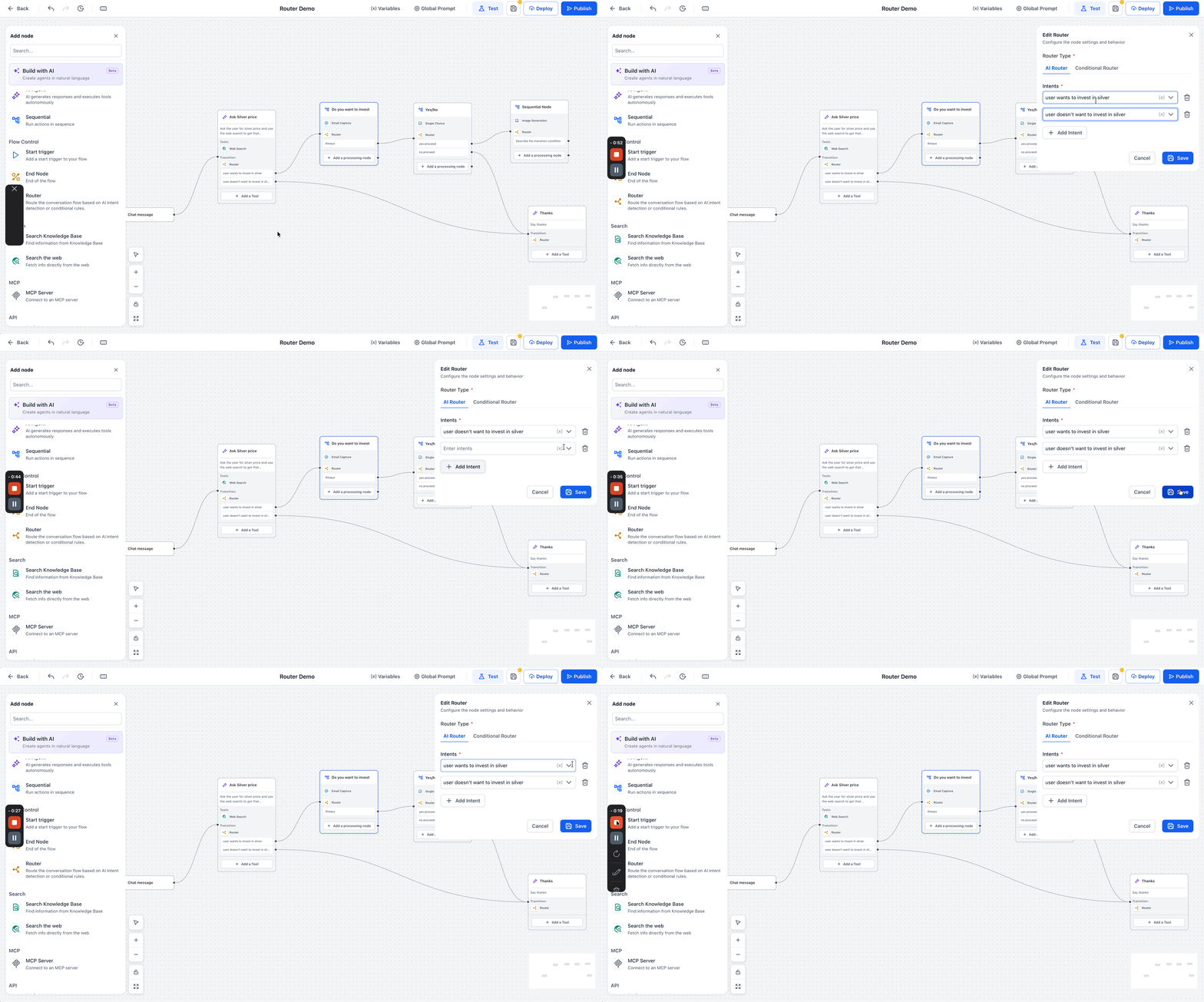
- For Conditional Router: Add one or more conditions using the correct variable, operator, and value. In the condition editor, select the Variable, choose the appropriate Operator, and define the expected Value. This tells the Router exactly what data to evaluate before proceeding down that branch.
- For No Condition: Enable the toggle so the route always continues to the next node.
- For AI Router: Add the intents that should determine each path. Each intent represents a branch the conversation can follow when the AI detects matching intent from the user’s message.
- Connect each route output to the correct destination node in your graph.
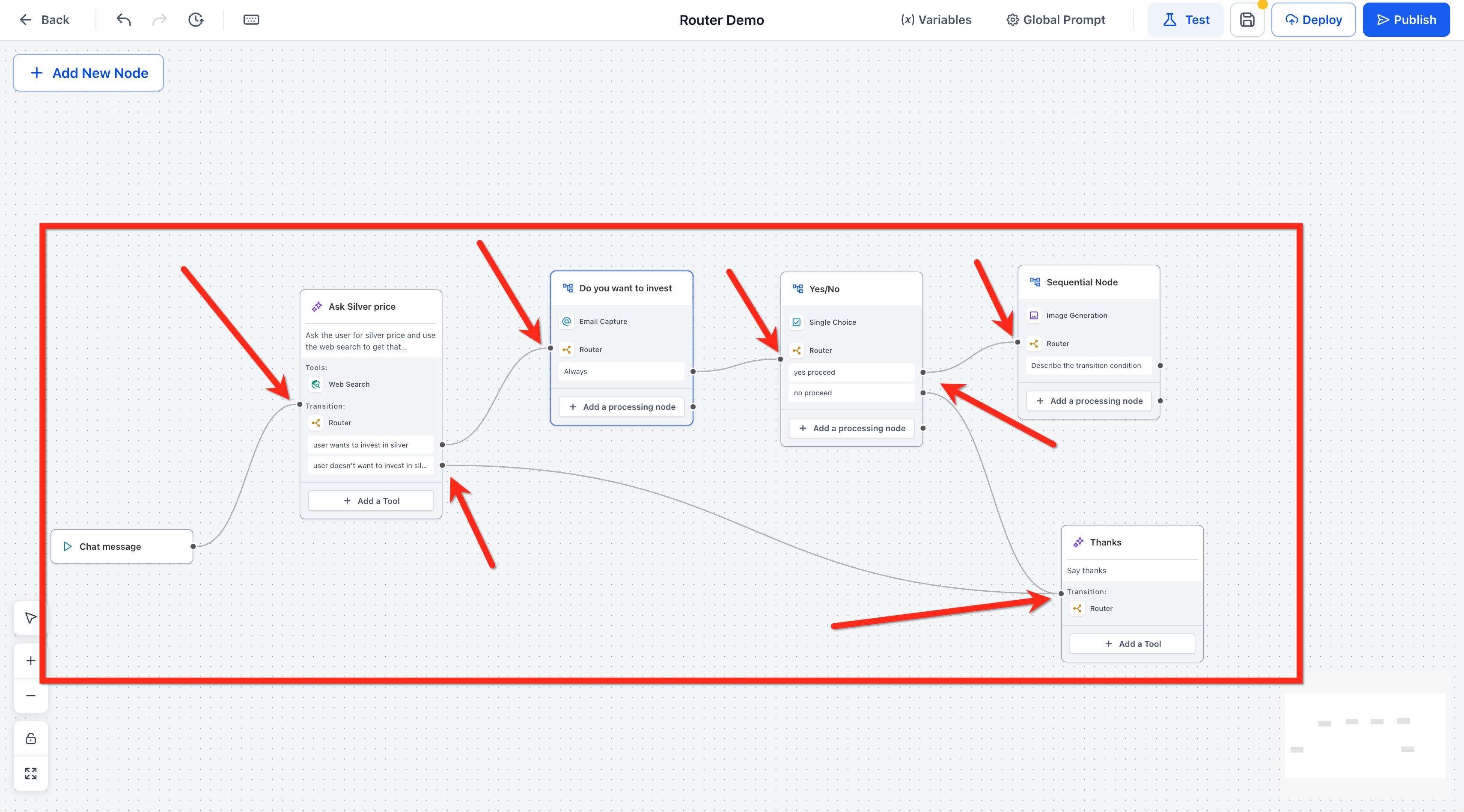
- Save your Router settings.
- Test the conversation to confirm each route leads to the correct next step.
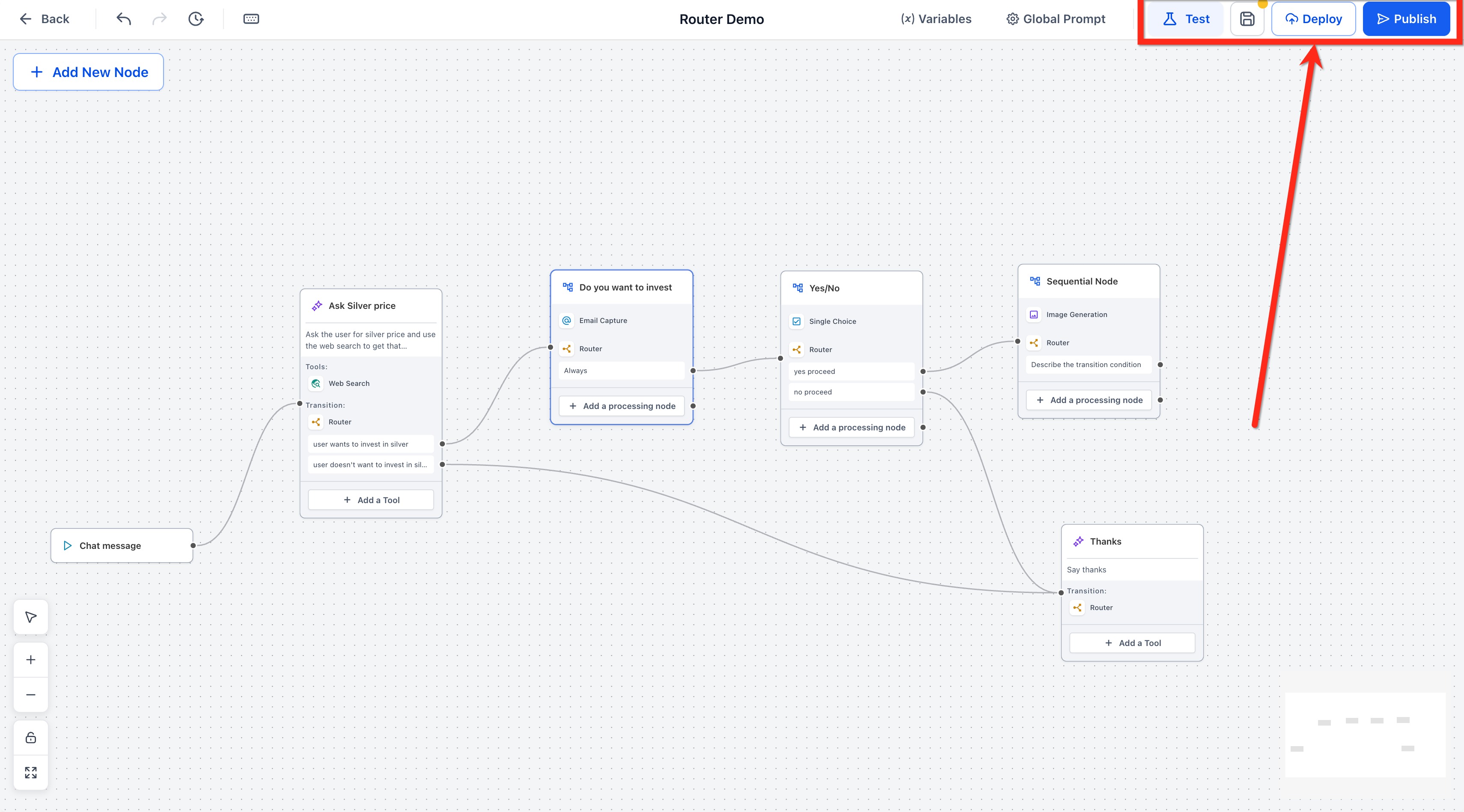
- Save, Publish and Deploy the workflow.
Best Practices
Strong routing design makes your agent easier to maintain and helps reduce errors during testing.
- Use AI Router when user responses may vary in wording but share the same intent.
- Use Conditional Router when the decision depends on a saved value.
- Use No Condition when the flow should always continue.
- Use clear route names and test with real-world variations in user responses.
- Always connect a Default path (where available) to avoid dead ends when no match is found.
Frequently Asked Questions
Q: What is the difference between AI Router and Conditional Router?
AI Router evaluates natural-language intent, while Conditional Router checks a saved value using logic such as variable, operator, and value.
Q: When should I use No Condition?
Use No Condition when the flow should always move to the next connected node without evaluating intent or logic.
Q: Can I use Router inside Sequential Nodes?
Yes. Router can be used inside Sequential Nodes so a linear flow can branch before continuing.
Q: Do I need a variable for AI Router?
No. AI Router uses the user’s natural-language response and the intents you define.
Q: Do I need a variable for Conditional Router?
Yes. Conditional Router works best when the value has already been captured and stored for evaluation.
Q: What happens if no intent or condition matches?
The flow follows the Default edge. If none is connected, the conversation ends with an error log entry.
Q: Can I mix AI and Conditional routing in one node?
One Router node supports one mode at a time, but you can chain multiple Routers back-to-back.
Q: Is intent training required?
No. The model classifies on-the-fly from your intent names and the current conversation context.
Q: How do I debug misplaced routes?
Open the Execution Log → Routing tab to see the detected intent and confidence, or the evaluated condition string.
Q: Will the floating panel replace all pop-ups in Agent Studio?
Yes, future node types will use the same non-modal panel to keep the canvas visible.