
You can use your saved Brand Board colors directly inside the Form, Survey, and Quiz builders. This article explains how the color picker surfaces Brand Colors so you can keep every asset on-brand without manually copying color codes.
TABLE OF CONTENTS
- What are Brand Board Colors in the Form, Survey, and Quiz Builder?
- Key Benefits of Brand Board Colors in Form, Survey, and Quiz Builder
- How Brand Board Colors work in the Builder
- Frequently Asked Questions
What are Brand Board Colors in the Form, Survey, and Quiz Builder?
Brand Board colors let you use saved brand colors directly from the color picker while styling builder elements. This helps you keep buttons, inputs, labels, and other design elements aligned with your brand—without copying and pasting HEX codes manually.
Brand Colors appear based on your saved Brand Board setup. If you don’t see them, confirm:
- your Brand Board has colors configured, and
- the correct default Brand Board is set.
Key Benefits of Brand Board Colors in Form, Survey, and Quiz Builder
- Faster styling: Apply saved brand colors without manually entering HEX codes each time.
- Better brand consistency: Keep buttons, fields, labels, and other visual elements aligned with your approved palette.
- Simpler collaboration: Share a reusable set of colors across Forms, Surveys, and Quizzes.
- Easier color management: Open Brand Settings from the picker to add or manage reusable custom colors.
How Brand Board Colors work in the Builder
This feature connects your saved brand palette to the builder so you can apply approved colors without interrupting your workflow. It also reduces the need to manually match colors across forms and other assets.
When you open a color field in the builder:
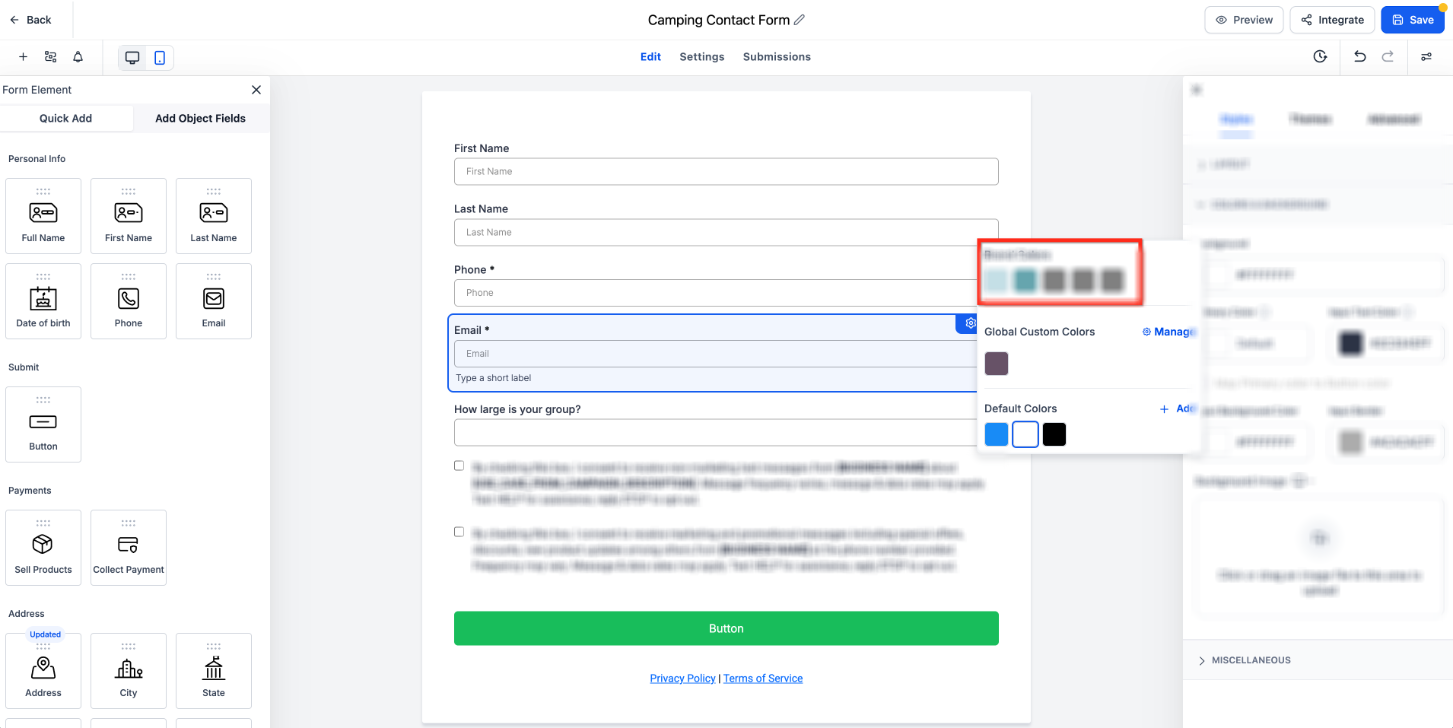
- The color picker displays available color sections, including Brand Colors, Global Custom Colors, and Default Colors.
- Selecting a saved Brand Color applies that color to the chosen element, and the builder updates the preview automatically.
- To add a new custom brand color, click Manage in the color picker to open Brand Settings.
Note: Changing your default Brand Board does not automatically restyle existing Forms, Surveys, or Quizzes. Existing assets keep their current styling until you update them manually.
Frequently Asked Questions
Q: Why are my Brand Colors not showing in the color picker?
Confirm that your Brand Board has saved colors and that the correct default Brand Board is configured.
Q: What’s the difference between Brand Colors and Global Custom Colors?
Brand Colors come from your Brand Board’s approved palette. Global Custom Colors are reusable saved colors that can be managed from Brand Settings and used across supported color pickers.
Q: Will changing my default Brand Board automatically update my existing forms?
No. Existing Forms, Surveys, and Quizzes keep their current styling until you update them manually.