
Duplicating and copying pipelines allows you to reuse an existing sales structure without rebuilding it from scratch. This helps maintain consistency, reduce setup time, and streamline how opportunities are managed across different accounts. By using these options, teams can quickly replicate proven workflows and keep pipeline structures aligned across environments.
TABLE OF CONTENTS
- What Pipeline Duplication and Copying Does
- Key Benefits
- Duplicate vs Copy Pipelines
- Permissions Required
- What Gets Copied and What Doesn’t
- How to Duplicate a Pipeline
- How to Copy a Pipeline to Other Accounts
- Best Practices
- Frequently Asked Questions
- Need More Help?
What Pipeline Duplication and Copying Does
Pipeline duplication and copying allow you to reuse an existing opportunity pipeline instead of creating one manually each time. This ensures that your stages, structure, and reporting setup remain consistent and reliable.
Duplicating creates a version within the same account, which is useful for testing or creating variations. Copying allows you to send the same pipeline to other accounts, making it easier to scale processes and maintain standardization without repetitive work.
Key Benefits
Saves time by avoiding manual setup
Maintains consistent sales processes
Simplifies onboarding for new accounts
Reduces configuration errors
Allows safe testing through duplication
Duplicate vs Copy Pipelines
Understanding the difference between these options ensures you choose the right approach for your workflow.
Duplicating creates a copy inside the same account, while copying sends the pipeline to other accounts. Duplication is best when testing or modifying structures locally, while copying is ideal for distributing standardized pipelines across multiple accounts.
Permissions Required
Access to duplication and copying depends on user permissions.
Users with edit access can duplicate pipelines within the same account. Copying pipelines to other accounts requires higher-level permissions. If you do not see one of these options, it is likely due to access restrictions.
What Gets Copied and What Doesn’t
Understanding what transfers during duplication or copying helps avoid confusion later.
When duplicating within the same account, pipeline stages, permissions, stage colors, and visibility settings are copied. When copying to other accounts, only stages and visibility settings are transferred.
Records, automations, reports, and custom fields are not copied. Permissions and stage colors are also not included when copying to other accounts.
How to Duplicate a Pipeline
Duplicating a pipeline creates a working version inside the same account without affecting the original.
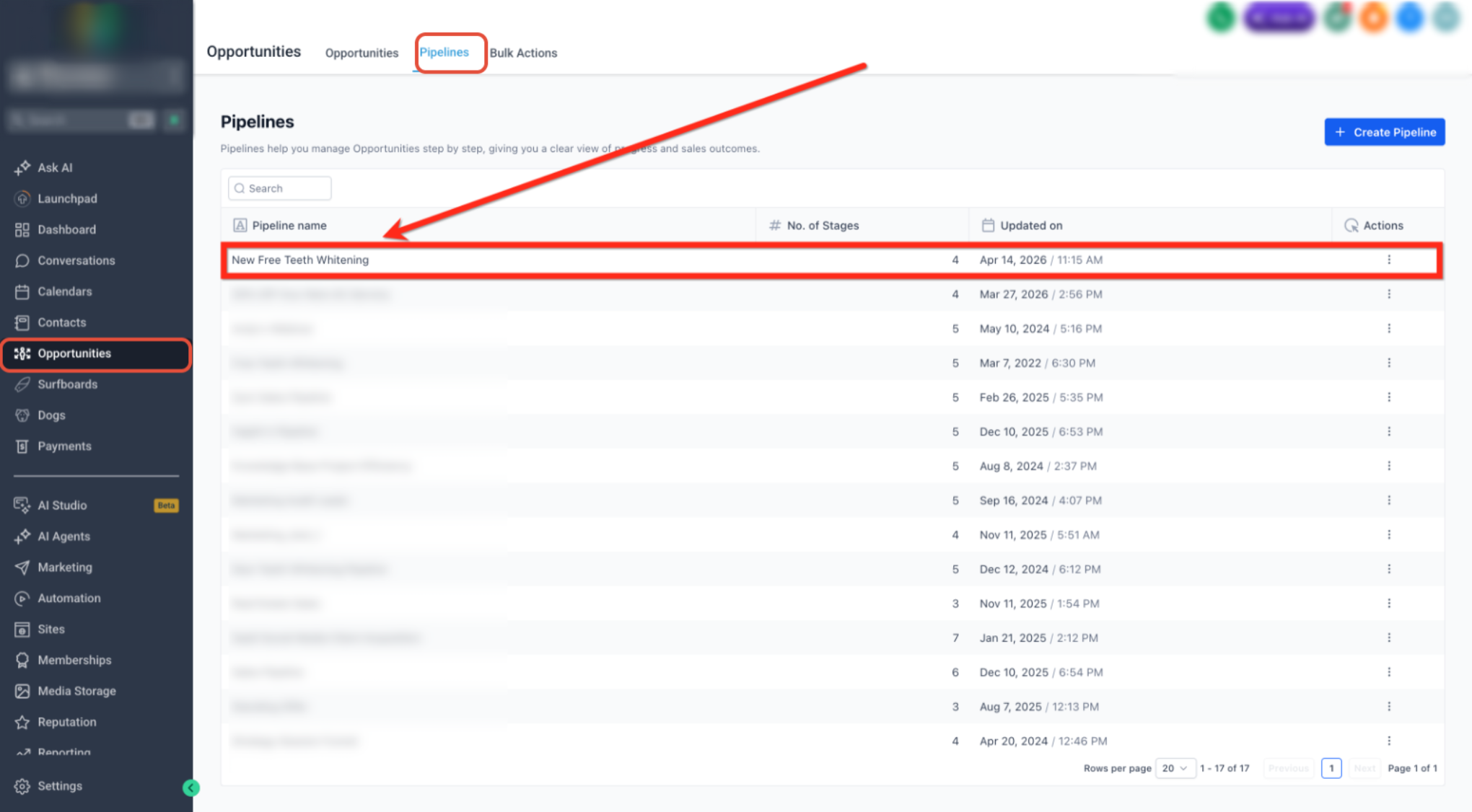
Step 1: Open the Pipelines Page
Go to Opportunities, then click the Pipelines tab.
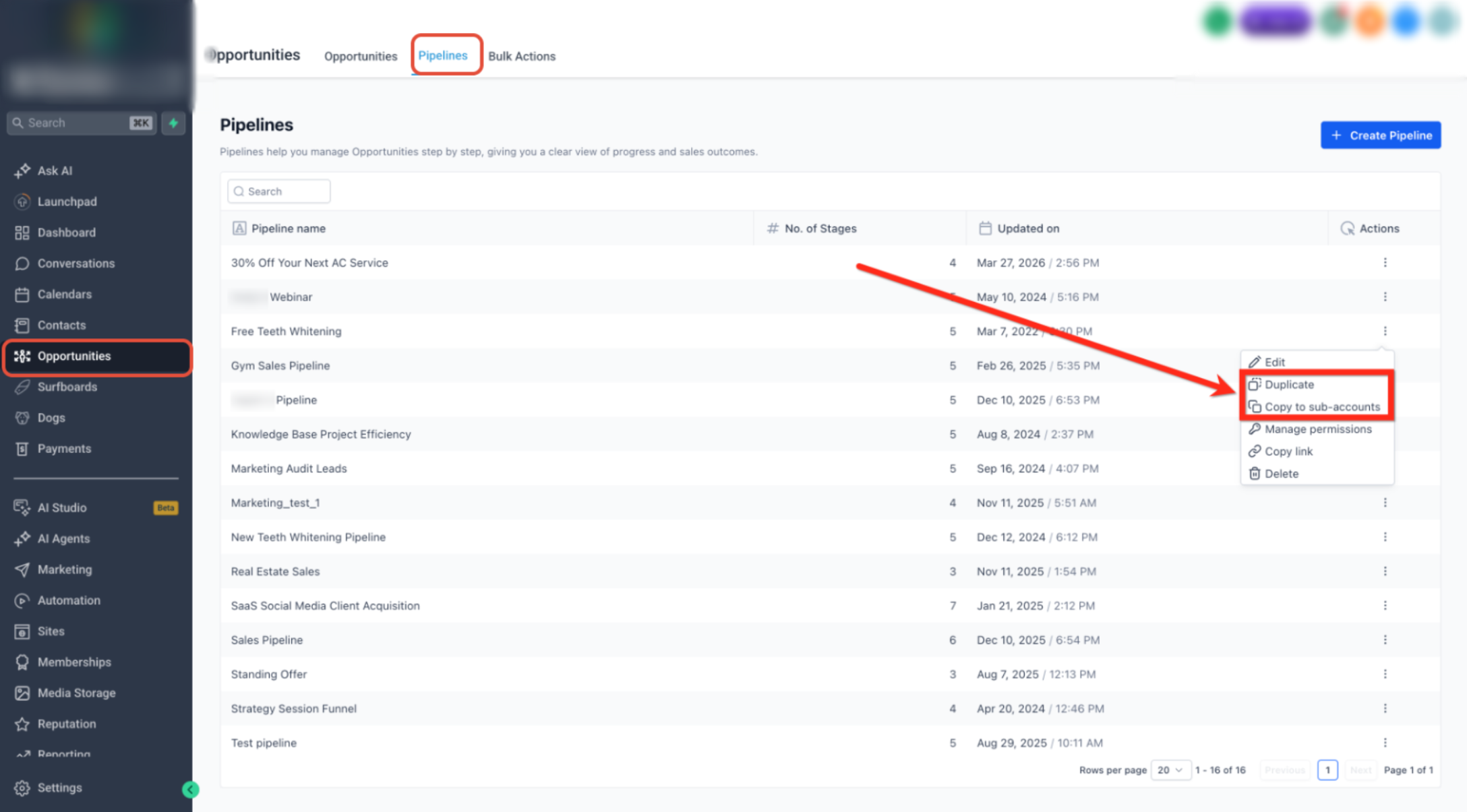
This image shows where to open the Pipelines page from the Opportunities area.
Step 2: Open the Pipeline Menu
Find the pipeline you want to duplicate. Click the three-dot menu on the right side of that pipeline.
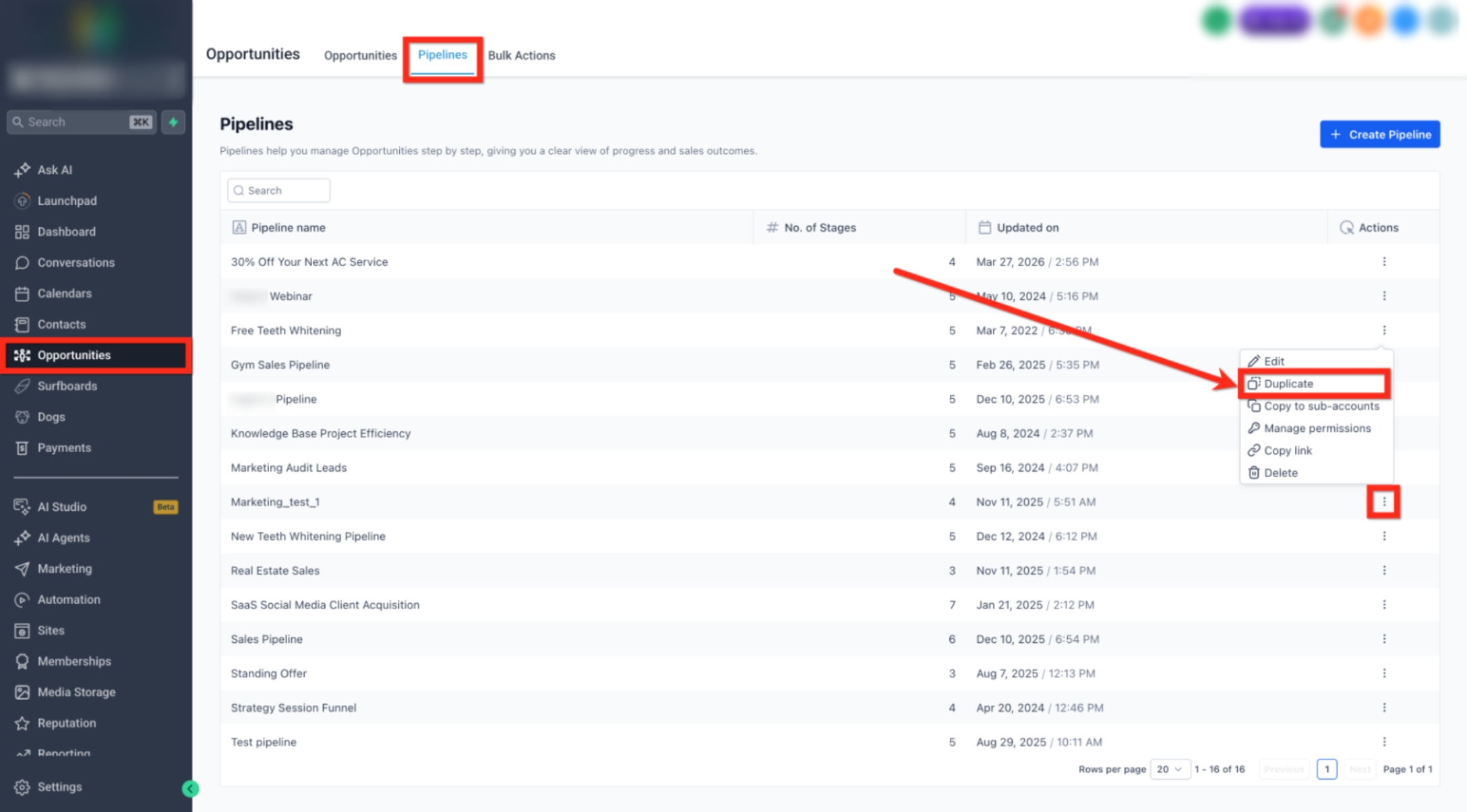
This image shows where to click to open the action menu for the selected pipeline.
Step 3: Select Duplicate
From the dropdown menu, click Duplicate.
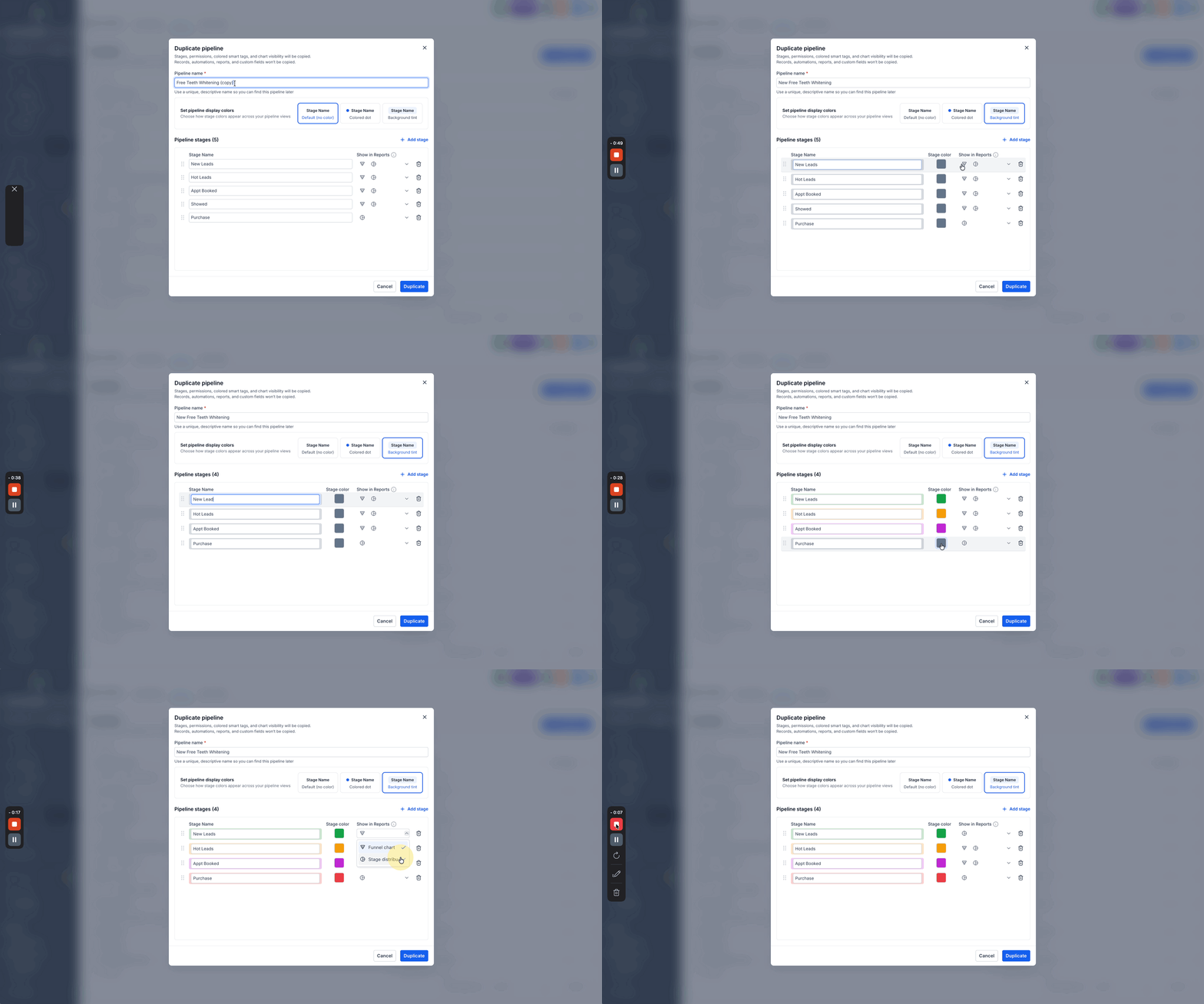
This image shows the duplicate option inside the pipeline action menu.
Step 4: Review the Duplicate Settings
In the duplicate window, enter a new pipeline name, review the stages, and update the display settings if needed.
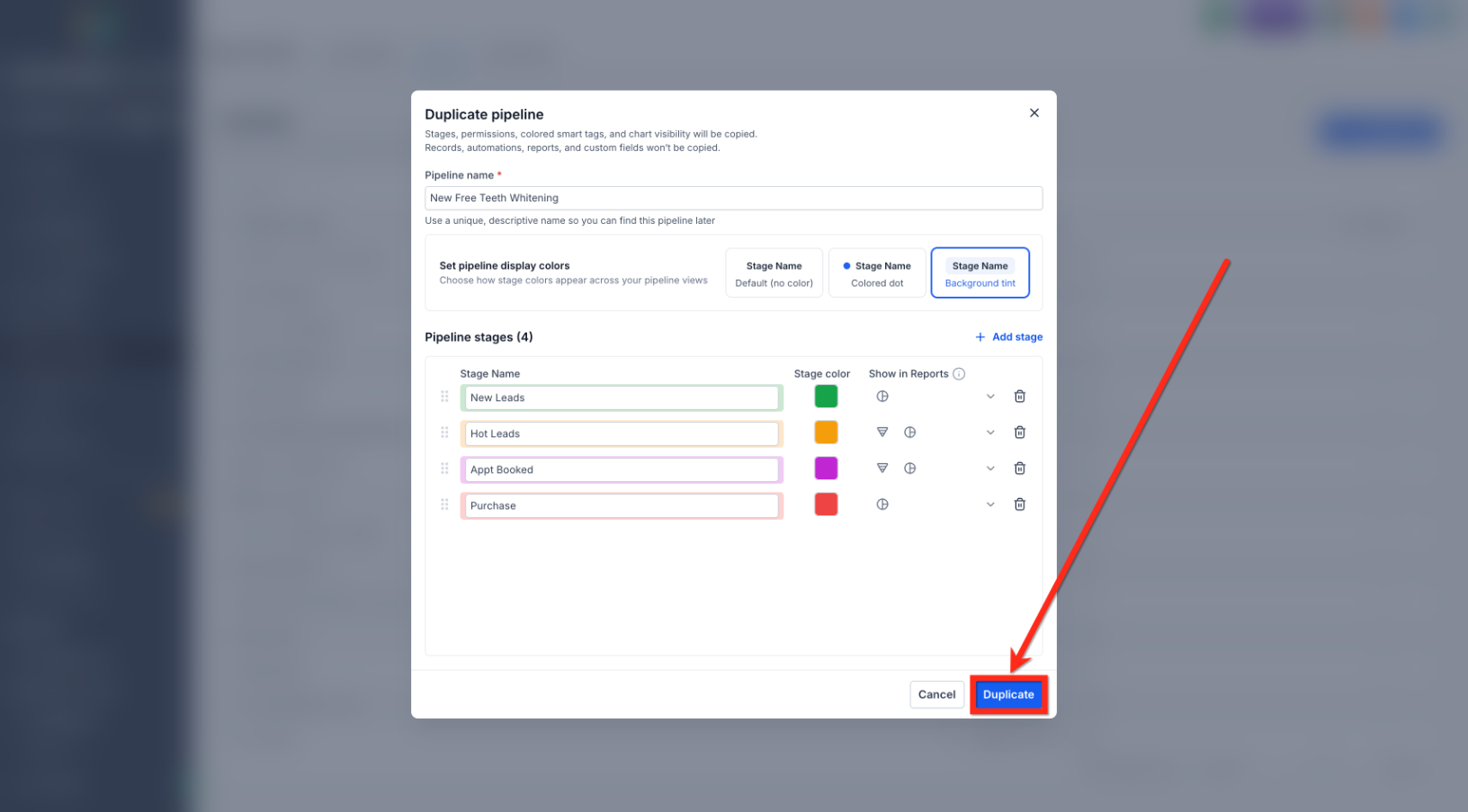
This image shows the duplicate window where you can rename the pipeline and review its settings.
Step 5: Create the Duplicate
Click Duplicate to finish creating the new pipeline.
This image shows the final button used to complete the duplication process.
After the duplicate is created, the new pipeline will appear in your pipeline list and can be used immediately.
How to Copy a Pipeline to Other Accounts
Copying a pipeline allows you to distribute the same structure across multiple accounts.
Step 1: Open the Pipelines Page
Go to Opportunities, then click the Pipelines tab.
Step 2: Open the Pipeline Menu
Find the pipeline you want to copy and click the three-dot menu on the right.
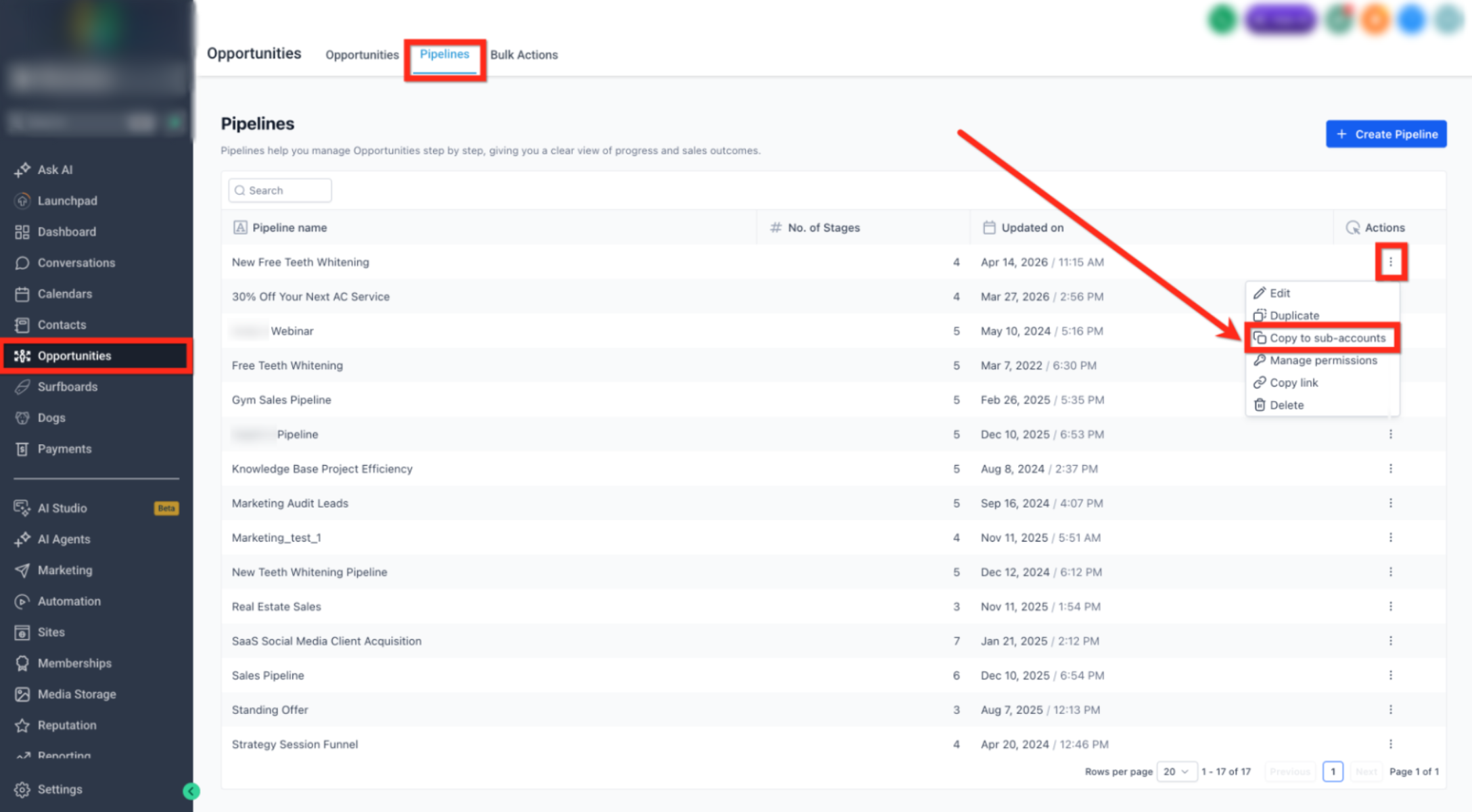
This image shows where to find the copy option inside the pipeline action menu.
Step 3: Select Copy to Other Accounts
From the dropdown menu, click Copy to sub-accounts.
Step 4: Choose the Destination Accounts
In the copy window, enter the pipeline name and select one or more destination accounts.
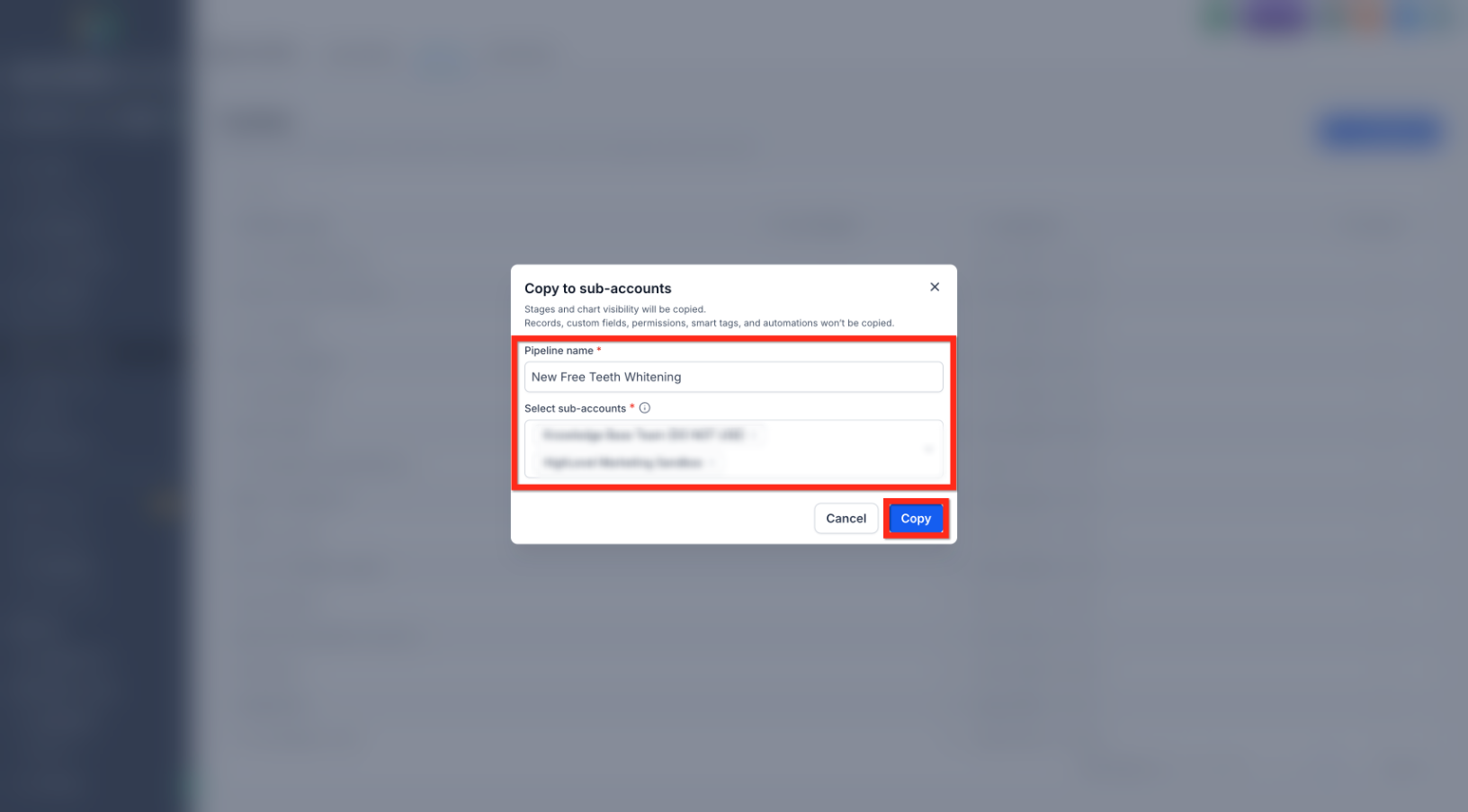
This image shows where to enter the new pipeline name, choose destination accounts, and confirm the copy action.
Step 5: Complete the Copy
Click Copy to create the pipeline in each selected account.
Once completed, the pipeline will appear in the pipeline list for each selected account.
Best Practices
Keeping pipelines organized and scalable requires consistent habits. Rename duplicated pipelines immediately so they are easy to identify. Use duplication when testing changes instead of modifying active pipelines. Before copying pipelines across accounts, standardize your structure to avoid inconsistencies.
It is also important to review what does and does not copy so you can complete any additional setup needed after duplication or distribution.
Frequently Asked Questions
Q: Can I duplicate a pipeline in the same account?
Yes, duplication creates a copy within the same account.
Q: Can I copy a pipeline to multiple accounts at once?
Yes, multiple accounts can be selected during the copy process.
Q: Why don’t I see the copy option?
This option is only available to users with the required permissions.
Q: Are records copied with the pipeline?
No, records are not included when duplicating or copying.
Q: Are automations or reports copied?
No, these must be recreated separately after copying.
Q: Will pipeline names stay the same?
You can rename pipelines during duplication or copying to avoid confusion.
Need More Help?
If you need additional assistance with duplicating or copying pipelines, or if something is not working as expected, open the Help section from your dashboard.
You can use the Help section to find more guides, review troubleshooting resources, or contact support for additional assistance.