
A custom 404 error page helps turn a frustrating “page not found” experience into a positive interaction. Instead of showing a generic error, you can guide visitors back to useful content, maintain brand consistency, and keep users engaged on your site.
TABLE OF CONTENTS
- What is a Custom 404 Error Page?
- How to Set a Custom 404 Error Page
- Best Practices for 404 Pages
- Frequently Asked Questions
- Need Help?
What is a Custom 404 Error Page?
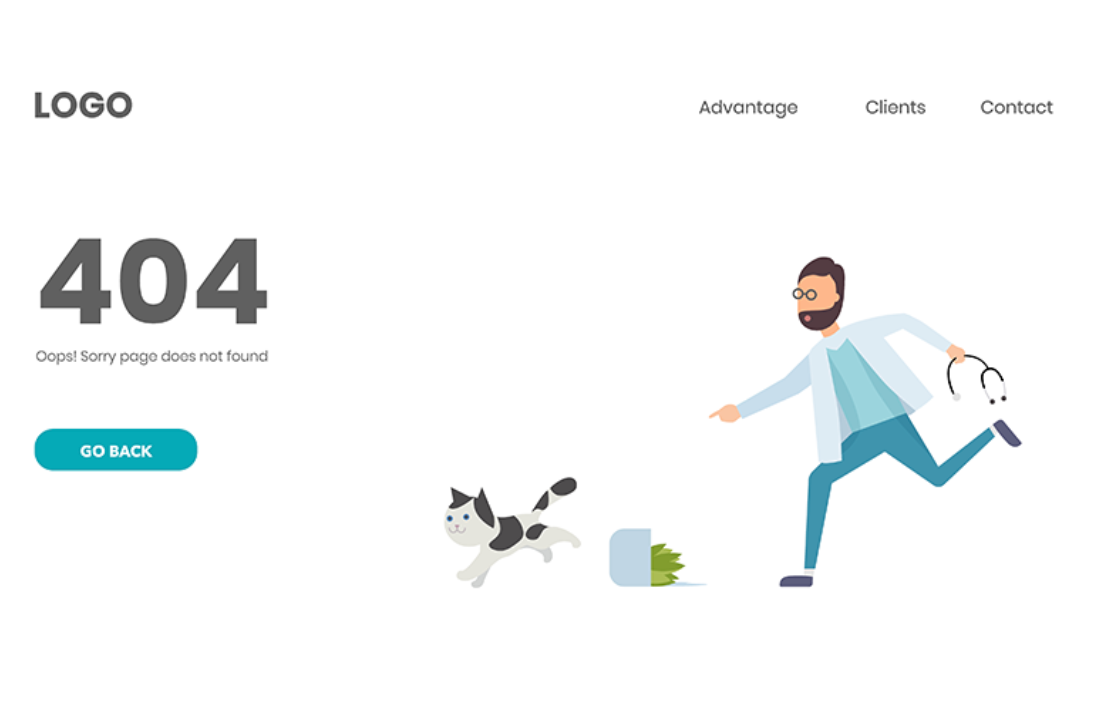
A custom 404 error page replaces the default error screen users see when a page doesn’t exist. Instead of a blank or confusing message, you can design a branded page that explains the issue and offers helpful navigation options.
This allows you to:
Keep visitors on your site
Provide helpful next steps
Maintain a consistent brand experience
Why Use a Custom 404 Page?
A well-designed 404 page improves how users interact with your site, even when something goes wrong.
Improved User Experience: Clear messaging reduces frustration and confusion
Better Engagement: Guide users to other pages instead of losing them
Brand Consistency: Maintain your look and tone across all pages
Lower Bounce Rates: Encourage users to stay and explore
SEO Support: Helps retain traffic and engagement signals
Common Use Cases
404 errors happen more often than expected. A custom page helps handle these situations better:
Broken or outdated links
Pages deleted or moved
URL changes without redirects
User typing errors in URLs
A custom page can redirect users to your homepage, popular pages, or search functionality instead of letting them leave.
How to Set a Custom 404 Error Page
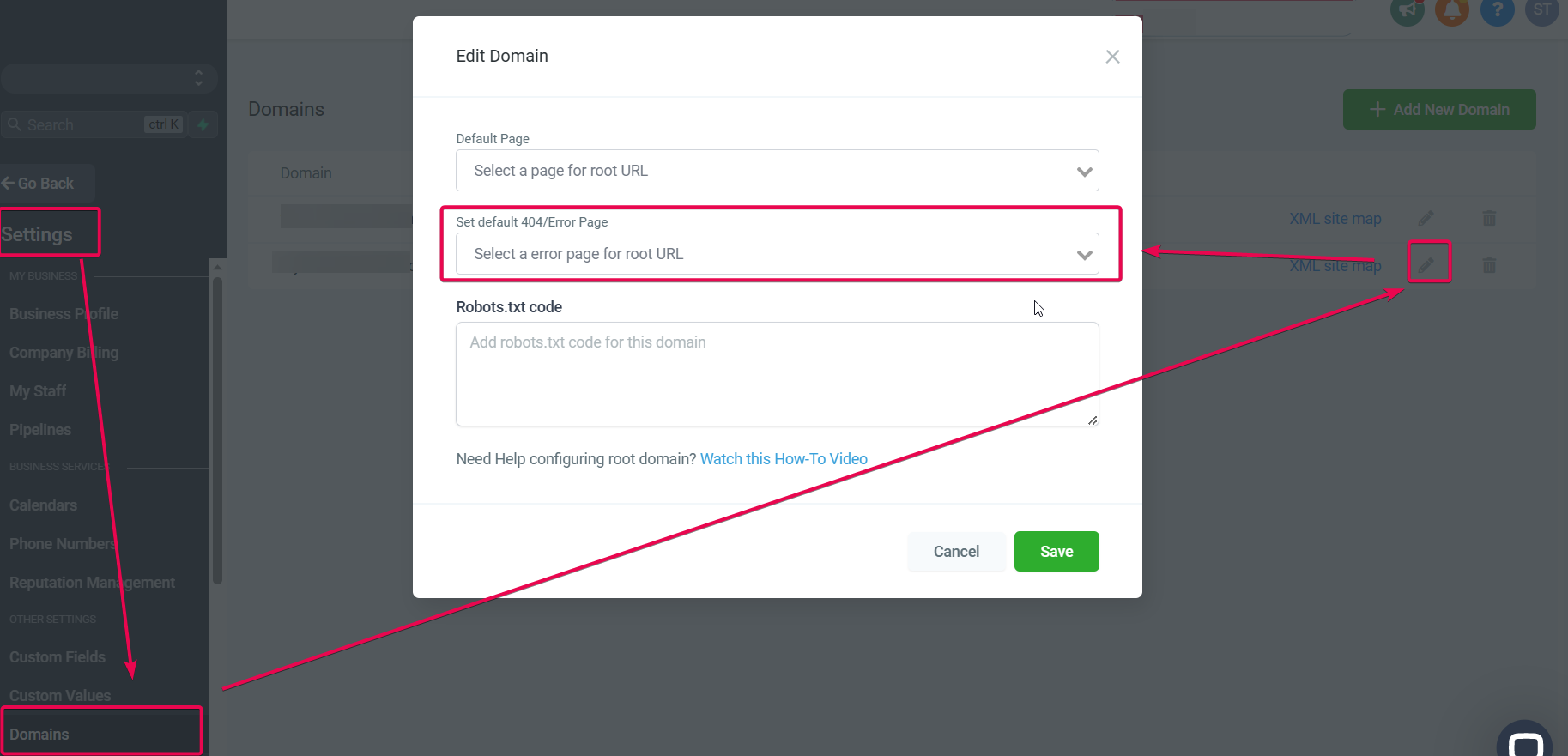
This screen shows where to locate and edit domain settings.
Navigate to Settings
Click Domains
Select your domain and click the edit (pencil) icon
This screen shows where to assign your custom 404 page.
Locate Set default 404/Error Page
Choose the page you created
Click Save
Before assigning a 404 page, you need to create one:
Go to your site or funnel builder
Create a new page
Add helpful elements such as:
Message explaining the error
Button to return home
Links to key pages
Search bar (optional)
Best Practices for 404 Pages
Keep the message simple and friendly
Include a clear call-to-action (e.g., “Go Back” or “Visit Homepage”)
Add navigation links
Avoid clutter or confusion
Match your branding
Frequently Asked Questions
Q: Can I track visits to my 404 page?
Yes, tracking tools can help you monitor how often users land on your 404 page and what they do next.
Q: Can I have multiple 404 pages?
You can assign different pages per domain, but keeping one consistent experience is recommended.
Q: Will a custom 404 page affect SEO?
It doesn’t directly impact SEO, but it improves user experience, which can positively influence engagement.
Q: Why is my custom 404 page not showing?
This may happen if the page is not properly assigned or saved in domain settings.
Q: Can I add images or videos to my 404 page?
Yes, but keep the design clean and focused on helping users navigate.
Need Help?
If your custom 404 page isn’t working as expected or you need help setting it up, contact support for assistance.