
Feature Guide WhatsApp Calling Handle inbound and outbound voice calls directly through WhatsApp — giving your team complete context for every customer interaction from a single platform. |
What you'll learn
|
TABLE OF CONTENTS
- What Is WhatsApp Calling?
- How to Enable WhatsApp Calling
- Country Availability
- WhatsApp Inbound Calls
- Setting Up WhatsApp Calling
- Setting Up WhatsApp Call Permissions
- Making and Receiving WhatsApp Calls
- Configure Staff User Calling Settings
What Is WhatsApp Calling? Voice and chat in one place — no app switching required |
WhatsApp Calling allows you to speak with your customers in real time, offering a more personal and immediate connection compared to text-only messaging. It is especially useful for resolving complex questions, closing deals faster, or providing high-touch support.
When WhatsApp Calling is available directly within your CRM, you no longer need to switch between multiple apps or devices. All voice and chat interactions are managed in one place.
With this integration, you can:
| |
| |
| |
|
How to Enable WhatsApp Calling Activate calling for your sub-account |
To activate WhatsApp Calling for your sub-account, click the provided activation link and complete the request form with the required details. Once submitted, WhatsApp Calling access will be enabled for your sub-account within 24 hours.
Requirements — Before using WhatsApp Calling, ensure the following:

✓  The WhatsApp number must be supported by Meta's WhatsApp Business API.
✓  WhatsApp Calling is NOT supported for Coexistence (WhatsApp App + API on the same number).
✓  The business must have a messaging limit of at least 2,000 business-initiated conversations in a rolling 24-hour period. More details on scaling your account capabilities.
Country Availability WhatsApp Calling is available in most countries |
WhatsApp Calling is available in most locations. However, WhatsApp outbound call is currently not supported in the following countries:
|
|
If your business or customer is located in one of these countries, WhatsApp outbound calling will not be available at this time.
WhatsApp Inbound Calls (Customer-Initiated) When a customer calls you directly via WhatsApp |
Inbound calls occur when a customer calls your business via WhatsApp. These calls will appear inside your CRM like any other notification. You can answer, decline, or let the call go to voicemail if configured.
How it works in CRM:
| |
| |
|
Setting Up WhatsApp Calling Configure your phone number and assign users to handle calls |
Step 1 Open WhatsApp and go to Settings.
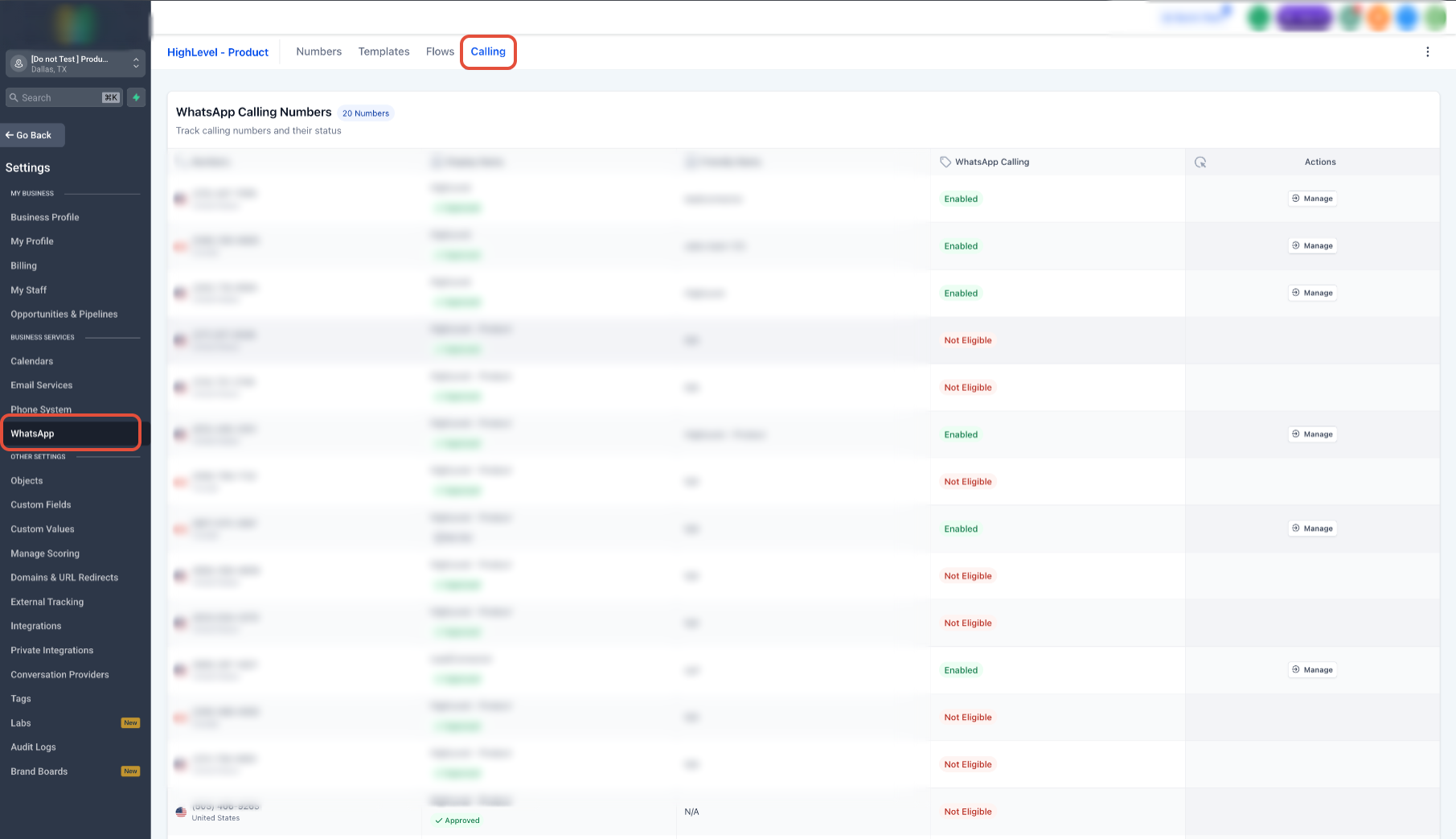
Step 2 Select Calling from the menu.
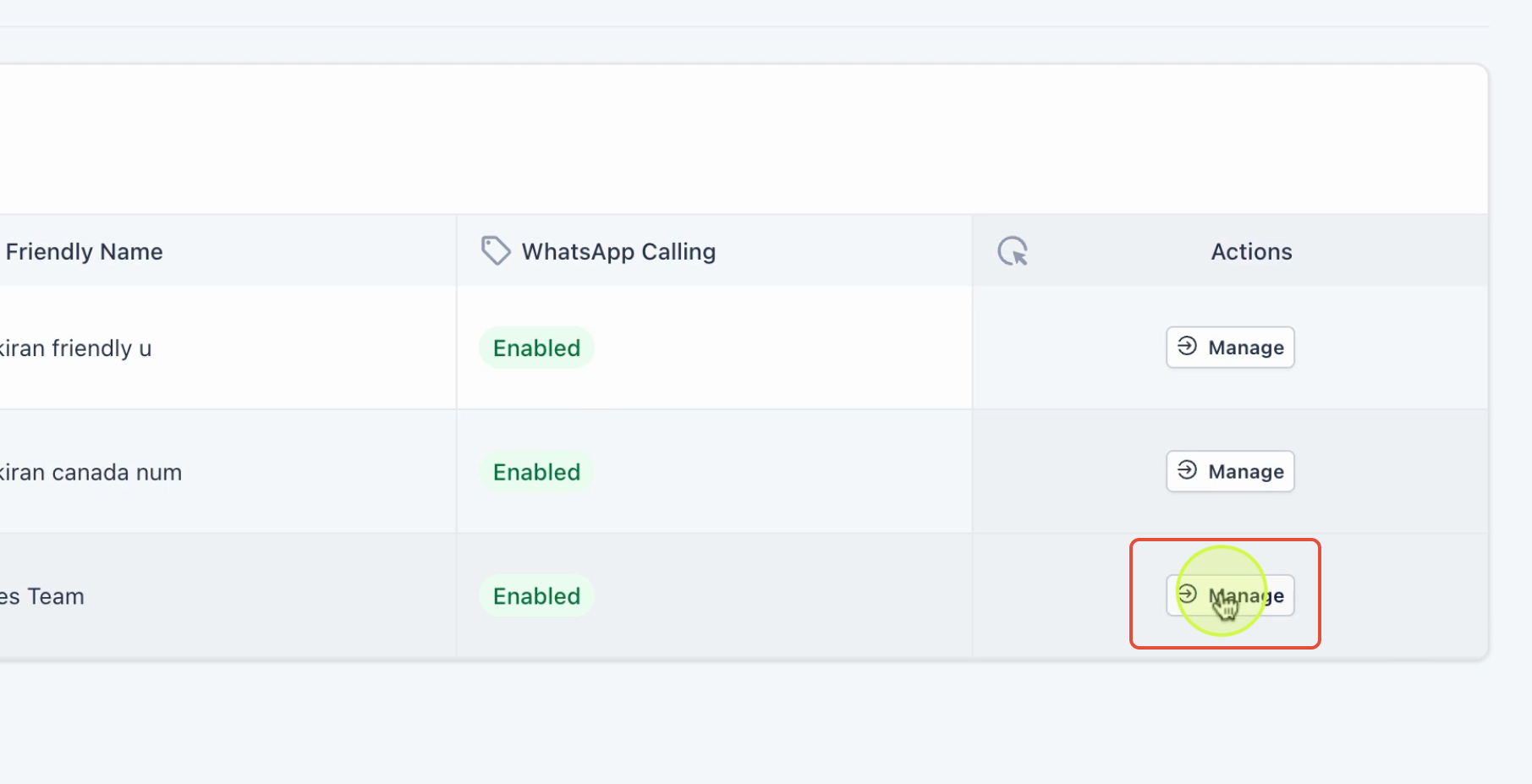
Step 3 You will see a list of phone numbers currently showing as connected. Identify the number you want to set up for calling.
Step 4 Find the number you want to configure and click Manage.
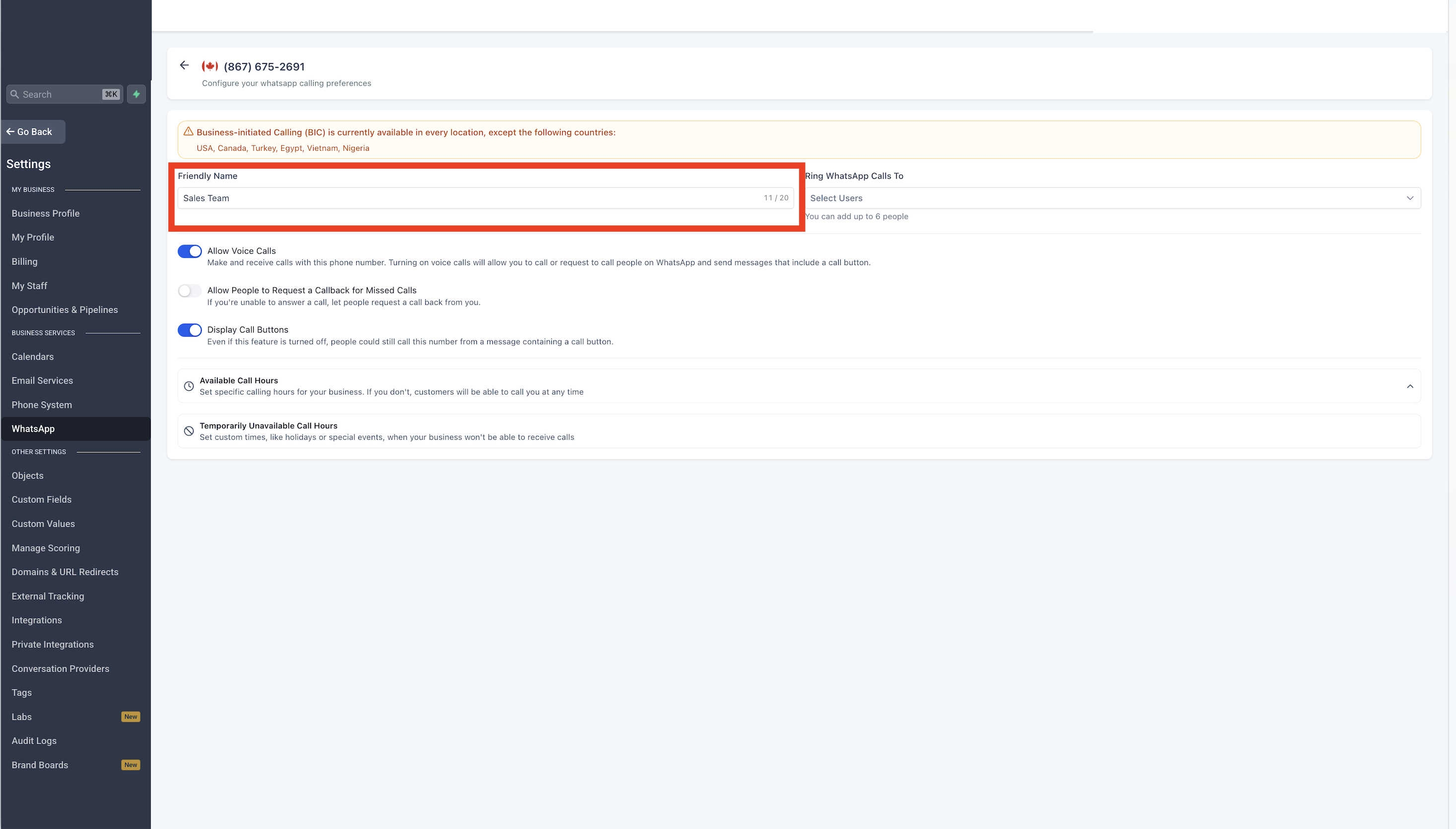
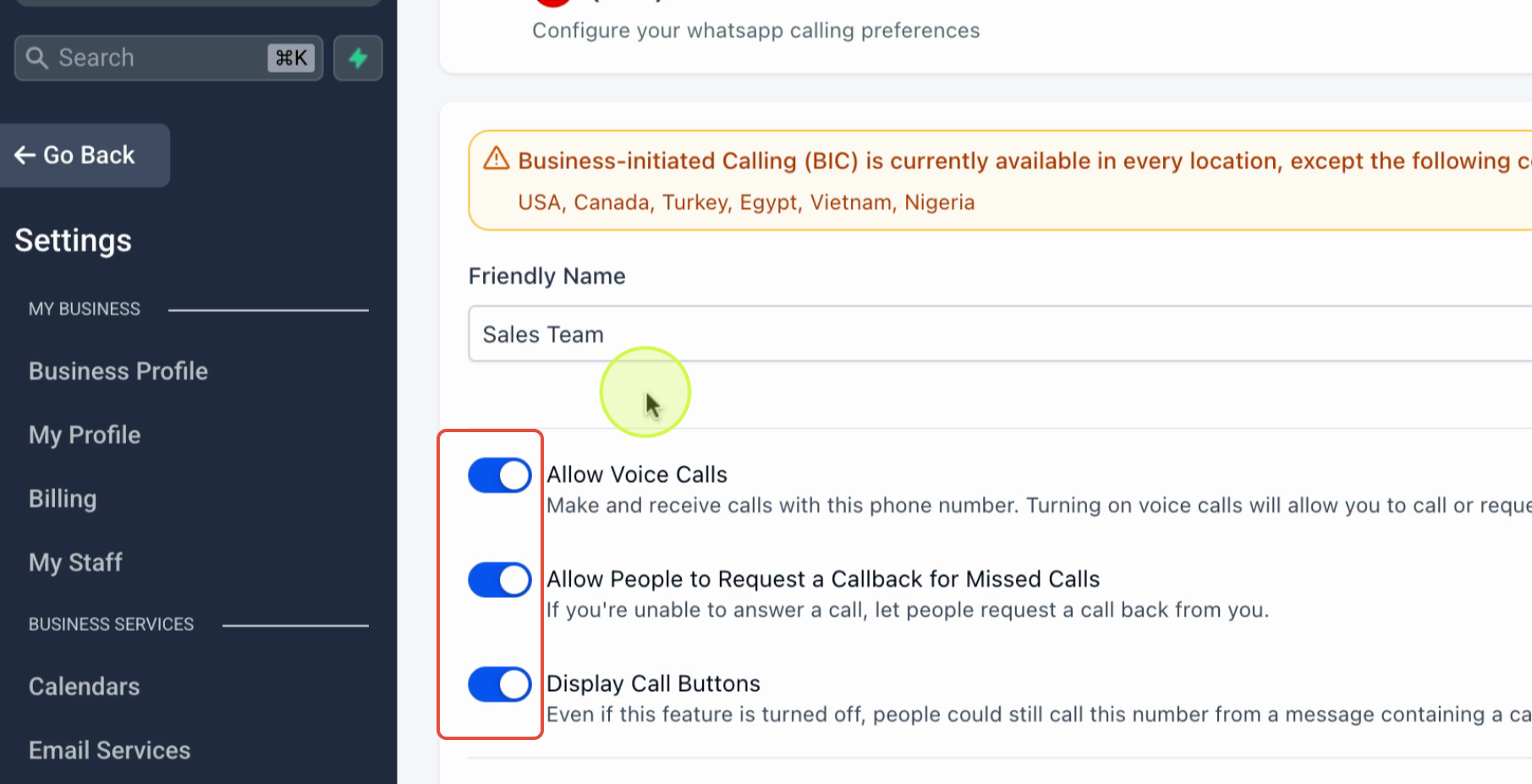
Step 5 Assign a friendly name (e.g., Sales Team) for easy identification across your workspace.
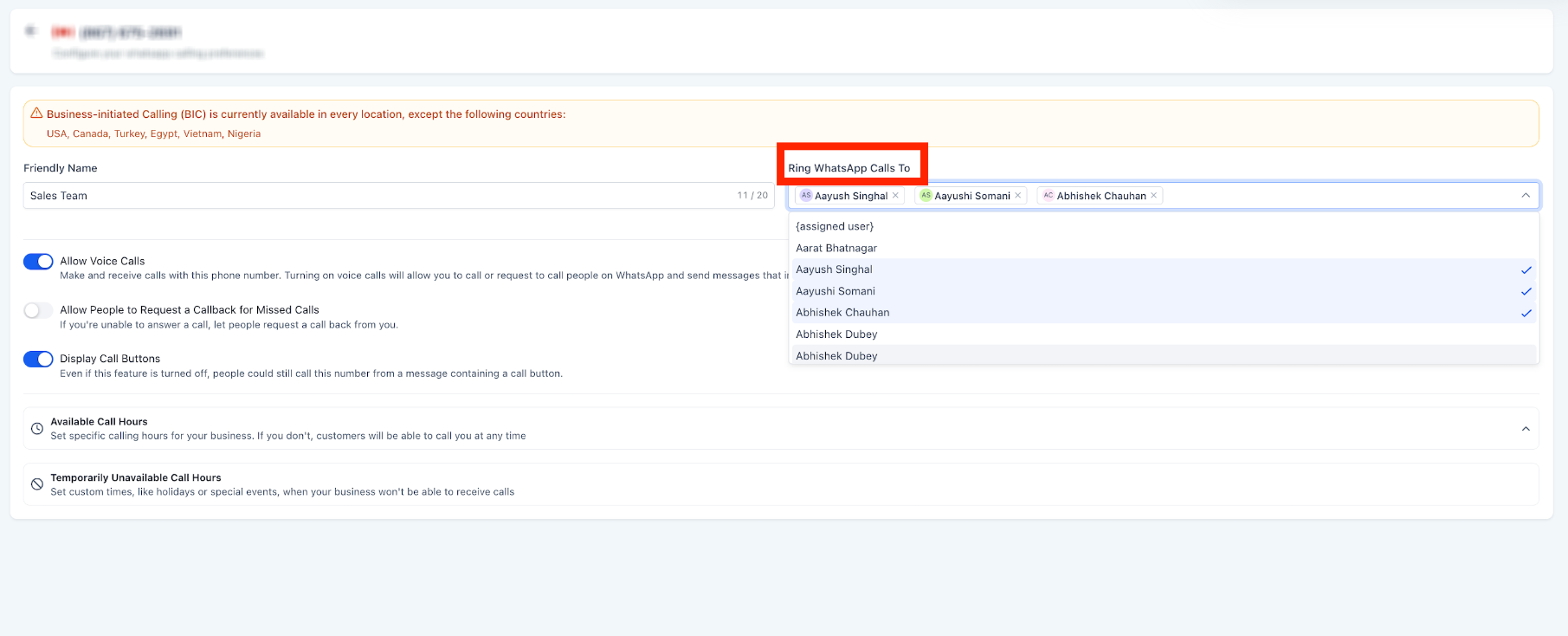
Step 6 Under Ring WhatsApp Calls To, add the users who should receive inbound calls. Set a primary user to ring first, and add additional users as backup if needed.
Step 7 Enable Allow Voice Calls to activate WhatsApp Calling for this number. Turn on Allow People to Request Callback for Missed Calls so customers can request a return call if their call goes unanswered.
Step 8 Toggle Display Call Button so customers see a call option directly on your WhatsApp business profile.
Step 9 Set up Available Callers and Temporarily Unavailable Callers based on your team's schedule and availability.
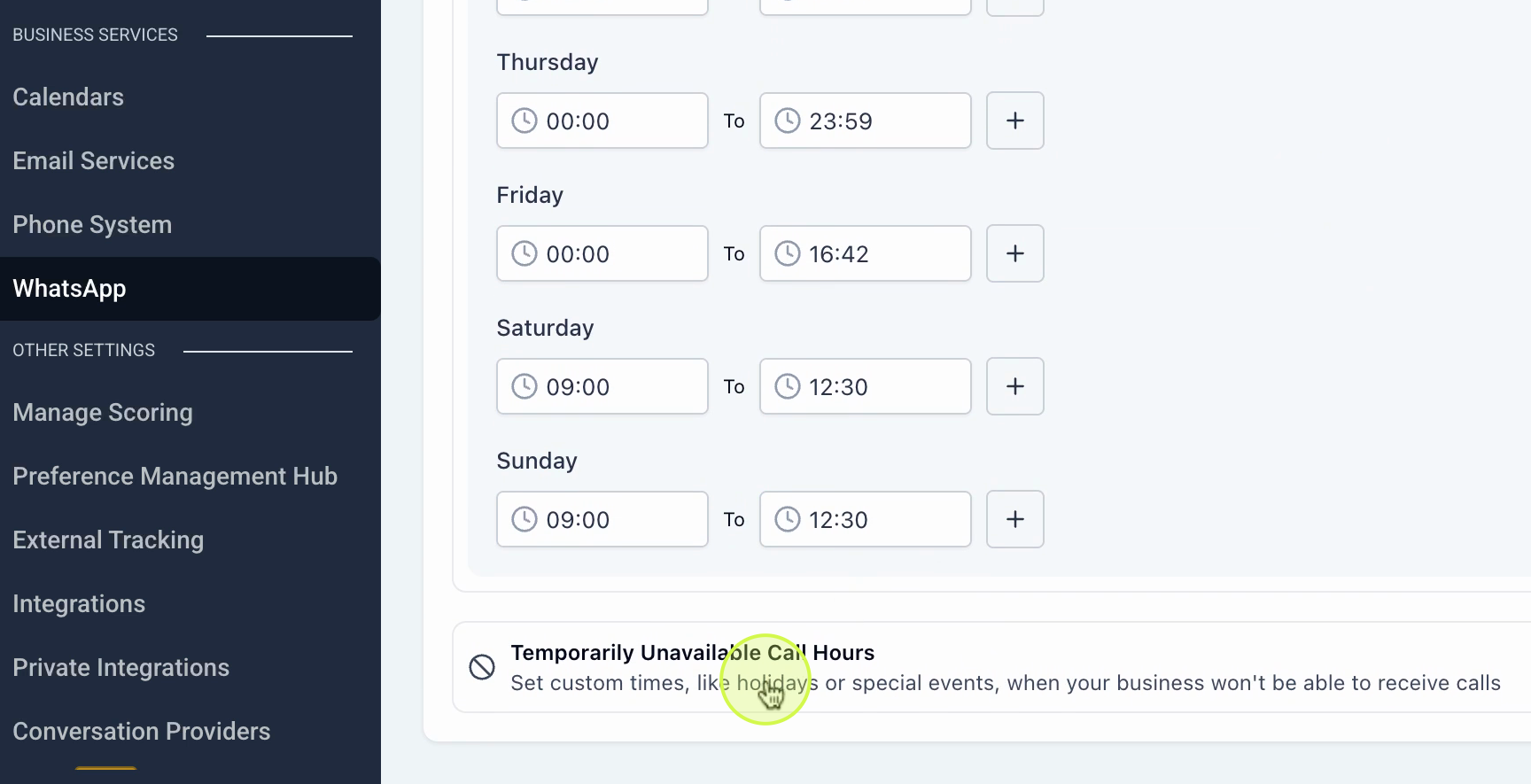
? Tip: Keep your caller availability updated to ensure inbound calls are always routed to the right person and to reduce missed calls.
Setting Up WhatsApp Call Permissions Request and manage customer call permissions |
Important: WhatsApp requires explicit customer approval before calling can be enabled for a contact. Always confirm permission is active before initiating a call.
Step 1 Go to Settings > WhatsApp Templates.
Step 2 Create a new template requesting call permission from your customers.
Step 3 Under Call-to-Action Buttons, select WhatsApp Call Permissions. This adds a button to the template that customers can tap to grant you calling access.
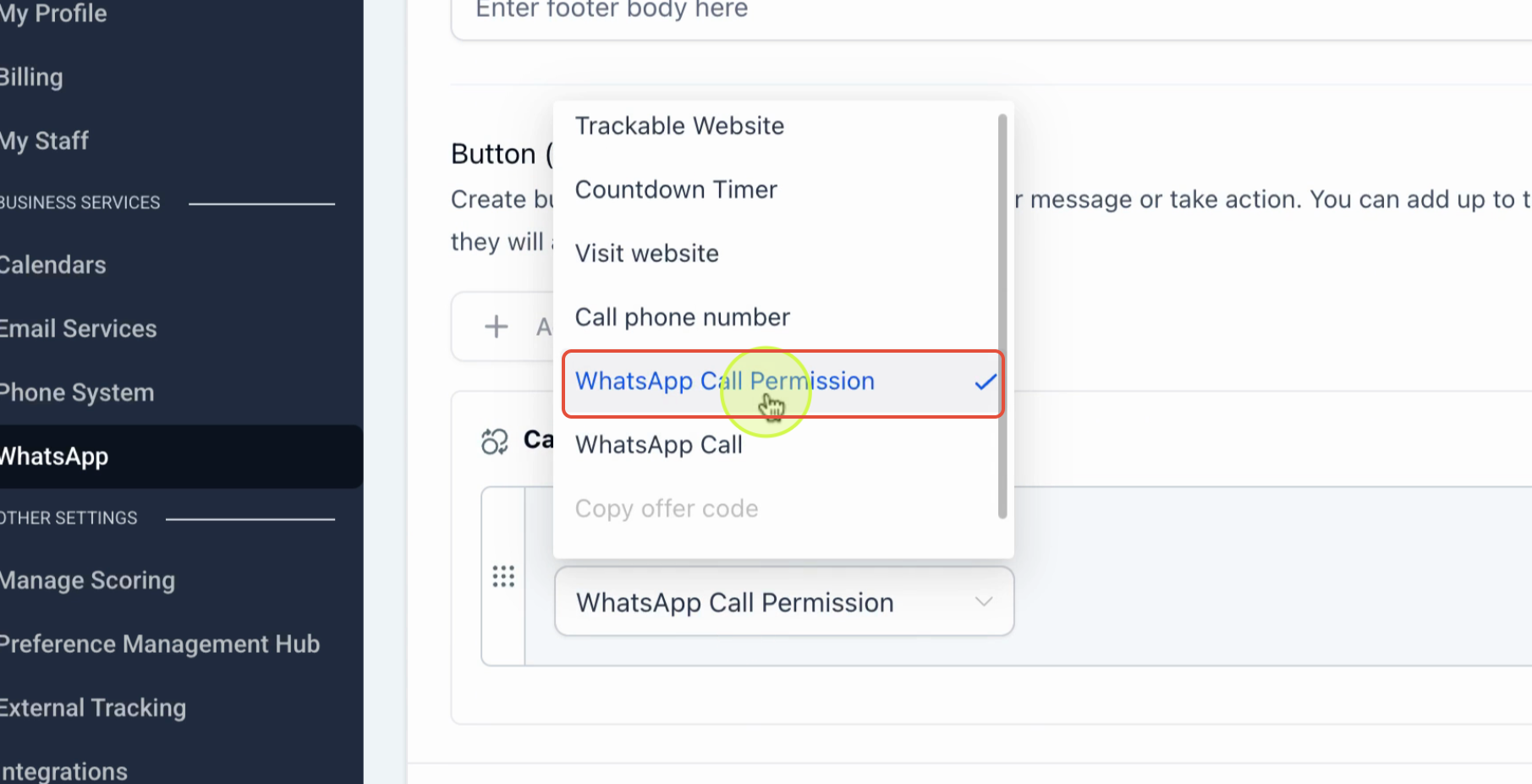
Step 4 When customers receive this message, they tap the provided button to grant permission for a temporary or unlimited duration.
Step 5 You can also include a call button directly in templates and set the permission duration to 1, 7, 15, or 30 days depending on your use case.
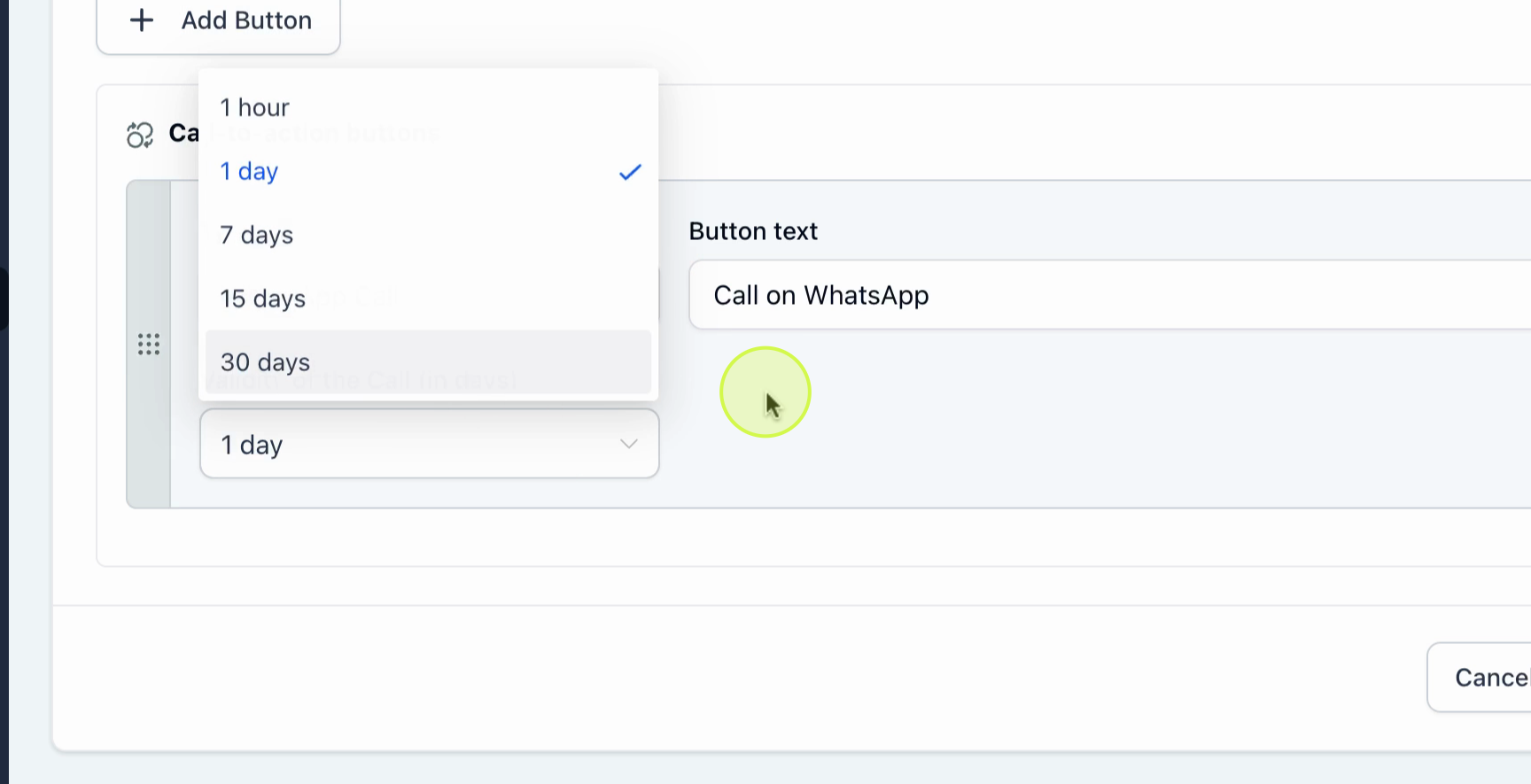
Once customers grant permission, you are ready to handle calls.
Making and Receiving WhatsApp Calls Initiate and receive calls from the Conversations view |
Step 1 Go to Conversations > open any contact > tap WhatsApp as the messaging channel.
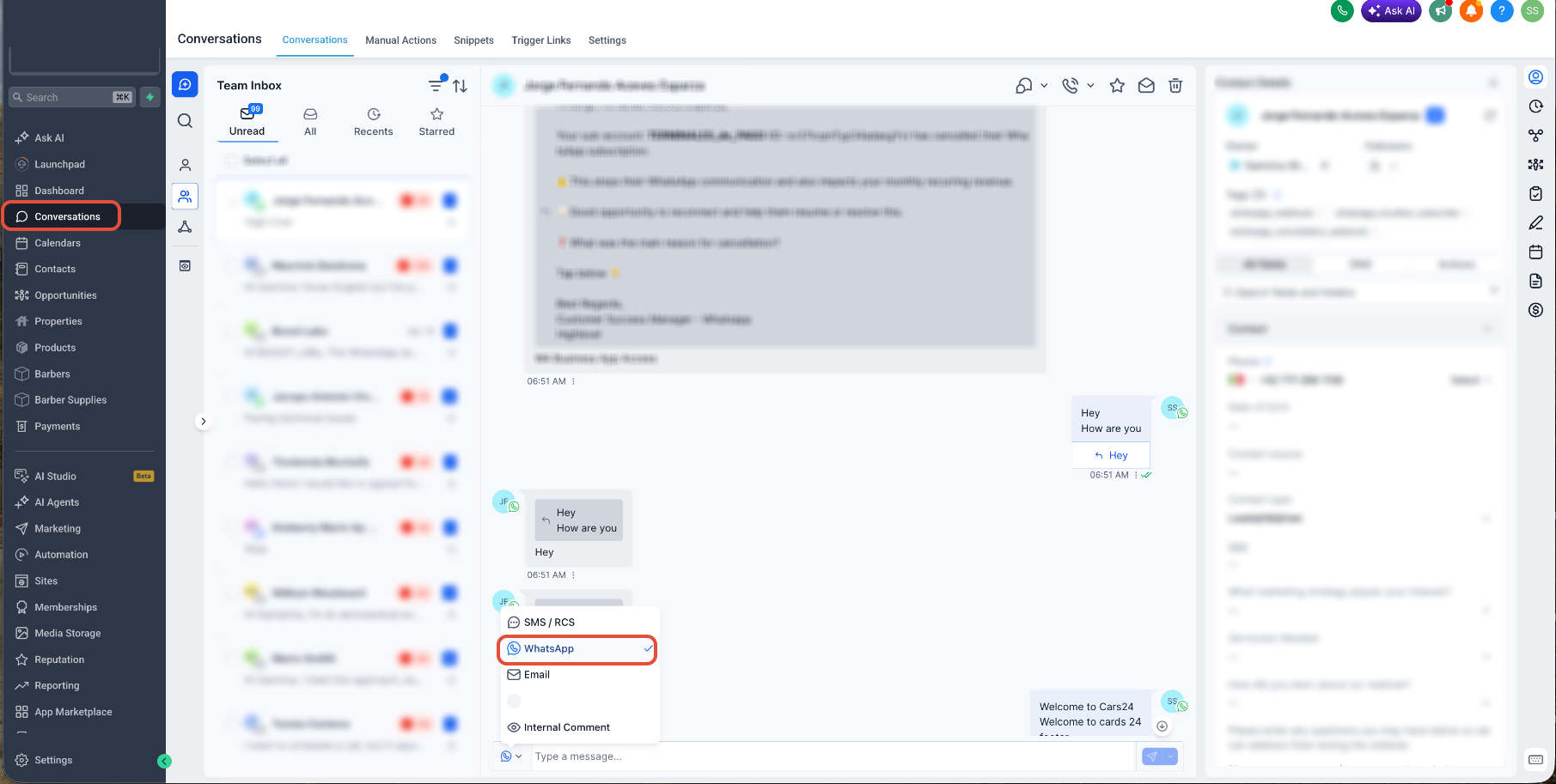
Step 2 Select the messaging template that requests call permission and send it to the customer.
Step 3 Once the customer grants permission, their status will update to "Call permissions active indefinitely" — or display the specific duration they selected.
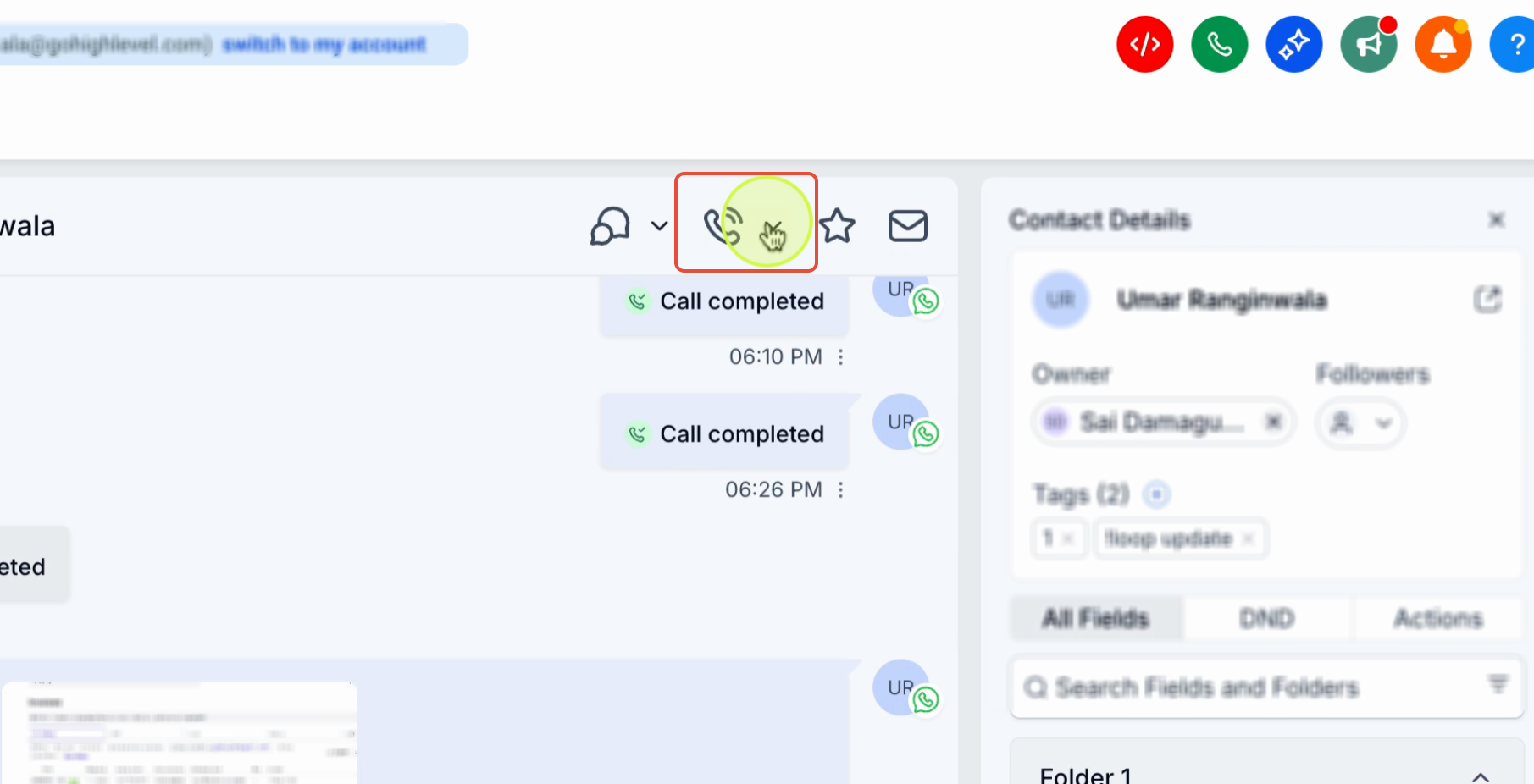
Step 4 When making or receiving a call, you will see options to end the call and add dispositions to log the outcome.
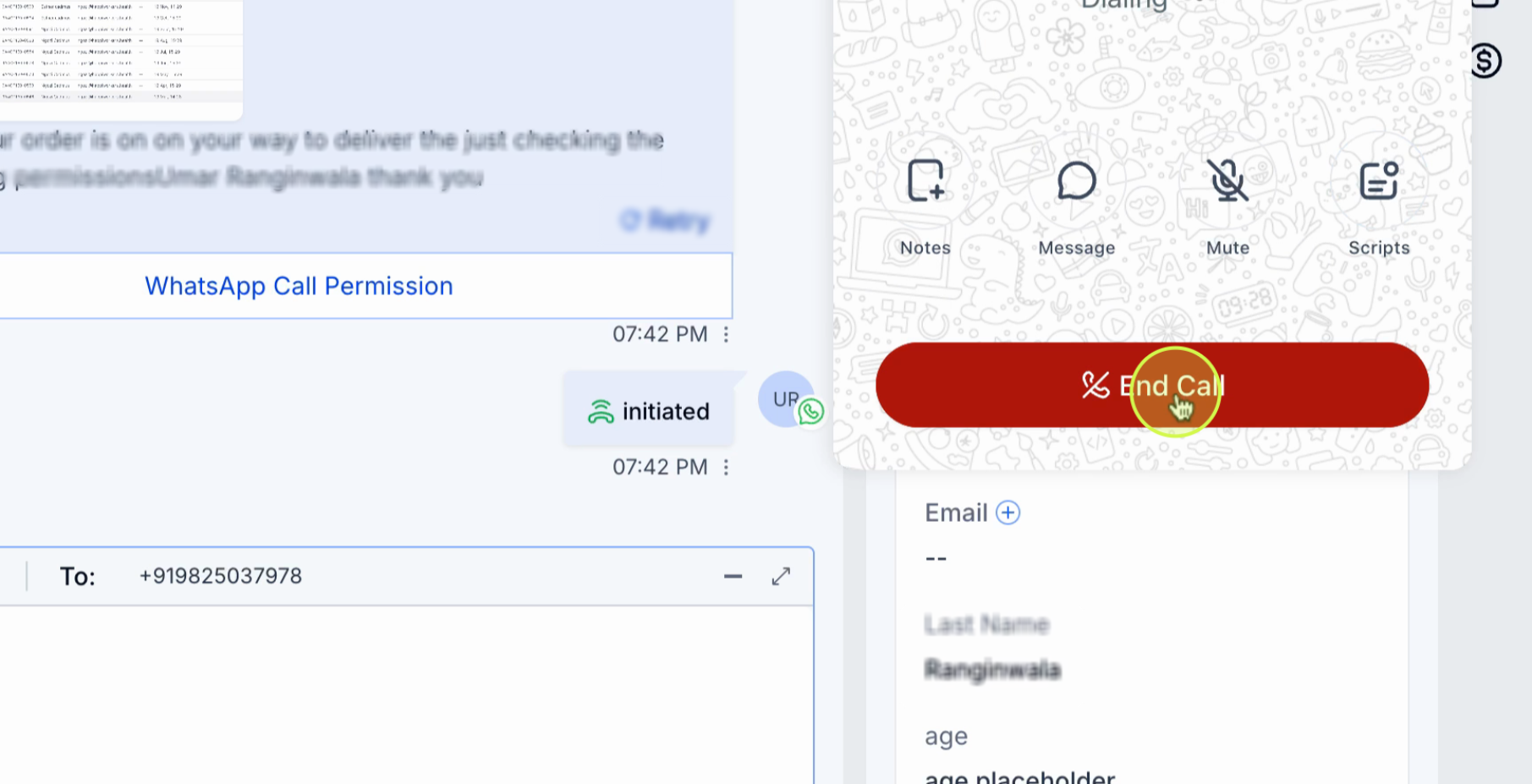
Step 5 For inbound calls, customers can call you directly by tapping the call button on your WhatsApp business profile. The call will ring through to the users assigned in your calling settings.
Tip: Always add a call disposition after each call to keep your team's records accurate and make follow-ups easier.
Configure Staff User Calling Settings Set the default call channel for each staff member |
Step 1 Go to Settings > My Staff.
Step 2 Search for the assigned staff user and click Edit.
Step 3 Open the Calling & Voicemail tab.
Step 4 Set Default Channel for WhatsApp Calls to either Mobile App or Web App.
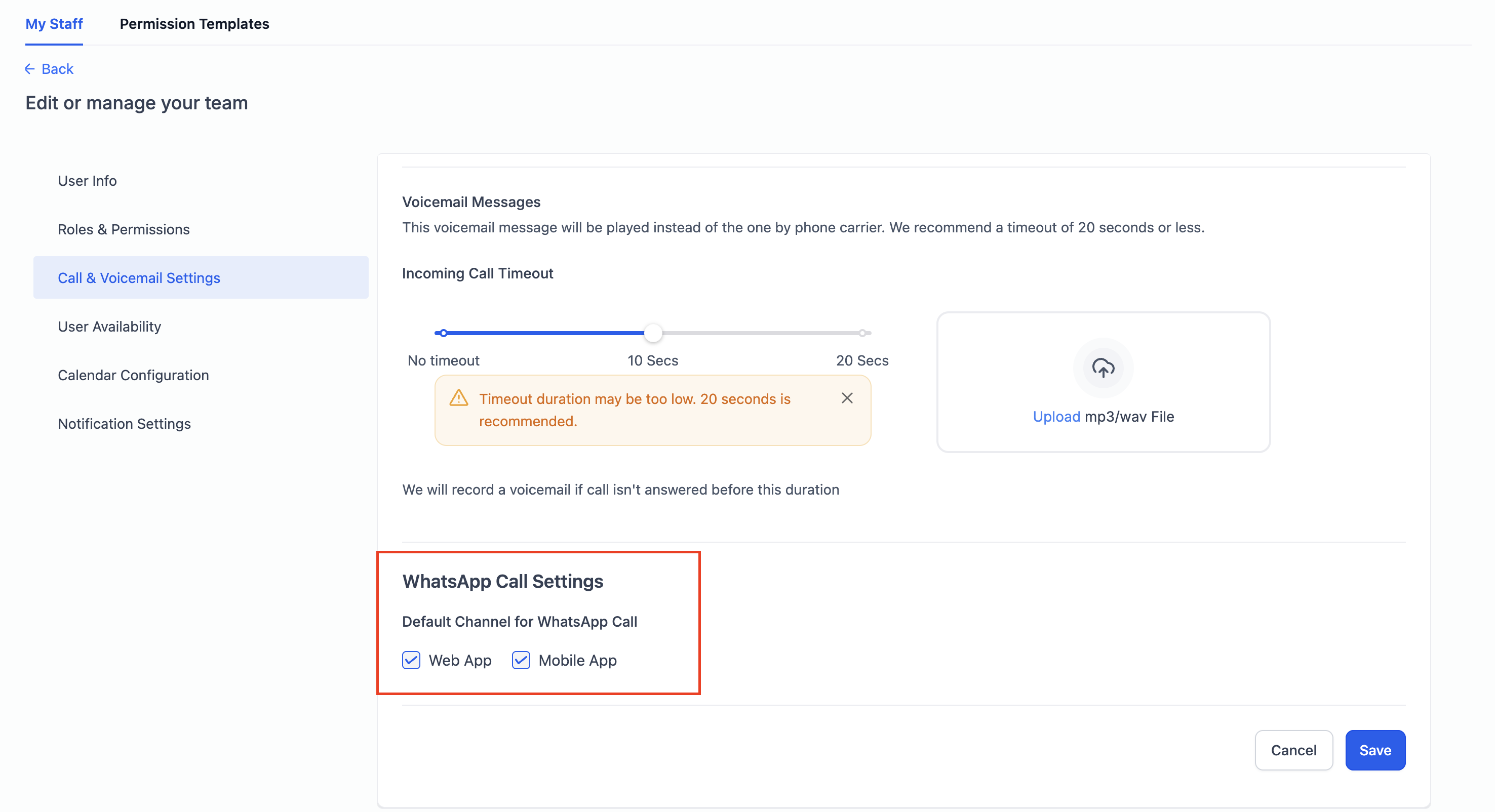
Mobile App Calls ring on the staff member's mobile device | Web App Calls ring in the CRM browser interface |
✅ You're all set! WhatsApp Calling brings fast, reliable voice communication into your existing messaging workflow. Keep your availability settings current, respond to permission requests promptly, and use call dispositions to stay organised — so your team stays reachable and your customers stay engaged. |
Frequently Asked Questions Common questions about WhatsApp Calling |
Can I make WhatsApp calls from a desktop browser? Yes. When configuring staff user settings, you can set the Default Channel for WhatsApp Calls to Web App, which allows calls to be handled directly from the CRM browser interface. |
Do I need customer permission before making a call? Yes. WhatsApp requires explicit customer approval before your business can initiate an outbound call. You must send a call permission template and wait for the customer to approve it. Inbound calls from customers do not require prior permission. |
How long does call permission last? Call permission can be granted for a temporary duration (1, 7, 15, or 30 days) or indefinitely, depending on the customer's choice. If the customer does not respond to a permission request, it expires automatically after 7 days. |
How many permission requests can I send to the same customer? You can send one request every 24 hours and a maximum of two requests within a 7-day period per contact. These limits are enforced automatically by WhatsApp. |
Is WhatsApp Calling available in my country? WhatsApp Calling is available in most countries. It is currently not supported in the United States, Canada, Turkey, Egypt, Vietnam, and Nigeria. If your business or customer is in one of these countries, calling will not be available at this time. |
What happens if I miss an inbound WhatsApp call? If a call goes unanswered, the customer can request a callback if you have enabled Allow People to Request Callback for Missed Calls in your calling settings. The missed call will also be logged in the customer's conversation for your reference. |
Can multiple team members receive the same inbound call? Yes. In the Ring WhatsApp Calls To setting, you can assign a primary user who rings first and add additional team members as backup. If the primary user does not answer, the call routes to the next assigned user. |
Can a customer revoke call permission? Yes. Customers can revoke permission at any time by opening the WhatsApp chat with your business, tapping the business profile name, going to Business Calling Permissions, and disabling call access. Once revoked, your business will no longer be able to initiate calls to that contact. |
What is a call disposition and why should I use it? A call disposition is an outcome tag you add after a call — for example, Resolved, Follow-up Required, or No Answer. Adding dispositions keeps your team's records accurate, makes follow-ups easier to track, and improves reporting across your CRM. |
How long after receiving permission do I have to place the call? Once a customer grants call permission, you must place the call within 72 hours. If the call is not placed within this window, the permission expires and you will need to request it again. |