
Announcements Builder helps you create, customize, and schedule in-app announcement banners for users inside your account. It’s designed to make platform communication more timely, targeted, and manageable by giving you a guided workflow for building banners, previewing them, and controlling when they appear.
This article explains what Announcements Builder does, how it helps, and how to set it up.
TABLE OF CONTENTS
- What is Announcements Builder?
- Key Benefits of Announcements Builder
- Banner Content and Core Settings
- Visibility and Audience Scope
- Scheduling Announcements
- Priority and Frequency Behavior
- How To Set Up Announcements Builder
- Frequently Asked Questions
What is Announcements Builder?
Announcements Builder is a guided experience that allows you to create and manage in-app announcement banners. It supports banner configuration such as title, message content, visibility scope, scheduling, optional call-to-action buttons, priority selection, frequency settings, and previewing before activation.
Key Benefits of Announcements Builder
Announcements Builder helps you communicate important updates directly inside the platform, where users are already working. That reduces reliance on external communication channels and makes messages easier to deliver at the right time and in the right place.
- Targeted Communication: Deliver announcements to the right audience by selecting where the banner is shown.
- Flexible Scheduling: Control when banners appear by setting a Start Date and End Date.
- Clear Prioritization: Use priority levels such as Critical, Warning, and General to help determine which message should take precedence when multiple banners are active.
- Better User Experience: Preview banners before publishing so you can validate messaging and presentation before users see them.
- Draft and Publish Control: Save work in progress as a draft and activate banners when they are ready to go live.
- Action-Oriented Messaging: Add an optional CTA button with a destination URL to guide users toward the next step.
Banner Content and Core Settings
Strong banner content makes announcements easier to understand and more likely to drive action. Defining the core elements clearly helps keep messages concise, relevant, and consistent.
When creating an announcement, configure the core banner details such as:
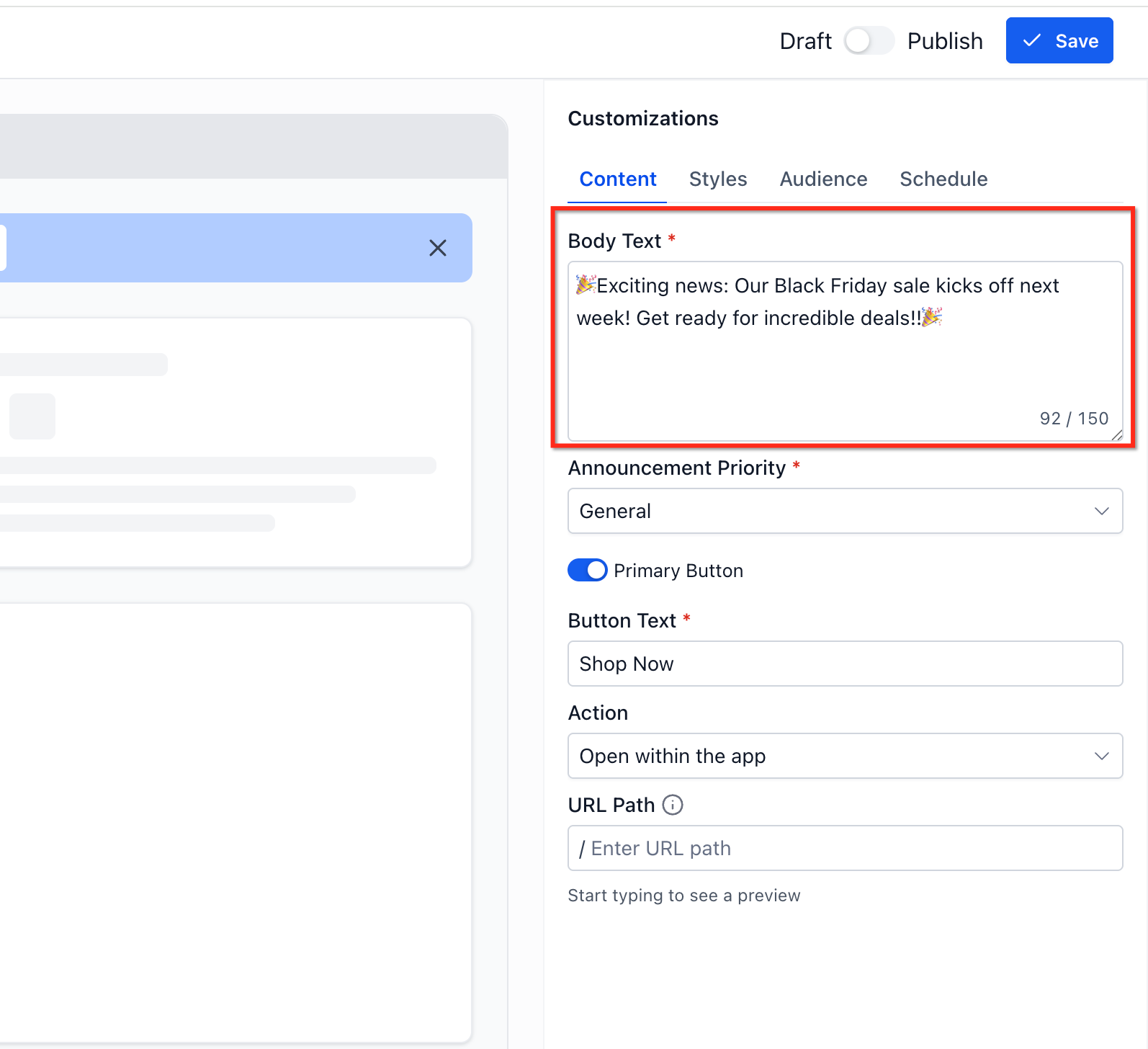
- Message Content: The main body text that explains the update, alert, or action needed
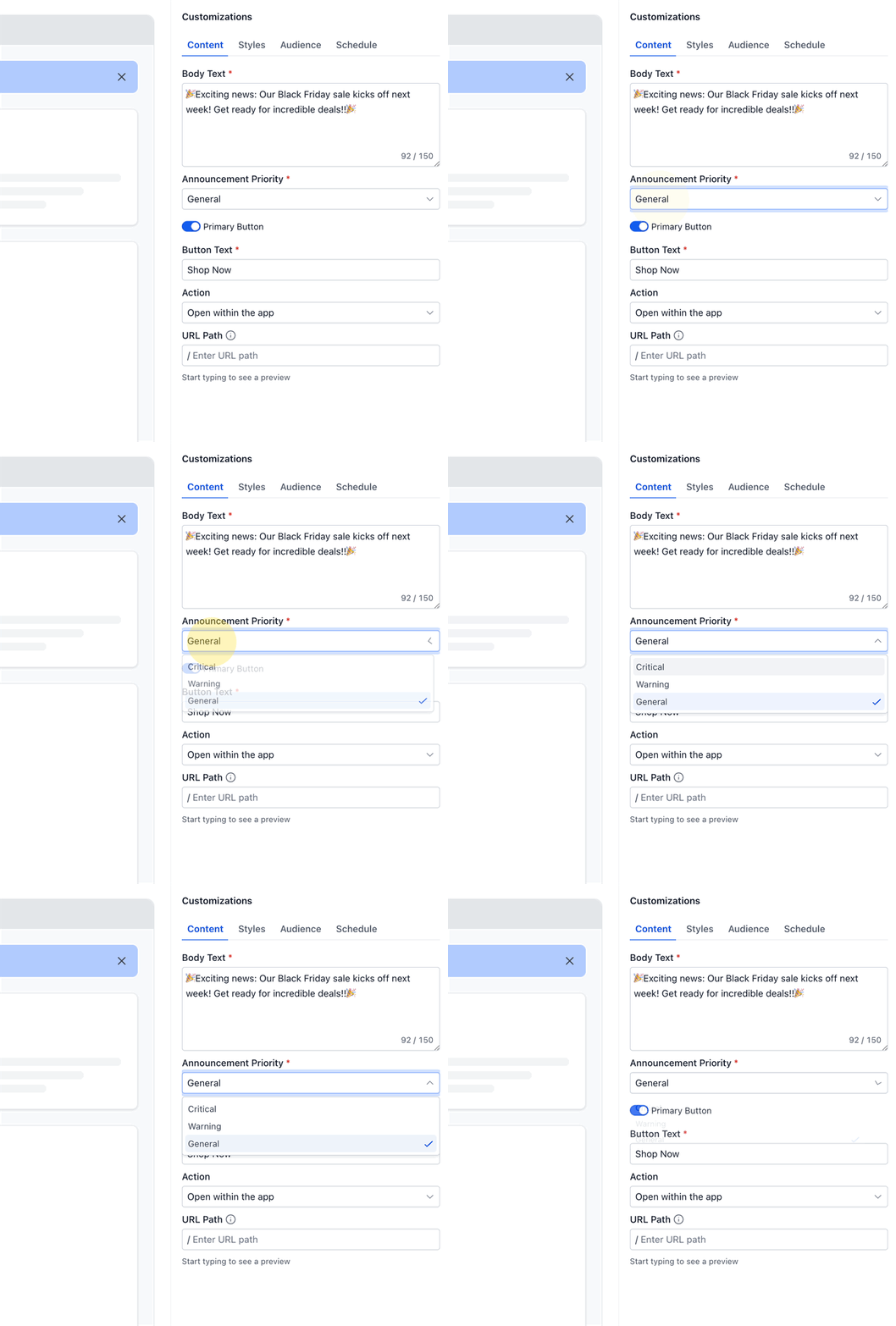
- Priority: Set the banner level to Critical, Warning, or General
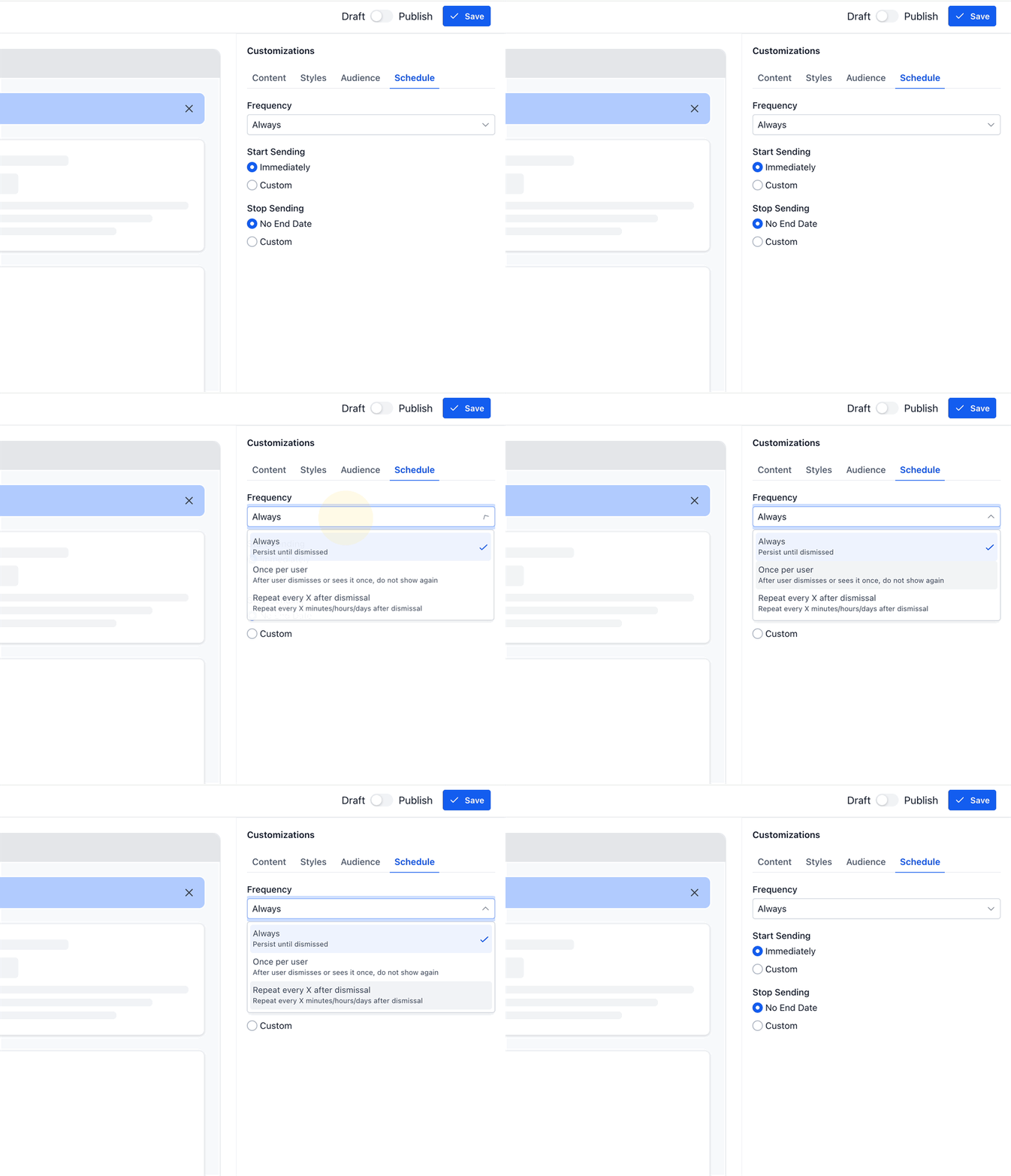
- Frequency Settings: Choose how often the banner should be shown to eligible users
- Status: Save the announcement as Draft while preparing it, or move it to Active when it is ready to display
Visibility and Audience Scope
Choosing the right visibility scope helps avoid over-communicating while still keeping the correct users informed. This is especially important when announcements apply only to one area of the app versus another.
Announcements Builder supports banner visibility across:
- Admin view: Use this when the announcement is intended for users working in the administrative experience
- Account view: Use this when the announcement should appear for standard users inside the account
- Both: Use this when the message is broadly relevant across both experiences
Scheduling Announcements
Scheduling allows you to plan communication in advance and automatically control when a banner becomes relevant. This is useful for promotions, maintenance notices, onboarding prompts, policy reminders, or limited-time updates.
Use the scheduling settings to define:
- Start Date: The date when the announcement becomes eligible to display
- End Date: The date when the announcement should stop displaying
This gives you more control over banner lifecycle timing without requiring manual updates every time a message needs to go live or expire.
Priority and Frequency Behavior
Priority and frequency settings help you manage banner visibility more intentionally, especially when more than one banner may be active at the same time. This prevents important messages from being buried under less urgent communication.
Use priority levels to organize announcements by importance:
- Critical: Best for urgent or high-impact notices
- Warning: Best for important alerts that need visibility but are less urgent than critical items
- General: Best for standard informational messages
How To Set Up Announcements Builder
Proper setup helps ensure announcements are clear, relevant, and shown to the right users at the right time. Following a structured build process also makes it easier to review messaging before it goes live.
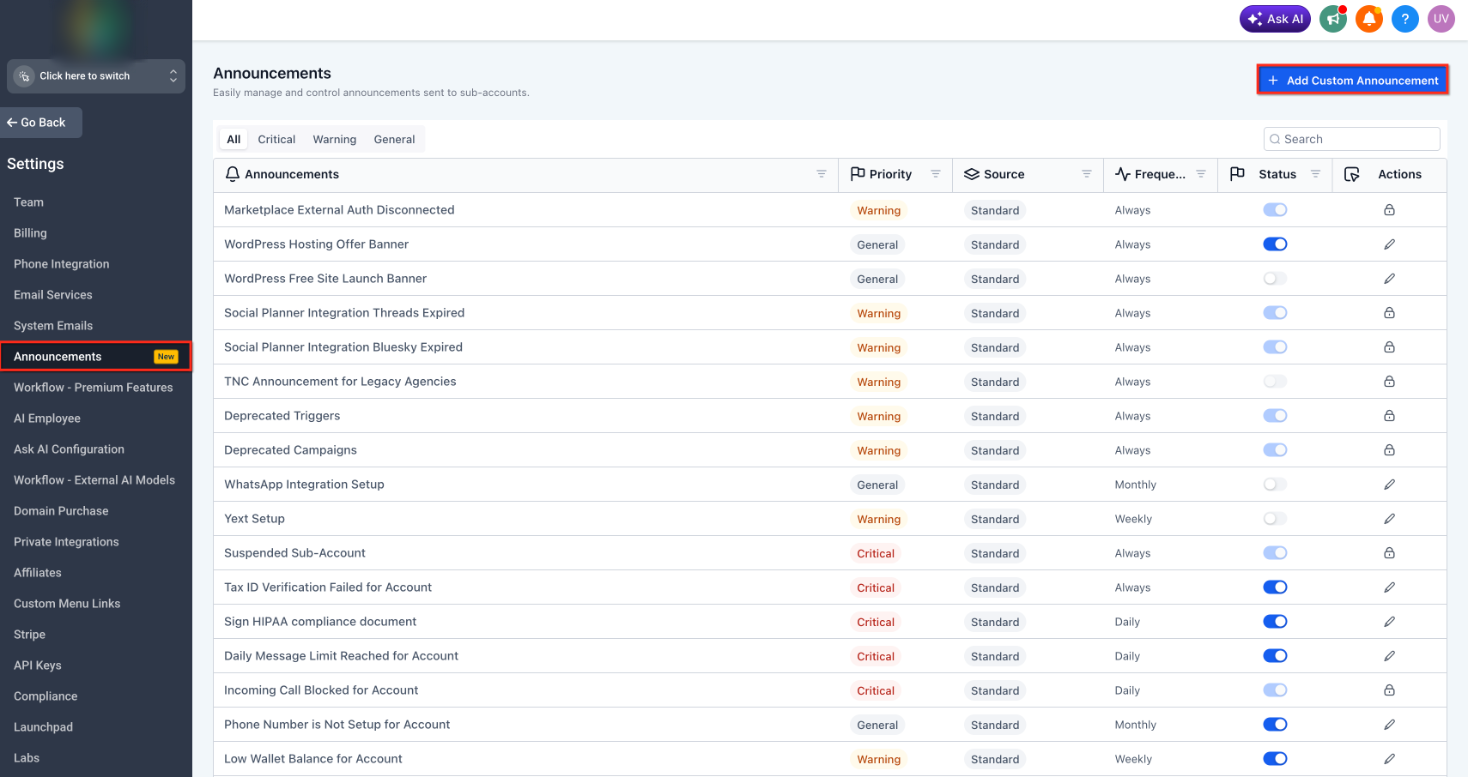
- Navigate to the area where Announcements Builder is available. Click Add Custom Announcement to create a new announcement.
- Add the Message Content for the announcement.
- Choose the appropriate Priority level: Critical, Warning, or General.
- Set the desired Frequency for how often the banner should appear.
- Select where the banner should be visible.
- Set the Start Date and End Date for the banner schedule.
- Configure the Destination URL and Redirect behavior (optional CTA).
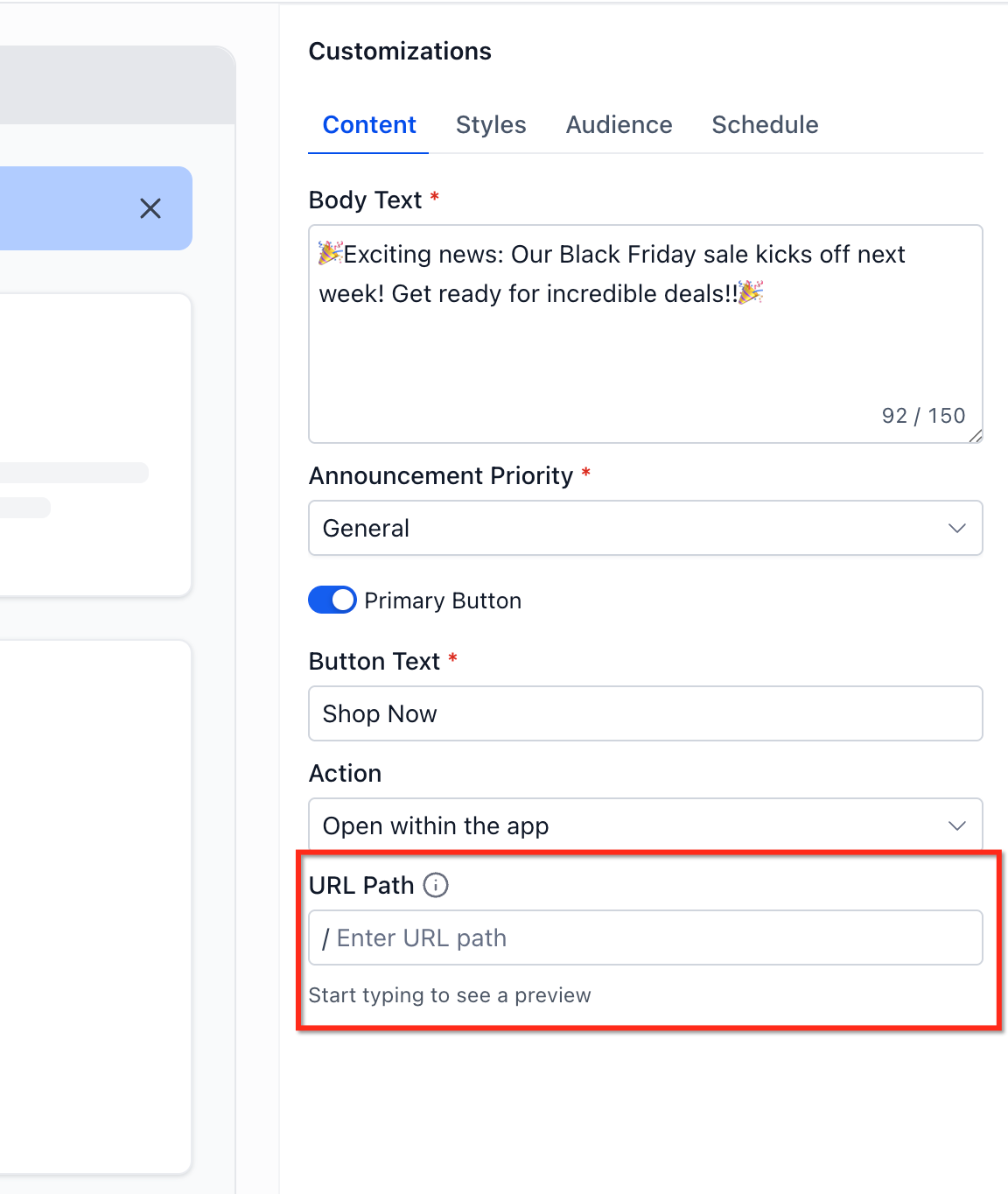
- Review the banner in real-time preview for each visibility scope you selected.
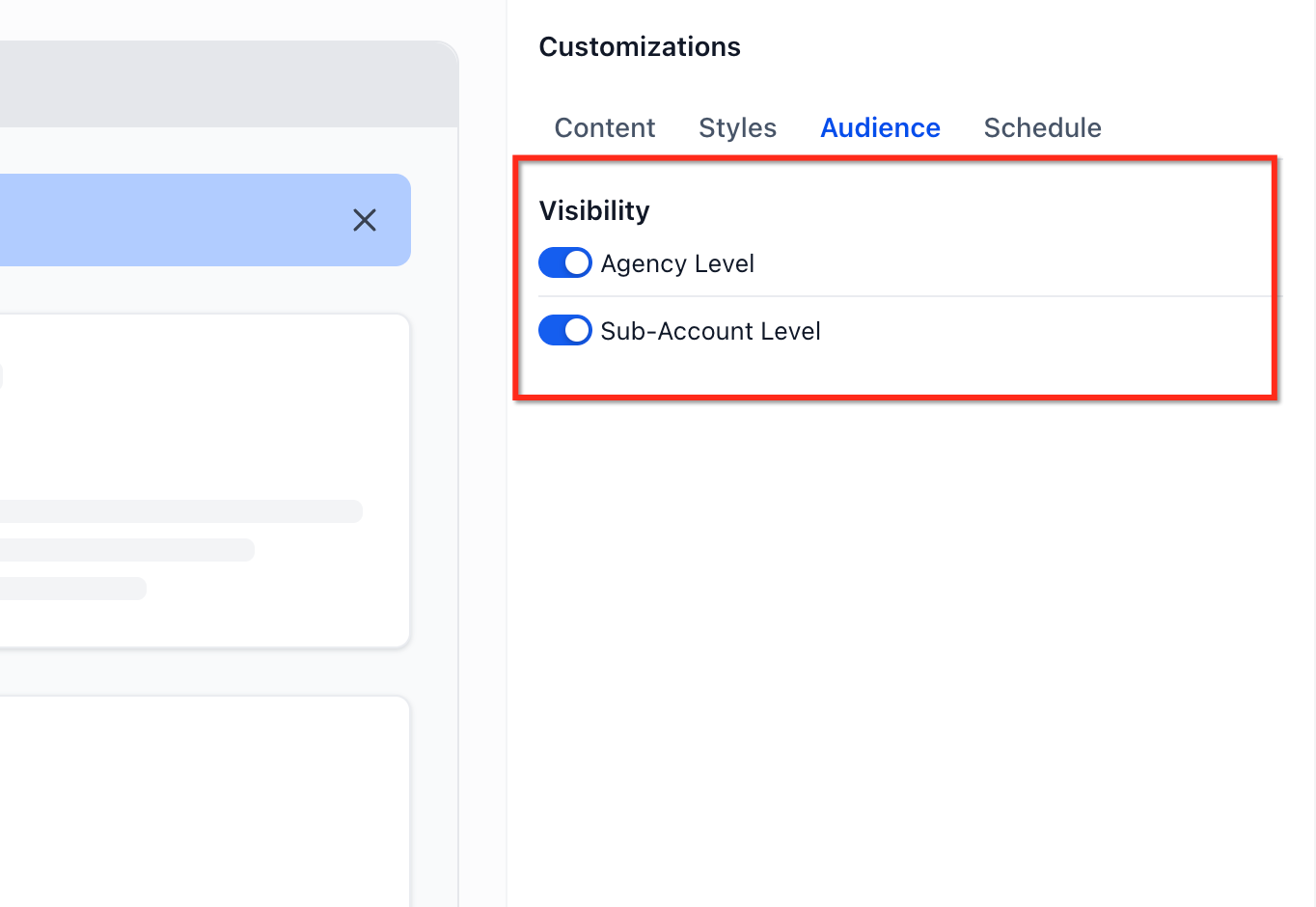
- Save the announcement as Draft if it still needs review, or set it to Active when it is ready to be displayed.
- Revisit the announcement later to update messaging, adjust scheduling, or manage its status as needed.
Frequently Asked Questions
Q: What is the difference between Announcements Builder and in-app banner management?
A: Announcements Builder is used to create and configure announcements. Banner management is the area where you review, prioritize, and enable or disable banners that are available to users.
Q: Can I save an announcement before publishing it?
A: Yes. Announcements support Draft and Active states, so you can save work before making it live.
Q: Can I schedule announcements ahead of time?
A: Yes. Announcements can be scheduled using a Start Date and End Date, which helps control when the banner is eligible to appear.
Q: Can I add a button to an announcement?
A: Yes. Announcements can include an optional CTA button with a destination URL and redirect behavior.
Q: Can announcements appear in more than one area of the app?
A: Yes. Banner visibility can be set for one area, the other area, or both.
Q: What happens if multiple banners are active at the same time?
A: Priority settings help determine display handling. Use Critical, Warning, and General to organize messages by urgency and importance.
Q: Who should manage announcements?
A: This feature is best managed by users responsible for platform communication and administration. Access is generally governed by user roles and permissions.
Q: Does the platform support advanced targeting and additional lifecycle states?
A: If you see references to future functionality (for example, granular targeting, page-level visibility controls, dismissal configuration, or extended states such as Scheduled and Expired), treat those as not currently standard unless your account shows them in the UI.