
Add Live Chat directly inside your website or funnel content instead of using only a floating chat bubble. An Embedded Live Chat Widget helps you place conversations where visitors are most likely to take action.
TABLE OF CONTENTS
What is the Embedded Live Chat Widget?
The Embedded Live Chat Widget is a Live Chat placement option that renders the chat widget inline within your page content, instead of floating in the corner of the screen. This makes chat feel like part of your page design and helps you place support and conversion opportunities exactly where visitors are making decisions.
The widget still uses the same Live Chat experience—only the placement changes, not how conversations are routed or managed.
Key Benefits of the Embedded Live Chat Widget
- Higher visibility: Place chat near hero sections, forms, feature blocks, or calls-to-action where visitors are already engaged.
- Natural page experience: Present chat as part of the website layout instead of an overlay floating above content.
- No workflow changes: Routing, lead capture, and Live Chat management continue to work through your existing chat system.
- Flexible deployment: Use the widget across funnels, websites, landing pages, and other supported areas.
Where Embedded Live Chat Works Best
Embedded Live Chat can be used on:
- Funnels
- Websites
- Landing pages
- Custom HTML sites
- Other supported pages where Chat Widgets can be installed
The embedded widget is mobile responsive by default, adjusting automatically for smaller screens while staying inline with page content.
How To Set Up an Embedded Live Chat Widget
Proper setup ensures the widget appears exactly where you want it and behaves consistently across your site or funnel.
Step 1: Create a New Chat Widget
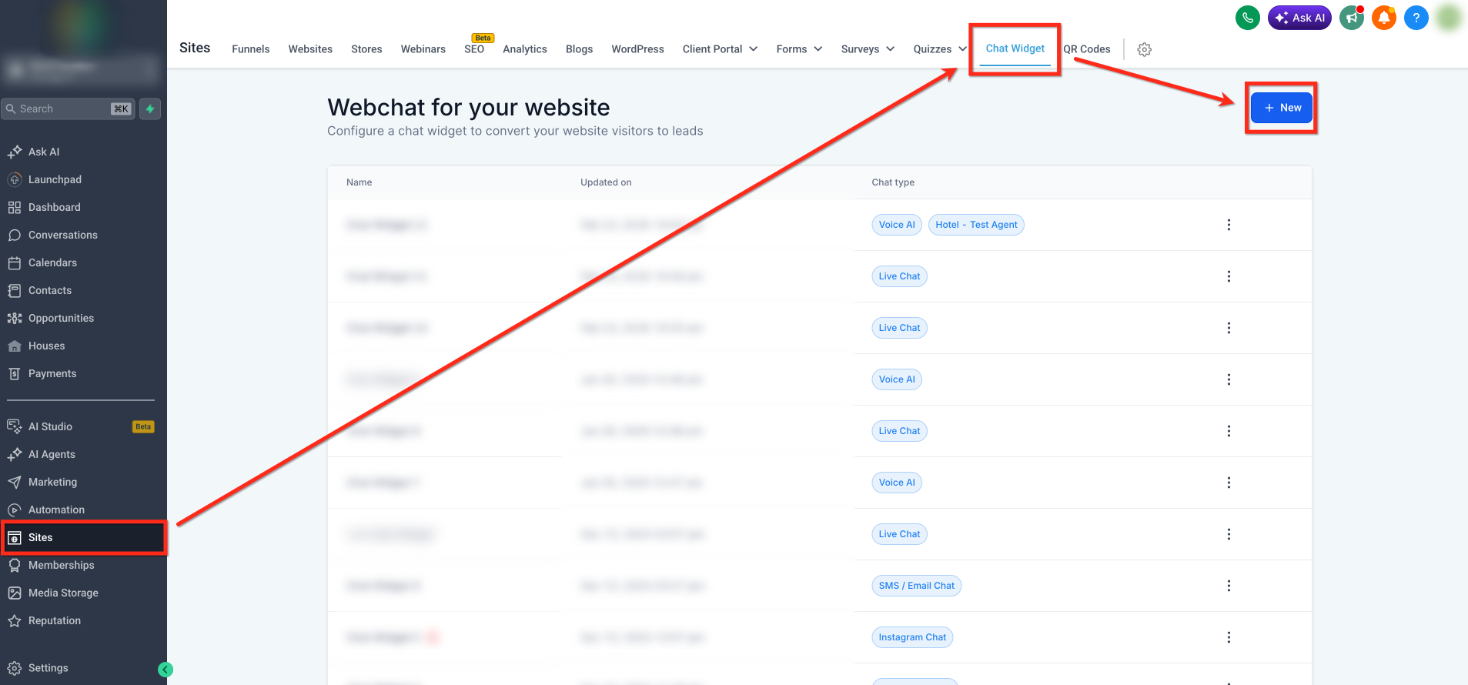
Go to Sites → Chat Widget, then click + New (or open an existing widget).
Step 2: Select Live Chat
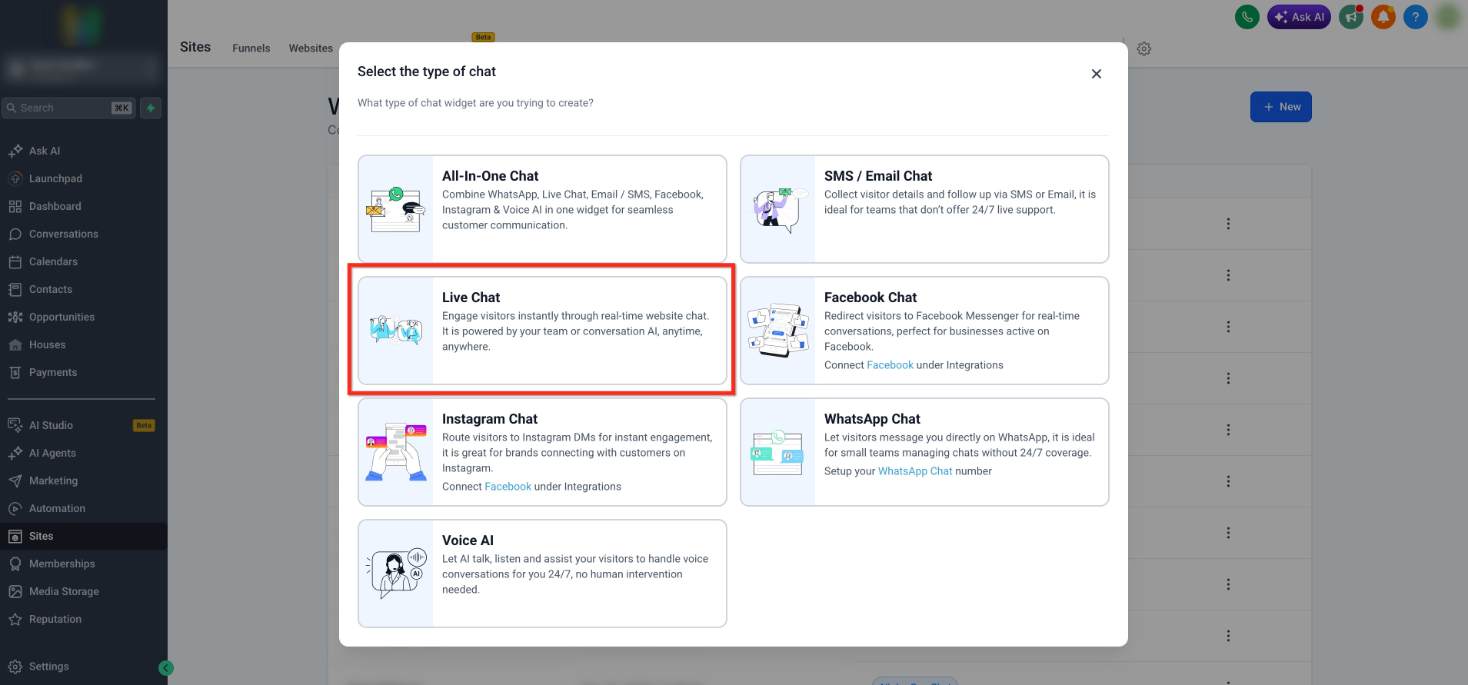
Choose the Live Chat option.
Step 3: Set Widget Placement to Embedded
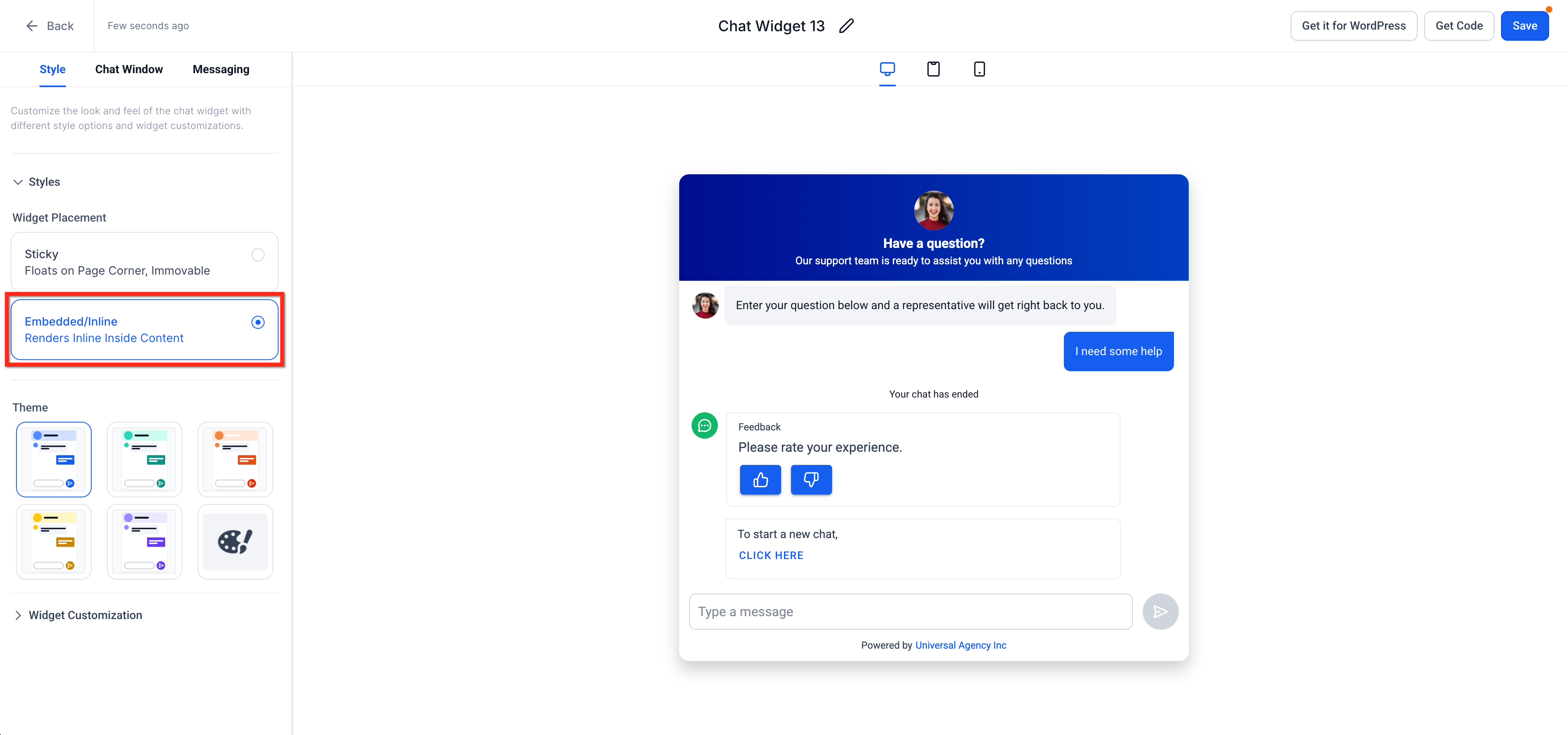
- Open the Style tab.
- Under Widget Placement, choose: Embedded / Inline (Renders inside content).
This ensures the widget appears within your page layout instead of floating on the screen.
Step 4: Customize Your Widget
Configure the widget to match your needs:
- Theme & Appearance
- Choose color themes
- Adjust branding elements (avatar, header, colors)
- Match styling with your website
- Chat Window Settings
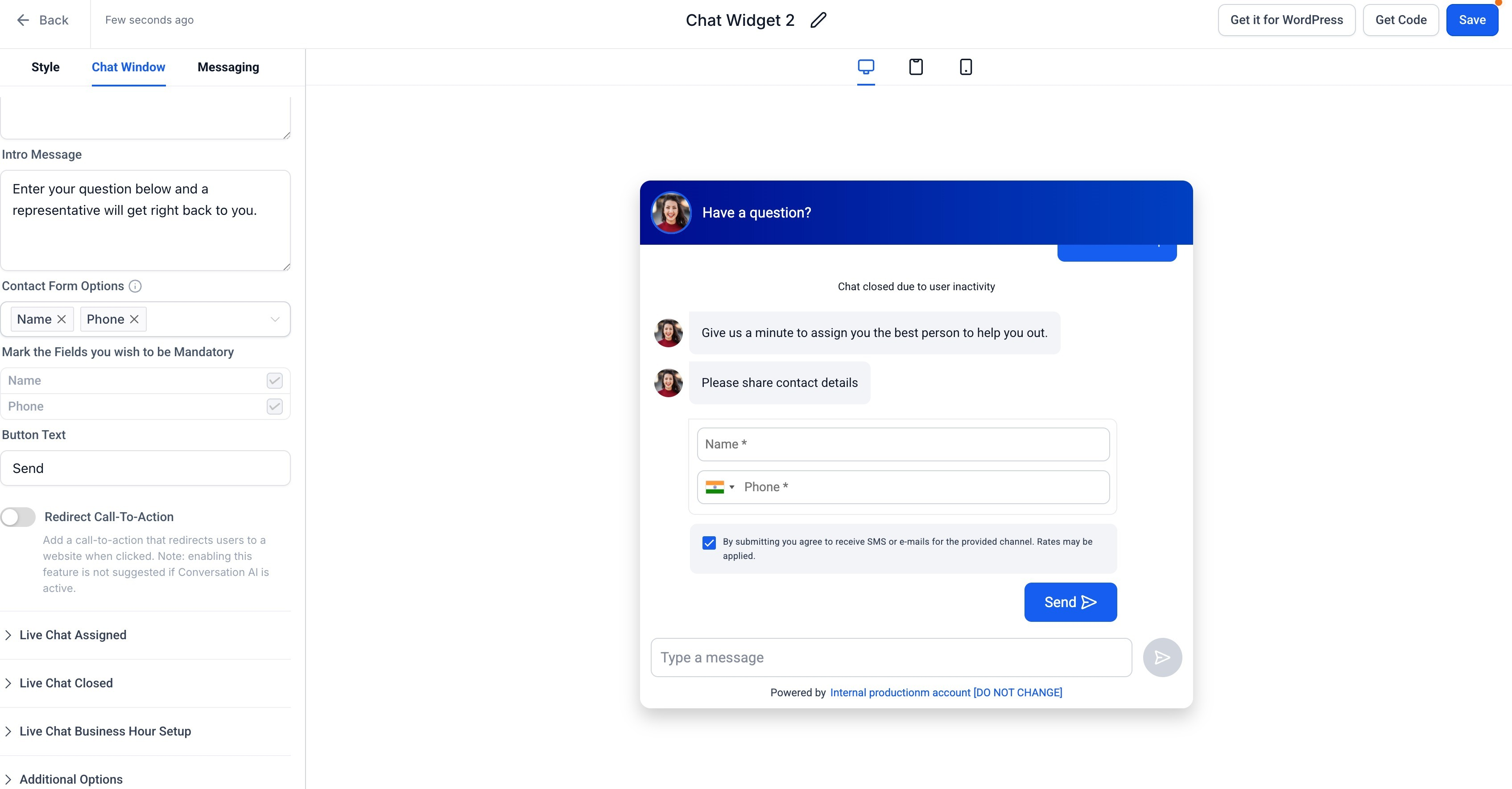
- Edit the intro message
- Configure contact form fields (Name, Phone, etc.)
- Set mandatory fields
- Customize button text
- Messaging & Behavior
- Set auto-responses
- Configure live chat assignment
- Define business hours
- Customize “chat closed” messages
Step 5: Get the Embed Code
- Click Get Code (top right).
- Copy the embed script.
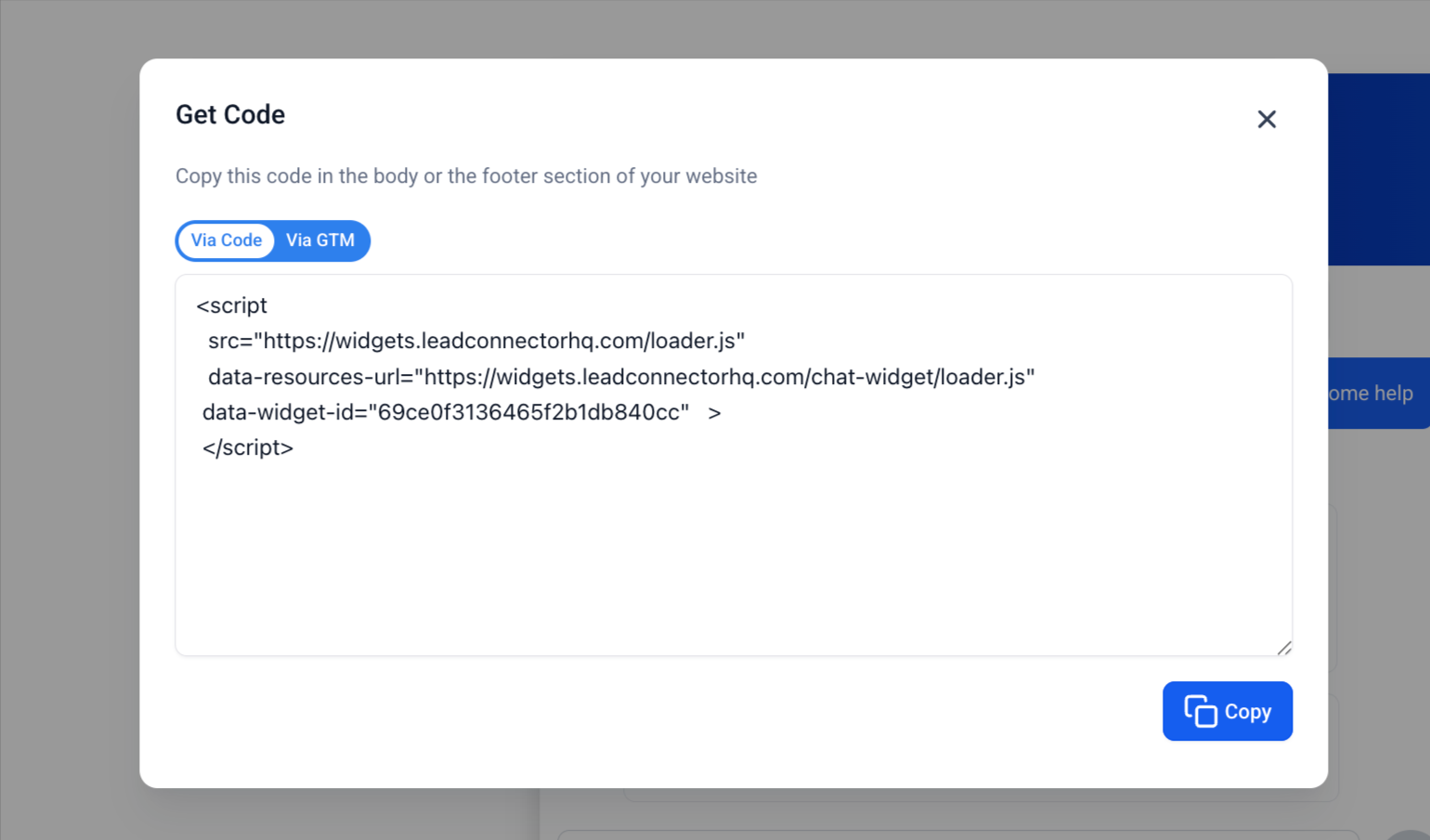
Step 6: Add the Widget to Your Funnel, Website, or Other Page
Option 1: Funnels
- Open your funnel editor.
- Add a Custom Code element where you want the chat to appear.
- Paste the embed code.
- Save and publish.
Option 2: Websites / External Pages
- Open your website editor or HTML file.
- Paste the embed code in the desired section.
- Publish changes.
The widget renders exactly where the code is placed.
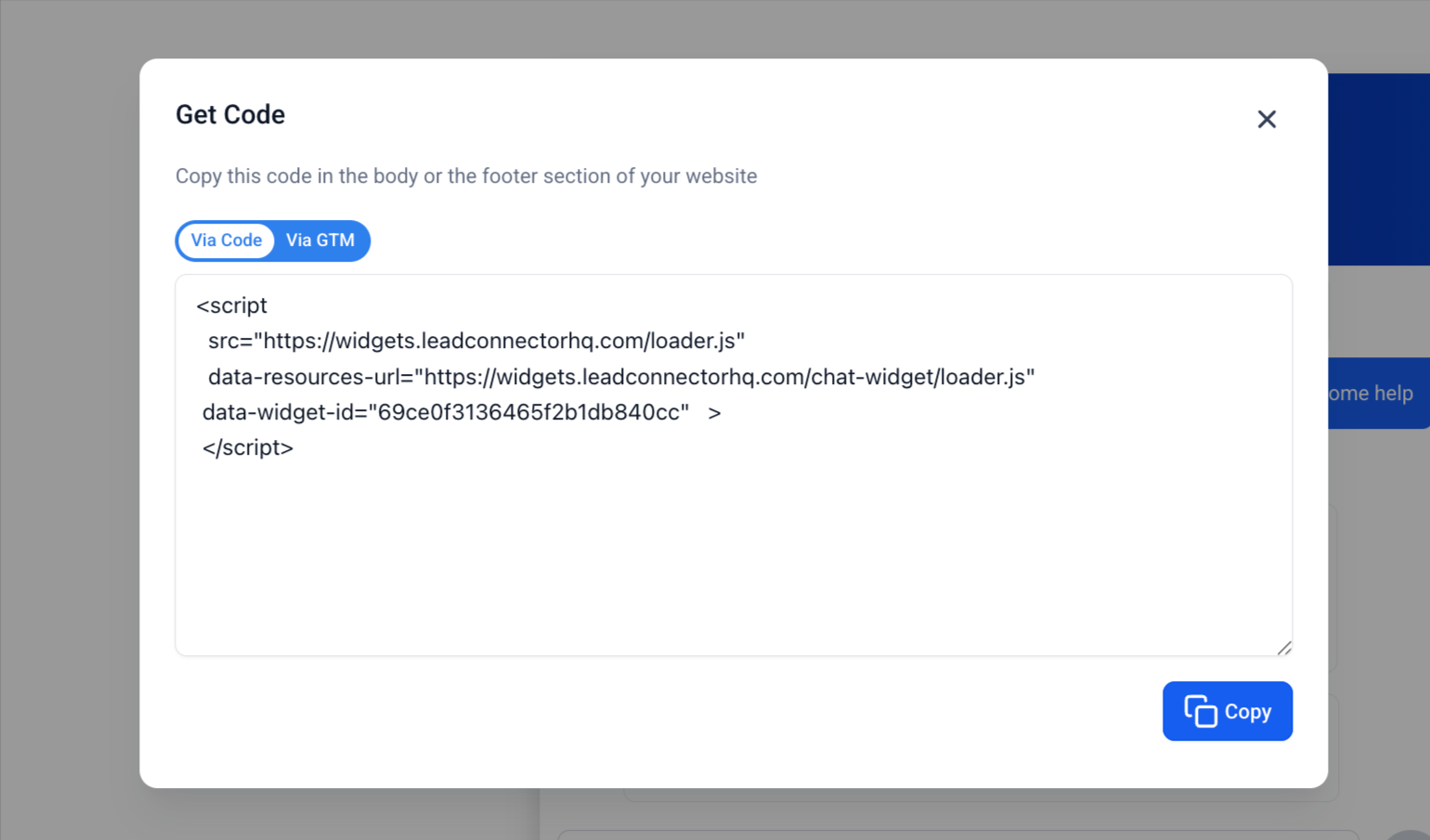
How It Works
The widget loads inline within the page content. Chat behavior remains the same as standard Live Chat (routing, automation, etc.).
Visitors can:
- Start a conversation
- Submit contact details
- Continue chatting in real time
Common Use Cases for Embedded Live Chat
Embedded placement is most effective when chat supports a specific action or reduces hesitation before a visitor continues.
Common use cases include:
- Capturing questions before form submissions
- Offering help on booking or consultation pages
- Answering objections during funnel steps
- Creating a more guided support experience on service pages
- Adding a visible conversation option inside dedicated contact sections
Best Practices
- Place the widget near high-intent content such as forms, offers, booking areas, or support prompts.
- Match widget styling to the page for a seamless appearance.
- Test spacing and alignment so the widget doesn’t look cramped in narrow sections.
- Review the mobile layout after publishing to confirm readability and spacing.
- Keep intro and acknowledgment messages clear and action-oriented.
Important Behavior Notes
- Embedded widgets do not float on the page.
- You can still use floating (sticky) widgets on other pages.
- There are no changes to routing, automations, or contact data capture.
Troubleshooting Embedded Live Chat
- Widget not showing: Confirm the embed code is correctly placed and the page is published.
- Layout issues: Verify container width in your page builder and check for CSS conflicts.
- Chat not responding: Review live chat assignment settings and confirm business hours configuration.
Frequently Asked Questions
Q: Can I use both embedded and sticky widgets?
Yes, you can use embedded widgets on some pages and sticky widgets on others.
Q: Does this affect chat performance?
No, chat functionality remains the same.
Q: Can I embed multiple widgets on one page?
Not recommended — it may cause user experience and tracking conflicts.