
Capture form submissions from external websites directly into your CRM with zero manual setup. The enhanced External Tracking feature automatically detects supported forms like Gravity Forms, WPForms, and custom HTML forms, then sends submissions into your system in real time. This eliminates the need for third-party tools, webhooks, or custom integrations while improving attribution and lead tracking accuracy.
TABLE OF CONTENTS
- What is External Tracking?
- Key Benefits of External Tracking
- Automatic Form Detection
- Smarter Field Mapping
- How To Setup External Tracking
- Supported Form Requirements
- Workflow Triggers
- Frequently Asked Questions
- Need Help?
What is External Tracking?
External Tracking is a lightweight script that connects your external website activity to your CRM, allowing you to track page views and automatically capture form submissions from third-party sites.
With the latest enhancement, External Tracking now automatically detects DOM-based forms and captures submissions without requiring manual configuration, making it significantly easier to track leads from platforms like WordPress, Shopify, Wix, and custom-built websites.
Key Benefits of External Tracking
External Tracking simplifies lead capture and improves visibility into external website performance, helping you make better marketing and automation decisions.
Automatic Form Detection: detects supported forms like Gravity Forms, WPForms, and custom HTML automatically
Real-Time Submission Capture: instantly captures submissions without delays or integrations
Automatic Contact Creation: creates or updates contacts immediately after submission
Smarter Field Mapping: maps fields intelligently to existing contact properties and custom fields
Attribution Tracking: captures UTM parameters, page URLs, and session data
Multi-Form Support: tracks multiple forms on the same page independently
Zero Configuration: no need for third-party tools, webhooks, or manual mapping
Automatic Form Detection
External Tracking scans your website for supported forms rendered directly in the DOM, allowing most modern form builders to work instantly after installation. This removes the need for manual validation and ensures a seamless experience when capturing leads from external sites.
Supported forms include:
WordPress forms (Gravity Forms, WPForms, Contact Form 7)
Custom HTML forms
No-code website builders
Forms embedded via iframes or third-party widgets are not supported.
Smarter Field Mapping
Field mapping is handled automatically using intelligent matching, ensuring that captured data aligns with your contact records without requiring manual setup. This improves data accuracy and reduces the need for post-submission cleanup.
Matches fields using name, label, and existing custom fields
Stores unmapped fields safely for later use
Supports multiple field types (text, dropdowns, checkboxes, dates, etc.)
Displays only relevant fields in the UI
How To Setup External Tracking
Correct installation ensures that all external form submissions and page activity are captured reliably, enabling accurate reporting and automation.
Step 1: Get Your Tracking Script
Go to Settings → External Tracking
Click Copy Script
External Tracking settings page showing the script and “Copy Script” button
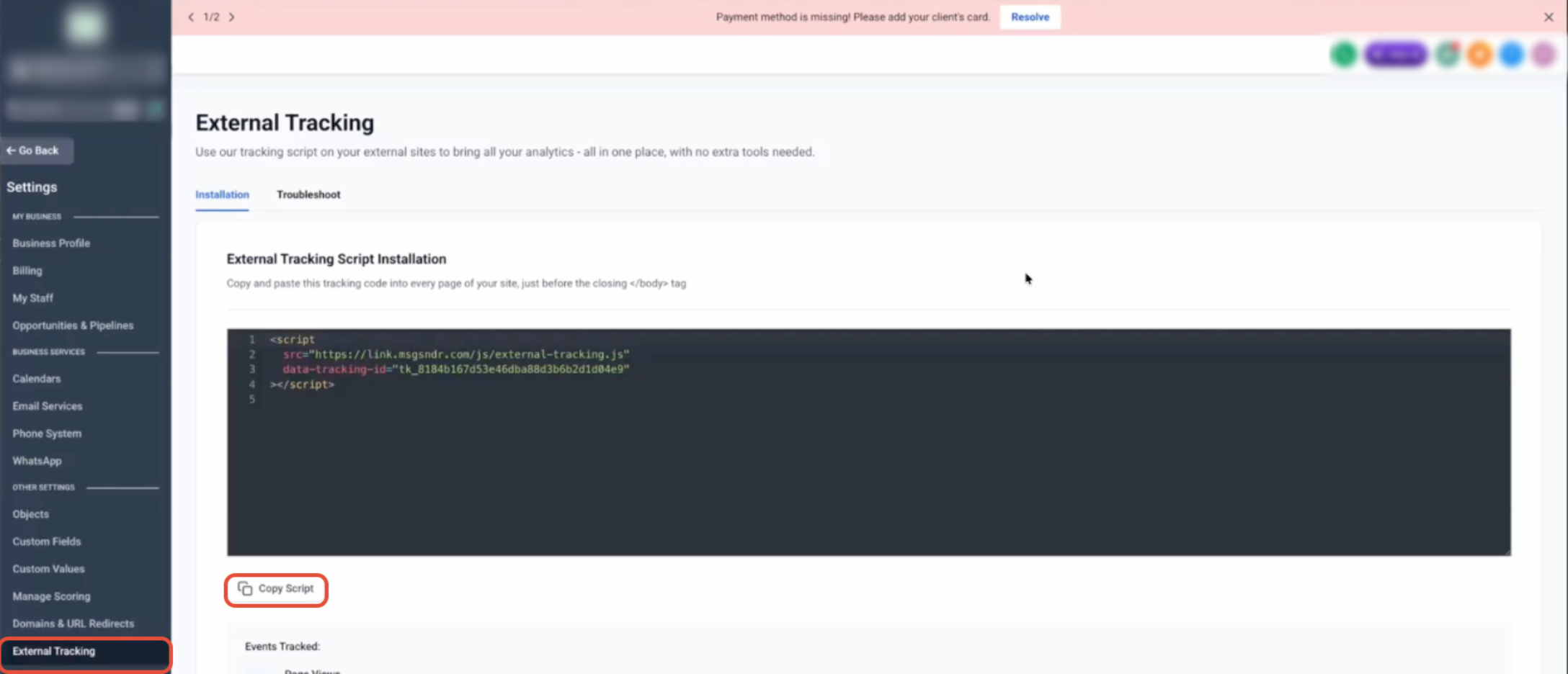
This script is unique to your account and acts as the connection between your website and your CRM. Do not modify the tracking ID.
Script snippet with the tracking ID visible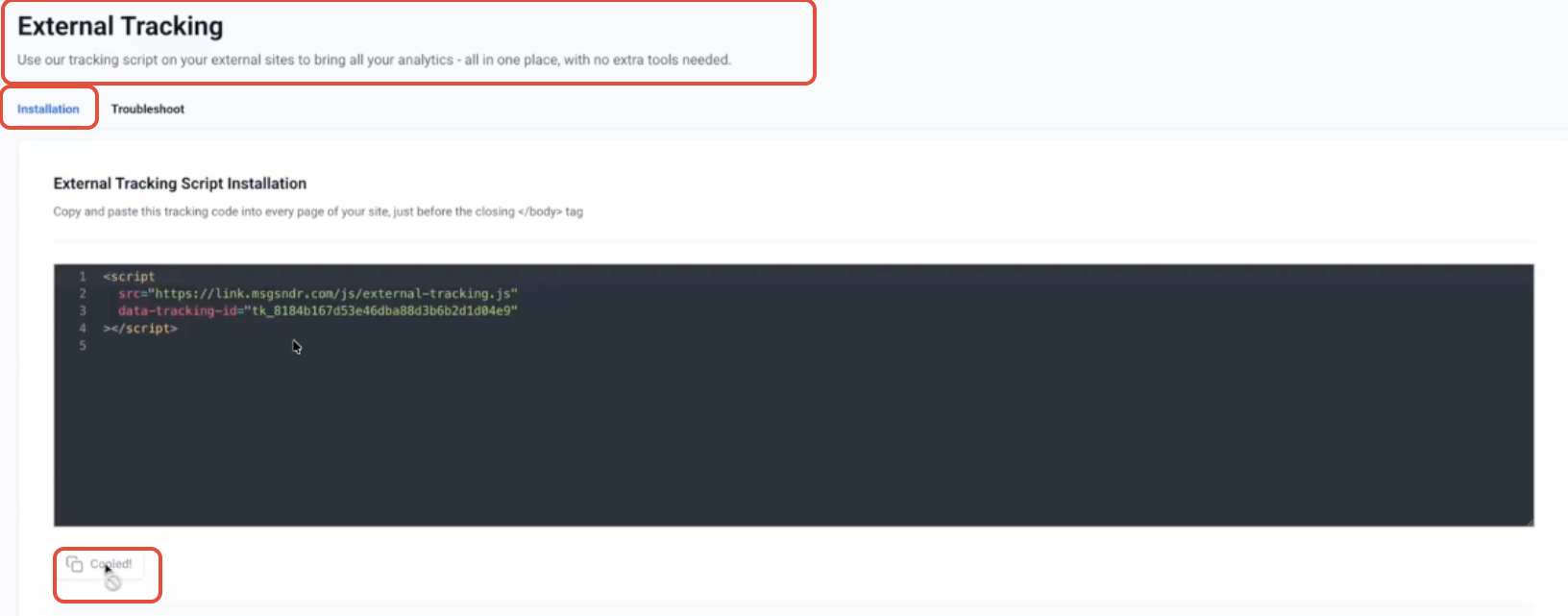
Step 2: Install the Script on Your Website
Paste the script before the closing </body> tag of your website so it loads on every page and can detect forms automatically.
<script src="https://link.yourdomain.com/js/external-tracking.js" data-tracking-id="tk_xxxxxxxxxxxxxxxxxxxxxxxxxxxxxxxx"></script>
Example WordPress dashboard where the script will be added
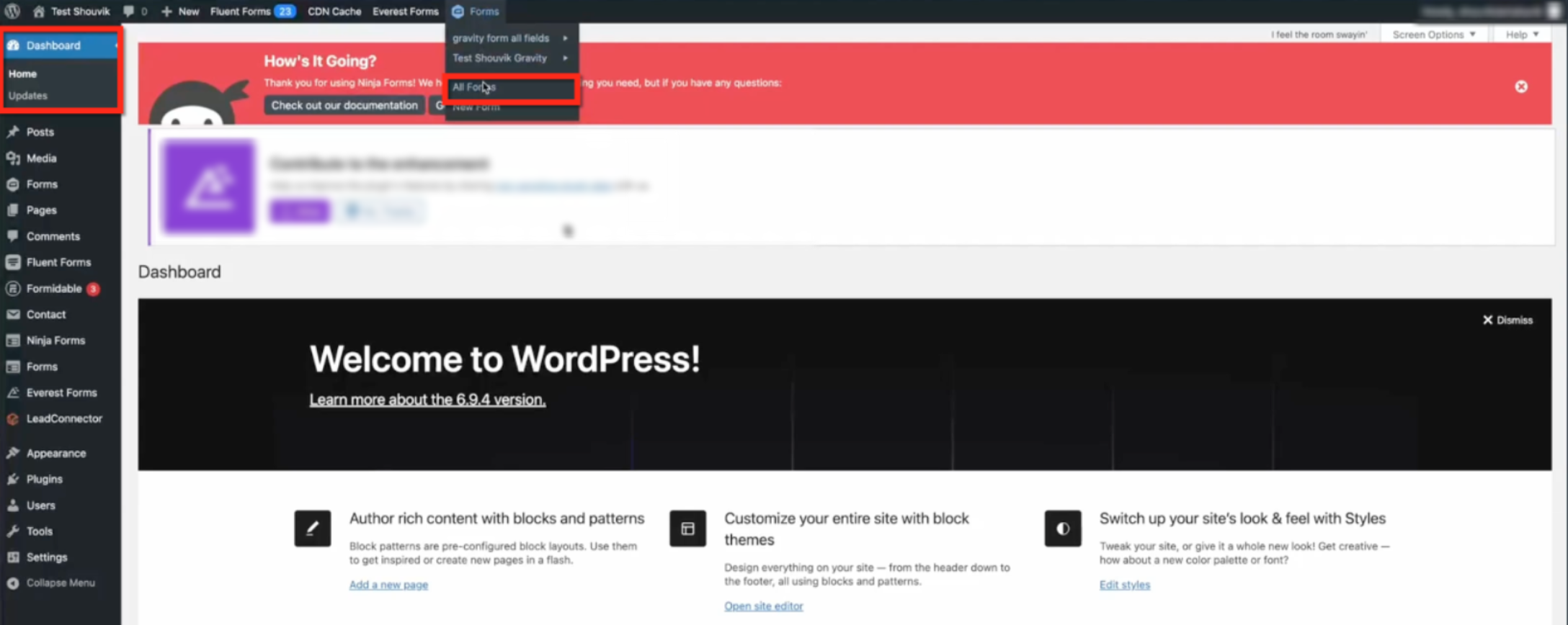
This can be implemented across multiple platforms including WordPress, Shopify, Wix, Webflow, or any custom HTML site.
Step 3: Add Script to Your Form or Page (Optional Example)
Although global installation is recommended, you can also place the script directly inside a form using an HTML block. This is often used in page builders or form editors for quick implementation.
WordPress Forms list selecting a form to edit
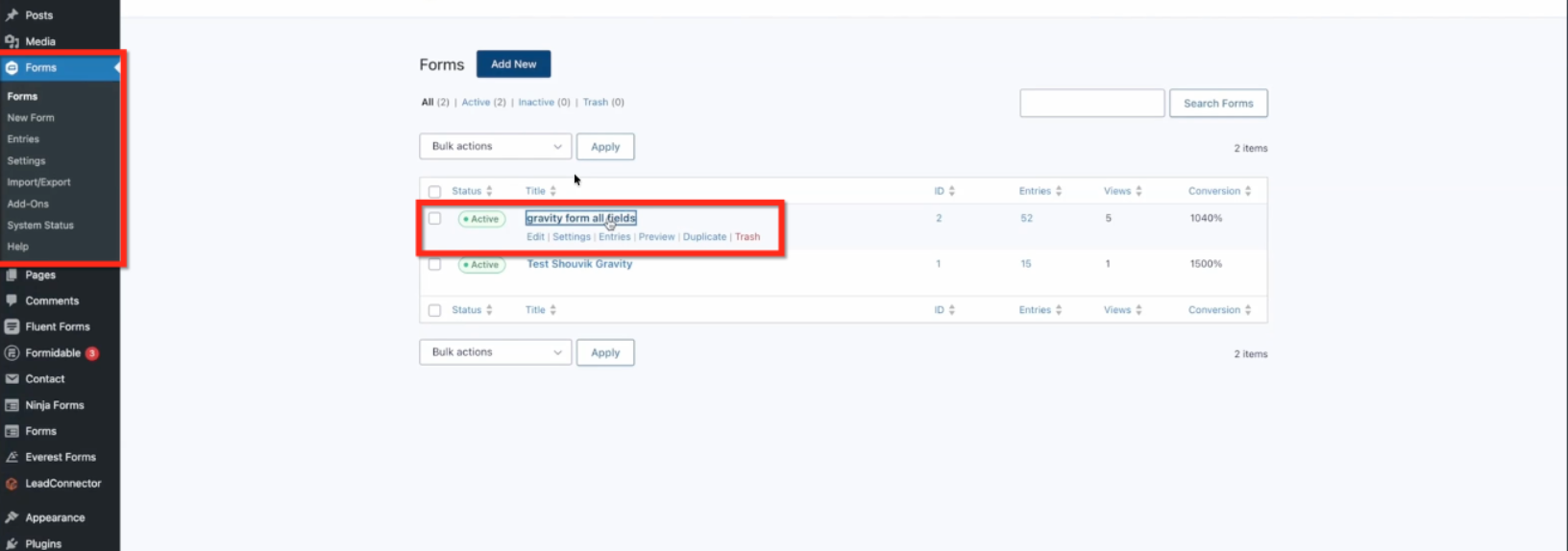
Once inside the form builder, you can insert the script into an HTML block to ensure it loads with the form.
HTML block inside a form with the tracking script added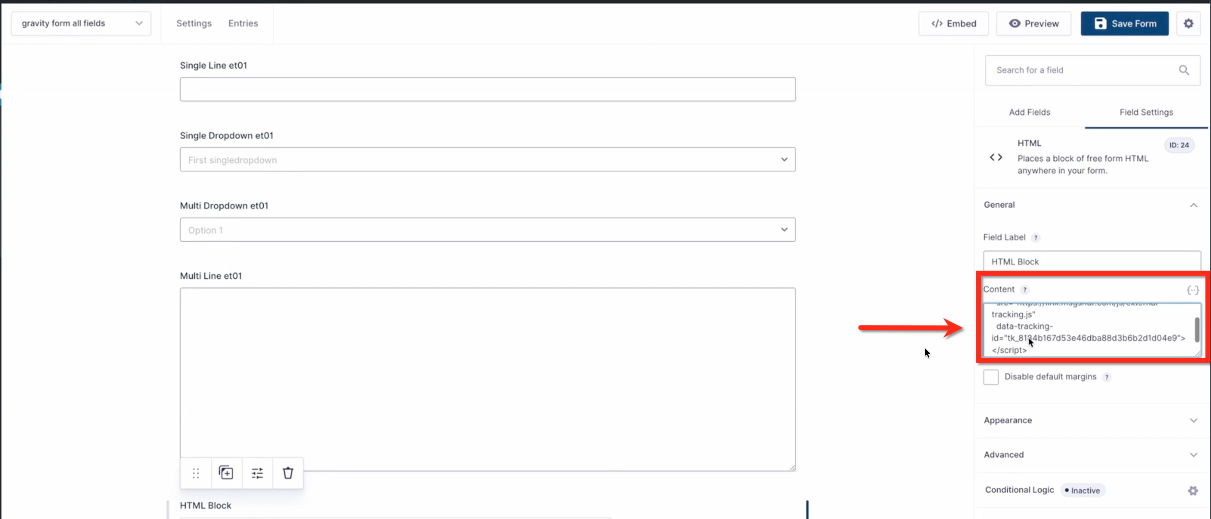
Step 4: Submit the Form
After installation, simply submit the form as a user would. The system will automatically detect the form and capture all supported field data without additional configuration.
Example external form (Gravity Form) filled out on a webpage
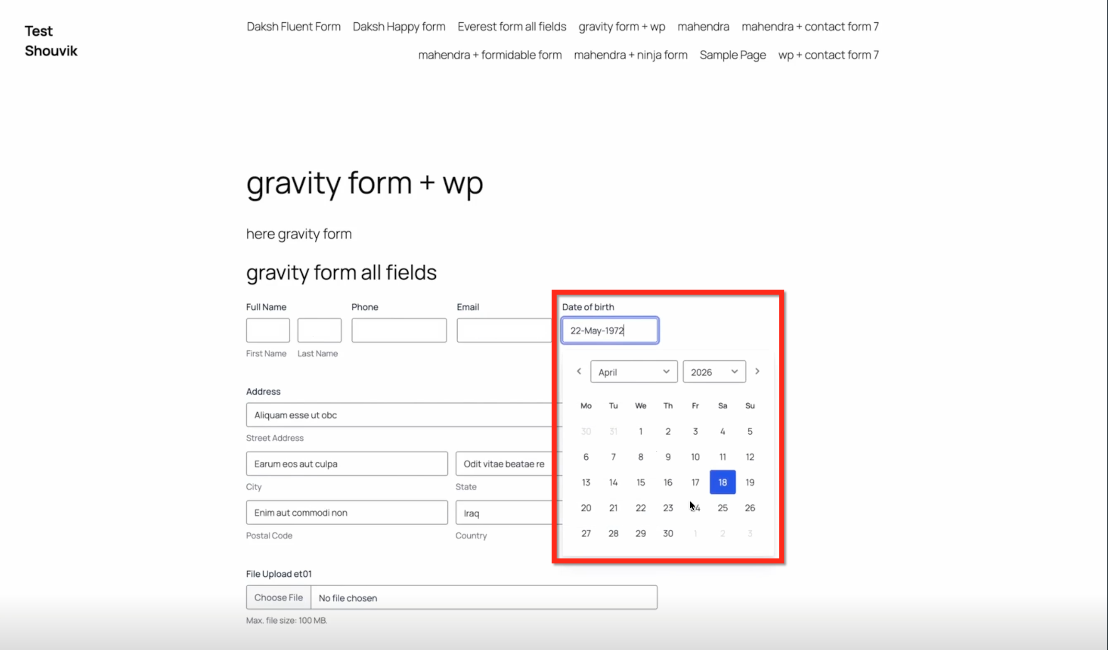
Once submitted, the form behaves normally from the user’s perspective while sending data to your CRM in the background.
Form submission confirmation message displayed to the user
Step 5: View Submissions
Captured submissions are instantly available inside your system, allowing you to review and manage incoming leads.
Navigate to Sites → Forms → Submissions
Select External Forms to filter results
Submissions dashboard displaying captured external form entries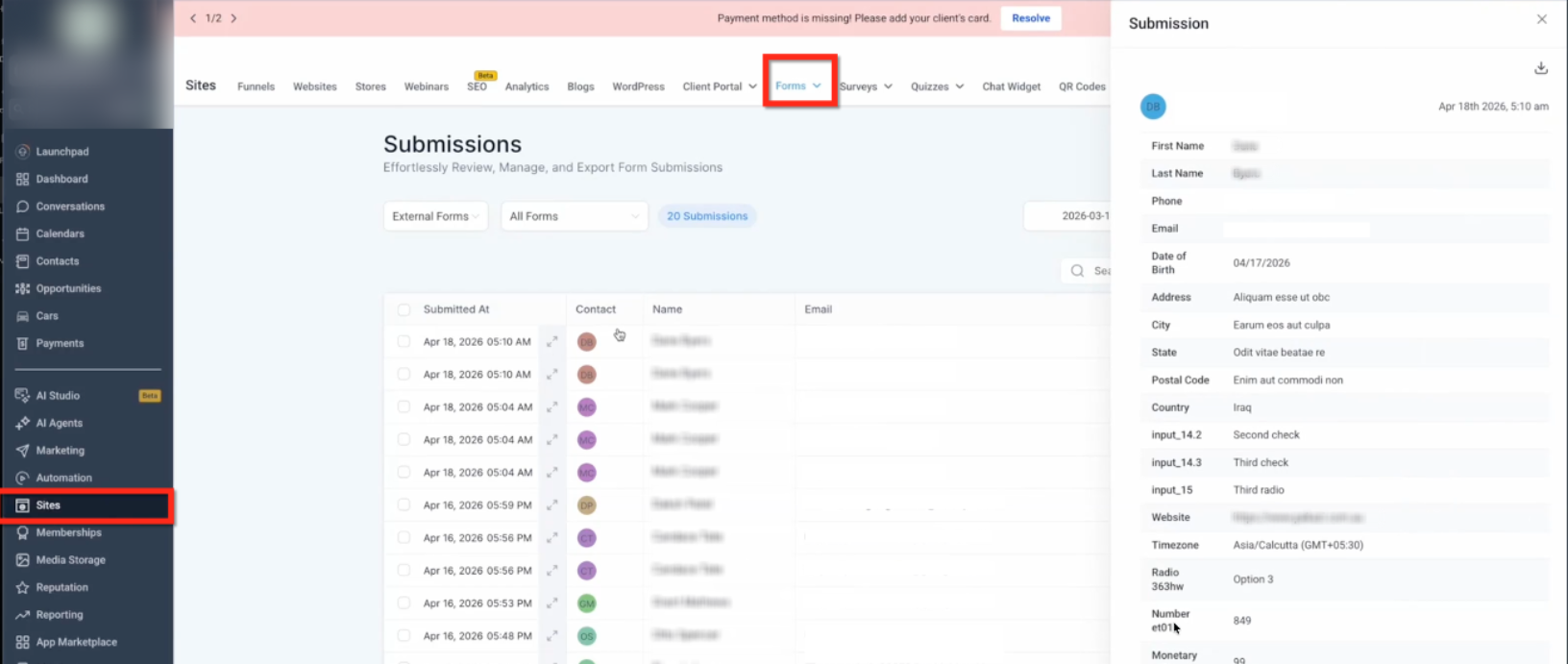
Step 6: View Contact & Activity Details
Each submission is also attached to a contact record, providing full visibility into the captured data and user activity. This allows you to use the information for segmentation, automation, and follow-up.
Activity details panel showing captured fields and unmapped data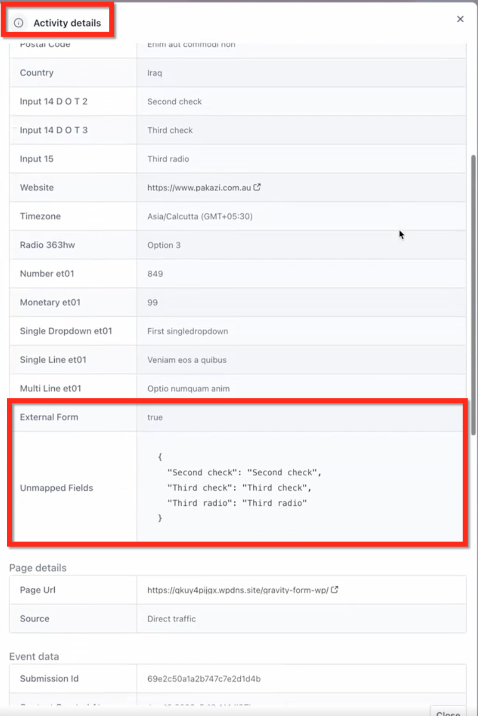
Supported Form Requirements
External Tracking works automatically when forms meet basic structural requirements, ensuring reliable detection and data capture.
Must use a valid <form> HTML element
Fields must include name attributes
An email field should be present
Fields must be visible in the DOM
Not supported:
Iframe-based forms
Popup widgets without real form elements
Third-party scripts that do not expose inputs
Workflow Triggers
External Tracking enables automation based on user behavior, allowing you to respond to leads instantly and efficiently.
Page View Trigger: fires when a visitor lands on a page with the tracking script (even anonymously)
Form Submission Trigger: fires when a detected form is submitted
Available filters:
Domain
Page path
External form name
UTM parameters
Frequently Asked Questions
Q: Do I need to configure anything after installing the script?
No. Form detection and submission tracking happen automatically.
Q: Does this work with Gravity Forms and WPForms?
Yes. Most DOM-based WordPress forms are supported out of the box.
Q: Can multiple forms on the same page be tracked?
Yes. Each form is detected and tracked independently.
Q: Are iframe-based forms supported?
No. Only forms rendered directly in the DOM are supported.
Q: Where can I view submissions?
In Forms → Submissions, as well as within contact records and activity logs.
Q: What happens to unmapped fields?
They are stored safely and can be used later for mapping or workflows.
Need Help?
If you need help setting up External Tracking or troubleshooting form submissions, contact support or your system administrator for assistance.