
The Activity tab in the mobile app gives you a quick way to review a contact’s history from your phone. Instead of switching to a desktop browser or searching across multiple areas, you can open a contact and view recent forms, calls, appointments, and other events in one chronological feed.
TABLE OF CONTENTS
- What is the Contact Activity Tab on Mobile?
- Key Benefits of the Contact Activity Tab on the Mobile
- Activity Timeline
- Activity Filters
- Activity Details
- Mobile and Web Differences
- How to Access the Activity Tab on Mobile
- Frequently Asked Questions
What is the Contact Activity Tab on Mobile?
The Contact Activity tab is a contact profile view on mobile that displays a chronological timeline of activity connected to a specific contact. It helps you understand recent engagement, previous interactions, and important contact events directly from the mobile app.
Activities may include:
- Form submissions
- Calls
- Appointments
- Page visits
- Trigger link clicks
- Surveys or quizzes
- Payment-related activity
- Other contact events stored in the system
Key Benefits of the Contact Activity Tab on the Mobile
Mobile access to contact activity helps teams make informed decisions without waiting until they’re back at a desktop.
A clear activity timeline reduces guesswork and provides context before calling, messaging, qualifying, or supporting a contact.
- Save Time: Review one activity feed instead of searching multiple areas.
- Close Faster: Check recent engagement (calls, forms, appointments) before reaching out.
- Improve Context: Keep everyone aligned with the same recorded history.
- Stay Mobile-First: Review and qualify contacts directly from your phone.
- Reduce Errors: Base decisions on recorded activity instead of memory.
Activity Timeline
The activity timeline provides a chronological view of what has happened with a contact. This helps you understand the contact’s journey and identify the most recent actions before following up.
You can scroll through the feed to review past interactions and activity records associated with the contact.
Activity Filters
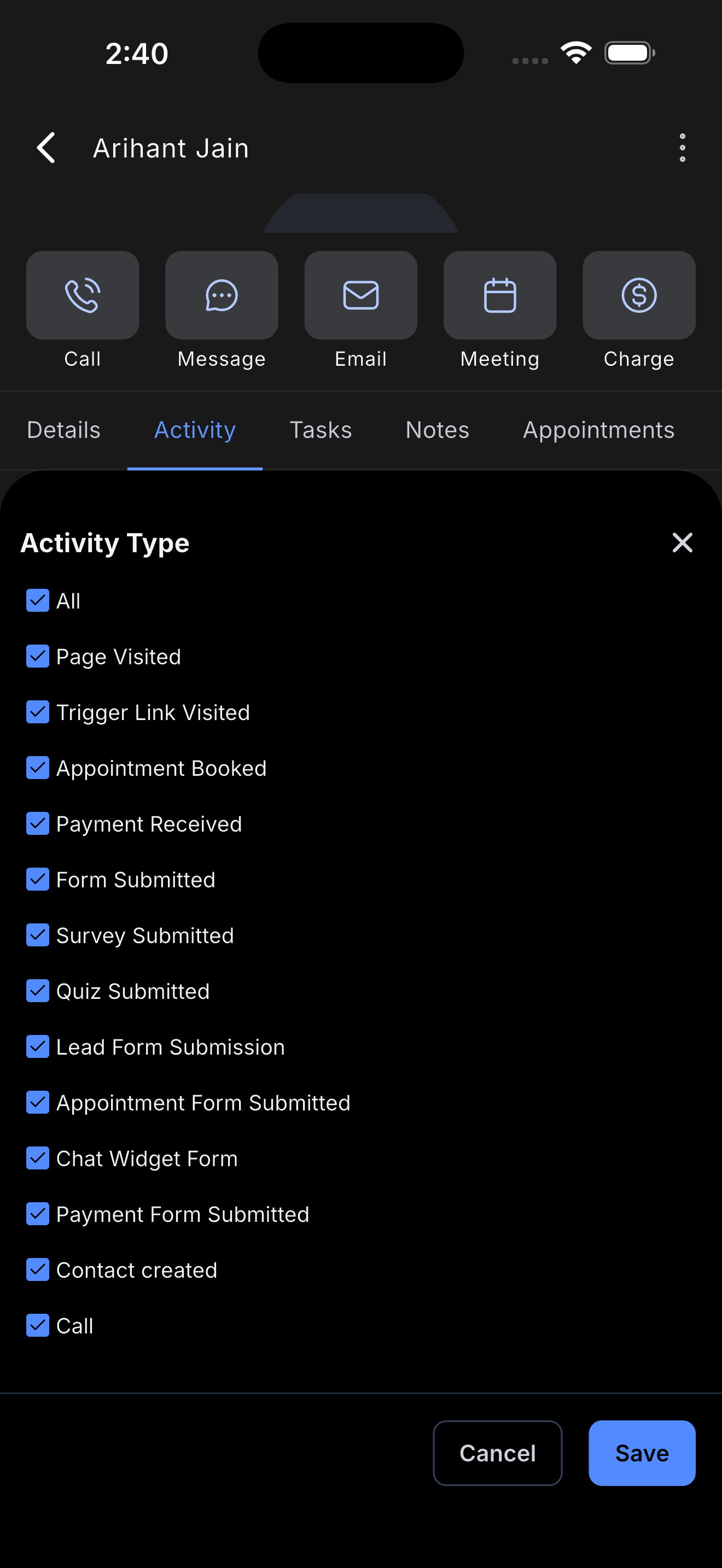
Filters help you narrow long activity timelines so you can find the most relevant contact events faster—especially for contacts with a large history of calls, form submissions, appointments, or other engagement.
When the activity list is long, use the available filters in the Activity tab to narrow the timeline. Filter options may vary based on the mobile experience and supported activity types.
Activity Details
Activity details provide additional context about a specific timeline item when more information is available. This helps you understand the meaning behind an activity without leaving the contact profile.
Tap supported activity items to open more details. The amount of detail shown depends on the activity type and whether richer mobile details are supported for that event.
Mobile and Web Differences
The mobile Activity tab is designed for fast, on-the-go contact context. Some activity details may differ from the web experience as parity between mobile and desktop continues to improve.
The web contact activity experience may include details or interaction options that are not yet fully available on mobile. Use the mobile Activity tab as a quick way to review contact history while working from iOS or Android.
How to Access the Activity Tab on Mobile
The Activity tab does not require a complex setup. You need:
- Access to the mobile app
- The correct location selected (if applicable)
- Permissions to view the contact and their activity.
To view a contact’s activity on mobile:
- Open the mobile app on iOS or Android.
- Go to Contacts.
- Select the contact you want to review.
- Open the Activity tab in the contact profile.
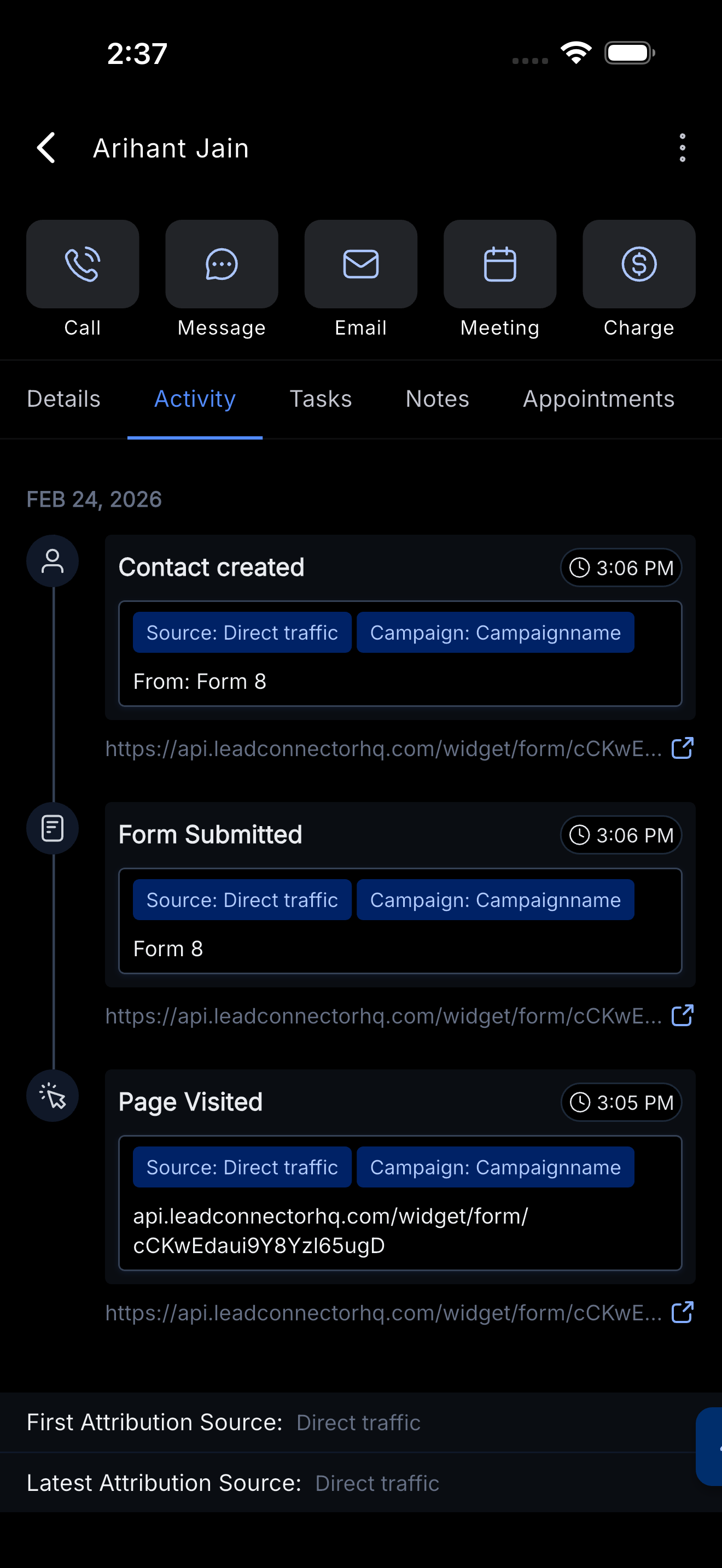
- Scroll the timeline to review contact events.
- Use available filters to narrow the list (if needed).
- Tap an activity item to view additional details (when supported).
- Use the timeline context to plan your next action (call, message, book an appointment, follow up).
Frequently Asked Questions
Q: Is the Activity tab available on both iOS and Android?
Yes, it’s available in the mobile app on iOS and Android.
Q: What activities can I see in the mobile Activity tab?
Activities may include forms, calls, appointments, and other contact events stored in the system. What you see can depend on contact history, supported activity types, and your permissions.
Q: Why don’t I see an expected activity on mobile?
Visibility depends on your permissions, what data exists for that contact, and whether that activity type is supported on mobile. Check the web contact record if you need to compare activity visibility.
Q: Can I filter the contact activity timeline?
Yes. Use available filters in the Activity tab to narrow long activity lists. Filter options may vary based on supported mobile functionality.
Q: Can I tap an activity to see more details?
Yes—when that activity type supports additional details on mobile. Some activity items may show richer details than others.
Q: Does the mobile Activity tab match the web activity timeline exactly?
Not always. Parity and detail coverage can differ between mobile and web.
Q: Can I edit or delete activities from the mobile Activity tab?
This article confirms viewing, filtering, and opening supported activity details. Don’t assume edit/delete options are available unless they appear in your mobile app.
Q: Do all users see the same contact activity?
Not necessarily. What someone sees can depend on their permissions and the activity data available for that contact.