
Email Sequences help you automate multi-step email follow-ups while keeping each message in a single threaded conversation. This makes it easier to send timely outreach, maintain context with recipients, and track how each step performs.
Email Sequences are useful for sales follow-ups, lead nurturing, appointment reminders, onboarding campaigns, and other email-based communication that requires multiple touches over time.
TABLE OF CONTENTS
- What are Email Sequences?
- Key Benefits of Email Sequences
- Email Sequences vs. Regular Email Campaigns
- Email Sequences vs. Workflow Email Automation
- Single-Threaded Email Conversations
- Stop on Reply
- Delays and Conditions
- Designed and Plain-Text Emails
- Sequence and Step-Level Statistics
- How To Set Up Email Sequences
- Frequently Asked Questions
What are Email Sequences?
Email Sequences allow you to send a series of automated emails to selected contacts, lists, or segments. Each sequence can include multiple email steps, delays between steps, conditional sending rules, and reply-based stopping.
Unlike a standard one-time email campaign, an Email Sequence is designed for ongoing follow-up that keeps messages connected in a single email thread. This is especially useful when follow-up emails should feel connected to the original message instead of appearing as separate, unrelated emails.
Key Benefits of Email Sequences
Email Sequences help you automate follow-up without losing the personal feel of a connected conversation. By combining delays, conditions, and threaded emails, you can create more relevant outreach while reducing repetitive manual work.
- Threaded Conversations: Keep automated follow-up emails in one email thread so recipients can easily understand the full conversation history.
- Behavior-Based Follow-Ups: Send follow-up emails based on recipient behavior, such as open or delivery status.
- Time Savings: Automate repetitive outreach instead of manually sending each follow-up email.
- Reply Based Stopping: Stop future sequence emails when a recipient replies, helping avoid unnecessary follow-ups.
- Flexible Email Formats: Use designed emails or plain-text emails depending on the communication style needed.
- Performance Visibility: Review sequence-level and step-level statistics to understand how each email performs.
Email Sequences vs. Regular Email Campaigns
Regular email campaigns are typically used for one-time sends, scheduled sends, or batch-style email delivery.
Email Sequences are different because they support multiple email steps, delays, conditions, and automated follow-ups within a single threaded conversation.
- Use a regular campaign when you want to send one email to an audience.
- Use an Email Sequence when you want to send a series of follow-up emails that continue over time based on timing, delivery, opens, or replies.
Email Sequences vs. Workflow Email Automation
Workflows are broader automations that can include many types of actions, triggers, channels, and business logic. Email Sequences are focused specifically on automated email follow-up from the email campaign area.
- Use Email Sequences when your goal is to create a structured email follow-up series.
- Use workflows when your automation requires multiple channels, complex branching, pipeline changes, task creation, or other non-email actions.
Single-Threaded Email Conversations
Single-threaded email conversations allow each email in the sequence to appear as part of the same ongoing conversation. This helps recipients understand the context of each follow-up and reduces the chances that messages feel disconnected.
Threaded sequences are especially helpful for outreach where each message builds on the previous one, such as lead follow-up, sales outreach, onboarding, or appointment-related communication.
Stop on Reply
Stop on Reply helps prevent contacts from receiving unnecessary follow-up emails after they respond. When enabled, the sequence stops sending future emails to a recipient once that recipient replies.
This is useful for outreach that should remain relevant—once a contact replies, the conversation can continue manually without the sequence continuing to send automated follow-ups.
Delays and Conditions
Delays and conditions control when each step in the sequence should be sent.
- Delays space out follow-up emails.
- Conditions determine whether a contact should receive a specific email step.
Email Sequences support conditional targeting based on open or delivery status. This helps you create more relevant follow-ups, such as sending a different message depending on whether a previous email was opened or delivered.
Examples of sequence logic:
- Send the first email immediately.
- Wait a set amount of time before sending the next email.
- Send a follow-up only when the previous email was delivered.
- Send a follow-up based on whether the recipient opened a previous email.
Designed and Plain-Text Emails
Email Sequences support both designed emails and plain-text emails:
- Designed emails work well for branded communication, newsletters, or visually formatted outreach.
- Plain-text emails work well when you want messages to feel more direct, personal, and conversational.
Choose the format that matches the goal of each sequence. For example, a sales follow-up sequence may use plain-text emails, while a customer onboarding sequence may use designed emails with helpful links and visual formatting.
Sequence and Step-Level Statistics
Email Sequences include performance analytics at both the sequence level and the individual step level:
- Sequence-level statistics help you understand overall performance.
- Step-level statistics help you identify which specific emails are performing well—or need improvement.
How To Set Up Email Sequences
Before creating a sequence, confirm your audience, timing, email content, and stopping rules so the sequence supports your outreach goal without sending unnecessary emails.
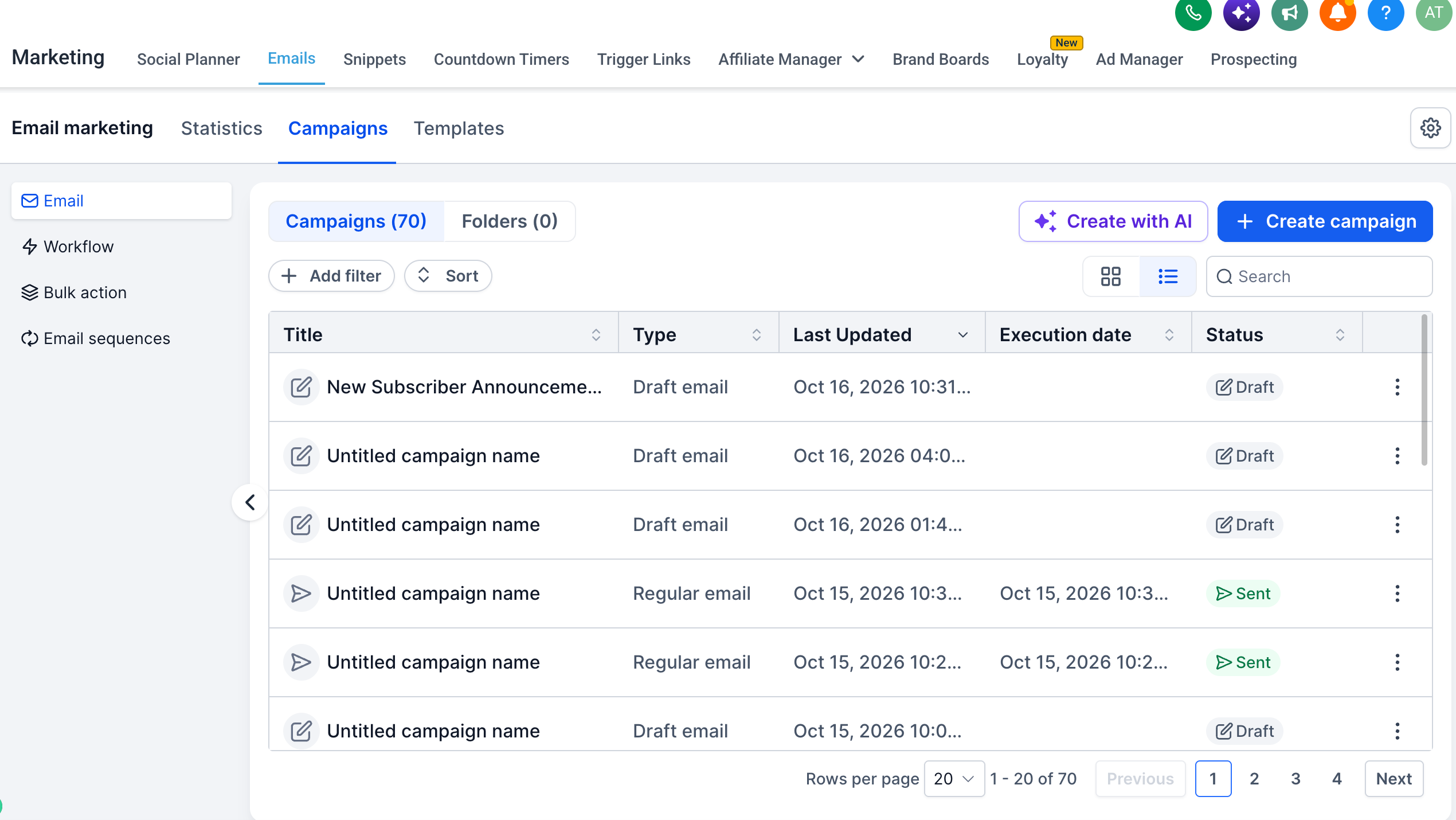
- Navigate to Marketing → Email → Campaigns.
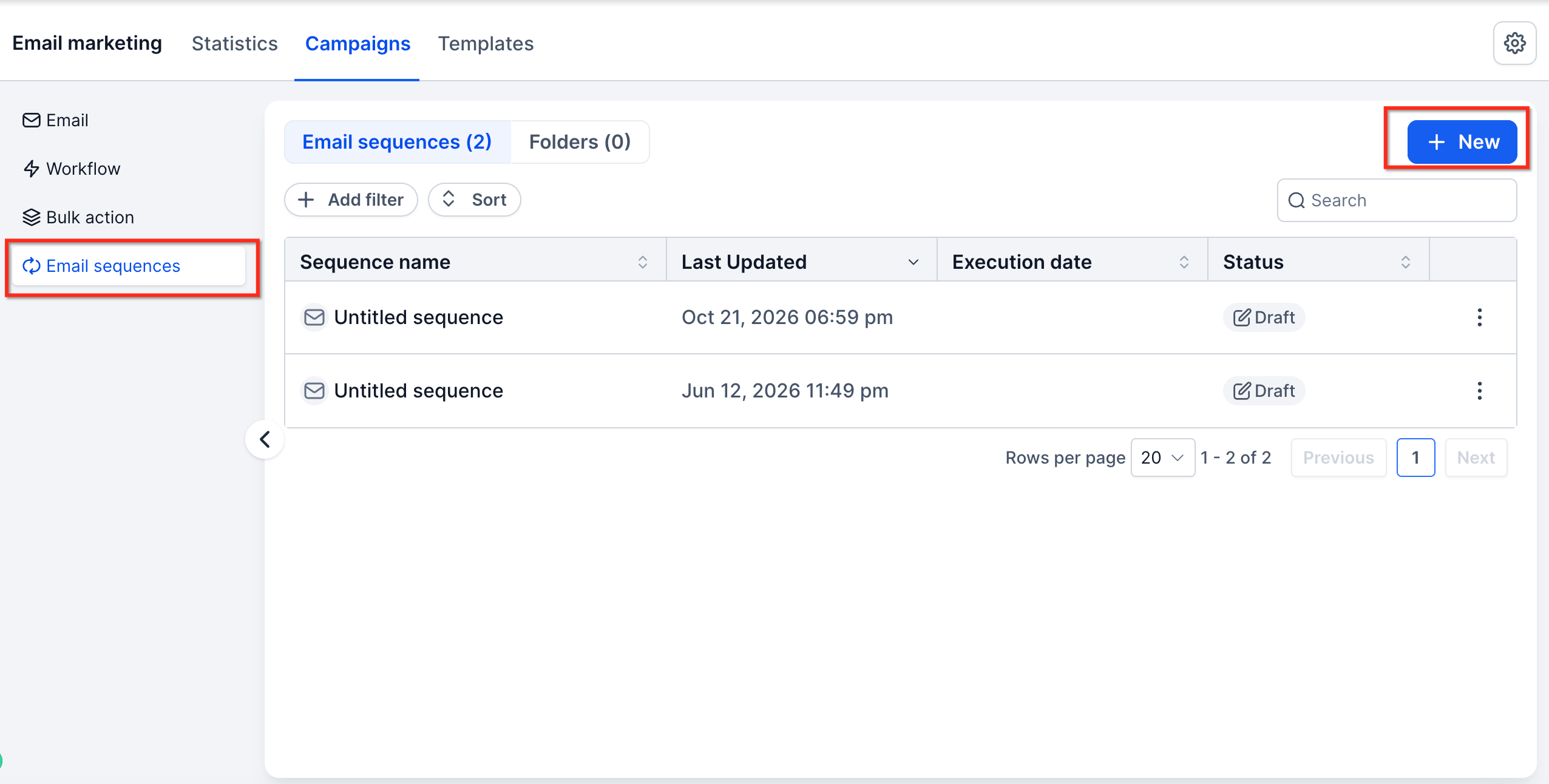
- Create a new campaign or email asset, then select Create an Email Sequence.
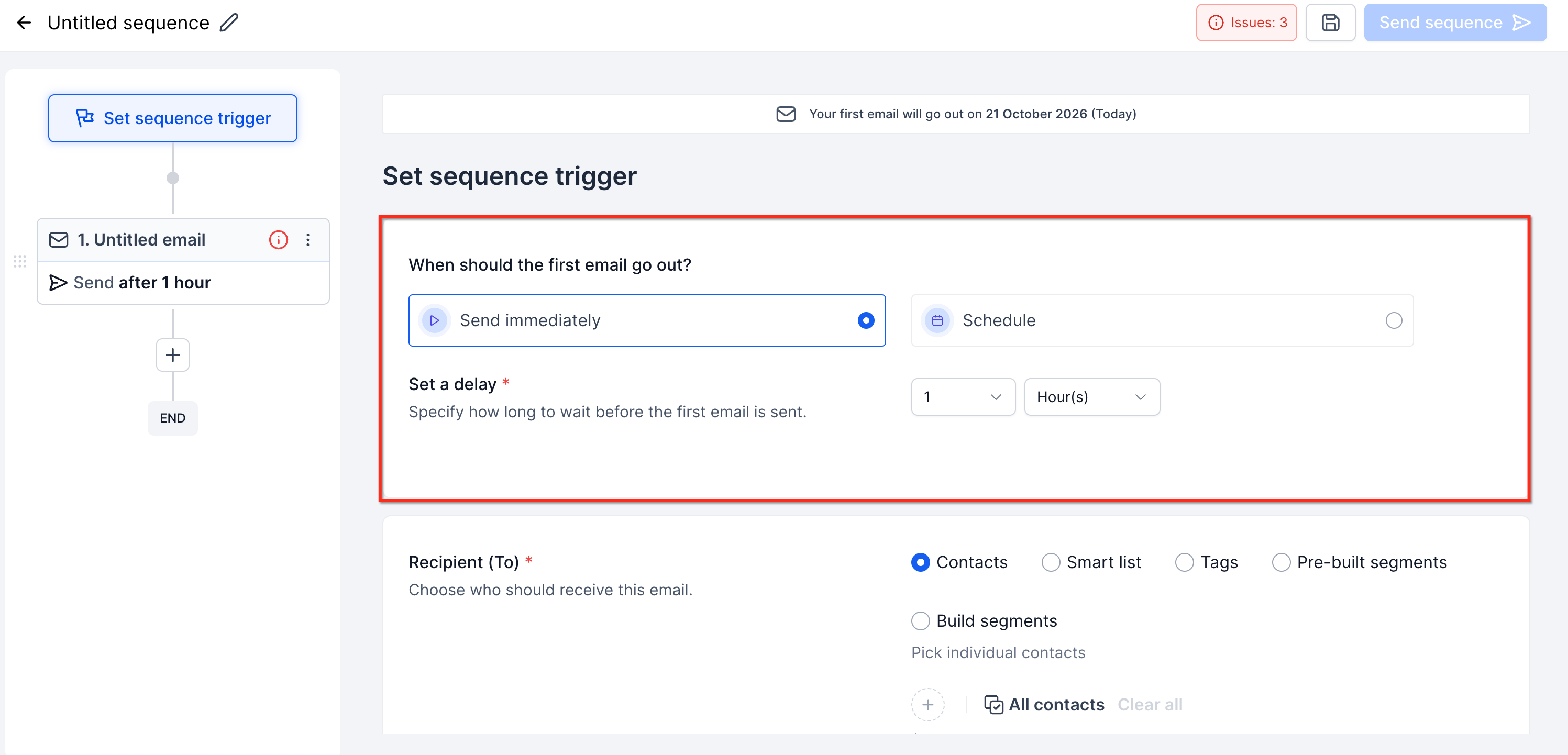
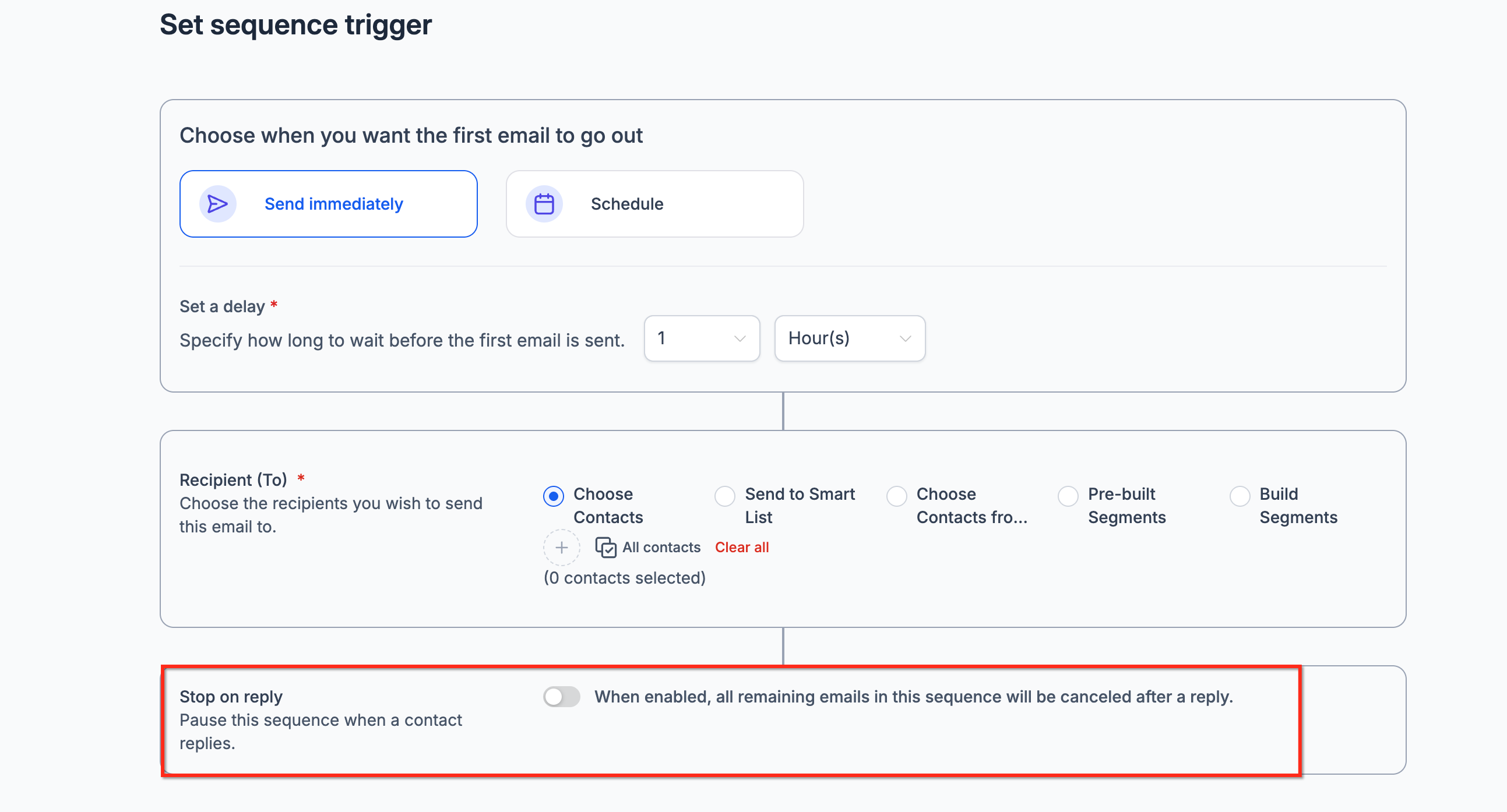
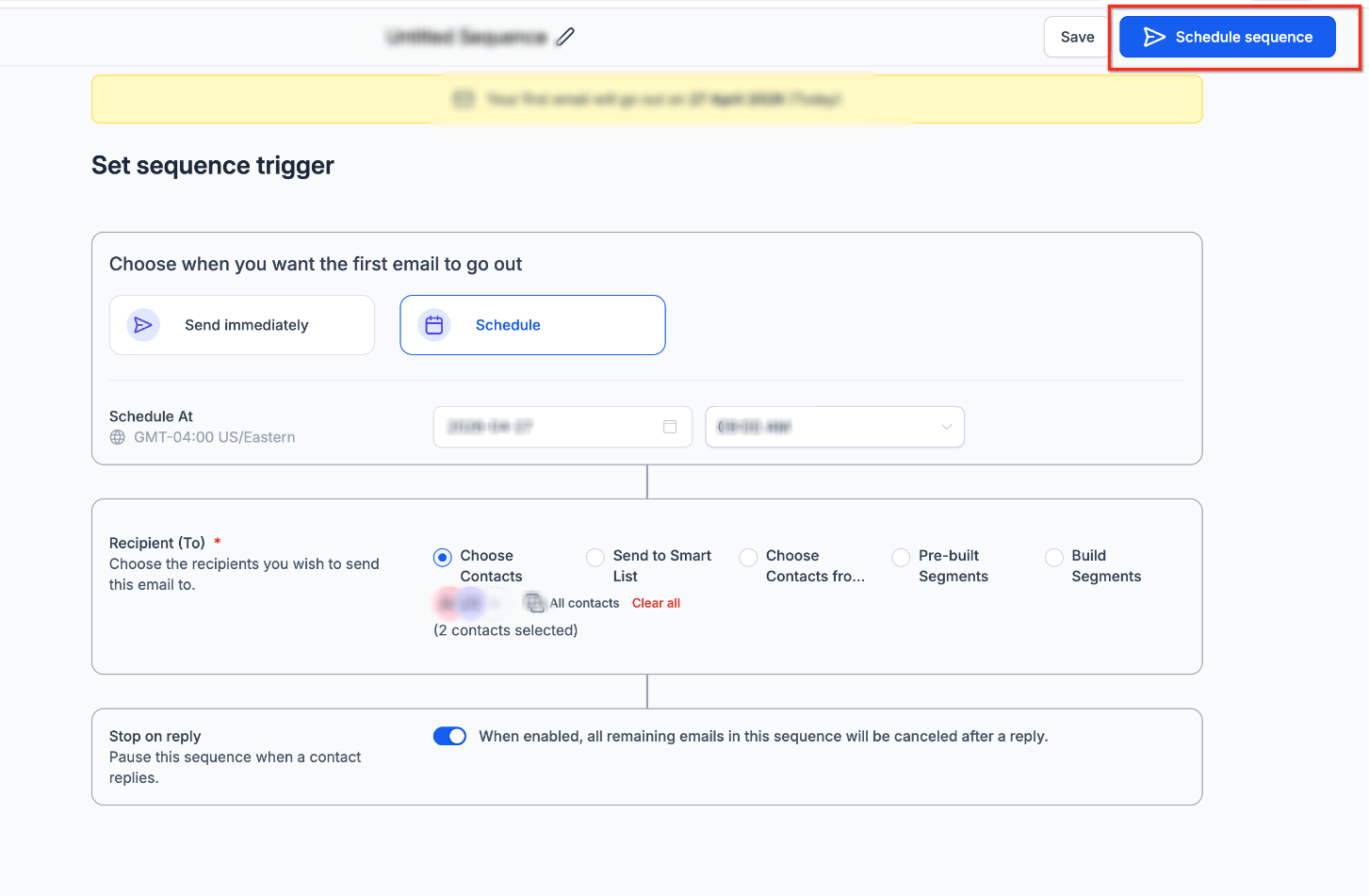
- Set the sequence trigger (start immediately or schedule for later).
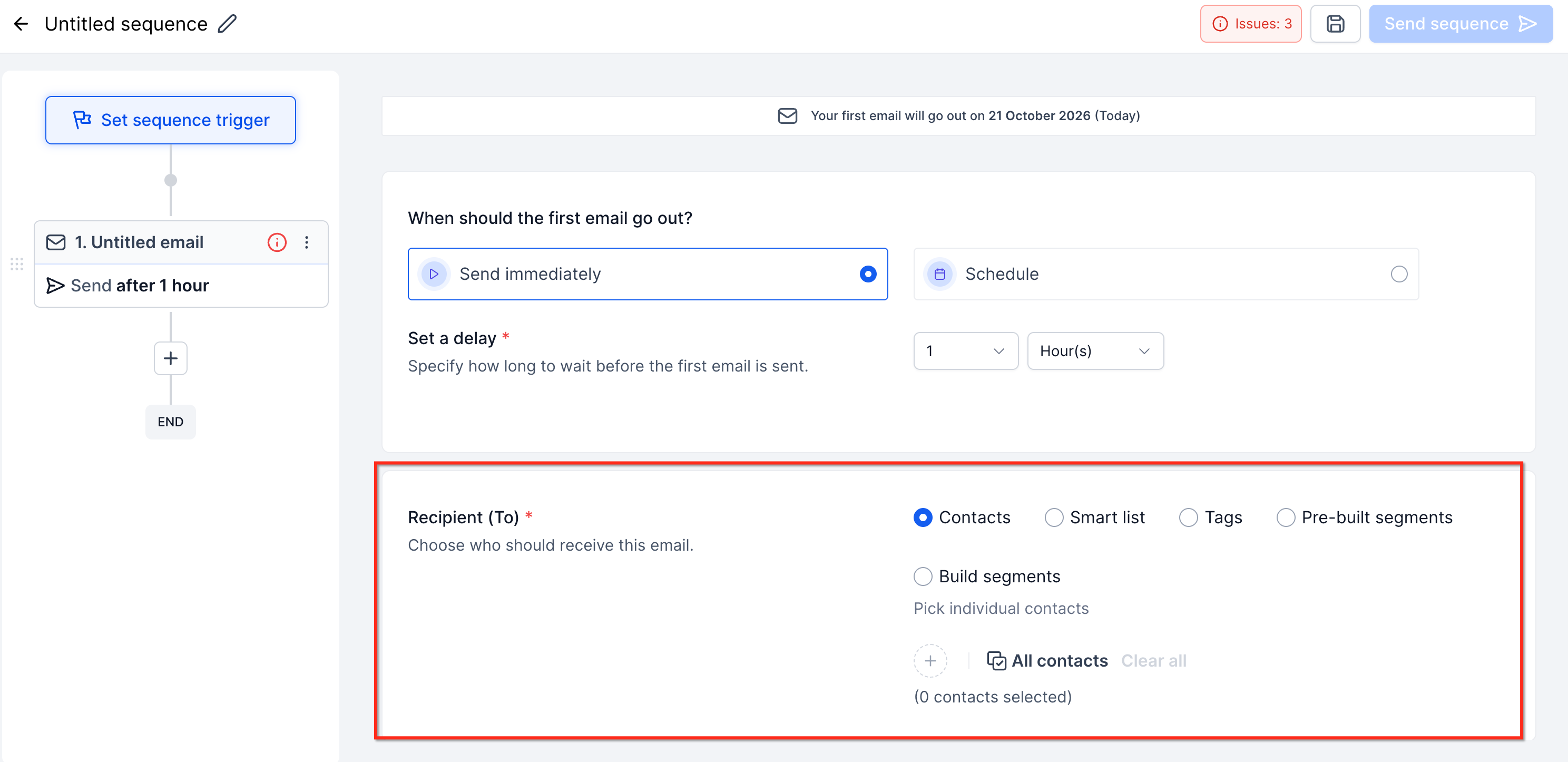
- Choose the sequence audience (select contacts, lists, or segments).
- Configure Stop on Reply (enable it to stop future emails after a recipient replies).
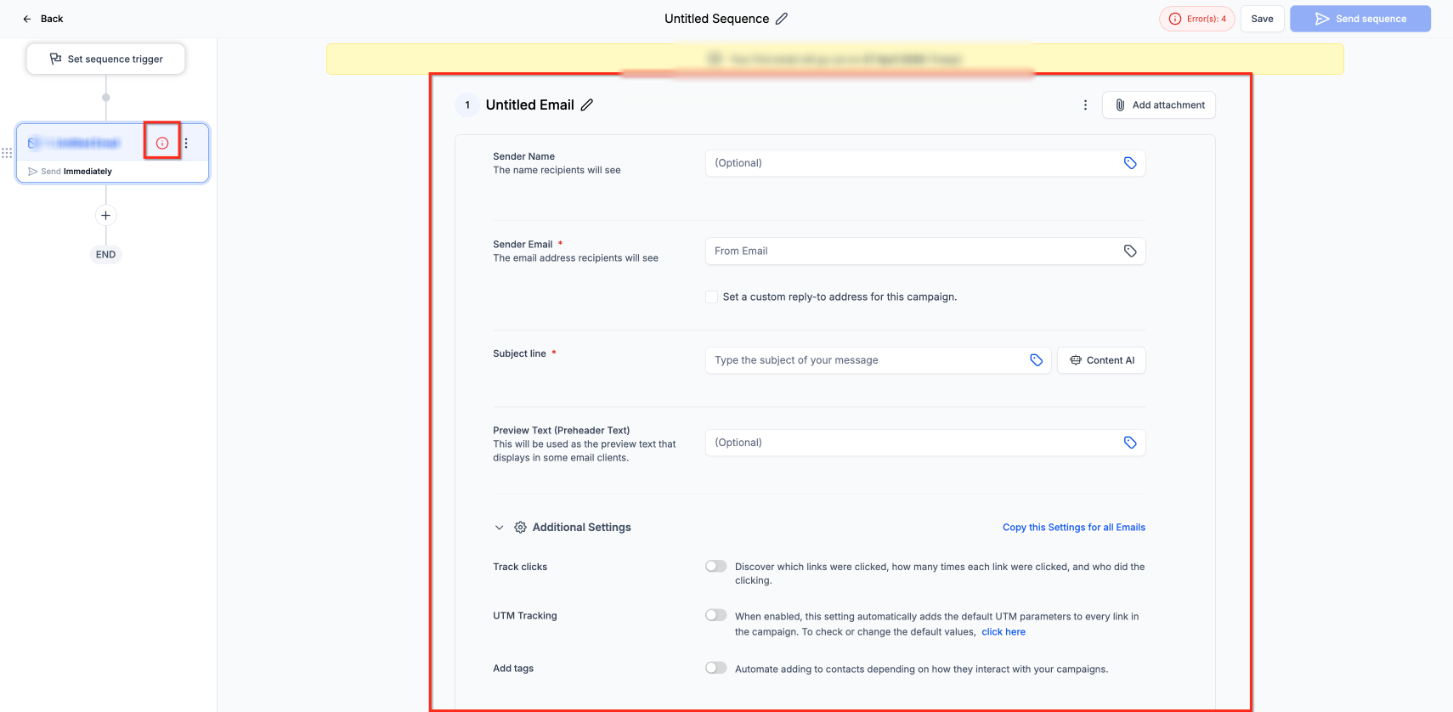
- Add email steps (create the emails to send as part of the sequence).
- Add delays between steps (control when each follow-up is sent).
- Add conditions to steps (for example, open or delivery status).
- Configure each step (select or create content; choose designed or plain-text; configure tracking where available).
- Review and activate the sequence (confirm trigger, audience, delays, conditions, and content).
- View performance statistics. From the sequence list, open the three-dot menu for the sequence and select Statistics to review sequence-level and step-level performance.
Frequently Asked Questions
Q: Who can access Email Sequences?
A: Email Sequences are currently available in Private Beta for selected accounts that are opted in.
Q: Are Email Sequences the same as regular email campaigns?
A: No. Regular campaigns are typically used for one-time email sends, while Email Sequences are used for automated multi-step follow-up.
Q: Are Email Sequences the same as workflows?
A: No. Workflows support broader automation across multiple actions and channels. Email Sequences are focused on automated email follow-up from the email campaign area.
Q: What does “single-threaded conversation” mean?
A: It means the emails in the sequence are sent as part of one ongoing email conversation, helping the recipient keep context across follow-ups.
Q: What does Stop on Reply do?
A: Stop on Reply stops future sequence emails for a recipient once that recipient replies.
Q: Can I use both designed and plain-text emails?
A: Yes. Email Sequences support designed emails and plain-text emails.
Q: Can I send sequence steps based on recipient behavior?
A: Yes. Email Sequences support conditional targeting based on open or delivery status.
Q: Where can I view Email Sequence statistics?
A: Open the three-dot menu for the sequence and select Statistics to view performance analytics.