
Custom Module Links in the App Customizer give you advanced control over who can see specific navigation links and where they appear. By combining role-based visibility with location targeting, you can create a cleaner, more relevant user experience while limiting access to sensitive resources.
TABLE OF CONTENTS
- What is Custom Module Visibility by Role & Location?
- Key Benefits of Custom Module Visibility by Role & Location
- Role-Based Visibility
- Location Targeting
- Unified Custom Module Configuration
- How to Set Up Custom Module Links with Role & Location Visibility
- Frequently Asked Questions
What is Custom Module Visibility by Role & Location?
Custom Module Links let you add external or internal links directly into your app’s navigation menu. With role-based and location-based visibility, these links are no longer static—they can be tailored to specific users and specific locations for a more controlled and personalized experience.
Admins can choose whether a link is visible to all users or admin users only, and also limit where it appears by selecting the location(s) where the link should be available.
Key Benefits of Custom Module Visibility by Role & Location
- Targeted Visibility: Show links only to the right users/roles to reduce clutter
- Improved Security: Restrict sensitive links to admins only
- Location Specific Customization: Tailor navigation per location
- Controlled Rollouts: Test new links with a limited group before wider release
- Centralized Configuration: Manage title, URL, icon, location selection, and visibility in one place
Role-Based Visibility
Role-based visibility determines which users can see a custom module link based on their assigned role.
Options:
- All Users: Visible to all users within the selected locations
- Admin Only: Visible only to users with admin-level access
Example Use Cases:
- Internal dashboards visible only to admins
- Training resources available to all team members
Location Targeting
Location targeting lets you control where a custom module link appears by selecting specific locations. Only users within the selected locations can see the link (based on the role visibility setting).
How It Works:
- Select one or more locations where the link should appear
- Unselected locations are excluded
Example Use Cases:
- Location-specific resources
- Region-based tools or integrations
Unified Custom Module Configuration
All settings for custom module links are managed from a single Add/Edit Module popup. From there, you can:
- Enter the Title
- Add the URL
- Choose an Icon
- Select Locations
- Set Role-Based Visibility
How to Set Up Custom Module Links with Role & Location Visibility
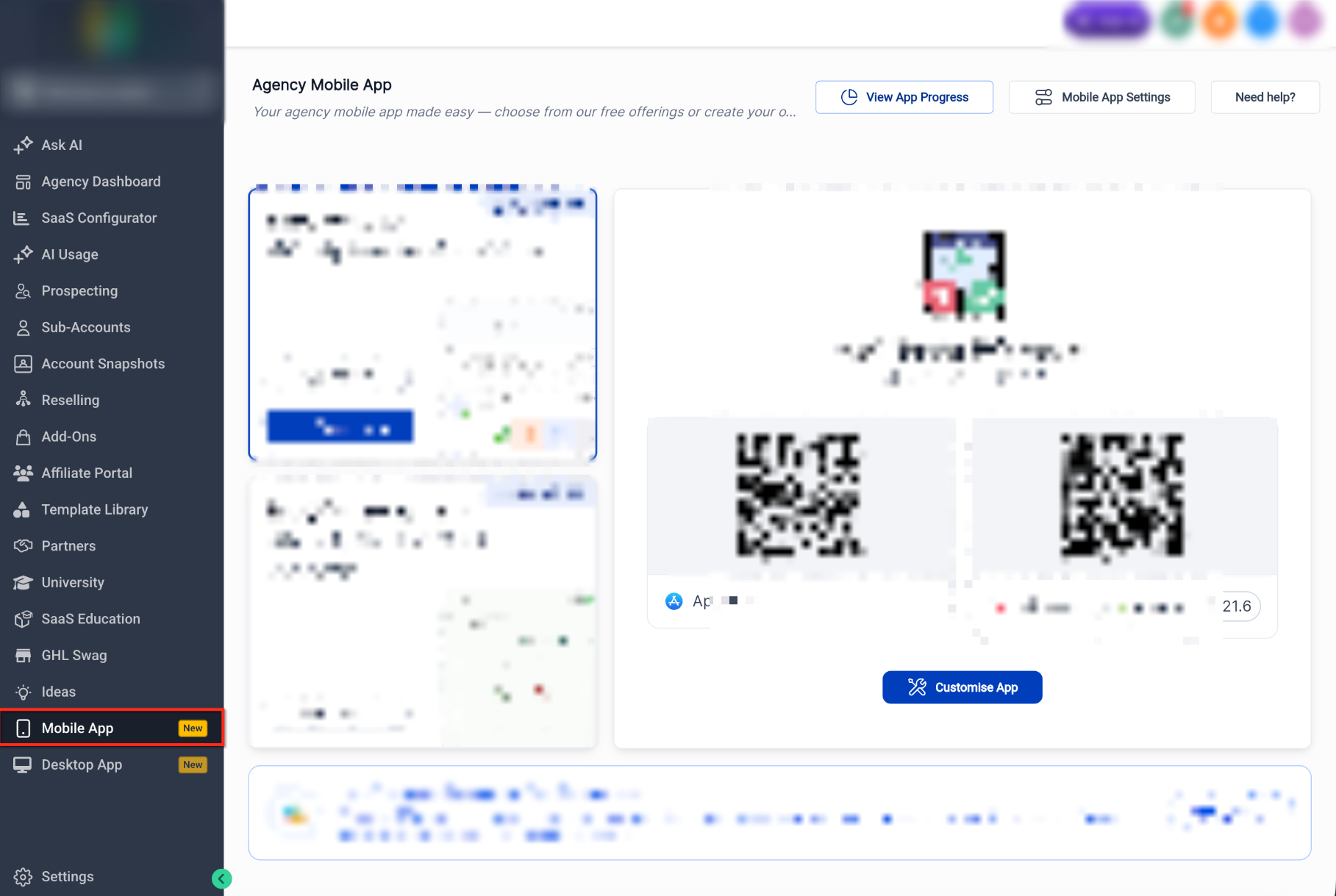
- Navigate to Mobile App in the left navigation.
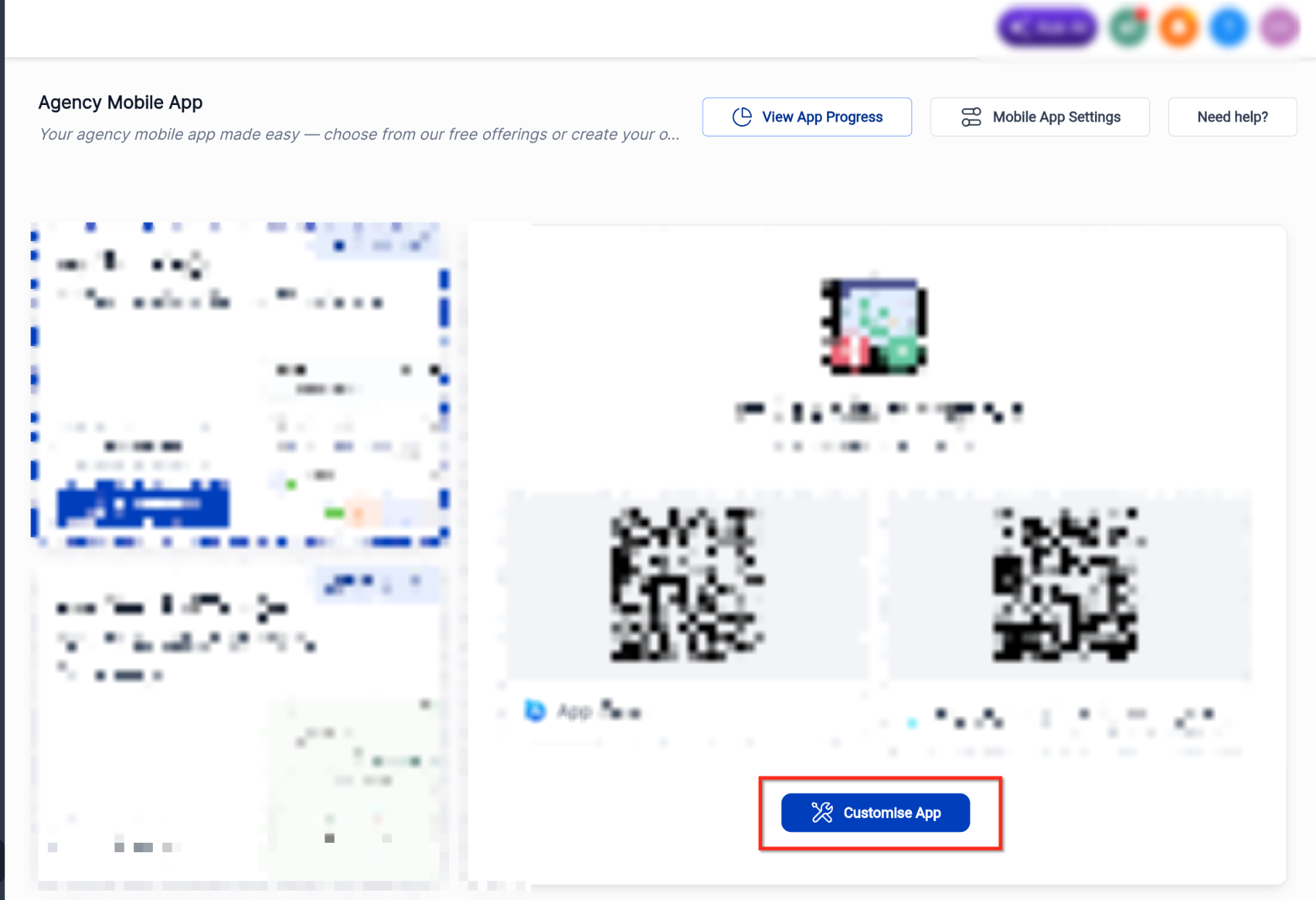
- Select Customize App.
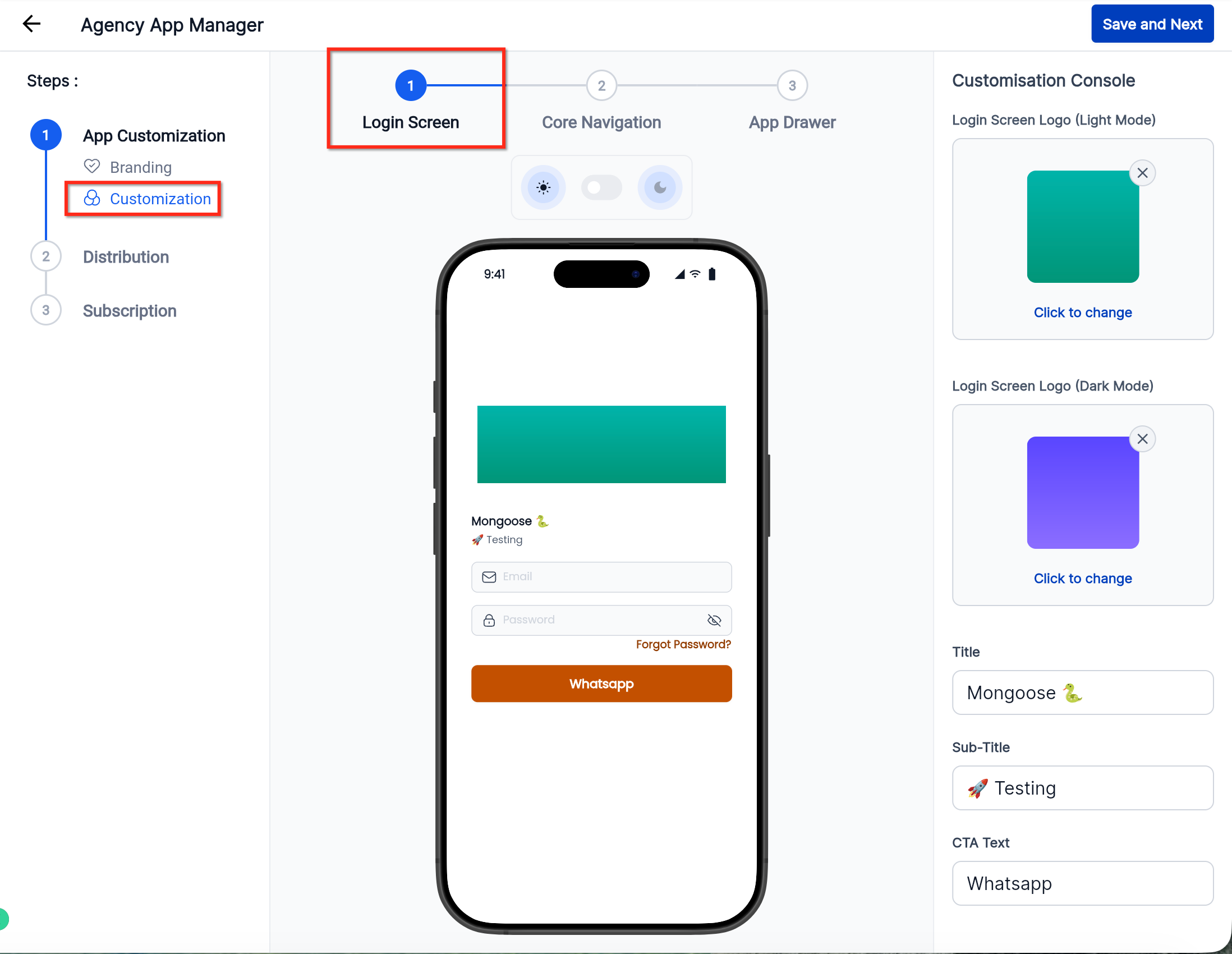
- Enter the Title and URL.
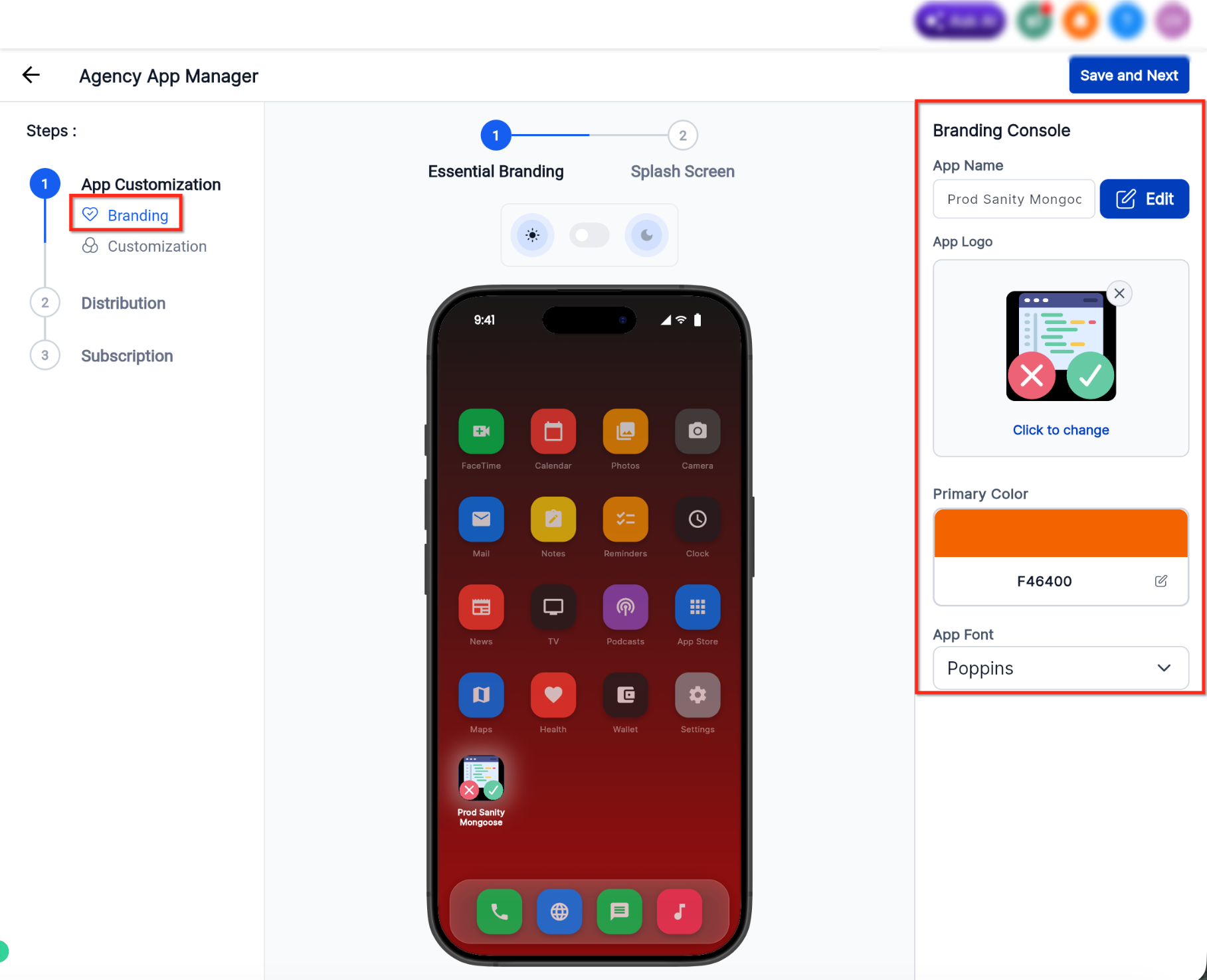
- Choose the App Logo under Branding.
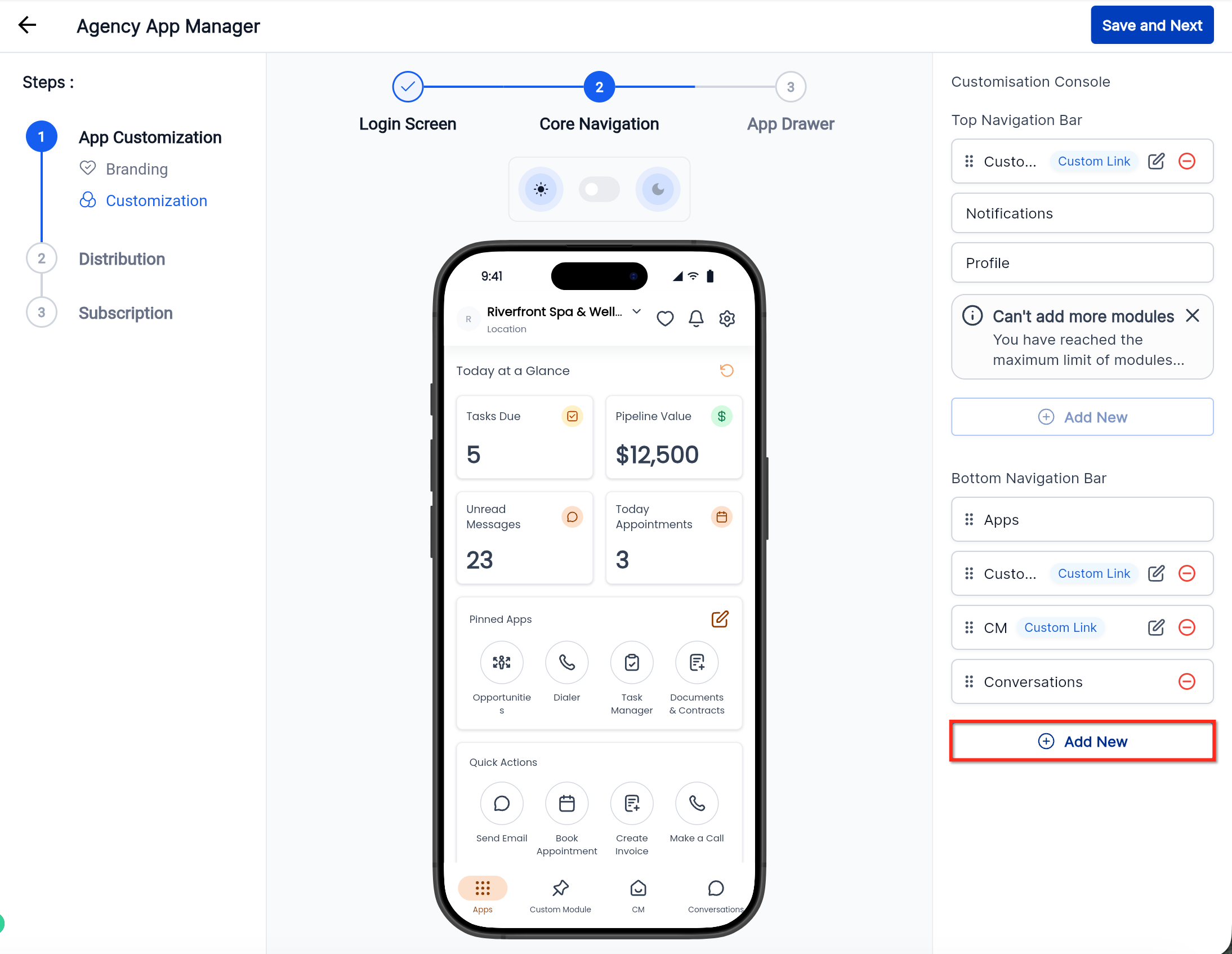
- Click Add New to create a new module.
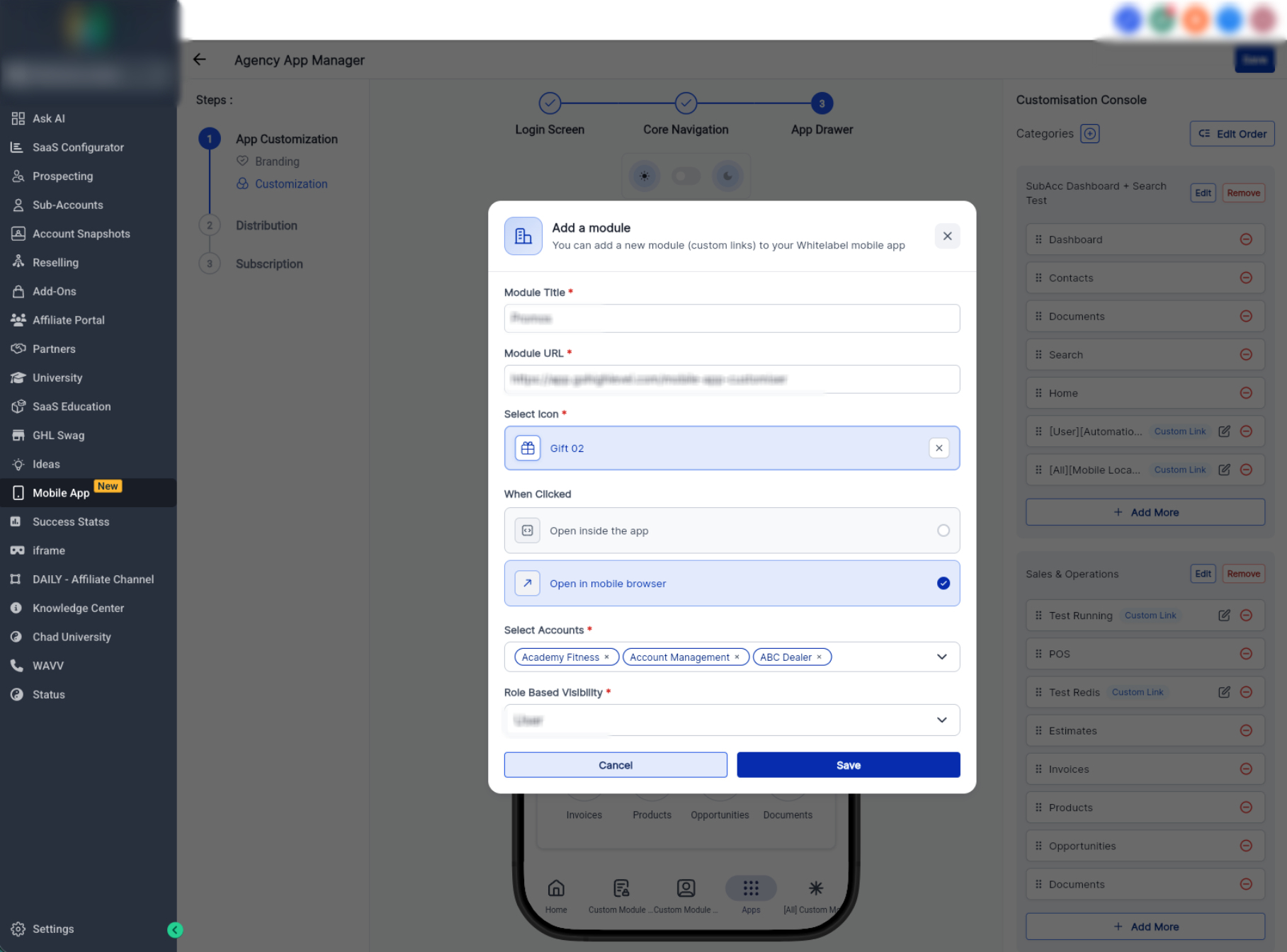
- Click Save.
Frequently Asked Questions
Q1: What happens if I don’t select any locations?
If no locations are selected, the link may not appear anywhere. It’s recommended to explicitly choose the locations where the link should be visible.
Q2: Can I assign visibility to roles other than Admin or All Users?
Currently, visibility is limited to All Users or Admin Only.
Q3: Can I edit visibility settings after creating a link?
Yes. You can update role visibility and location selection at any time by editing the custom module.
Q4: Will users be notified when new links are added?
No automatic notifications are sent. Users will see the link appear in their navigation based on the visibility settings.
Q5: Can I use this feature to hide links temporarily?
Yes. Adjust location selection or role visibility to control when and where links are visible.
Q6: Does this affect existing custom module links?
Existing links may need to be reviewed and updated to take advantage of the newer visibility controls.
Need Help?
If a custom module link is not appearing for the expected users or locations, first review the module’s visibility and location settings.
Verify that:
- The custom module was saved successfully.
- The correct title and URL are configured.
- The intended locations are selected.
- The affected user belongs to one of the selected locations.
- The role visibility is set correctly.
- All Users is selected when non-admin users should see the link.
- Admin Only is selected only when the link should be restricted to admin-level users.
- The user’s current role matches the selected visibility setting.
- Existing custom modules have been reviewed and updated with the newer role and location controls if needed.
- The app configuration has been saved after making changes.
- The user has refreshed or reopened the app after the update.
If the link appears for the wrong users, review both the selected locations and the role-based visibility setting, since both conditions affect whether the module is shown.
If the issue continues, collect the module title, selected locations, role visibility setting, affected user role, expected behavior, and screenshots of the module configuration before contacting support.