
Learn which record types support bulk deletion, what happens to related data when records are deleted, how to monitor deletion jobs, how to restore eligible records, and what to verify before running large cleanup actions.
Bulk deletion removes the selected record and its connected relations, associations, and association labels. Related records themselves are not deleted. Restore eligible records within 60 days; after the recovery window, the records are permanently removed and cannot be recovered through Bulk Actions.
What is Bulk Delete and Restore?
Bulk delete allows multiple records to be selected from a list view and deleted in one action. This reduces repetitive cleanup work when removing outdated, test, duplicate, or incorrectly imported data.
Custom Object records can be selected directly from their list view using multi-select checkboxes. Companies and Tasks also support larger bulk deletion jobs because the previous 100-record bulk-delete limit has been removed.
Deletion jobs can be monitored from Bulk Actions, where eligible jobs also provide a restore option during the 60-day recovery window.
Key Benefits of Bulk Delete and Restore
Bulk deletion makes large record-cleanup projects faster while preserving a recovery path for supported jobs. Tracking deletion and restoration through Bulk Actions also gives teams a central place to monitor progress.
- Faster Cleanup: Delete multiple Custom Object, Company, or Task records in one action.
- Improved Custom Object Management: Select Custom Object records directly from the list view for bulk deletion.
- Larger Company and Task Jobs: Delete more than 100 Company or Task records without splitting the work into 100-record batches.
- 60-Day Recovery Window: Restore eligible bulk-deleted records from Bulk Actions within 60 days.
- Job Visibility: Review deletion and restore progress, status, and job details from Bulk Actions.
- Cleaner Relationships: Remove the deleted record's associations and labels while leaving the related records themselves intact.
Supported Record Types
Bulk deletion is available for specific record types that support list-view selection. Knowing which records are supported helps you choose the correct cleanup and recovery workflow.
| Record Type | Bulk Delete Behavior |
|---|---|
| Custom Object Records | Select records directly from the Custom Object list view using row checkboxes. |
| Company Records | Supports list-view bulk deletion without the former 100-record cap. |
| Task Records | Supports larger bulk deletion jobs without the former 100-record cap. |
Tip: For Company and Custom Object records, you can apply search or filters before selecting records. This makes it easier to narrow a cleanup job to a specific segment before deleting.
What Happens When Records Are Bulk Deleted?
Bulk deletion removes the selected record from its module and clears relationship data connected to that deleted record. Related records remain in the account unless they are deleted separately.
- The selected record and its field values are removed.
- Relations connected to the deleted record are removed.
- Associations connected to the deleted record are removed.
- Association labels attached to those relationships are removed.
- Related records themselves are not automatically deleted.
For example, deleting a Company does not automatically delete Contacts, Opportunities, Notes, Tasks, or Custom Object records associated with that Company. The relationships between the deleted Company and those records are removed.
Restore behavior: Current recovery behavior confirms that restored Company and Custom Object records return with their previous field values, associations, and association labels. For other eligible restore jobs, review the restored record after completion to confirm all expected data is present.
Before You Bulk Delete Records
Bulk deletion can affect many records and their relationships at once. Reviewing the selection and preparing for recovery before confirming the job helps reduce accidental data loss.
- Review Filters: Confirm any search terms, filters, or Smart List criteria are targeting the intended records.
- Check the Selection: Verify the selected records before clicking Delete.
- Export Important Data: Create a backup before large cleanup projects when additional recovery protection is needed.
- Understand Relationship Impact: Deleting records removes their relations, associations, and association labels.
- Monitor the Job: Review Bulk Actions after deletion to confirm processing and completion.
- Watch the Recovery Window: Restore eligible records within 60 days if the deletion needs to be reversed.
How To Bulk Delete Custom Object, Company, and Task Records
Bulk delete is performed directly from the applicable record list. After confirming the deletion, the job runs through Bulk Actions so you can monitor progress and review its status.
Open the relevant area for the records you want to remove: a Custom Object, Companies, or Tasks.
Go to the list containing the records you want to delete. Apply search or filters first when you need to narrow the list.
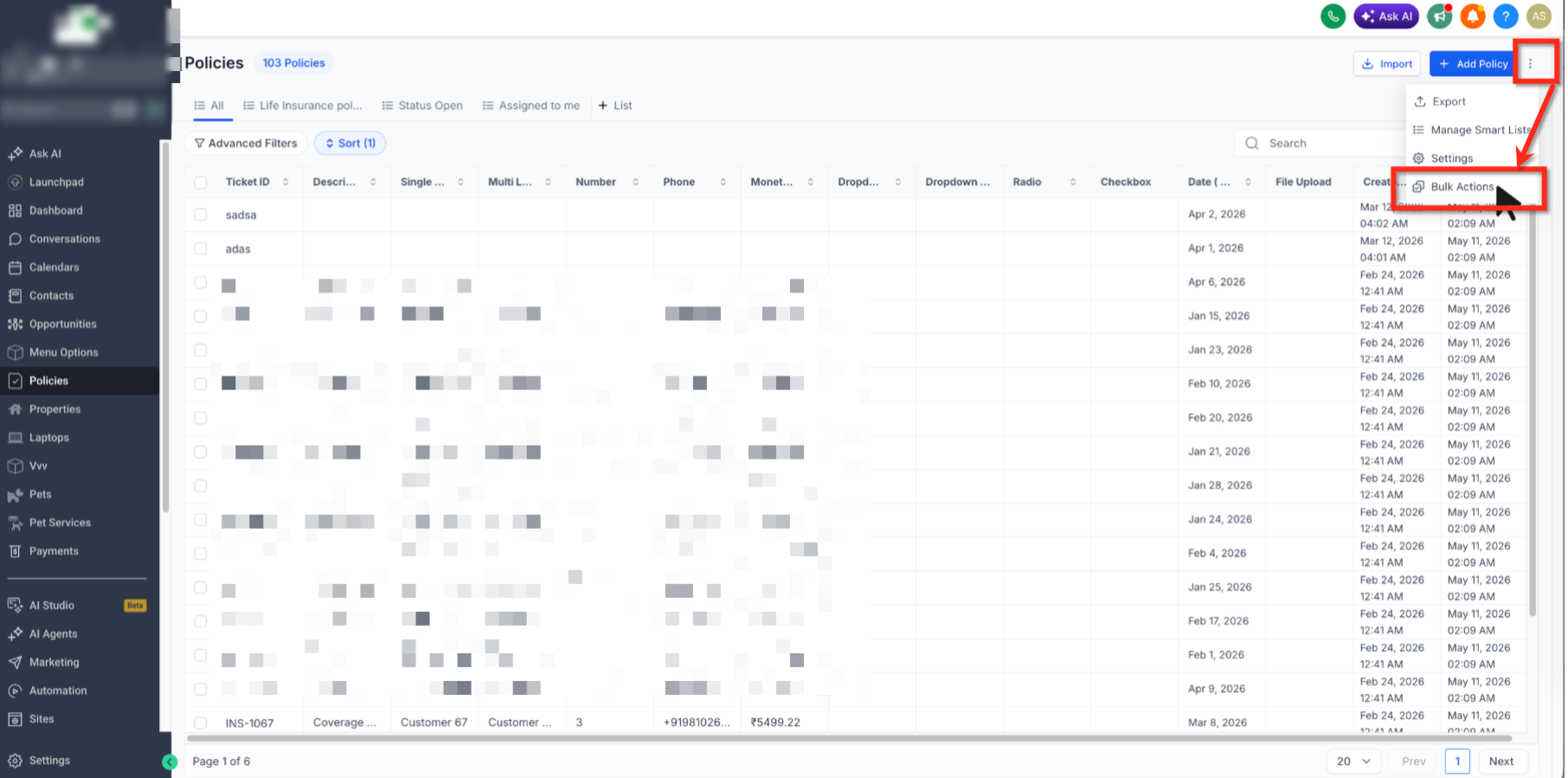
Use the row checkboxes to select the records you want to delete. Where available, use the header checkbox to select all records shown on the current page.
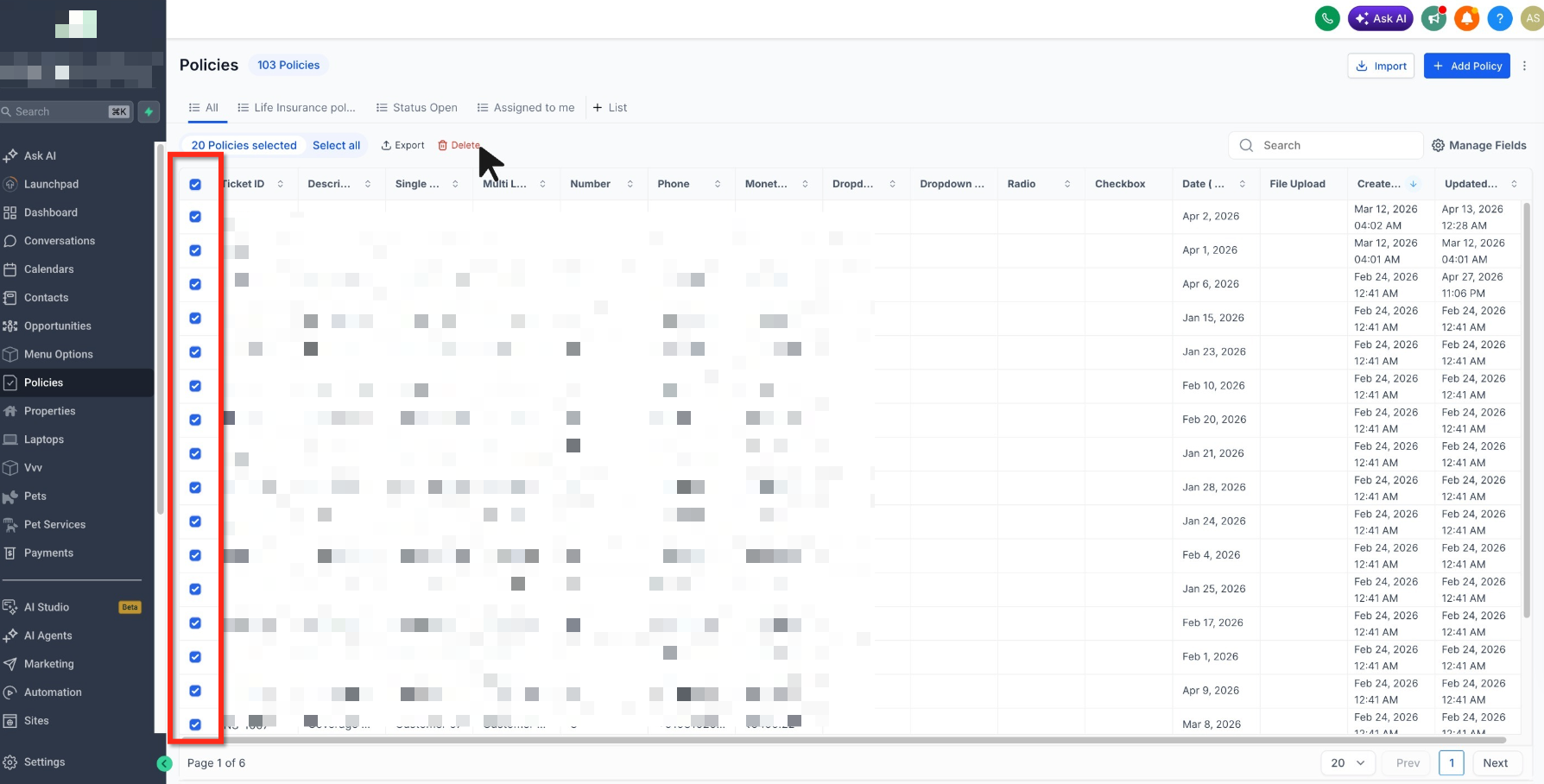
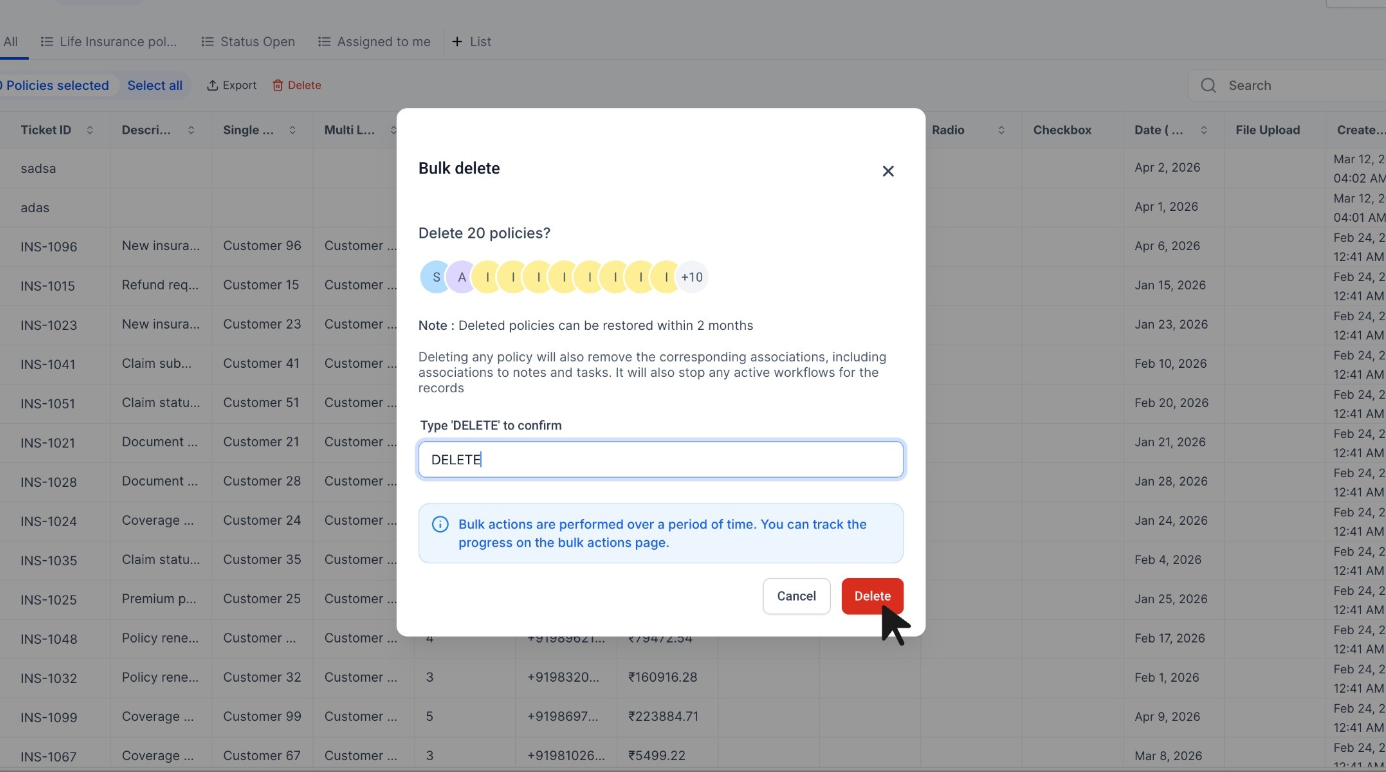
Click Delete from the bulk action controls that appear after records are selected.
Read the confirmation dialog carefully and verify that the selected records should be removed before confirming the deletion.
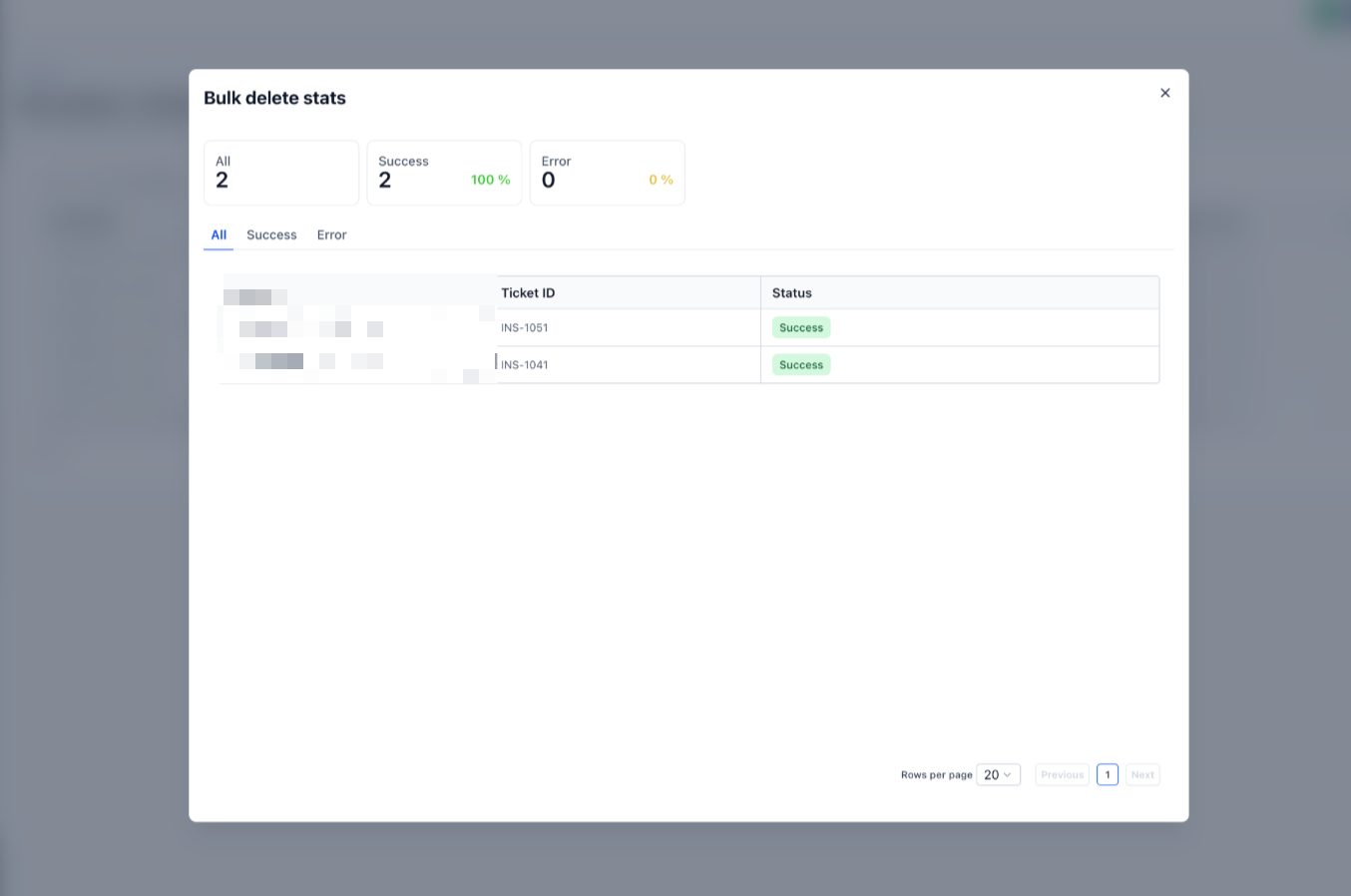
Open Bulk Actions to review the deletion job's progress, status, and available job details.
How To Restore Bulk-Deleted Records
Eligible bulk deletion jobs can be reversed from Bulk Actions during the 60-day recovery window. Restoration runs as a separate job, allowing you to monitor its progress before returning to the record list to verify the recovered data.
Go to Bulk Actions in the account.
Locate the bulk deletion job that contains the records you want to restore.
Click the three-dot menu for the deletion job.
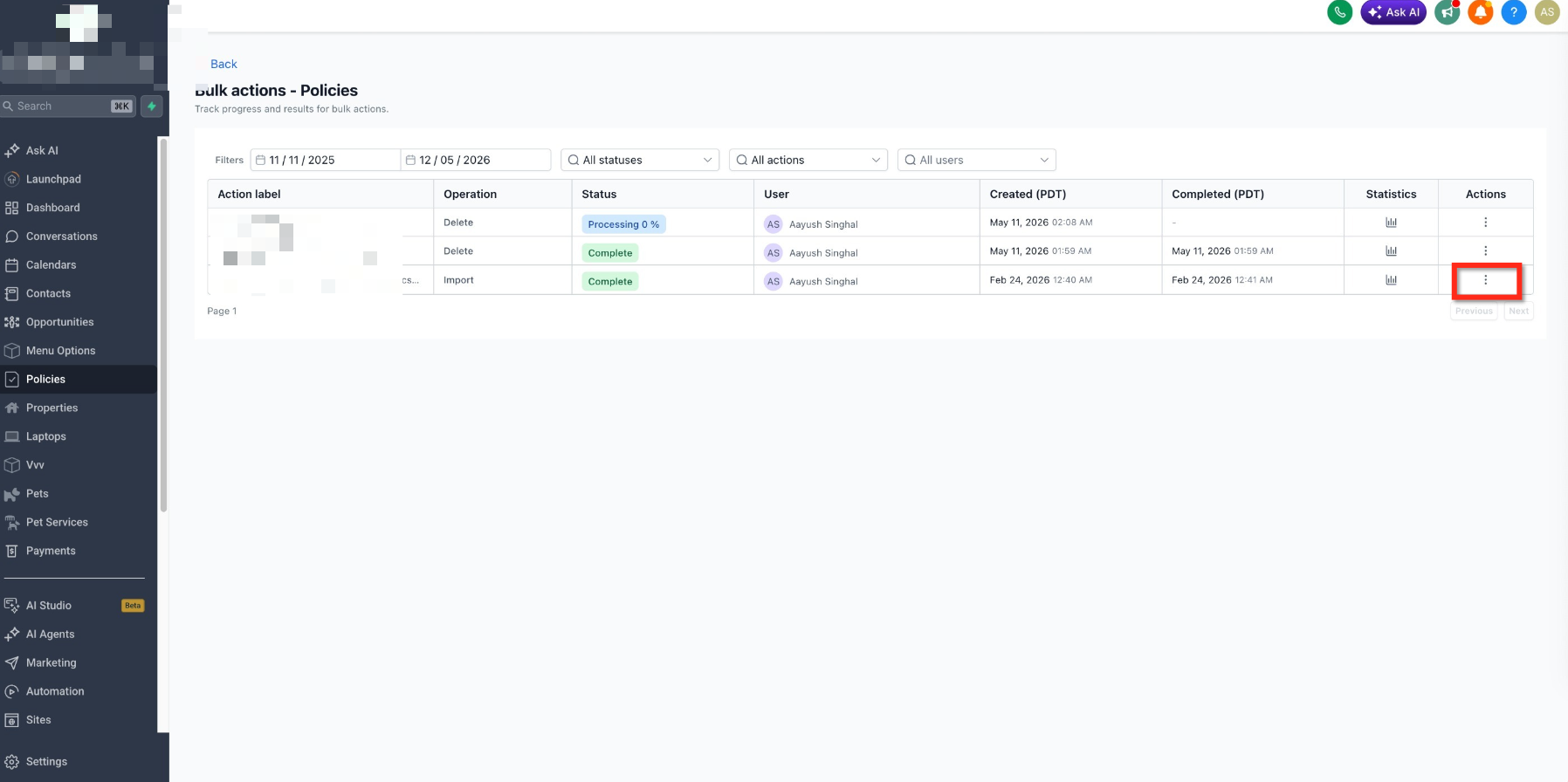
Click Restore when the option is available for the eligible deletion job.
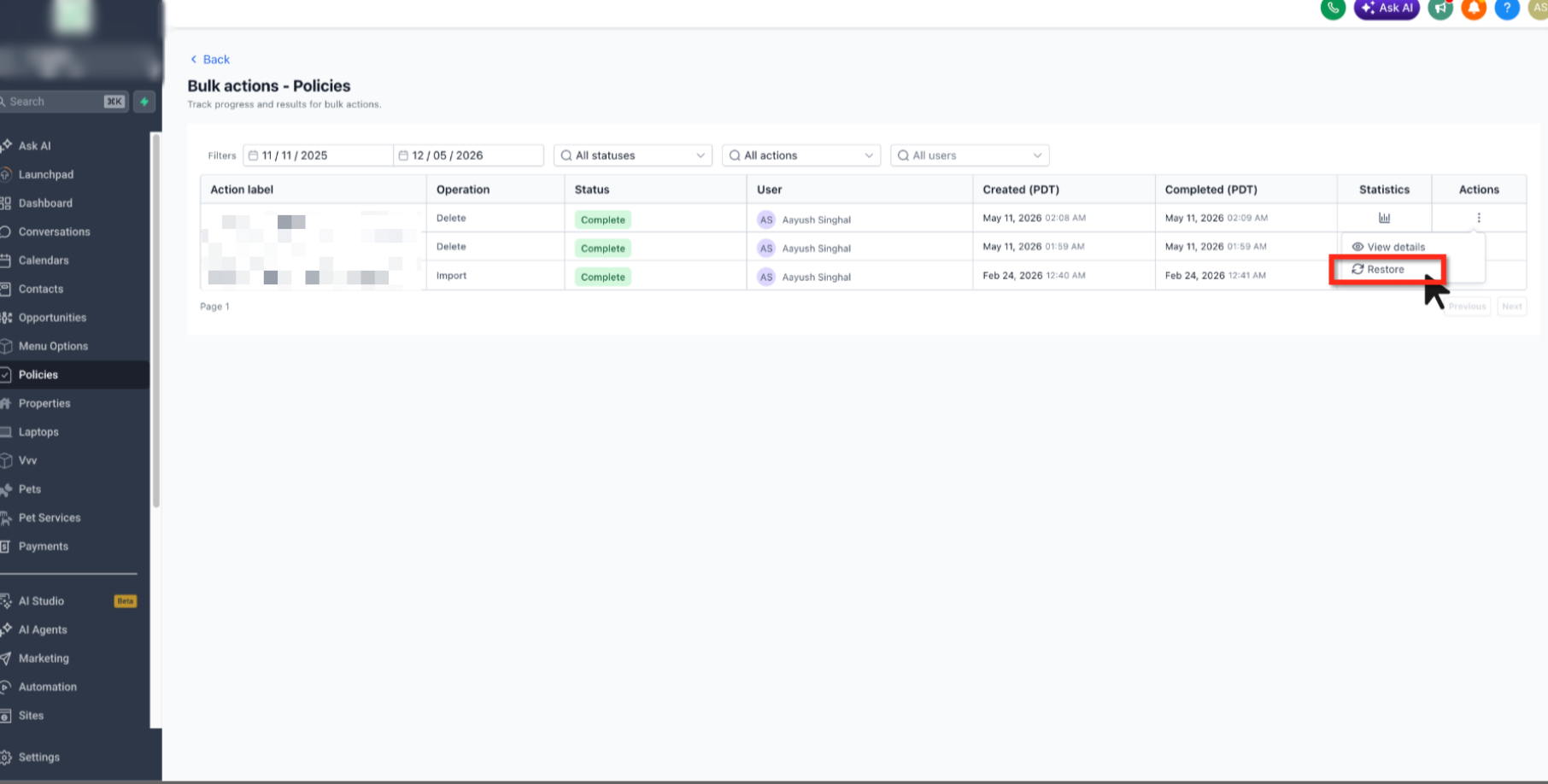
Review the confirmation message and confirm the restore action.
Monitor the restore job in Bulk Actions. After it completes, return to the applicable record list and verify that the expected records are available again.
Recovery limit: Restore eligible records within 60 days of deletion. After 60 days, the deleted records are permanently removed and cannot be recovered through Bulk Actions.
Frequently Asked Questions
Need Help?
If bulk delete or restore is not behaving as expected, first identify whether the issue occurs during record selection, deletion processing, Bulk Actions tracking, or restoration.
- Delete option is missing: Confirm records have been selected in a supported Custom Object, Company, or Task list view.
- Wrong records are selected: Recheck active filters, search terms, and selected rows before confirming the delete action.
- Job appears incomplete: Open Bulk Actions and review the deletion job's current status and available job details.
- Restore option is missing: Confirm the deletion job is eligible for restoration and is still inside the 60-day recovery window.
- Restored record is not visible yet: Check the restore job status in Bulk Actions and wait until the job is complete before verifying the record list.
- Associations appear incorrect: For restored Company or Custom Object records, verify the restore job completed successfully, then review the record's restored associations and labels.
- Issue continues: Collect the affected record type, deletion job, restore job if applicable, approximate deletion date, expected result, actual result, and screenshots of Bulk Actions before contacting support.