
Learn how to use Visual Edits in AI Studio to refine a project directly from the live preview. This article covers how to enter Visual Edit mode, select supported elements, and update text, images, icons, colors, spacing, and layout.
TABLE OF CONTENTS
What are Visual Edits in AI Studio
Visual Edits lets you refine your AI Studio project directly from the live preview after it has been generated. You can click into text, select page elements, update styling options, or use a targeted prompt to make changes to specific parts of the page.
This is helpful when your AI-generated site is close to finished, but you still need to polish the copy, spacing, colors, buttons, images, icons, or layout. Changes appear in the live preview first, and nothing is applied to the project until you Save.
Note: The AI model is only invoked when you explicitly send a prompt. Direct visual changes made through the editing controls do not require AI generation or consume tokens.
Key Benefits of Visual Edits in AI Studio
- Direct Page Editing: Click elements in the preview and update them without opening the Code Editor.
- Faster Copy Updates: Double-click text and type directly on the page for quick content changes.
- Targeted Prompt Changes: Select an element (or elements) and describe the change you want to apply.
- No Token Usage for Direct Edits: Changes made through direct visual controls do not consume AI tokens.
- Preview Before Saving: Review updates in the live preview before applying them to the project.
What Elements Can Be Edited
Visual Edits supports the most common page elements used when refining a site. The available controls change based on the selected element, so the editing panel only shows options relevant to what you clicked.
Editable elements include:
- Headings and Text: Update copy, typography, alignment, text color, and style.
- Buttons: Change labels, button style, button type, spacing, and colors.
- Images: Update image source, image fit, and alt text.
- Icons: Swap icons and adjust icon size or styling.
- Containers and Sections: Adjust spacing, borders, shadows, backgrounds, and layout styling.
How To Enter Visual Edit Mode
Visual Edit mode is enabled from the AI Studio builder. Once it is turned on, the preview becomes interactive so you can select text, images, buttons, icons, containers, and other supported elements.
To enter Visual Edit mode:
- Open AI Studio and click into the project you want to update.
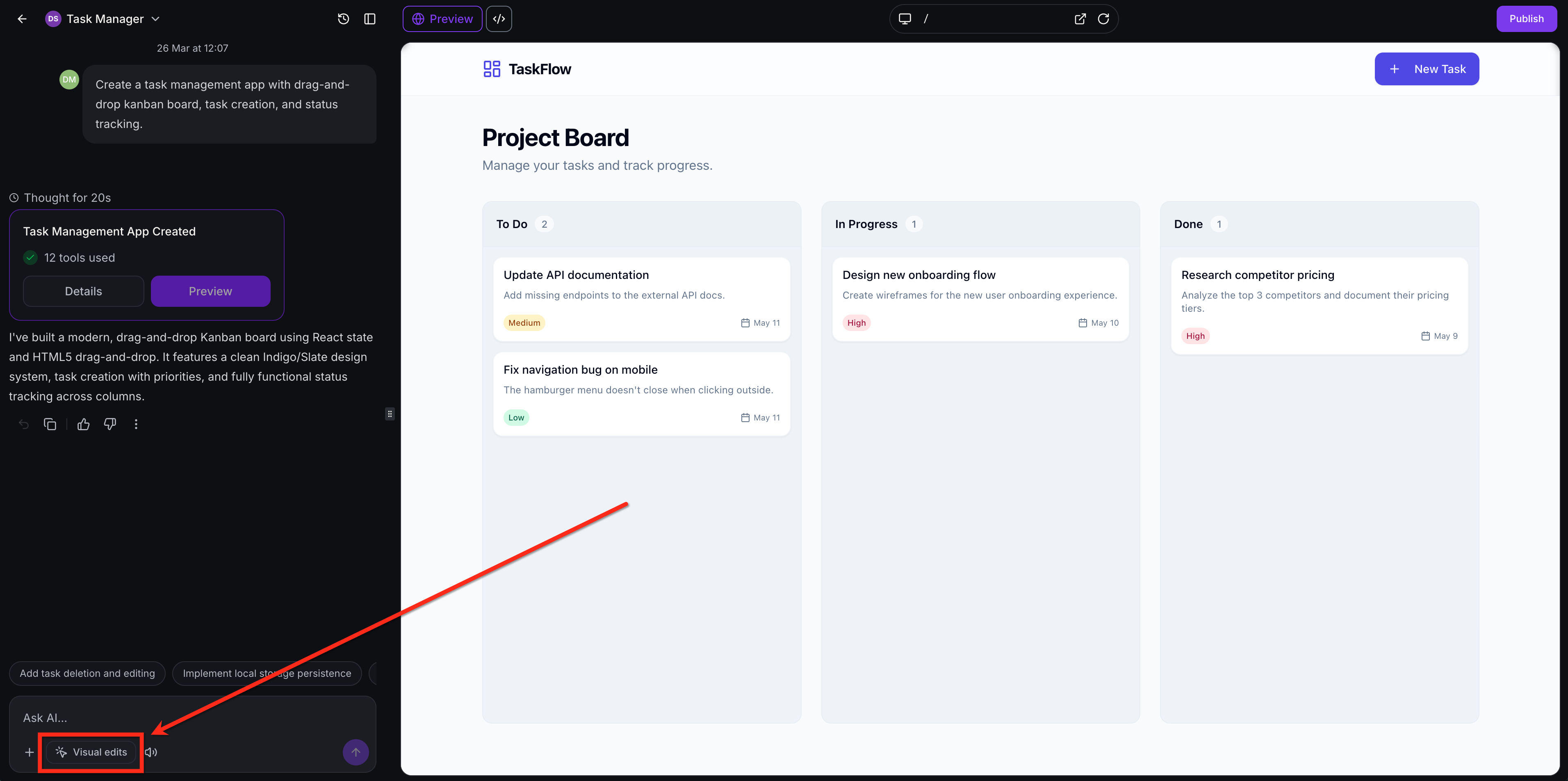
- Click Visual Edits in the prompt area at the bottom-left of the builder.
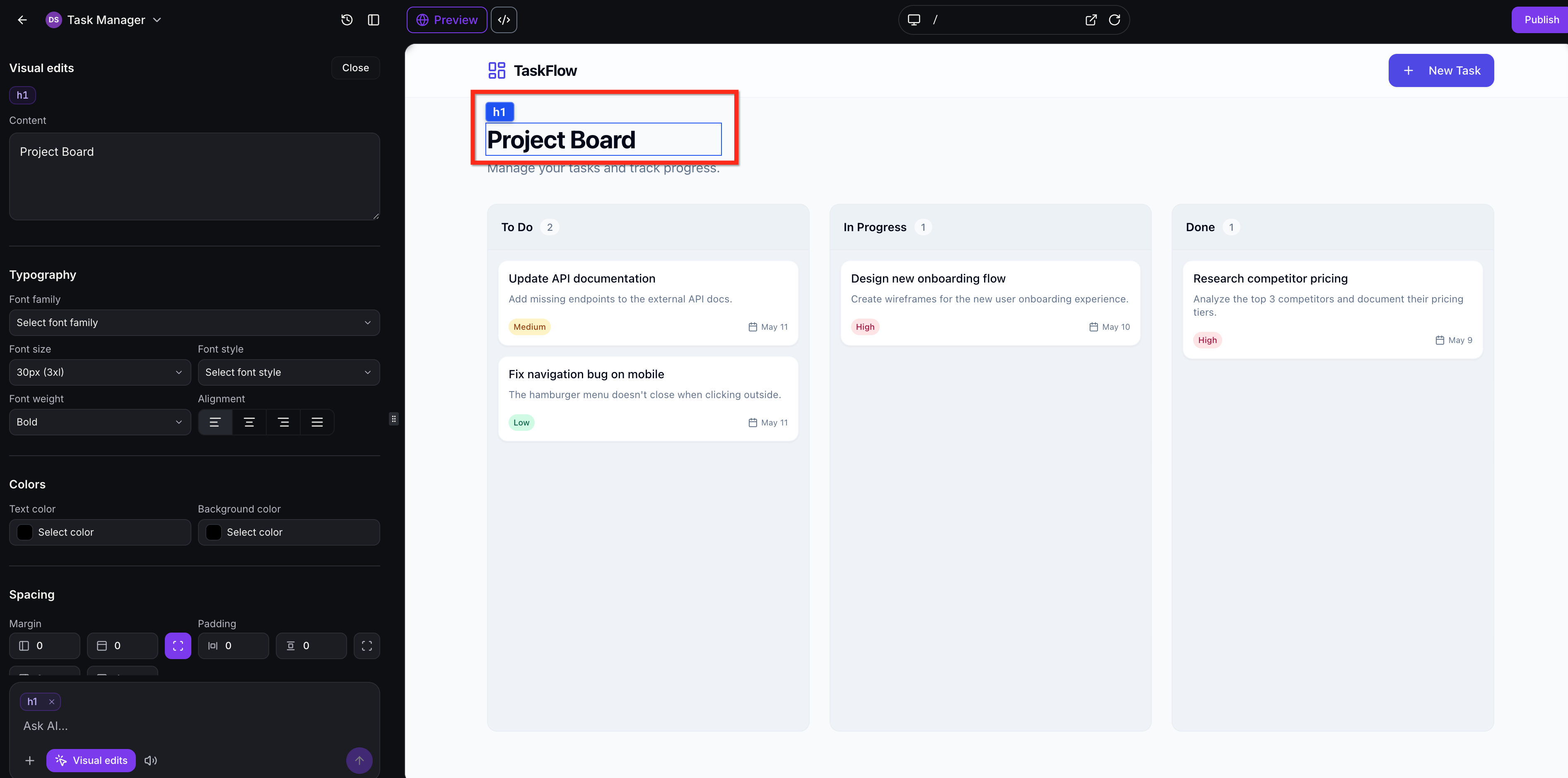
- Click an element in the preview to begin editing.
How To Make Visual Edits
Visual Edits gives you several ways to update a page after entering Visual Edit mode. You can select elements to open contextual controls, edit text directly on the page, swap icons, adjust colors and spacing, control image layout, resize icons, or use prompts across multiple selected elements.
Click to Select to Open Visual Controls
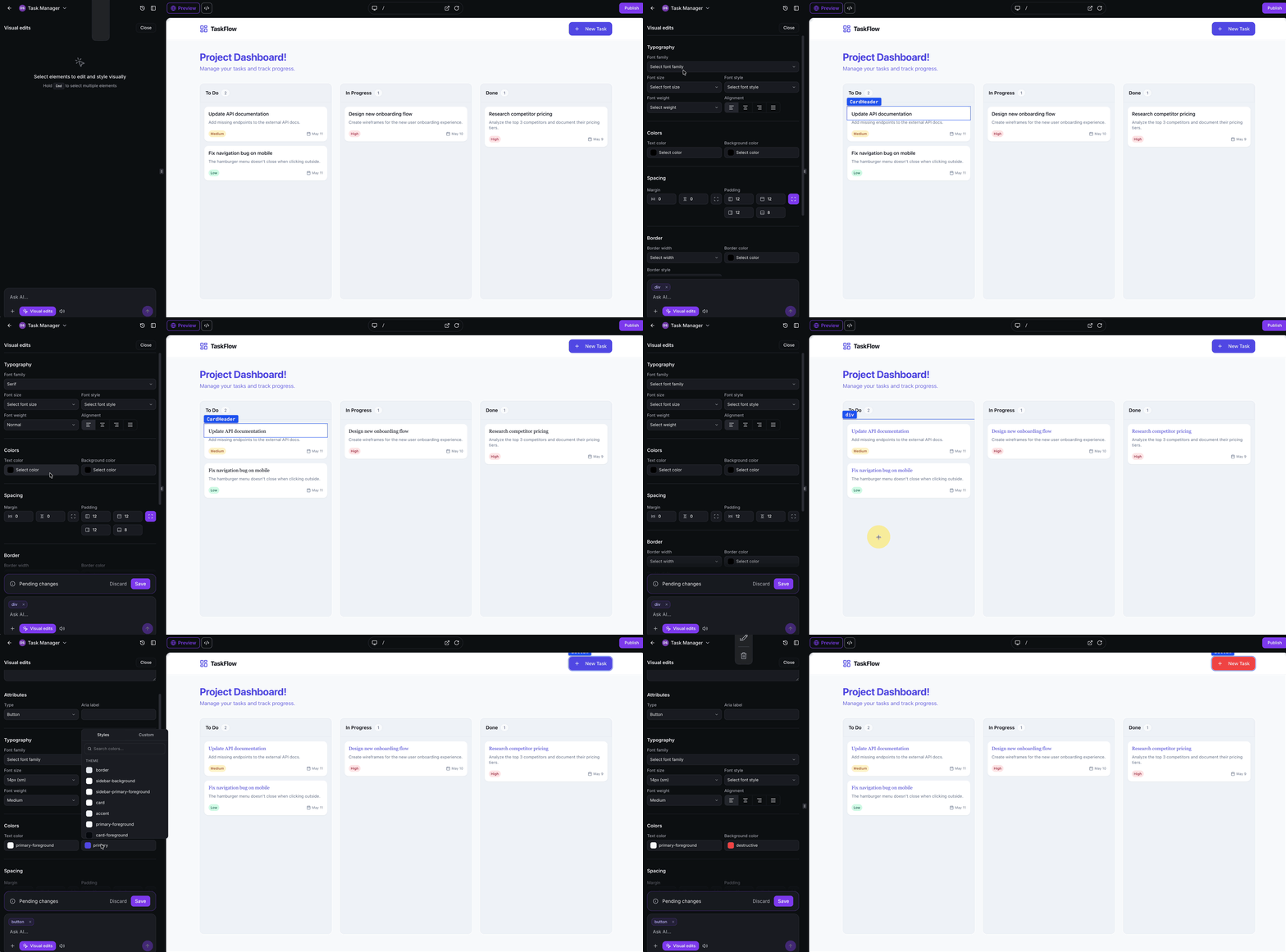
Click any element in the preview to open the Visual Edits panel. The controls automatically adapt based on what you selected, such as text, buttons, images, icons, containers, or layout elements. This allows you to make targeted changes without searching through the project code.
Color and spacing controls are available from the Visual Edits panel when they apply to the selected element. Your project’s theme colors appear alongside the full Tailwind palette. Margin and padding controls appear as well, allowing for you to control the spacing.
Edit Text Inline
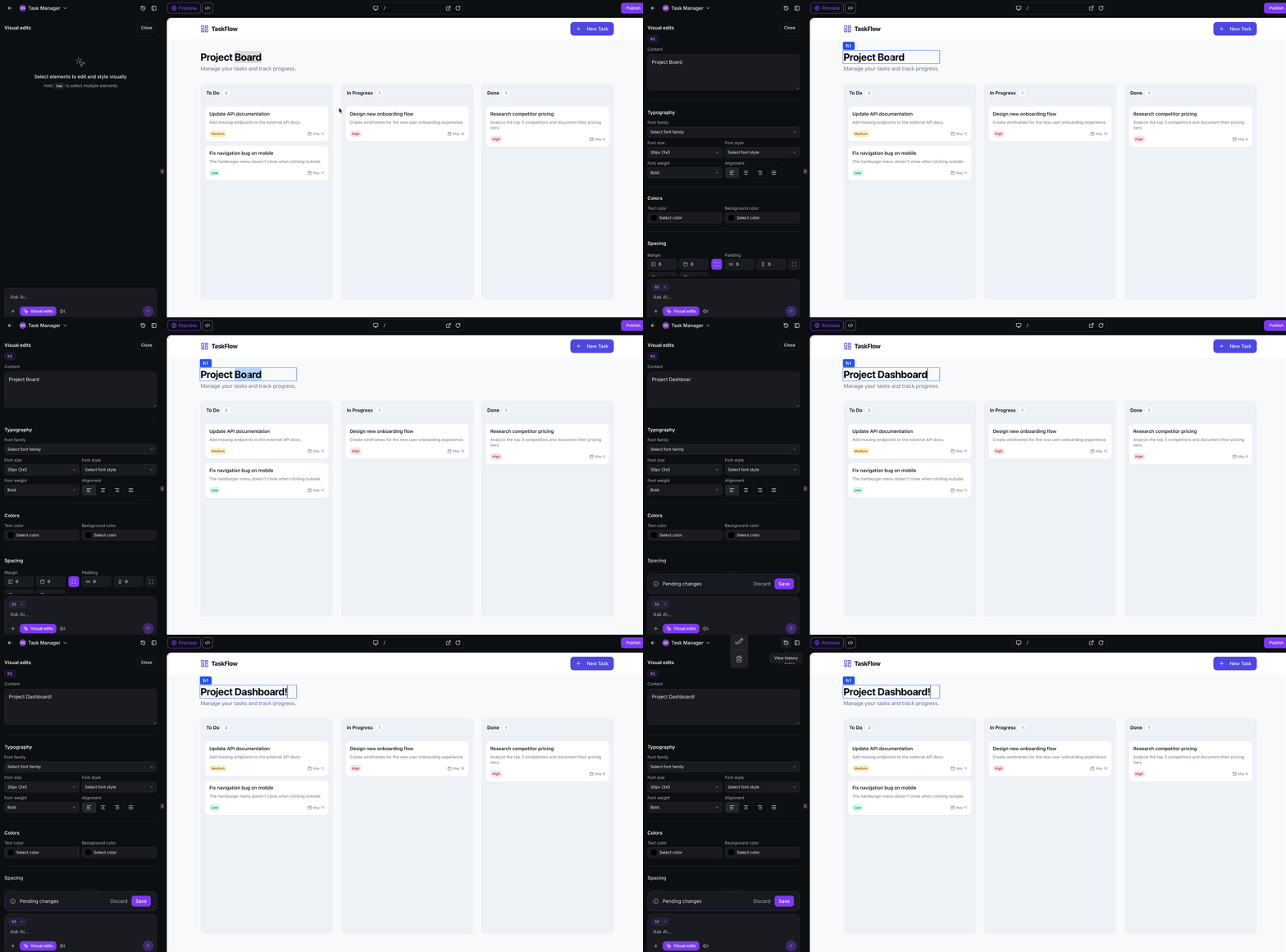
Inline text editing is best for quick copy changes. Double-click a text element then type directly on the page to make changes.
Update Icons
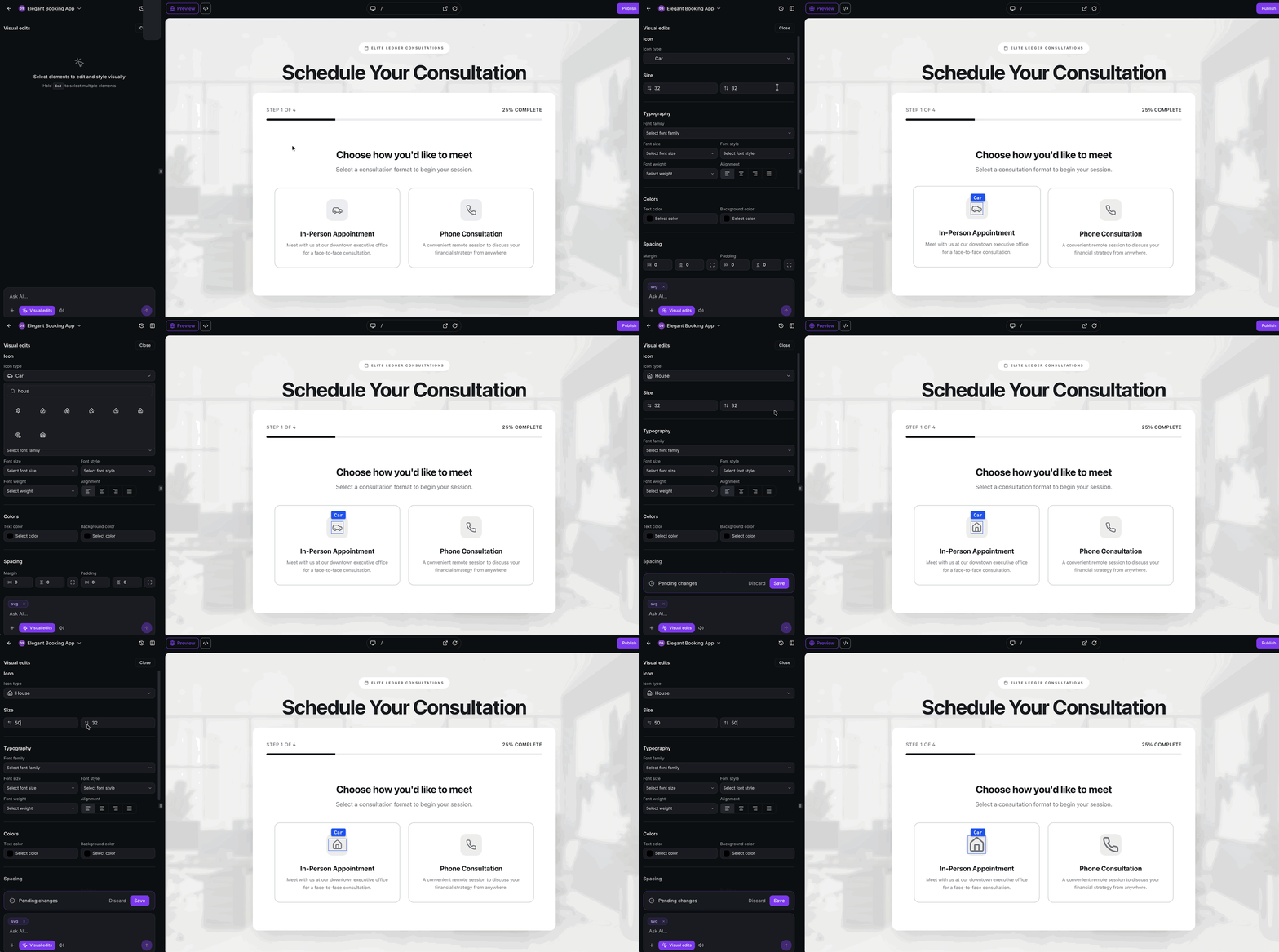
Icon controls make it easy to replace or resize Lucide icons without editing code. When you select a Lucide icon, you can open a searchable library of 1,600+ icons and choose a replacement that swaps instantly without a reload. You can also resize selected Lucide icons.
Adjust Image Layout
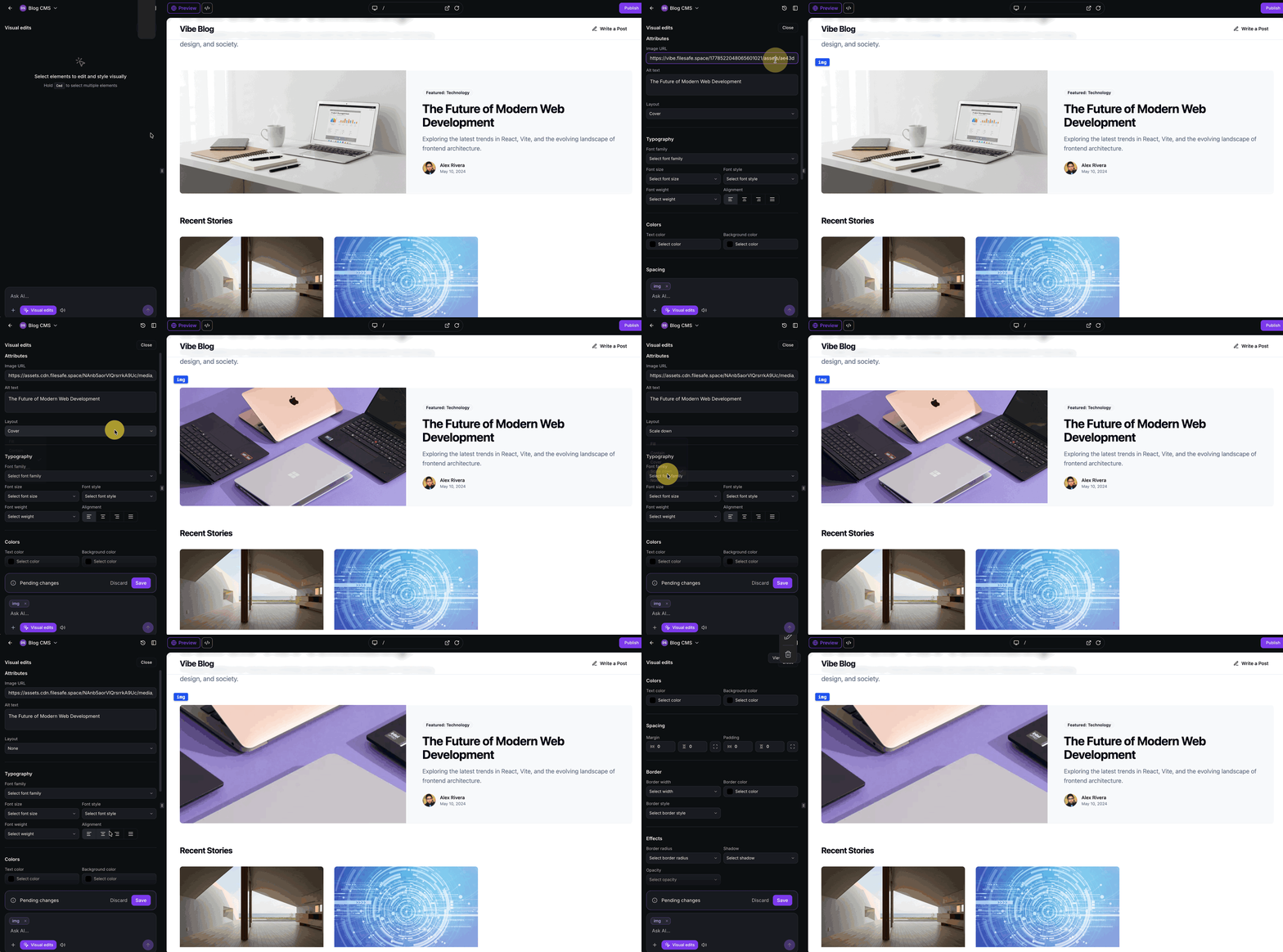
Image controls help you update both the image used and how it appears inside its assigned area. When you select an image, you can change the image URL to replace the image, update the alt text, and use the Layout dropdown to choose the visual result you want.
Use Prompts on Selected Elements
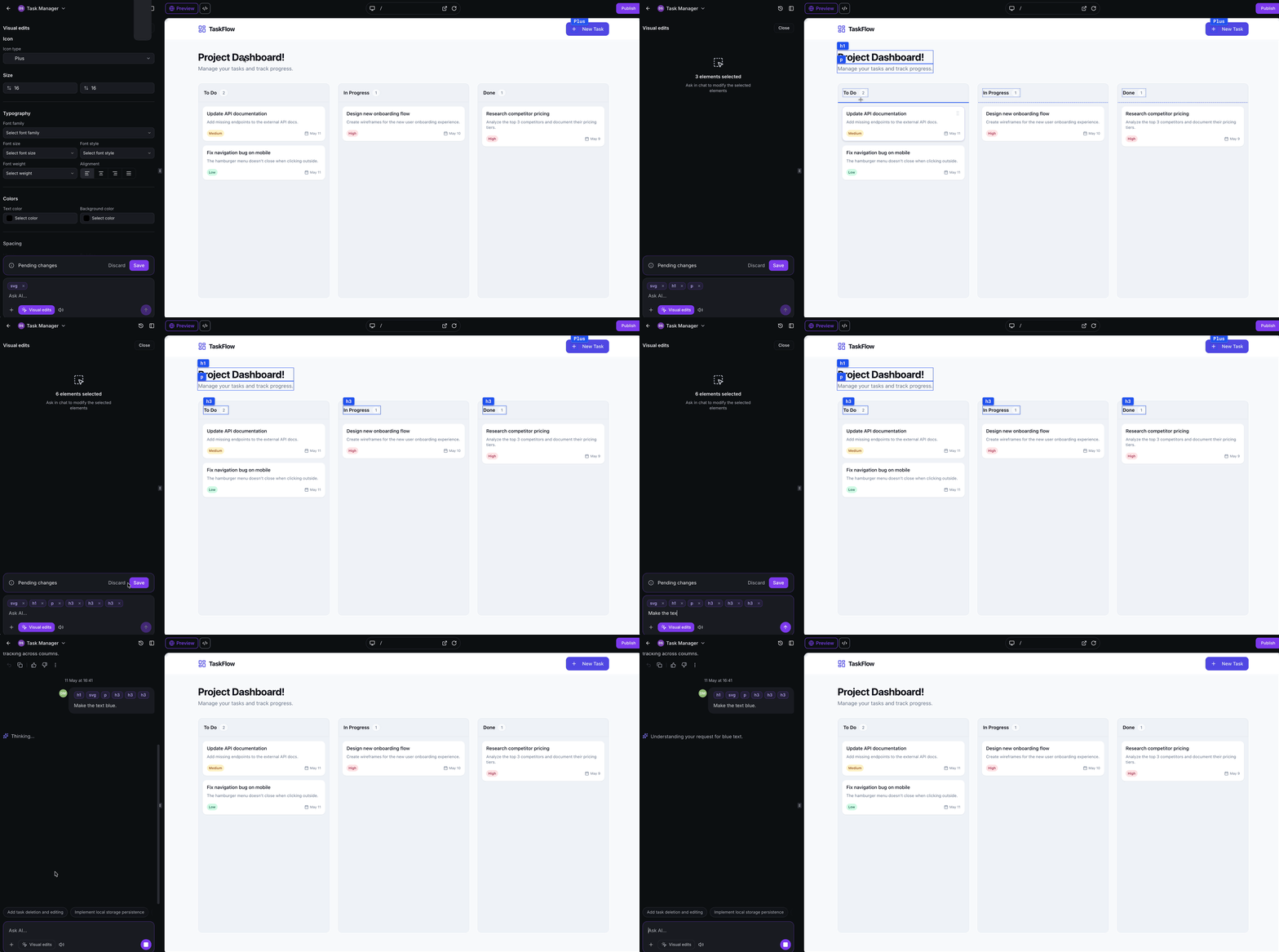
Prompt editing lets you select one or more elements and describe the change you want to make. Use it when you want to update a specific element in plain language or apply a coordinated change across multiple selected elements.
For a single element, prompt editing is helpful for changes like making a selected section more modern, improving the spacing inside a container, softening a button style, or making one component better match the rest of the page.
For multiple elements, it is useful for applying consistent styling across repeated components, such as matching button styles, aligning spacing between containers, updating repeated cards or columns, or applying the same color to a group of selected elements.
Saving or Discarding Visual Edits
Visual Edits uses a preview-first workflow so you can review changes before applying them to the project. This helps prevent accidental updates and gives you room to test different styles or content changes.
Click Save to apply the edit to the project. If you leave visual editor mode without saving, your changes will be discarded.
If an edit affects the wrong element, creates an unwanted style or does not match your intended design, click Discard to remove unsaved changes and return to the previous version.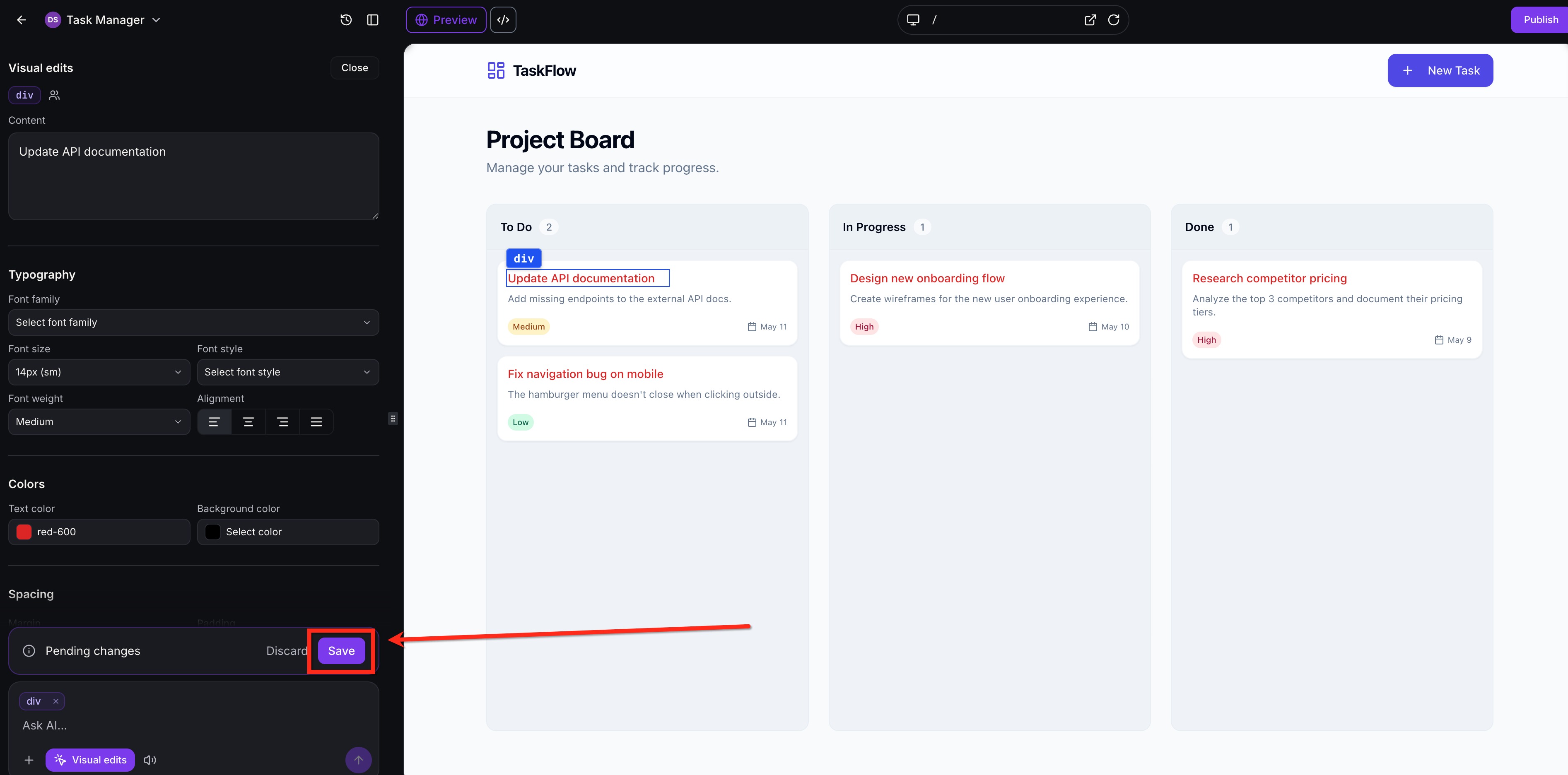
Frequently Asked Questions
Q: Do I need to enable a setting before using Visual Edits?
No. Open an AI Studio project and click Visual Edits in the bottom-left prompt area of the builder to start editing.
Q: Do Visual Edits use AI tokens?
Direct visual edits do not use AI tokens because the changes are made through editing controls instead of AI-generated prompts.
Q: Can I use a prompt on a specific selected element?
Yes. Select the element you want to change and enter a targeted instruction in the Visual Edits prompt area.
Q: Can I edit more than one element at a time?
Yes. Multi-select editing can be used for coordinated updates such as consistent spacing, shared styling, or repeated layout refinements.