
Blocked Slots for Rental Listings help you reserve rental inventory when items are unavailable for reasons outside of customer bookings. In this article, you will learn how to put rentals on hold, free them back up, and keep your calendar from turning into a guessing game.
TABLE OF CONTENTS
What are Blocked Slots for Rental Listings?
Blocked Slots for Rental Listings let you mark rental inventory as unavailable without creating a customer booking. Use them when an item is out for maintenance, reserved for internal use, or temporarily on hold.
Once saved, the blocked slot removes that listing, variant, or quantity from availability for the selected time range. Customers can only book what is actually available, and your team can manage these holds directly from Calendar View.
Example: If a car is in the shop for maintenance on Tuesday from 9:00 AM to 3:00 PM, create a blocked slot for that time. Customers will not be able to book that car during the blocked period, and your team can see exactly why it is unavailable in Calendar View.
Key Benefits of Blocked Slots for Rental Listings
Accurate Availability: Block inventory for selected dates and times so customers cannot book unavailable rental items.
Operational Control: Reserve listings for maintenance, internal use, offline commitments, or temporary holds without creating a customer booking.
Variant-Level Blocking: Block a specific rental variant when the selected listing supports variants.
Quantity-Based Holds: Reserve only the quantity needed when the selected listing supports quantity-based inventory.
Easy Calendar Management: View, edit, and delete blocked slots directly from Calendar View.
Cleaner Booking Records: Keep operational holds separate from customer bookings, orders, and payments.
Blocked Slots in Calendar View
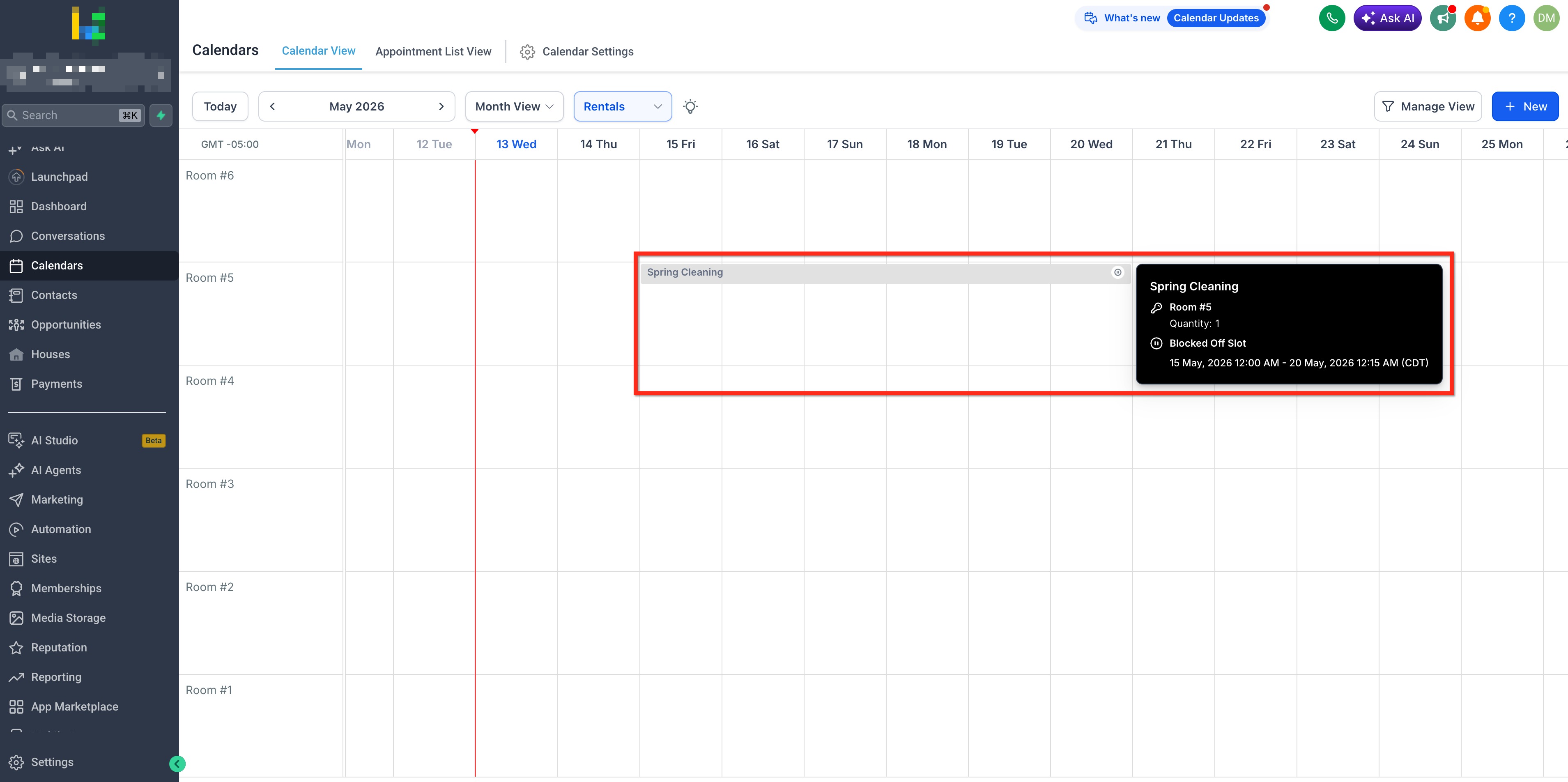
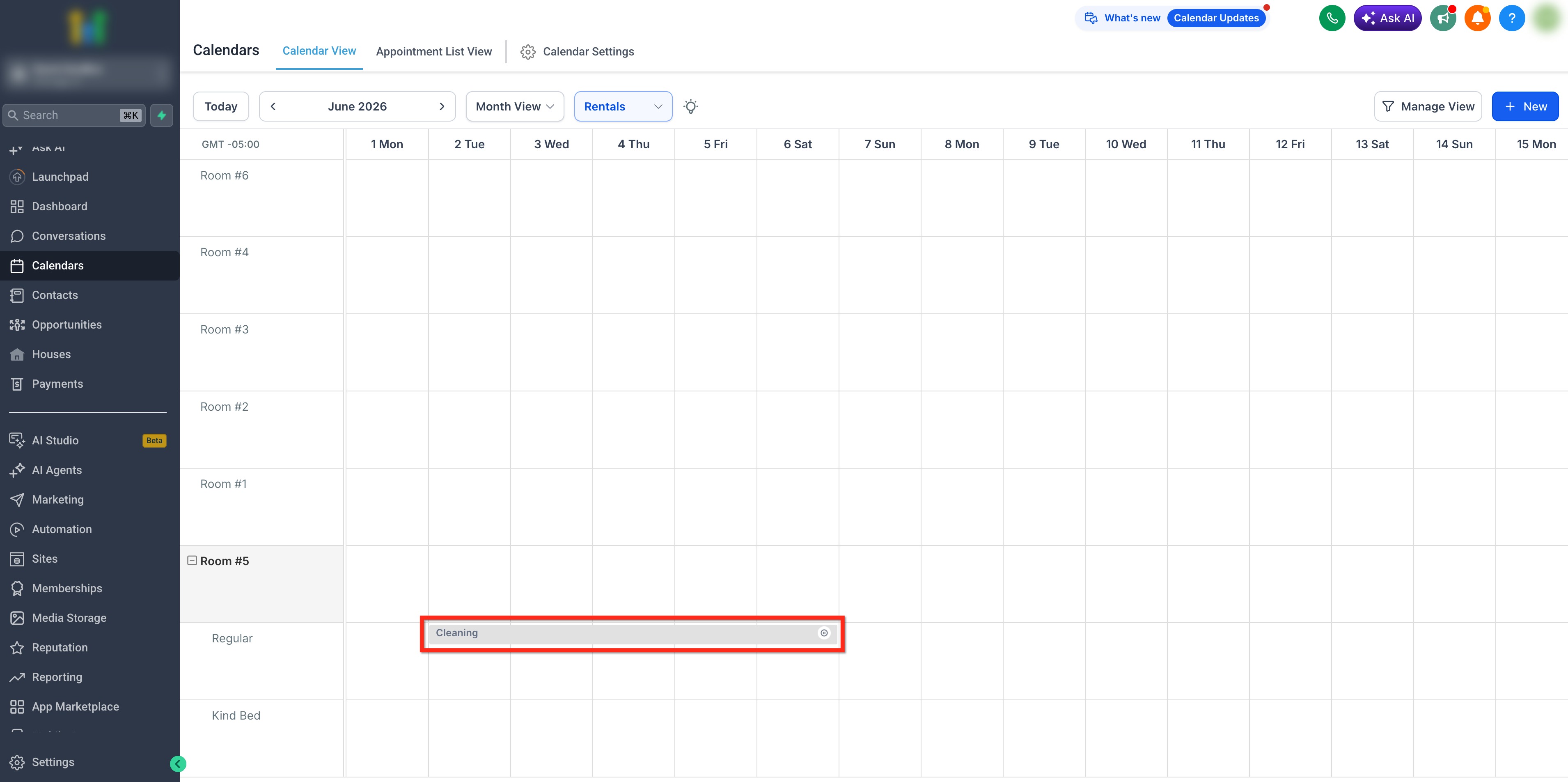
Calendar View gives your team a quick way to spot rental bookings and blocked slots in one place. Blocked slots appear as gray blocks on the rental calendar, making it easy to see when inventory has been set aside.
Hover over a blocked slot to view key details, such as the block title, listing name, date and time range, and quantity blocked.
How To Create a Blocked Slot
To create a blocked slot, follow these steps:
Step 1: Start a Booking
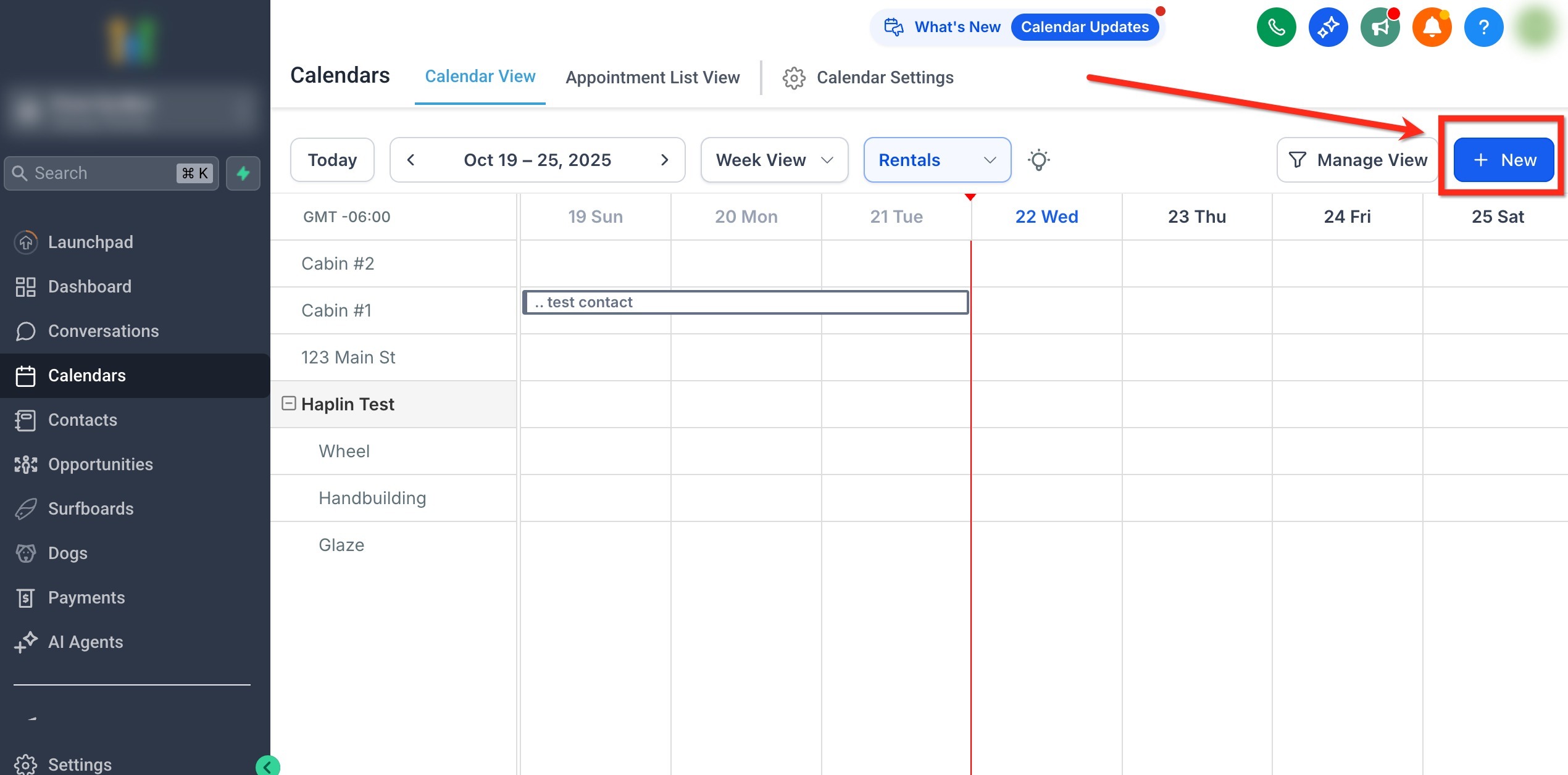
- Go to Calendars → Calendar View and select Rentals.
- Click + New or drag across the calendar grid for the dates you would like to block.
Step 2: Selected Blocked Slot Event Type
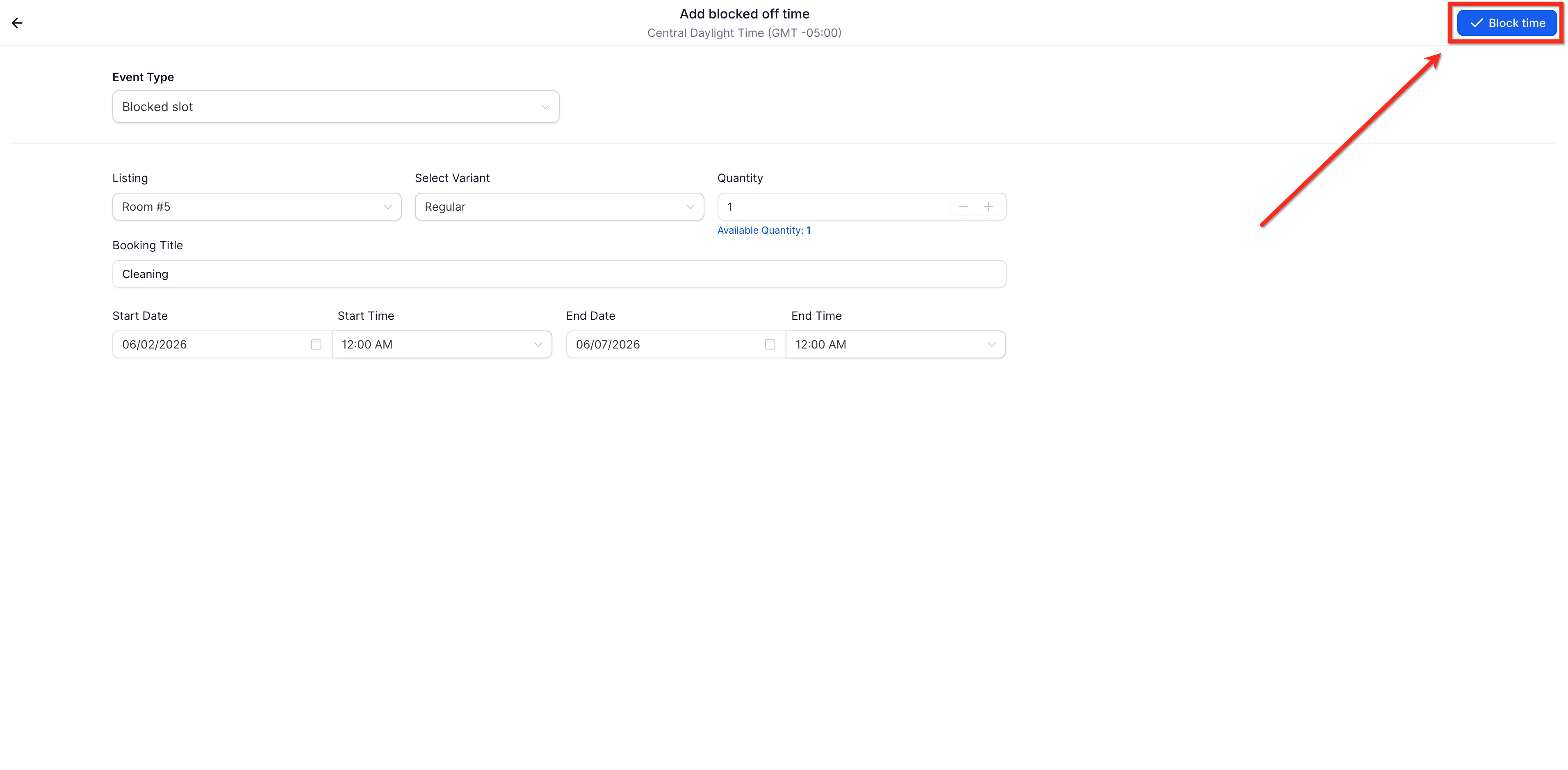
In Event Type, select Blocked slot.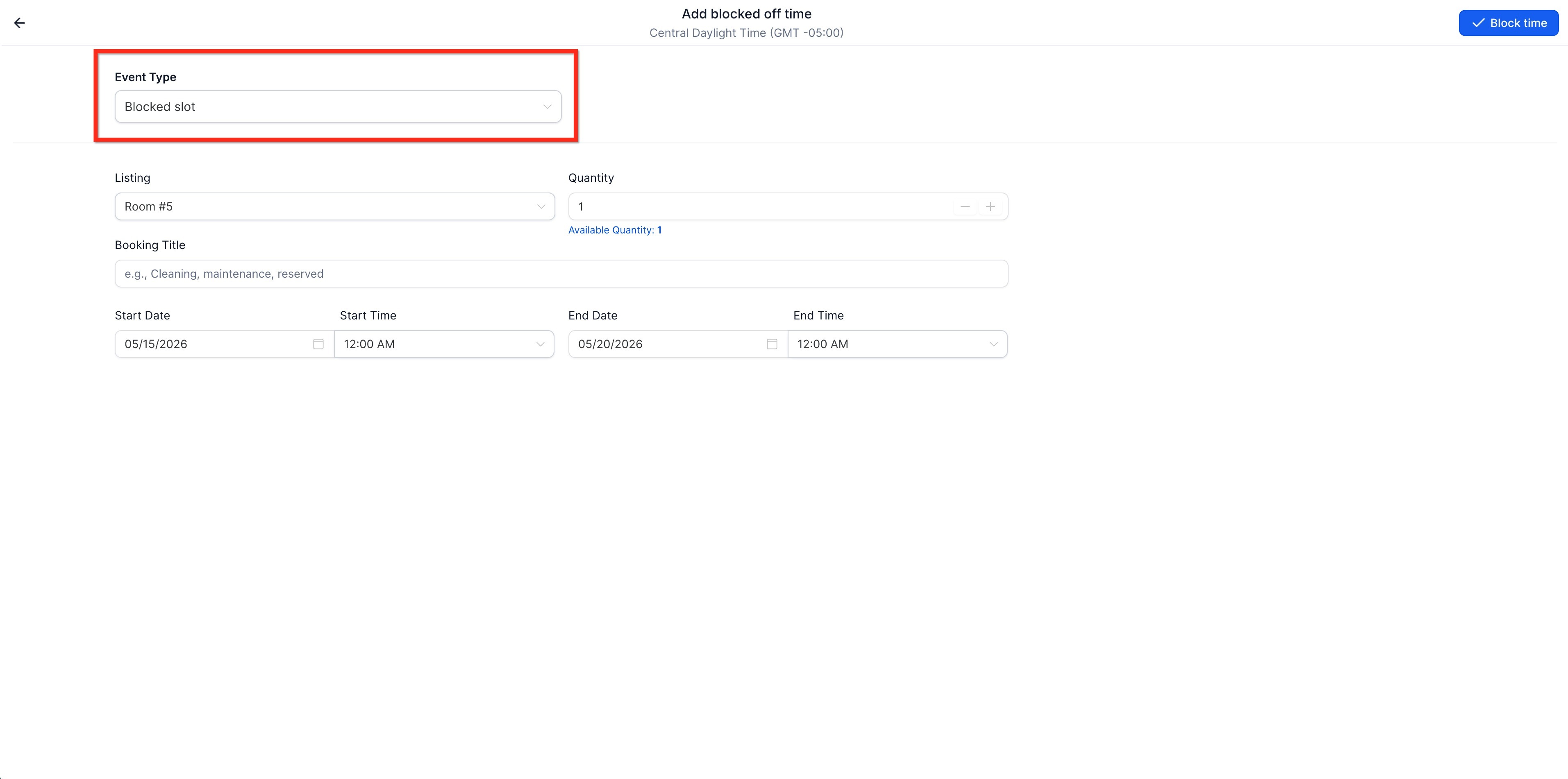
Step 3: Add Blocked Slot Details
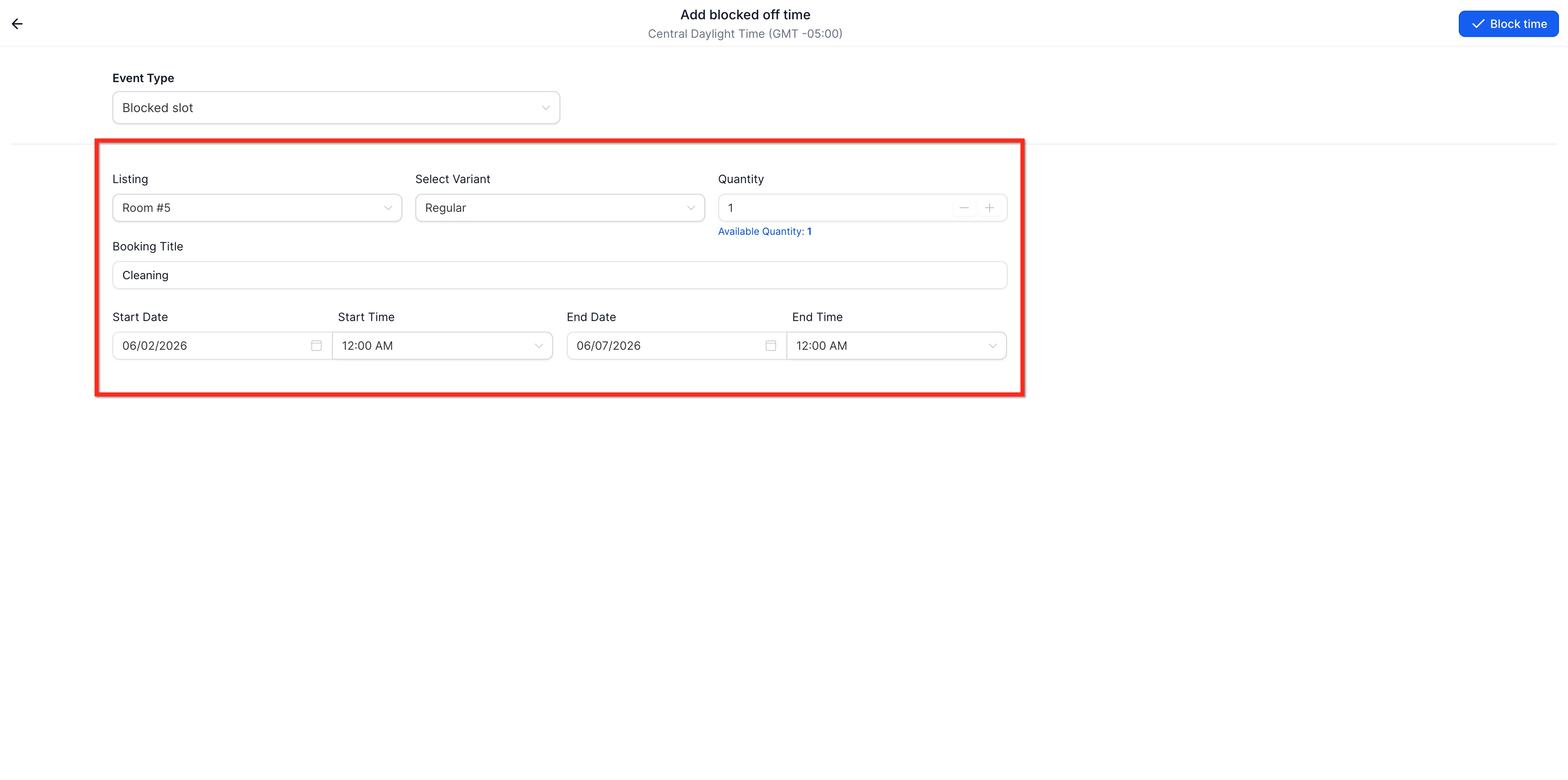
Complete the details for the inventory you want to hold:
Select the rental Listing.
Select a Variant, if the listing has variants available.
Enter the Quantity you want to block.
Add a clear Booking Title, such as “Maintenance,” “Internal Use,” or “Offline Hold.”
Choose the Start Date, Start Time, End Date, and End Time.
Step 4: Save Changes
Click Block time. Once created, the listing becomes unavailable for the selected duration and availability updates across booking flows.
How To Edit or Delete a Blocked Slot
Blocked slots can be updated or removed when plans change. Editing a blocked slot adjusts the inventory hold, while deleting it releases the reserved inventory so it can become available for bookings again.
- From Calendar View, select Rentals, then click the blocked slot you want to update or remove.
Choose what you want to do:
Edit: Click the pencil icon.
This opens the blocked slot form so you can update the listing, variant, quantity, title, start time, or end time. Save your changes when finished.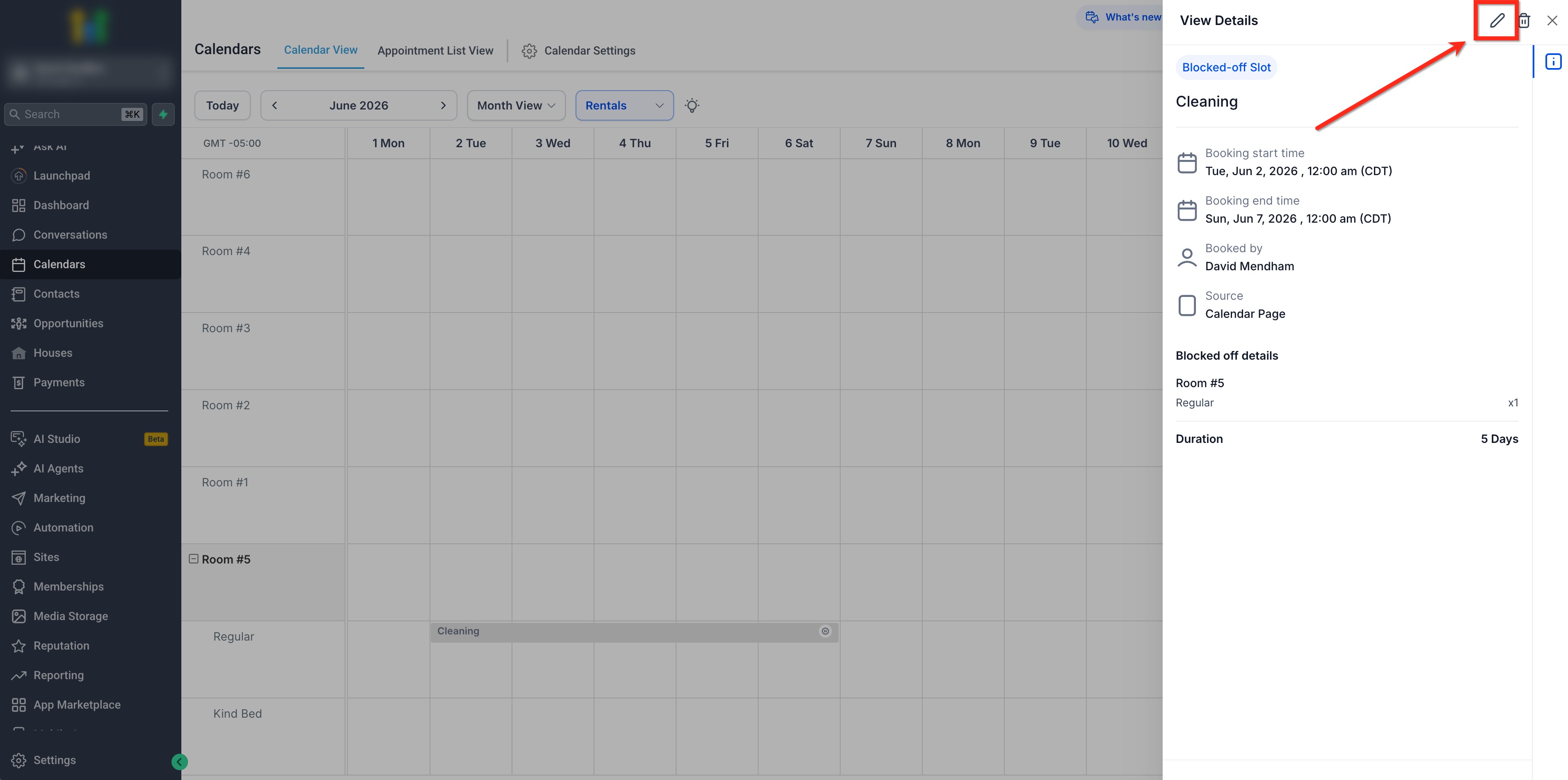
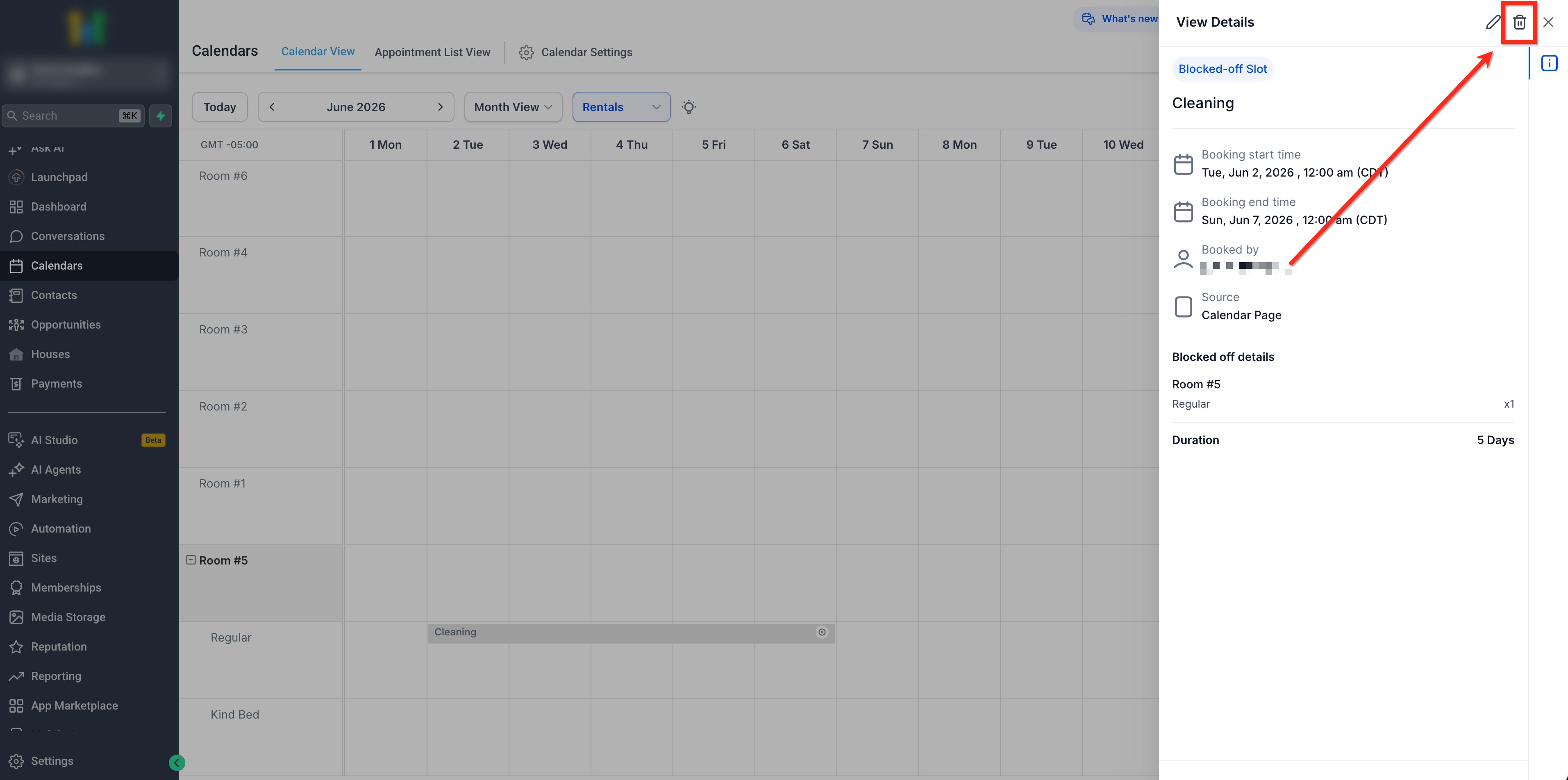
Delete: Click the trash can icon, then confirm the deletion.
Frequently Asked Questions
Q: When should I use a blocked slot?
Use a blocked slot when rental inventory needs to be unavailable for maintenance, internal use, offline reservations, temporary holds, or other non-customer reasons.
Q: Can I block only part of my inventory?
Yes, when the selected listing supports quantity-based availability, you can enter the quantity that should be blocked.
Q: Will blocked slots appear on the calendar?
Yes. Blocked slots are visible in Calendar View with details such as listing, variant, quantity, and blocked time range.
Q: Can customers see the blocked slot title?
Blocked slots are used to reduce availability. Customers should only see the resulting availability in booking flows, not the internal reason.
Q: What happens when I delete a blocked slot?
The blocked inventory is released, and availability is restored for the selected listing, variant, quantity, and time range.