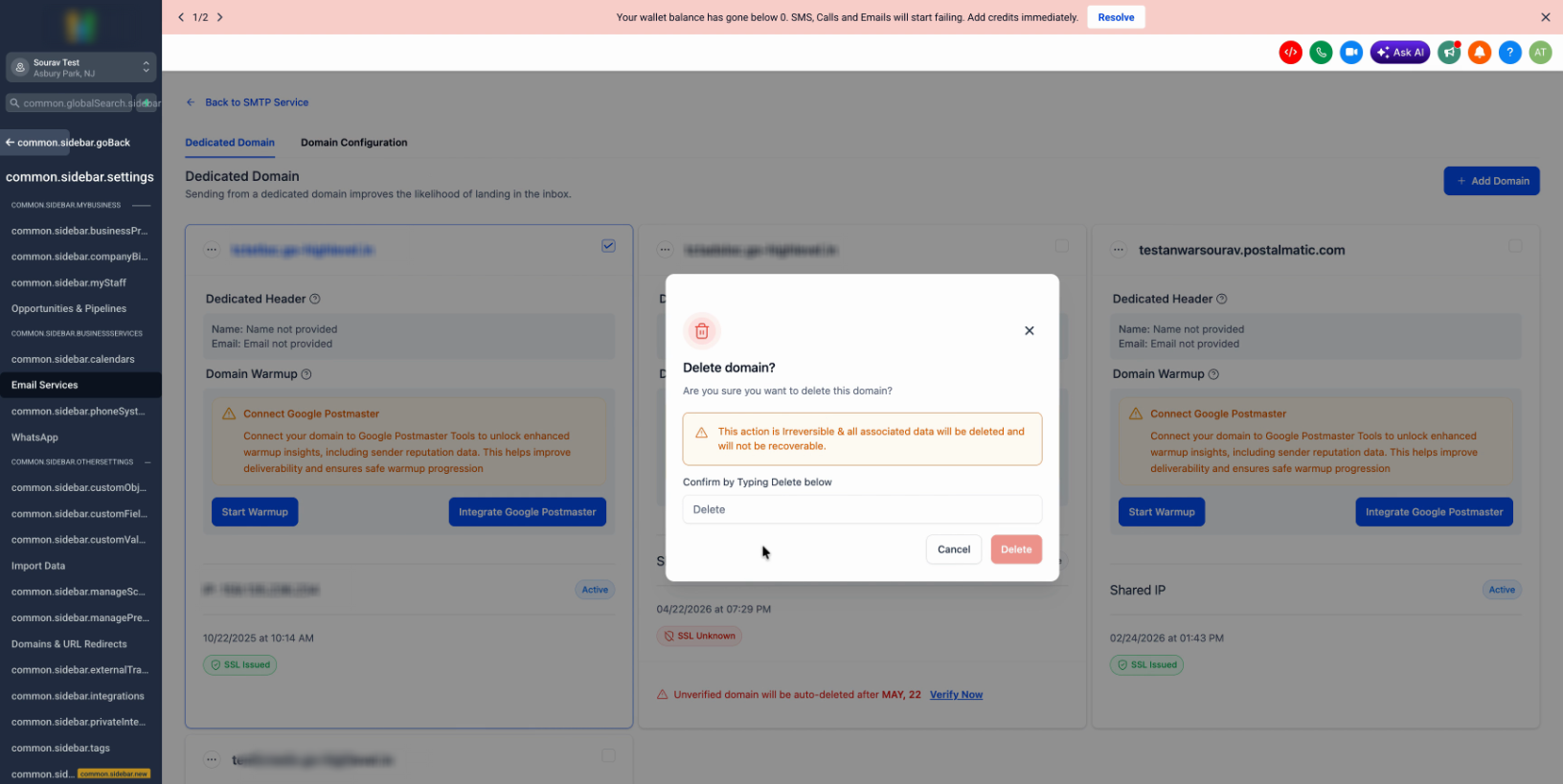
If you’re trying to delete a domain from your system but get an error saying it’s still linked to an active campaign, don’t worry.
This guide walks you through unlinking the domain from every campaign it’s tied to, so you can remove it cleanly — without affecting deliverability or any campaign that’s currently sending.
Try deleting the domain
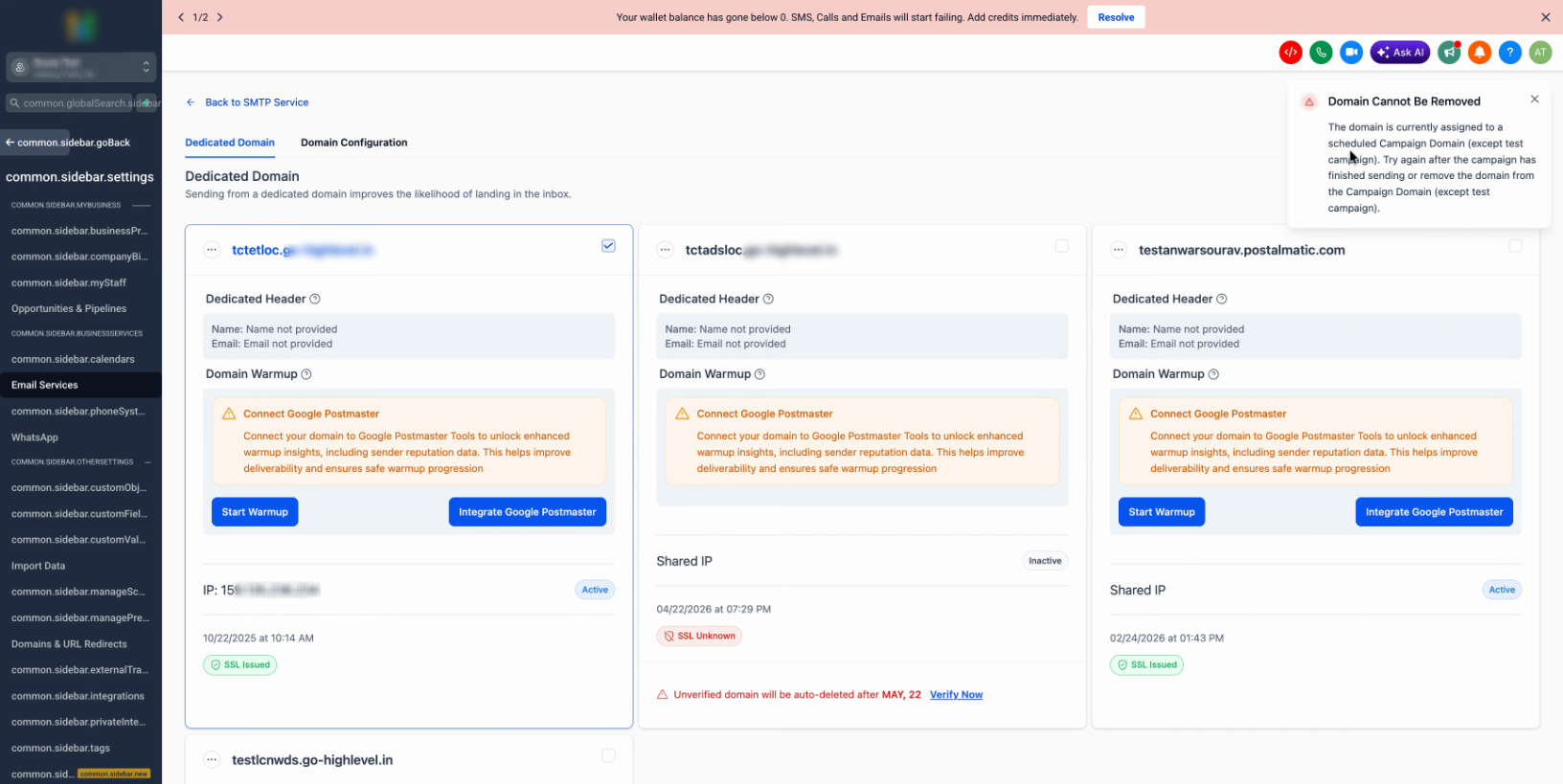
Click Delete Domain for the domain you want to remove. If the domain is tied to a campaign, you’ll see an alert letting you know it can’t be deleted yet.
“The domain is currently assigned to a scheduled Campaign Domain (except test campaign). Try again after the campaign has finished sending, or remove the domain from the Campaign Domain (except test campaign).”
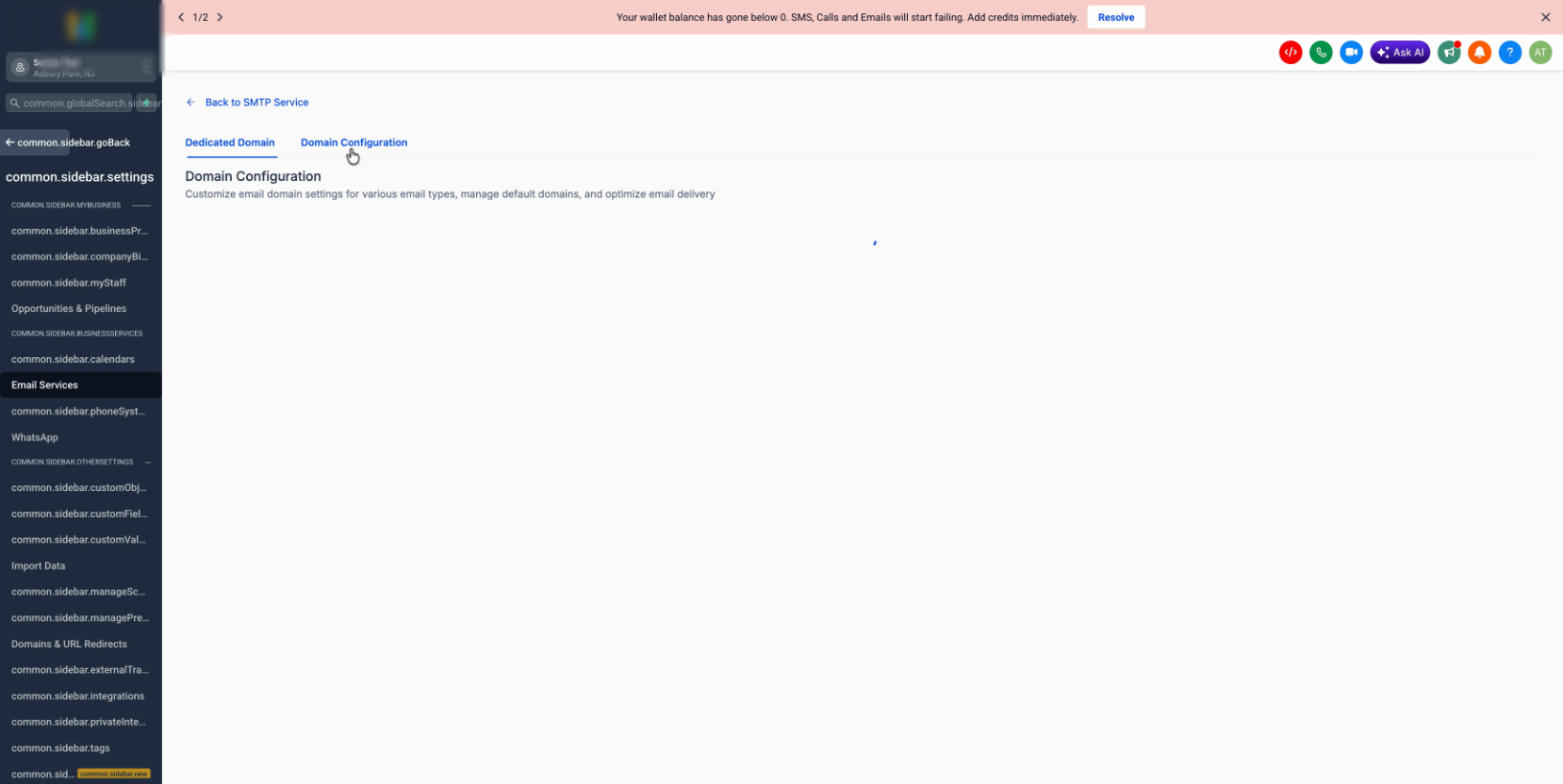
Go to the Domain Configurator
Open the Domain Configurator option in your menu. Find and select the domain that’s causing the deletion error.
Open Manage Campaign
Click Manage Campaign for that domain to view all campaigns currently linked to it.
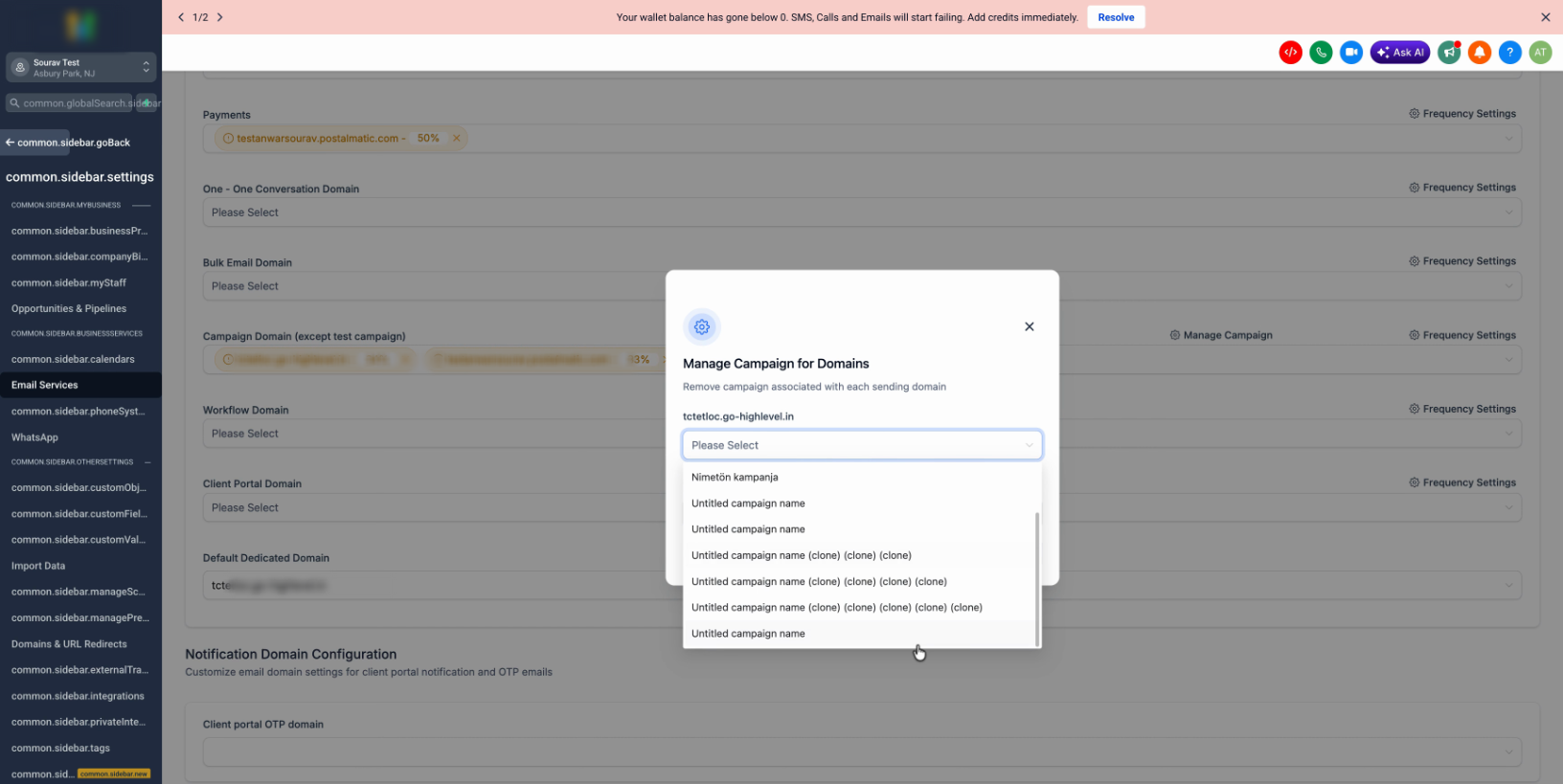
Unlink the domain from all campaigns
Select all campaigns associated with the domain, then use the Remove option to unlink your domain from every campaign in the list.
Make sure to remove the domain from every campaign shown — missing even one will block the delete in the next step.
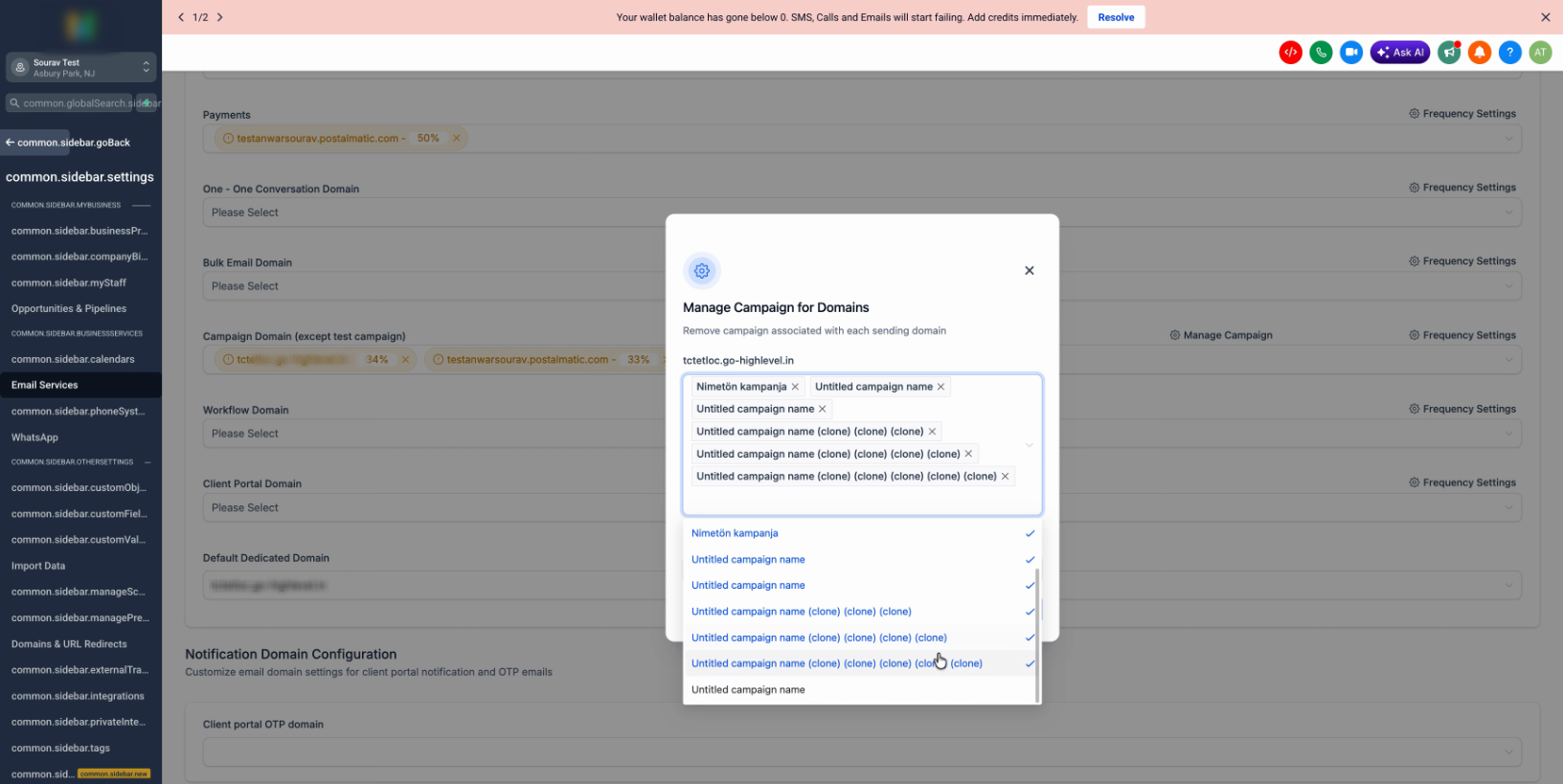
Apply the changes
Click Apply to confirm the removal. The system will save the unlinked state across all selected campaigns.
Double-check campaign links
Go back to Manage Campaign to confirm no campaigns are linked. The list should now be completely blank.
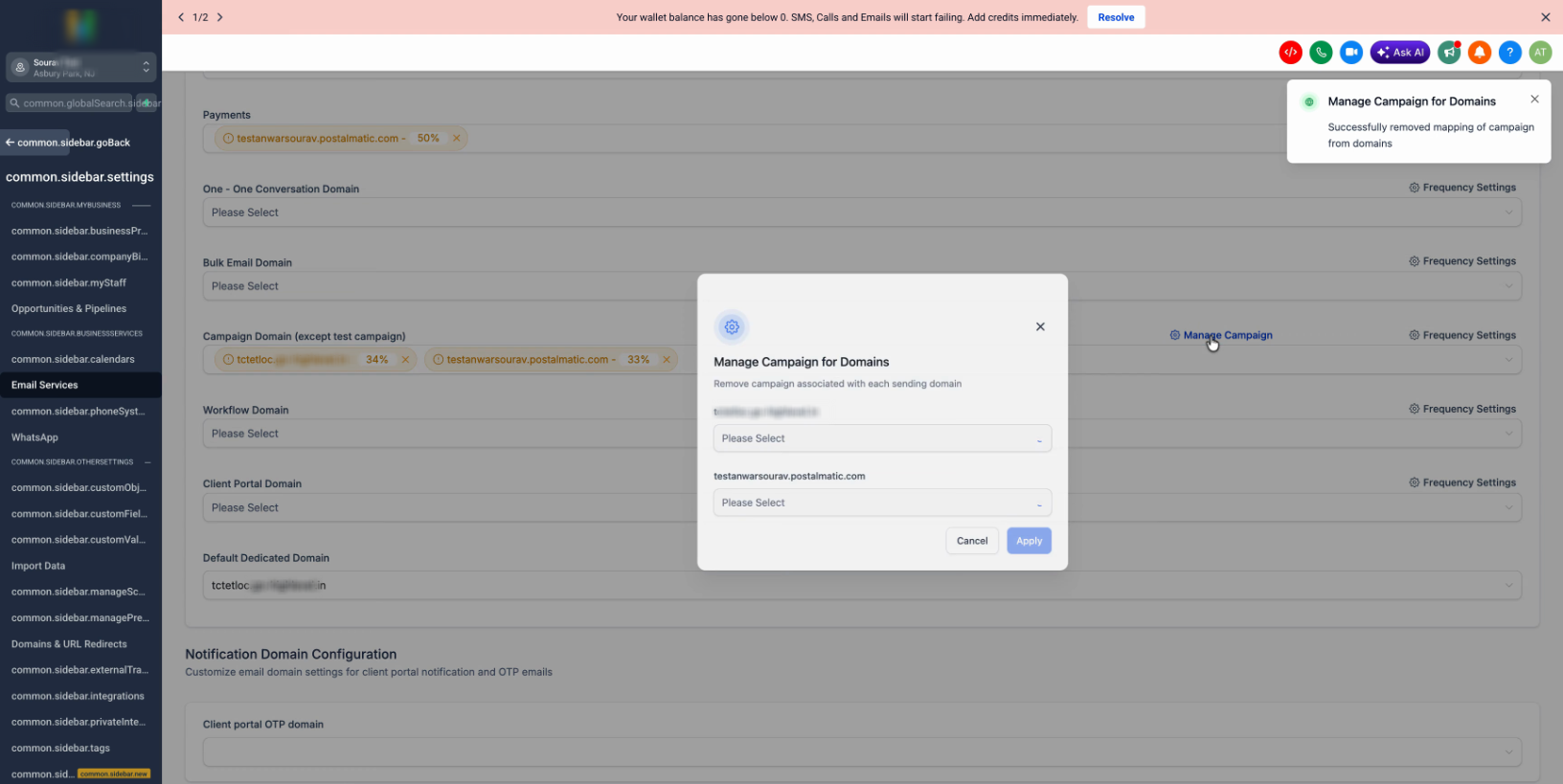
Delete the domain
Return to the main domain list. This time, you’ll see the option to delete the domain. Enter the required confirmation text (such as “delete”) and click Delete.
The domain is now fully removed. Unlinking before deletion prevents accidental data loss and keeps your active campaigns running smoothly.