The Instagram Direct Integration allows businesses to connect their Instagram Professional accounts with the CRM to manage Instagram Direct Messages (DMs), automate conversations, and streamline customer communication from a single platform. With this integration, businesses can respond to Instagram messages directly from the CRM, trigger automations and workflows based on customer interactions, and centralize messaging operations for improved engagement and faster response times. 


Please Note:
Instagram accounts connected via FB page will continue working. Users can connect the same account with direct flow and both connections would be connected. The active connection would be used based on messaging toggle available. It is recommended to switch to direct connection as new beta functionality.

The new integration is shared between social planner and integration, any account connected in one place gets automatically connected on other.


TABLE OF CONTENTS

How to Connect Instagram Direct Integration

If Instagram Was Already Connected Through a Facebook Page

If your Instagram account was previously connected via a Facebook Page integration, you can manage or switch the connection directly from the Instagram integration settings.

Steps to Connect

  1. Navigate to:

    Sub-Account → Settings → Integrations

  2. Locate the Instagram integration card.
  3. Click Manage.
  4. In the modal window, you will see:
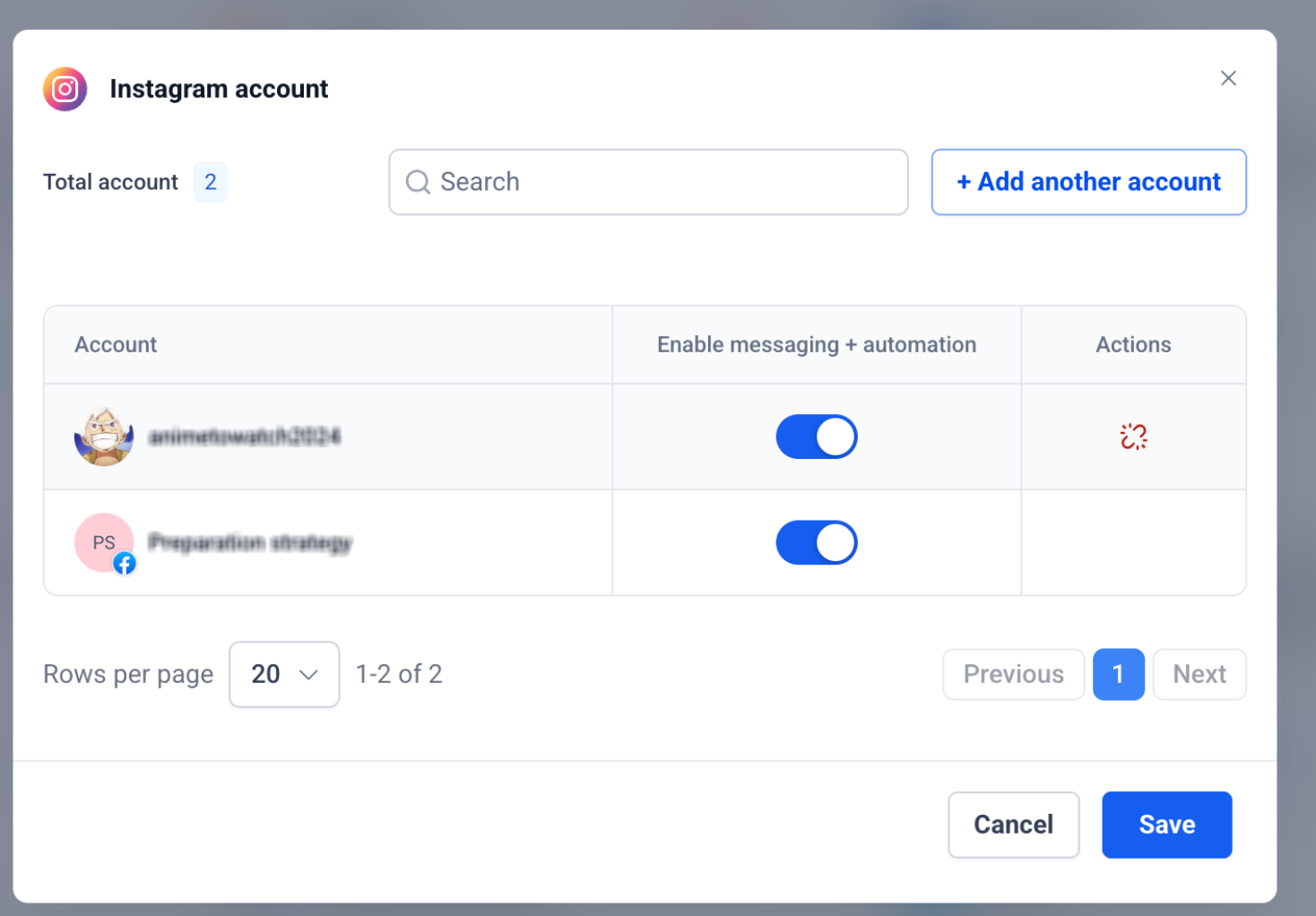
    • All Instagram accounts connected through Facebook Pages
    • The current messaging status for each account displayed using toggles
  5. Click Add Account to connect an Instagram account directly.
  6. Complete the Instagram OAuth authorization process.

Switching from Facebook-Based Connection to Direct Instagram Connection

If the same Instagram account is connected both:

  • Through a Facebook Page, and
  • Directly via Instagram OAuth

then both connection methods will appear in the Manage modal.

Important Behavior

  • Enabling the toggle for the direct Instagram connection will automatically disable the corresponding Facebook Page-based connection.
  • All existing:
    • Workflows
    • Automations
    • Conversation routing
    • Messaging functionality

will continue working without interruption and automatically transition to the new direct connection.

This ensures a seamless migration experience without requiring workflow reconfiguration.


If No Instagram Account Is Connected

If no Instagram account has been connected previously:

Steps to Connect

  1. Navigate to:

    Sub-Account → Settings → Integrations

  2. Locate the Instagram integration card.
  3. Click Connect.
  4. Complete the Instagram OAuth authorization flow.
  5. Once connected, enable the messaging toggle for the Instagram account you want to activate.

After enabling the toggle, Instagram Direct Messages will begin syncing into the CRM Conversations tab.