
Learn how Linear triggers and actions work, which records can be created or monitored, how to connect a Linear workspace with OAuth, how to build common customer-feedback workflows, and how to troubleshoot connection or execution issues.
Linear triggers and actions are premium workflow components. The Linear connection uses OAuth, and available teams or records depend on the workspace and team access authorized during connection.
What is the Linear Integration in Workflows?
The Linear integration connects workflows with Linear, an issue-tracking and product-planning platform used by product and engineering teams. Workflows can react to supported events in Linear or perform actions such as creating issues, updating records, adding comments, searching for customers, and creating customer needs.
This two-way workflow connection helps customer-facing teams turn feedback into structured product work while also using Linear activity to drive notifications, follow-up, or other automation.
Key Benefits of the Linear Integration in Workflows
Connecting Linear with workflows reduces manual handoffs between customer-facing and product teams. Customer context can move into Linear automatically, while changes in Linear can trigger downstream communication or operational steps.
- Closed-Loop Customer Feedback: Turn reported bugs or feature requests into Linear issues and customer needs, then use later Linear activity to support follow-up.
- Customer Context: Include customer, contact, request, or source information when creating product work.
- Product Prioritization Context: Create Linear customer records with supported fields such as tier and revenue so product teams can review customer context alongside requests.
- Real-Time Engineering Visibility: Start workflows from supported Linear issue, project, customer, customer need, document, and initiative events.
- Source Record Links: Attach a record URL to a Linear issue so users can return to the originating record when needed.
- OAuth Connection: Connect Linear without maintaining long-lived API tokens or building custom webhook authentication.
- Broad Workflow Coverage: Create, update, find, label, comment on, and connect supported Linear records directly from workflow actions.
Linear Triggers and Actions
Linear triggers are used when activity in Linear should start an automation. Linear actions are used when a workflow needs to create, update, find, or enrich information inside Linear. Selecting the correct direction helps keep each workflow focused and easier to troubleshoot.
Linear Triggers
Linear triggers are instant and powered by Linear webhooks. When a supported event occurs and matches the configured filters, the workflow can begin immediately.
| Trigger | What It Does |
|---|---|
| New Issue | Starts when a new Linear issue is created. The trigger can be filtered by team. |
| Updated Issue | Starts when an issue's status, priority, assignee, labels, or other supported fields change. |
| New Issue Comment | Starts when a new comment is added to an issue. |
| New Project | Starts when a new project is created. |
| New Project Update | Starts when a project update is posted. |
| Updated Project Update | Starts when an existing project update is edited. |
| New Customer | Starts when a new customer record is created in Linear. |
| Updated Customer | Starts when an existing Linear customer record is edited. |
| New Customer Need | Starts when a new customer need or feature request is captured. |
| Updated Customer Need | Starts when a customer need's status, priority, or linked work changes. |
| New Document Comment | Starts when a comment is added to a Linear document, such as a specification, proposal, or product document. |
| New Initiative Update | Starts when an update is posted to a Linear initiative. |
Linear Actions
Linear actions perform work in Linear after a workflow reaches the configured step. They can create new product work, find existing records, update issues, add comments or labels, and connect customer context to Linear.
| Action | Purpose |
|---|---|
| Create Issue | Creates an issue with supported fields such as title, description, team, project, priority, assignee, labels, and due date. |
| Update Issue | Updates configured fields on an existing issue. Fields that are not set remain unchanged. |
| Get Issue | Retrieves the latest state of a single issue by ID. |
| Find Issues | Searches issues using supported criteria such as team, project, label, status, assignee, or text. |
| Create Comment | Adds a Markdown-supported comment to an existing issue. |
| Create Issue Attachment | Attaches a URL to an issue, such as a link back to the source record. |
| Add Label To Issue | Adds a label to an existing issue. |
| Remove Label From Issue | Removes a label from an existing issue. |
| Create Project | Creates a Linear project with supported fields including name, description, lead, and target date. |
| Find Project | Finds a Linear project by name or supported filter. |
| Create Customer | Creates a Linear customer with supported details such as name, domain, tier, and revenue. |
| Find Customer | Finds a Linear customer by name or domain. |
| Create Customer Need | Creates a customer need linked to a customer record, issue, or project. |
Customer Requests: Linear Customer and Customer Need functionality depends on Linear's Customer Requests feature and may require a Linear plan that includes that functionality.
Linear Workflow Use Cases
Linear workflows are especially useful when customer activity needs to become structured product work or when product activity needs to trigger follow-up. Preserving a shared customer or request identifier makes later customer-specific actions easier to route accurately.
Customer-Reported Bug to Linear Issue and Customer Need
A customer request can automatically become a Linear issue while retaining enough context for product and engineering teams to understand where the request originated.
- Start the workflow when a customer submits a bug report or feature request.
- Use Find Customer to look for a matching Linear customer by name or domain.
- If no matching Linear customer exists, branch to Create Customer when appropriate.
- Use Create Issue to send the report details, context, priority, and labels into Linear.
- Use Create Issue Attachment when you want the Linear issue to contain a URL back to the originating record.
- Use Create Customer Need when the Linear workspace supports Customer Requests and the request should be associated with a customer and related product work.
Resolved Linear Issue to Customer Notification
An Updated Issue trigger can start a workflow when a customer-reported issue reaches the desired status. Keep a shared identifier, such as a contact ID, email address, request ID, or another reference, when the issue is created so the later workflow can reliably locate the correct customer.
- Use the Updated Issue trigger.
- Filter for the status that represents completed work, such as Done.
- Use additional filters, such as a customer-reported label, when needed.
- Use Get Issue if the workflow needs the latest issue details.
- Use the shared identifier to locate the intended customer or contact.
- Send the appropriate email, SMS, internal notification, or other follow-up action.
How To Set Up the Linear Integration in Workflows
Connecting Linear before configuring workflow logic ensures triggers and actions can access the authorized workspace and teams. After connecting, configure each workflow step with the correct team, project, issue, customer, labels, filters, and field mappings required by the automation.
Option 1: Connect Linear from the Workflow Builder
Connecting directly from the Workflow Builder is useful when you are already configuring the Linear trigger or action that will use the connection.
Go to Automation → Workflows and open an existing workflow or create a new one.
Add a Linear trigger or action, then select the specific Linear event or operation you want to configure.
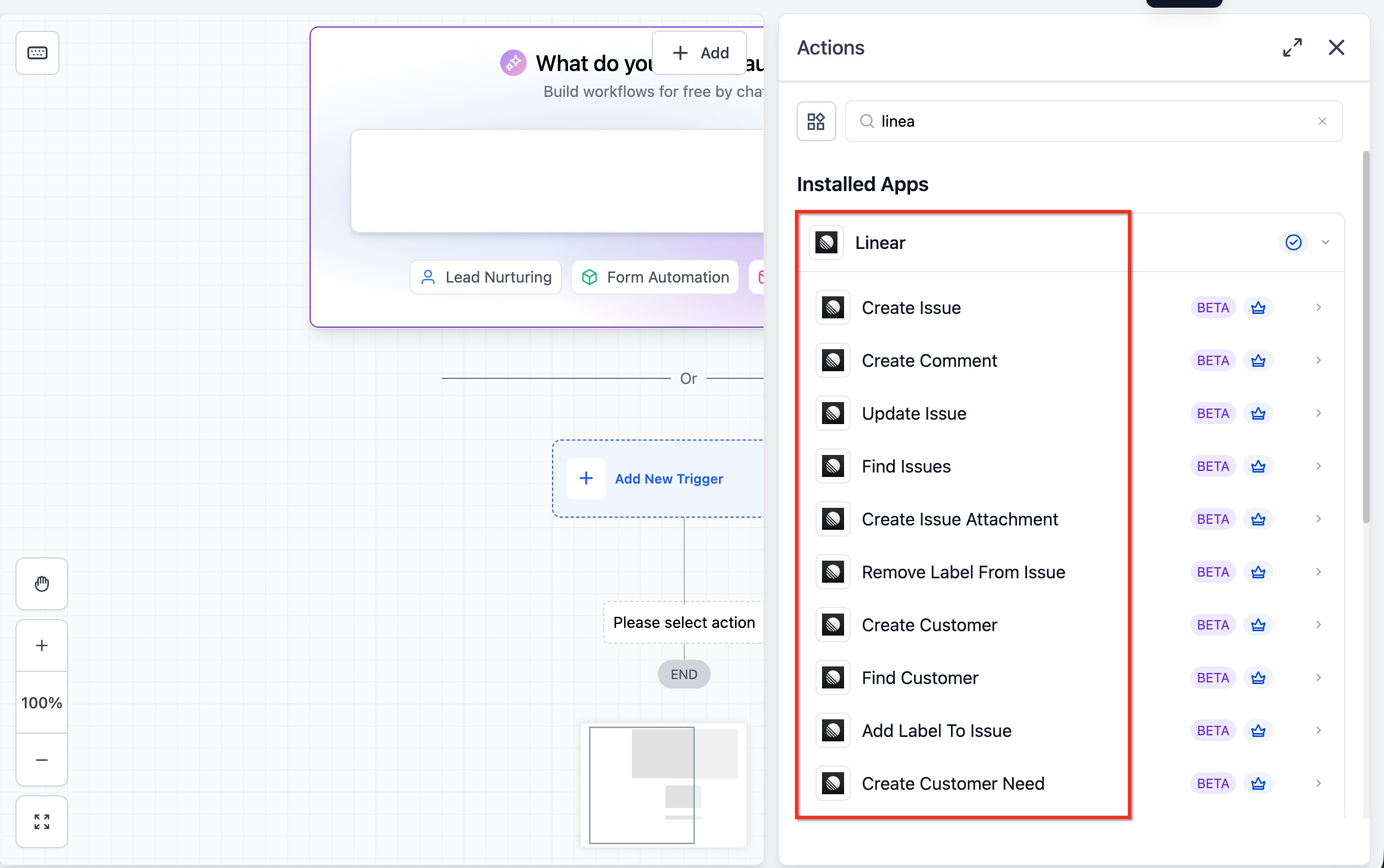
Click Connect Now, sign in to Linear through OAuth, and continue to the authorization screen.
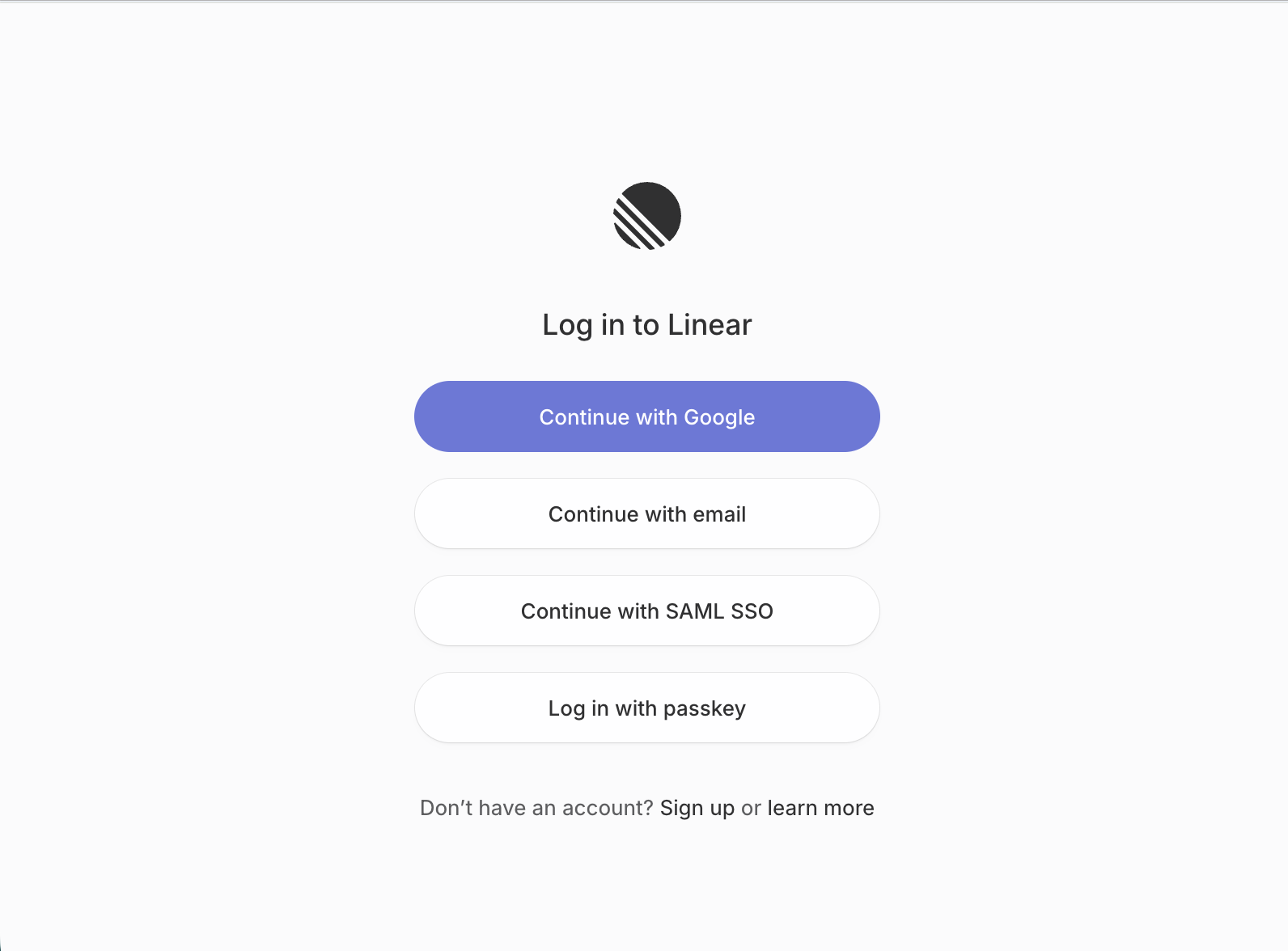
Authorize the appropriate Linear workspace and the team or teams the integration should be able to access.
Save the connection, then complete the filters, fields, issue details, team selection, customer mapping, or other configuration required by the selected trigger or action.
Option 2: Connect Linear from Settings
Connecting from Settings is useful when you want to establish the Linear connection before building or updating workflows.
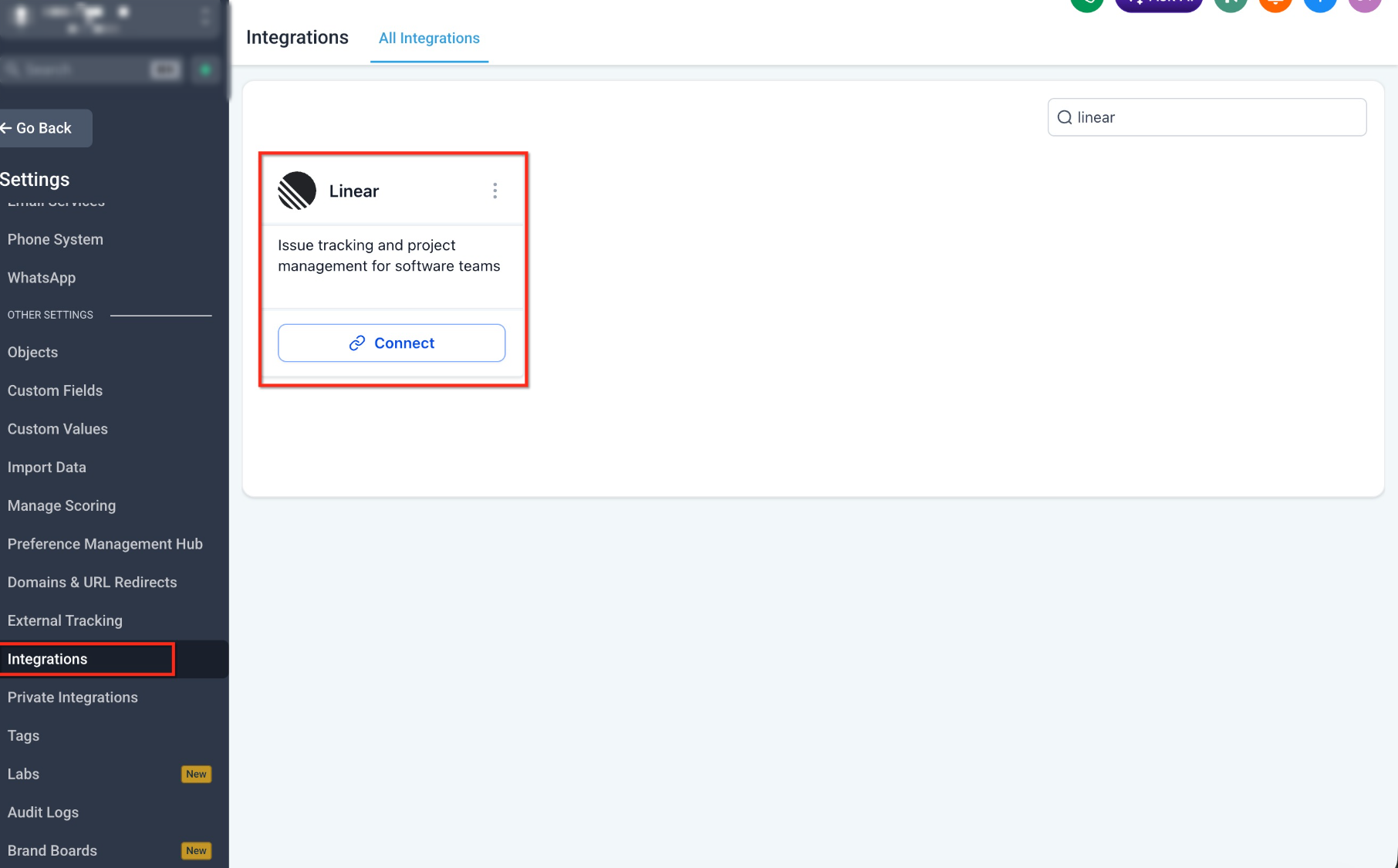
Go to Settings → Integrations, locate Linear, and click Connect.
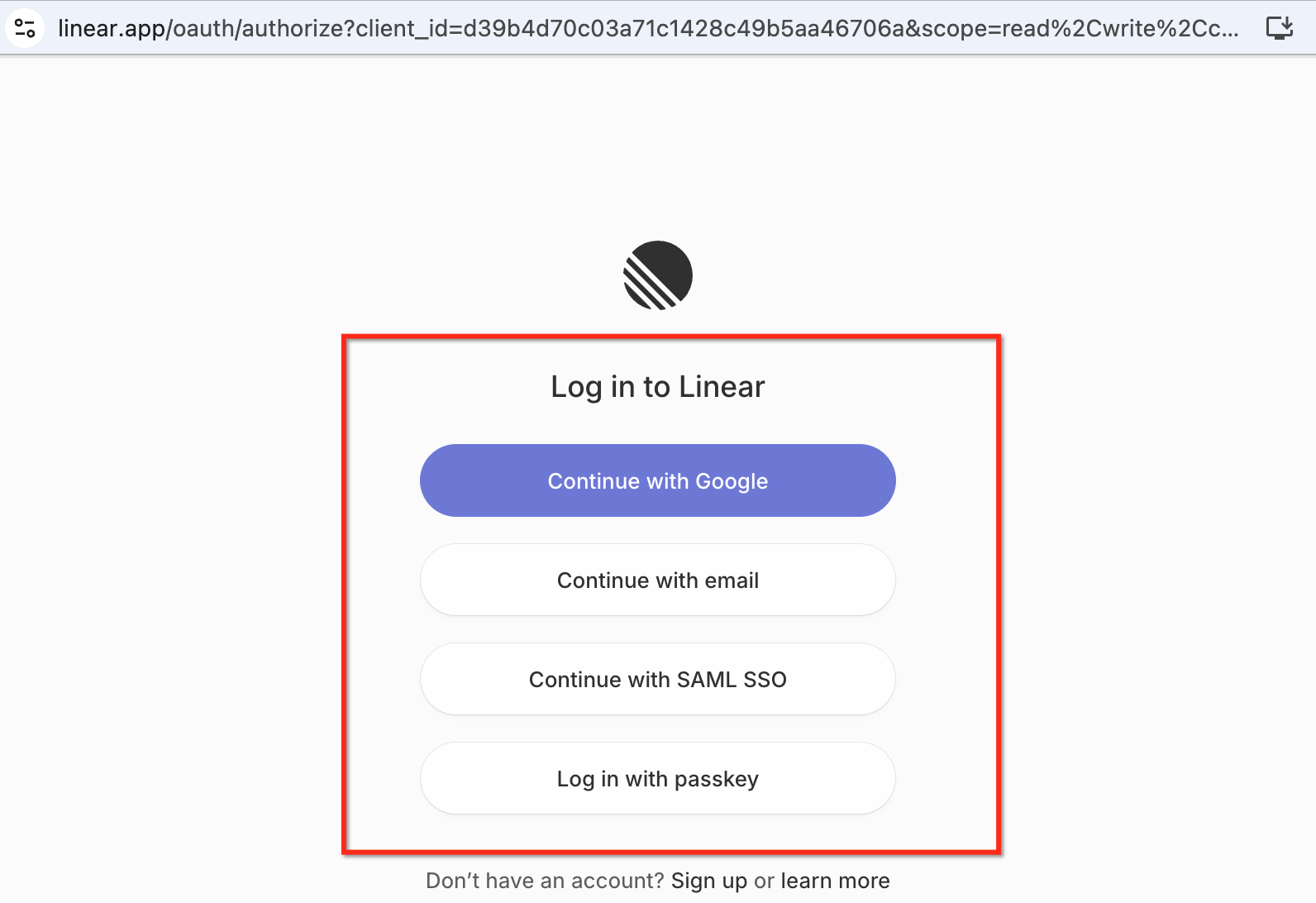
Sign in to Linear using OAuth and authorize the intended workspace.
Save the connection.
Return to Automation → Workflows and configure the Linear triggers or actions that should use the saved connection.
Test the workflow with representative data, review the execution details, and publish the workflow after confirming the correct Linear records and fields are being used.
Frequently Asked Questions
Need Help?
- Linear is not connected: Reopen the workflow step or Settings → Integrations and complete the OAuth connection again.
- A team is missing: Confirm the correct Linear workspace and team were authorized during OAuth.
- A trigger is not firing: Confirm the workflow is published and review the selected team, project, status, labels, and other trigger filters.
- An action cannot find a record: Verify the issue ID, customer name/domain, project value, or other lookup criteria being passed into the step.
- Customer or Customer Need options are unavailable: Confirm the connected Linear workspace has access to the required Customer Requests functionality.
- A customer notification is going to the wrong record: Review the shared identifier used to associate the Linear item with the originating customer.
- A Linear action fails: Review the workflow execution details and confirm the connected account, authorized team, required fields, and referenced Linear records.
- Issue continues: Collect the workflow name, Linear trigger or action, connected workspace, affected team, relevant record IDs, error message, and screenshots of the execution details before contacting support.