
This guide explains how Snapshot importing differs from loading, how to import from a share link or email invitation, how to monitor processing and troubleshoot failed imports, and what happens when the imported Snapshot contains protected assets.
Importing and loading are different actions. Importing adds the shared Snapshot to your agency-level Snapshot library. Loading applies selected assets from that Snapshot to a specific sub-account.
What is Snapshot Import?
Snapshot import is the process of adding a shared Snapshot to your agency using a Snapshot Share Link or email invitation. Once imported, the Snapshot is stored in your agency-level Snapshot library, where you can review it before applying its assets to a sub-account.
Importing does not automatically place Snapshot assets inside a client account. To apply those assets, you load the imported Snapshot into the intended sub-account and choose which supported assets to include.
Simple workflow: Share → Import into the agency library → Load into a sub-account.
Key Benefits of Snapshot Import
The redesigned import experience gives agencies clearer control from the moment a shared Snapshot is opened until it becomes ready for use. Better naming, status visibility, error guidance, and protection indicators make imports easier to manage.
Importing Assets Protected Snapshots
Assets Protection allows Snapshot creators to restrict external redistribution without preventing legitimate use inside the receiving agency. Importing an Assets Protected Snapshot does not remove its protection, but it also does not prevent you from using protected assets throughout your own agency.
| Action | Protected Asset Behavior |
|---|---|
| Import a valid protected Snapshot | Allowed |
| Load protected assets into a sub-account in the receiving agency | Allowed |
| Reuse protected assets across other sub-accounts in the same agency | Allowed |
| Create or refresh another Snapshot using protected assets | Allowed within the agency |
| Share or resell protected assets to another agency | Restricted |
| Externally share a mixed Snapshot | Eligible non-protected assets can continue; protected assets are excluded. |
Protection stays attached: Loading, copying, or reusing a protected asset within your agency does not remove or weaken its protected status.

Protection boundary: Protected assets remain usable throughout the receiving agency. Their restriction applies when those protected assets would be redistributed or resold outside that agency.
Tracking Snapshot Import Progress
Import status helps you distinguish a Snapshot that is still processing from one that is ready to use. Waiting for processing to finish prevents duplicate import attempts and avoids trying to load an incomplete Snapshot.
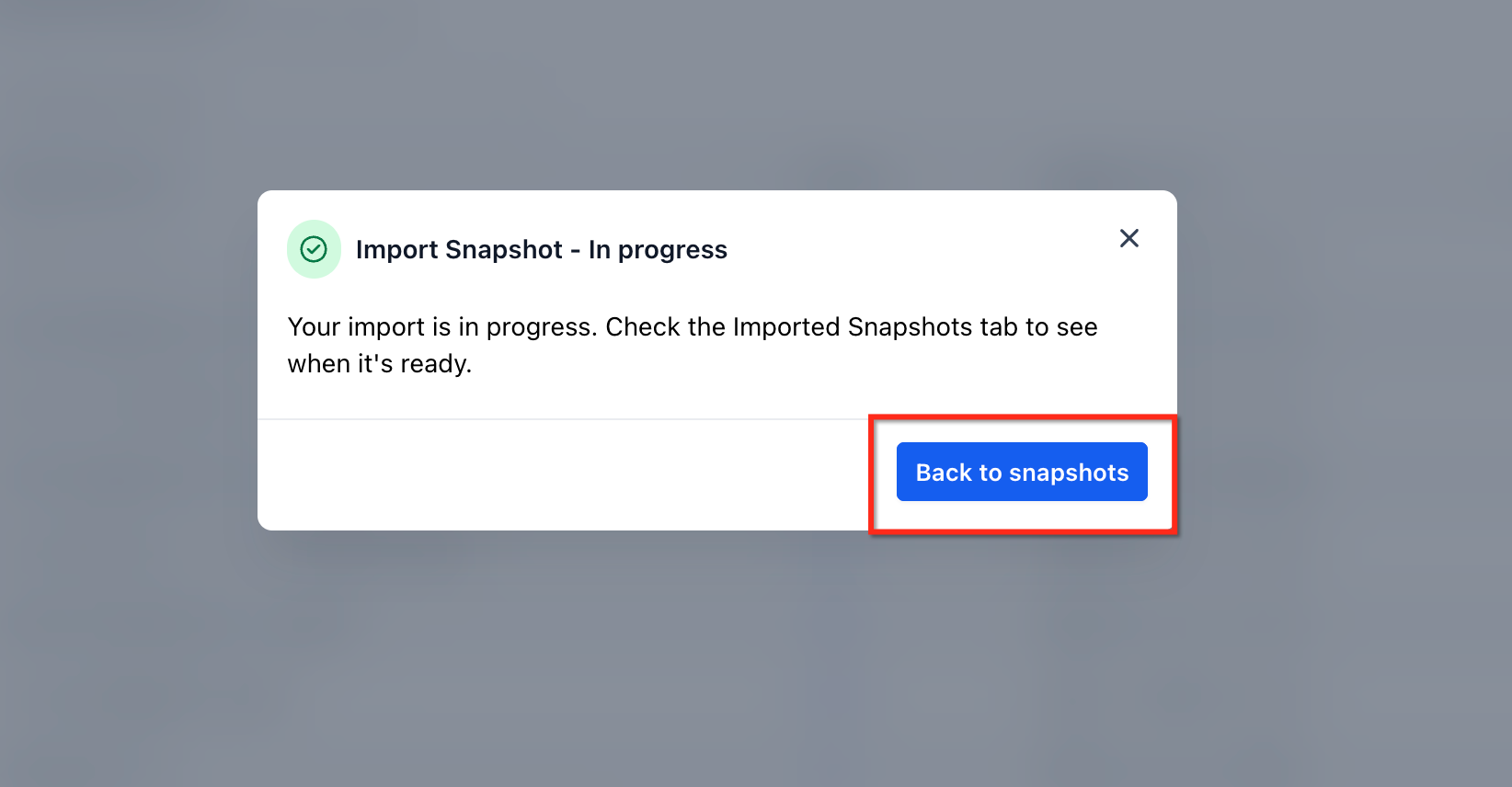
- After the import begins, the Snapshot appears in your imported Snapshots list.
- The Snapshot appears greyed out while processing is still underway.
- You do not need to start another import because the Snapshot is greyed out.
- When processing finishes, the Snapshot becomes active and ready to use.
Tip: Wait until the Snapshot becomes active before attempting to load it into a sub-account.
Understanding Snapshot Import Errors
Share links can fail for different reasons, and the correct next step depends on whether the link expired, was already used, is restricted to another destination, or points to an unavailable Snapshot. Identifying the reason first helps avoid unnecessary retries.
| Scenario | What It Means | What To Do |
|---|---|---|
| Expired Snapshot Share Link | The shared link is no longer valid. | Ask the Snapshot owner to generate a new share link. |
| One-Time Link Already Used | The permitted import has already been completed. | Ask the sender to generate another one-time link. |
| Restricted Link | The link may be limited to a particular agency or sub-account. | Confirm that you are signed in to the intended agency and that the sender used the correct restriction. |
| Unavailable Snapshot | The source Snapshot may no longer exist or be available through that share. | Ask the sender to verify the Snapshot and generate a valid share if needed. |
| General Import Failure | The import did not complete successfully. | Confirm that the share is still valid, retry the import, and use the Need Help checks below if the issue continues. |
| Shield / Assets Protected Indicator | The Snapshot contains protected assets. | No error. Continue with the valid import. Protection remains attached to the applicable assets. |
How To Import a Snapshot
Importing the Snapshot first ensures it is stored in the correct agency library before you attempt to use its assets in a sub-account. You can begin from either a Snapshot Share Link or an email invitation.
If you cannot import a Snapshot, verify that your user has the appropriate Snapshot permissions, including Share/Import Snapshots.
Import a Snapshot from a Snapshot Share Link
A Snapshot Share Link opens the recipient import experience directly. Sign in to the agency where you want the Snapshot stored before opening the link.
- Sign in to the agency where you want to import the Snapshot.
- Open the Snapshot Share Link provided by the sender. You can paste it into a new browser tab if needed.
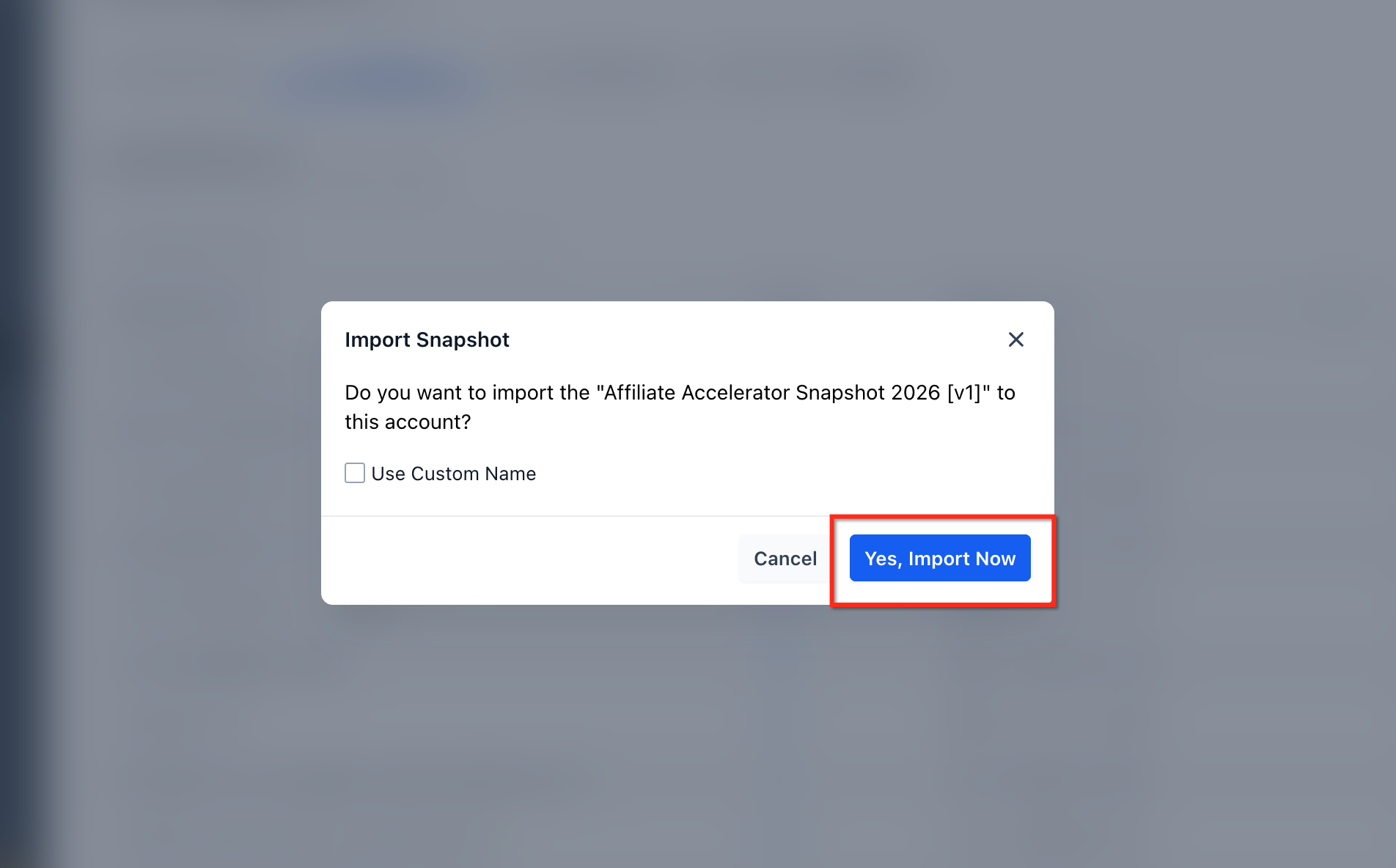
- Review the Snapshot import pop-up.
- Enter a custom Snapshot name if you want to rename it before importing.
- Click Import Now.
- Watch for the Snapshot to appear in your imported Snapshots list.
- Wait until the greyed-out processing state clears and the Snapshot becomes available.
Import a Snapshot from Email
An email invitation launches the same general import experience while delivering access directly to the intended recipient.
- Sign in to the agency where the Snapshot should be imported.
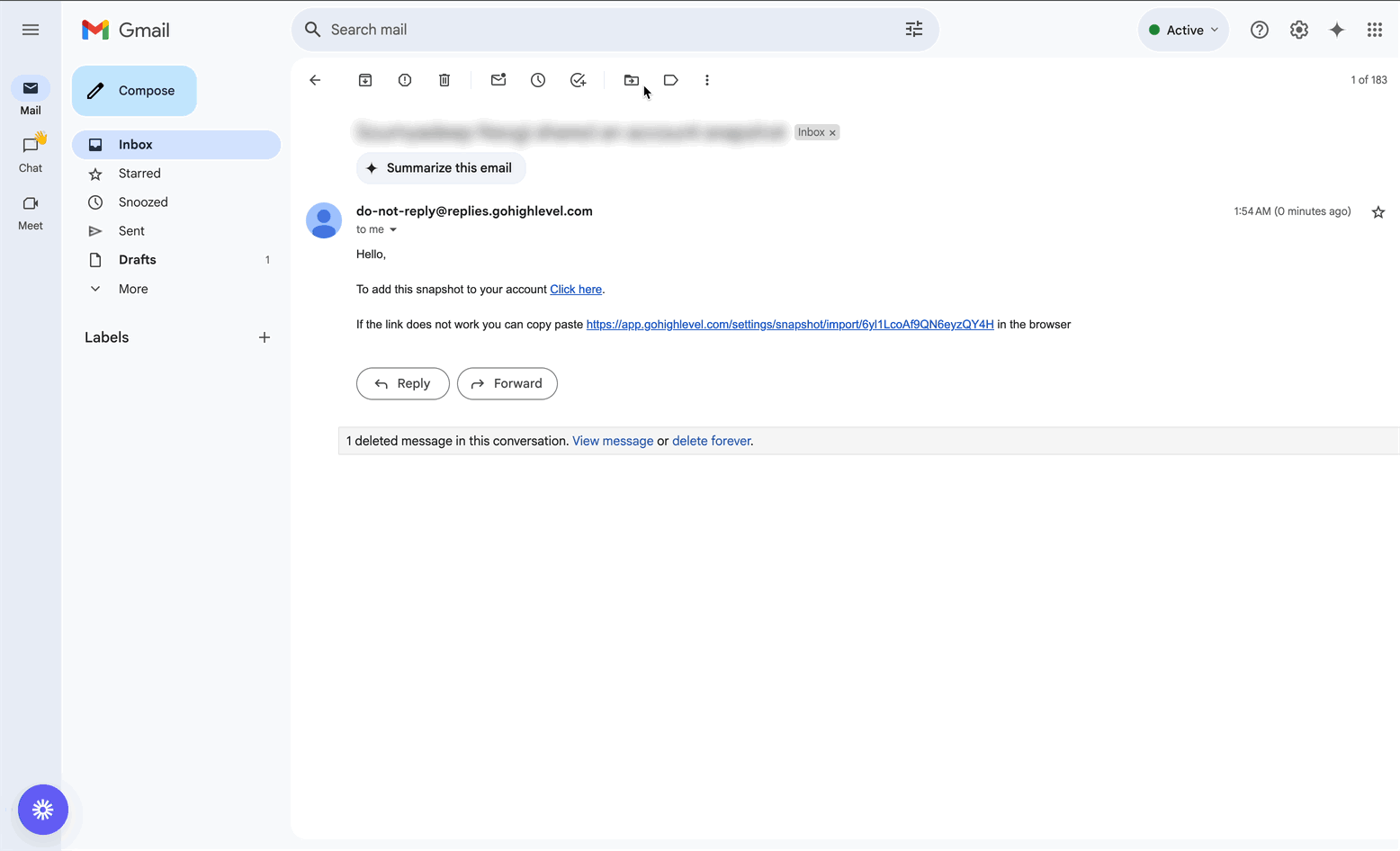
- Open the Snapshot invitation email.
- Click the Snapshot import link in the email.
- Review the Snapshot import pop-up.
- Rename the Snapshot if needed.
- Click Import.
- Wait for processing to finish before loading the Snapshot into a sub-account.
Load the Imported Snapshot Into a Sub-Account
An imported Snapshot remains at the agency level until you deliberately load it into a sub-account. Loading gives you control over the destination, selected assets, and any conflicts with assets that already exist in the sub-account.
Protected assets can be loaded internally: If the imported Snapshot contains protected assets, those assets can be selected and loaded into sub-accounts within the same agency. Loading them does not remove their protection.
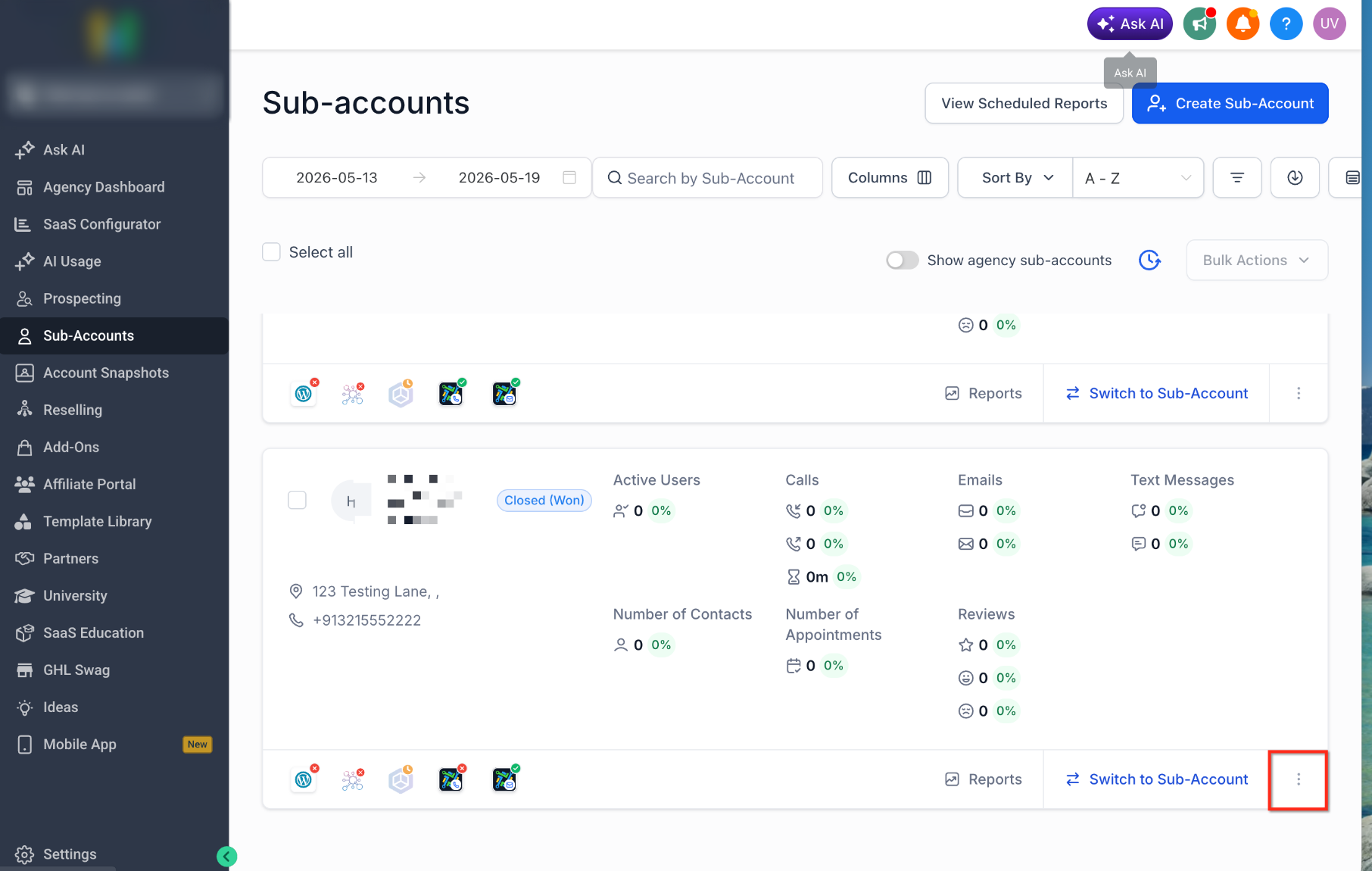
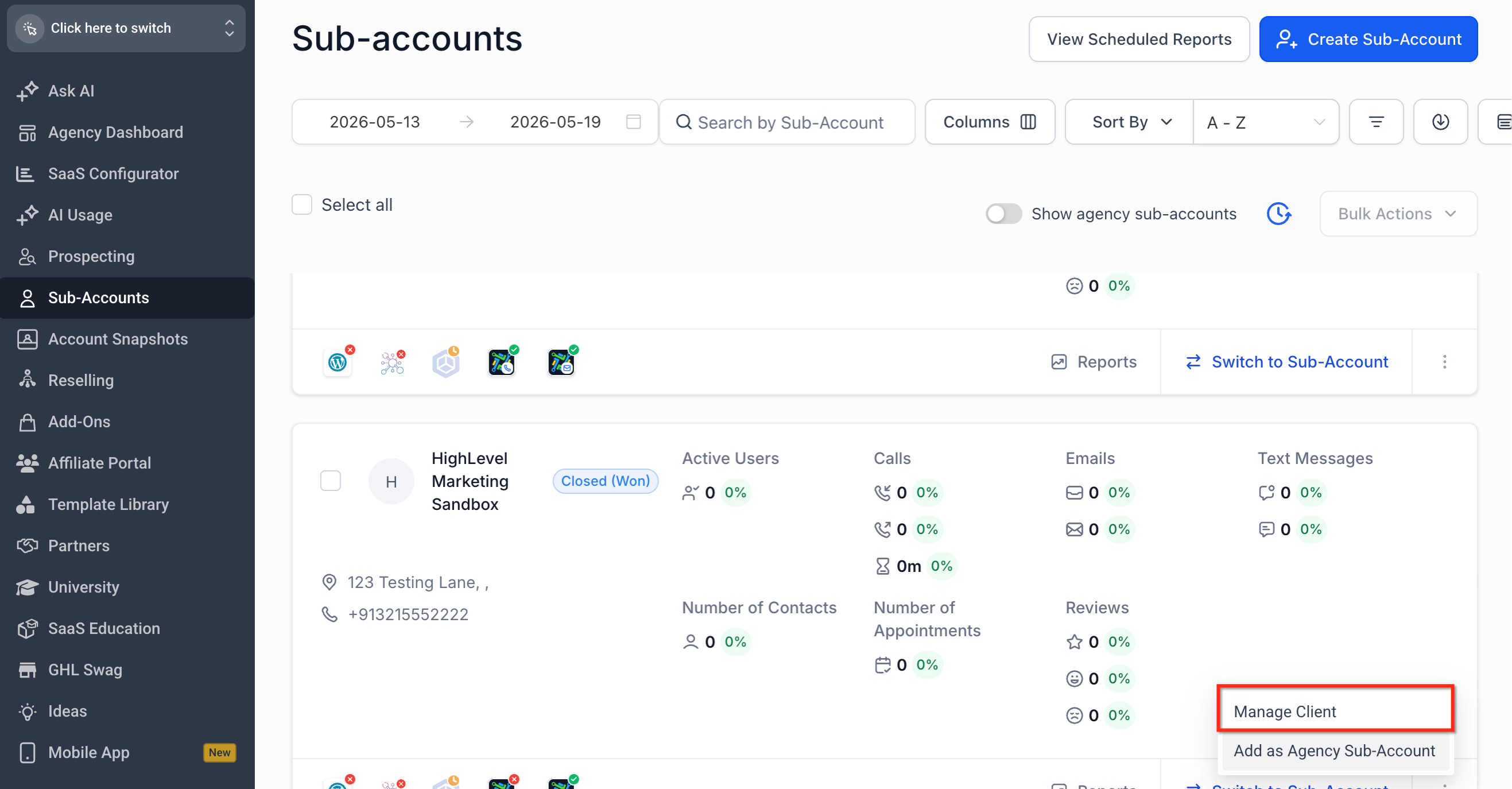
From Agency View, locate the sub-account where you want to load the Snapshot. Open the sub-account action menu and select Manage Client.
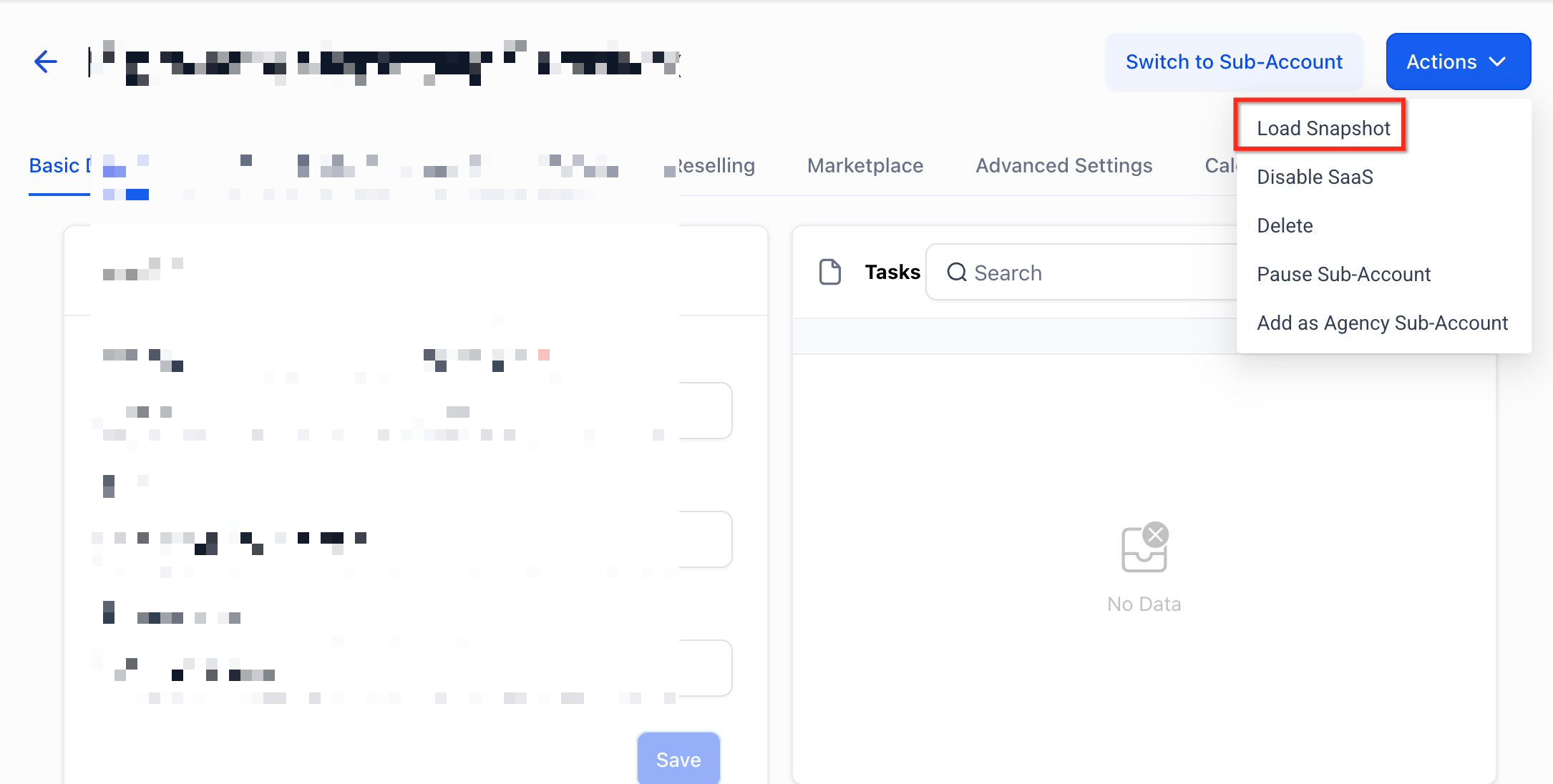
Click Actions, then select Load Snapshot.
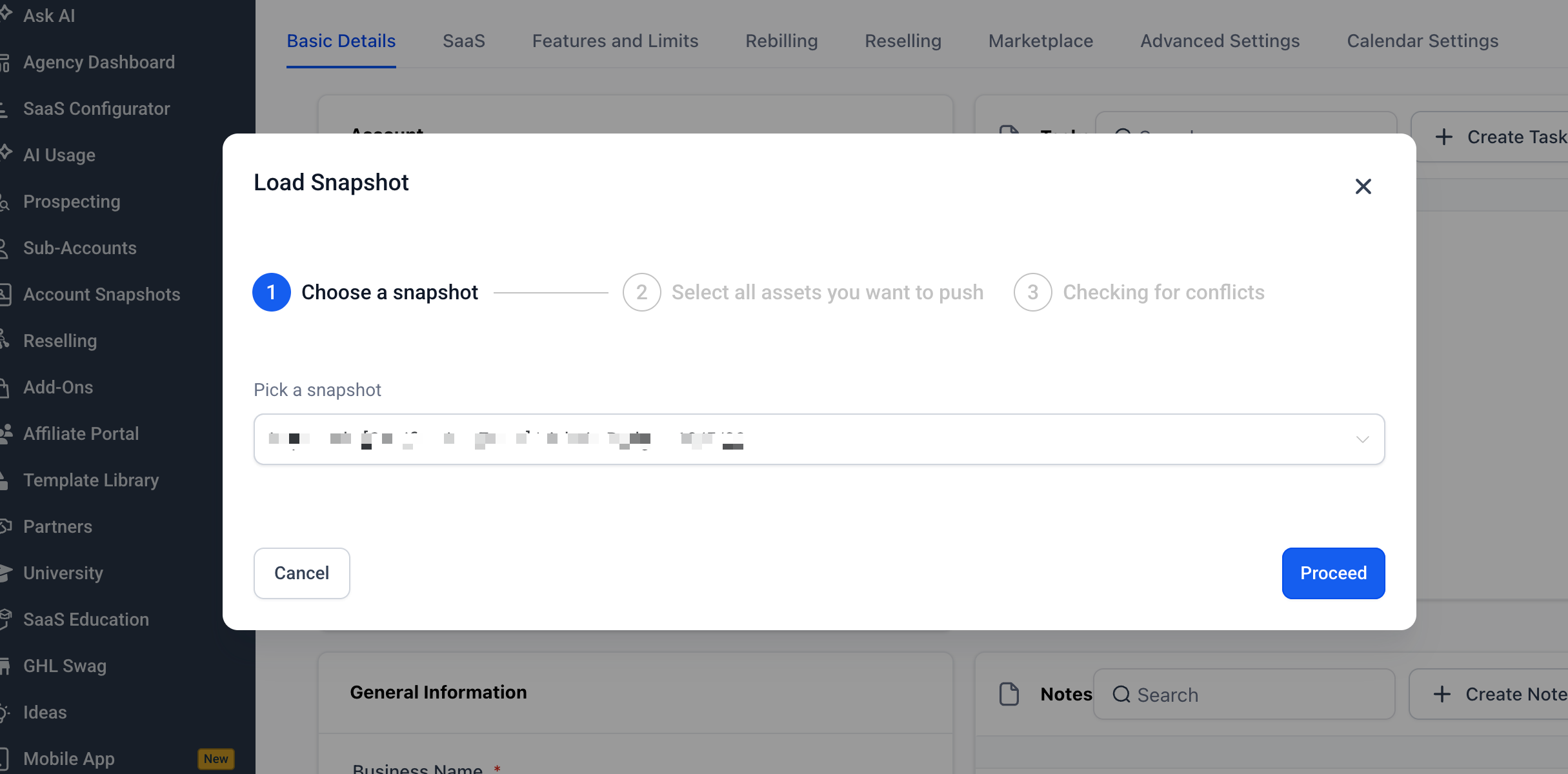
Select the Snapshot you imported from the available Snapshot list.
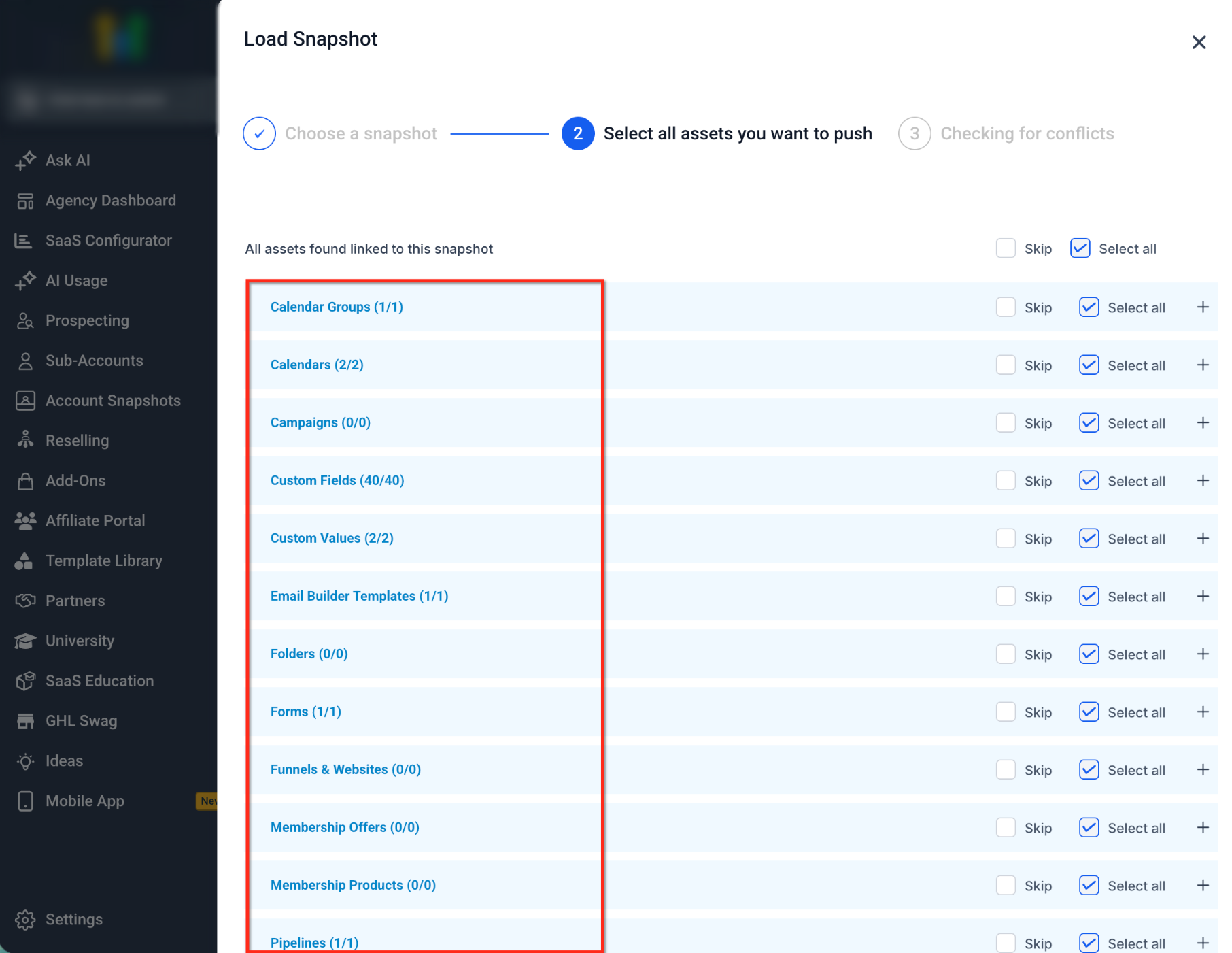
Select the supported Snapshot assets you want to apply to the destination sub-account.
Review any detected conflicts and choose the appropriate action for existing assets. When everything is correct, confirm the Snapshot load.
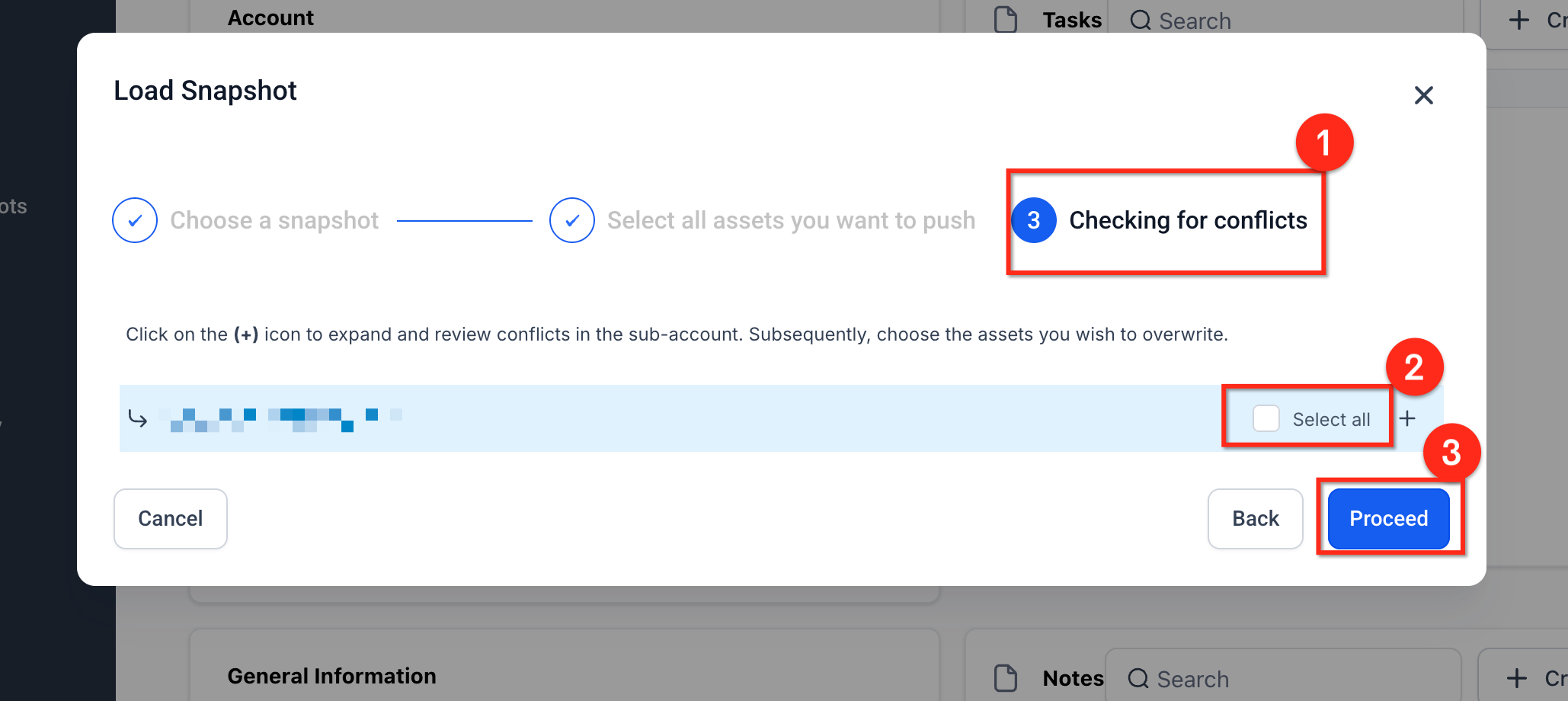
Loading reminder: Review the destination, selected assets, and any conflicts before confirming. Protected assets can be loaded internally without removing their protected status.
Frequently Asked Questions
Need Help?
If a Snapshot is not importing, processing, or loading as expected, use the checks below to identify the most common causes before retrying the workflow.
- The Snapshot Share Link will not open: Confirm that the link has not expired or already been used if it is a one-time link. Ask the sender for a new link when necessary.
- A restricted link does not work: Confirm that you are signed in to the intended agency and that the sender restricted the link to the correct agency or sub-account.
- The Snapshot is greyed out: The import is still processing. Wait for the Snapshot to become active before retrying or attempting to load it.
- You see a shield indicator: This is not an error. The Snapshot contains protected assets and can still be imported and used internally.
- Protected assets are not behaving as expected: Confirm that the workflow remains inside the same agency. Protected assets can be loaded, reused, and included in internal Snapshot workflows, but they remain restricted from external redistribution.
- The imported Snapshot does not appear inside a sub-account: Importing only adds the Snapshot to the agency library. You must separately use Load Snapshot for the intended sub-account.
- The Load Snapshot option is unavailable: Verify that the user has the appropriate Snapshot permissions and that the Snapshot has finished importing.
- Existing assets show conflicts: Review each conflict before confirming the load so you understand how existing sub-account assets will be handled.
- The import still fails: Confirm that the share is valid, verify the intended agency, wait for any existing import attempt to finish, and then retry the import once.