
Custom fields let you capture information that is not included in standard record fields. Use them to store business-specific data, organize information into folders, and make that data available throughout supported records, forms, workflows, filters, and other tools.
TABLE OF CONTENTS
- What Are Custom Fields?
- Key Benefits of Custom Fields
- Contact vs. Opportunity Custom Fields
- Organize Custom Fields with Folders
- How to Create a Custom Field
- Manage Existing Custom Fields
- Frequently Asked Questions
- Related Articles
What Are Custom Fields?
Custom fields are fields you create to store information specific to your business. Instead of being limited to standard information such as a contact's name, email, or phone number, you can create fields for details such as preferences, qualification information, budgets, dates, or other information your team needs.
Custom fields can be used across supported areas such as forms, surveys, workflows, records, pipelines, Smart Lists, reporting, and personalization. Availability depends on the object and field type.
Key Benefits of Custom Fields
Custom fields make your records more useful by adapting them to the information your business actually needs.
- Capture relevant information: Store business-specific data that standard fields do not cover.
- Improve organization: Group related fields into folders so records are easier to navigate.
- Support automation: Use field values in supported workflow filters, conditions, and actions.
- Personalize communication: Reference supported custom field values through merge fields.
- Improve segmentation: Filter contacts or opportunities using information stored in custom fields.
- Keep data structured: Choose field types that match the information being collected.
Contact vs. Opportunity Custom Fields
Choosing the correct object when creating a custom field determines where its information belongs and where the field can be used.
Contact custom fields store information about a person. Examples include referral source, preferred contact method, birthday, or customer preferences.
Opportunity custom fields store information about an individual deal. Examples include budget, urgency, property type, projected closing date, or other deal-specific information.
Organize Custom Fields with Folders
Folders group related fields together, making larger sets of custom information easier to manage and navigate.
Examples of useful folders include:
- General Information
- Qualification Details
- Property Information
- Appointment Preferences
- Service Details
Go to Settings → Custom Fields, select the appropriate object, and open Folders. Click Create folder, enter a descriptive name, and save it.
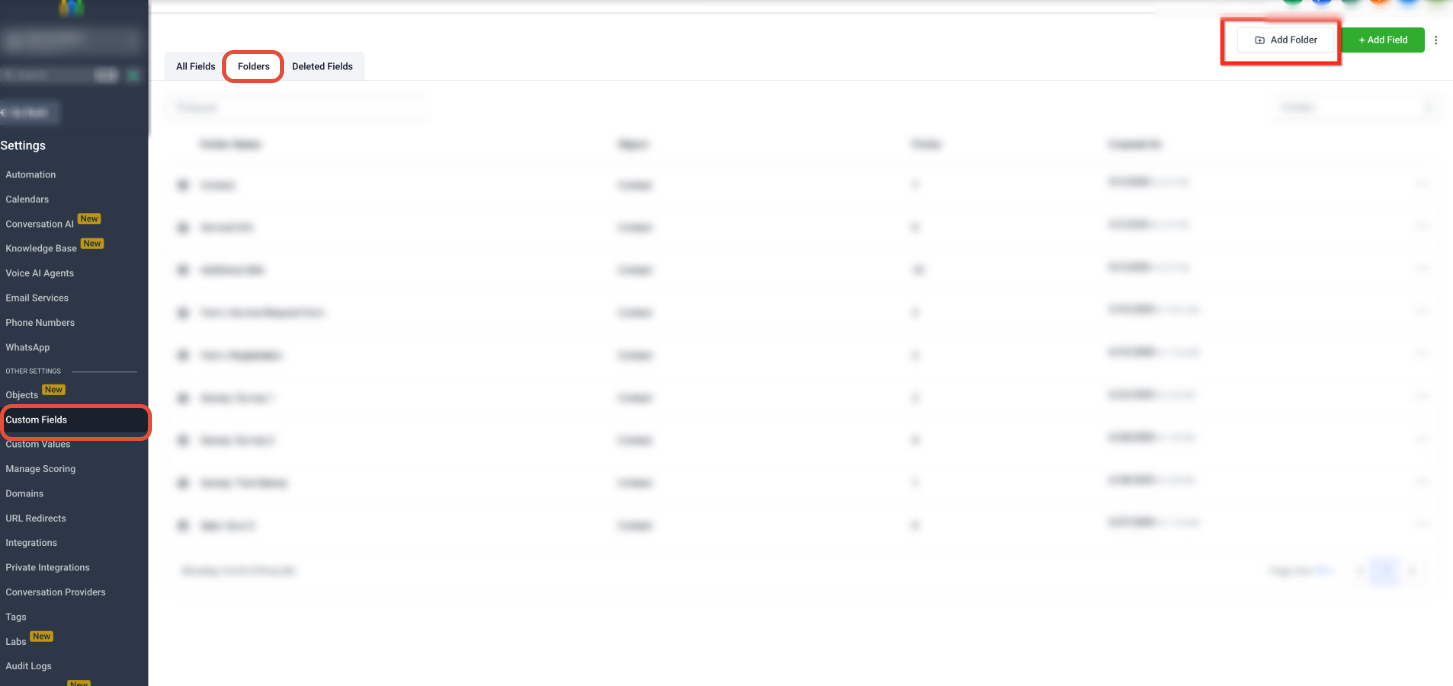
Open Settings → Custom Fields → Folders, then select Create folder. Use folders to keep related custom fields grouped together.
How to Create a Custom Field
Creating the field under the correct object and choosing the appropriate field type ensures the information can be stored and used as intended.
Open Custom Fields
Go to Settings → Custom Fields.
Select the object you want to manage, then open the Fields tab. Existing fields for the selected object appear in the field list.
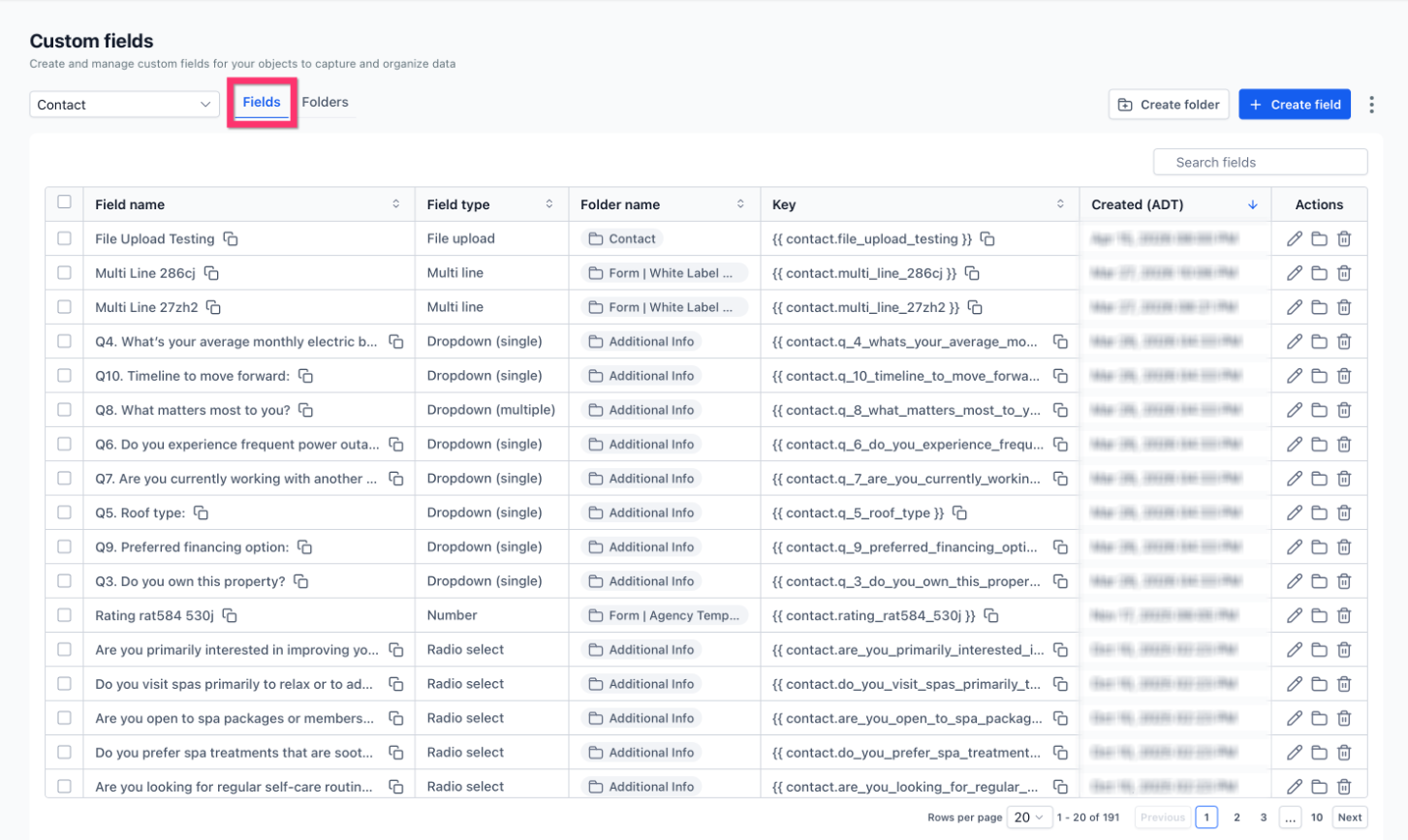
Select the appropriate object and remain on the Fields tab. From here, you can review existing fields or select Create field to add one.
Choose the Field Type
Click Create field, then select the field type that best matches the information you want to collect.
Available types can include text, numbers, monetary values, dropdowns, radio selections, checkboxes, dates, file uploads, signatures, and other supported input types.
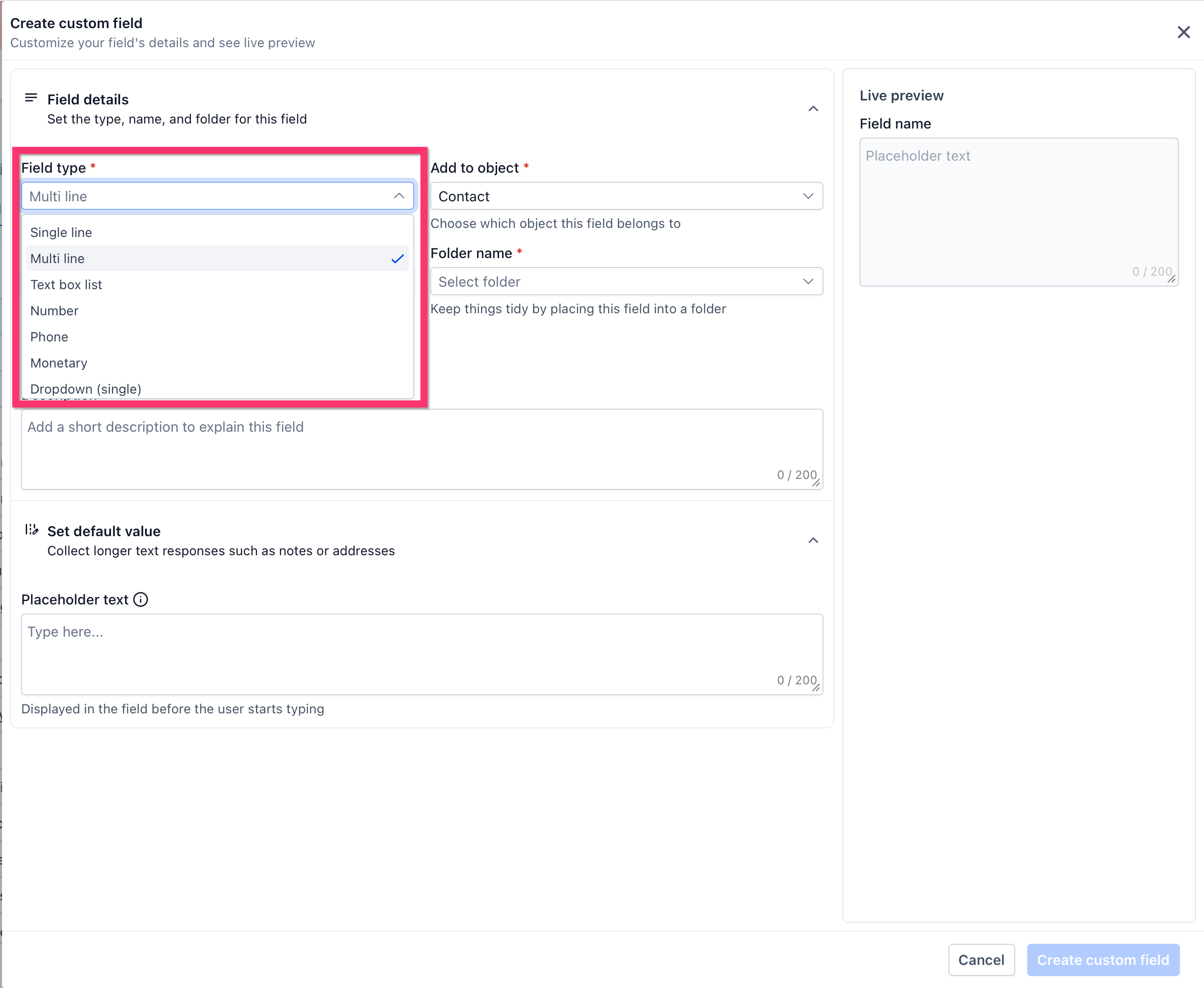
Open Field type and choose the format that matches the information you need to capture. For example, use Single line for short text and Multi line for longer responses.
Configure the Field
Complete the required field details.
Depending on the selected field type, settings can include:
- Add to object: Determines which type of record owns the field.
- Field name: The label users see.
- Folder name: Groups the field with related information.
- Key: Identifies the field for supported merge-field and automation uses.
- Description: Explains the purpose of the field.
- Placeholder text: Displays guidance before a user enters a value.
- Additional settings: Options vary depending on the field type.
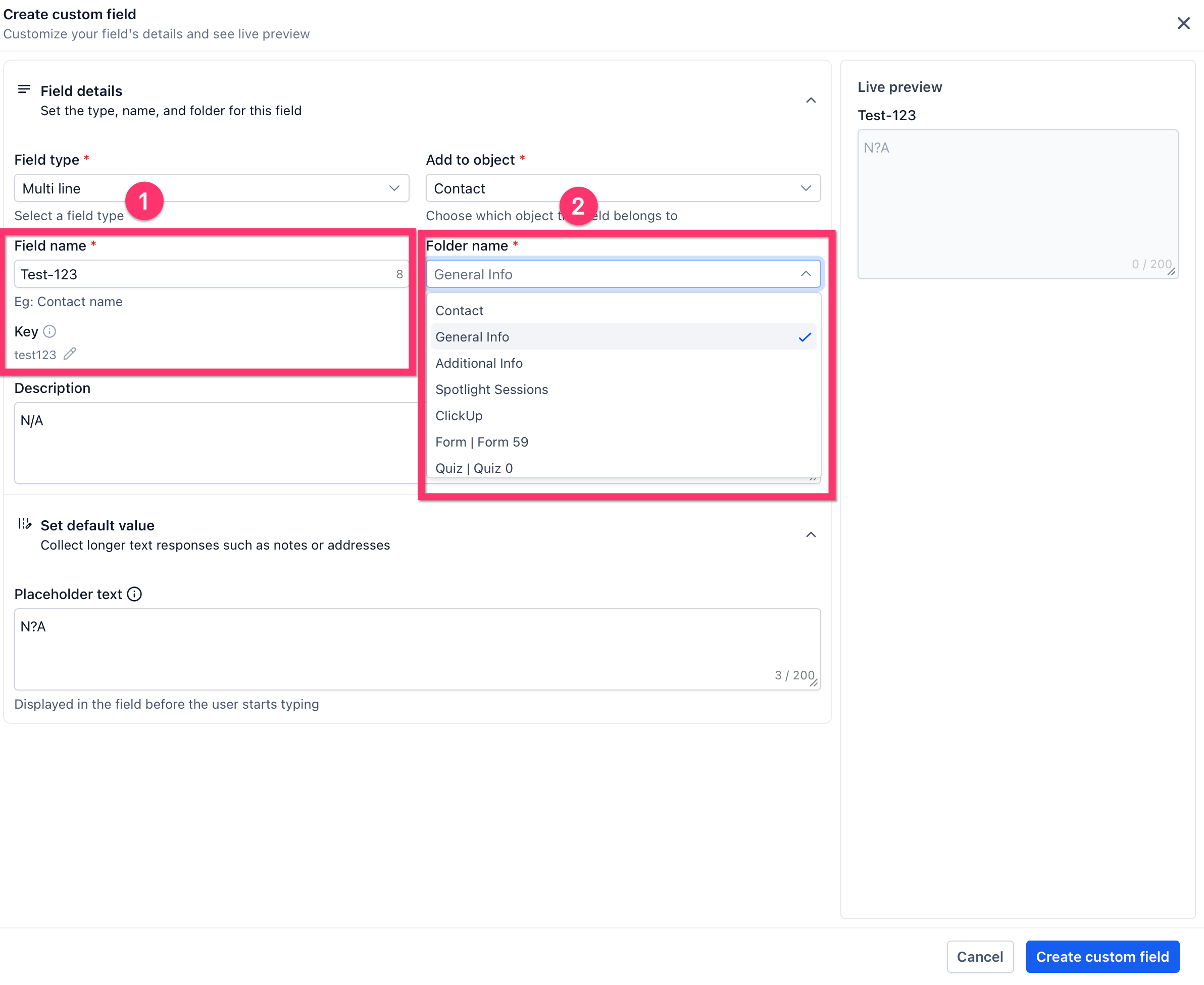
Enter a clear Field name, confirm the correct object, and select the folder where the field should appear. Add a description or placeholder when it will help users understand what information to enter.
Review the Live Preview
The Live preview displays how the field will appear based on your current configuration.
Review the preview before saving, particularly when using placeholder text or field types that accept different input formats.
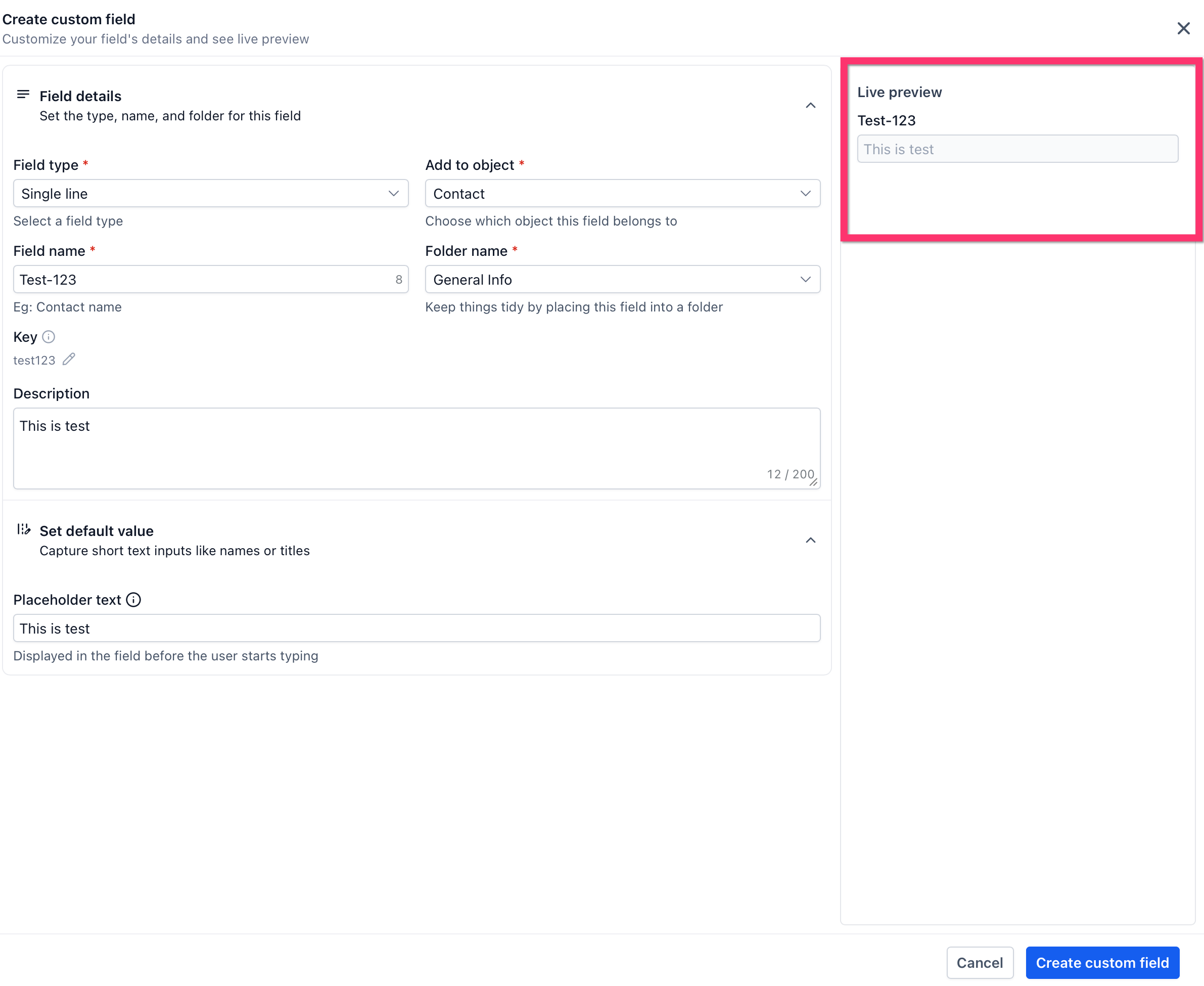
Check the Live preview to confirm that the field name, input format, and placeholder appear as expected.
Create the Field
Once the configuration is correct, click Create custom field.
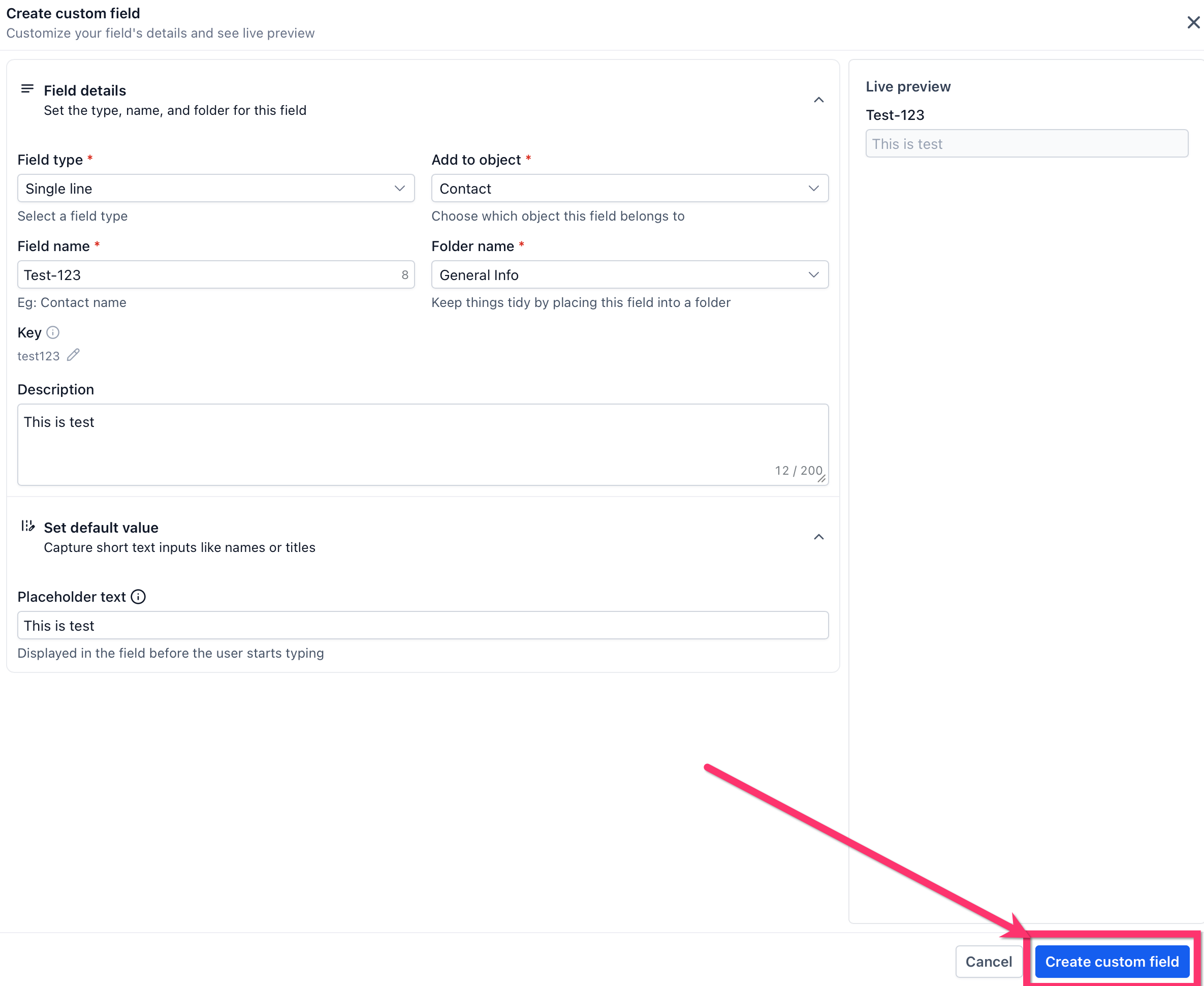
Review the configuration one final time, then click Create custom field to add it to the selected object.
Manage Existing Custom Fields
The Custom Fields page provides a central place to review and maintain fields after they are created.
Use the object selector to switch between supported record types and use the Fields and Folders tabs to manage their information.
The field list can display details such as:
- Field name
- Field type
- Folder
- Field key
- Creation information
- Available actions
Frequently Asked Questions
Q: Can I change a Contact custom field into an Opportunity custom field?
No. The field's object cannot be changed after creation. Create a new field under the correct object instead.
Q: Which field type should I choose?
Choose the type that matches the information being collected. For example, use Single line for short text, Multi line for longer responses, Monetary for currency values, Date Picker for dates, and a dropdown when users should select from predefined options.
Q: Why can't I find my custom field in another feature?
Check the field's object first. A custom field is available only in areas that support its object and field type. For example, a field created for an Opportunity is not automatically treated as a Contact field.
Q: Can I organize existing custom fields into folders?
Yes. Folders can be used to group related custom fields and make record information easier to navigate.
Q: What is the Key shown on a custom field?
The field key identifies the custom field and can be used by supported features when referencing its stored value, including merge-field functionality.
Q: Can custom fields be used in reports and dashboards?
Supported Contact and Opportunity custom fields can be used in certain dashboard and reporting components. Availability depends on the widget, report, object, and field type.