
Action required by March 2027. Existing Australian local numbers not linked to an approved Regulatory Bundle will stop sending or receiving calls and messages after this date. There is no grace period.
Overview
To comply with updated Know Your Customer (KYC) rules in Australia, every Australian local number must be linked to an approved Regulatory Compliance (RC) Bundle. A bundle is a one-time set of identity and address documents that proves your business is a legitimate user of an AU local number.
You only need to create the bundle once per sub-account. After approval, it can be linked to all Australian local numbers within that sub-account to maintain compliance with Australia's updated KYC requirements.
TABLE OF CONTENTS
1. Check which of your numbers need action
2. Decide which bundle type to create
3. Gather the required documents
5. Submit the bundle for review
6. Link the approved bundle to your AU local numbers
7. Confirm everything is compliant
1. Check which of your numbers need action
In your sub-account, go to Settings → Phone System → Phone Numbers.
Look for the orange "Action required" banner at the top of the page. The banner shows how many Australian local numbers still require a Regulatory Bundle and includes a countdown to the March , 2027 compliance deadline. It also provides a quick shortcut to start the verification process.
In the number list, any AU local number that needs attention shows a Bundle required tag directly under the number.
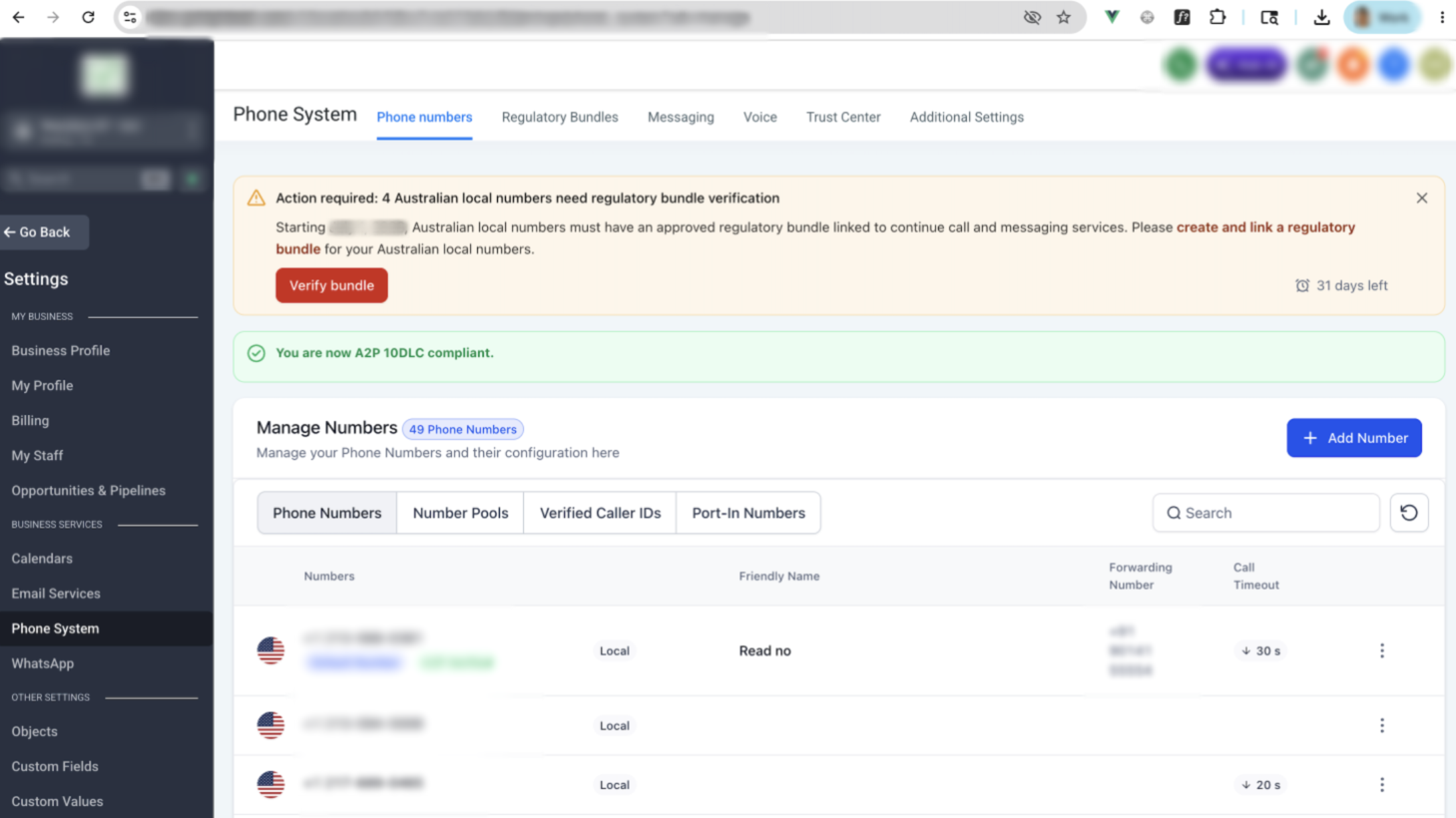 If you don't see the banner or the tag, your numbers are already compliant — no action needed.
2. Decide which bundle type to create
Create a Business bundle in the client's sub-account using the client's company details — not your agency details.("Individual" bundles are not supported).
3. Gather the required documents
Have these ready before you start. Submissions are digitally verified, and incomplete business bundles get rejected — meaning you'll have to redo the flow.
Registered business name
Registered Australian business address (no PO Box)
Business registration document (ASIC extract, ABN registration, or equivalent)
Proof of physical AU street address (utility bill or lease agreement in the business name)
Public-facing website or verified social media account for the business
Authorised representative's Government-issued photo ID
Proof that the authorised representative is allowed to act for the business (board resolution, letter of authorization, or director listing on the ASIC extract)
Tip: Save all documents as PDF, JPG, or PNG under 5 MB each. Make sure text is sharp and the whole document is visible in frame — cropped or blurry uploads are the #1 reason for rejection.
4. Create the bundle
In your sub-account, go to Settings → Phone System → Regulatory Bundles.
Click Create Bundle.
Select Country: Australia and Number type: Local.
Select Bundle type: Business.(individual is not supported)
Fill in all required fields. Match each field exactly to what appears on your supporting documents (e.g., if your ID lists your middle name, include it).
Upload the supporting documents in the upload step.
Click Save as draft at any point if you need to come back later.
5. Submit the bundle for review
Review the summary screen — every field and every uploaded document.
Click Submit for review.
You'll see the bundle status change to In review.
Review typically takes 1–3 business days. You can close the tab; you don't need to keep the page open.
You'll get an in-app notification and an email when the bundle is either Approved or Rejected.
If rejected, the message will tell you which field or document needs to be fixed — update those and resubmit.
The bundle keeps the same record, so you don't start from scratch.
6. Link the approved bundle to your AU local numbers
Once your bundle status shows Approved, you can link it to your numbers.
Go to Settings → Phone System → Phone Numbers.
Find the AU number with the Bundle required tag.
Click the ⋯ menu on the right → Select AU Regulatory Bundle to Link.
Choose your approved bundle from the list.
You can repeat this process for any additional Australian local numbers in the same sub-account. The same approved bundle can be reused across all eligible AU local numbers.
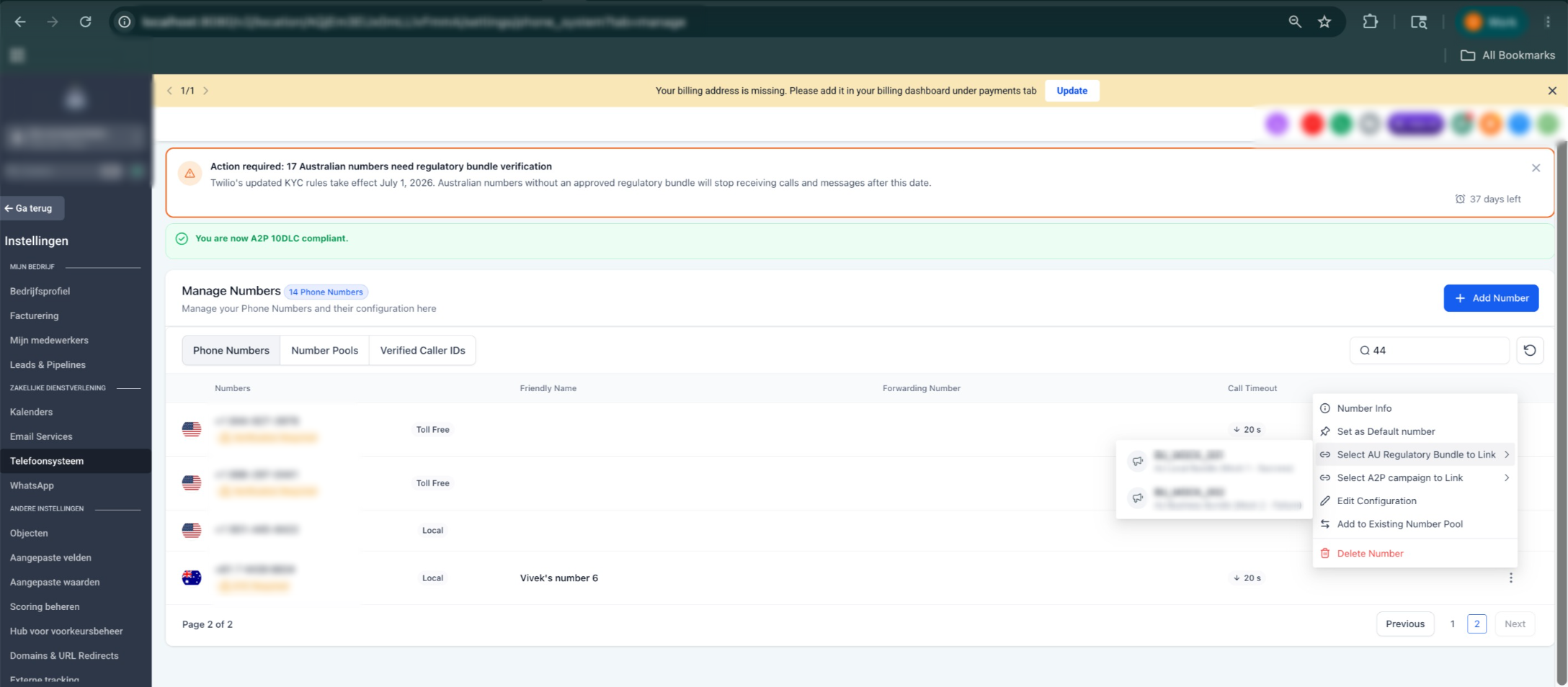
One approved bundle can be linked to as many AU local numbers as you have in the sub-account. You do not need a separate bundle per number.
7. Confirm everything is compliant
After linking:
The orange banner should disappear from the Phone Numbers page.
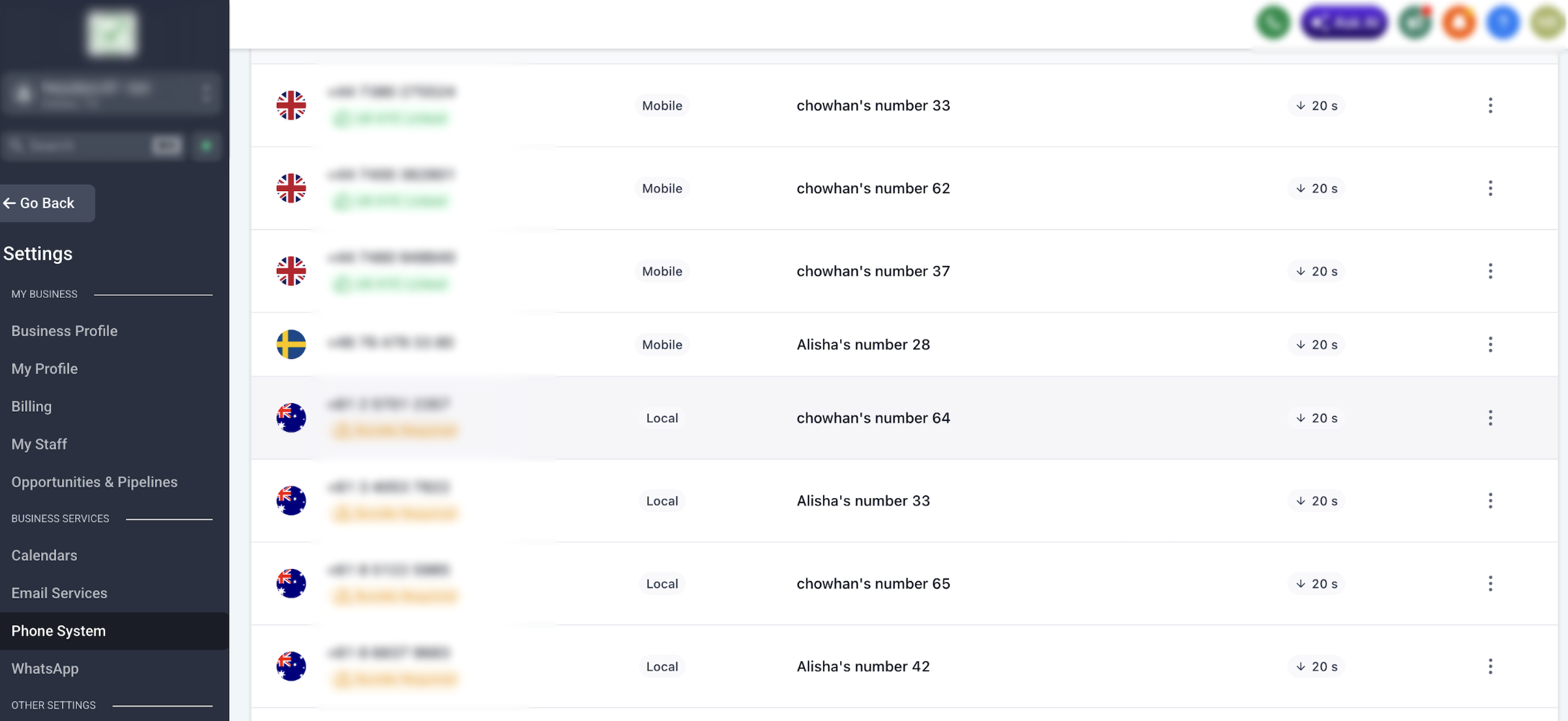
Each AU local number should now show a green KYC Linked tag instead of Bundle required.
- If you still see the banner, refresh the page. If it persists, check whether you have additional AU local numbers in the sub-account that haven't been linked yet.
8. Troubleshooting & FAQs
Q: My bundle was rejected. What do I do?
Open the rejected bundle to see the reviewer's note. Common causes: blurry document scans, mismatched names or addresses across documents, expired ID, or business name not matching the ASIC record. Fix the flagged item and click Resubmit.
Q: What happens if I miss the March , 2027 deadline?
Any AU local number that does not have an approved bundle linked by March , 2027 will stop receiving or sending calls and messages. There is no grace period and no partial functionality.
Q: Can I create the bundle in advance, even before my numbers show the banner?
Yes. Bundles can be created and approved any time — we recommend doing this as early as possible to avoid last-minute rejections.
Q: I'm an agency. Where do I create the bundle?
Create the bundle inside the client's sub-account, using the client's identity or business details. Bundles are sub-account-scoped and cannot be shared across sub-accounts.
Q: The banner won't go away. What do I do?
The banner stays visible as long as at least one Australian local number in the sub-account is missing an approved bundle. Refresh the page after linking. If it still shows up, go to Phone Numbers and look for any rows that still display the Bundle required tag — those are the numbers that haven't been linked yet.
Q: Can the banner be dismissed or hidden?
No. The banner is persistent by design until every Australian local number in the sub-account has an approved bundle linked. This is to make sure the deadline isn't missed.
Still stuck? Contact support with your bundle ID and a screenshot of the rejection message (if applicable), that's the fastest path to a resolution.
Need Help?
If your Australian local number still shows Bundle required, your Regulatory Bundle is rejected, or the compliance banner remains visible, first review the bundle status, supporting documents, and number assignment.
Verify that:
- You created the bundle in the correct account.
- The bundle country is set to Australia.
- The number type is set to Local.
- The bundle type is Business.
- The registered business name matches the supporting documents exactly.
- The Australian business address is a valid physical street address and not a PO Box.
- The business registration document is current and readable.
- Proof of address clearly shows the business name and Australian street address.
- The authorized representative’s photo ID is valid and not expired.
- Proof of authorization for the representative is included.
- All uploaded files are clear, uncropped, and within the supported file size and format limits.
- The bundle status shows Approved before you attempt to link it.
- The approved bundle is linked to every Australian local number that shows Bundle required.
- The same approved bundle is reused only within the same account.
- You refreshed the Phone Numbers page after linking the bundle.
- Each compliant Australian local number now shows KYC Linked.
- Any rejection reason was corrected before resubmitting the bundle.
If the banner remains after linking a bundle, review the full phone number list for any additional Australian local numbers that still show Bundle required.
If the issue continues, collect the bundle ID, bundle status, affected phone number, rejection reason if applicable, and screenshots of the Regulatory Bundle and Phone Numbers pages before contacting support.