
Personalize quiz outcomes by creating unique result content for each category in your personality-style quizzes. Individual Category result sections allow you to tailor text, images, videos, calls to action, and links based on a quiz taker's highest-scoring or lowest-scoring category. This helps create more engaging result experiences while reducing setup time through reusable category templates.
TABLE OF CONTENTS
- What is Individual Category Result Personalization?
- Key Benefits of Individual Category Result Personalization
- How Individual Category Results Work
- Supported Content Types
- Using the Default Category Template
- Individual Category
- How To Setup Individual Category Result Personalization
- Frequently Asked Questions
What is Individual Category Result Personalization?
Individual Category Result Personalization allows you to customize the content displayed for specific quiz categories on a quiz results page. Instead of showing the same result content to every quiz taker, you can create unique experiences based on the category that best matches their responses.
This feature is especially useful for personality assessments, readiness evaluations, recommendation quizzes, and other category-based quizzes where personalized results can improve engagement and conversion rates.
Key Benefits of Individual Category Result Personalization
Personalized result content helps quiz takers receive more relevant outcomes while giving you greater control over how results are presented and optimized.
- Personalized Experiences: Display unique content tailored to a quiz taker's highest-scoring or lowest-scoring category.
- Improved Engagement: Deliver category-specific messaging that feels more relevant and meaningful.
- Flexible Content Options: Add customized text, images, videos, CTA buttons, and links for each category.
- Faster Setup: Use the first category as a starting template to reduce repetitive configuration.
- Better Conversions: Guide quiz takers toward category-specific offers, resources, or next steps.
How Individual Category Results Work
Individual Category result sections dynamically display content based on category scoring outcomes. When a quiz is submitted, the platform identifies the applicable category and displays the content assigned to that category.
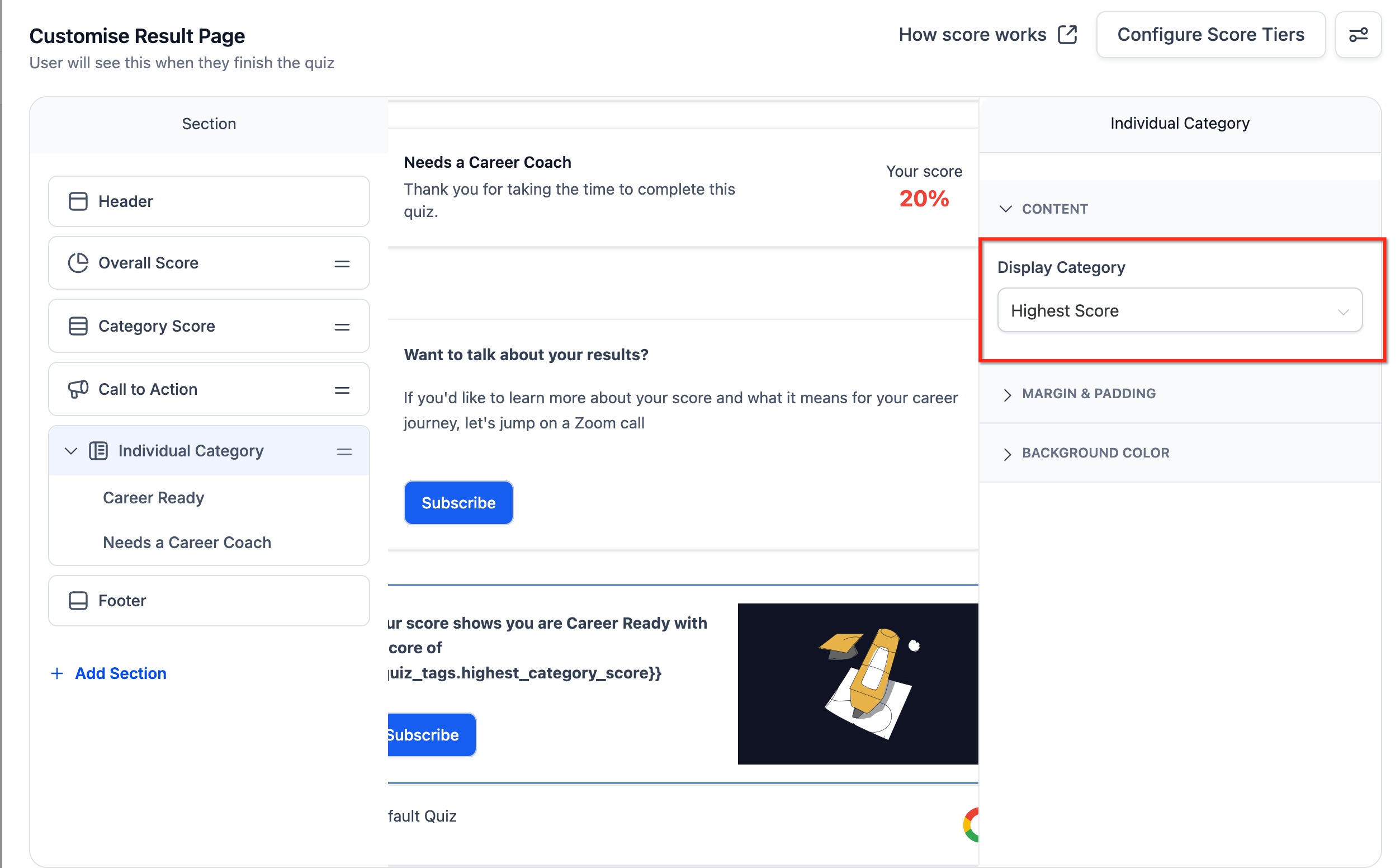
You can configure content to display for either the highest-scoring category or the lowest-scoring category, depending on the goals of your quiz.
Using the Default Category Template
To help streamline setup, the first category can serve as a starting template when configuring Individual Category result sections. This approach reduces repetitive work by allowing you to establish a baseline layout and content structure before customizing each category individually.
Important Considerations:

The first category can be used as a content starting point.

Additional categories can then be customized independently.

Category-specific messaging, media, and CTAs can be adjusted to match each outcome.
How To Setup Individual Category Result Personalization
Proper setup ensures quiz takers receive the correct personalized content based on their scoring outcome. Following the configuration process carefully helps maintain consistency across all category result experiences.
- Open the Quiz Builder.
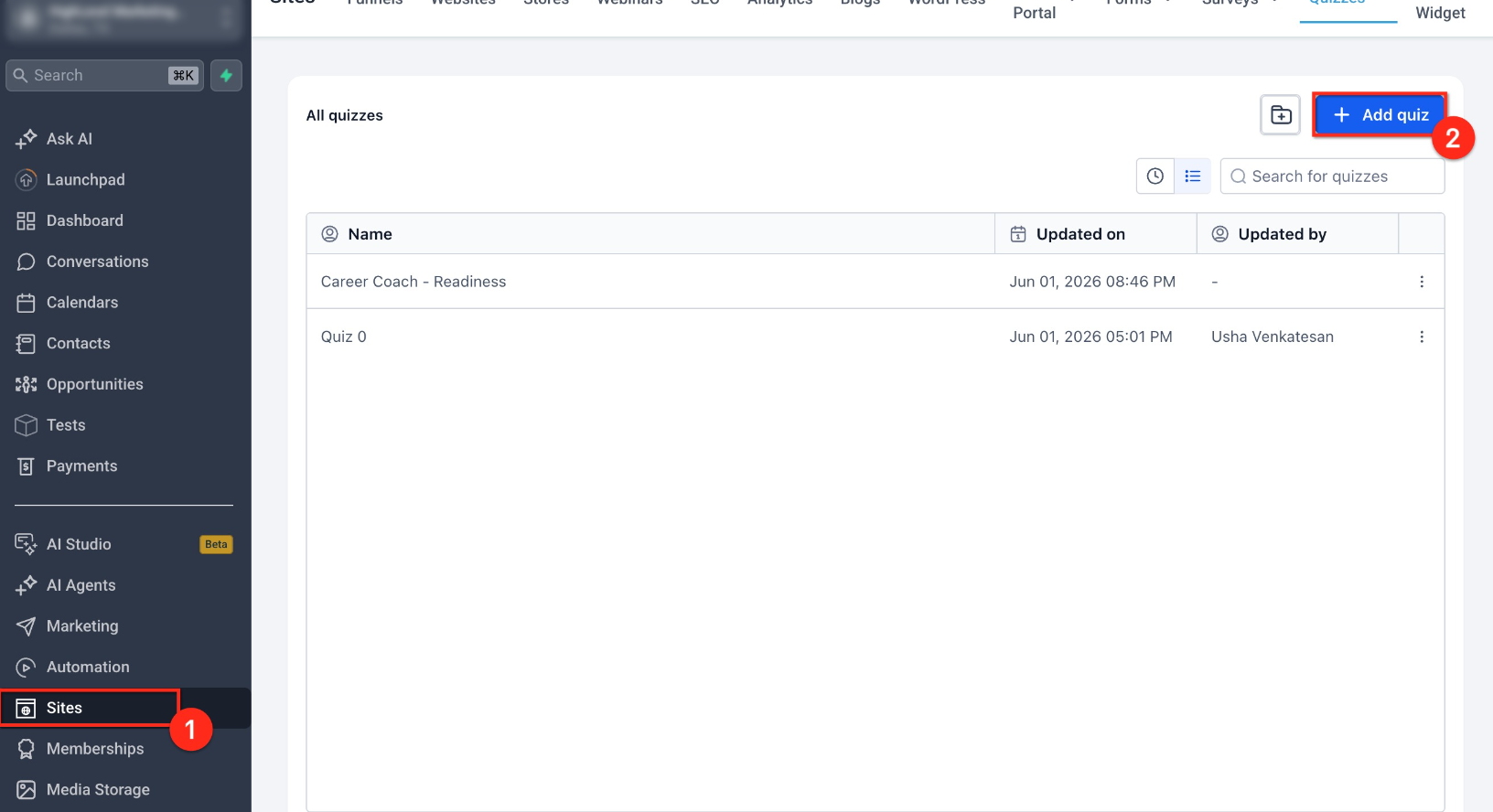
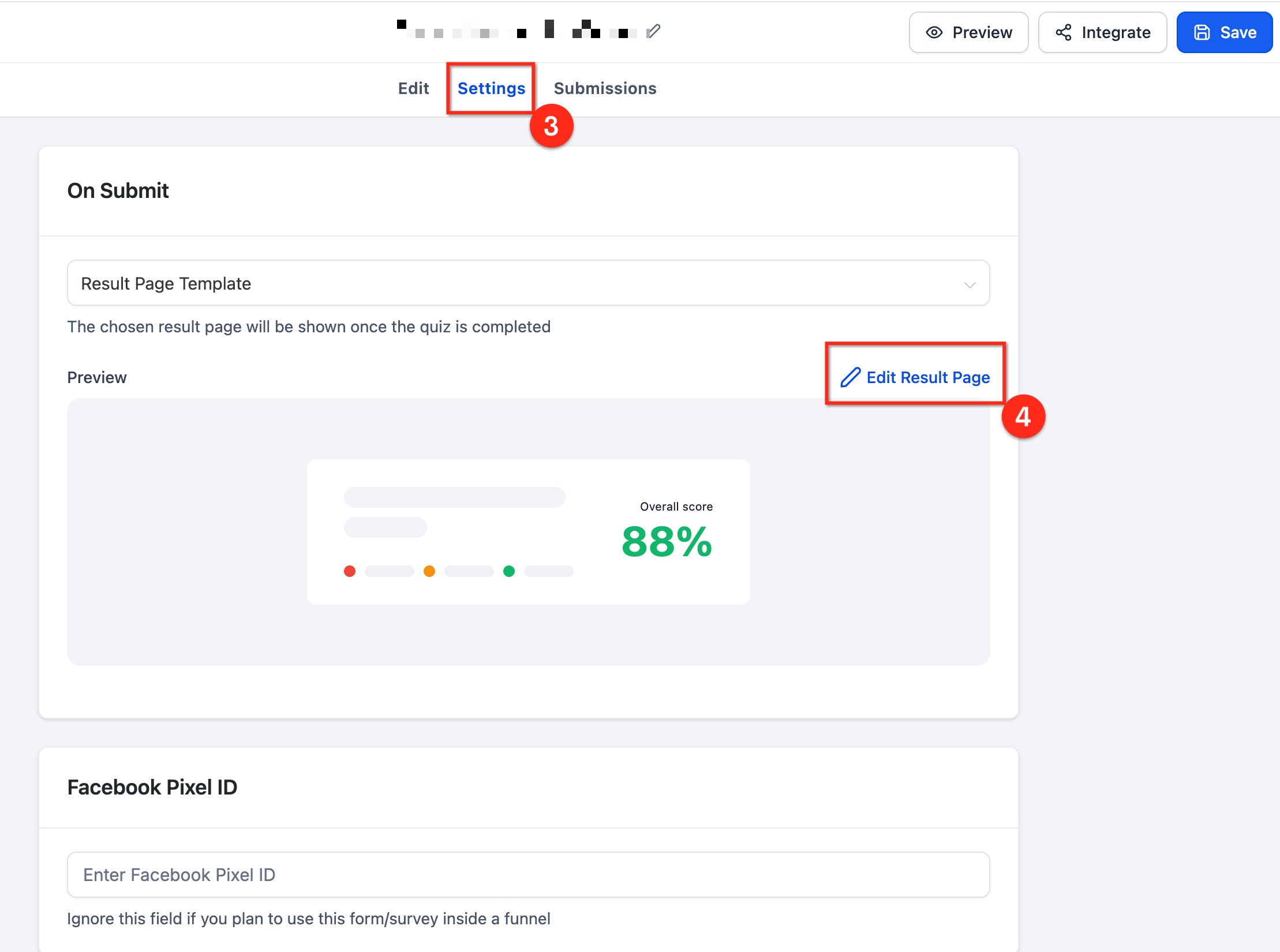
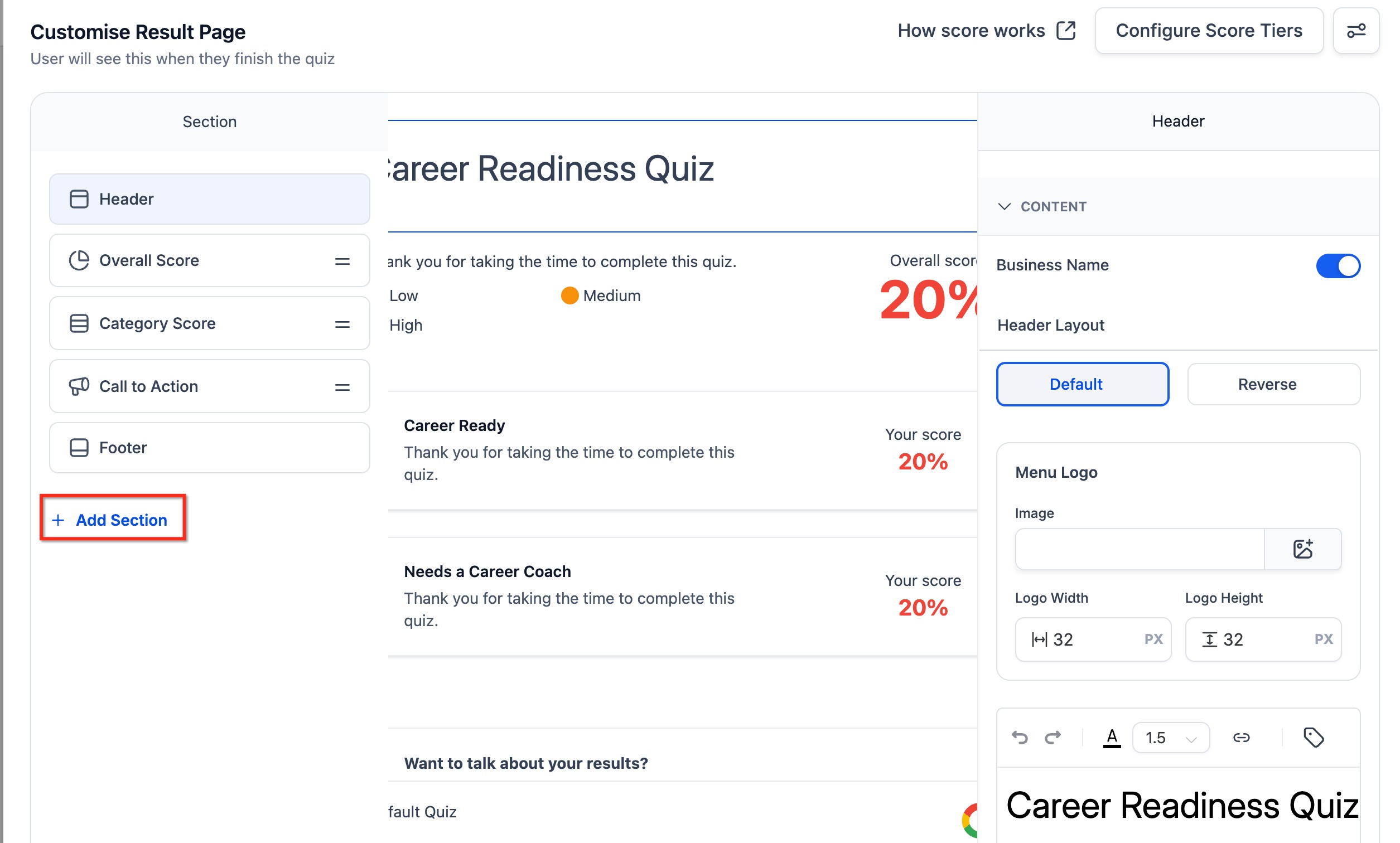
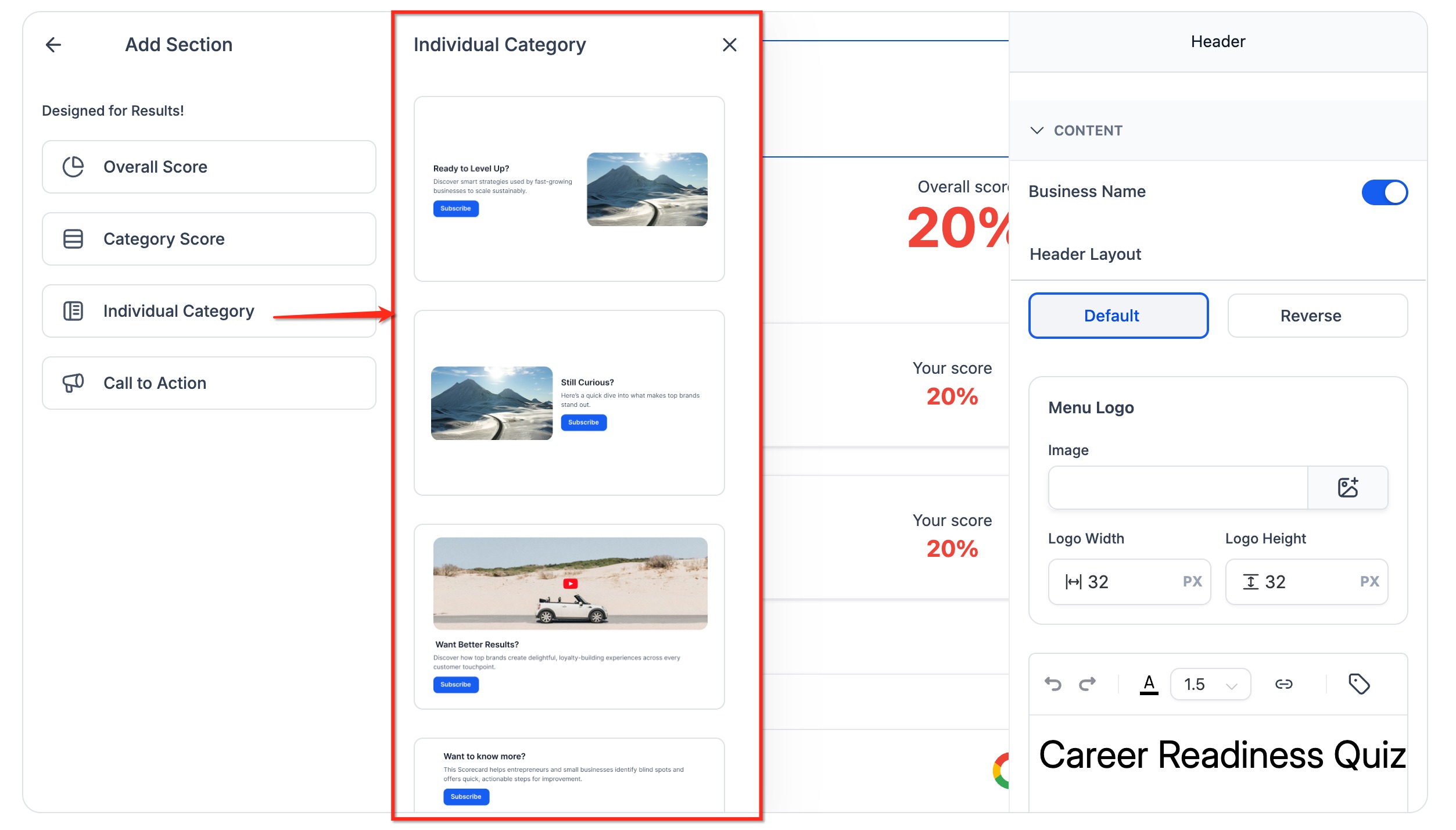
- In the left panel, click + Add Section.
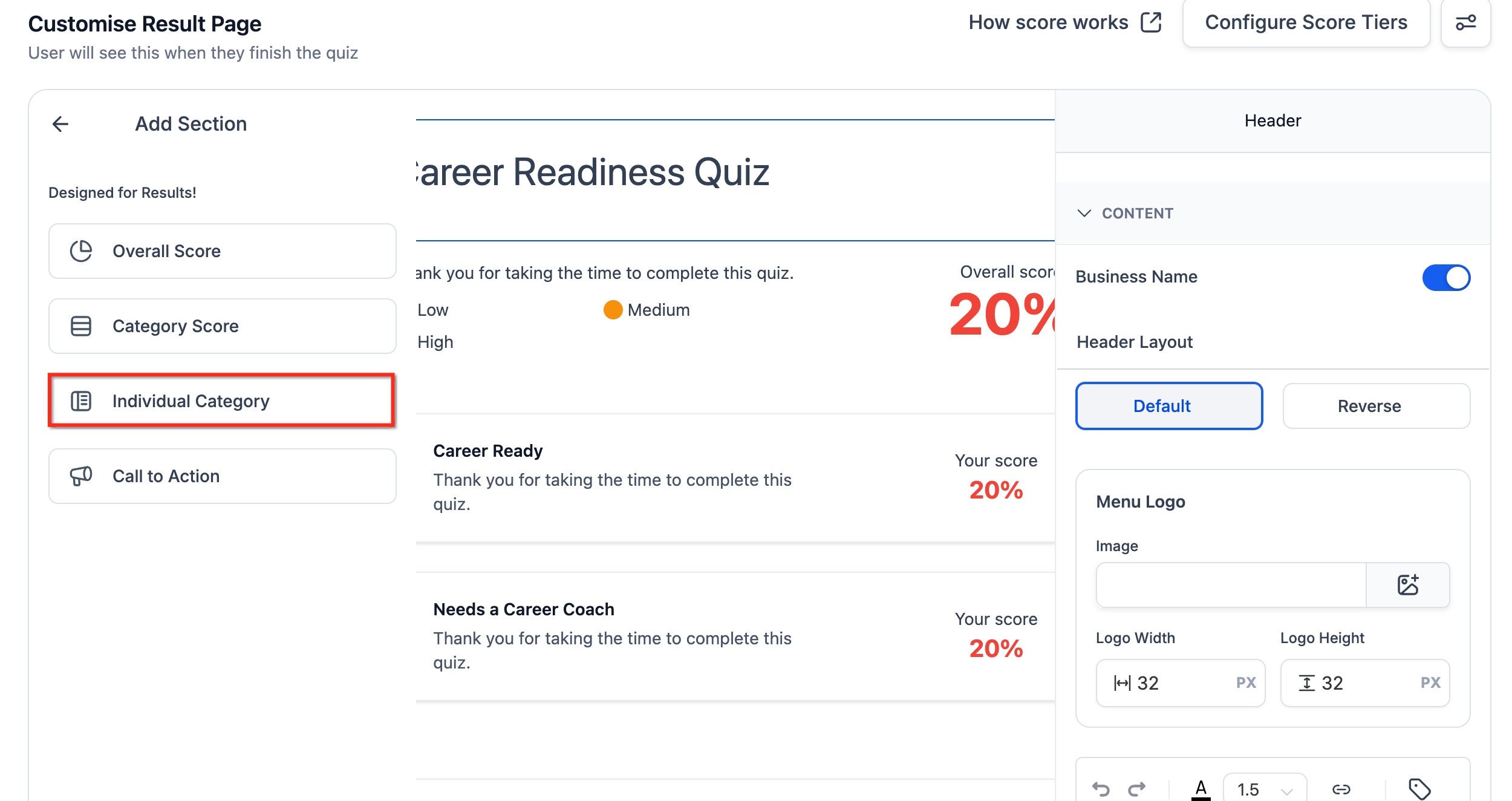
- From the section picker, select Individual Category.
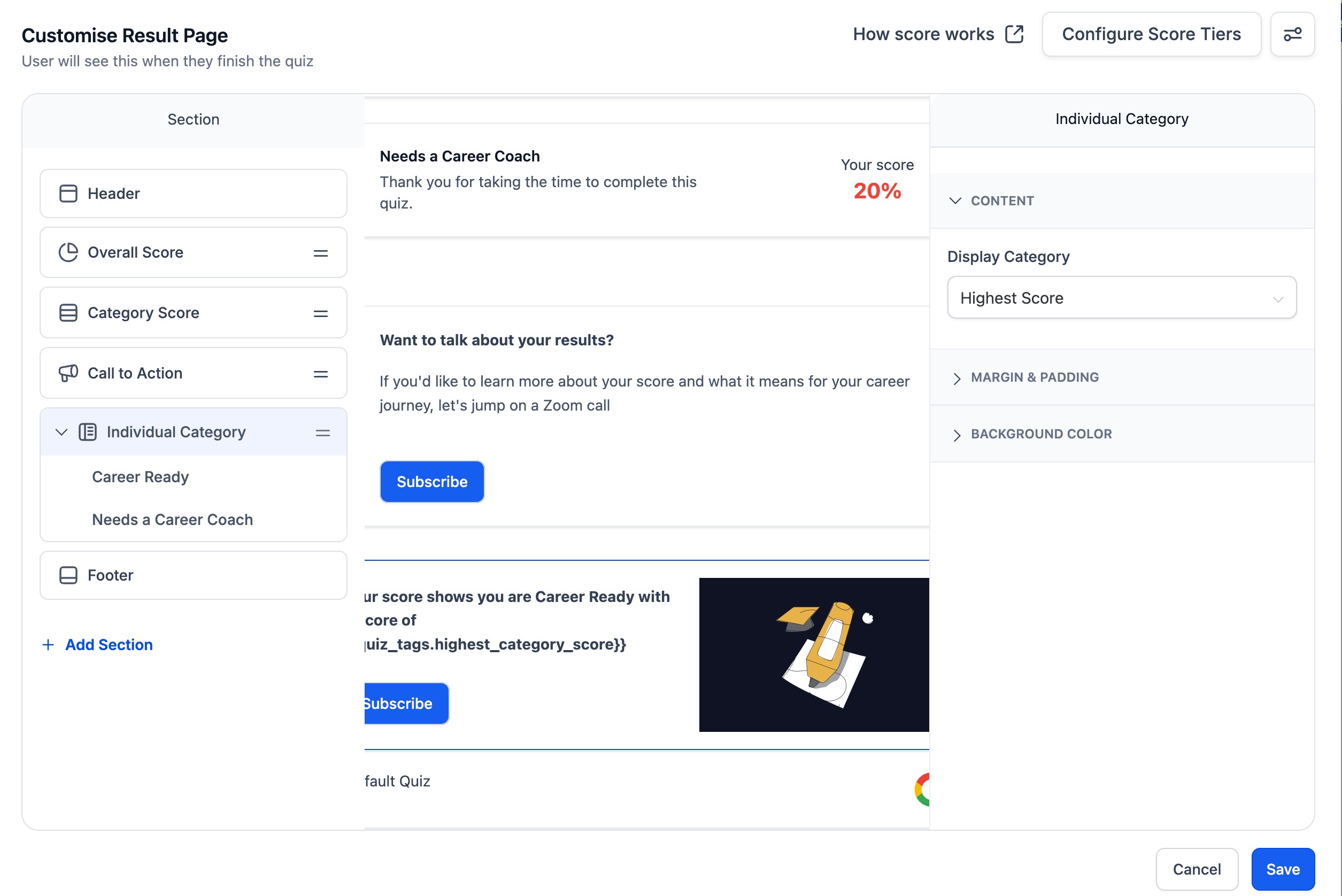
- Click the newly added Individual Category section in the left panel to expand it.
- Select the category you want to customize.
- In the right panel, locate Display Category. Choose whether the content should apply to Highest Score and Lowest Score.
- Customize the content for the selected category:
- Text
- Images
- Videos
- CTA text
- CTA links
- Text
- Repeat the process for each category you want to personalize.
- Preview the result page to verify the experience.
- Save and publish your quiz.
Frequently Asked Questions
Q: Can I customize every category differently?
A: Yes. Each category can have its own unique content, media, CTA text, and links.
Q: Can I use images and videos within category-specific results?
A: Yes. Individual Category result sections support both images and videos.
Q: Can I create different CTA buttons for different categories?
A: Yes. CTA text and destination links can be customized for each category.
Q: Can I display content based on the lowest-scoring category?
A: Yes. The Display Category setting allows you to choose either Highest Score or Lowest Score.
Q: Do I need a personality-style quiz to use this feature?
A: This feature is designed for category-based quiz experiences where scoring determines result categories.
Q: What types of quizzes benefit most from this feature?
A: Personality quizzes, readiness assessments, recommendation quizzes, coaching evaluations, and category-based scoring quizzes typically benefit the most.