
Auto Follow-Up helps Conversation AI re-engage contacts who stop responding, indicate they are busy, or ask to be contacted later. The bot can automatically schedule follow-up messages, respect configured working hours, switch communication channels when needed, and preserve conversation context without requiring separate follow-up workflows. This guide explains how to configure Auto Follow-Up, manage follow-up scenarios, and understand how scheduled messages are handled.
TABLE OF CONTENTS
- What Is Auto Follow-Up?
- Key Capabilities
- How to Set Up Auto Follow-Up
- Flow-Based Builder Support
- Smart Detection of Drop-Off Scenarios
- Dynamic Channel Switching
- Follow-Up Visibility in Response Info
- Frequently Asked Questions
- Need Help?
What Is Auto Follow-Up?
Auto Follow-Up detects when a contact stops responding, becomes inactive, or requests a future follow-up. Conversation AI can then schedule and send follow-up messages automatically based on the configured scenario and timing.
Key Capabilities
- Automatically re-engages contacts who stop responding or request a follow-up.
- Supports AI-generated or custom follow-up messages.
- Supports up to 5 follow-up sequences per scenario.
- Can trigger an existing workflow as part of a follow-up sequence.
- Respects configured follow-up working hours and timezone settings.
- Can switch to another available messaging channel when Dynamic Channel Switching is enabled.
- Displays scheduled follow-ups in the Response Info panel.
- Preserves conversation context when used inside supported Flow-Based Builder actions.
- Sends scheduled follow-ups in the contact's preferred language when one is available.
How to Set Up Auto Follow-Up
Configure Auto Follow-Up from the Conversation AI bot settings to control when follow-ups are sent and how each scenario behaves.
Note: Do not use a workflow to send an additional follow-up message. The source configuration warns that doing so can break the Auto Follow-Up logic.
Step 1: Open the Conversation AI Bot
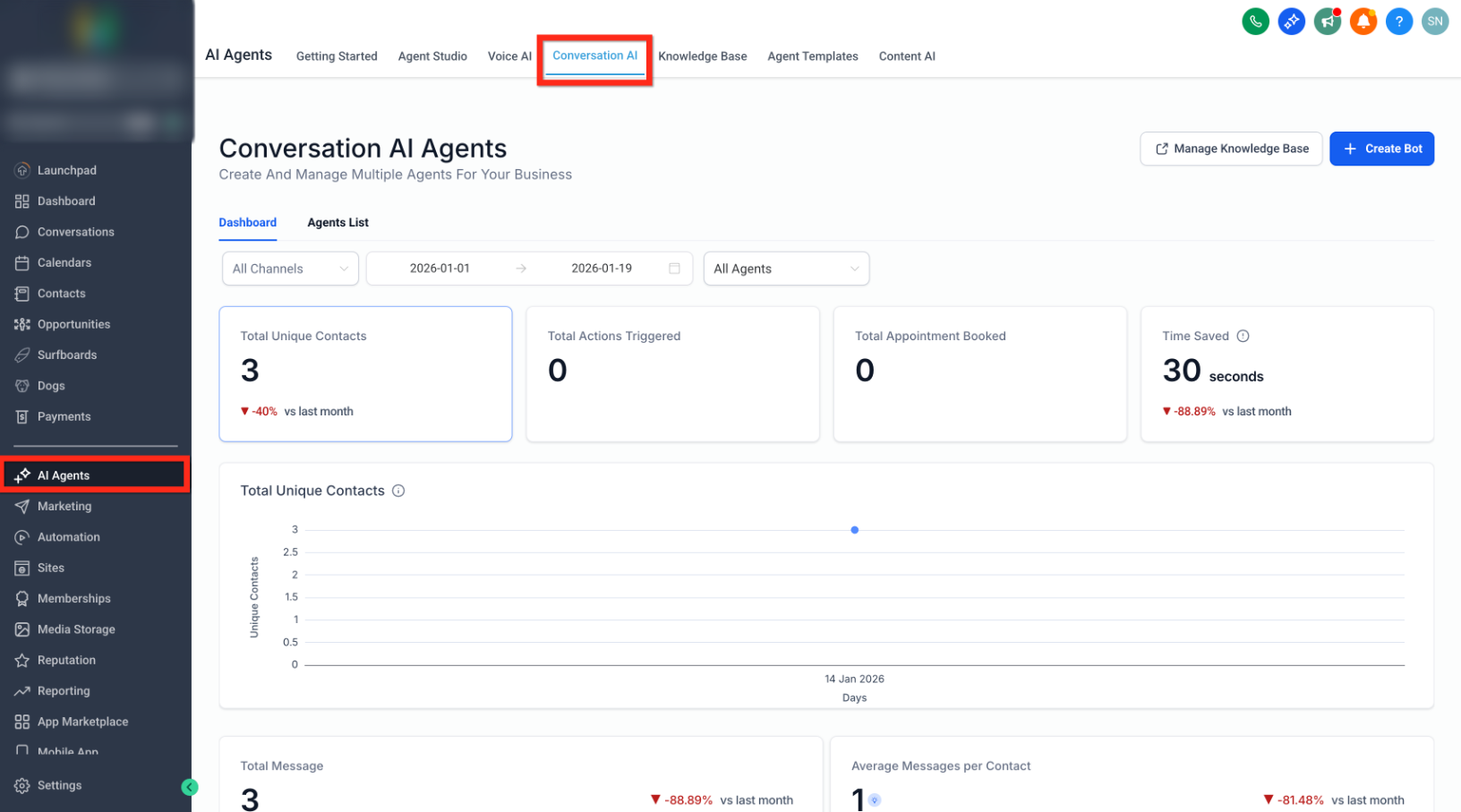
- From the Sub-Account view, go to AI Agents.
- Select Conversation AI.
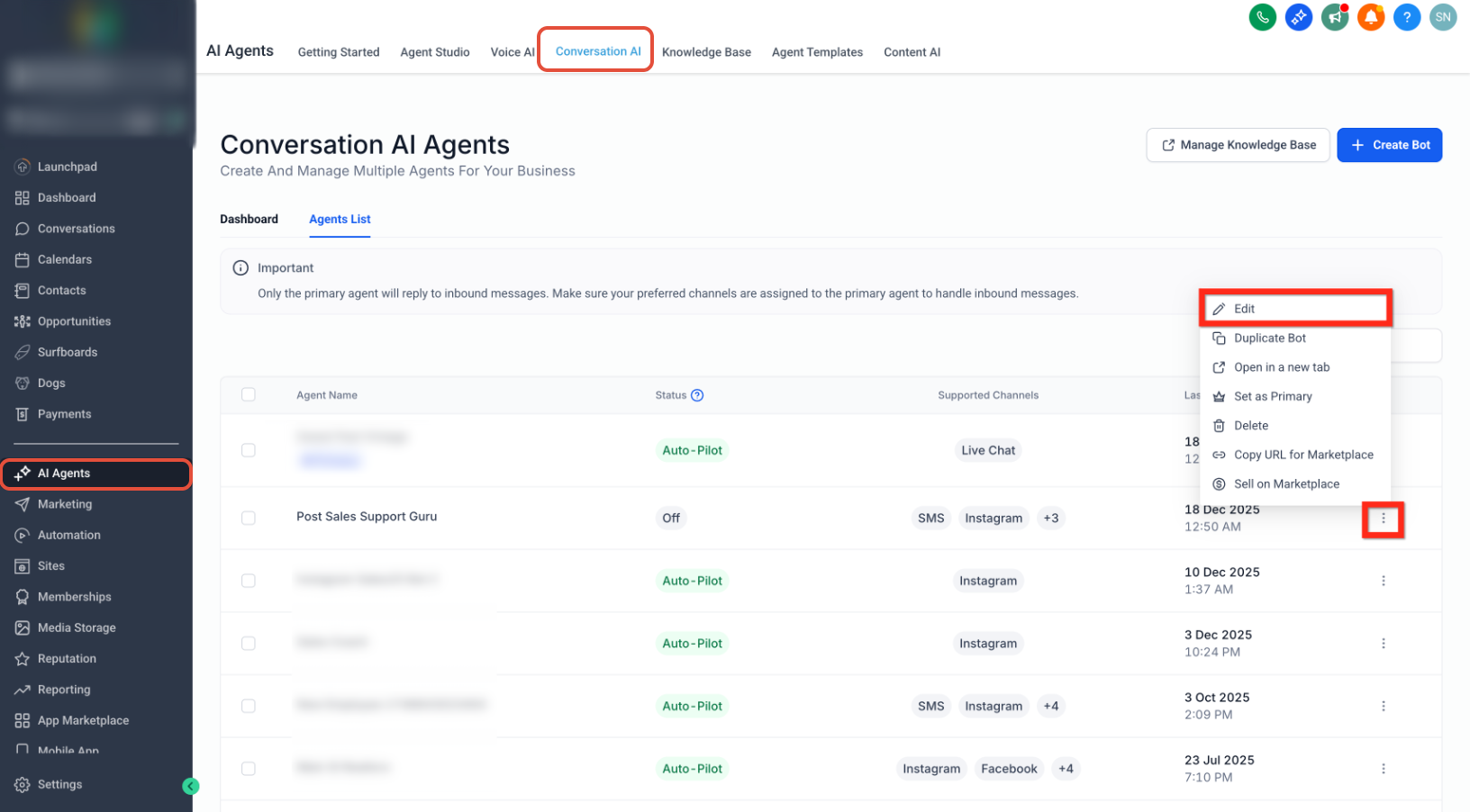
Then either:
- Create a new bot, or
- From the Agent List, open the three-dot menu beside an existing bot and select Edit.
Step 2: Open Bot Goals
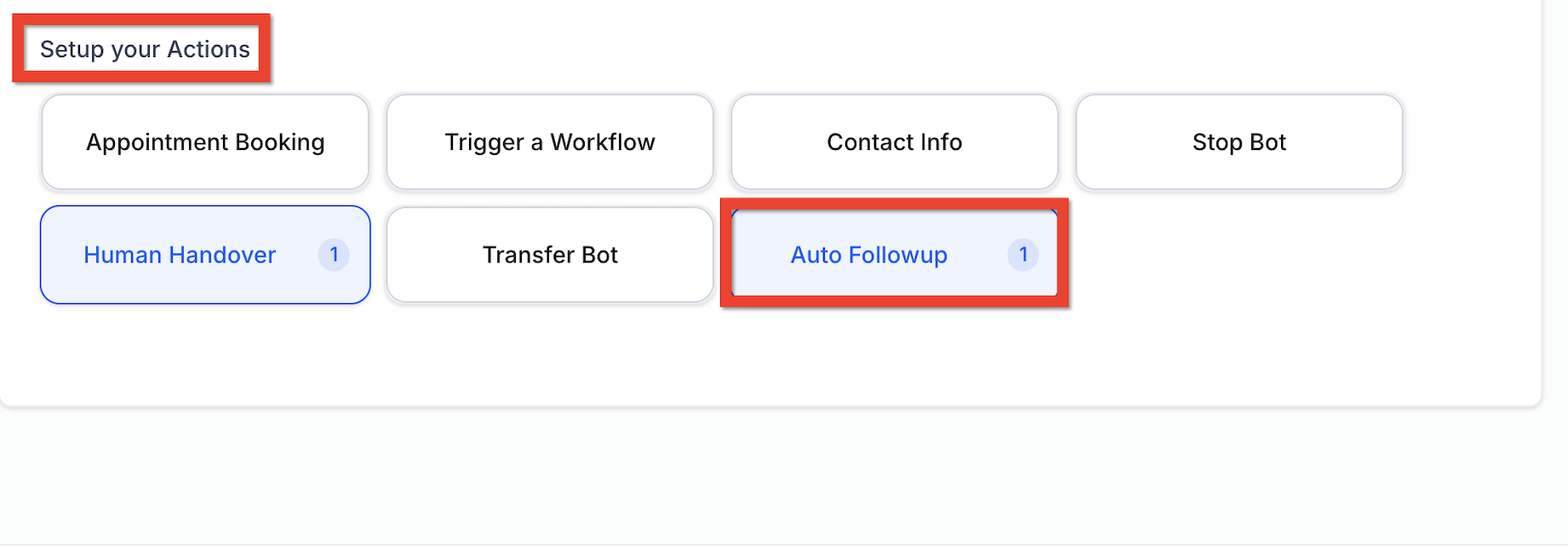
- Open Bot Goals.
- Scroll to Set Up Your Actions.
- Select Auto Followup.
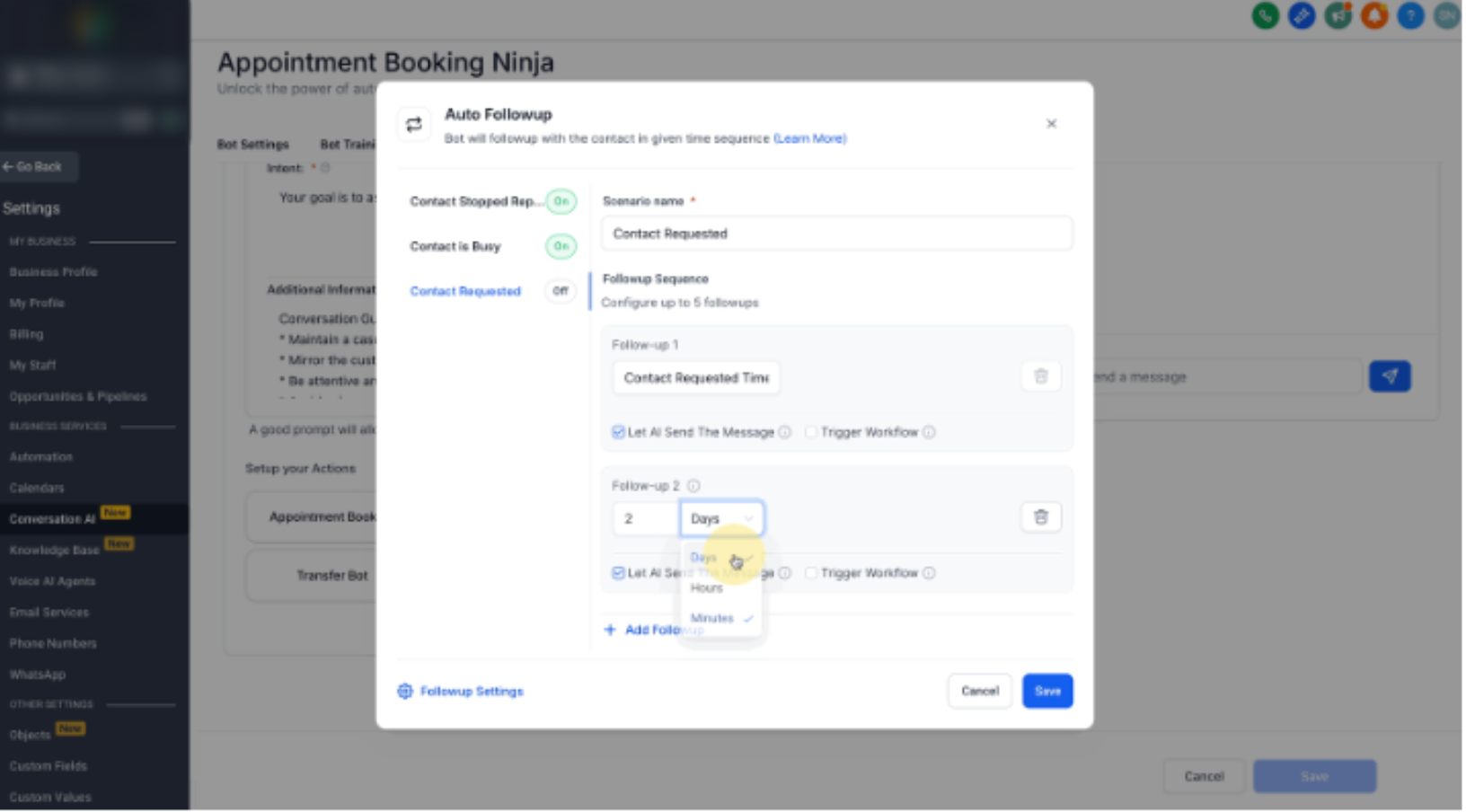
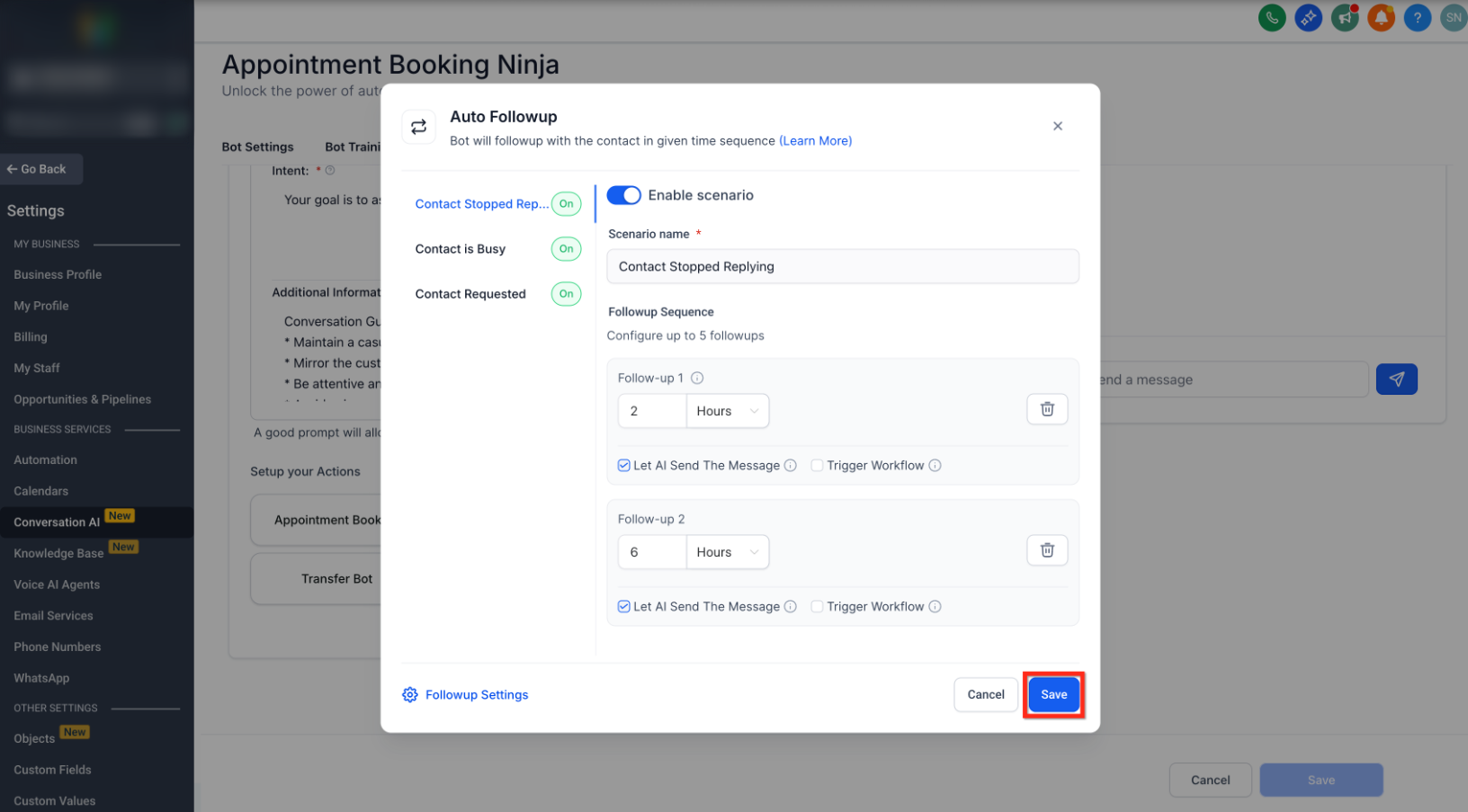
Step 3: Configure Follow-Up Scenarios
Auto Follow-Up supports three main scenarios.
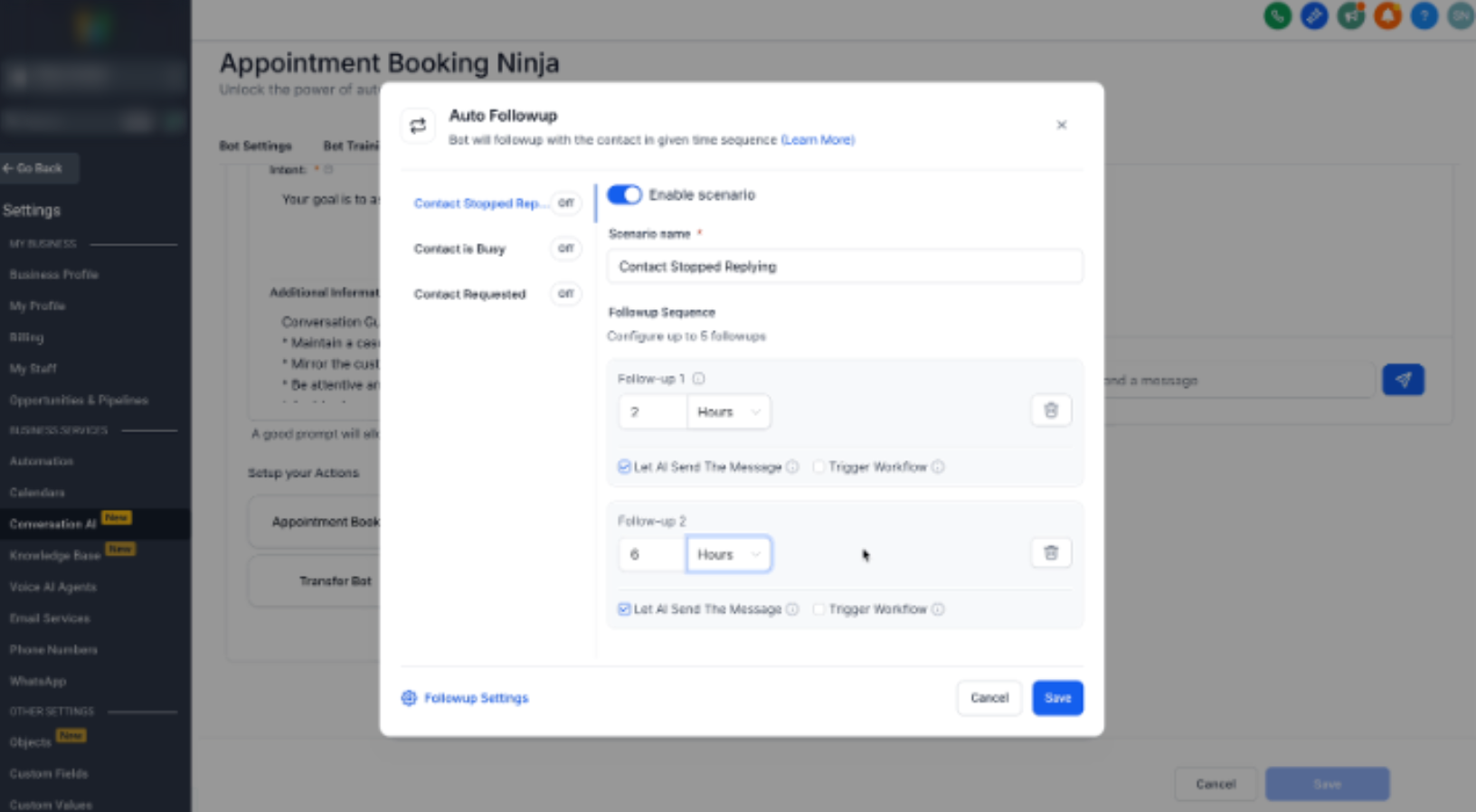
Contact Stopped Responding
- Enable the scenario.
- Add up to 5 follow-up sequences.
- Set the delay for each sequence in minutes, hours, or days.
- Choose Let AI Send the Message or enter a custom message.
- Optionally enable Trigger a Workflow and select an existing workflow.
- Click + Add Followup to create another sequence.
Contact Marked as Busy
Enable the scenario and configure up to 5 follow-up sequences. For each sequence:
- Set the delay time.
- Choose an AI-generated or custom message.
- Optionally select a workflow to trigger.
Contact Requested a Follow-Up
Enable the scenario and configure up to 5 follow-up sequences. The first delay is automatically based on the follow-up time requested by the contact.
- Review or configure the delay time.
- Choose an AI-generated or custom message.
- Optionally select a workflow to trigger.
Step 4: Configure Follow-Up Settings
Set Follow-Up Working Hours
Note: Follow-Up Active Hours apply only to follow-up messages. They do not control the bot's main conversations.
- Open Follow-Up Settings.
- Enable Set Active Hours for Followup.
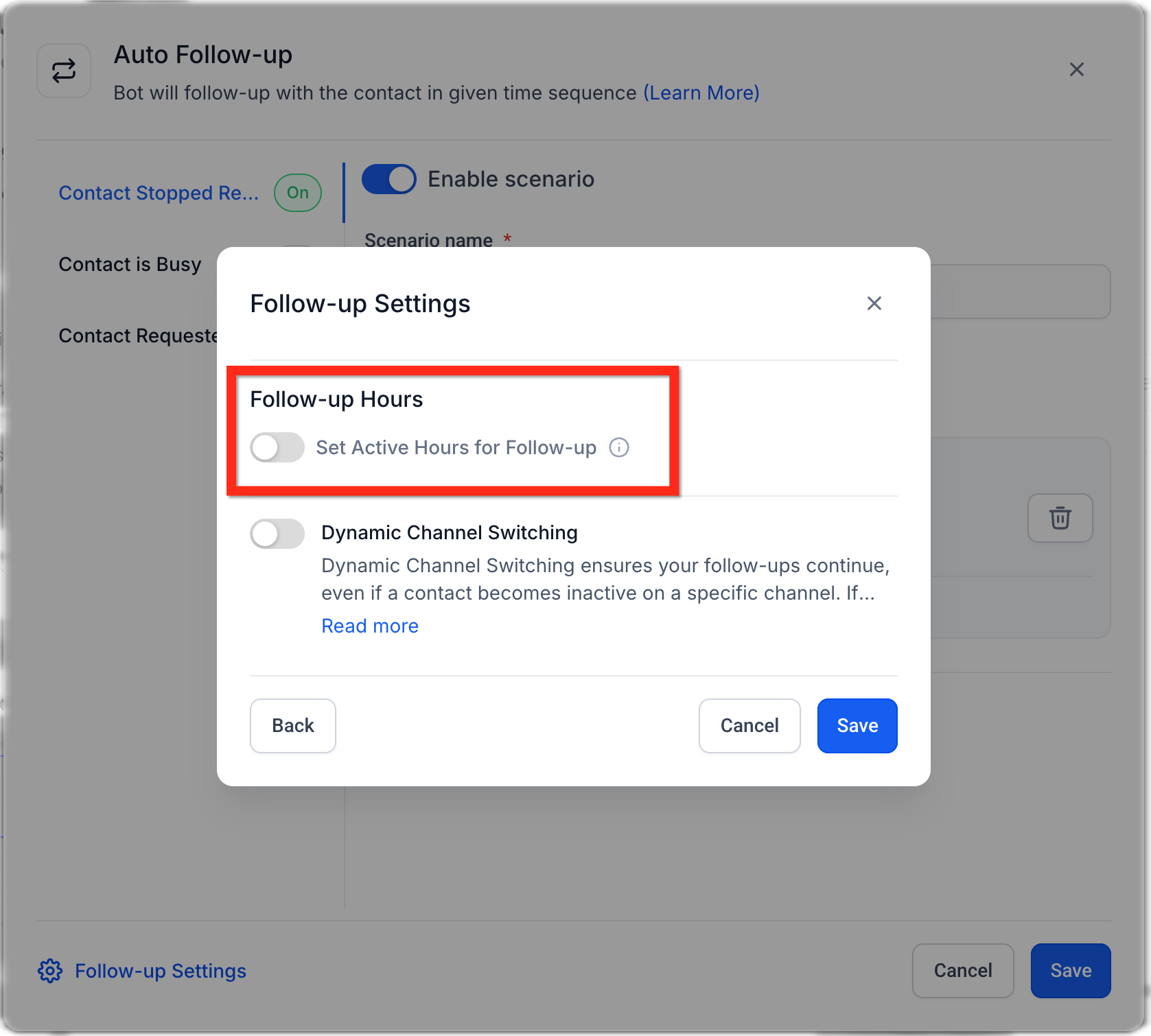
- Choose Contact Timezone or Business Timezone.
- Set the active hours during which follow-up messages can be sent.
- Click Save.
If the contact's timezone is unavailable, the Business Timezone is used. If Active Hours are disabled, follow-up messages can be sent regardless of time.
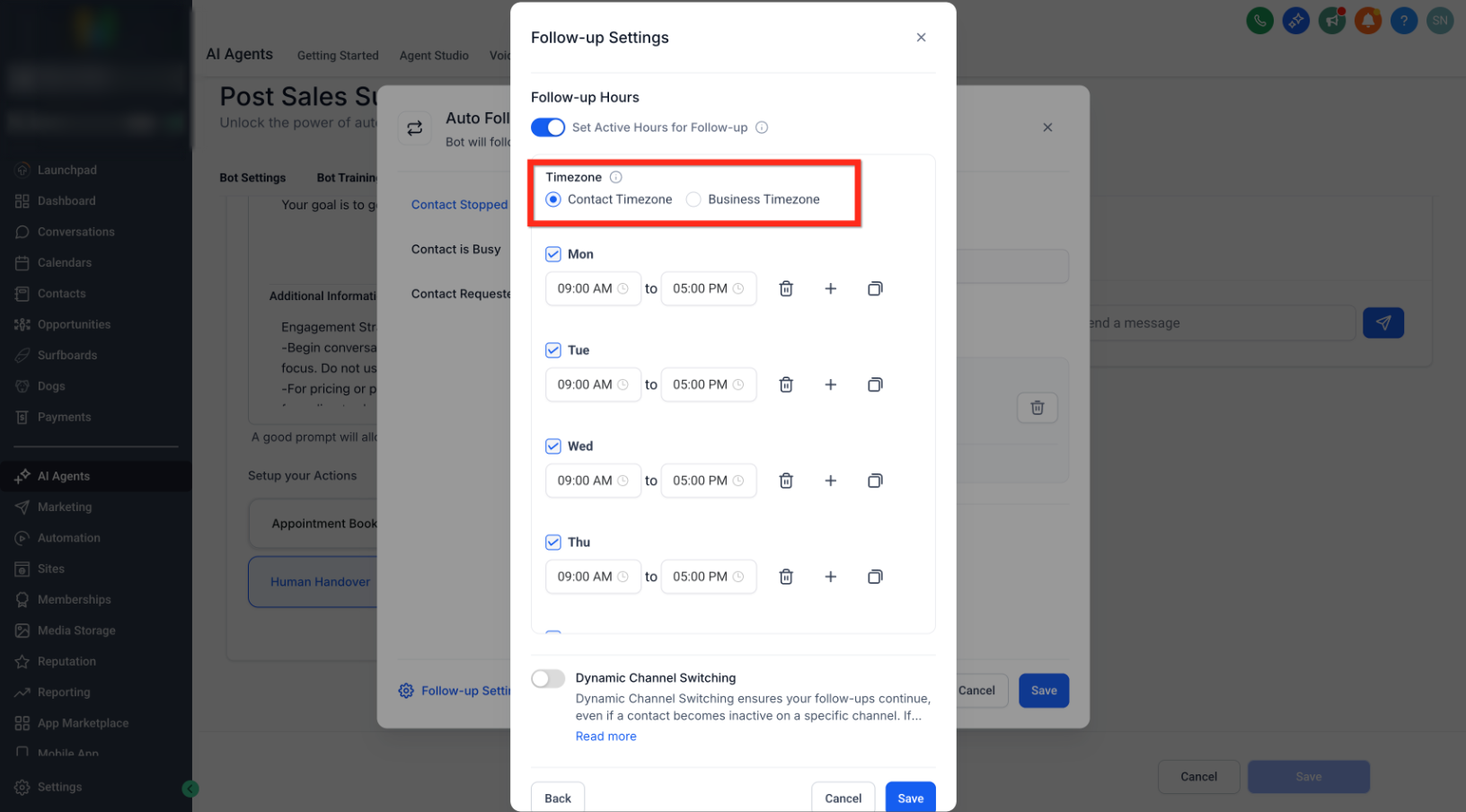
Enable Dynamic Channel Switching
- Open Follow-Up Settings.
- Enable Dynamic Channel Switching.
- The bot can use another available channel if the original channel becomes inactive.
- Click Save.
Step 5: Save the Bot
Click the main Save button to activate the configured Auto Follow-Up settings for the bot.
Flow-Based Builder Support
Auto Follow-Up can also be used inside the Flow-Based Builder. If a contact stops replying, indicates they are busy, or requests a later follow-up, Conversation AI can schedule follow-ups from the same flow and continue from the existing conversation context when the contact responds.
Supported actions for Contact Stopped Replying Inside Workflow include:
- AI Capture Information
- AI Message
- Custom Message
- Book Appointment
- Continue Conversation
Supported actions for Contact Busy or Requested Follow-Up Time include:
- AI Capture Information
- AI Message
- Book Appointment
- Continue Conversation
Smart Detection of Drop-Off Scenarios
Before sending a scheduled follow-up, Auto Follow-Up evaluates the conversation context. If follow-up is no longer appropriate, the scheduled message can be skipped or canceled automatically.
Follow-ups can be suppressed when the contact:
- Is disqualified.
- Shows disinterest or opts out.
- Responds with anger or frustration.
- Ends the conversation in a way that indicates it is complete.
Dynamic Channel Switching
When enabled, Auto Follow-Up can move to another available communication channel if the contact is not responding on the original channel.
- Live Chat can switch to SMS when the chat becomes inactive and a phone number is available.
- Facebook, Instagram, or WhatsApp conversations can switch to SMS after 24 hours without a response.
- Dynamic Channel Switching is optional and can be disabled.
Follow-Up Visibility in Response Info
Scheduled follow-ups are displayed in the Response Info panel so you can review pending automated follow-up activity.
- Review which follow-ups are currently scheduled.
- See why follow-up activity is pending.
Frequently Asked Questions
Q: Why didn't a scheduled Auto Follow-Up message send?
The scheduled message may be skipped or canceled if the conversation indicates that follow-up is no longer appropriate, such as when the contact opts out, shows disinterest, is disqualified, or ends the conversation.
Q: What happens if the contact replies before the scheduled follow-up?
The follow-up schedule resets and additional scheduled follow-up messages are not sent for that conversation.
Q: What happens if the contact's timezone is unavailable?
The Business Timezone is used and the configured business working hours are honored.
Q: Can follow-up messages be customized?
Yes. Follow-up sequences can use AI-generated messages or custom messages.
Q: Which channels can Auto Follow-Up use?
Auto Follow-Up supports Live Chat, SMS, Facebook, Instagram, and WhatsApp. Dynamic Channel Switching can use another available channel when needed.
Q: What happens if the bot is inactive?
Follow-up messages are not sent while the bot is inactive.
Q: Do follow-up messages use the contact's preferred language?
Yes. If a preferred language is available for the contact, scheduled follow-ups use that language automatically.
Need Help?
If Auto Follow-Up is not sending or behaving as expected, review the bot configuration and scheduled follow-up conditions before contacting support.
Verify that:
- The bot is active.
- The correct Auto Follow-Up scenario is enabled.
- The follow-up delay and message are configured correctly.
- Active Hours are not preventing the message from being sent.
- The correct Contact or Business Timezone is selected.
- The contact has not already replied.
- The contact has not opted out, been disqualified, or ended the conversation.
- An additional follow-up is not being sent through a workflow.
- The required communication channel is available if Dynamic Channel Switching is being used.
- The scheduled follow-up appears in the Response Info panel.
If the issue continues, collect the bot name, affected contact, follow-up scenario, scheduled time, expected behavior, Response Info details, and relevant screenshots before contacting support.