
Communities live sessions now offer a more streamlined and professional hosting experience with Personal Meeting Links, a centralized Recordings Hub, and enhanced noise cancellation. These improvements help community owners, coaches, educators, and event hosts manage sessions more efficiently while delivering clearer, more engaging experiences for attendees. Whether you're hosting recurring calls, training sessions, or live community events, these enhancements make it easier to host, share, and scale your content.
TABLE OF CONTENTS
- What are Communities Live Session Enhancements?
- Key Benefits of Communities Live Session Enhancements
- Personal Meeting Links
- Recordings Hub
- Enhanced Noise Cancellation
- How To Setup Your Personal Meeting Link
- Step 1: Navigate to Communities Live Session Settings
- Step 2: Configure Your Personal Meeting Link
- Step 3: Share Your Meeting Link
- How To Access and Manage Recordings
- Step 1: Open the Recordings Hub
- Step 2: View Available Recordings
- Step 3: Download or Delete Recordings
- Frequently Asked Questions
What are Communities Live Session Enhancements?
Communities Live Session Enhancements introduce new tools designed to simplify how you host, manage, and reuse live content inside Communities. With a reusable Personal Meeting Link, centralized access to recordings, and improved audio clarity, hosts can create a more polished and consistent experience for their audience while reducing manual setup and meeting management tasks.
These enhancements are especially useful for recurring coaching calls, onboarding sessions, workshops, office hours, and community-led discussions where consistency and ease of access are important.
Key Benefits of Communities Live Session Enhancements
These updates improve both the hosting experience and attendee experience by reducing friction before, during, and after live sessions.
- Personal Meeting Links: Create one reusable meeting room link that can be shared across recurring meetings, events, and 1:1 sessions.
- Professional Branding: Deliver a more consistent and polished experience with a dedicated meeting URL.
- Centralized Recordings Hub: Access, manage, replay, download, or delete recordings from one location.
- Content Repurposing: Turn live sessions into reusable training, onboarding, or educational content.
- Enhanced Noise Cancellation: Reduce background distractions and improve voice clarity during sessions.
- Faster Workflows: Spend less time creating new links and searching for recordings.
- Improved Attendee Experience: Help participants join sessions quickly and enjoy clearer conversations.
Personal Meeting Links
Personal Meeting Links provide hosts with a dedicated, reusable meeting room that stays consistent across sessions. Instead of generating a new link every time you host a session, you can share one permanent link for recurring meetings, office hours, coaching calls, workshops, or community discussions.
Recordings Hub
The Recordings Hub centralizes all session recordings into one accessible location. Hosts can quickly review past sessions, replay important discussions, download recordings for external use, or remove recordings when they are no longer needed.
Enhanced Noise Cancellation
Enhanced Noise Cancellation improves audio quality during live sessions by reducing unwanted background sounds and interruptions. This helps hosts and attendees communicate more clearly, even in less controlled environments.
Clearer audio creates a more professional experience and helps maintain participant engagement during meetings and events.
How To Setup Your Personal Meeting Link
Properly configuring your Personal Meeting Link helps create a seamless experience for attendees while reducing the need to generate new links for every session.
Step 1: Navigate to Communities Live Session Settings
- Log in to the account.
- Open your Communities dashboard.
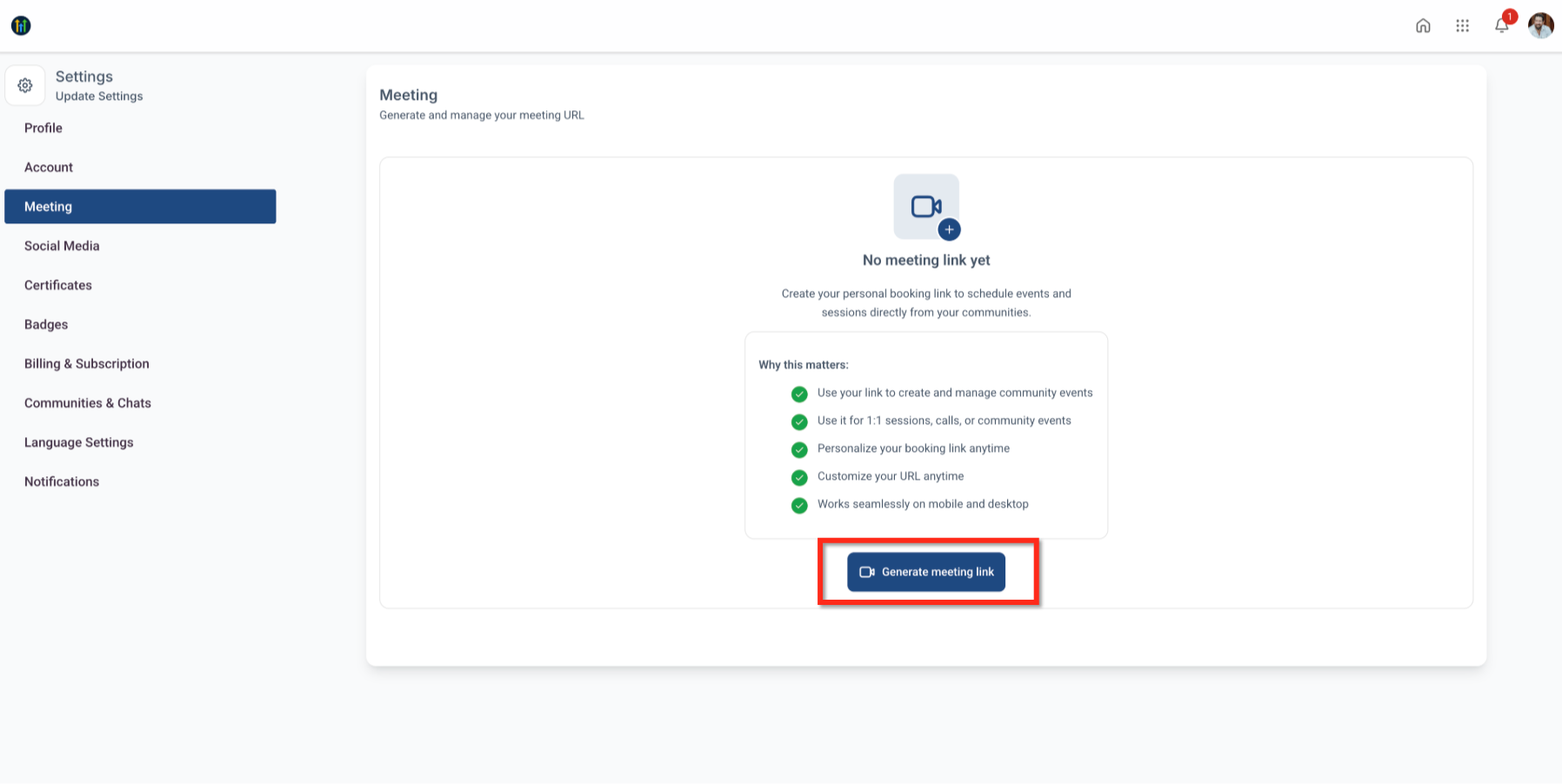
- Navigate to the Live Sessions or Meeting Settings area.
- Locate the Personal Meeting Link section.
Step 2: Configure Your Personal Meeting Link
- Create or customize your meeting URL.
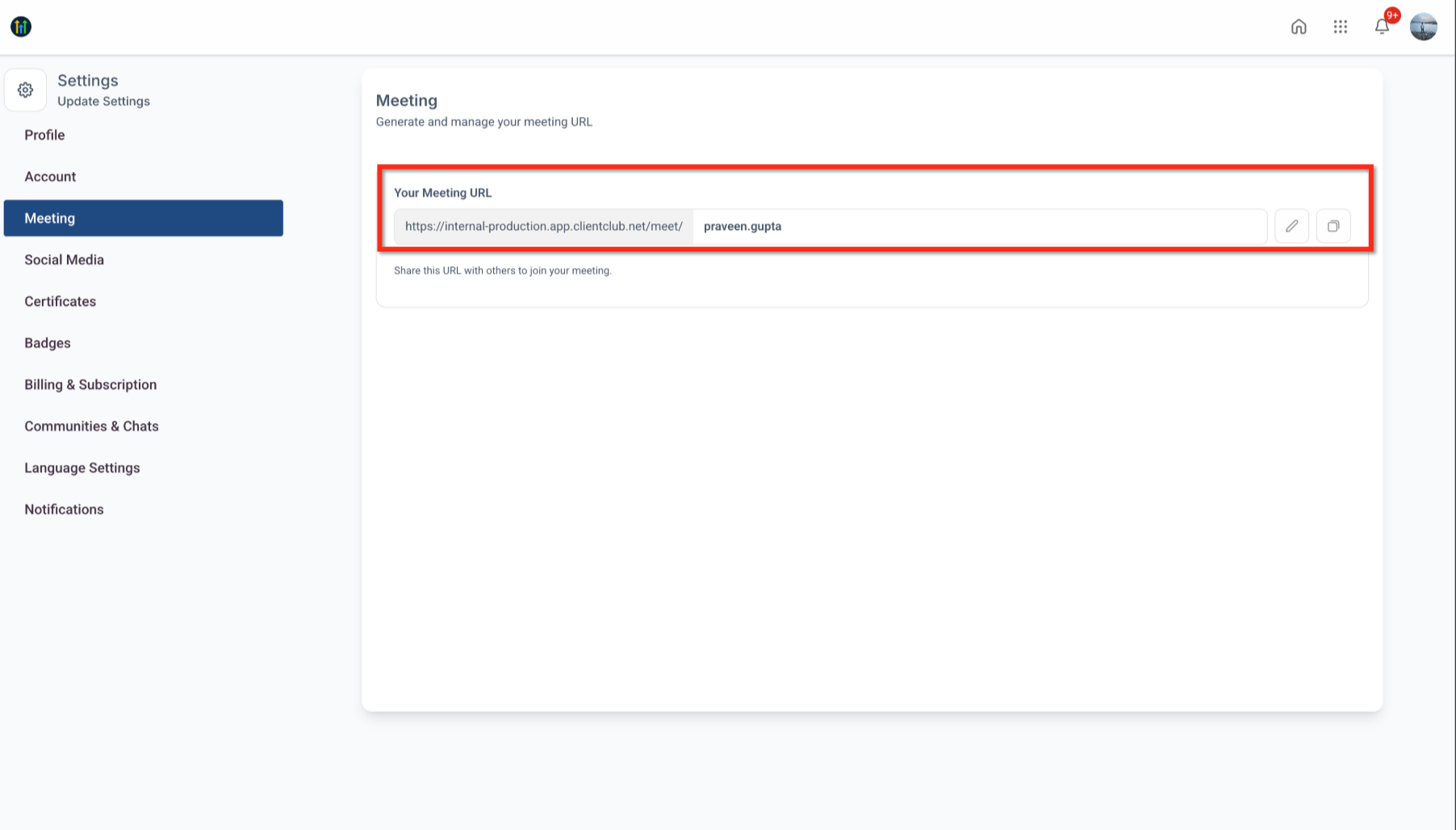
- Save your changes.
- Copy the meeting link for sharing.
Step 3: Share Your Meeting Link
You can share your Personal Meeting Link through:
- Community posts
- Event pages
- Email campaigns
- Calendar invitations
- Direct messages
This allows attendees to consistently join sessions using the same meeting URL.
How To Access and Manage Recordings
Managing recordings centrally makes it easier to organize content and provide ongoing value to your community members.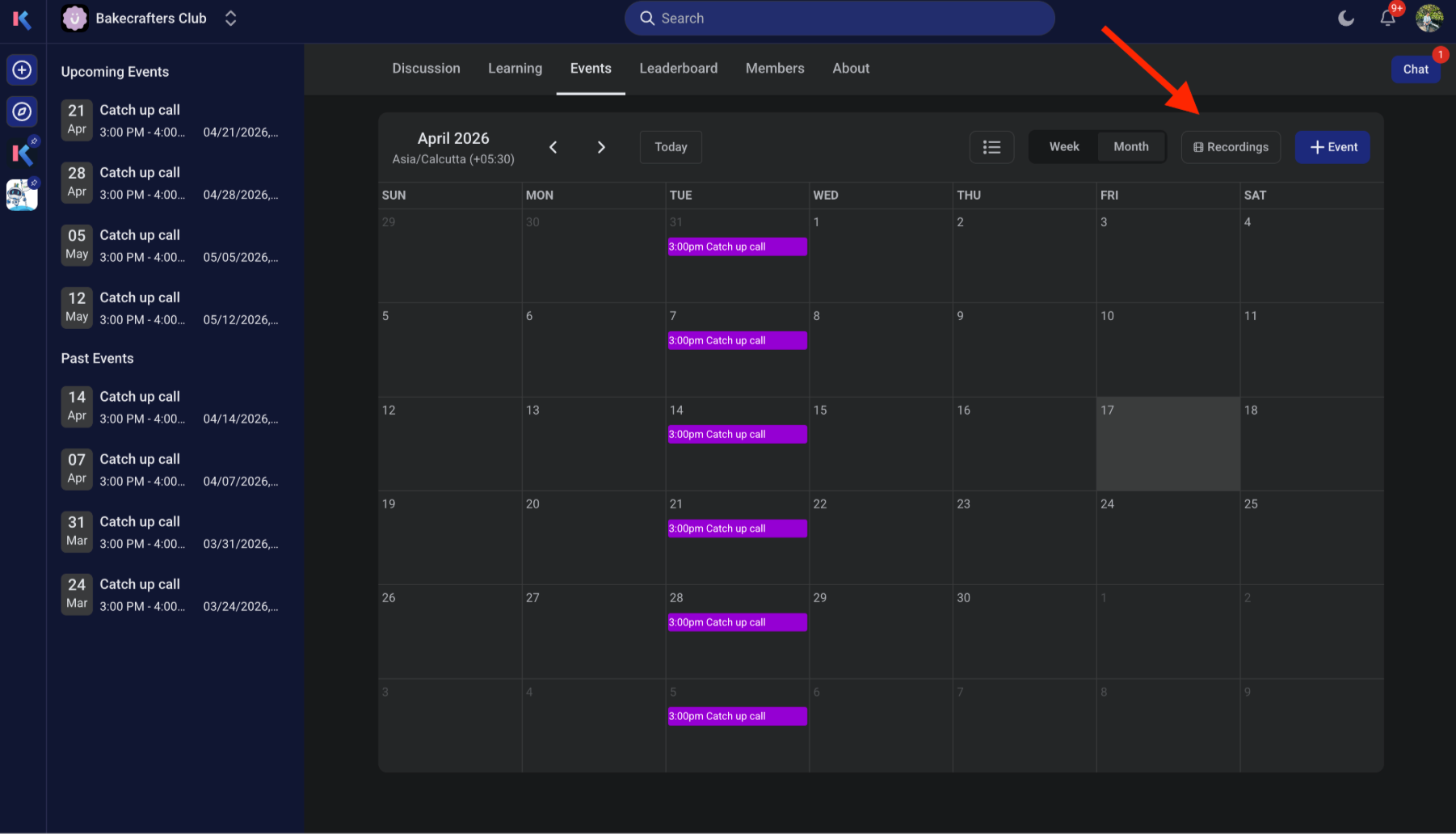
Step 1: Open the Recordings Hub
- Navigate to Communities.
- Open the Live Sessions or Recordings area.
- Select the Recordings Hub.
Step 2: View Available Recordings
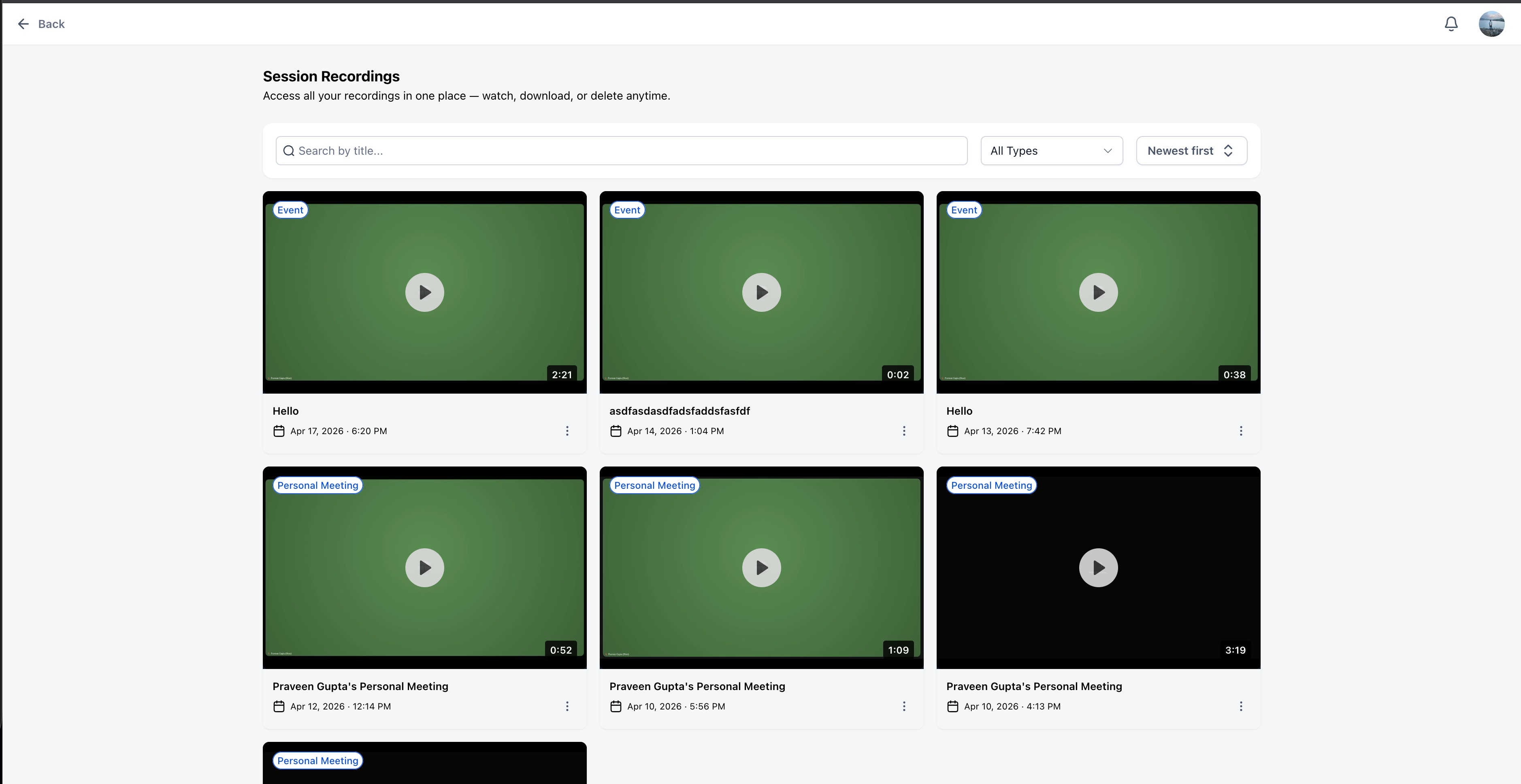
Inside the Recordings Hub, you can:
- Browse previous recordings
- Search for specific sessions
- Open recordings for playback
Step 3: Download or Delete Recordings
Select a recording to:
- Download the file
- Replay the recording
- Delete recordings no longer needed
Frequently Asked Questions
Q: Can I use the same Personal Meeting Link for recurring sessions?
Yes. Personal Meeting Links are designed to be reusable across recurring meetings, events, coaching calls, and live sessions.
Q: Where can I find my session recordings?
All available recordings can be accessed inside the Recordings Hub.
Q: Can I download recordings from the Recordings Hub?
Yes. Hosts can download recordings for external storage, sharing, or repurposing.
Q: Can recordings be deleted?
Yes. You can remove recordings directly from the Recordings Hub when they are no longer needed.
Q: Does Enhanced Noise Cancellation work automatically?
Noise cancellation enhancements are designed to improve audio clarity during live sessions and may be enabled automatically depending on the meeting environment and configuration.
Q: Can attendees join using the same Personal Meeting Link every time?
Yes. The same reusable meeting link can be shared with attendees for ongoing sessions.
Q: Are Personal Meeting Links useful for 1:1 meetings?
Yes. Personal Meeting Links work well for recurring client meetings, office hours, consultations, and coaching sessions.
Q: Can recordings be used for onboarding or training?
Yes. Many hosts use session recordings to create educational libraries, onboarding resources, and member training content.