
Media controls in the mobile app make it easier to manage supported media playback without returning to the app every time you need to pause, resume, or skip. This is especially helpful when watching or listening to longer course, membership, or community content on mobile.
TABLE OF CONTENTS
What are Notification Tray Media Controls?
Notification tray media controls let you manage supported media playback after you start content inside the mobile app. Instead of reopening the app to control playback, you can use your device’s notification area to pause, resume, or skip supported media.
This improves the mobile learning experience by making playback more flexible while multitasking. It also supports a smoother experience across areas where you interact with media, courses, memberships, communities, posts, comments, chats, and Go Live-related content.
Key Benefits
Notification tray media controls reduce friction when you need quick playback access while using your device.
- Faster Playback Control: Pause, resume, or skip supported media directly from the notification tray.
- Better Long-Form Learning Experience: Continue consuming longer course or membership content with fewer interruptions.
- Improved Multitasking: Control media while switching between apps or using other areas of the device.
- Cleaner In App Experience: Enjoy a refreshed editor experience across posts, comments, chats, and Go Live.
- More Reliable Playback: Benefit from video and media improvements designed to reduce interruptions.
- Improved Navigation Flow: Move through the app more smoothly with better background refresh, carousel browsing, and back navigation.
Supported Mobile App Version
Using the latest mobile app version helps ensure you can access the newest playback controls, editor improvements, and bug fixes. App updates are especially important when features rely on device-level behavior, such as notification tray media controls.
Notification tray media controls are included in:
- iOS: v26.03.210 or later
- Android: v26.03.210 or later
Update the mobile app before trying to use this feature.
How to Use Notification Tray Media Controls
You must start playback inside the mobile app before notification tray controls can appear.
- Update the mobile app to v26.03.210 or later.
- Open the mobile app on iOS or Android.
- Navigate to supported media content (for example, a course, membership, or another media-enabled area).
- Start playing the media inside the app.
- Swipe down from the top of the screen to open your device’s notification tray.
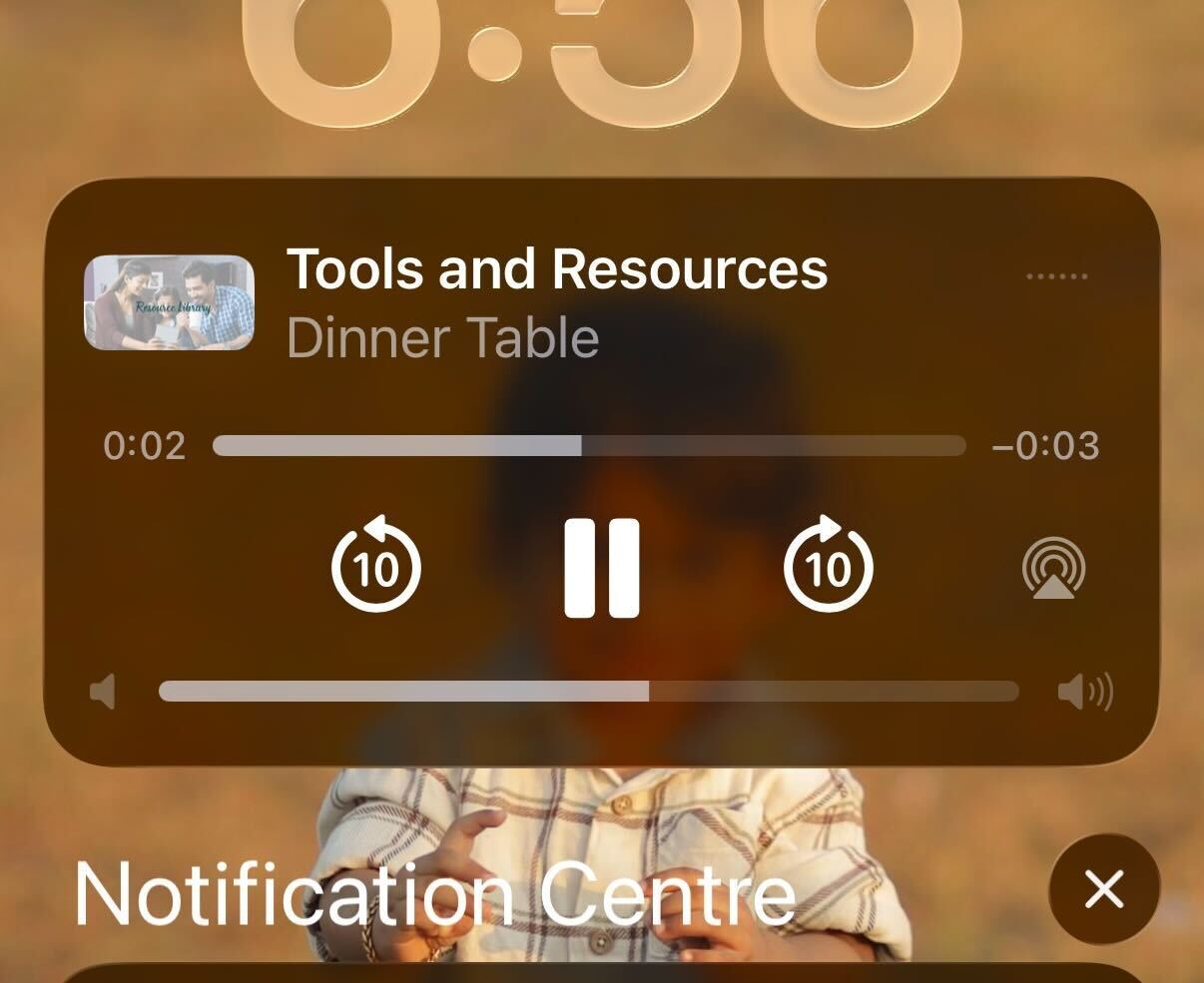
- Use the available media controls to pause, resume, or skip playback.
- Return to the app when you want to continue interacting with the content directly.
Troubleshooting Notification Tray Media Controls
Notification tray controls depend on:
- Your mobile app version
- Supported media behavior
- Device-level notification settings
Try the following:
- Confirm the mobile app is updated to v26.03.210 or later.
- Start playback inside the app before opening the notification tray.
- Confirm the media type supports notification tray controls.
- Make sure mobile notifications are enabled for the app.
- Check whether the device has background playback or battery restrictions enabled.
- Close and reopen the app, then start playback again.
- Restart the device if controls still do not appear.
Frequently Asked Questions
Q: Do I need to update the mobile app to use notification tray media controls?
A: Yes. Update to iOS or Android app version v26.03.210 or later.
Q: Can I pause and resume media without reopening the app?
A: Yes. After supported media starts playing in the app, you can pause or resume playback from the notification tray.
Q: Can I skip media from the notification tray?
A: Yes. Skip controls are included, but availability may depend on the media type and device behavior.
Q: Why don’t I see media controls in my notification tray?
A: Confirm the app is updated, media is actively playing, notifications are enabled, and the content type supports notification tray controls.
Q: Did this update change posts, comments, chats, or Go Live?
A: Yes. The editor experience across posts, comments, chats, and Go Live was refreshed to feel cleaner.
Q: Are notification tray media controls the same as push notifications?
A: No. Notification tray media controls manage active media playback. Push notifications alert you about updates, messages, comments, or other activity.
Need Help?
If notification tray media controls are not appearing or responding as expected, first check the app version, active playback, and your device settings.
Verify that:
- The mobile app is updated to v26.03.210 or later.
- You started the media inside the mobile app before opening the notification tray.
- The content type supports notification tray media controls.
- Media is actively playing or paused rather than fully stopped.
- Notifications are enabled for the mobile app.
- Your device is not blocking background activity for the app.
- Battery optimization or power-saving settings are not restricting playback.
- The app remains open or available in the background while testing.
- You have closed and reopened the app and started playback again.
- You have restarted the device if the controls still do not appear.
If the controls appear but certain actions such as skip are unavailable, the available controls may depend on the media type and your device behavior.
If the issue continues, collect your device type, operating system version, mobile app version, type of media being played, the area of the app where playback was started, and a screenshot or screen recording of the notification tray before contacting support.