
Seamlessly sync your LinkedIn Lead Gen Form submissions directly into your CRM. Connect one or more LinkedIn ad accounts, map your form fields, and automatically receive new leads in your sub-account.
TABLE OF CONTENTS
Before You Begin
Before connecting LinkedIn, ensure:
- You have access to the LinkedIn account that owns the ad accounts.
- The LinkedIn ad account is associated with a LinkedIn Page.
- You have the required permissions to access and manage the ad account.
Important: Ad accounts without an associated LinkedIn Page cannot be connected.
Connect LinkedIn to Your CRM
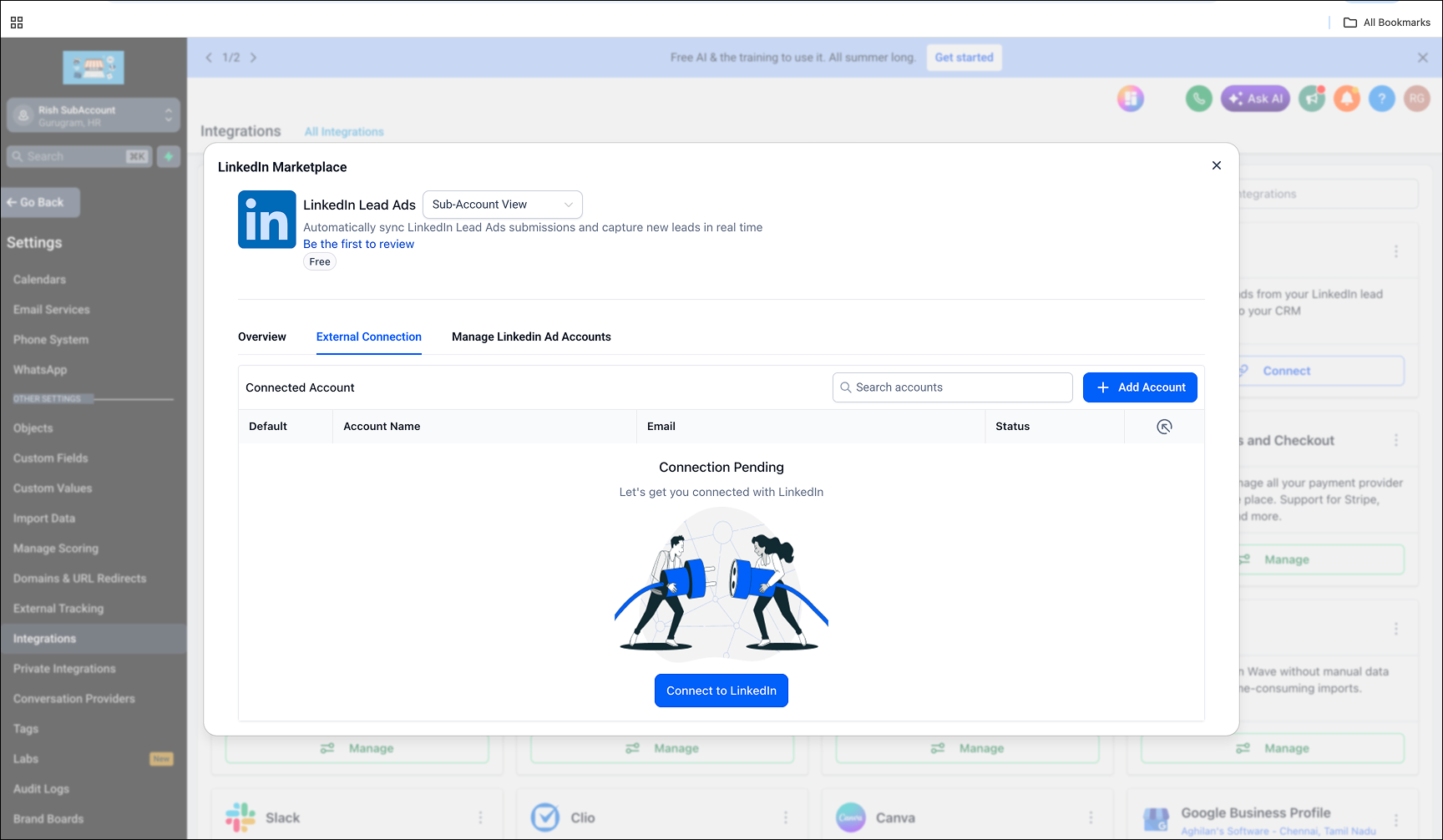
Step 1: Connect Your LinkedIn Account
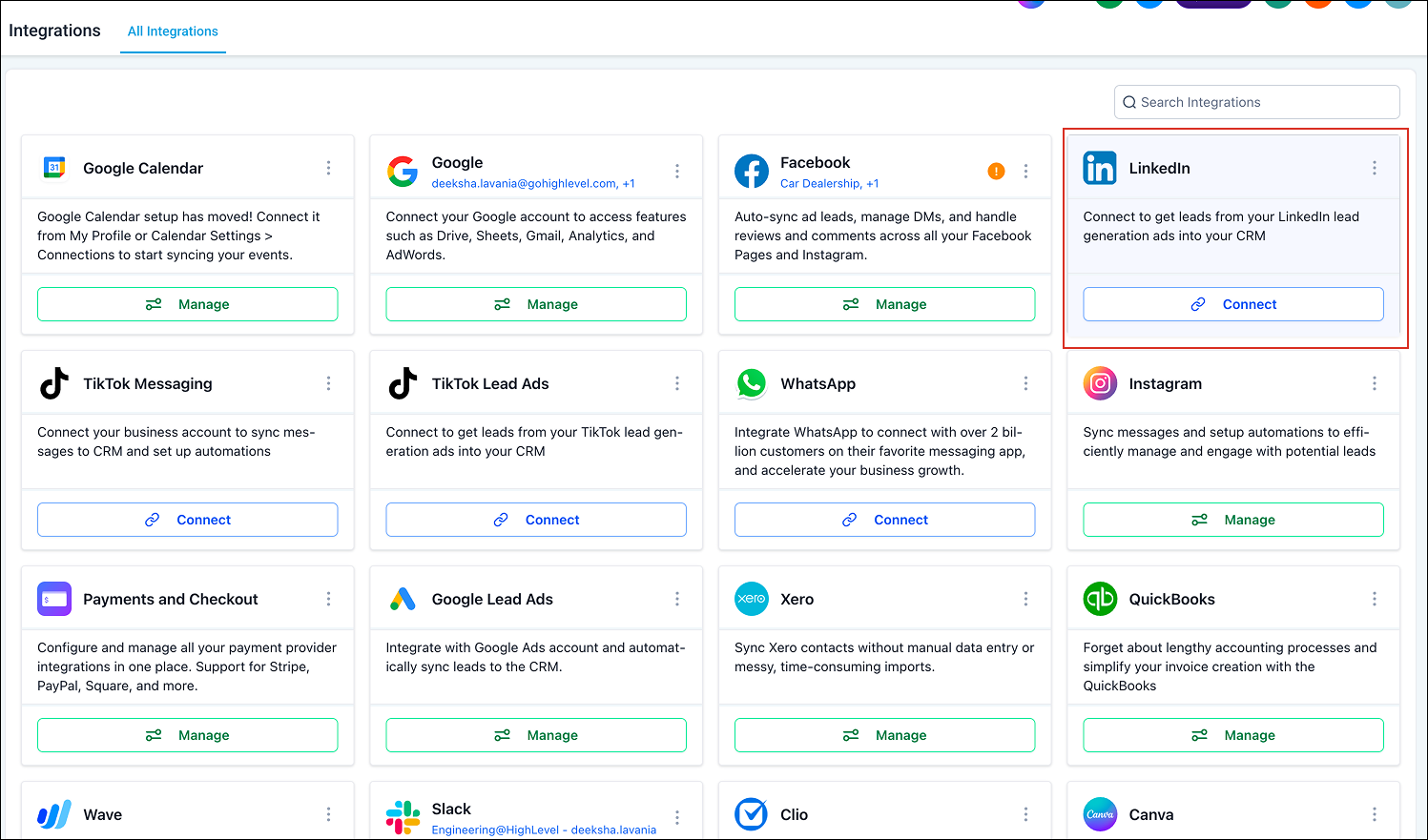
- Navigate to Settings > Integrations.
- Locate LinkedIn.
- Click Connect.
You will be redirected to LinkedIn to authorize the connection.
Step 2: Authorize LinkedIn
- Log in to your LinkedIn account.
- Review the requested permissions.
- Click Allow.
All requested permissions must be granted for the integration to function correctly.
Step 3: Select Your Ad Accounts
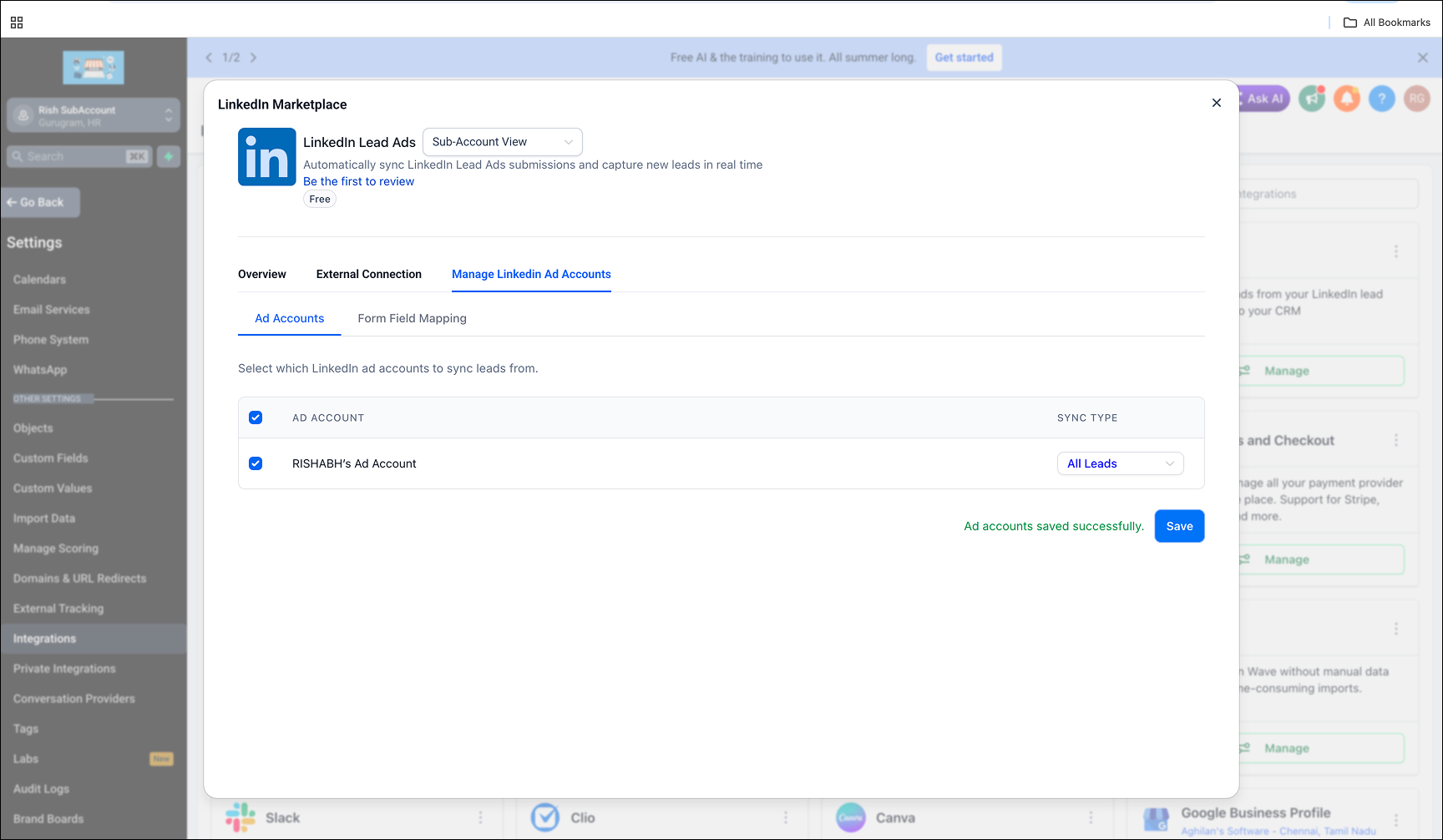
After authorization, choose the LinkedIn ad account(s) you would like to connect.
- You can connect one or multiple ad accounts.
- There is no limit to the number of ad accounts that can be connected to a sub-account.
Step 4: Configure Lead Synchronization
For each ad account, choose how leads should be imported:
All Leads
- Imports all available leads from the previous 90 days.
- Continues syncing all new leads moving forward.
New Leads Only
- Imports only leads generated after the integration is connected.
Once you've selected your preferred sync option, click Connect.
Step 5: Map Your LinkedIn Form Fields
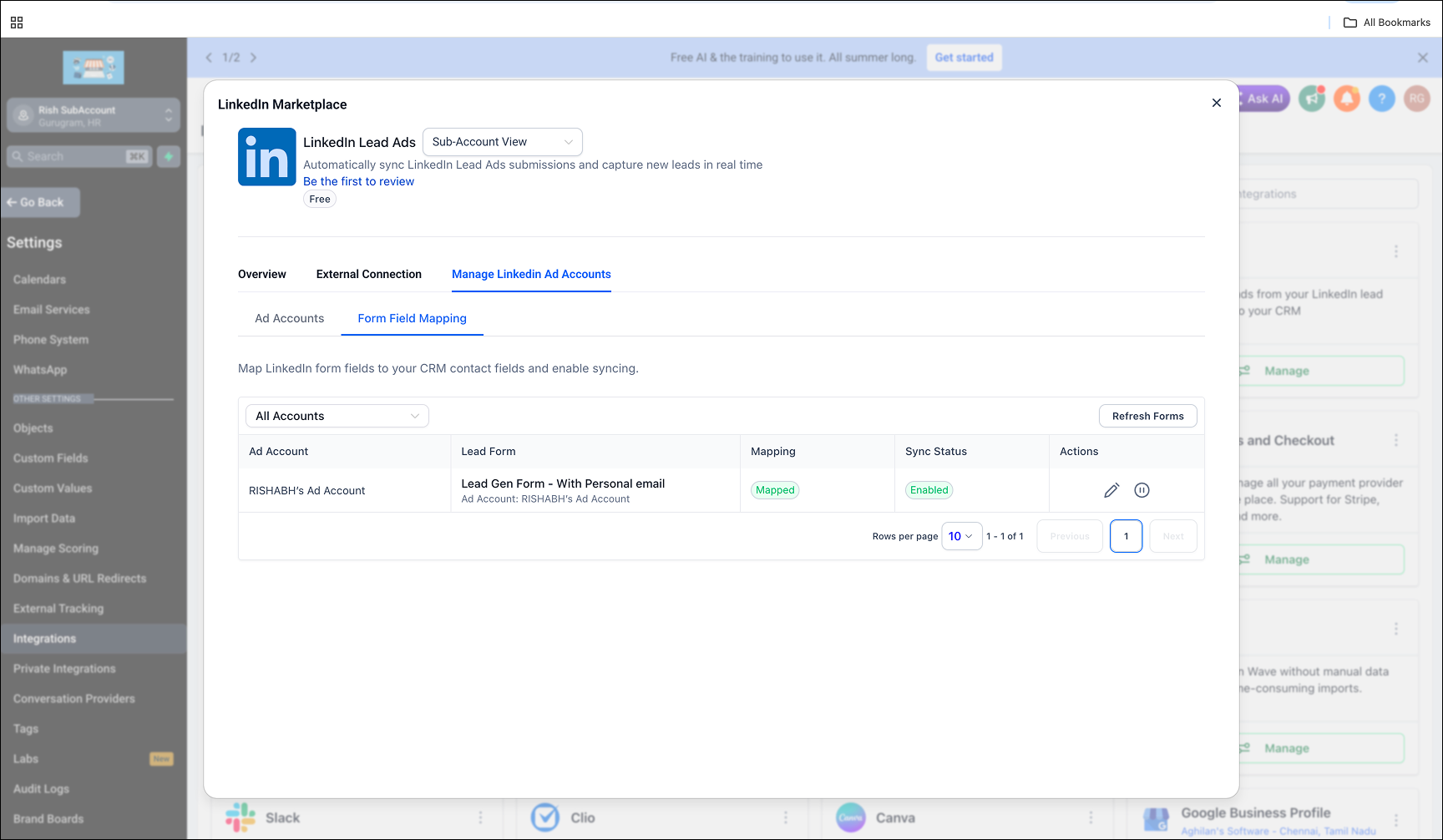
After connecting your ad accounts, configure field mapping to ensure lead information is stored correctly in your CRM.
- Navigate to the LinkedIn Form Field Mapping tab.
- Click Map Fields for each form.
- Match your LinkedIn form fields to the appropriate CRM fields.
- Click Confirm to save your mappings.
You can also disable lead syncing for specific forms by toggling the form status off.
Your LinkedIn integration is now active and ready to sync leads into your CRM.
Managing Your Integration
You can update your LinkedIn configuration at any time by navigating to:
Settings > Integrations > LinkedIn > Manage Ad Accounts
From here, you can:
- Add new ad accounts
- Remove existing ad accounts
- Update lead sync settings
- Refresh forms and mappings
Frequently Asked Questions
How do I add or update ad accounts later?
Navigate to Settings > Integrations > LinkedIn > Manage Ad Accounts. Make your changes and click Update to save.
I can't see all forms in the Form Field Mapping page. What should I do?
Only previously mapped forms are displayed by default when revisiting the page.
Click Refresh in the top-right corner to retrieve all available forms, including newly created and unmapped forms.
Can I change the sync option after connecting an ad account?
Yes. Open Manage Ad Accounts and update the sync preference.
Switching from New Leads Only to All Leads will import up to 90 days of historical leads, provided the form fields have been mapped correctly.
How do I disconnect the integration?
- Navigate to Settings > Integrations.
- Select LinkedIn.
- Click Disconnect.
- Confirm the action.
After disconnecting, new LinkedIn leads will no longer sync into your CRM.
Can the same LinkedIn ad account be connected to multiple sub-accounts?
Yes. The same LinkedIn ad account can be connected to multiple sub-accounts. Leads generated from that ad account will sync into each connected sub-account.