
Admins can submit and track eligible US phone number port-in requests directly inside the platform. The Port-In Numbers workflow helps you move existing US phone numbers from an external carrier into your phone system without completing a separate porting form.
Important: This feature must be enabled in Labs and is available only to users with admin-level access.
TABLE OF CONTENTS
- Table of Contents
- What is Port-In Numbers?
- Key Benefits of Port-In Numbers
- Before You Start
- Auto-Generated Letter of Authorization
- How to Set Up Port-In Numbers
- Frequently Asked Questions
- Need Help?
What is Port-In Numbers?
Port-In Numbers lets eligible accounts request the transfer of existing US phone numbers from an external carrier into the platform. After submission, you can track the request inside Phone Numbers, giving you a centralized place to monitor carrier review, progress, completion, or rejection.
Porting is useful when a business wants to keep an existing phone number while managing calls, SMS, and related phone activity through the platform’s phone system. This in-app workflow reduces manual steps by collecting request details inside the platform, generating the Letter of Authorization (LOA) automatically, and showing status updates without requiring you to leave the platform.
Key Benefits of Port-In Numbers
The in-app Port-In Numbers workflow simplifies the porting experience by replacing manual form submission with a guided request flow.
- In-app Submission: Submit eligible US port-in requests directly from Phone System → Phone Numbers.
- Guided Request Flow: Complete the request through a structured four-step process that collects acknowledgements, number details, contact information, and documents.
- Auto-Generated LOA: The platform creates the LOA from your request details and emails it to the authorized representative for digital signature.
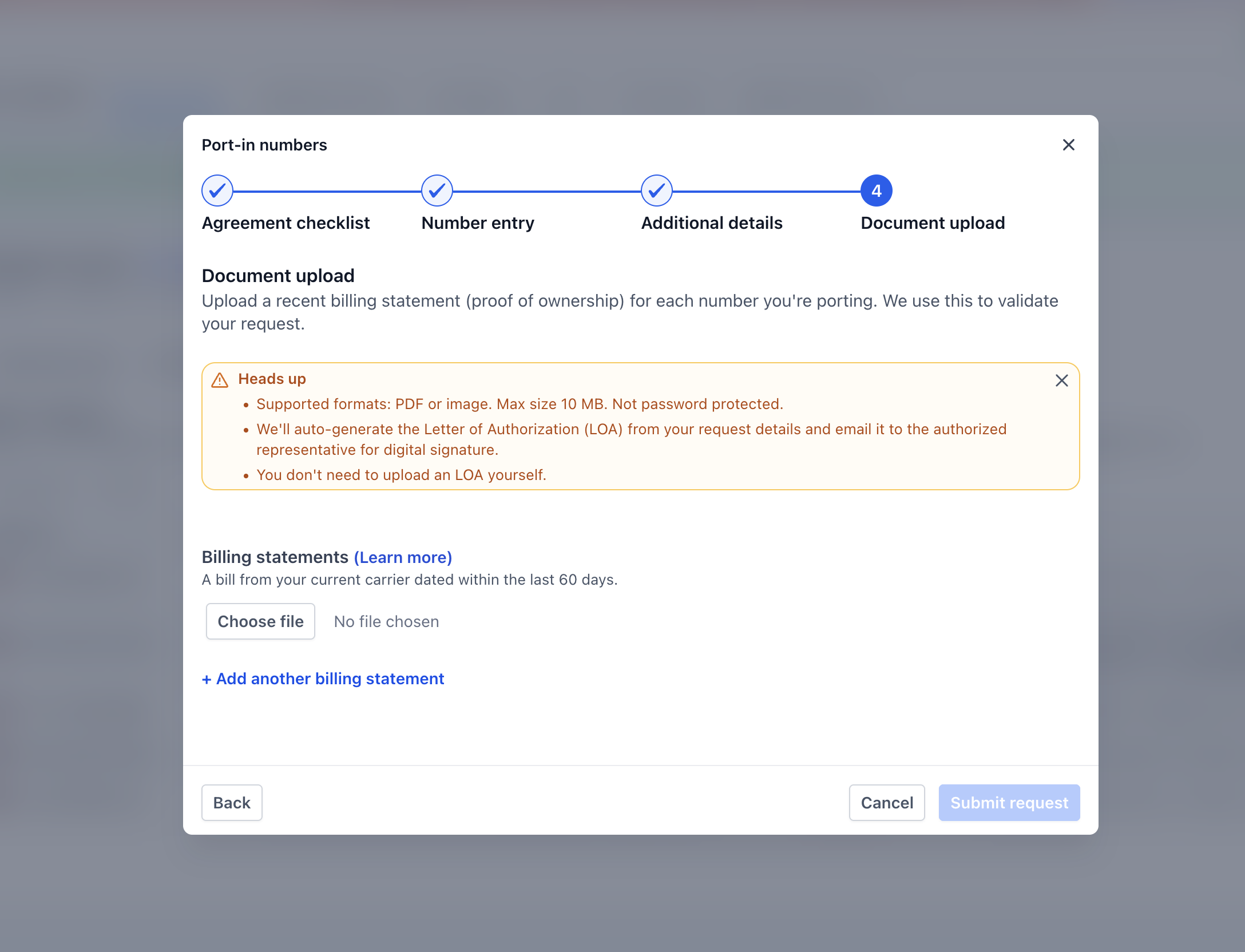
- Simplified Document Requirements: Upload only the billing statement, as a PDF or image file up to 10 MB.
- Bulk Number Support: Enter multiple landline numbers in a comma-separated format and add multiple wireless numbers using + Add New Number.
- Inline Status Tracking: Track each request from the Port-In Numbers tab, including status, Request SID, created date, and carrier action details.
- Reduced Manual Work: Submit and monitor eligible US port-in requests without relying on a separate form.
Before You Start
Preparing accurate carrier and account information helps prevent delays or rejections. Carriers review port-in requests against the account details they have on file, so mismatched information may cause the request to be rejected.
Before submitting a port-in request, prepare the following:
- Current carrier account number
- Landline numbers being ported (use comma-separated values when submitting multiple numbers)
- Wireless numbers being ported
- Wireless PIN or last four digits of SSN (when required)
- Authorized representative name
- Authorized representative email address
- Full service address, including state and postal code
- Billing statement as a PDF or image file
- Billing document file size of 10 MB or less
Keep the numbers active with the current carrier until the port is fully completed. Canceling service too early may interrupt the transfer or cause the request to fail.
Auto-Generated Letter of Authorization
The Letter of Authorization (LOA) confirms that the authorized representative approves the phone number transfer. The platform generates the LOA from the request details, reducing manual document preparation and helping prevent incorrect LOA uploads.
After the request is submitted:
- The platform generates the LOA using the request details.
- The LOA is emailed to the authorized representative.
- The authorized representative signs the LOA digitally.
- The porting process continues based on carrier review and approval.
Make sure the authorized representative can access the email address entered in the request. If the LOA is not signed, the port request may not move forward.
How to Set Up Port-In Numbers
Proper setup ensures that the request is submitted with complete carrier details, a valid billing statement, and the correct authorized representative.
Follow these steps to submit a port-in request:
- Log in with an admin user role.
- Confirm the feature is enabled through Labs.

- Go to Phone System → Phone Numbers.

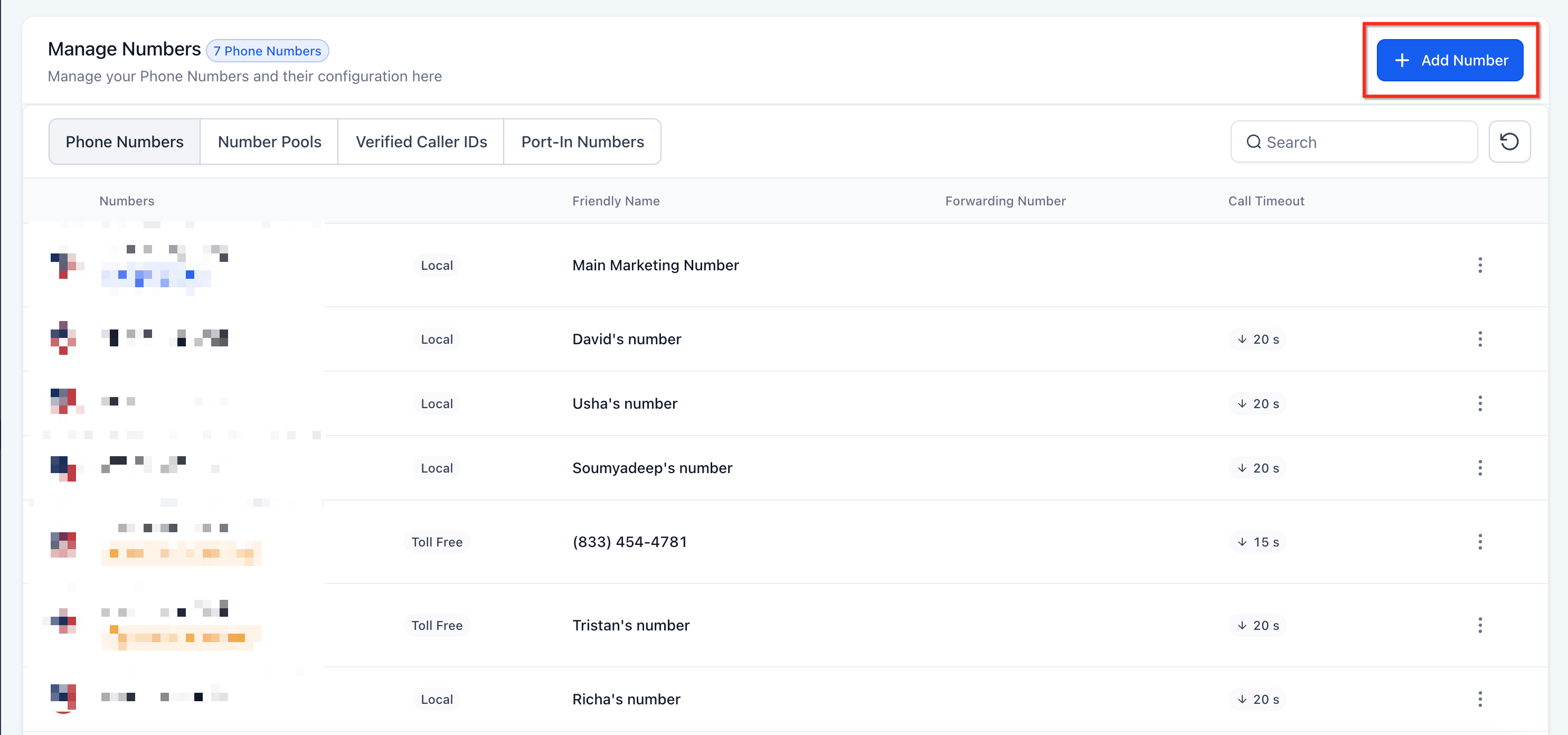
- Click Add Number.
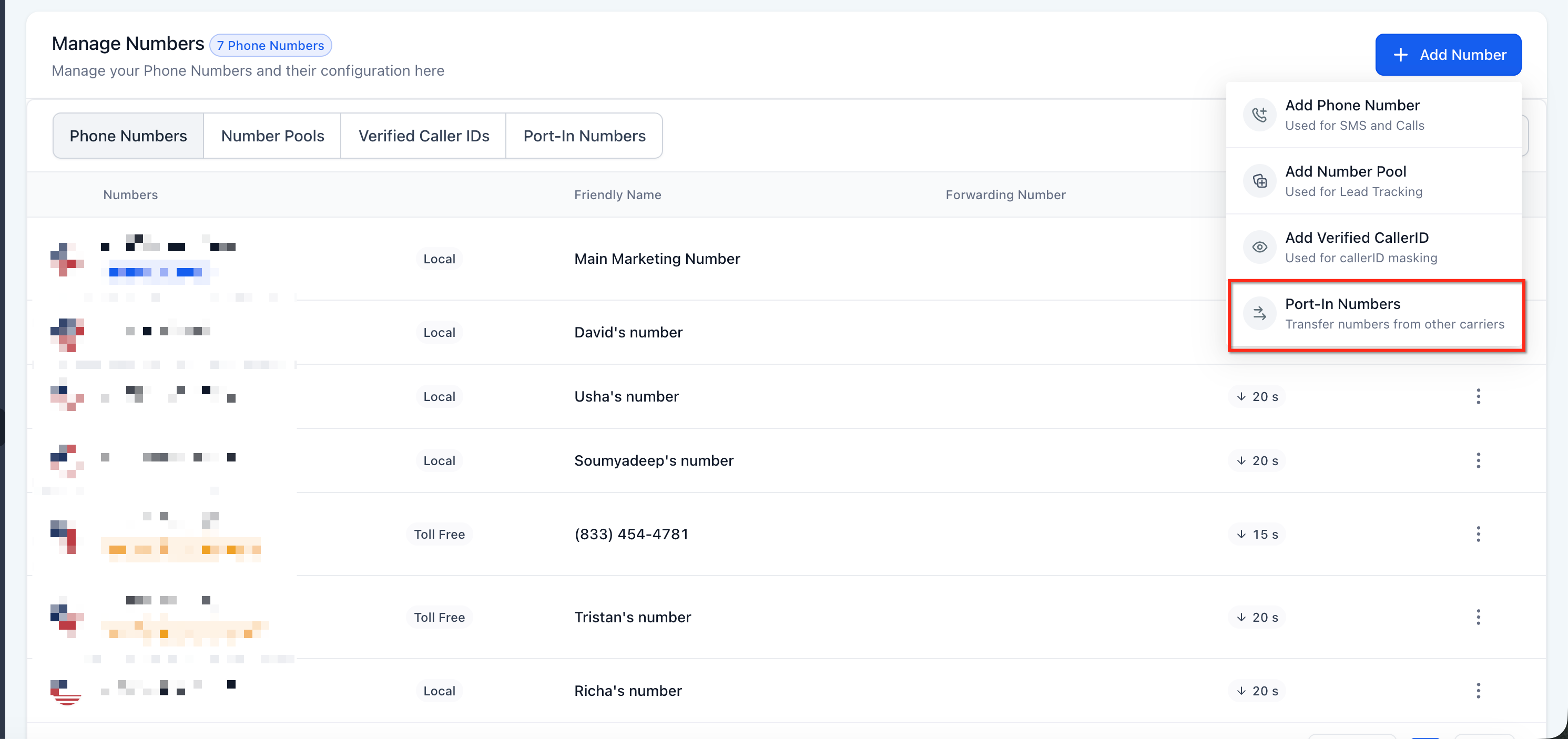
- Select Port-in Numbers.
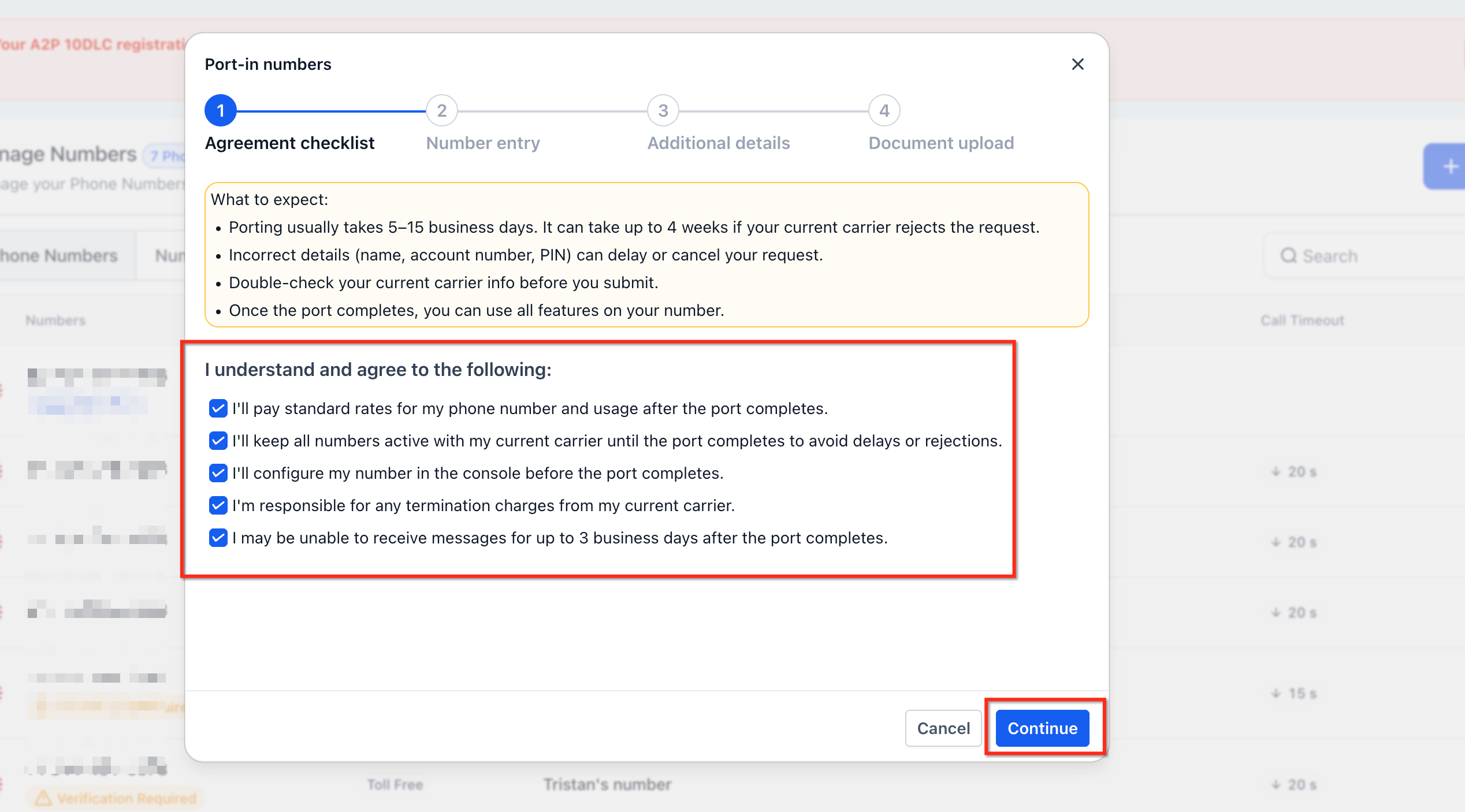
- Review and complete the Agreement Checklist.
- Enter the carrier account number. Add the landline numbers, wireless numbers, or both. Add the wireless PIN or last four digits of SSN where required.

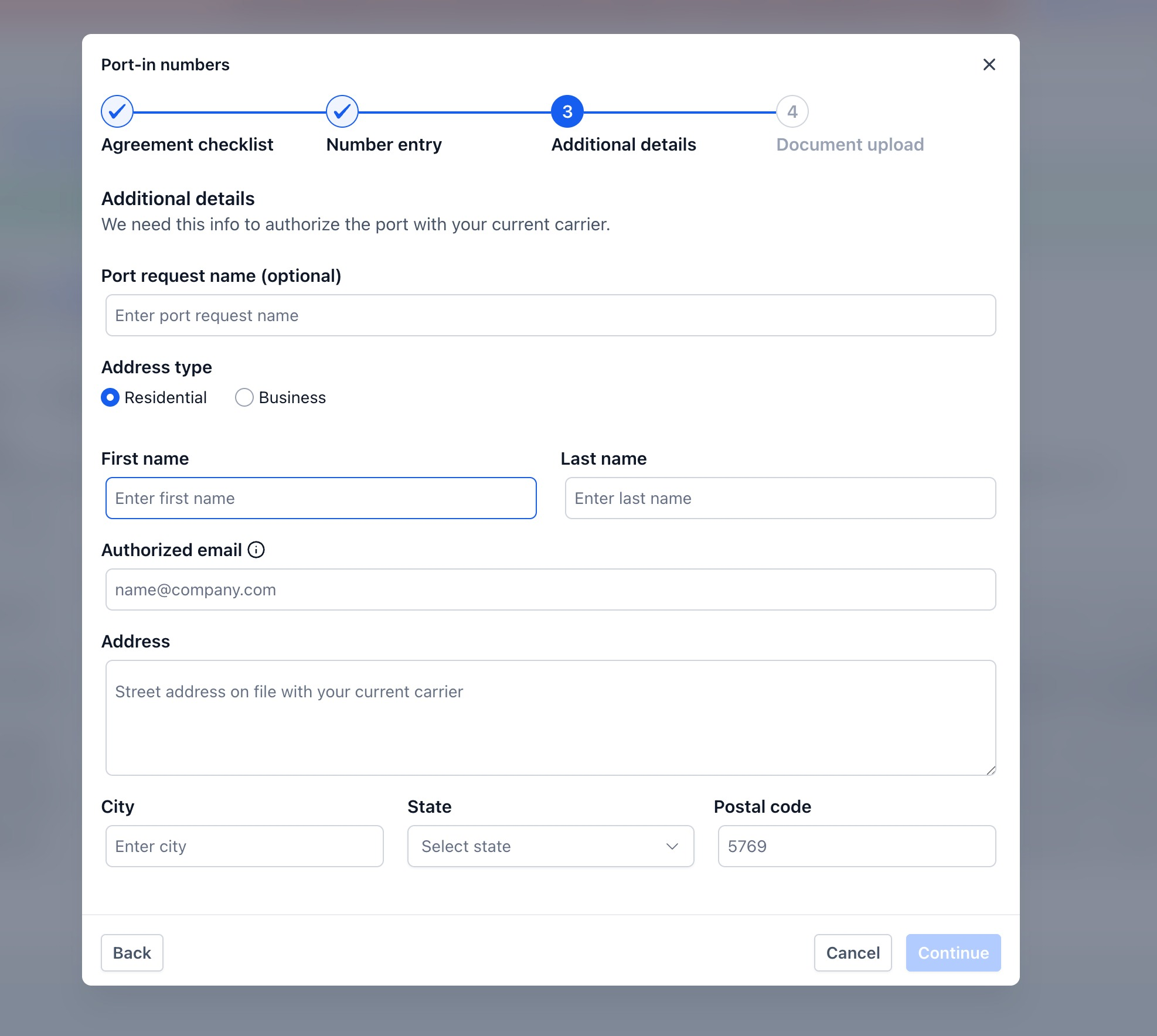
- Enter the port request name (if needed). Select Residential or Business. Enter the authorized contact name and email address. Enter the full service address, state, and postal code.
- Upload the billing statement (PDF or image) up to 10 MB. Review the request details, then submit the request.
- Copy or save the Request SID from the confirmation modal.
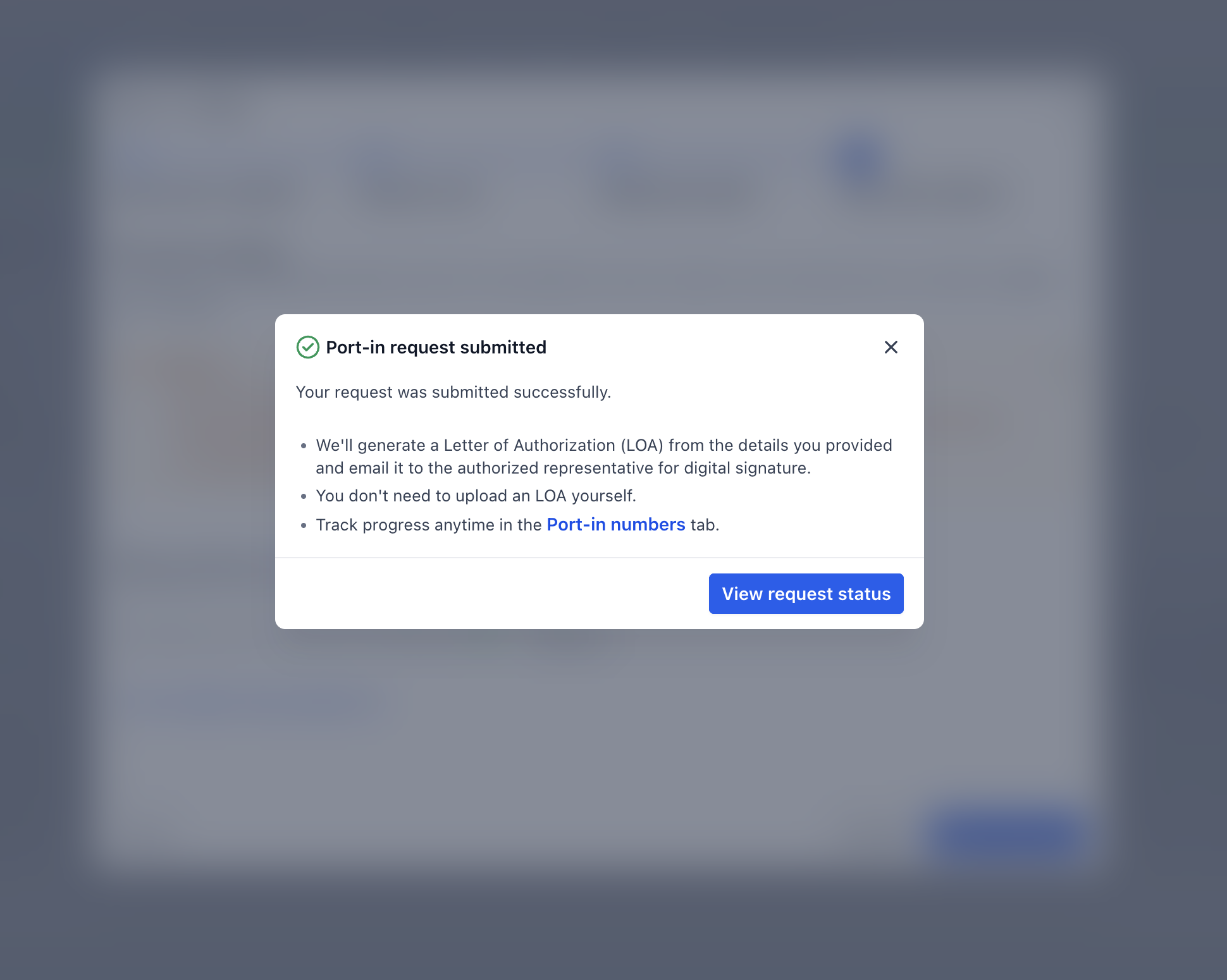
- Ask the authorized representative to check their email and sign the LOA.
- Track the request from Phone Numbers → Port-In Numbers.
After submission, a confirmation modal displays the Request SID. The request also appears in the Port-In Numbers tab, where status updates are shown as the carrier processes the request.
Frequently Asked Questions
Q: Can non-admin users submit port-in requests?
No. This feature is available only to users with admin-level access.
Q: Can I port multiple numbers in one request?
Yes. Landline numbers can be entered as comma-separated values, and multiple wireless numbers can be added using + Add New Number.
Q: What document do I need to upload?
Upload the billing statement only. The file can be a PDF or image and must be 10 MB or less.
Q: Should I cancel my current carrier service after submitting the request?
No. Keep the numbers active with the current carrier until the port is fully completed.
Q: Where can I track my port-in request?
Go to Phone System → Phone Numbers → Port-In Numbers to view request history, status, Request SID, created date, and carrier action details.
Q: What does “Rejected” mean?
“Rejected” means the request could not continue. Common causes include incorrect account details, missing information, invalid wireless PIN, unsigned LOA, or documentation that does not match carrier records.
Q: What does Rejected mean?
A rejected request could not continue through the porting process. Common causes include a service address that does not match the current carrier's records, an incorrect account number, an invalid wireless PIN, an unsigned Letter of Authorization (LOA), a suspended carrier account, or invalid billing documentation.
Rejected requests cannot be edited. Review the rejection reason in the Port-In Numbers tab, verify the correct information with the current carrier, then delete the rejected request and submit a new one with the corrected details.
Q: What should I do after the port is completed?
Confirm that the number appears in the correct account and test inbound and outbound calling. If you plan to use SMS or MMS, test messaging and confirm that any applicable messaging registrations are complete.
US local numbers may require the appropriate A2P 10DLC registration, while toll-free numbers may require Toll-Free Verification before messaging. Keep the previous carrier active until the port is confirmed complete and the number is working as expected.
Q: How long does a port-in request usually take?
Porting timelines vary by carrier and request complexity. External carrier ports involving fewer than 50 numbers generally take approximately 2–4 weeks after the required documentation is submitted. Larger or more complex ports may take approximately 6–8 weeks.
Carrier processing times can vary, so do not cancel service with your existing carrier until the transfer is confirmed complete.
Need Help?
If a port-in request is not submitting, remains stuck, or is rejected, first review the carrier details, authorization information, and uploaded billing statement.
Verify that:
- You are signed in with admin-level access.
- The Port-In Numbers feature is enabled in Labs.
- The numbers being ported are eligible U.S. phone numbers.
- The current carrier account number is correct.
- Landline and wireless numbers are entered correctly.
- Wireless numbers include the correct PIN or required verification details.
- The authorized representative’s name and email address are accurate.
- The service address matches the current carrier’s records.
- The billing statement is current, readable, and shows the numbers being ported.
- The billing statement file is a supported PDF or image and is 10 MB or less.
- The request was submitted successfully and a Request SID was generated.
- The authorized representative received and digitally signed the auto-generated Letter of Authorization.
- The numbers remain active with the current carrier until the port is completed.
- The request status and carrier action details have been reviewed in Phone Numbers → Port-In Numbers.
- Any rejection reason has been corrected before resubmitting.
If the request is rejected, compare the rejection details against the carrier’s records before submitting again. Common causes include incorrect account information, invalid wireless PINs, unsigned authorization, or mismatched documentation.
If the issue continues, collect the Request SID, affected phone numbers, current carrier, request status, rejection reason, authorized email address, and screenshots of the Port-In Numbers status before contacting support.