
The Call Logs feature gives you complete visibility into every call handled by your Voice AI agents. Whether you need to review performance, understand customer interactions, or ensure quality control, Call Logs provide detailed insights in one place.
TABLE OF CONTENTS
- What are Call Logs for Voice AI Agents?
- Key Benefits of Call Logs for Voice AI Agents
- How to Access Call Logs
- Reviewing Call Summaries, Transcripts, and Recordings
- Bulk Export Call Logs
- Frequently Asked Questions
What are Call Logs for Voice AI Agents?
Voice AI Call Logs provide a detailed history of calls handled by your Voice AI agents. These logs help you understand what happened during each call, how the agent responded, which actions were triggered, and where improvements may be needed.
Call Logs are available inside the Voice AI Dashboard & Logs area. Each call entry can include the agent name, contact name, caller number, date and time, duration, actions triggered, summary, transcript, call recording, and feedback options.
Key Benefits of Call Logs for Voice AI Agents
Phone Number: See exactly who your agents interacted with. You can click the phone number to open the Contact Details page instantly.
Call Time & Duration: Get accurate information on when the call took place and how long it lasted.
Actions Triggered: Review the actions performed during the call for better workflow understanding.
Call Summary: View a concise overview of the call along with all details collected by the agent during the conversation.
Call Transcript: Access the complete conversation for clarity, compliance checks, and deeper insights.
How to Access Call Logs
Voice AI Call Logs are located inside the AI Agents area. This is where you can review recent calls, apply filters, export call data, and open call-specific details such as summaries, transcripts, and recordings.
To access Voice AI Call Logs:
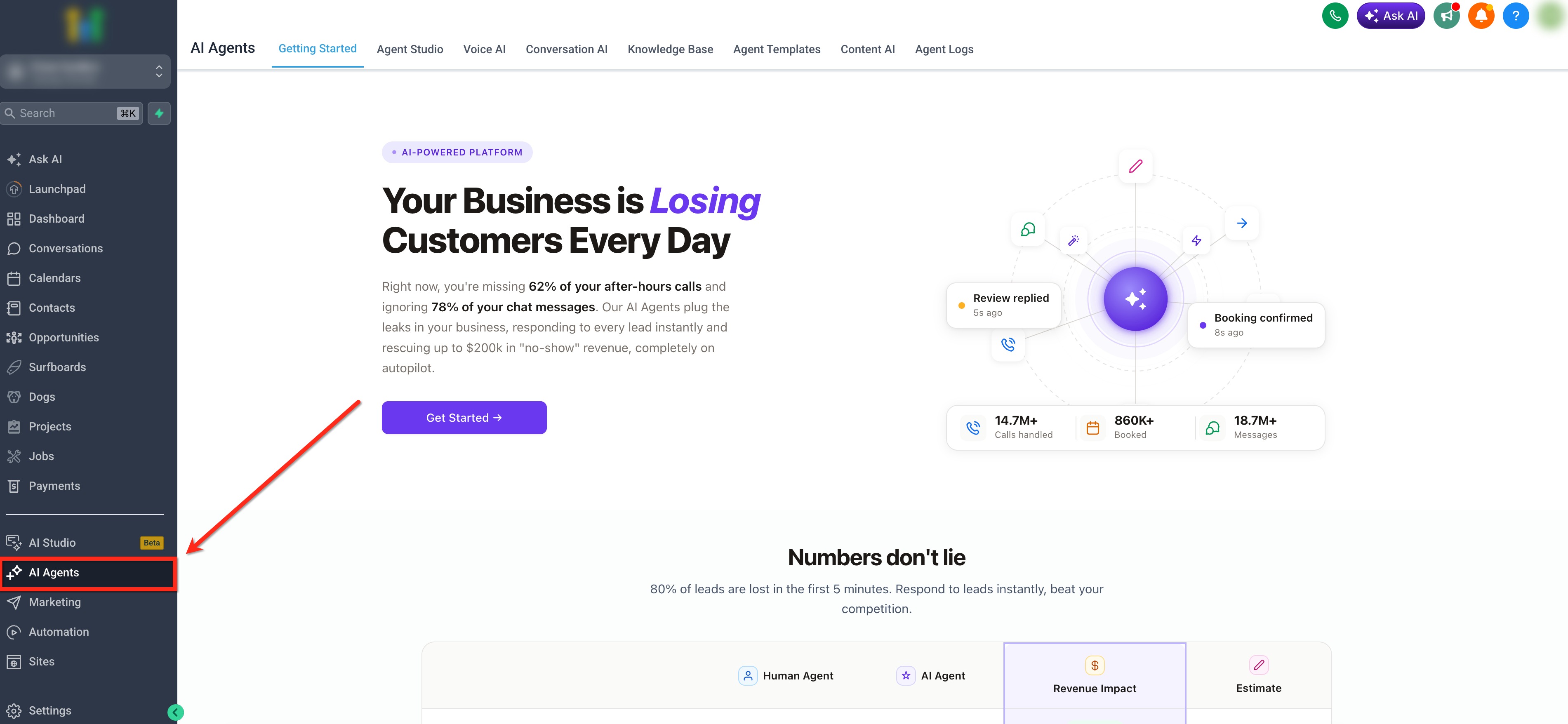
In the left navigation menu, click AI Agents.
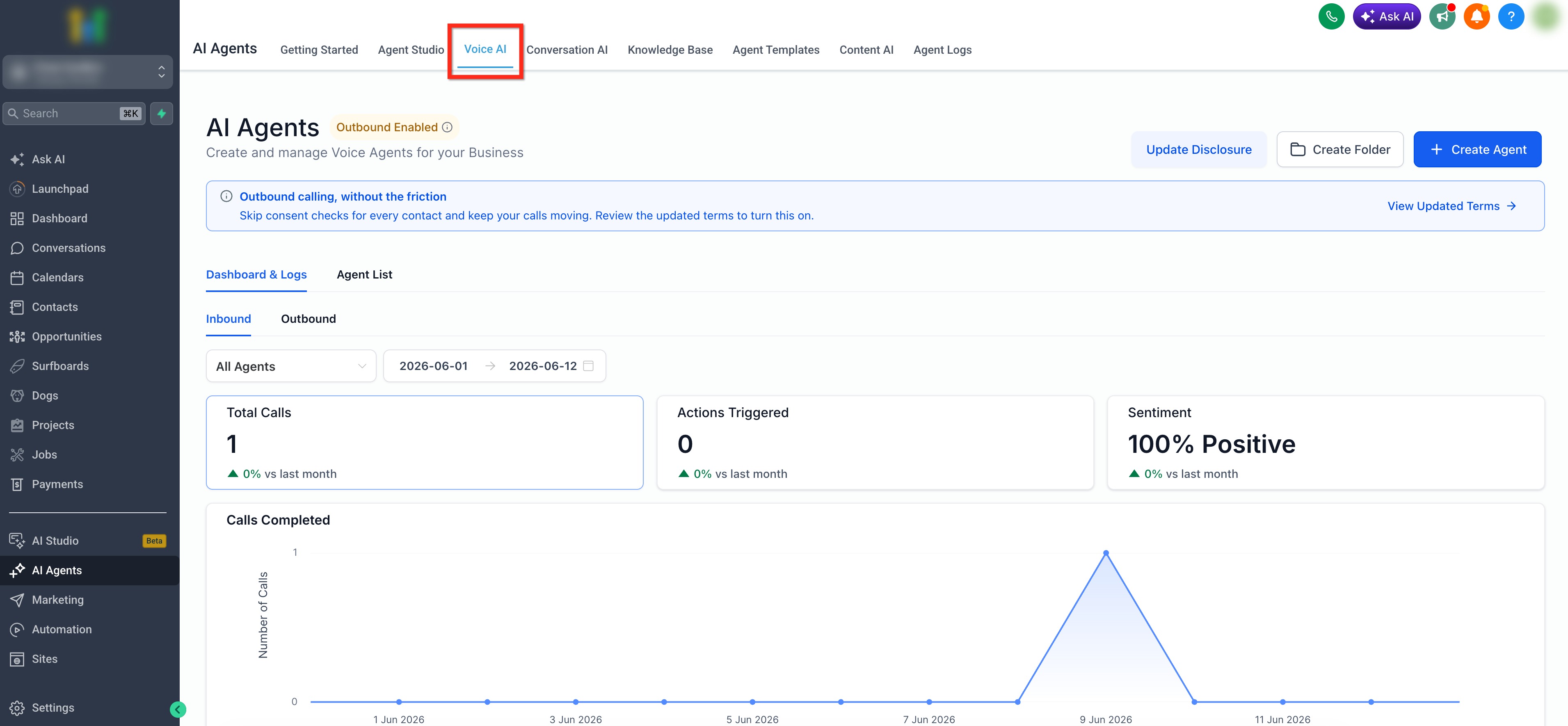
At the top of the AI Agents area, click Voice AI.
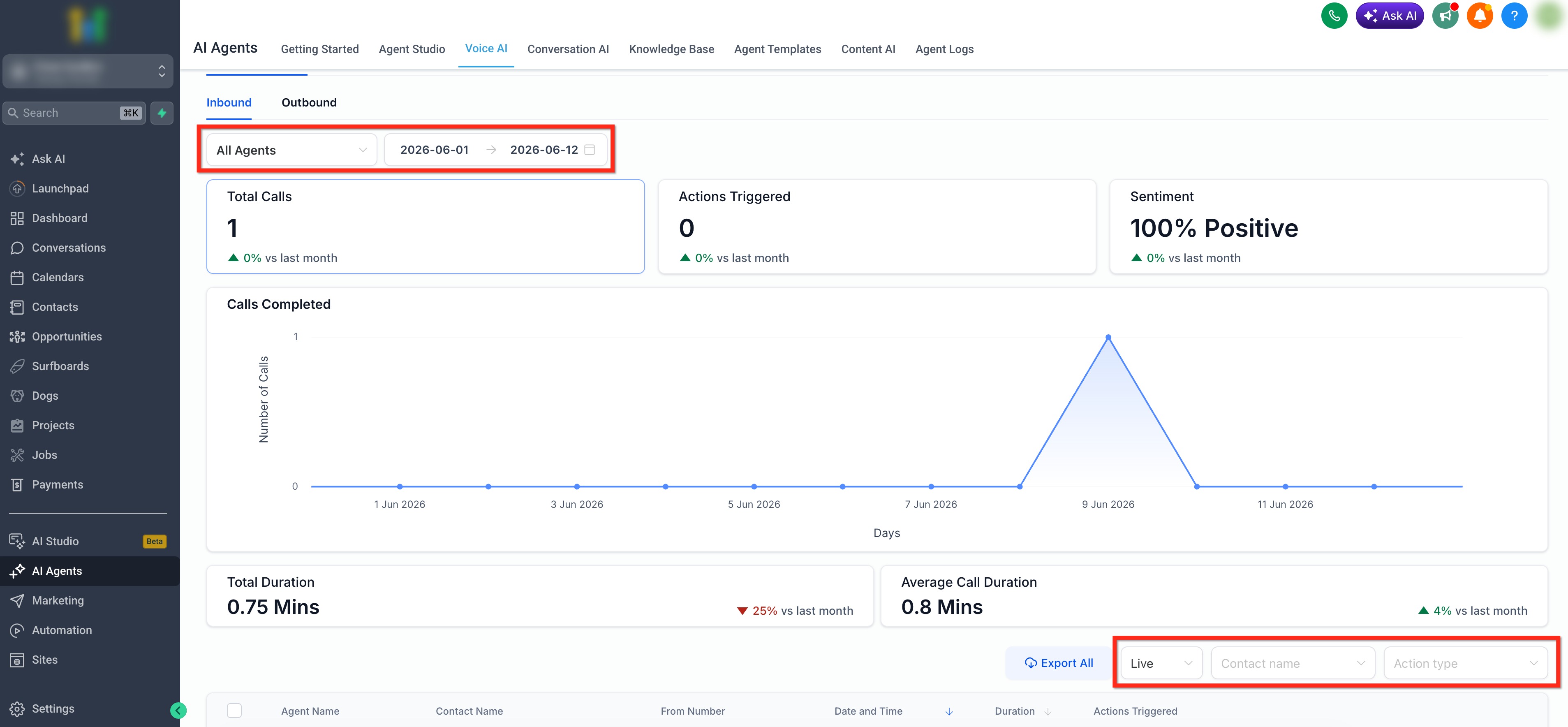
Apply any needed filters.
Scroll down to the call log table.
For each call, the call log table will show details such as Agent Name, Contact Name, Contact Number, From Number, Date and Time, Duration, Actions Triggered, Summary, Transcript, Call Recording, and Feedback options.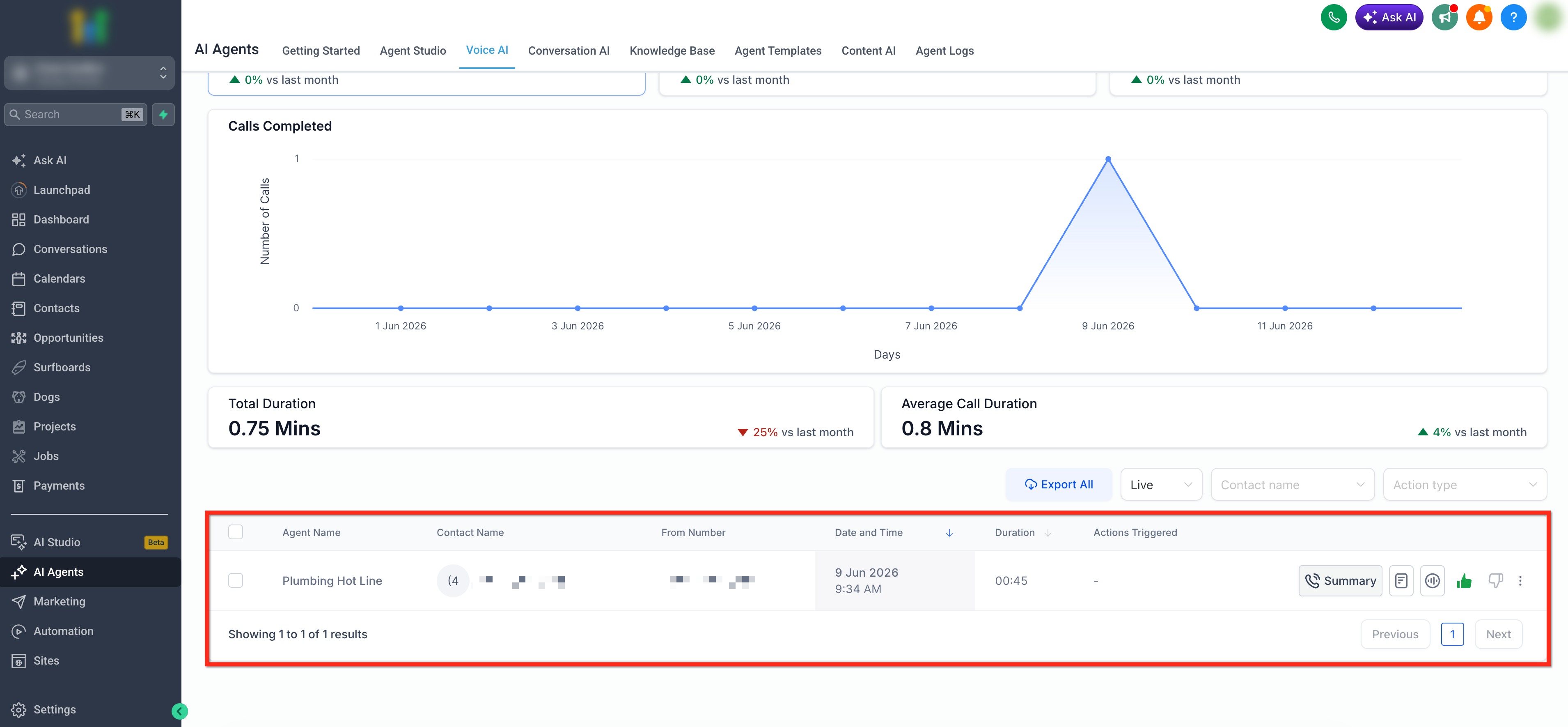
Reviewing Call Summaries, Transcripts, and Recordings
Call-level details help you understand what happened during each Voice AI conversation without needing to replay every interaction manually. For each call, you can review the interaction in three ways: Summary, Transcript, and Call Recording.
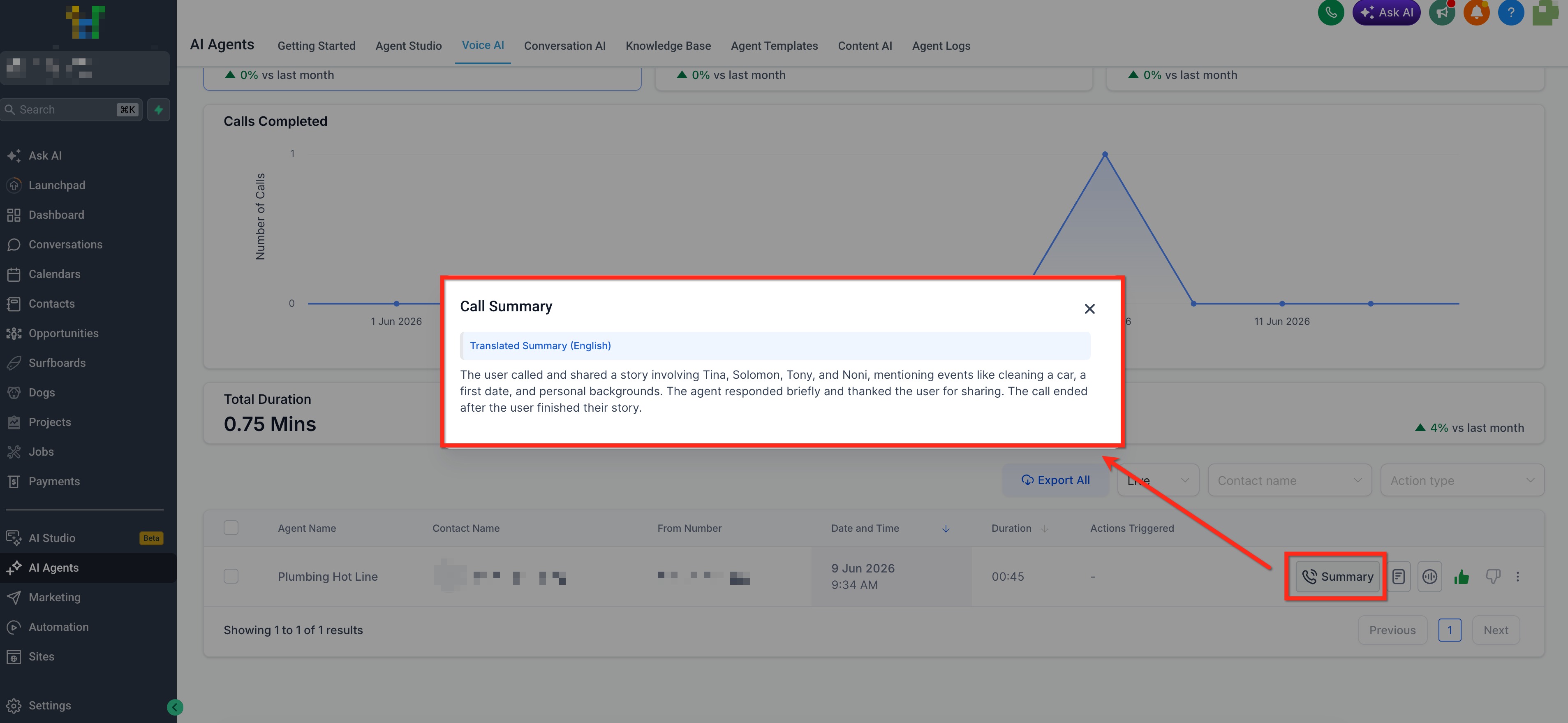
Call Summary
The Summary option gives you a short overview of what happened during the call. This helps you quickly understand the purpose and outcome of the conversation without reading the full transcript or listening to the recording.
Use Summary when you want to:
Review the main reason for the call
Confirm what the Voice AI agent handled
Check the outcome before opening more detailed call data
Call Transcript
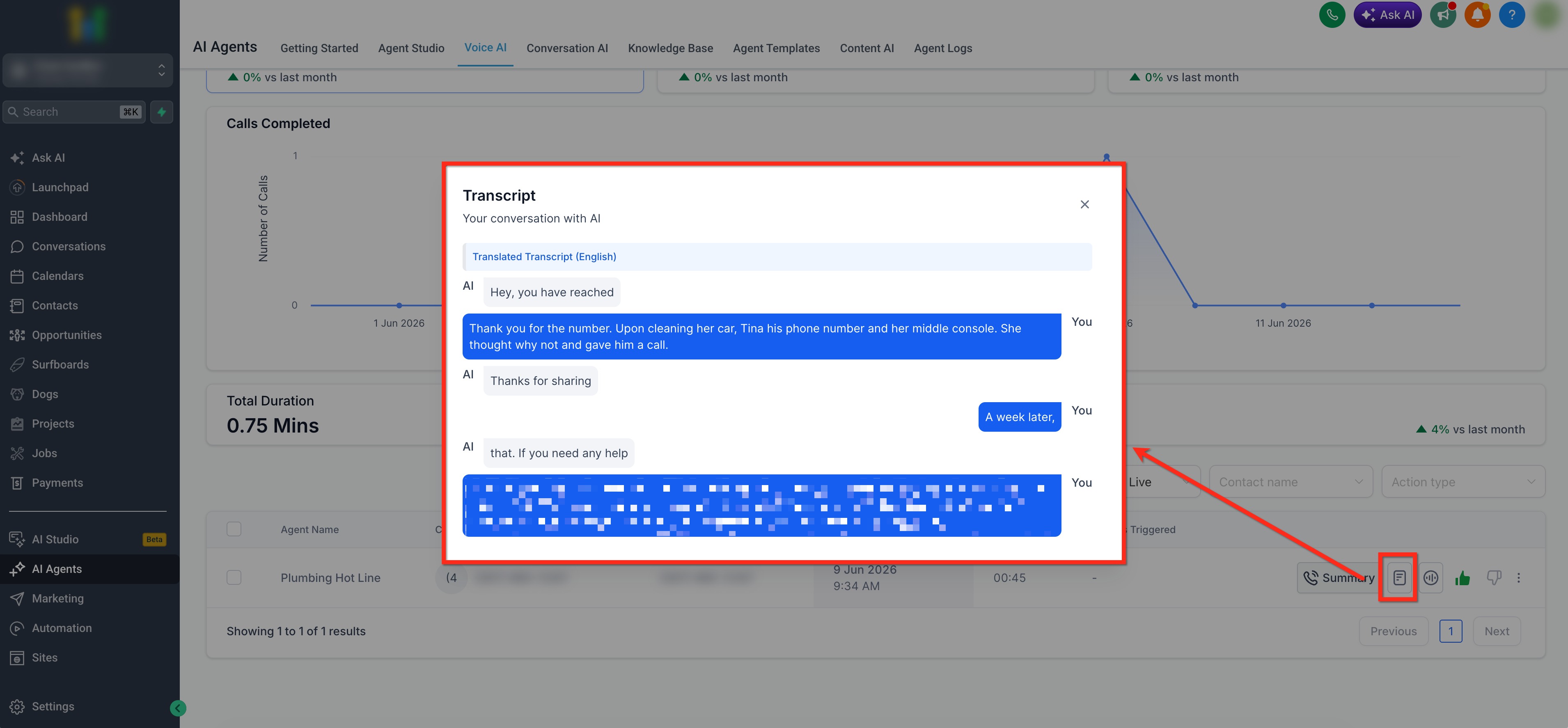
The Transcript option shows the full text of the conversation. This is useful when you need to review exactly what the caller said, how the Voice AI agent responded, and whether the conversation followed the intended flow.
Use View Transcript when you want to:
Review the exact conversation
Check how the agent handled questions or objections
Find areas to improve prompts, responses, or routing
Call Recording
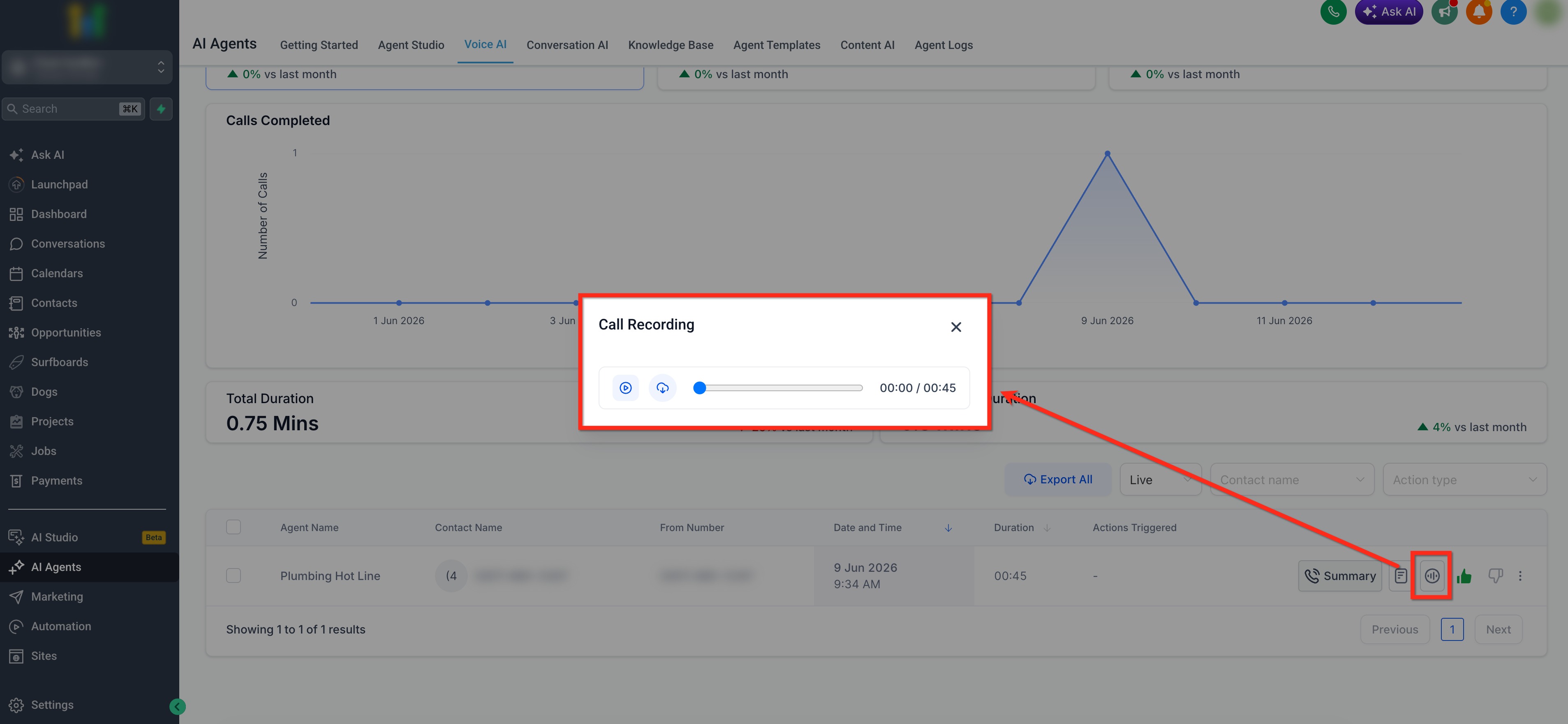
The Call Recording option lets you listen to the audio from the call when a recording is available. Listening to the original audio gives additional context such as tone, pacing, and caller intent.
From the recording window, you can:
Listen to the full conversation
Download the audio file when available
Bulk Export Call Logs
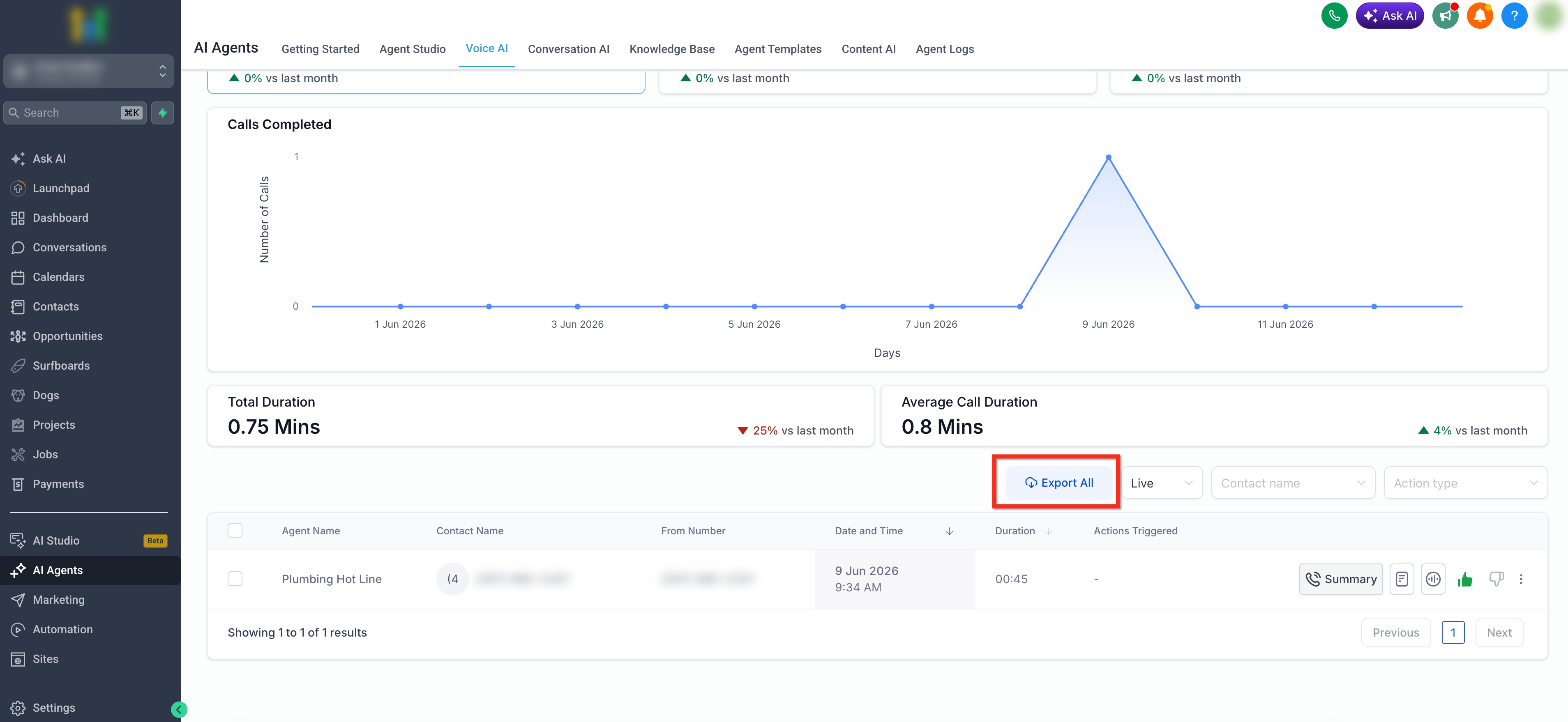
Bulk export lets you download Voice AI call logs as a CSV file. Exports respect your active filters, so only matching call logs are included in the file. You can filter by details such as contact, live or test calls, inbound or outbound calls, agent, date range, and action type. When you bulk export, it exports up to the 50 most recent calls that match your current filters.
To export all calls within the applied filters, click Export All. To download only specific calls, use the checkbox next to the calls to select them, then click Export.
Frequently Asked Questions
Q: How far back can I view call logs?
Call logs are available for all calls handled since the feature was activated.
Q: Are call logs available for all agents?
Yes, any Voice AI agent with call activity will have logs visible in their Agent Details page.
Q: Why can’t I download a recording for a call?
Recording downloads are available only for completed calls where a recording exists. Availability may also depend on provider support.