
The Voice AI Outbound Calling Dashboard gives businesses a clear view of outbound Voice AI performance. Use this dashboard to track call attempts, connected calls, call duration, triggered actions, sentiment trends, and detailed logs for outbound calls placed by AI agents.
TABLE OF CONTENTS
- What is the Voice AI Outbound Calling Dashboard?
- Key Benefits of the Voice AI Outbound Calling Dashboard
- Attempted Calls
- Connected Calls
- Actions and Sentiment
- Call Status Distribution
- Detailed Call Logs
- How To Use the Voice AI Outbound Calling Dashboard
- Frequently Asked Questions
- Need Help?
What is the Voice AI Outbound Calling Dashboard?
The Voice AI Outbound Calling Dashboard is an analytics view that helps businesses review outbound AI call performance. It brings the same clean reporting experience from the inbound Voice AI dashboard into a dashboard built specifically for outbound calls.
The dashboard tracks every outbound call attempt, including connected calls, no-answer calls, voicemail outcomes, and failed calls. It also includes performance tiles, trend charts, sentiment insights, triggered action reporting, and detailed call logs so teams can understand how outbound Voice AI campaigns are performing.
Key Benefits of the Voice AI Outbound Calling Dashboard
The outbound dashboard helps businesses quickly understand campaign performance, identify call outcome trends, and confirm which workflows are generating outbound call activity.
- Complete Call Visibility: Track every outbound call attempt, including connected, no-answer, voicemail, and failed calls.
- Connected Call Insights: View total connected calls along with total and average call duration.
- Performance Trend Tracking: Review outbound calling performance across month, week, and year trend charts.
- Action Monitoring: See how often outbound calls trigger actions within workflows and automations.
- Sentiment Analysis: Review positive, neutral, and negative sentiment trends from outbound conversations.
- Workflow Attribution: Use the Workflow Name column to identify which workflow initiated each outbound call.
- Detailed Call Review: Access call status, recordings, transcripts, duration, and source workflow details from the call logs.
Attempted Calls
Attempted Calls show the total number of outbound calls Voice AI tried to place. This includes all outbound call outcomes, not only successful conversations.
Attempted call outcomes may include:
- Connected
- No Answer
- Voicemail
- Failed
Use the Attempted Calls tile to understand total outbound dialing volume and campaign reach. This helps teams confirm whether outbound workflows are running as expected and whether the campaign is generating the expected number of call attempts.
Connected Calls
Connected Calls show how many outbound calls successfully reached a recipient or voicemail destination. This view helps teams understand how many outbound attempts resulted in an actual connection.
Connected call reporting includes:
- Total connected calls
- Total call duration
- Average call duration
- Month, week, and year trend charts
Use connected call data to measure conversation volume, review call duration patterns, and identify changes in outbound performance over time.
Actions and Sentiment
Actions and Sentiment help businesses understand what happened during and after outbound Voice AI calls. These insights mirror the inbound Voice AI dashboard experience while focusing on outbound call activity.
The dashboard can show:
- Actions Triggered: Tracks actions completed during or after outbound calls.
- Sentiment Analysis: Displays sentiment trends from outbound conversations, such as positive, neutral, or negative outcomes.
Use these insights to confirm outbound workflows are triggering correctly and to identify opportunities to improve agent prompts, call flows, and follow-up actions.
Call Status Distribution
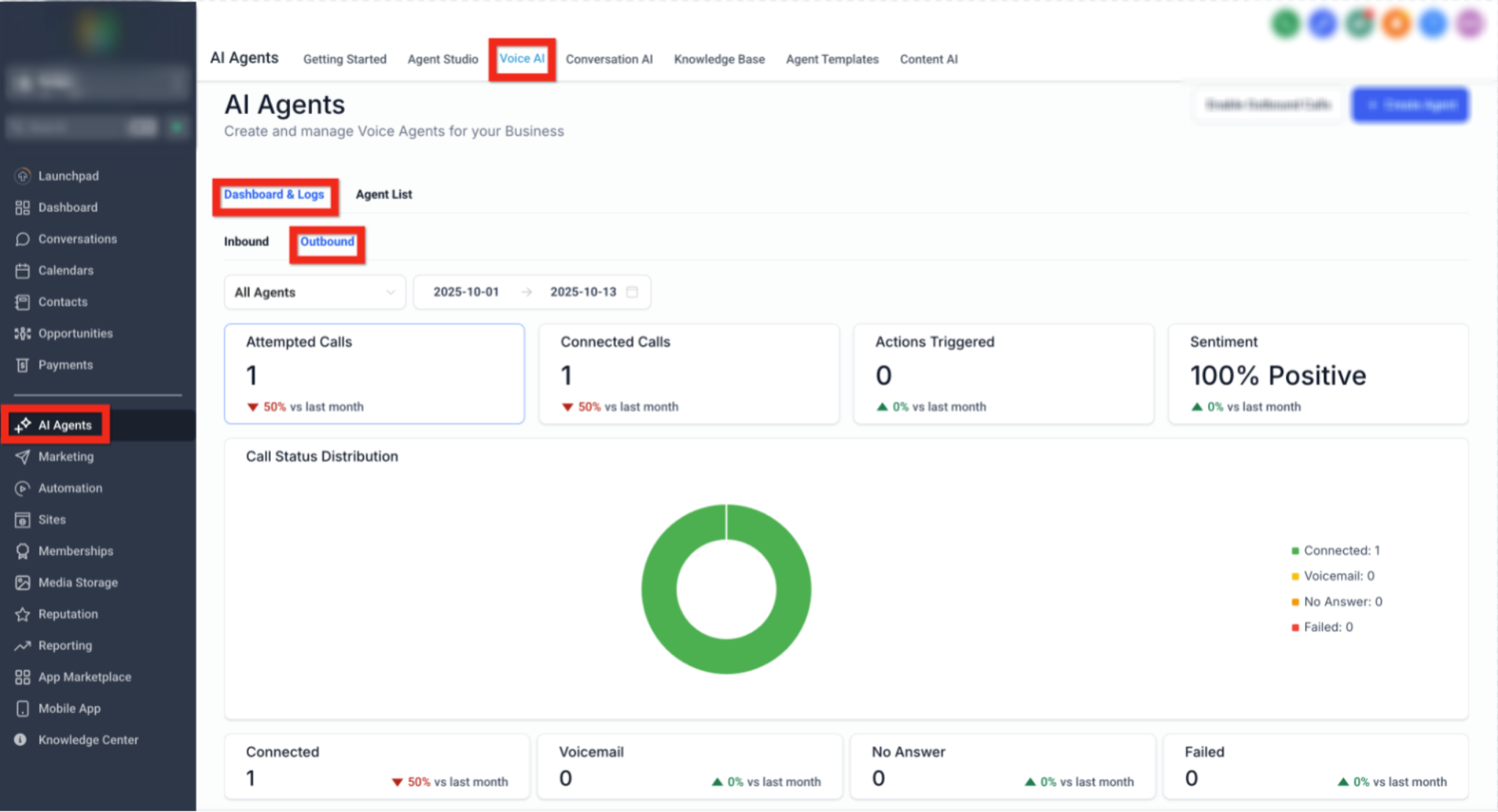
Call Status Distribution shows how outbound call attempts are split across different outcomes. This helps teams quickly understand whether calls are connecting, going to voicemail, receiving no answer, or failing.
Common call statuses include:
- Connected: The outbound call reached the contact or recipient endpoint.
- Voicemail: The call reached a voicemail box.
- No Answer: The call was placed but not answered.
- Failed: The call could not be completed.
Use this chart to identify patterns in call outcomes and decide whether call timing, contact lists, caller ID setup, or workflow targeting may need adjustment.
Detailed Call Logs
Detailed Call Logs provide a clear record of every outbound call attempt. This makes it easier to review call outcomes, troubleshoot failed calls, and understand which workflow started each call.
Outbound call logs may include columns such as:
- Call Status
- Workflow Name
- Contact Details
- Date and Time
- Duration
- Recording
- Transcript
The Call Status column identifies the result of the outbound attempt, such as Connected, Voicemail, No Answer, or Failed.
The Workflow Name column shows which workflow initiated the outbound call. This is especially useful when multiple workflows use outbound Voice AI and teams need to trace call activity back to the correct automation.
How To Use the Voice AI Outbound Calling Dashboard
The outbound dashboard gives teams a centralized place to review outbound AI call performance. Checking the dashboard regularly helps confirm campaigns are running properly and gives teams the data they need to improve workflows.
- Log in to the desired account.
- Go to AI Agents.
- Open the Voice AI tab.
- Select Dashboard & Logs.
- Click Outbound.
- Use the agent and date filters to narrow the dashboard results.
- Review the dashboard tiles for attempted calls, connected calls, actions triggered, and sentiment.
- Review the call status distribution chart for connected, voicemail, no-answer, and failed call outcomes.
- Use the lower summary tiles to compare call outcomes against the previous month.
- Open the call logs to review individual outbound call attempts when needed.
Frequently Asked Questions
Q: What does the Voice AI Outbound Calling Dashboard show?
It shows outbound Voice AI performance, including attempted calls, connected calls, call duration, triggered actions, sentiment trends, call status distribution, and detailed call logs.
Q: What counts as an attempted call?
Attempted calls include every outbound call Voice AI tries to place, including connected calls, no-answer calls, voicemail outcomes, and failed calls.
Q: What does the Connected Calls tile track?
Connected Calls tracks total connected calls, total call duration, average call duration, and performance trends by month, week, and year.
Q: What does Call Status mean in the call logs?
Call Status shows the outcome of the outbound call attempt. Common statuses include Connected, Voicemail, No Answer, and Failed.
Q: What is the Workflow Name column used for?
Workflow Name shows which workflow initiated the outbound Voice AI call. This helps teams connect call activity back to the correct automation.
Need Help?
If you need assistance reviewing outbound call analytics, understanding dashboard metrics, troubleshooting call outcomes, or analyzing Voice AI performance, contact support or your system administrator for assistance.