
Learn how Voice AI outbound calling works, which requirements and call limits apply, how to accept location-level outbound calling terms directly inside a workflow, how contact consent remains separate from platform terms, and where to review outbound call performance.
Accepting outbound calling terms does not establish consent for an individual contact. Businesses remain responsible for determining whether contacts can legally receive outbound AI calls and for honoring applicable consent requirements, opt-outs, DND preferences, and calling laws.
What is Voice AI Outbound Calling?
Voice AI Outbound Calling allows businesses to place AI-powered outbound calls from workflow actions. Users can add the Voice AI Outbound Call action to a workflow, select an AI agent, choose a From Phone Number, and let the workflow schedule the call automatically.
The same Voice AI agent can support both inbound and outbound calls when configured with the appropriate prompts and call instructions. Required outbound calling terms can also be completed directly inside the workflow action when the location has not previously accepted them.
Key Benefits of Voice AI Outbound Calling
Voice AI Outbound Calling helps teams scale phone outreach without manually dialing every contact. Workflow-based setup keeps call configuration organized while the higher daily capacity supports larger reminder, follow-up, and reactivation campaigns.
- Automated Call Scheduling: Place outbound calls from workflows without manual dialing.
- Workflow-Based Outreach: Trigger calls from forms, tags, appointments, pipeline changes, and other workflow events.
- Inline Outbound Setup: Accept required outbound calling terms directly from the Voice AI Outbound Call workflow action when prompted.
- One-Time Location Acceptance: Required terms are recorded at the location level instead of being required for every workflow.
- Agent Efficiency: Use Voice AI agents to handle outbound conversations and follow-up.
- Scalable Call Volume: Place up to 5,000 outbound Voice AI calls per location per day.
- Faster Throughput: Place up to 10 calls per minute per location.
- Time-Zone-Based Scheduling: Calls are scheduled between 8:00 AM and 8:00 PM based on the contact’s phone-number timezone.
- Same-Country Domestic Calling: Place calls to supported domestic numbers in the same country as the location.
- Performance Visibility: Review outbound activity and results from Voice AI reporting.
Voice AI Outbound Calling Requirements
Outbound Voice AI requires the location and workflow to meet supported platform requirements before calls can be placed. Accepting outbound calling terms inside the workflow simplifies setup, but it does not replace other eligibility, verification, consent, or compliance requirements.
- The location must remain within applicable Acceptable Use Policy thresholds.
- Calls must be placed through a workflow using the Voice AI Outbound Call action.
- An eligible Voice AI agent and From Phone Number must be selected.
- Required outbound calling terms must be accepted for the location when prompted.
- Applicable KYC or location-verification requirements must be completed.
- The contact must have a valid supported same-country domestic phone number.
- The business is responsible for determining whether each contact can legally receive the outbound call.
Contact consent: Voice AI does not perform platform-level contact consent validation before placing outbound calls. Businesses are responsible for managing consent through their own systems, legal workflows, or compliance processes.
Outbound Call Logic and Guidelines
Outbound calling safeguards control call volume, frequency, timing, and supported destinations. The increased daily location limit provides more campaign capacity while the other supported Voice AI outbound safeguards continue to apply.
| Guideline | Current Behavior |
|---|---|
| Call rate | Up to 10 calls per minute per location. |
| Daily location limit | Up to 5,000 outbound Voice AI calls per location per day. |
| Daily overflow | Calls above the daily limit are scheduled for the next eligible day. |
| Phone-number daily limit | Each phone number can be called once per day. |
| Phone-number 14-day limit | Each phone number can be called up to 14 times within 14 days. |
| Call hours | Calls are scheduled between 8:00 AM and 8:00 PM based on the contact’s phone-number timezone. |
| Country restriction | Calls are limited to supported same-country domestic numbers. |
Call handling: Calls that do not meet supported limits or safeguards may be delayed, rescheduled, blocked, or marked as failed.
Location-Level Outbound Calling Terms
Required outbound calling terms can now be accepted directly inside the Voice AI Outbound Call workflow action. This removes the need to leave the workflow builder and complete a separate terms-acceptance flow before configuring outbound calling.
If the location has not previously accepted the required outbound calling terms, the action drawer can include:
- AI Agent selection
- From Phone Number selection
- Required outbound calling consent checkbox
- Terms & Conditions
- Calling guidelines
Review the terms and Calling guidelines, select the required checkbox, and save the action. Acceptance is recorded once for the location, so the required acknowledgement does not need to be completed for every workflow action.
Updated terms: If the location previously accepted an earlier version of the terms, an optional checkbox may appear for the updated version. Accepting the updated version is optional and does not block saving the workflow action or continuing outbound calling.
Flexible Outbound Calling Framework
The Flexible Outbound Calling Framework gives businesses control over how they manage contact consent before placing outbound AI calls. Location-level acceptance of the platform’s outbound calling terms is separate from determining whether an individual contact can legally receive a call.
- The platform does not validate contact consent before placing outbound Voice AI calls.
- Businesses are responsible for ensuring contacts can legally receive outbound AI calls.
- Contact consent can be managed outside the platform.
- Accepting location-level outbound calling terms does not establish consent for an individual contact.
- Platform safeguards still apply, including applicable KYC requirements, call limits, calling hours, same-country calling, and Acceptable Use Policy thresholds.
- If a location exceeds applicable Acceptable Use Policy thresholds, outbound calling may be automatically paused.
Compliance responsibility: Businesses should continue honoring opt-outs, DND preferences, consent requirements, and applicable laws before enrolling contacts into outbound Voice AI workflows.
Voice AI Outbound Calling Dashboard
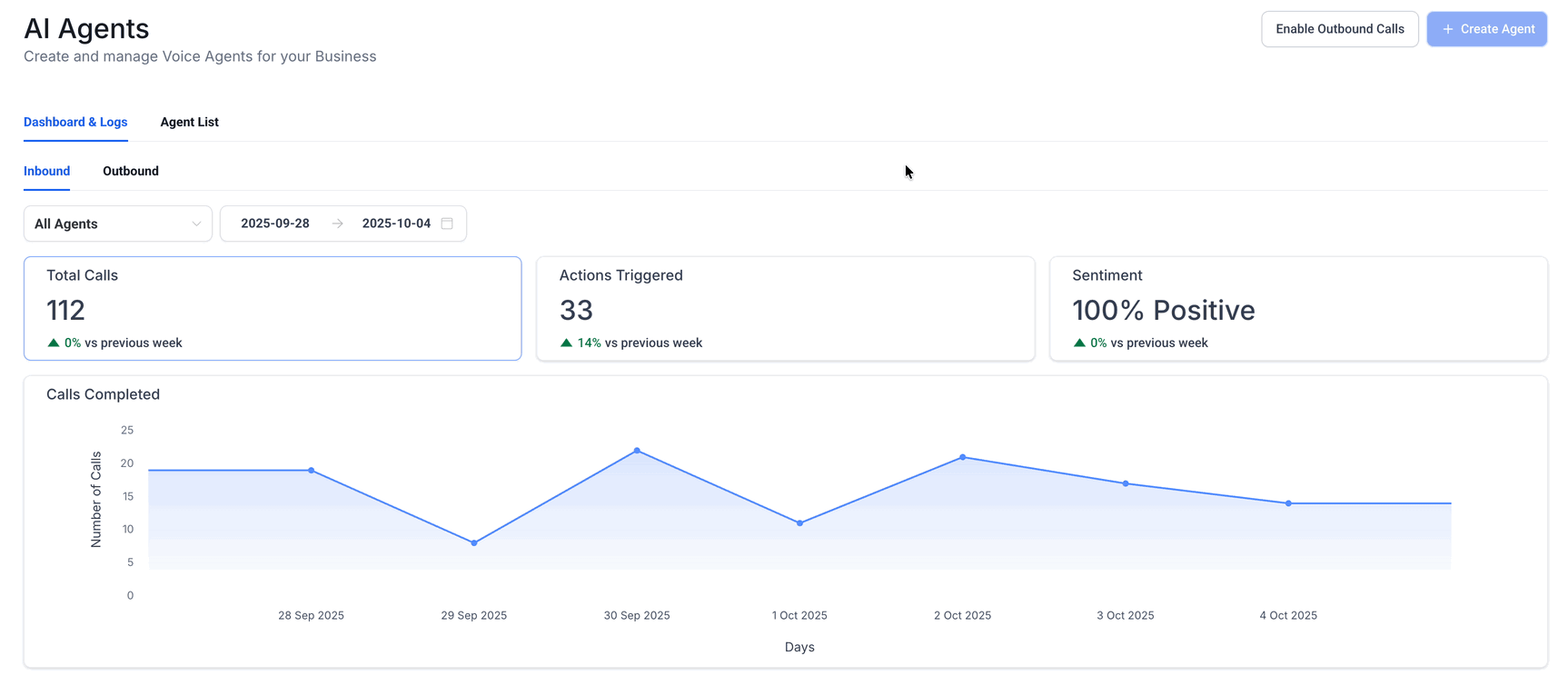
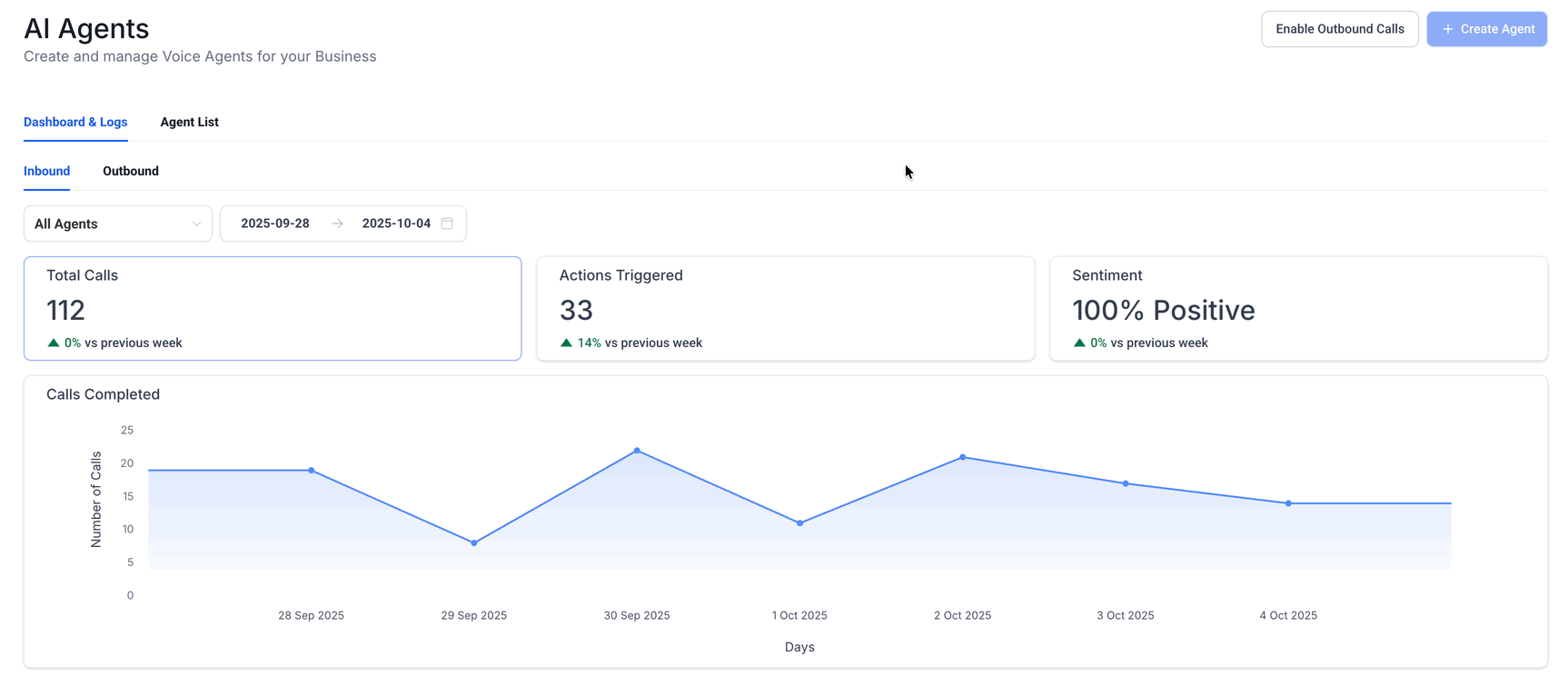
The Voice AI Outbound Calling Dashboard helps teams review outbound call performance and troubleshoot campaign results. It provides visibility into call outcomes, sentiment, triggered actions, and the workflow responsible for initiating each call.
- Attempted calls
- Connected calls
- Voicemail, no-answer, and failed calls
- Actions triggered
- Sentiment analysis
- Call logs
- Workflow name
How To Setup Voice AI Outbound Calling
Proper setup ensures the workflow can place outbound calls using the correct Voice AI agent, phone number, and location-level outbound calling terms. Review location eligibility and your contact-consent process before publishing the workflow.
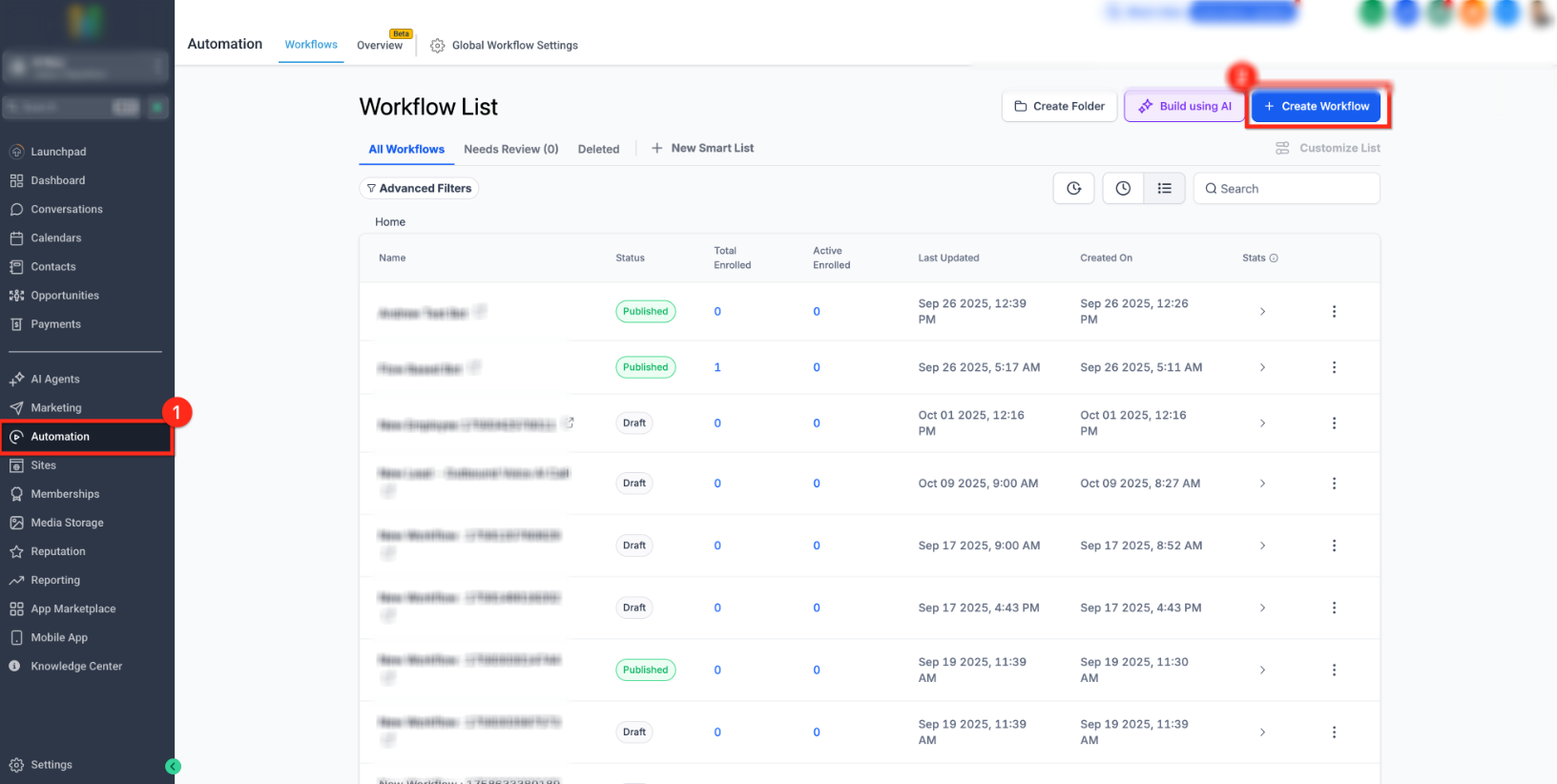
Step 1: Create a Workflow
The workflow determines when a contact reaches the outbound call action. Use triggers and conditions that match the audience and outreach scenario you intend to call.
- Go to Automation > Workflows.
- Click Create Workflow or open an existing workflow.
- Add the workflow trigger that should start the outbound call flow.
Step 2: Add the Voice AI Outbound Call Action
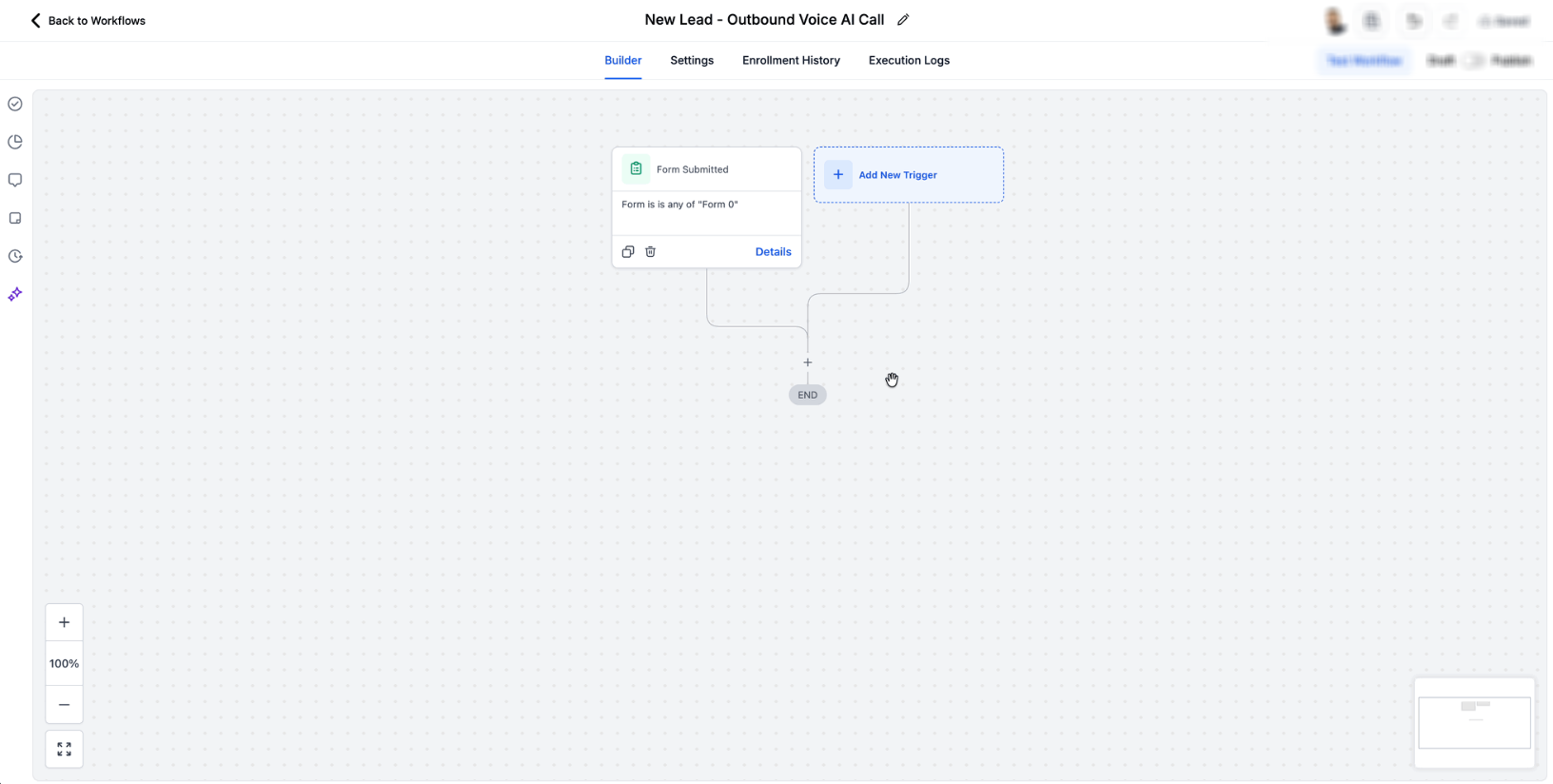
The Voice AI Outbound Call action connects the workflow to the Voice AI agent that will place the call when the contact reaches this step.
- Open the workflow builder.
- Click the + icon where the call should occur.
- Search for Voice AI Outbound Call.
- Select the action.
Step 3: Configure the Action
The selected AI Agent controls the conversation while the From Phone Number determines which eligible number is used to place the outbound call.
- Action Name: Name the workflow action.
- AI Agent: Select the Voice AI agent that will place the call.
- From Phone Number: Select the eligible phone number the agent will call from.
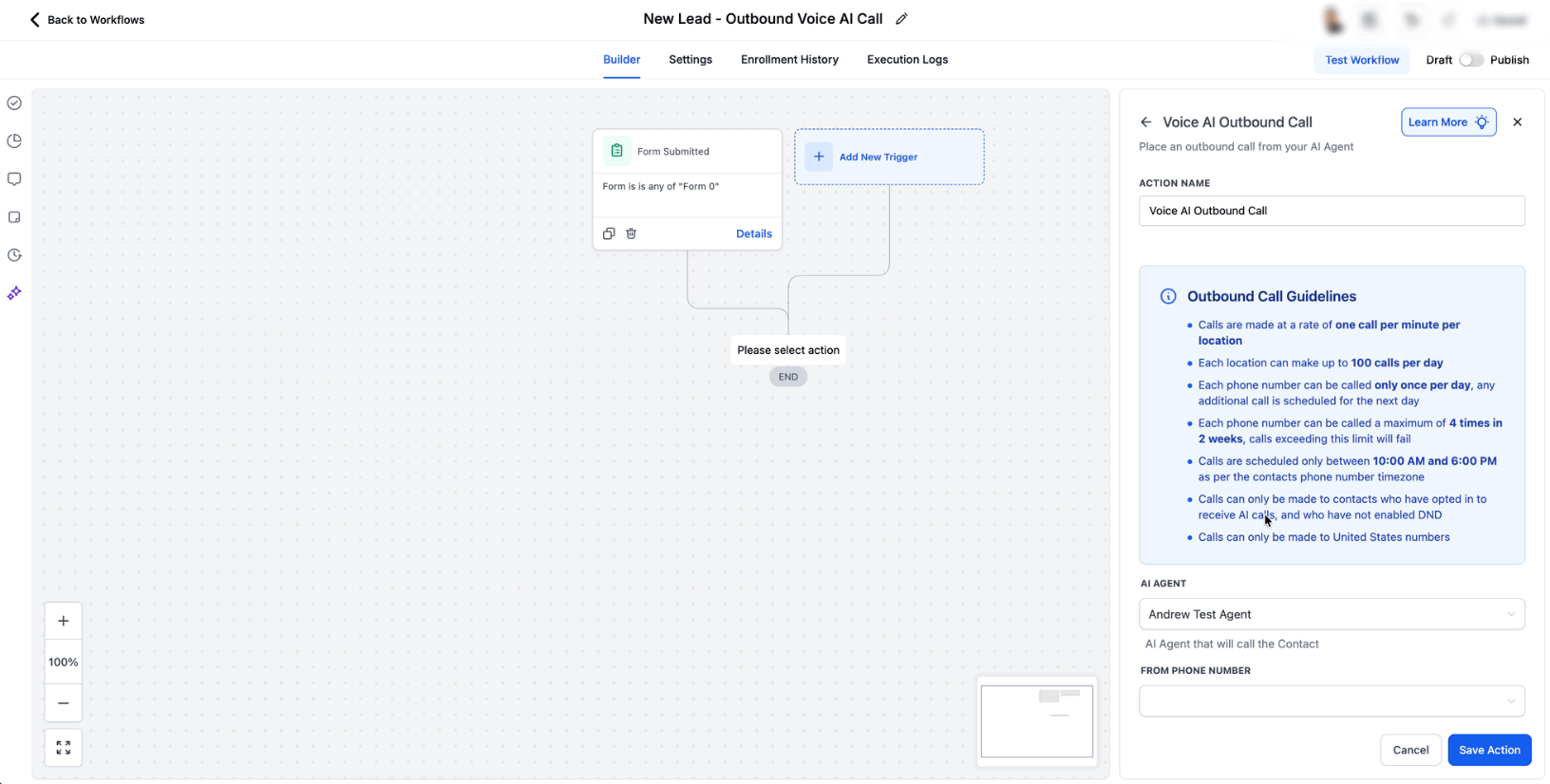
Step 4: Accept Outbound Calling Terms When Required
If the location has not yet accepted the required outbound calling terms, the acknowledgement can now be completed directly inside the Voice AI Outbound Call action without leaving the workflow builder.
- Review the Terms & Conditions when the required consent appears.
- Review the Calling guidelines.
- Select the required outbound calling consent checkbox.
- Save the action.
Already accepted terms: Required acceptance is recorded once per location. If an optional updated-terms checkbox appears for a location that previously accepted an earlier version, accepting the updated version is optional and does not block saving the action or continuing outbound calling.
Step 5: Save, Publish, and Test
Testing with an appropriate internal contact helps verify the workflow, Voice AI agent, calling number, and location eligibility before broader outreach begins.
- Save the Voice AI Outbound Call action.
- Publish the workflow.
- Add yourself or an appropriate internal test contact.
- Confirm the call is scheduled and placed.
- Review the call in AI Agents > Voice AI > Dashboard & Logs > Outbound.
Frequently Asked Questions
Need Help?
When outbound calls are not being placed as expected, checking the workflow action, location eligibility, calling limits, and call logs can help identify where the call is being delayed or blocked.
- Terms checkbox appears: Review the Terms & Conditions and Calling guidelines, then accept the required location-level terms before saving the action.
- Terms checkbox does not appear: The required terms may already have been accepted for the location. Continue with the available agent and phone-number configuration.
- Action cannot place a call: Confirm applicable KYC and other location-verification requirements are complete and that an eligible AI Agent and From Phone Number are selected.
- Calls are delayed: Review the daily location limit, per-number limits, calling hours, and other outbound safeguards.
- Calls appear in the workflow but do not connect: Review the outbound dashboard and call logs for voicemail, no-answer, failed, or other recorded outcomes.
- Contact eligibility is unclear: Confirm your organization’s consent and compliance process before placing the outbound call.
If the issue continues after reviewing the workflow configuration, location eligibility, calling limits, and call logs, contact your account administrator or support team for additional assistance.