
Learn how MCP connects AI clients to account tools, how to configure a Private Integration Token, how scopes control available actions, how to add the production MCP endpoint to a compatible client, and how to troubleshoot authentication, permissions, and missing tools.
The name used inside your client's mcpServers configuration is only a local alias. It does not need to contain a product or company name. The examples in this guide use production-mcp while preserving the required production endpoint.
2. Key Benefits of the MCP Server
3. Supported MCP Clients
4. Prerequisites
5. How To Connect to the MCP Server
6. Authentication and Permissions
7. Recommended Scopes
8. Available MCP Tools
9. Example MCP Workflows
10. Using MCP in AI Clients
11. Security and Best Practices
12. Frequently Asked Questions
13. Need Help?
What is the MCP Server?
Model Context Protocol, or MCP, is a standardized way for AI applications to discover and use external tools. The MCP Server acts as a bridge between an MCP-compatible AI client and supported account services, allowing the client to retrieve information and perform authorized actions.
Depending on the permissions granted to the connection, tools can be available for contacts, conversations, messages, calendars, opportunities, payments, locations, custom fields, blogs, email templates, social posting, and other supported resources.
https://services.leadconnectorhq.com/mcp/Key Benefits of the MCP Server
MCP provides a reusable connection layer between AI clients and approved account capabilities. Instead of creating a separate custom integration for every AI workflow, developers can expose authorized tools through a standardized connection.
- Centralized AI Access: Connect an AI client to multiple supported services through one MCP endpoint.
- Scoped Permissions: Control which resources the connection can read or modify.
- Natural Language Automation: Let compatible assistants choose approved tools in response to plain-language requests.
- Multi-Service Connectivity: Work with contacts, conversations, calendars, opportunities, payments, and other supported resources.
- MCP Compatibility: Use compatible developer tools, AI clients, or custom applications that support the required MCP transport and authentication.
- No Dedicated SDK Required: Use an MCP connection instead of building a full client SDK implementation for every supported action.
Supported MCP Clients
Client compatibility depends on whether the application can connect to a remote HTTP-based MCP server and provide the authentication required by the selected connection method. Some clients also support dedicated OAuth-based MCP connection flows.
| Client Type | Examples |
|---|---|
| Developer Editors | Cursor, Windsurf, and compatible development environments. |
| AI Development Tools | OpenAI Playground and other compatible remote MCP clients. |
| Claude Clients | Compatible Claude environments that support MCP connections. |
| Custom Applications | Internally developed or third-party applications that support the required MCP transport and authentication. |
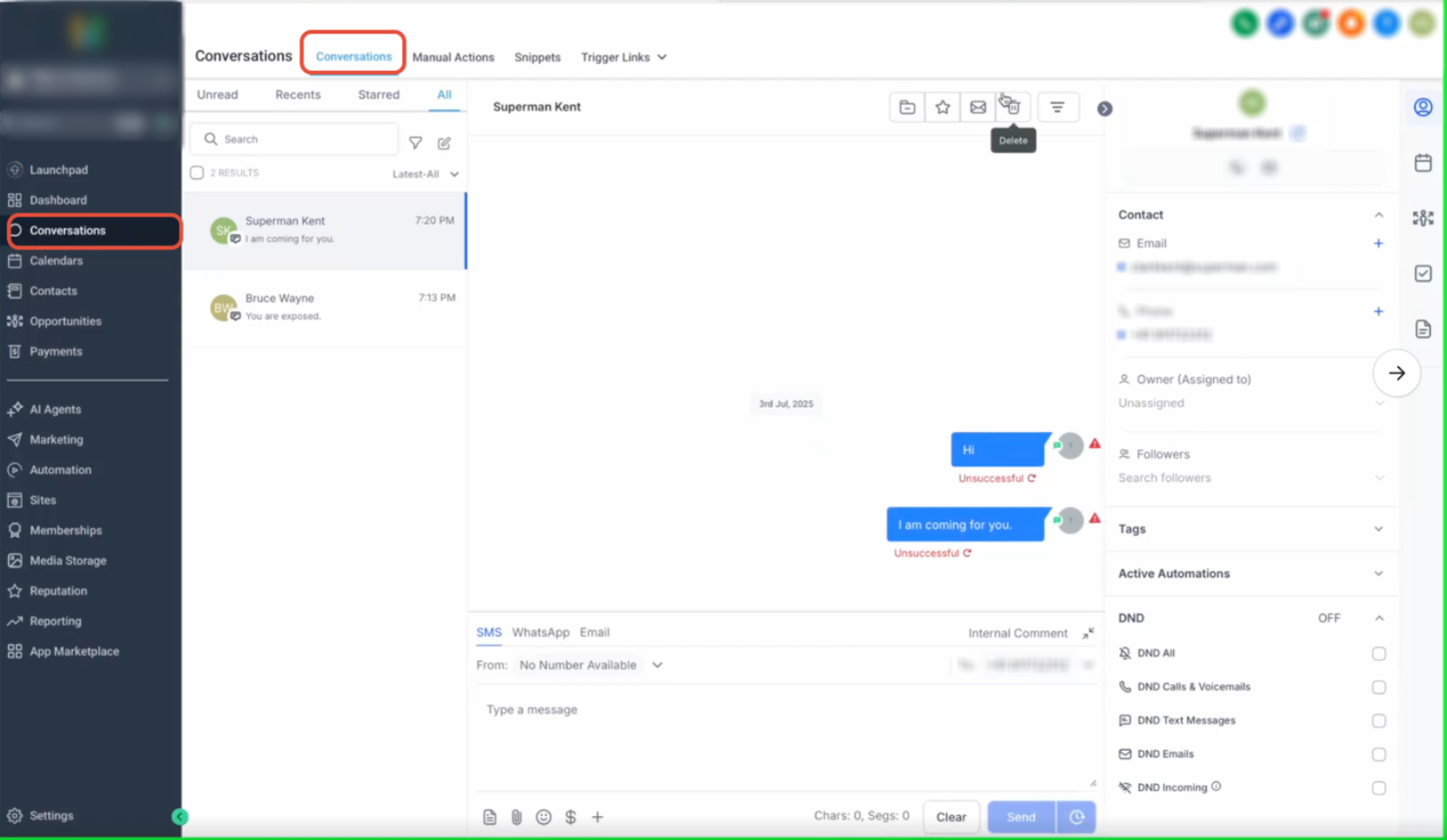
Client-specific behavior: Some supported AI clients may use a dedicated MCP endpoint or OAuth authorization flow that exposes a broader tool set than the universal endpoint shown in this guide. Follow client-specific setup instructions when a dedicated connection method is available.
Prerequisites
Preparing the correct account access, permissions, and MCP client before configuration helps prevent authentication failures and ensures the AI receives only the tools required for its intended workflow.
- Access to the account/location you want the AI client to use.
- Permission to create or manage a Private Integration if using token-based authentication.
- A Private Integration Token for the generic header-based setup.
- Only the scopes required by the AI workflow.
- The correct account/location ID.
- An MCP-compatible client capable of connecting to a remote MCP server.
How To Connect to the MCP Server
The universal MCP setup uses the production endpoint together with authentication and account/location context. Once the client connects successfully, it can discover tools allowed by the permissions granted to the connection.
- Open the account/location you want to connect.
- Go to Settings.
- Select Private Integrations.
- Click Create New Integration.
- Enter a recognizable name and description for the MCP connection.
- Choose only the scopes required by the AI workflow.
- Click Create Integration.
- Copy the generated token and store it securely.
Protect the token: Treat a Private Integration Token like a password. Do not place it in screenshots, shared prompts, public repositories, browser-side code, or other locations where unauthorized users could retrieve it.
Add the production MCP endpoint and authentication headers to your MCP client. The server name shown below is a neutral local alias and can be changed to another descriptive name.
{
  "mcpServers": {
    "production-mcp": {
      "url": "https://services.leadconnectorhq.com/mcp/",
      "headers": {
        "Authorization": "Bearer <your-token>",
        "locationId": "<your-location-id>"
      }
    }
  }
}<your-token>with your Private Integration Token.<your-location-id>with the ID of the account/location you want the client to access.
Why the server name changed: production-mcp is only the name your client uses to identify this connection. Changing the alias does not change the server or the available tools.
Save or test the MCP connection in your client. After authentication succeeds, the client can discover the tools exposed to the connection based on its scopes and permissions.
If your AI client lets you enable or disable individual MCP tools, expose only the tools needed for the intended workflow. Limiting unnecessary tools reduces risk and makes tool selection easier for the AI agent.
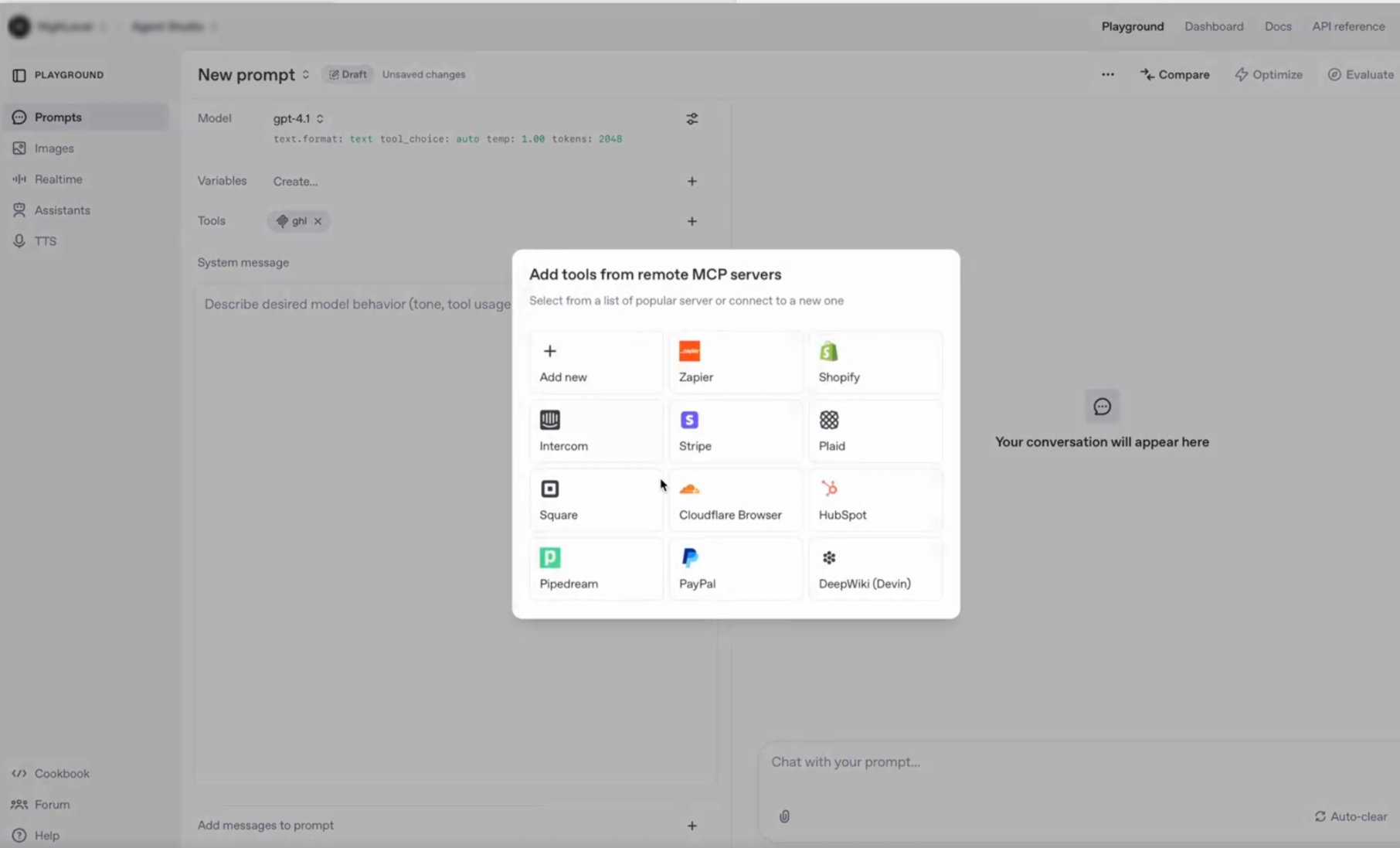
Authentication and Permissions
Authentication determines who is connecting, while scopes determine what that connection is allowed to do. The exact authentication experience can vary by MCP client and endpoint, so use the connection method supported by your client.
| Method | How It Works | Typical Use |
|---|---|---|
| Private Integration Token | A scoped token is passed in the Authorization header together with the location context. | Generic HTTP MCP clients, custom applications, and header-based integrations. |
| OAuth | A supported client launches an authorization flow where the user approves the account/location and permissions. | Supported client-specific MCP flows and compatible OAuth-enabled connections. |
Use the correct guide for your client: The configuration example in this article uses a Private Integration Token because it is suitable for the universal header-based MCP connection. If your client provides a dedicated OAuth MCP flow, use that client's supported authorization process instead of manually inserting credentials.
Recommended Scopes
Scopes determine which resources the AI client can access and whether it can only read information or also modify it. Select scopes based on the specific workflow rather than enabling every permission by default.
| Resource | Example Read Scope | Example Write Scope |
|---|---|---|
| Contacts | View Contacts | Edit Contacts |
| Conversations | View Conversations | Edit Conversations |
| Conversation Messages | View Conversation Messages | Edit Conversation Messages |
| Opportunities | View Opportunities | Edit Opportunities |
| Calendars | View Calendars | Edit Calendars |
| Calendar Events | View Calendar Events | Edit Calendar Events |
| Payments | View Payment Orders, View Payment Transactions | Enable payment write permissions only when specifically required and available. |
| Other Resources | View Custom Fields, View Forms, View Locations | Grant additional edit scopes only when required by a specific tool. |
Available MCP Tools
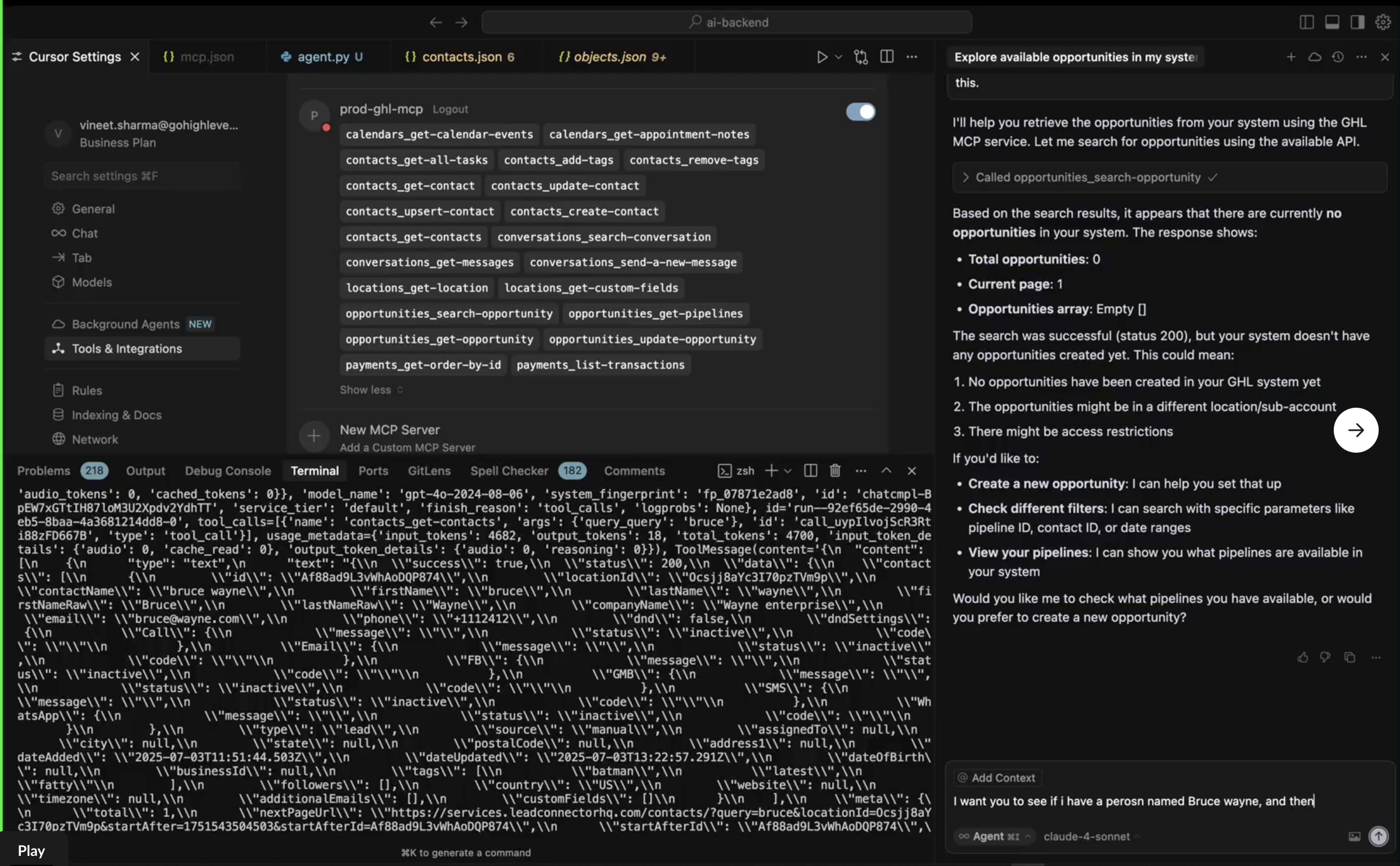
The universal MCP endpoint exposes tools across several product areas. The exact list visible to your AI client depends on the current MCP tool catalog, the connection type, the account/location, and the scopes granted to the connection.
Tool availability can change: Treat the tools discovered by your connected MCP client as the current source of truth. New tools may be added and existing capabilities may evolve over time.
Calendar Tools
Calendar tools retrieve scheduling and appointment information for workflows that need event or appointment context.
calendars_get-calendar-eventscalendars_get-appointment-notes
Contact Tools
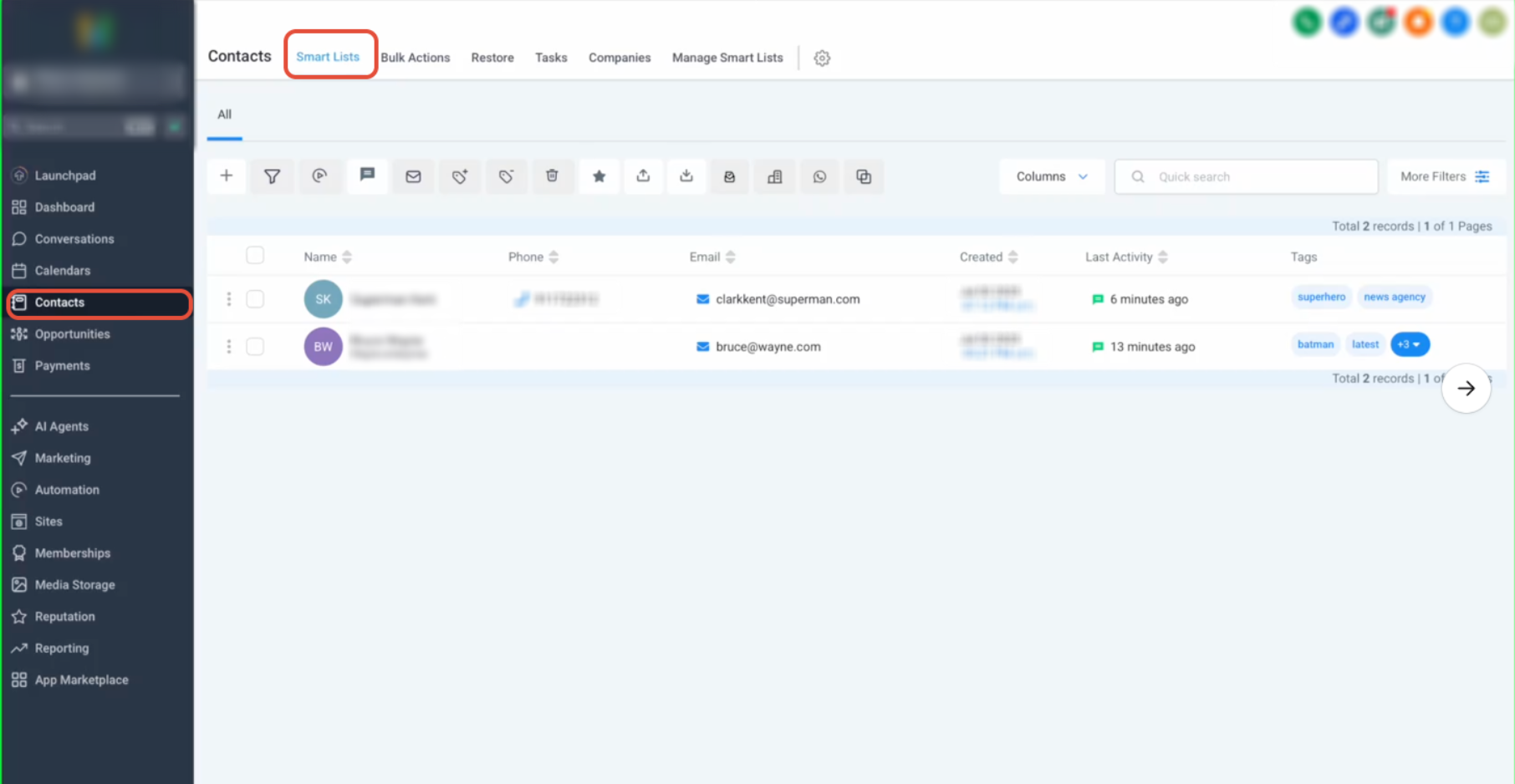
Contact tools can retrieve records, create or update contacts, manage tags, and retrieve contact-related tasks.
contacts_get-all-taskscontacts_add-tagscontacts_remove-tagscontacts_get-contactcontacts_update-contactcontacts_upsert-contactcontacts_create-contactcontacts_get-contacts
Conversation Tools
Conversation tools let an authorized AI client search conversation records, retrieve messages, and send supported messages.
conversations_search-conversationconversations_get-messagesconversations_send-a-new-message
Location Tools
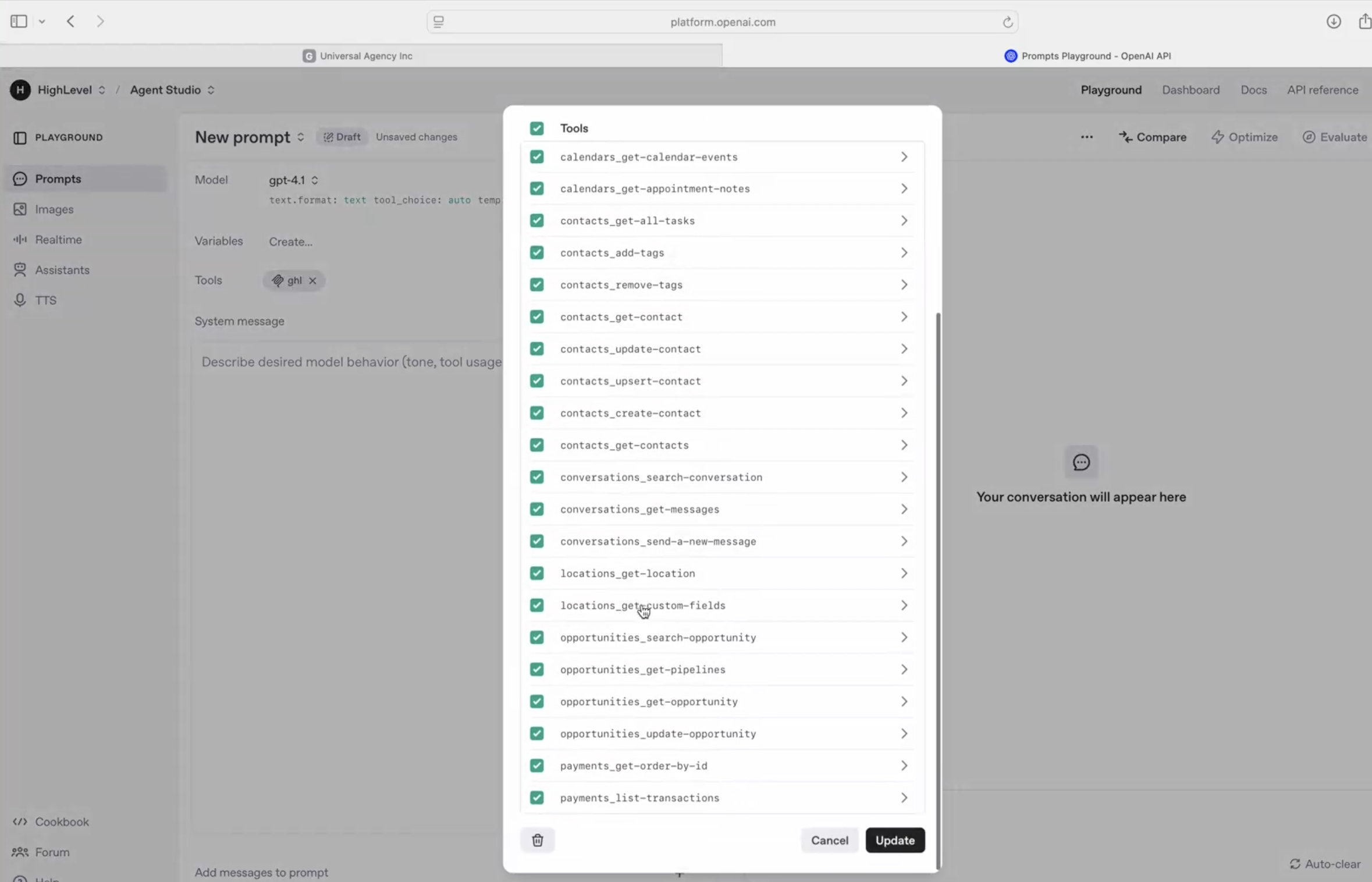
Location tools provide account/location details and custom field definitions that may be needed by other automated actions.
locations_get-locationlocations_get-custom-fields
Opportunity Tools
Opportunity tools allow approved AI workflows to search pipeline data, retrieve an opportunity, or update opportunity information.
opportunities_search-opportunityopportunities_get-pipelinesopportunities_get-opportunityopportunities_update-opportunity
Payment Tools
Payment tools can retrieve supported order and transaction information when the connection has the required read permissions.
payments_get-order-by-idpayments_list-transactions
Blog Tools
Blog tools allow compatible AI workflows to retrieve blog configuration and content information or perform supported publishing-related actions.
blogs_check-url-slug-existsblogs_update-blog-postblogs_create-blog-postblogs_get-all-blog-authors-by-locationblogs_get-all-categories-by-locationblogs_get-blog-postblogs_get-blogs
Email Template Tools
Email template tools allow authorized workflows to retrieve or create supported email templates.
emails_create-templateemails_fetch-template
Social Media Tools
Social media tools provide supported access to connected accounts, statistics, and social post management when the necessary permissions are granted.
socialmediaposting_get-accountsocialmediaposting_get-social-media-statisticssocialmediaposting_create-postsocialmediaposting_get-postsocialmediaposting_get-postssocialmediaposting_edit-post
Example MCP Workflows
Once the MCP connection is authenticated and the appropriate tools are available, an AI client can translate a user's request into one or more authorized tool calls. The exact action depends on the tool set and permissions available to the connection.
- Search for a contact by available identifying information.
- Create or update a contact.
- Add or remove contact tags.
- Review conversation history.
- Send a supported message.
- Retrieve calendar events or appointment notes.
- Search opportunities or pipelines.
- Update an opportunity.
- Review supported payment order or transaction data.
- Create or update supported blog content.
- Retrieve or create email templates.
- Retrieve social statistics or manage supported social posts.
Using MCP in AI Clients
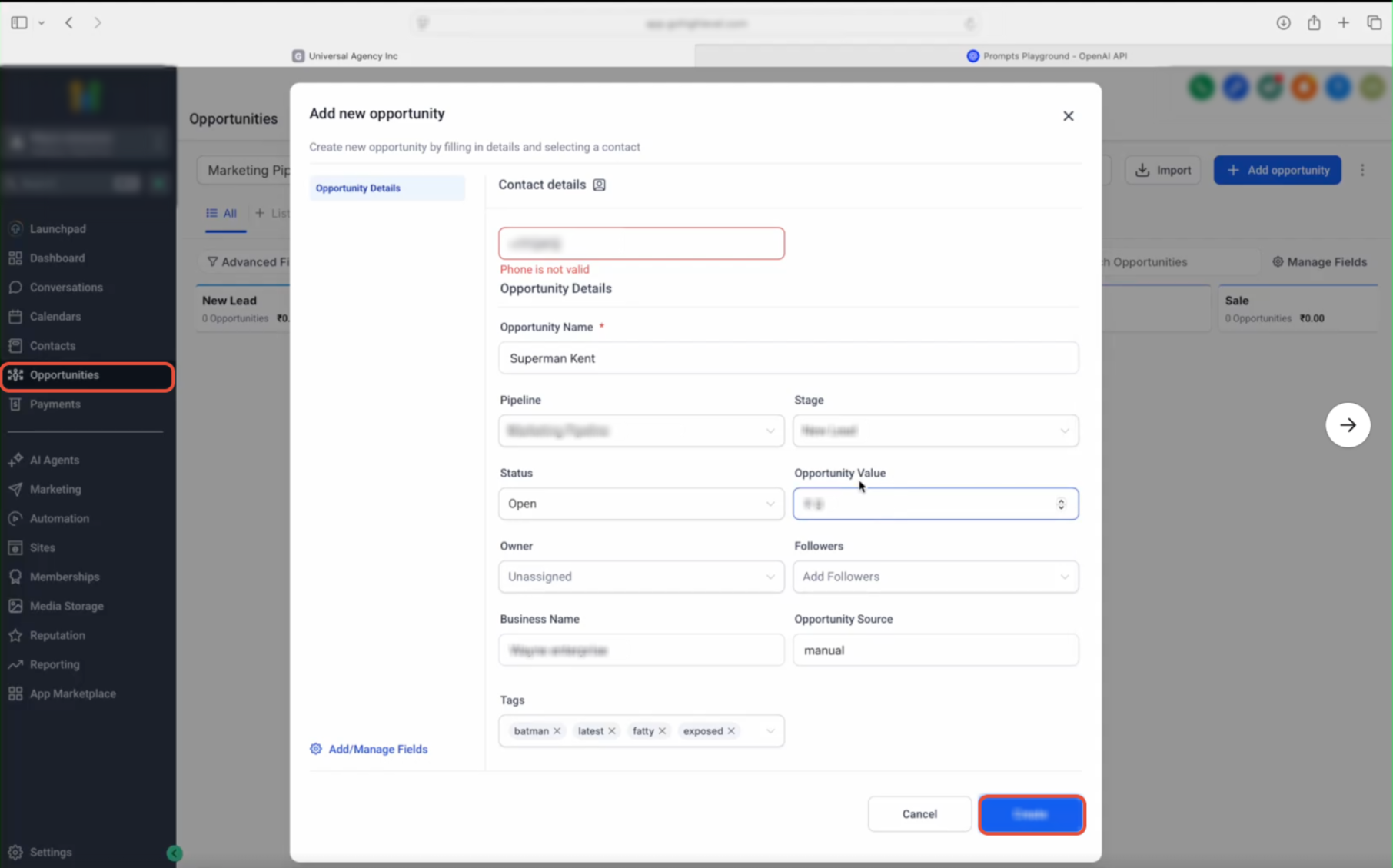
After the server is connected, the AI client can discover available tools and determine which approved tool is appropriate for a user's request. Clear prompts make it easier for the client to choose the correct action and avoid unintended write operations.
The client can use an available contact-search tool to find matching records and summarize the result.
The client can call an opportunity-search tool if that tool is available and the connection has the required scope.
Security and Best Practices
An MCP connection can expose both read and write capabilities to an AI client. Restricting access, protecting credentials, and testing high-impact actions before production use reduces the risk of unauthorized or unintended changes.
- Use Least-Privilege Access: Grant only the scopes required by the AI workflow.
- Separate Read and Write Needs: Do not enable edit permissions when the assistant only needs to retrieve information.
- Protect Tokens: Store Private Integration Tokens in secure configuration or secret storage.
- Never Place Secrets in Prompts: Do not paste tokens into AI conversations, shared instructions, screenshots, or public code.
- Test With Representative Data: Confirm the client chooses the intended tools before enabling production use.
- Review Tool Access: Disable tools that are unrelated to the AI agent's purpose.
- Monitor Write Actions: Pay particular attention to tools that create, update, send, publish, or otherwise modify data.
- Rotate or Revoke Exposed Credentials: Replace a token promptly if you believe it has been compromised.
- Use Clear Agent Instructions: Define when the assistant may perform an action and when it should ask the user for confirmation.
Frequently Asked Questions
Need Help?
If the MCP client cannot connect, identify whether the failure is caused by the server URL, authentication, location context, scopes, or the client's MCP configuration. Checking each layer separately usually makes the issue easier to isolate.
- Connection Fails Immediately: Confirm the MCP endpoint is entered exactly and that the client's configuration is valid JSON or follows the format required by that client.
- Unauthorized Error: Verify the Private Integration Token is active, copied correctly, and included in the Authorization header.
- Wrong Account Data: Confirm the configured
locationIdmatches the intended account/location. - Tools Are Missing: Review the connection's scopes and reconnect or refresh tool discovery after changing permissions.
- Read Works but Updates Fail: Confirm the connection has the necessary edit scope in addition to its read permission.
- Client Does Not Accept Headers: Check whether that client requires an OAuth-based or client-specific MCP connection instead of the header-based configuration shown here.
- Tool Execution Fails: Capture the tool name, input, error message, timestamp, authentication method, client name, and affected account/location before contacting support.