
Maintain consistent branding across AI-generated content by applying Brand Voice and Brand Kit (Design Kit) directly within Agent Studio. These settings help your AI agents generate text, images, videos, and audio that reflect your business’s messaging and visual identity. This article explains how branding works, how to configure it, and best practices for managing branded AI workflows.
TABLE OF CONTENTS
- What are Brand Voice & Brand Kit?
- Key Benefits
- Supported AI Generation Nodes
- Brand Board Sync
- Configure Brand Voice & Brand Kit
- Multi-Brand Workflows
- Best Practices
- Frequently Asked Questions
What are Brand Voice & Brand Kit?
Brand Voice and Brand Kit allow Agent Studio to automatically apply your branding to AI-generated content.
A Brand Voice defines how your business communicates, including:
- Tone
- Messaging style
- Personality
- Writing guidelines
- Call-to-action style
A Brand Kit (Design Kit) defines your visual identity, including:
- Colors
- Logos
- Fonts
- Design elements
Once selected, these settings are automatically passed to supported AI generation nodes.
Key Benefits
Using Brand Voice and Brand Kit helps create consistent AI-generated content while reducing manual editing.
- Consistent branding: Keep text, images, videos, and audio aligned with your brand.
- Automatic synchronization: Future AI generations use the latest Brand Board settings.
- Reduced editing: Generate content that’s already on brand.
- Multi-brand support: Assign different brands to different nodes within the same workflow.
- Centralized management: Update your Brand Board once and future generations reflect those changes.
Supported AI Generation Nodes
Brand Voice and Brand Kit can be applied to the following AI Generation nodes:
- Text Generation
- Image Generation
- Video Generation
- Audio Generation
Each node can use its own Brand Voice and Brand Kit, giving you flexibility across complex workflows.
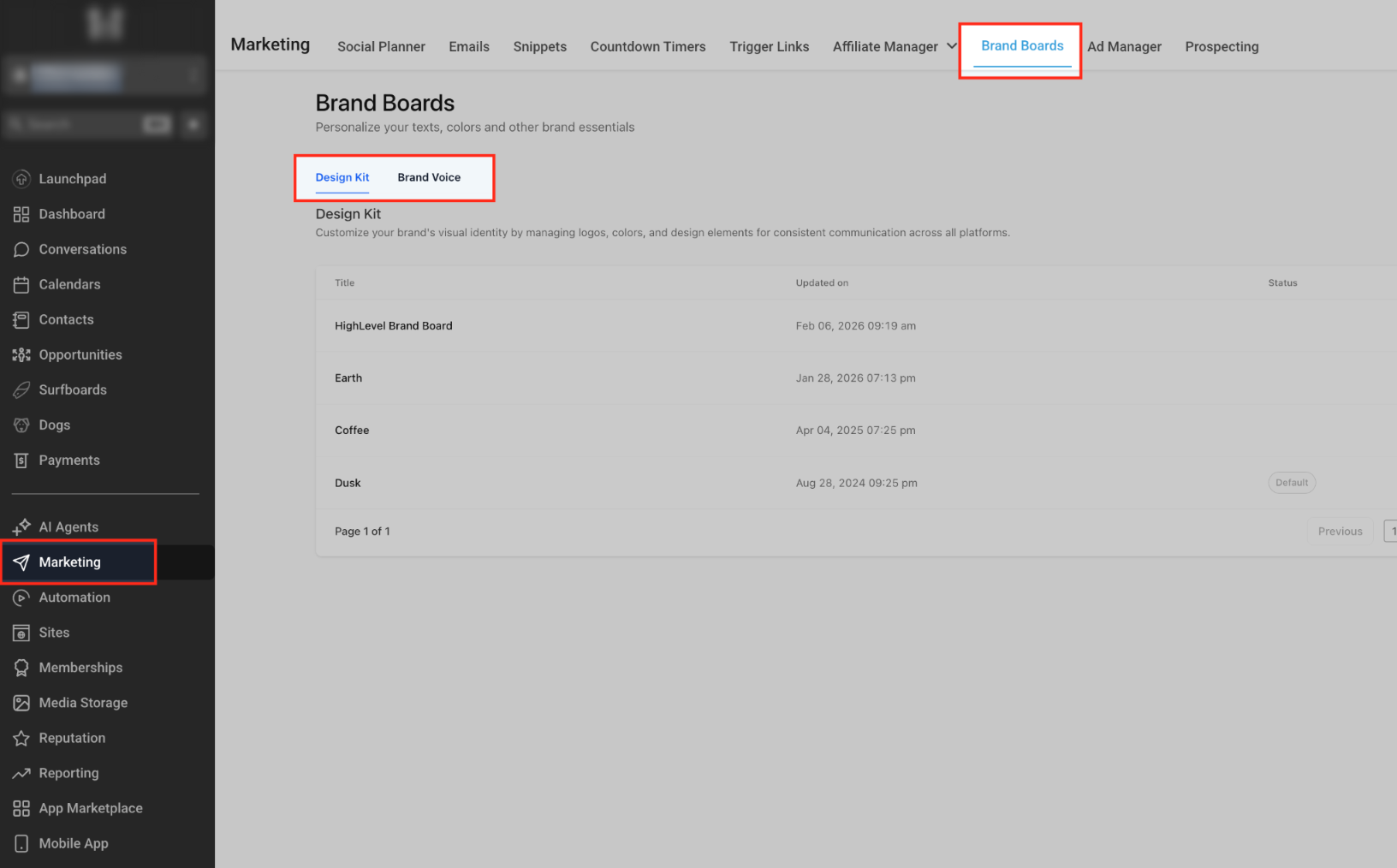
Supported AI Generation nodes inside Agent Studio.
Brand Board Sync
Agent Studio automatically retrieves your Brand Voice and Brand Kit from Marketing → Brand Boards.
Updates to your Brand Board—such as new messaging, logos, colors, or fonts—are automatically applied to future AI generations.
Note: Existing generated content is not updated retroactively.
Configure Brand Voice & Brand Kit
Applying branding to your AI generation nodes takes only a few steps.
Step 1: Create a Brand Board
Navigate to:
Marketing → Brand Boards
Create or manage your:
- Brand Voice
- Brand Kit (Design Kit)
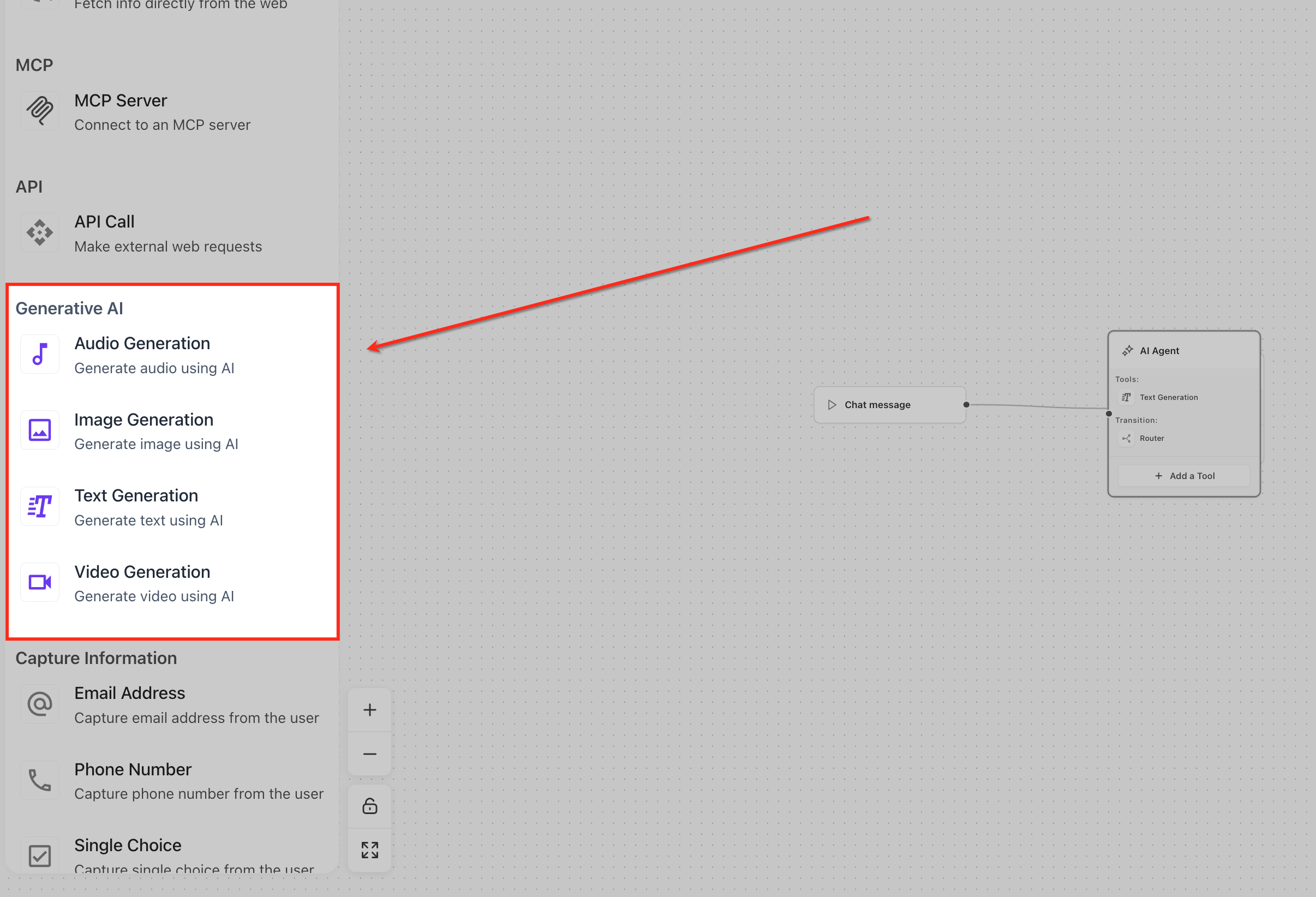
Brand Boards page showing the Brand Voice and Design Kit tabs.
Step 2: Open Agent Studio
Navigate to:
AI Agents → Agent Studio
Open an existing AI Agent or create a new one.
Add a supported AI Generation node.
Step 3: Select Your Brand
Open the node settings.
From the Brand Voice dropdown, you can:
- Select an existing Brand Voice
- Select None for non-branded content
- Click + Add New to create a Brand Voice without leaving Agent Studio
If supported, select a Brand Kit (Design Kit) using the same process.
Click Save to apply your changes.
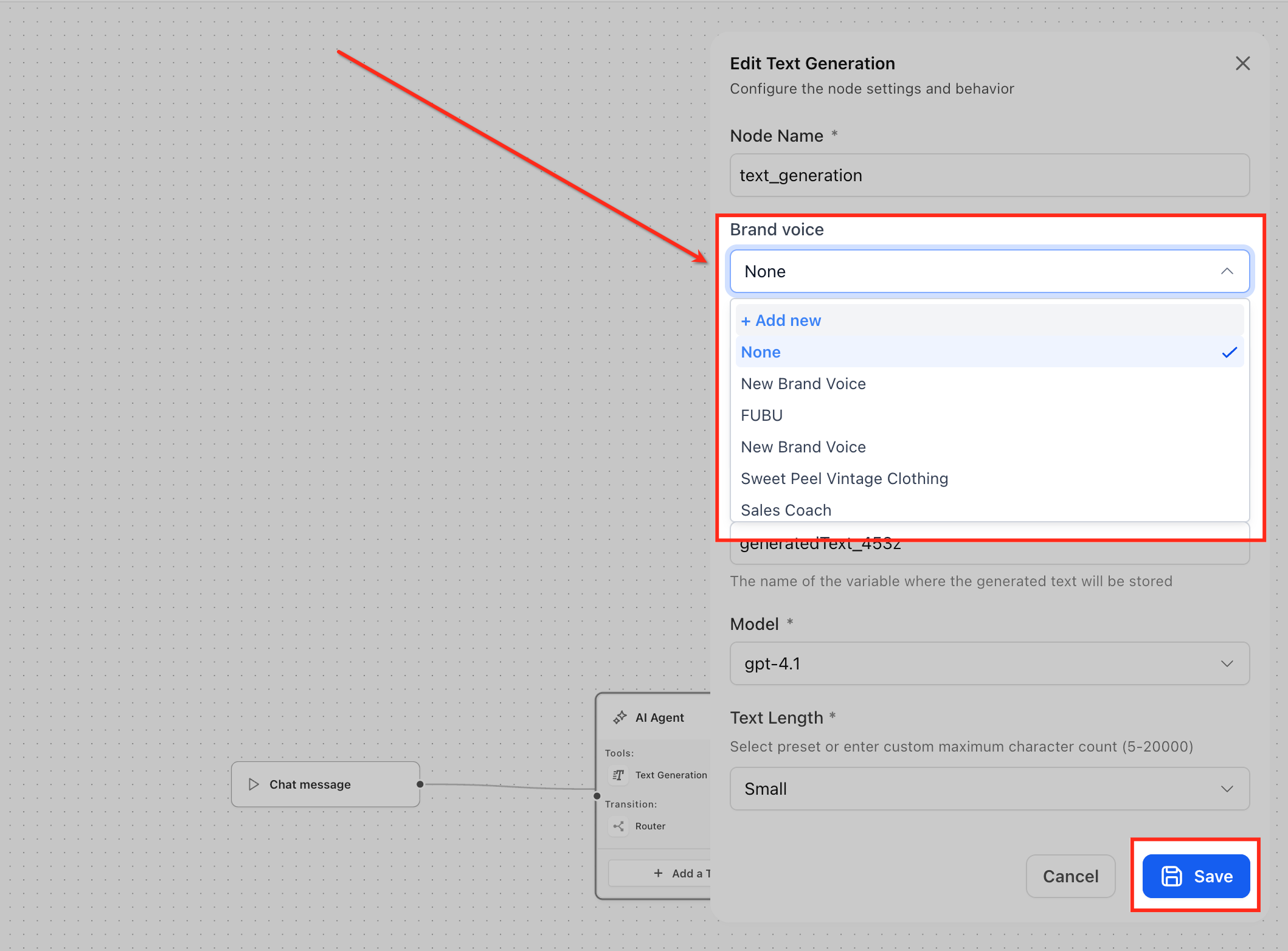
Brand Voice dropdown showing existing Brand Voices, + Add New, and the Save button.
Step 4: Test Your Content
Run a test before publishing to confirm your generated content matches your brand.
Review:
- Tone and messaging
- Brand personality
- Visual consistency
- Overall quality
If needed, update your Brand Board or select a different Brand Voice before testing again.
Step 5: Publish Your Agent
Once you’re satisfied with the results, publish your AI Agent or move it to the appropriate environment.
Future AI generations will continue using the selected Brand Voice and Brand Kit until you choose different settings.
Multi-Brand Workflows
Each AI Generation node can use its own Brand Voice and Brand Kit, making it easy to manage multiple brands within a single workflow.
Common use cases include:
- Marketing agencies managing multiple clients
- Franchise businesses with localized branding
- Multiple product lines or business units
- A/B testing messaging strategies
Each node independently follows its assigned branding.
Best Practices
Following these recommendations helps maintain consistent branding across AI-generated content.
- Configure your Brand Boards before building workflows.
- Keep Brand Voice guidelines up to date.
- Use descriptive Brand Voice names.
- Test content after updating your Brand Board.
- Create separate Brand Voices for each client or brand.
- Select None only when intentionally creating generic content.
- Review generated content before publishing.
Recommendation: Configure your Brand Voice and Brand Kit in Marketing → Brand Boards before building agents, workflows, or funnels to minimize post-build edits.
Frequently Asked Questions
Q: Do I need a Brand Board before using Brand Voice in Agent Studio?
Yes. Brand Voices and Brand Kits must be created in Marketing → Brand Boards before they can be selected inside Agent Studio.
Q: Can I create a new Brand Voice without leaving Agent Studio?
Yes. Select + Add New from the Brand Voice dropdown to create a new Brand Voice directly from the node.
Q: Can I generate content without branding?
Yes. Select None in the Brand Voice or Brand Kit dropdown to generate generic content.
Q: Will updating my Brand Board automatically update my workflows?
Future AI generations automatically use the latest Brand Board settings. Previously generated content is not updated.
Q: Can different nodes use different Brand Voices?
Yes. Each AI Generation node can use its own Brand Voice and Brand Kit.
Q: Which AI Generation nodes support Brand Voice and Brand Kit?
Branding is supported on Text Generation, Image Generation, Video Generation, and Audio Generation nodes.
Q: Can agencies manage multiple client brands?
Yes. Agent Studio supports multiple Brand Voices and Brand Kits, making it ideal for multi-client workflows.
Q: Does Brand Voice override my prompt?
No. Your prompt still directs the AI. Brand Voice provides additional context so the output aligns with your brand.
Need Help?
If Brand Voice or Brand Kit options are not appearing in Agent Studio, first verify that your Brand Boards have been created and that the AI Generation node you’re using supports branding. Also confirm that the correct Brand Voice and Brand Kit have been selected before generating content.
If your generated content does not reflect recent updates to your Brand Board, remember that changes apply only to future AI generations. Existing text, images, videos, and audio that have already been generated will not automatically update after Brand Board changes are made.
Before troubleshooting further, verify that:
- A Brand Voice has been created and saved.
- A Brand Kit (Design Kit) has been configured, if applicable.
- The correct Brand Voice and Brand Kit are selected on the AI Generation node.
- The node supports Brand Voice and Brand Kit.
- The latest version of your Brand Board has been saved before generating new content.
If you continue experiencing issues with branding, synchronization, or AI-generated output, contact your account administrator or support team and include screenshots of your Brand Board configuration, Agent Studio node settings, and the generated content. This information will help speed up troubleshooting and resolution.