
Agent Studio is visual builder for creating AI-powered agent workflows without code. It lets you combine AI responses, structured steps, routing logic, tools, and variables in one drag-and-drop canvas. Use Agent Studio to build agents that can answer questions, search connected knowledge sources, collect information, and take action based on the flow you design.
TABLE OF CONTENTS
- What is Agent Studio?
- Key Benefits of Agent Studio
- Agent Studio Features
- Visual Agent Builder
- AI Agent Node
- Sequential Node
- Conditional Routing
- Knowledge Base for RAG
- Variables
- Global Prompt
- Testing and Publishing
- How To Set Up Agent Studio
- Frequently Asked Questions
What is Agent Studio?
Agent Studio gives you a visual workspace to build and manage AI agents. Instead of writing code, you can add nodes to a canvas, connect them together, and configure how each step should behave.
Agents can use prompts, AI models, tools, variables, Knowledge Bases, and routing logic to guide conversations or complete tasks. This makes Agent Studio useful for building simple AI assistants as well as more advanced multi-step workflows.
Key Benefits of Agent Studio
Agent Studio helps teams create more flexible and reliable AI workflows while keeping the build process simple.
- No-code visual builder: Create agent workflows using a drag-and-drop canvas.
- AI and logic together: Combine AI-powered responses with structured steps and predictable actions.
- Smarter routing: Send users through different paths based on intent, variables, conditions, or tool results.
- Knowledge-based answers: Connect Knowledge Bases so agents can respond using approved business information.
- Reusable variables: Store values like API keys, location IDs, user details, or business settings for use across the workflow.
- Built-in testing: Test your agent before publishing it to make sure prompts, tools, and routing work correctly.
- Version control: Save changes, publish updates, and manage versions more safely.
Agent Studio Features
Agent Studio includes several tools that work together to help you build complete AI workflows.
Visual Agent Builder
The visual builder is where you design the agent workflow. You can add nodes, connect them, and configure each step from the settings panel.
The builder includes:
- Left panel: Add nodes and tools.
- Canvas: Build and connect your workflow.
- Right panel: Configure the selected node.
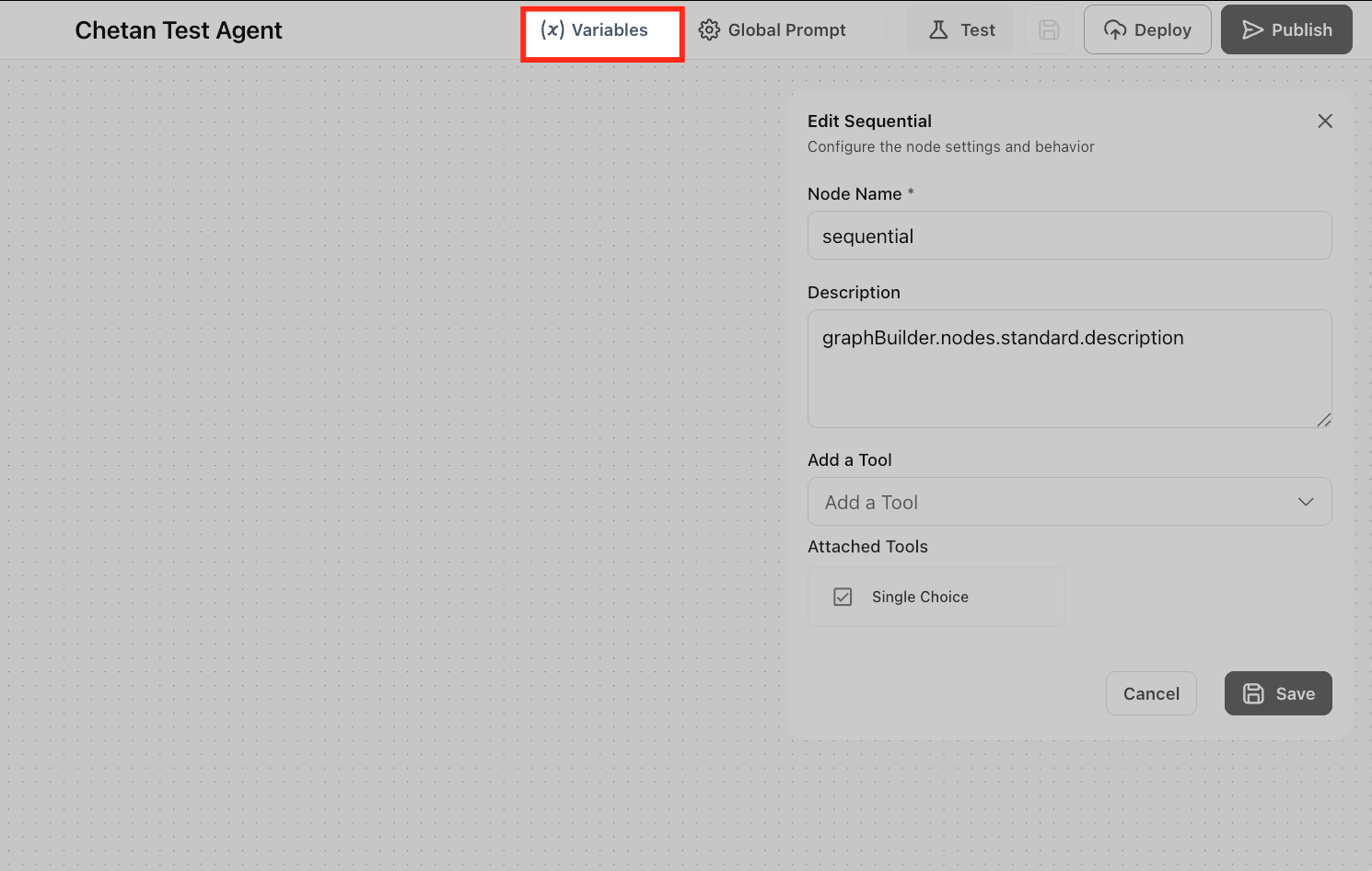
- Top menu: Access Variables, Global Prompt, Test, Deploy, and Publish.
AI Agent Node
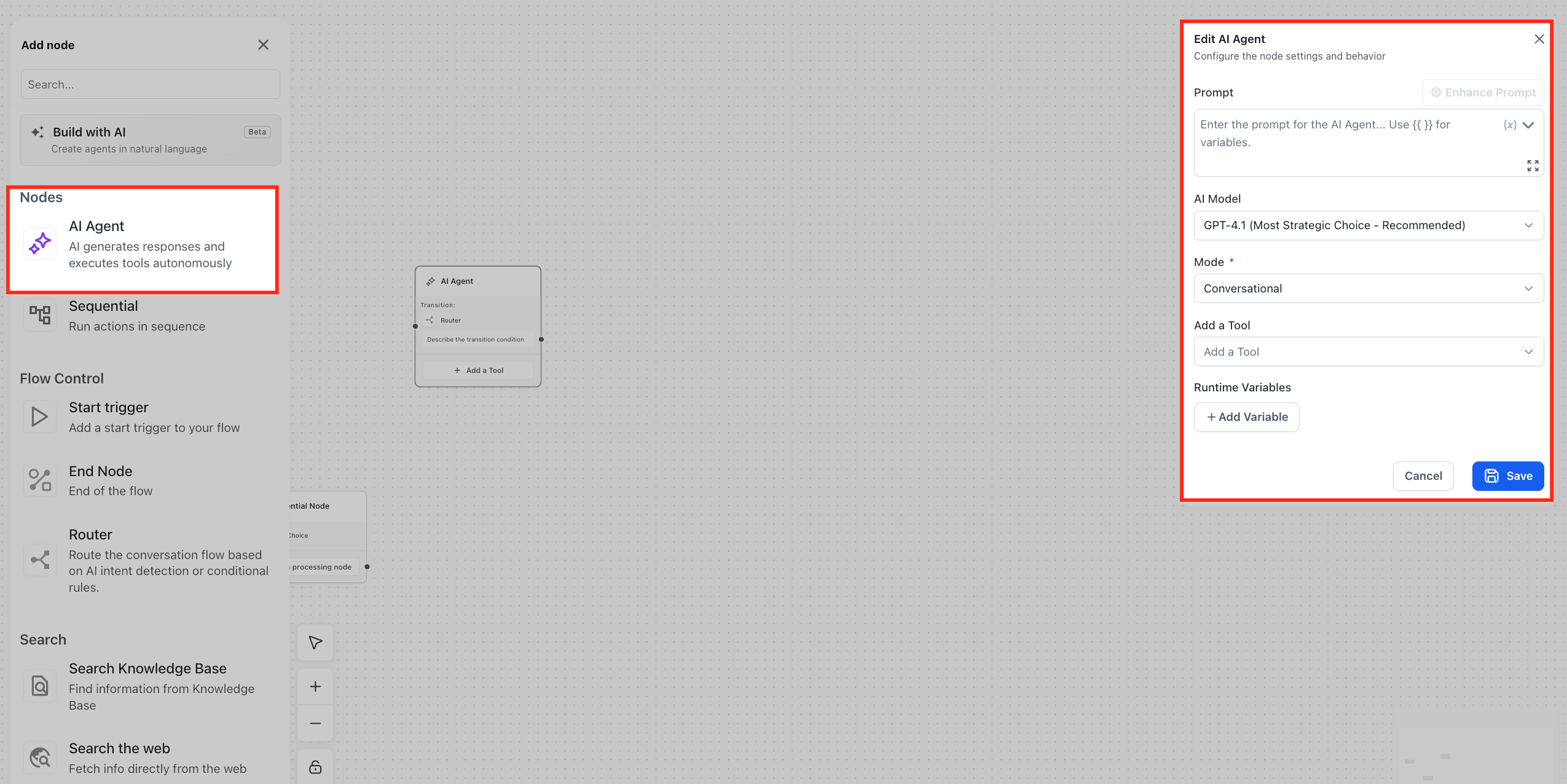
The AI Agent Node is used when your workflow needs the agent to think, respond, or use tools. This node controls the agent’s prompt, model, mode, tools, and variables.
Use an AI Agent Node for:
- Answering customer questions
- Searching a Knowledge Base
- Using Web Search
- Generating content
- Calling connected tools or integrations
- Making decisions based on user input
Sequential Node
Sequential Nodes are used for predictable, step-by-step actions. They are helpful when the workflow needs to follow a specific process instead of relying on AI reasoning.
Use Sequential Nodes for:
- Form capture
- Validation
- API requests
- Webhook-style actions
- Passing data between steps
Conditional Routing
Conditional routing controls where the workflow goes next. Routes can be based on user input, variables, tool outputs, or AI-detected intent.
For example, you can route a billing question to one path, a booking request to another path, and a support issue to a Knowledge Base search.
Knowledge Base for RAG
Knowledge Base tools allow agents to retrieve approved business information before responding. This helps the agent give answers that are more accurate, relevant, and aligned with your business content.
Supported knowledge sources may include:
- Websites
- FAQs
- Files
- CSVs or tables
- Formatted text
Variables
Variables let you reuse information across the agent workflow. They help keep your workflow cleaner and make responses more personal.
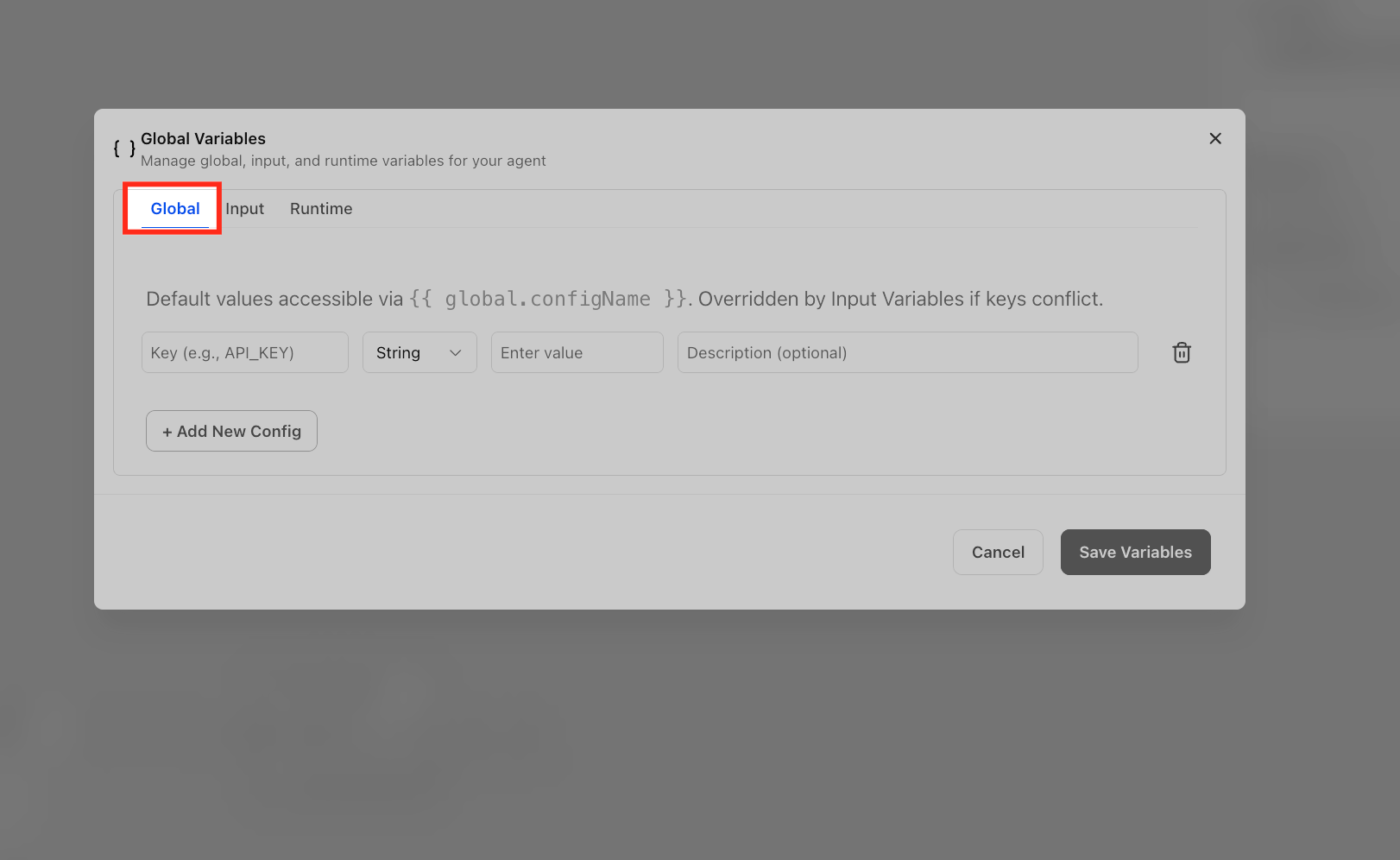
Agent Studio supports:
- Global Variables: Shared values used across the agent, such as API keys or business settings.
- Input Variables: Values passed into the agent when the workflow starts.
- Runtime Variables: Values captured or created while the agent is running.
Global Prompt
The Global Prompt helps keep the agent’s tone and behavior consistent. Use it to define your brand voice, response style, escalation rules, or formatting preferences.
Example:
Respond in a friendly, professional tone. Keep answers clear and concise. Use the Knowledge Base when business-specific information is needed.
Testing and Publishing
Testing lets you preview how the agent behaves before it goes live. You can enter sample messages, review the response, check routing, and confirm that tools and variables are working correctly.
Once the agent is ready, publish it so the production version can be used.
How To Set Up Agent Studio
A simple setup flow helps you create and publish your first agent quickly.
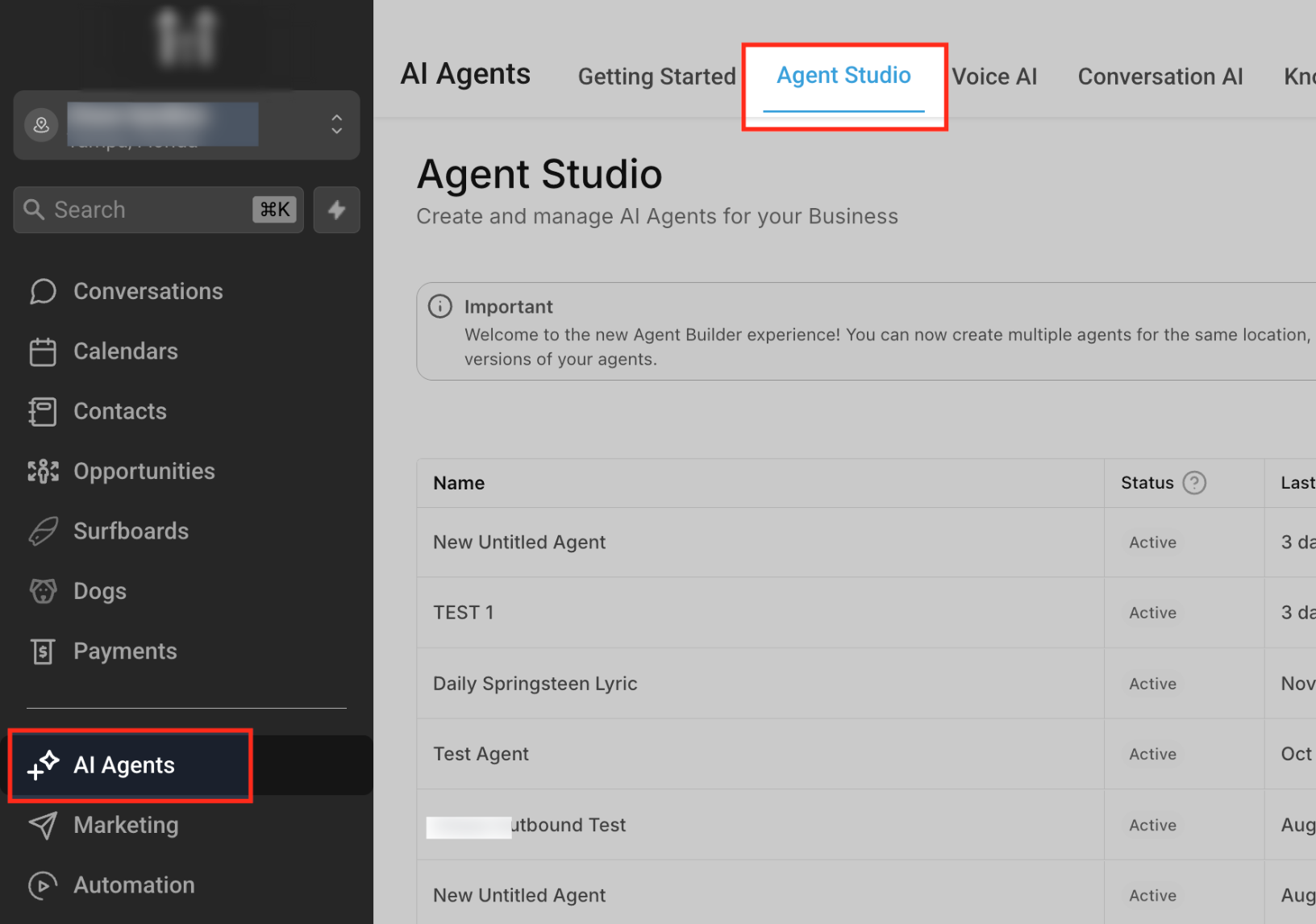
Step 1: Open Agent Studio
From your dashboard, click AI Agents in the left sidebar, then select the Agent Studio tab.
Step 2: Create or Open an Agent
Click + Create Agent to start a new agent, or select an existing agent from the list to edit it.
Step 3: Add and Configure an AI Agent Node
Drag the AI Agent node onto the canvas. Click the node to configure the prompt, model, mode, tools, and variables.
Example prompt:
You are a helpful assistant for a business. Answer questions clearly and politely. Use the Knowledge Base when relevant. If you need more information, ask a follow-up question.
Step 4: Add Logic, Tools, and Variables
Add Sequential Nodes, Knowledge Base Search, Web Search, or other tools as needed. Use Variables to store values that the workflow can reuse, such as user details, API keys, or location information.
Step 5: Test and Publish
Click Test to run sample messages through the workflow. Review the response, routing, tool usage, and variable behavior. When everything looks correct, click Publish to make the agent live.
Frequently Asked Questions
Q: Do I need to know how to code to use Agent Studio?
No. Agent Studio is designed as a no-code/low-code builder. Most workflows can be created visually on the canvas.
Q: What is the difference between an AI Agent Node and a Sequential Node?
An AI Agent Node is used for AI reasoning, responses, and tool use. A Sequential Node is used for predictable steps like validation, form capture, or API actions.
Q: Can Agent Studio use a Knowledge Base?
Yes. Agents can use connected Knowledge Bases to retrieve business-specific information before responding.
Q: Do all routes need conditions?
No. A route can continue by default without a condition, or you can add conditions when the workflow needs to branch.
Q: What are variables used for?
Variables store reusable information, such as API keys, user details, location IDs, or values captured during the conversation.
Q: Should I test my agent before publishing?
Yes. Testing helps confirm that prompts, tools, variables, routing, and responses work as expected before the agent is live.
Q: How is Agent Studio billed?
Agent Studio usage may include LLM token consumption based on the applicable AI pricing. Review the current AI Product Pricing article for the latest billing details.
Need Help?
If your agent is not behaving as expected, first verify that all workflow nodes are connected correctly, prompts are configured, variables contain the expected values, and any required tools or knowledge sources have been added to the workflow.
Before publishing, use the built-in testing tools to validate conversation flow, routing decisions, AI responses, and tool execution. Testing helps identify configuration issues before your agent is available to end users.
If responses are missing, routes are not being followed, or tools are not executing as expected, review your node configuration, conditional logic, variable mappings, and knowledge source settings to confirm they are configured correctly.
If you continue experiencing issues, gather screenshots of your workflow, node settings, test results, and any error messages before contacting support. Providing this information will help speed up troubleshooting and resolution.