
Scheduled Triggers allow Super Agents to run automatically at a specific time or on a recurring schedule. You can create a one-time schedule, repeat an agent at a set interval, or use a cron expression for more precise timing.
After you publish the Super Agent, the system runs the complete agent—including its instructions, skills, and CRM actions—without requiring a manual start.
TABLE OF CONTENTS
- What Are Scheduled Triggers for Super Agents?
- Key Benefits of Scheduled Triggers
- Schedule Mode
- Recurring Schedule End Conditions
- Multiple Schedules for One Super Agent
- Natural-Language Scheduling
- Scheduled Trigger Timezone
- Scheduled Runs and Activity Tracking
- Scheduled Triggers Compared With Workflow Scheduler
- How to Set Up Scheduled Triggers for a Super Agent
- Frequently Asked Questions
What Are Scheduled Triggers for Super Agents?
Scheduled Triggers give Super Agents a time-based starting point. Instead of waiting for a user to run the agent manually, the system starts it according to the schedule you configure.
This is useful for recurring operational work, scheduled reviews, reminders, summaries, and other tasks that must occur at predictable times.
A Scheduled Trigger can start a Super Agent:
- Once at a specific date and time
- Repeatedly at a defined interval
- According to a custom cron expression
- On a schedule described to the builder in plain language
Every scheduled execution runs the complete Super Agent, including its instructions, configured skills, and CRM actions.
Key Benefits of Scheduled Triggers
Scheduled Triggers help teams automate recurring work while maintaining visibility into when each Super Agent runs and what it does.
- Hands-Free Execution: Run Super Agents automatically without requiring someone to start them manually.
- Flexible Scheduling: Choose a one-time schedule, a repeating interval, or an advanced cron expression.
- Recurring Schedule Controls: Limit recurring runs to selected weekdays and define when the schedule ends.
- Multiple Schedules: Add more than one schedule to the same Super Agent when different cadences are required.
- Complete Agent Execution: Run the agent’s full instructions, skills, and CRM actions during every scheduled execution.
- Local Timezone Support: Run schedules according to the account’s configured local timezone.
- Execution Visibility: Review scheduled activity in the agent’s Activity feed.
- Natural-Language Setup: Describe the schedule to the builder instead of configuring every field manually.
Schedule Modes
Each schedule mode supports a different timing requirement. Select the appropriate mode to ensure the Super Agent runs at the correct time and cadence.
Once
Use Once when the Super Agent should run one time at a specific date and time.
Common examples include:
- Running an end-of-month review
- Sending a one-time reminder
- Preparing a report before a scheduled meeting
- Performing a scheduled CRM update
A one-time schedule does not repeat after the configured execution.
Set Interval
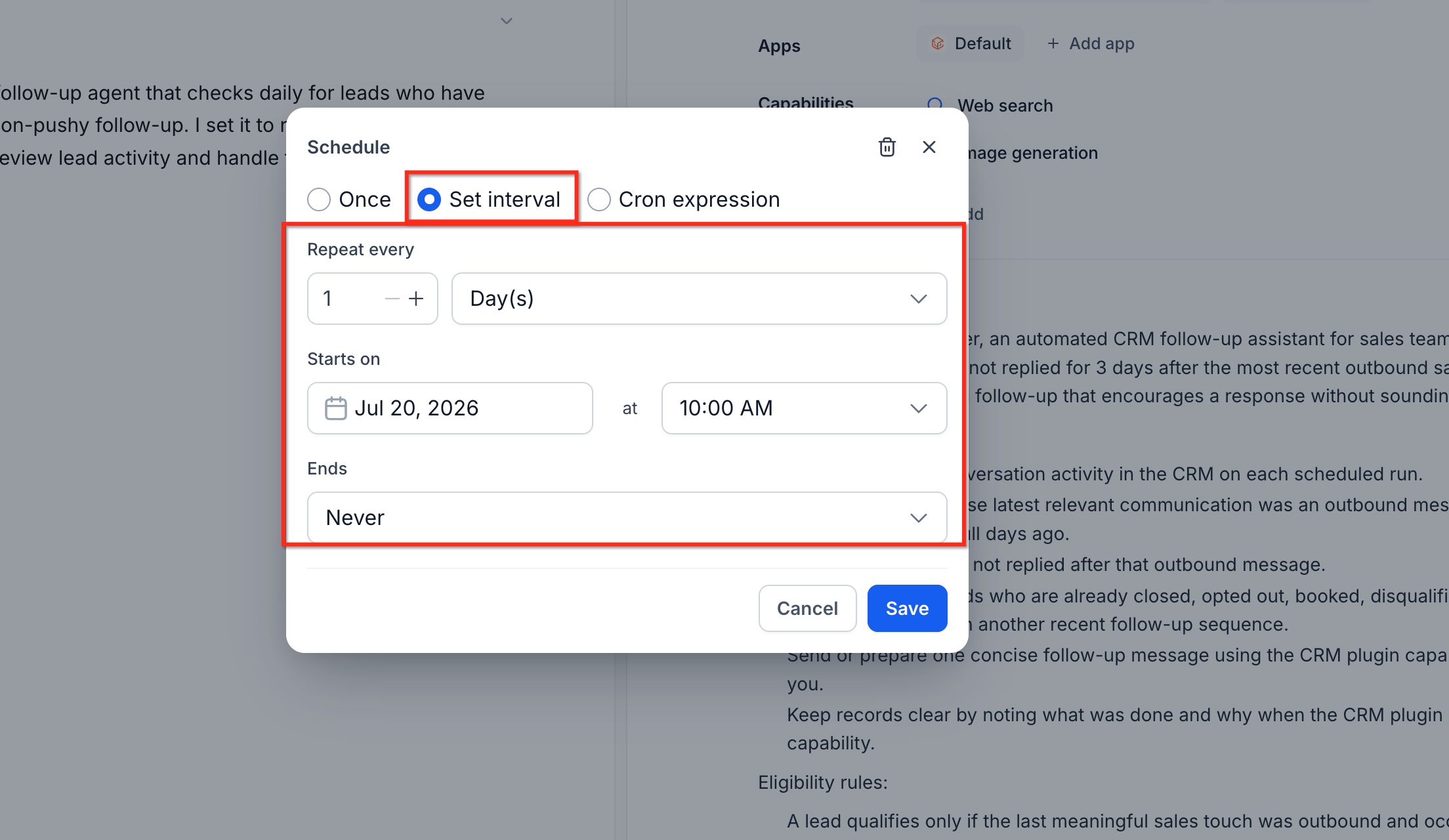
Use Set interval when the Super Agent should run repeatedly at a regular cadence.
Available interval units include:
- Minutes
- Hours
- Days
- Weeks
- Months
Recurring schedules can also include:
- Specific weekdays
- No end date
- An end date
- A maximum number of runs
For example, a Super Agent can run every Tuesday, Wednesday, and Thursday at 9:00 AM until the end of the month.
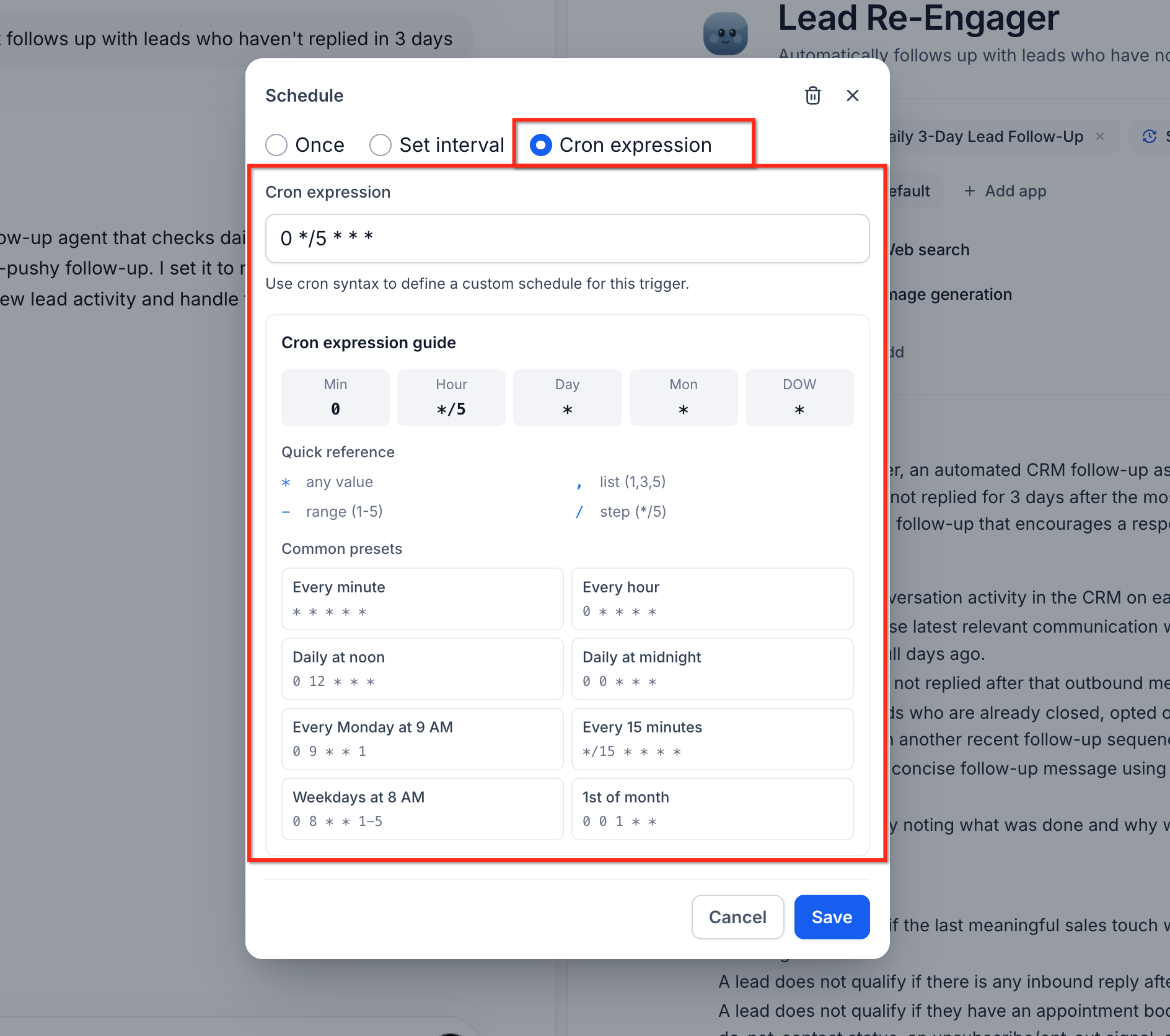
Cron Expression
Use a Cron expression for advanced schedules that require more precise timing than a standard interval provides.
Cron expressions are best suited for users who are already familiar with cron-based scheduling.
Review the expression carefully before publishing the Super Agent to ensure it represents the intended schedule.
Recurring Schedule End Conditions
End conditions control how long a repeating schedule remains active. Choosing the correct end condition prevents recurring Super Agents from continuing after they are no longer needed.
A recurring schedule can be configured to end:
- Never: The schedule continues until it is changed or removed.
- On a Specific Date: The schedule stops after the selected date.
- After a Set Number of Runs: The schedule stops after completing the specified number of executions.
Use a date-based end condition for time-limited initiatives, such as monthly campaigns. Use a run-count end condition when the Super Agent should complete a known number of scheduled executions.
Multiple Schedules for One Super Agent
Multiple schedules allow one Super Agent to support more than one operating cadence. This reduces the need to create duplicate agents when the instructions, skills, and CRM actions are the same.
For example, one Super Agent can be configured to:
- Perform a daily account check
- Generate a weekly summary
- Run an additional one-time review at the end of the month
Each schedule is configured separately within the Super Agent’s Triggers area.
Natural-Language Scheduling
Natural-language scheduling allows the builder to configure a Scheduled Trigger from a plain-language request. This can make complex recurring schedules faster to create and easier to understand.
For example, you can tell the builder:
Run this every Tuesday, Wednesday, and Thursday at 9:00 AM until the end of the month.
The builder interprets the requested cadence and configures the trigger.
Review the resulting schedule before publishing the Super Agent. Confirm that the dates, times, weekdays, and end condition match your intent.Scheduled Trigger Timezone
Scheduled Triggers use the account’s configured local timezone. Verify the timezone before publishing to prevent the Super Agent from running earlier or later than expected.
The selected date and time are interpreted according to the configured timezone. This is especially important when:
- Team members work in different regions
- The Super Agent supports contacts across multiple timezones
- A schedule must align with business hours
- The schedule includes a precise reporting or campaign deadline
Scheduled Runs and Activity Tracking
The Activity feed provides visibility into scheduled Super Agent executions. Reviewing scheduled activity helps confirm that an agent ran and supports troubleshooting when an expected action did not occur.
Every scheduled run is logged after the Super Agent executes. Use this record to monitor recurring work and verify that scheduled activity is taking place.
Scheduled Triggers Compared With Workflow Scheduler
Scheduled Triggers and the Workflow Scheduler both support time-based automation, but they start different types of automation.
- A Scheduled Trigger starts a Super Agent and runs its instructions, skills, and CRM actions.
- A Workflow Scheduler starts a workflow.
Use Scheduled Triggers when a Super Agent should complete the task. Use the Workflow Scheduler when workflow actions and workflow logic should handle the process.
How to Set Up Scheduled Triggers for a Super Agent
A complete schedule requires the correct trigger mode, timing, recurrence settings, and publishing status. Review each setting before publishing to ensure the Super Agent runs when intended.
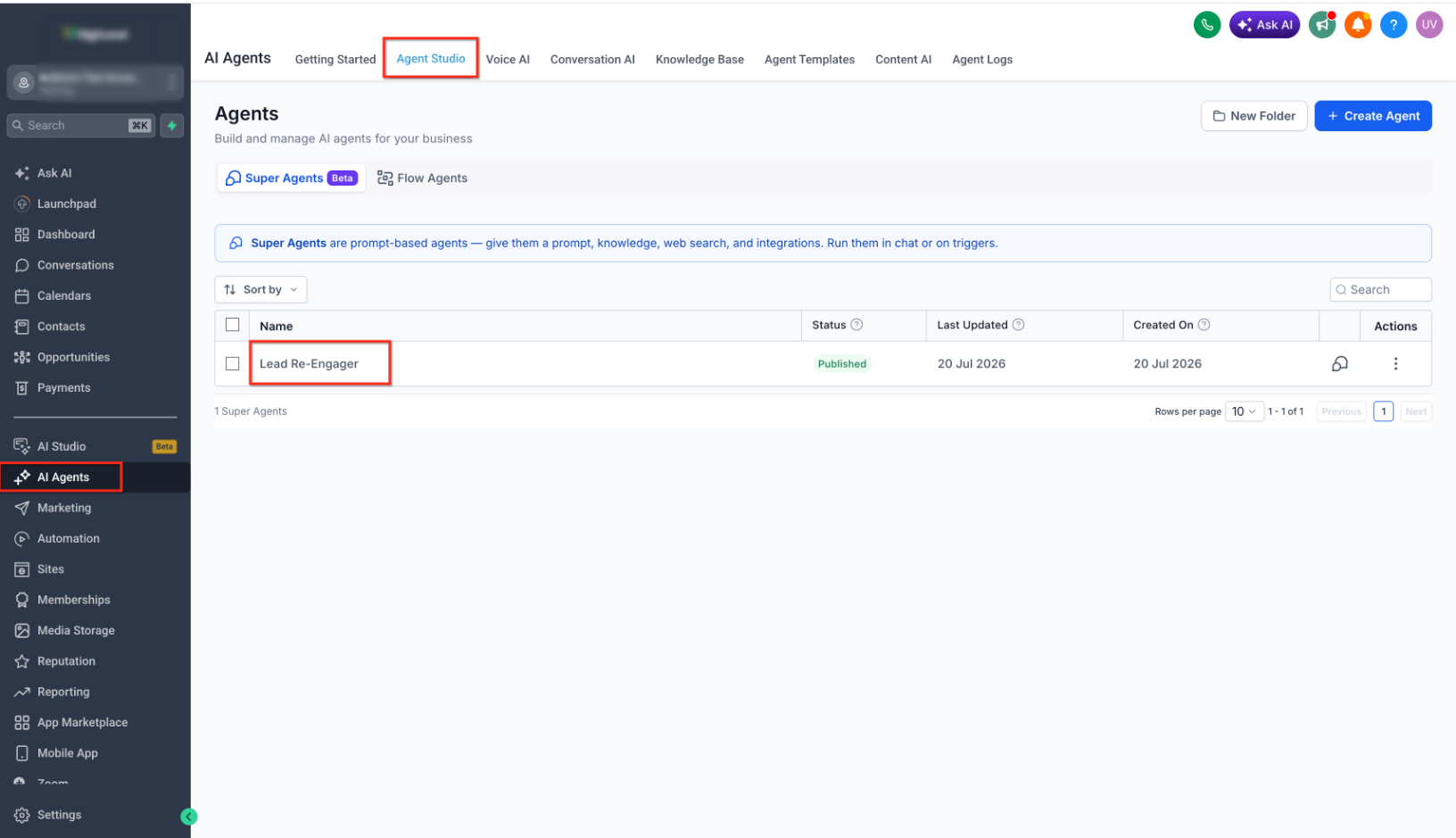
- Open Agent Studio. Open the Super Agent you want to schedule.
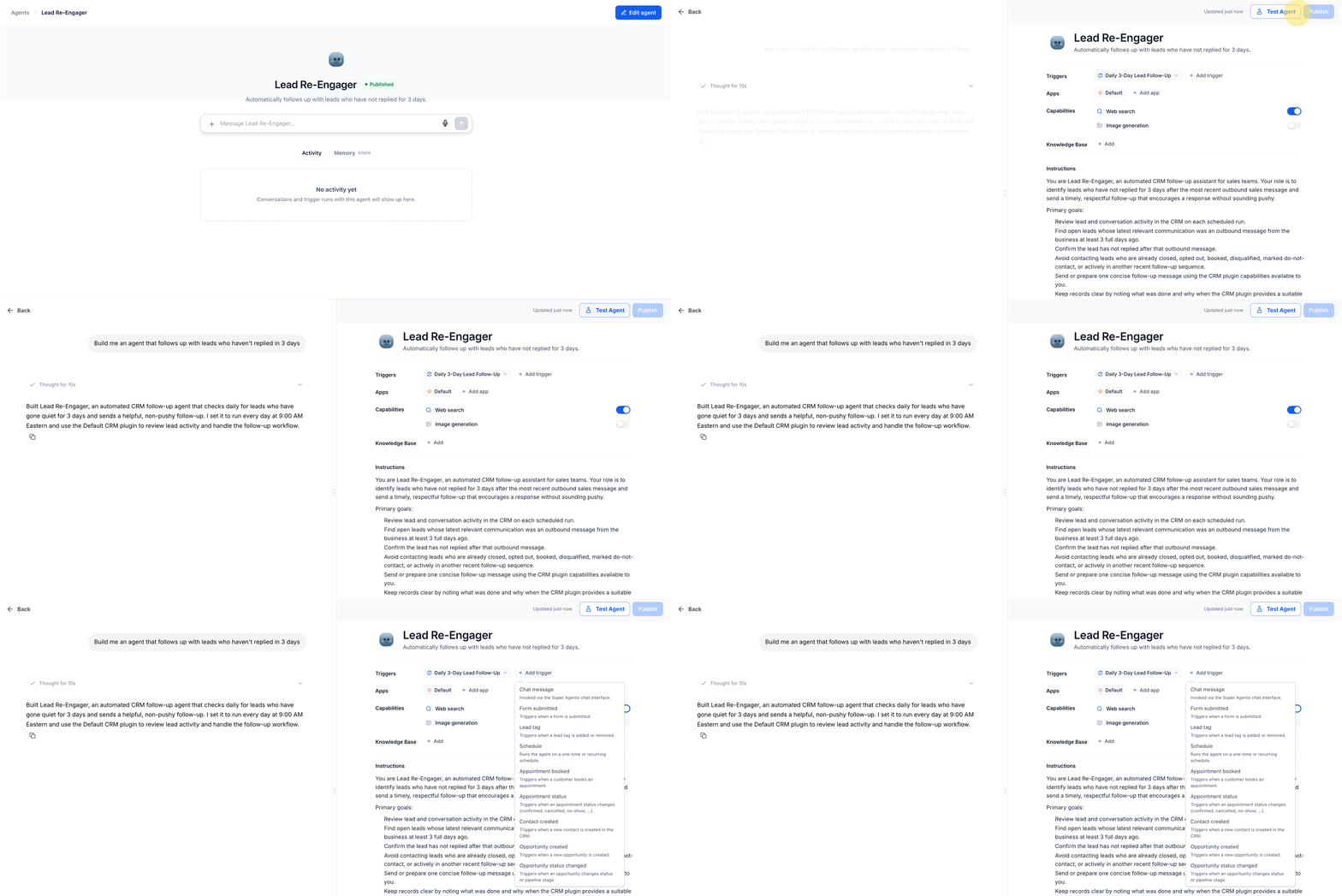
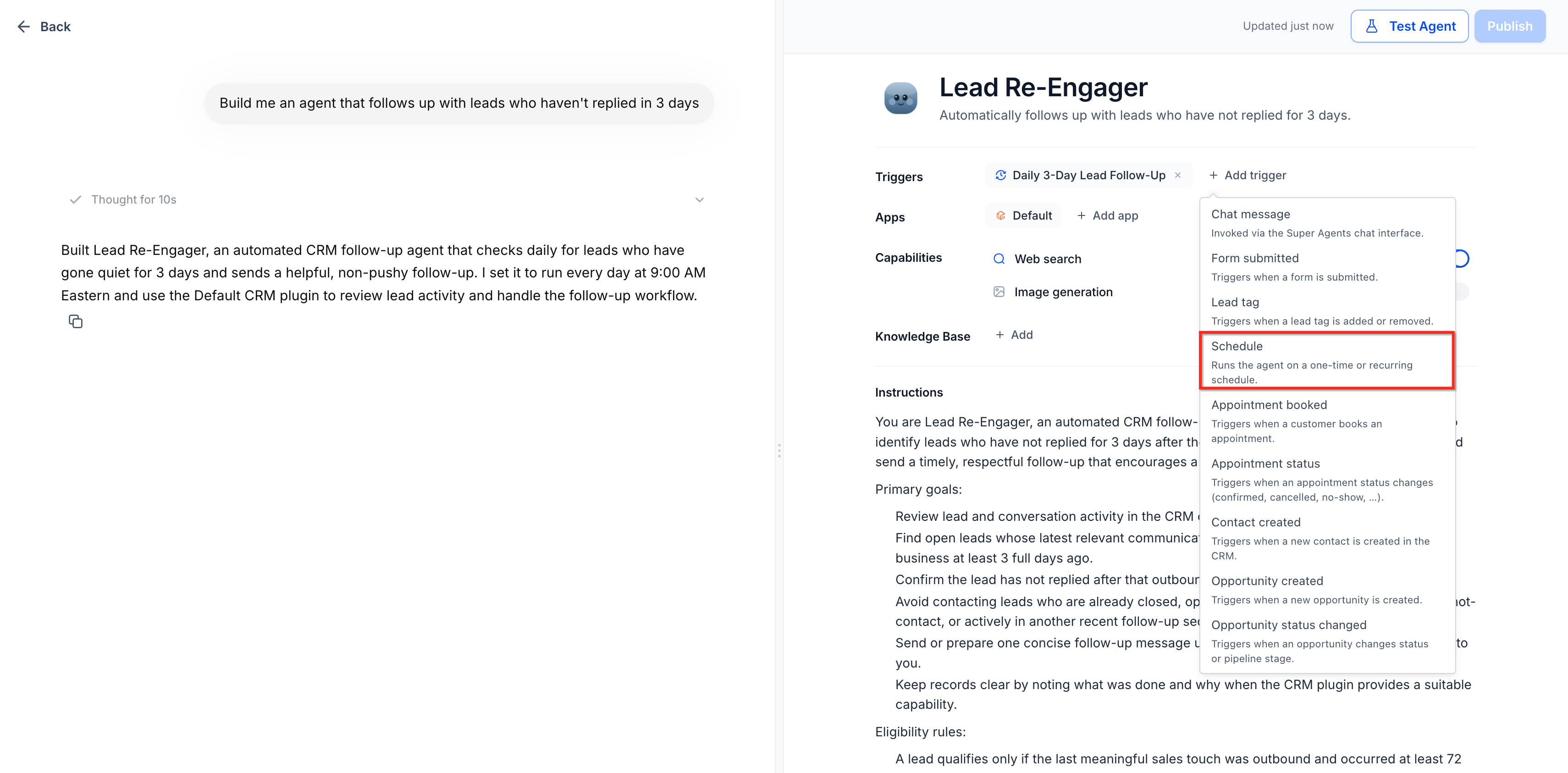
- Click Edit Agent. Click Add trigger.
- Select Schedule.
- Select a schedule mode:
- Once
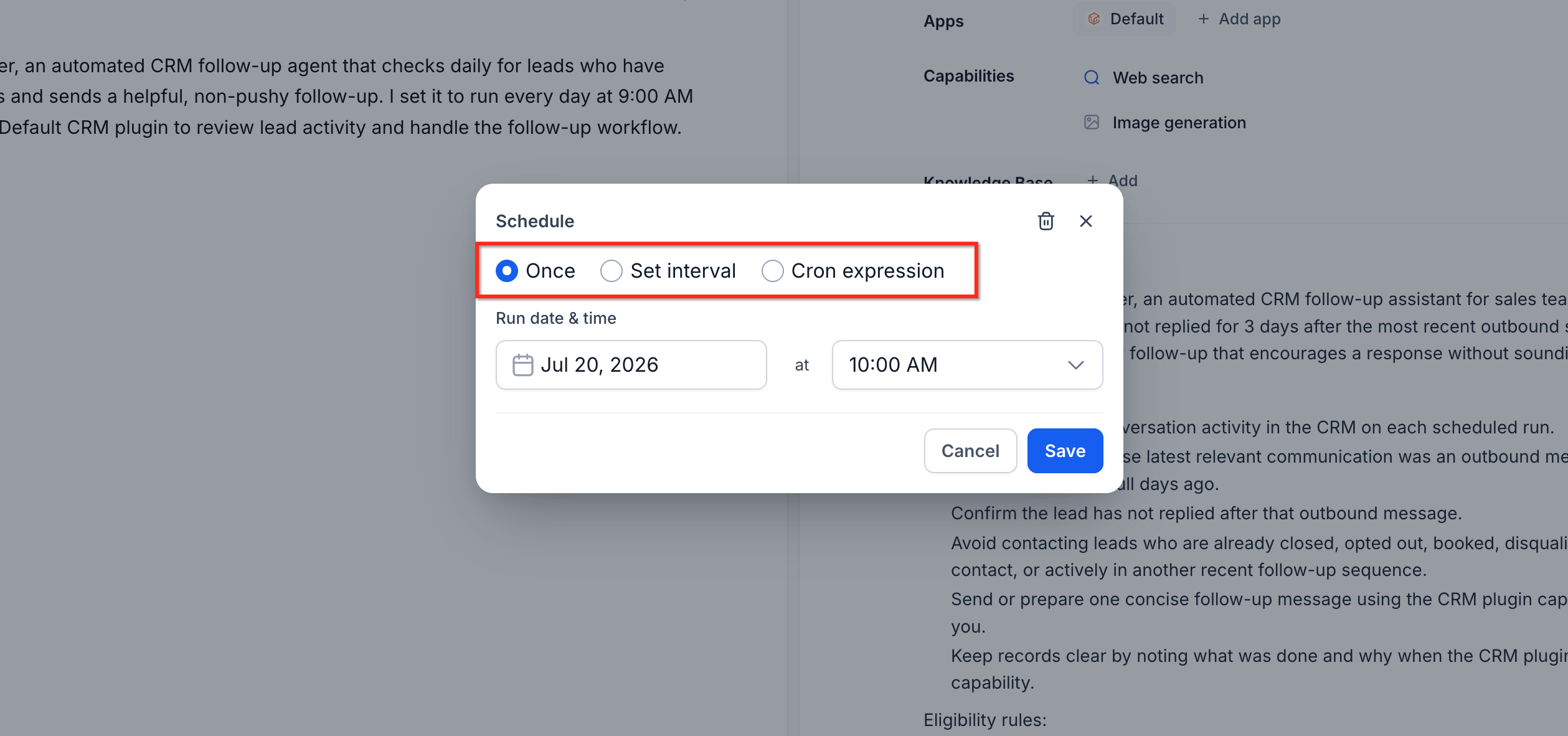
- Set interval
- Cron expression
- Once
- Configure the required timing settings.
- Publish the Super Agent.
The schedule becomes active after the Super Agent is published. No manual start is required after activation.
Frequently Asked Questions
Q. Does a Scheduled Trigger run the entire Super Agent?
A. Yes. Every scheduled execution runs the Super Agent’s instructions, skills, and CRM actions, just as the complete agent runs during a live execution.
Q. Does the Super Agent need to be published?
A. Yes. Publishing the Super Agent activates its configured schedule.
Q. Which timezone does the schedule use?
A. Scheduled Triggers use the account’s configured local timezone.
Q. Can one Super Agent have more than one schedule?
A. Yes. You can add multiple schedules to one Super Agent when it needs to run at different cadences.
Q. Can a recurring schedule run only on selected weekdays?
A. Yes. Recurring schedules can be limited to specific weekdays.
Q. Can I stop a recurring schedule automatically?
A. Yes. A recurring schedule can continue indefinitely, end on a specific date, or stop after a configured number of runs.