
Inbound Call Routing by Working Hours helps prevent work calls from ringing outside a user’s scheduled availability. This article explains how the feature works, how to configure it for yourself or a team member, and how the platform handles calls received after hours.
TABLE OF CONTENTS
- What Is Inbound Call Routing by Working Hours?
- Who Can Configure Inbound Call Routing
- How Calls Are Routed Outside Working Hours
- How to Set Up Inbound Call Routing by Working Hours
- How Forwarding Numbers Are Handled
- Frequently Asked Questions
- Need Help?
What Is Inbound Call Routing by Working Hours?
Note: The setting is off by default. Nothing changes until you turn it on.
Inbound Call Routing by Working Hours uses a selected availability schedule to determine whether an inbound call should ring a user. This helps prevent work calls from reaching users after hours, on weekends, during holidays, or while they are away without requiring them to change device settings or uninstall the mobile app.
When Only ring during working hours is enabled, any inbound call that reaches you outside the selected schedule skips you and follows the phone number’s existing backup handling. During your working hours, calls ring exactly as they do today.
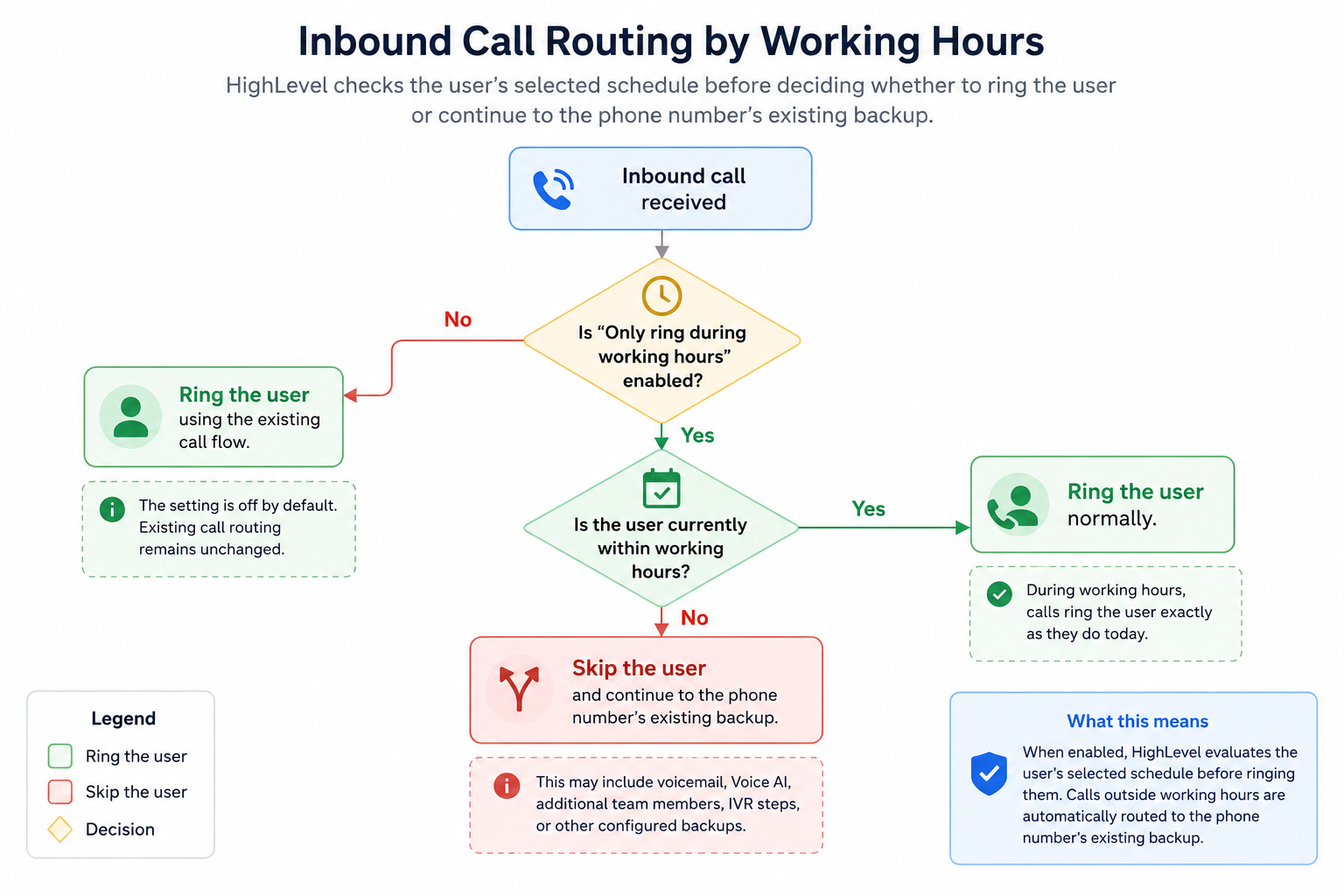
Key Benefits of Inbound Call Routing by Working Hours
- Prevent after-hours interruptions: Stop work calls from ringing users outside their selected availability.
- Use existing availability schedules: Control inbound ringing with a selected schedule instead of manually changing call settings.
- Support team-based routing: Unavailable users can be skipped while other eligible users continue receiving calls in supported routing scenarios.
- Handle holidays and time off: Date-specific schedule entries can prevent calls from ringing users on holidays or other unavailable dates.
- Preserve existing backup routing: When a user is unavailable, supported calls continue through the phone number’s existing routing or backup configuration.
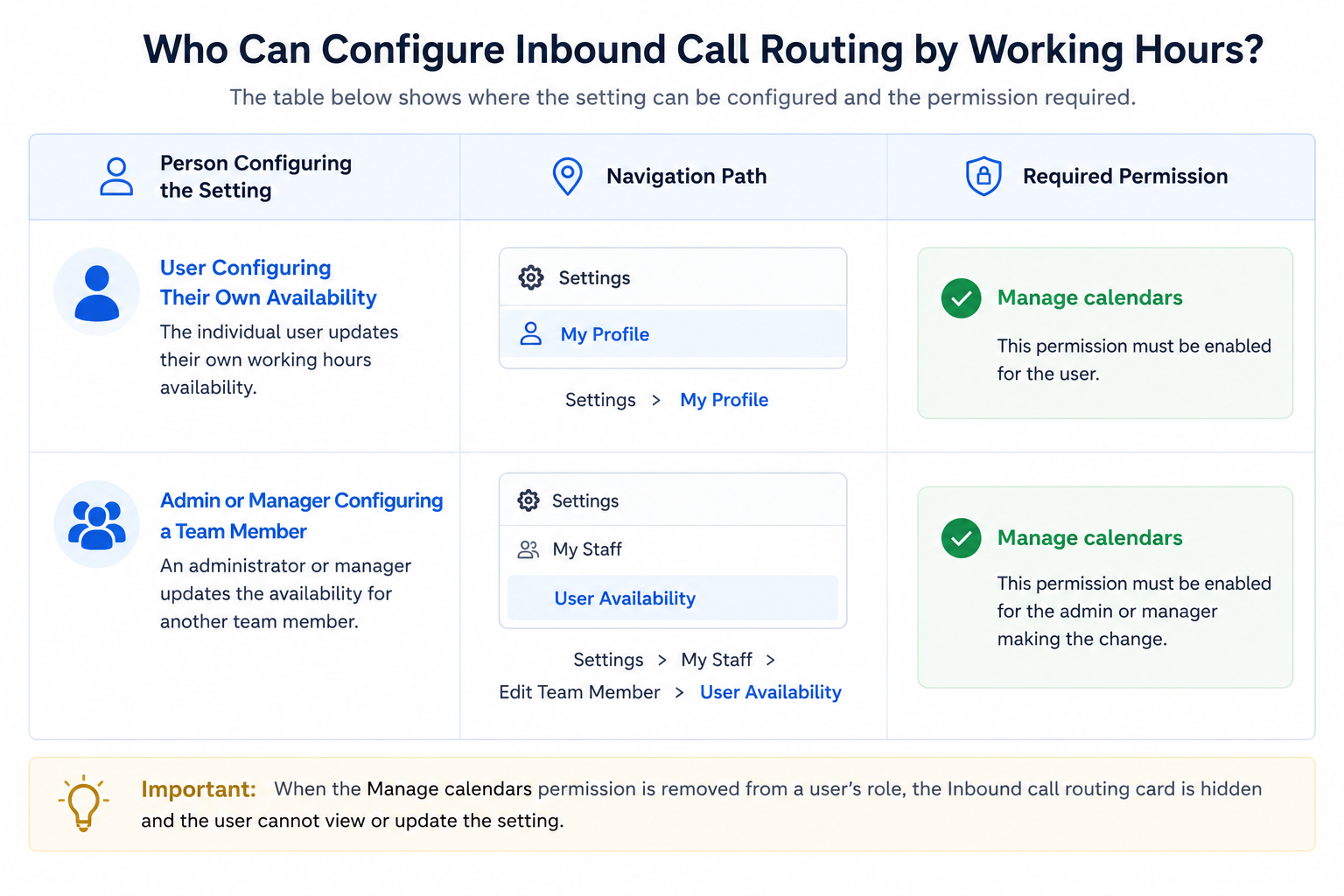
Who Can Configure Inbound Call Routing by Working Hours
Access depends on whether a user is managing their own availability or an administrator is managing availability for another team member.
How Calls Are Routed Outside Working Hours
The platform checks the selected schedule before ringing the user. The result depends on how the inbound call is routed.
| Routing scenario | During working hours | Outside working hours |
|---|---|---|
| Assigned user or contact | The user rings normally | The user is skipped, and the call follows the phone number’s existing backup (Voice mail or Voice AI) |
| Ring All | All eligible users ring normally | Users outside working hours are skipped; available users continue to ring |
| Call Menu or IVR | Configured recipients ring normally | The unavailable user is skipped; other recipients continue to ring |
| Only recipient in an IVR connect step | The user rings normally | No recipient is connected, and the call flow continues |
| Transferred call | Existing transfer behavior applies | Working-hours filtering is not currently supported |
How to Set Up Inbound Call Routing by Working Hours
Selecting the correct schedule ensures the platform can accurately determine when you should receive inbound calls. Confirm the schedule’s weekly hours, date-specific entries, and timezone before relying on it for after-hours routing.
Configure the Setting for Your Profile
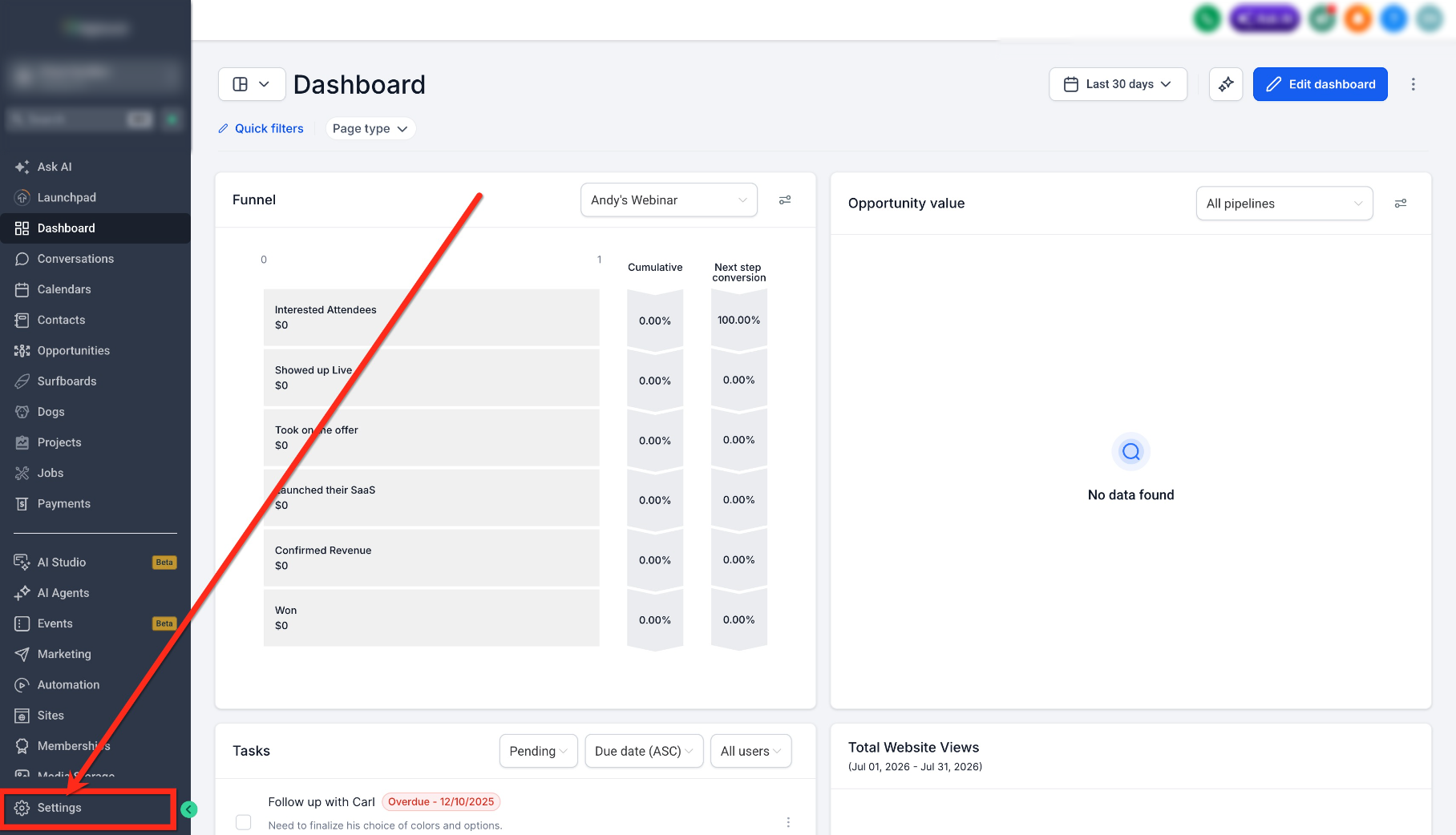
- Click on Settings.
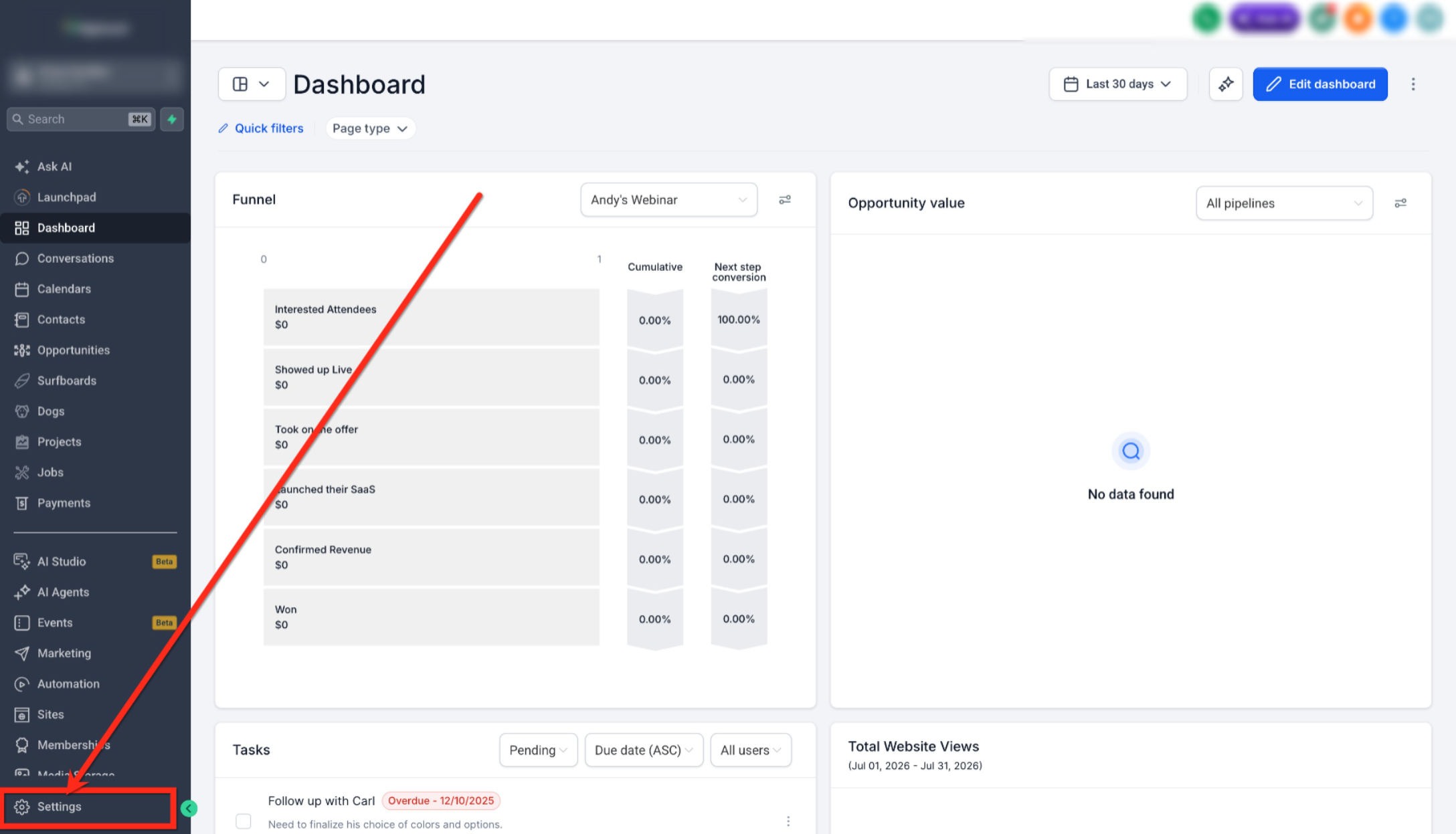
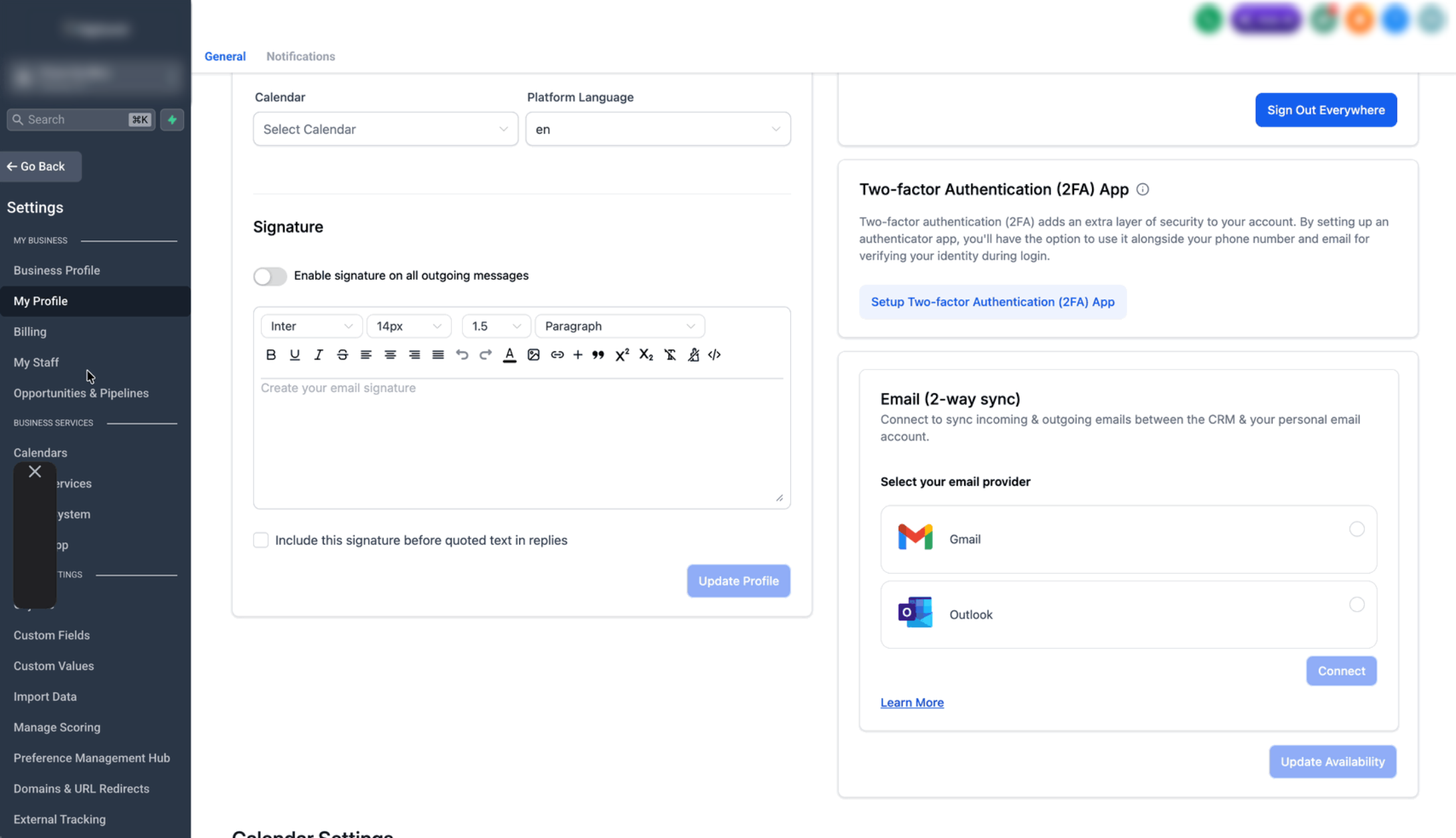
- Click on My Profile.
- Scroll too the Inbound call routing card.
- Enable Only ring during working hours.
- Open the Call routing schedule dropdown.
- Select the schedule that defines your working hours. The selected schedule is the schedule the platform checks before ringing you. Your choice saves automatically.
Configure the Setting for a Team Member
Note: The administrator or manager completing these steps must have the Manage calendars permission.
- Click on Settings.
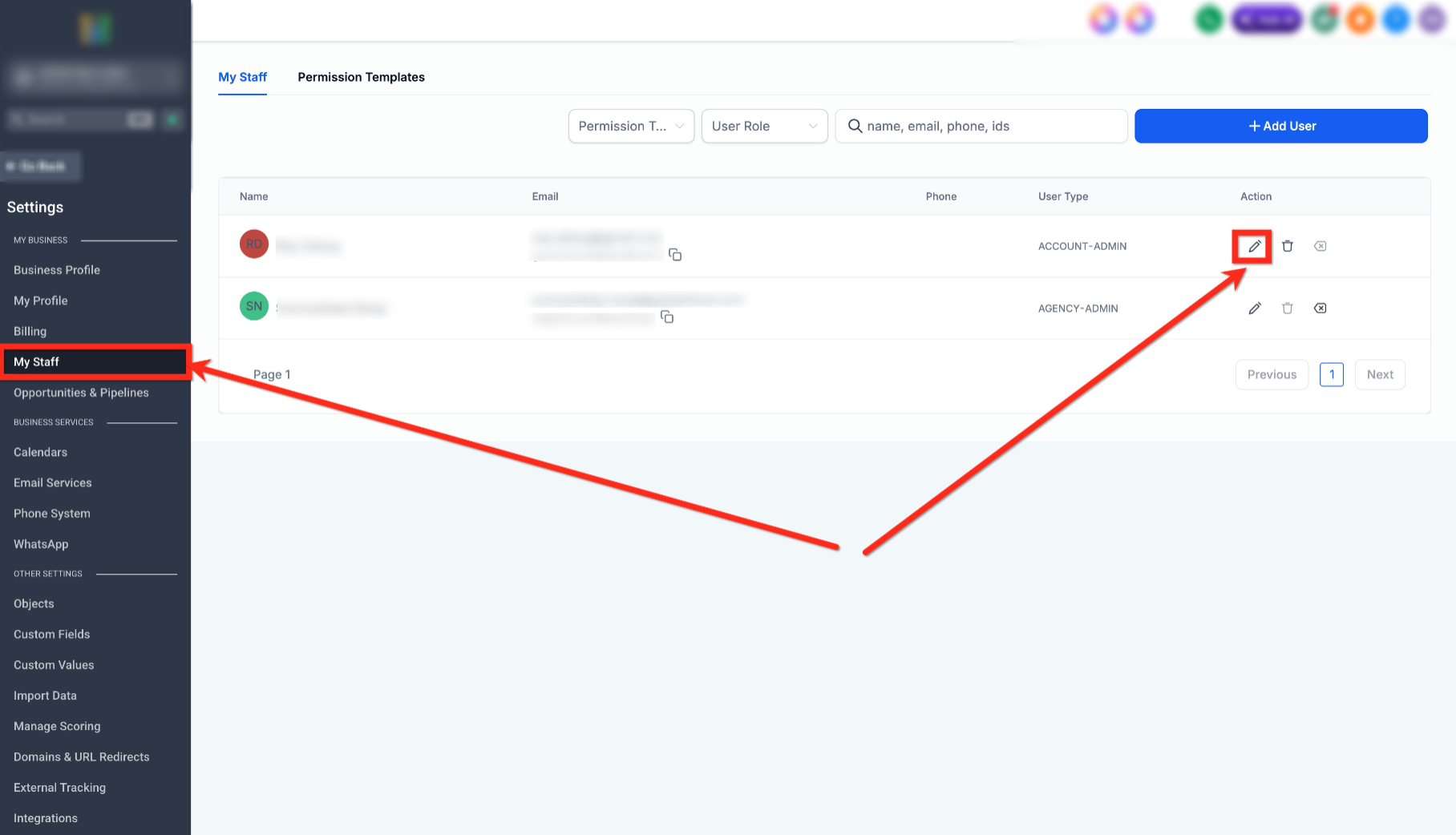
- Go to My Staff.
- Click on the edit icon of the team member you want to update.
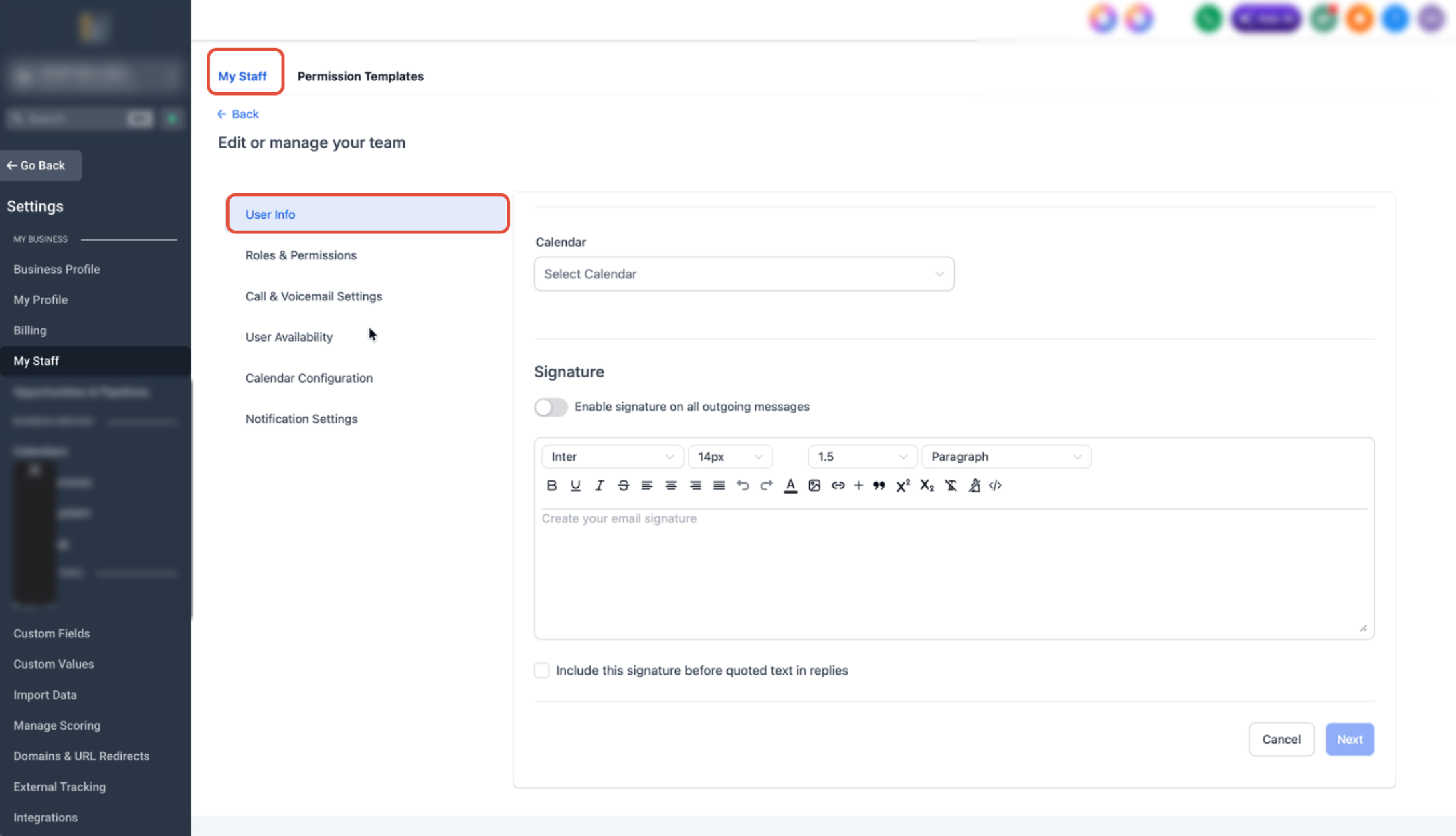
- Select User Availability.
- Locate the Inbound call routing card.
- Enable Only ring during working hours.
- Select the schedule that defines the team member’s working hours.
- Save the team member’s settings when prompted.
How Forwarding Numbers Are Handled
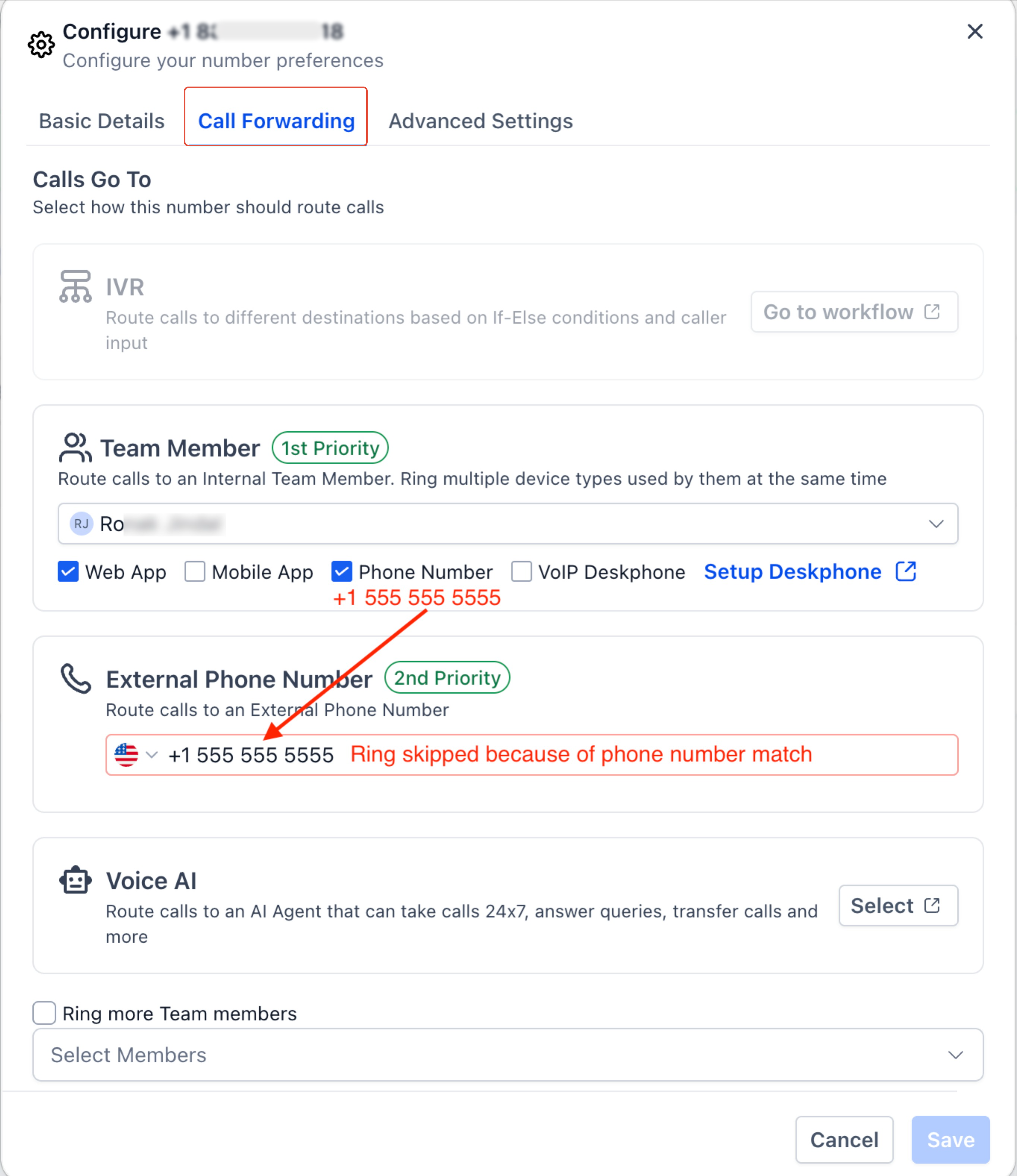
The platform prevents a user from being reached indirectly through a matching forwarding number when that user is outside working hours. This ensures the selected schedule is respected throughout the routing flow.
When your personal phone number is also configured as the forwarding number for a phone number assigned to you, or as the business phone number, no additional setup is required. Outside your working hours, the platform automatically skips that forwarding number along with you and sends the call to the phone number’s existing backup.
Important Limitations
Keep the following limitations in mind when using working-hours routing:
- Transferred calls are not currently filtered by working hours. Existing transfer behavior applies when a call is transferred to a user.
- Working-hours routing does not create a separate after-hours destination. Calls received outside a user's selected schedule continue through the phone number's existing routing or backup configuration.
- The setting is user-specific. Each user who should be excluded from calls outside their availability must have the appropriate schedule selected and the setting enabled.
Frequently Asked Questions
Q: Will anything change if I leave the setting turned off?
No. The setting is disabled by default, so inbound calls continue to follow your existing routing configuration until you enable it.
Q: Which schedule is used to determine my working hours?
The platform uses the schedule selected in the Call Routing Schedule dropdown. You can update or replace the selected schedule at any time.
Q: How can I stop calls from ringing on holidays or planned days off?
Add a date-specific entry with no available hours to your selected schedule. Date-specific entries override the normal weekly schedule for that day.
Q: Does working-hours routing apply to transferred calls?
No. Working-hours routing currently applies only to supported inbound call routing scenarios. Calls transferred during an active conversation are not filtered based on working hours.
Q: What happens if multiple users are included in a Ring All configuration?
Only users who are currently within their configured working hours will receive the incoming call. Users outside their scheduled availability are automatically skipped, allowing available users to continue receiving the call.
Q: Why are calls still reaching me outside my working hours?
Verify that Only ring during working hours is enabled, the correct schedule is selected, and the schedule’s timezone, weekly hours, and any date-specific availability are configured correctly. Also confirm you’re testing the correct user profile and that the incoming call is using a supported routing method.
Q: Does this setting change my phone number's normal routing during working hours?
No. During the selected working hours, supported inbound calls continue through the existing routing configuration.
Q: What happens in Ring All if some team members are outside their working hours?
Users outside their selected working hours are skipped. Other eligible users can continue receiving the call.
Need Help?
If inbound calls are still ringing outside your scheduled working hours, first verify that Only ring during working hours is enabled, the correct call routing schedule is selected, and the schedule’s timezone, weekly hours, and any date-specific availability are configured correctly.
If calls continue reaching you unexpectedly, review your phone number routing, backup call handling, forwarding configuration, and assigned user settings to ensure they match your intended routing behavior.
For additional assistance, gather screenshots of your working hours schedule, routing configuration, and user settings before contacting support. Providing this information will help speed up troubleshooting and resolution.