
Communities workflow triggers turn important member activities into automated actions. Admins can respond to rejected joining requests, new posts, new comments, and event registrations without continuously monitoring each group. Trigger filters help ensure workflows run only for the groups, channels, content, or events that matter.
TABLE OF CONTENTS
- What Are Communities Workflow Triggers?
- Key Benefits of Communities Workflow Triggers
- Group Joining Request Rejected
- Group Post Created
- Group Comment Created
- Member Registered for Group Event
- Communities Trigger Filters
- How to Set Up Communities Workflow Triggers
- Frequently Asked Questions
What Are Communities Workflow Triggers?
Communities workflow triggers connect member activity inside a Community with the Workflow Builder.
When a qualifying activity occurs, the associated contact can enter a workflow that performs actions such as sending notifications, applying tags, starting follow-up sequences, or updating contact information.
The following Communities triggers are available:
- Group Joining Request Rejected
- Group Post Created
- Group Comment Created
- Member Registered for Group Event
Each trigger requires you to select a group. Additional filters are available depending on the selected trigger.
Key Benefits of Communities Workflow Triggers
Communities workflow triggers help admins respond consistently as groups become more active. Automating routine monitoring and follow-up reduces manual work and helps teams act on important member activity sooner.
- Faster Responses: Start follow-ups or internal alerts as soon as qualifying Community activity occurs.
- More Precise Targeting: Use filters such as channel, post title, post content, comment content, or event title to control when a workflow runs.
- Improved Moderation: Notify moderators or route important posts and comments to the appropriate team.
- Scalable Member Engagement: Automate repetitive communication as Community membership and activity increase.
- Connected Customer Journeys: Use Community activity to apply tags, update records, send messages, or continue automations in other parts of the platform.
- Better Event Follow Up: Start confirmation, reminder, segmentation, or nurture processes when a member registers for a Community event.
Group Joining Request Rejected
The Group Joining Request Rejected trigger automates actions after a request to join a group is declined.
This differs from revoking access because the pending request is rejected before the person becomes an active group member.
Important: The Group Joining Request Rejected trigger applies only to pending joining requests. Use a group-access trigger for automations related to granting or removing an existing member’s access.Group Post Created
The Group Post Created trigger starts a workflow when a new post is published in the selected Community group.
Optional filters can narrow the automation to a specific channel, post title, or content topic.
Group Comment Created
The Group Comment Created trigger helps teams respond to conversations beneath Community posts. It can monitor comments across a group or target comments associated with specific channels, posts, topics, or phrases.
Comments can be enabled or disabled on individual Community posts. A comment-based workflow can run only when members are permitted to add comments to the relevant post.
Member Registered for Group Event
The Member Registered for Group Event trigger connects Community event registrations with workflows. It allows teams to automate customized communication, segmentation, and operational tasks as soon as a member registers.
Communities Trigger Filters
Filters determine which Community activities qualify for workflow enrollment. Selecting precise filters helps prevent unnecessary workflow executions and ensures actions are associated with the correct group, channel, content, or event.
Group
The Group filter is required for all four triggers. Select the Community group whose activity the workflow should monitor.
Channel
The Channel filter is available for post and comment triggers. Use it when the workflow should monitor activity in a specific channel rather than the entire group.
Post Title
The Post Title filter allows post and comment workflows to focus on posts with titles that meet the configured condition.
Post Content
The Post Content filter allows workflows to evaluate a post’s content before the workflow runs. For the Group Comment Created trigger, Post Content refers to the original post associated with the new comment.
Comment Content
The Comment Content filter is available for the Group Comment Created trigger. It allows the workflow to evaluate the newly created comment.
Event Title
The Event Title filter is available for the Member Registered for Group Event trigger. Use it to limit the workflow to registrations for a specific event or events that meet the configured condition.
Tip: Review the operator shown in the filter configuration, such as exact match or contains, before publishing the workflow. The selected operator determines how the activity is compared with the filter value.How to Set Up Communities Workflow Triggers
Proper trigger configuration ensures the workflow responds to the intended Community activity without enrolling unrelated contacts. Start with the required group, add only the filters needed for the use case, and test the workflow before publishing it.
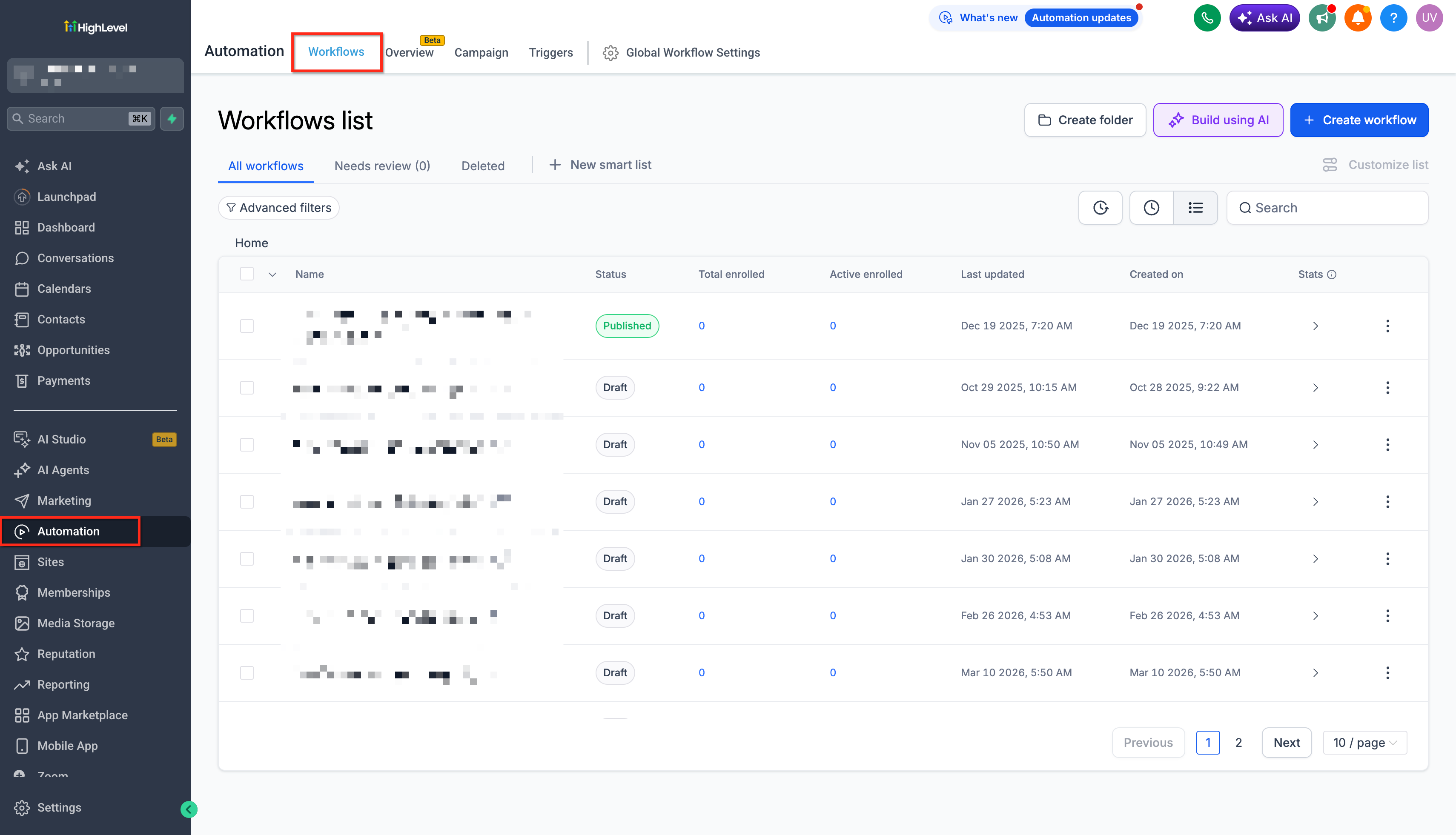
- Go to Automation > Workflows.
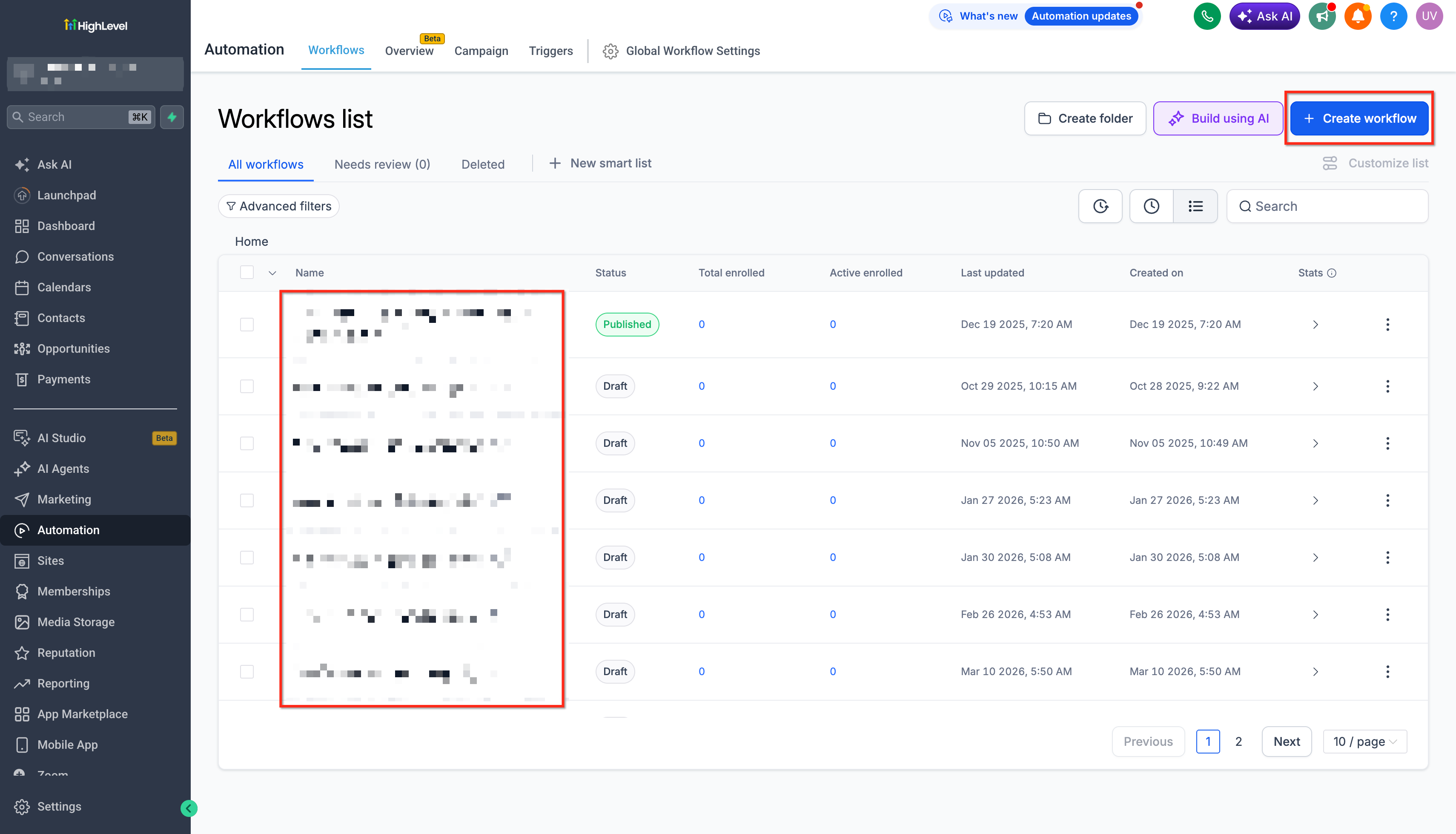
- Open an existing workflow or create a new workflow.
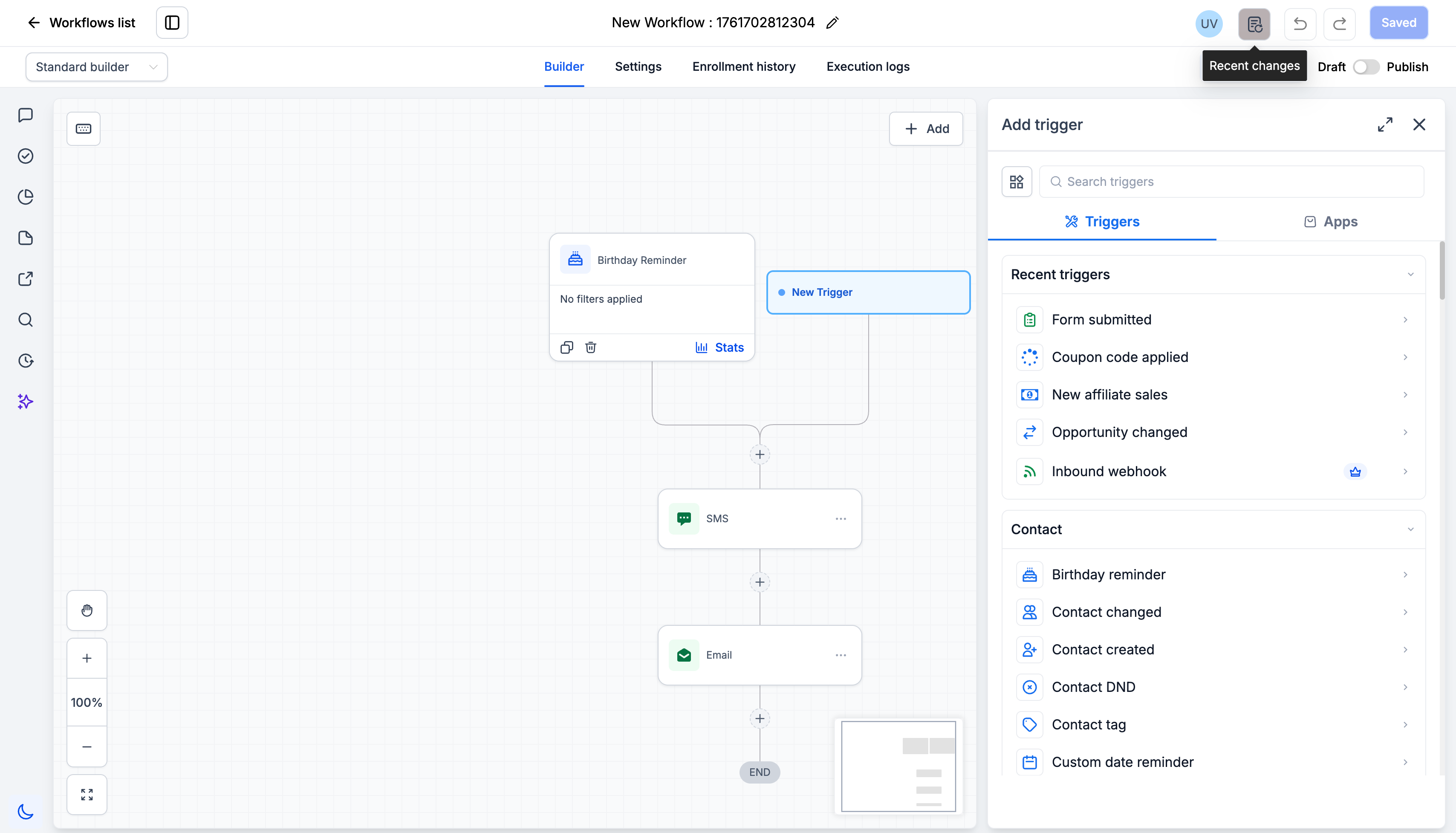
- Click Add New Trigger.
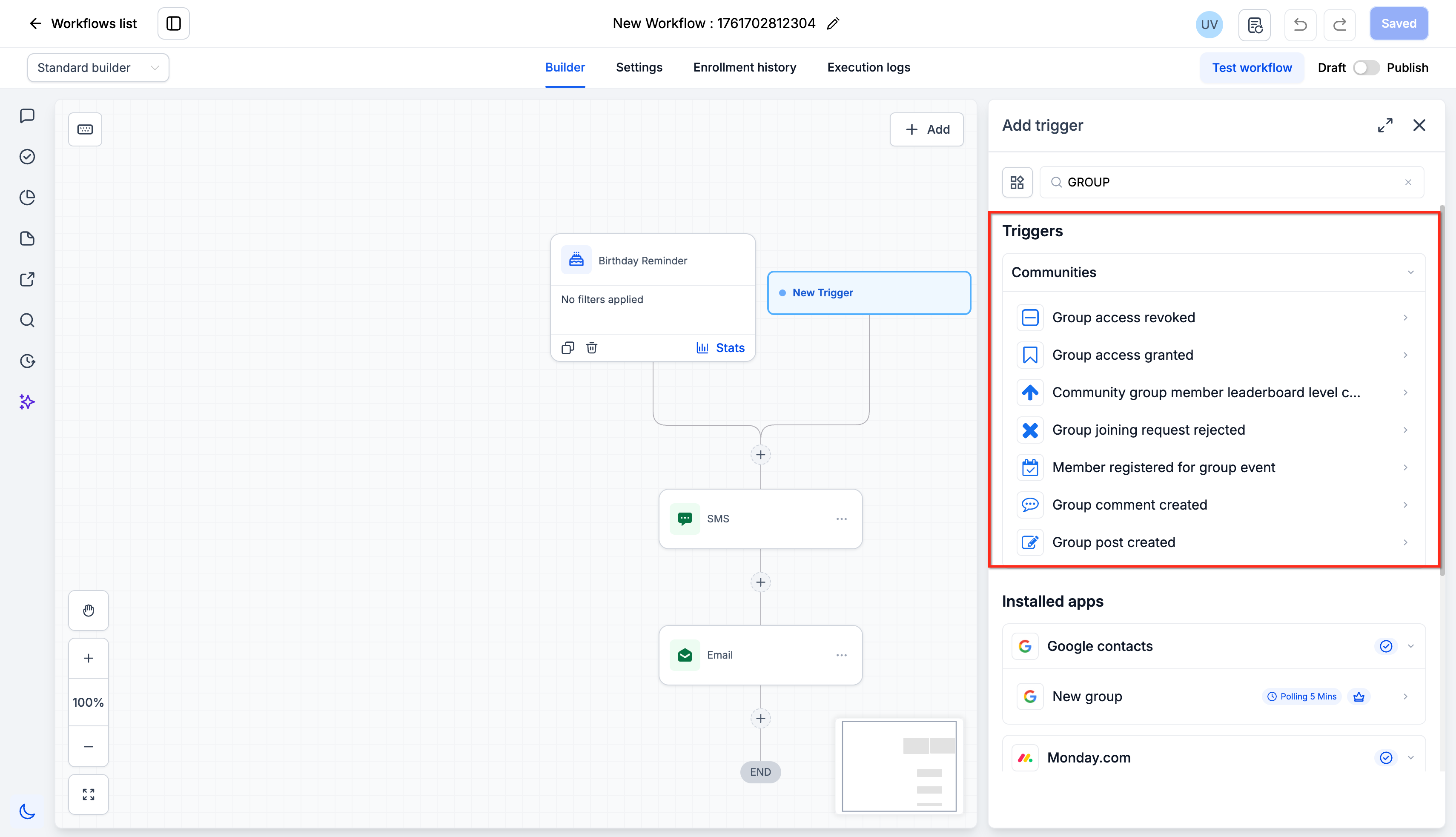
- Search for and select the required Communities trigger:
- Group Joining Request Rejected
- Group Post Created
- Group Comment Created
- Member Registered for Group Event
- Group Joining Request Rejected
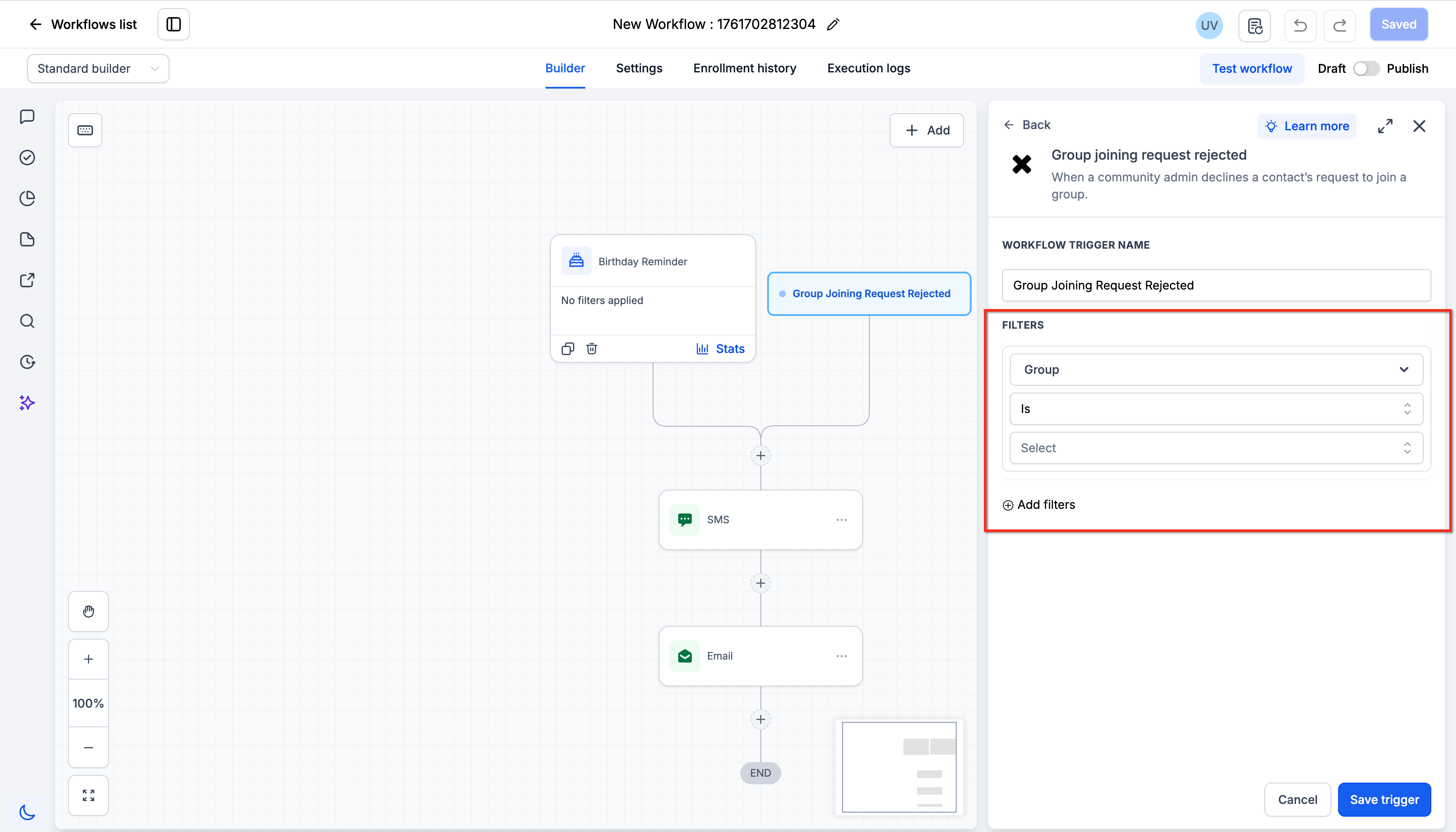
- In the trigger configuration panel, select the required Group.
- Add optional filters based on the selected trigger and automation goal.
- Add a descriptive trigger name so other users can understand its purpose.
Example: Support Channel – New Help Request Post - Click Save Trigger.
- Add the workflow actions that should occur after the trigger runs. Common actions include:
- Send an internal notification
- Send an email
- Send an SMS
- Add a contact tag
- Update a contact field
- Create a task
- Add an If/Else condition
- Send data through a webhook
- Send an internal notification
- Review the workflow settings, including whether repeated enrollment should be allowed for contacts who perform the activity more than once.
- Test the workflow using a suitable Community member and activity.
- Publish the workflow after confirming that the trigger, filters, and actions work as expected.
Frequently Asked Questions
Q. What is the difference between a rejected joining request and revoked group access?
A. A rejected joining request occurs when an applicant is declined before joining the group.
Revoked group access occurs when access is removed from someone who was already a group member.
Q. Can a workflow monitor only one Community channel?
A. Yes. Use the Channel filter with the Group Post Created or Group Comment Created trigger to limit the workflow to a selected channel.
Q. Can I monitor words or phrases in posts and comments?
A. The post and comment triggers provide text-based filters for titles, post content, and comment content. Select the appropriate condition in the trigger configuration and enter the value that should qualify the activity.
Q. Does the event-registration trigger replace built-in Community event reminders?
A. No. Built-in event features manage event-specific visibility and reminders. The workflow trigger allows registration to initiate additional automations, such as tagging, customized communication, internal notifications, or contact-record updates.
Q. Will an edited post or comment start the workflow again?
A. These triggers are designed for newly created posts and comments. Editing existing content is not the same event as creating new content.
Q. Are these triggers retroactive?
A. No. Workflow triggers respond to qualifying activities that occur while the workflow is published. Existing posts, comments, registrations, and previously rejected requests do not automatically enroll contacts when the workflow is activated.