
The Google Merchant Center integration lets you connect your e-commerce store to Google Merchant Center and automatically keep your product catalog synchronized with Google.This article explains the integration’s benefits, product-sync behavior, setup steps, connection requirements, troubleshooting options, and frequently asked questions.
TABLE OF CONTENTS
- What is the Google Merchant Center Integration?
- What Does the Integration Do?
- Prerequisites
- How to Connect Your Store to Google Merchant Center
- Which Products Are Currently Supported?
- Which Products are Not Currently Supported?
- Understanding the Leadconnector Data Source
- When to Use Force Sync?
- Product Approval, Errors, and Warnings
- Remove a Connection
- Google Shopping Ads and Free Listings
- Troubleshooting
- Frequently Asked Questions
- Additional Google Resources
What is the Google Merchant Center Integration?
Google Merchant Center is a free Google tool that lets merchants add and manage product information used across Google.
Once your products are submitted and approved by Google, eligible products may appear through free listings across surfaces such as Google Search, Shopping, Images, Lens, YouTube, Maps, and Gemini. Paid Shopping ads require separate Google Ads setup.
The Google Merchant Center integration connects an E-commerce Store with a Google Merchant Center account. This connection provides a streamlined way to send eligible Store Products and supported product updates to Google without maintaining a separate product feed.
After installing the Google Merchant Center app from the App Marketplace, you can connect your Google account, select a Merchant Center account, and map it to an E-commerce Store. Eligible Store Products assigned to that store are then synchronized with Google Merchant Center.
Learn more:
What Does the Integration Do?
The integration connects an e-commerce store with a Google Merchant Center account and handles ongoing product synchronization.
After setup, it can:
- Sync eligible products assigned to the connected store
- Sync product information and images
- Sync supported product variants
- Keep prices updated
- Keep inventory and availability updated
- Automatically sync newly added eligible products
- Automatically sync supported changes made to existing products
- Show synchronization errors and warnings
- Surface product issues that may affect Google approval
- Allow a manual Force Sync when needed
- Support connections between multiple stores and Merchant Center accounts
The goal is to let you manage products from your e-commerce store while the integration keeps the corresponding Merchant Center catalog updated.
Prerequisites
Before connecting your store, make sure you have:
- A Google account
- An e-commerce store with a live, connected domain
- A Google Merchant Center account, or the ability to create one during setup
- Your shipping origin country and language configured
- Products assigned to the store you want to connect
Your store needs a valid domain because Google receives the product landing page URL for products submitted through the integration.
Google also requires merchants to verify their online store URL. Merchant Center may be able to verify some websites automatically. If automatic verification is unavailable, Google will provide options to complete verification manually.
Useful links:
- Create and set up a Merchant Center account
- Website verification in Merchant Center
- Troubleshoot an unverified store URL
How to Connect Your Store to Google Merchant Center
Step 1: Install the Google Merchant Center App
- Open the App Marketplace.
- Search for Google Merchant Center.

- Install the app.
- After installation, start the Google account connection process.

Step 2: Connect Your Google Account
Note: After authorization, the app automatically retrieves the Merchant Center accounts available to the connected Google account. You do not need to manually enter a Merchant Center account ID.- Sign in with the Google account you want to use.

- Use an account that either:
- Already has access to your Merchant Center account, or
- Will be used to create and manage your Merchant Center account
- Already has access to your Merchant Center account, or
- Complete the authorization process.

Step 3: Select or Create a Merchant Center Account
Learn how to set up Merchant Center.
- If Merchant Center accounts are available, select the account you want to connect.
- If you do not have one yet, use the Create New GMC Account option or the setup documentation provided within the app. Account creation is completed with Google rather than automatically by the integration.
- You may also need to complete Google's business information and verification requirements before your products can become eligible to appear across Google.

Step 4: Verify Your Store Domain
Learn about website verification.Make sure the domain connected to your e-commerce store has been verified for use with Merchant Center.
If Google cannot automatically verify the domain, follow Google's verification instructions.
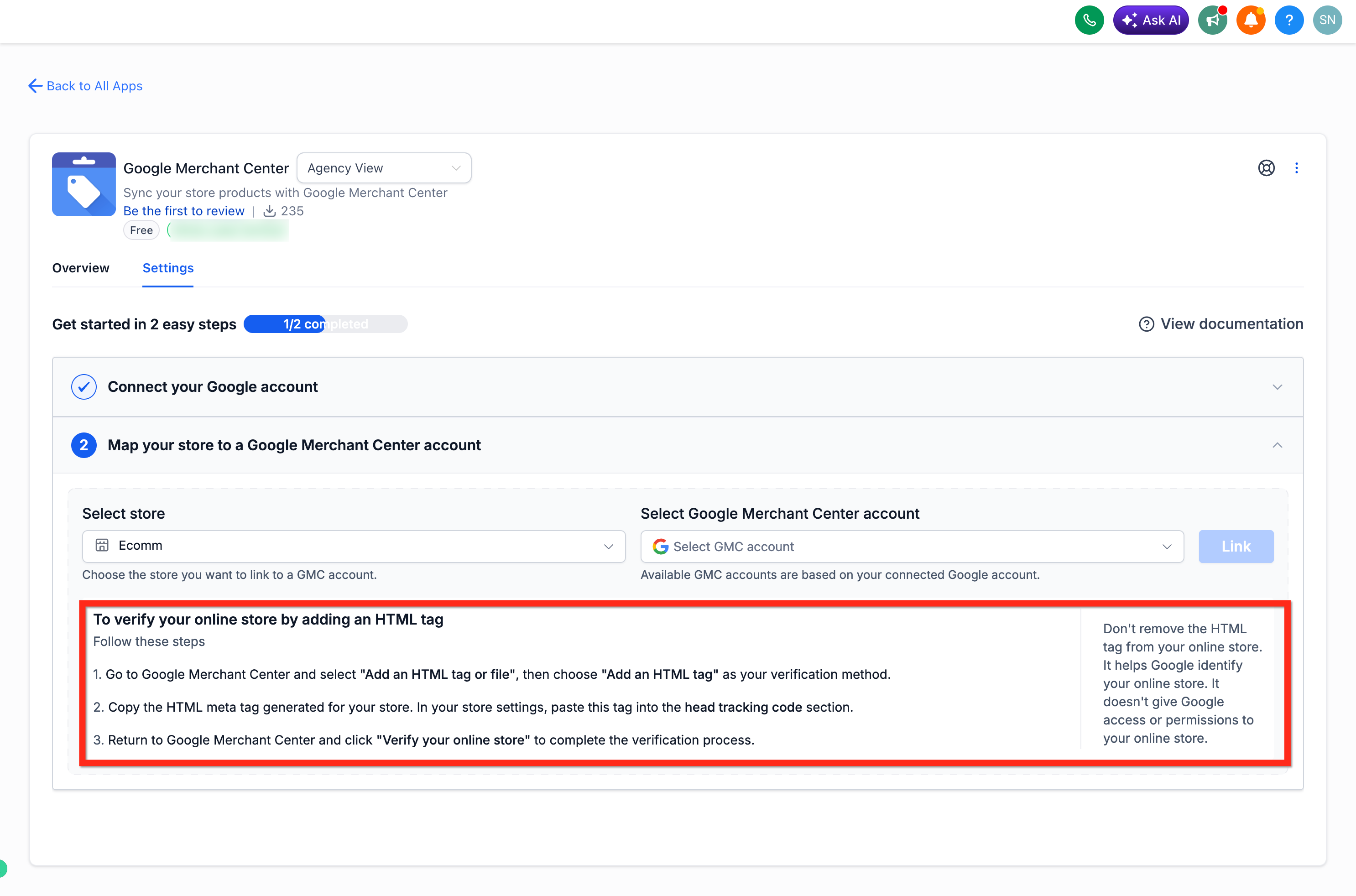
Step 5: Select Your E-commerce Store
- Choose the store you want to connect to the selected Merchant Center account.
- Products are synchronized based on their assignment to this store. Products that exist in your account but are not assigned to the connected store will not be included in the synchronization.

Step 6: Complete the Connection
- Confirm the store-to-Merchant Center mapping.
- Once the connection is created, the initial product synchronization starts automatically.
- Google may require additional time to process, review, and approve newly submitted products. A successful synchronization means the product was submitted to Google. It does not mean the product has been approved or is already visible to shoppers.

Which Products Are Currently Supported?
Only eligible products assigned to the connected e-commerce store are synchronized.
Note: Products with a one-time payment option are currently supported.Supported product data can include:
- Product information
- Images
- Variants
- Price
- Inventory
- Availability
New eligible products and supported changes to existing products continue syncing after the initial setup.
Which Products are Not Currently Supported?
Products that only use recurring payment options are not synchronized through this integration.
Google also has its own product eligibility, data, and policy requirements. A product being supported by the integration does not guarantee that Google will approve it.
Review Google's current requirements here:
Google's product data specification defines the data and formatting requirements used when submitting products to Merchant Center. Products that do not meet Google's requirements may be limited or not approved.
Understanding the Leadconnector Data Source
When the integration is connected, a data source named leadconnector is created in Google Merchant Center.
The data source is created using the country and language configured for your shipping origin.
Google Merchant Center uses data sources to receive and manage product information.
Important: Do Not Delete the Data Source Unless Necessary
Deleting the leadconnector data source from Merchant Center removes the products synchronized through that data source.
If the data source is deleted accidentally or needs to be rebuilt, use Force Sync from the integration. A new data source will be created and eligible products will be submitted again.
Learn more about how Google handles product data sources:

When to Use Force Sync?
Product synchronization is designed to happen automatically, so Force Sync should generally only be used when needed.
Use Force Sync if:
- A recent product update has not appeared in Merchant Center
- Products need to be resubmitted
- The leadconnector data source was deleted
- You need to manually refresh the catalog
Force Sync triggers a new synchronization for eligible products associated with the connected store.

Product Approval, Errors, and Warnings
Google reviews products after they are submitted to Merchant Center.
Google currently uses statuses such as:
- Under review
- Processing
- Approved
- Limited
- Not approved
Google, not the integration, determines the approval status of submitted products.
The integration surfaces relevant errors and warnings during and after setup to help identify issues that may prevent products from being approved.
Issues can include:
- Missing or invalid product information
- Product data that does not match Google's requirements
- Merchant Center configuration issues
- Website or domain issues
- Policy issues
- Missing business information
- Other Google Merchant Center requirements
Where available, use the issue details to navigate to the affected product or configuration and correct the underlying information.

You can also review Google's Needs attention section in Merchant Center for account-level and product-level issues.
Useful links:
Remove a Connection
You can unlink an existing store from its Merchant Center account.
After the connection is removed:
- The store is no longer connected to that Merchant Center account
- Future product changes from that store will no longer sync through the integration
- The store can be connected to another eligible Merchant Center account
- The previously connected Merchant Center account can be used for another connection
Removing the connection does not control Google's independent product or account policies.

Google Shopping Ads and Free Listings
Connecting your store to Merchant Center does not automatically create Google Ads campaigns.
Merchant Center provides the product data Google can use for different marketing methods.
Eligible products may appear through Google's free listings without paid advertising. Google states that eligible free listings may appear across surfaces such as Search, Shopping, Maps, Images, Lens, YouTube, and Gemini.
To run paid Shopping campaigns, you need a Google Ads account and the appropriate Merchant Center and Google Ads setup.
Learn more:
Troubleshooting
My Products Aren't Syncing
Check that:
- The store is still connected to Merchant Center
- The product is assigned to the connected store
- The product has a supported one-time payment option
- Your store has a valid connected domain
- The leadconnector data source still exists
- There are no synchronization errors shown in the integration
If everything appears correct, use Force Sync.
My Product Was Synced but Isn't Visible on Google
Synchronization and Google approval are separate.
Google reviews submitted products and determines whether they can appear across Google. Check the product's status and any issues reported by Google.
My Product Was Not Approved
Review the error or warning shown in the integration and check Merchant Center's Needs attention section.
Correct the underlying product, website, or Merchant Center issue before requesting another review when applicable.
My Domain Isn't Verified
Complete the store URL verification process in Google Merchant Center.
Google may verify some domains automatically. If it cannot, follow the manual verification instructions shown by Google.
Learn more about automatic website verification.
I Deleted the “leadconnector” Data Source
Deleting this data source removes products synchronized through it.
Return to the integration and use Force Sync to create the data source again and resubmit eligible products.
I Can't Connect a Store or Merchant Center Account
Check whether the store or Merchant Center account is already part of another active connection.
Each can only be used in one active mapping at a time. Remove the existing connection before creating a new one.
Frequently Asked Questions
Q: Does connecting my store guarantee that my products will appear on Google?
No. The integration submits eligible product information to Merchant Center. Google independently reviews products and determines their approval, visibility, and eligibility.
Q: Can I connect multiple stores to Google Merchant Center?
Yes. The integration supports multiple store-to-Merchant Center connections. However, each store and each Merchant Center account can only be part of one active connection at a time. To connect a store or Merchant Center account that is already mapped elsewhere, remove its existing connection before creating the new mapping.
Q: Will new products automatically sync?
Yes. After the initial connection, newly added eligible products assigned to the connected store are automatically synchronized.
Q: Will price and inventory changes automatically sync?
Yes. Supported changes such as pricing, inventory, availability, product information, images, and variants are designed to sync automatically after setup.
Q: Are recurring products supported?
No. In the current version, only products with a one-time payment option are synchronized.
Q: Do I need to create a product feed manually?
No. The integration creates and manages the leadconnector data source used to synchronize eligible products.
Q: Can I connect more than one store?
Yes. Multiple connections are supported, but each store and each Merchant Center account can only be part of one active mapping at a time.
Q: Does the integration create a Merchant Center account for me?
No. If you do not already have a Merchant Center account, use the account creation option or documentation provided during setup and complete the process with Google.
Q: Does this integration run Google Shopping ads?
No. The integration synchronizes your product catalog with Google Merchant Center. Paid Google Shopping advertising requires separate Google Ads setup.