
Automatically start workflows whenever an affiliate generates a successful sale. The New Affiliate Sale workflow trigger lets you notify your team, organize affiliate-generated customers, send follow-up communications, and automate post-sale processes based on affiliate activity.
TABLE OF CONTENTS
- What Is the New Affiliate Sale Trigger?
- Available Trigger Filters
- How to Set Up the Trigger
- Popular Use Cases
- Tag Affiliate Customers
- Remind Affiliates to Complete Payout Information
- Follow Up with Customers
- Known Behavior
- Frequently Asked Questions
- Need Help?
What Is the New Affiliate Sale Trigger?
The New Affiliate Sale trigger starts a workflow whenever a successful affiliate sale is recorded. It supports one-time purchases, recurring sales, and manually tracked affiliate sales.
Using this trigger helps automate follow-up activities after an affiliate generates a sale, reducing manual work and keeping both your team and customers informed.
Common automation examples include:
- Notify your team about a new affiliate sale
- Tag customers referred by affiliates
- Segment affiliate-generated contacts
- Send follow-up emails or SMS to buyers
- Remind affiliates to complete payout information
- Trigger additional business processes automatically
Important
Workflows created with this trigger commonly run on the buyer’s contact record. Standard contact actions, such as Send Email or Send SMS, may contact the buyer rather than the affiliate.
Available Trigger Filters
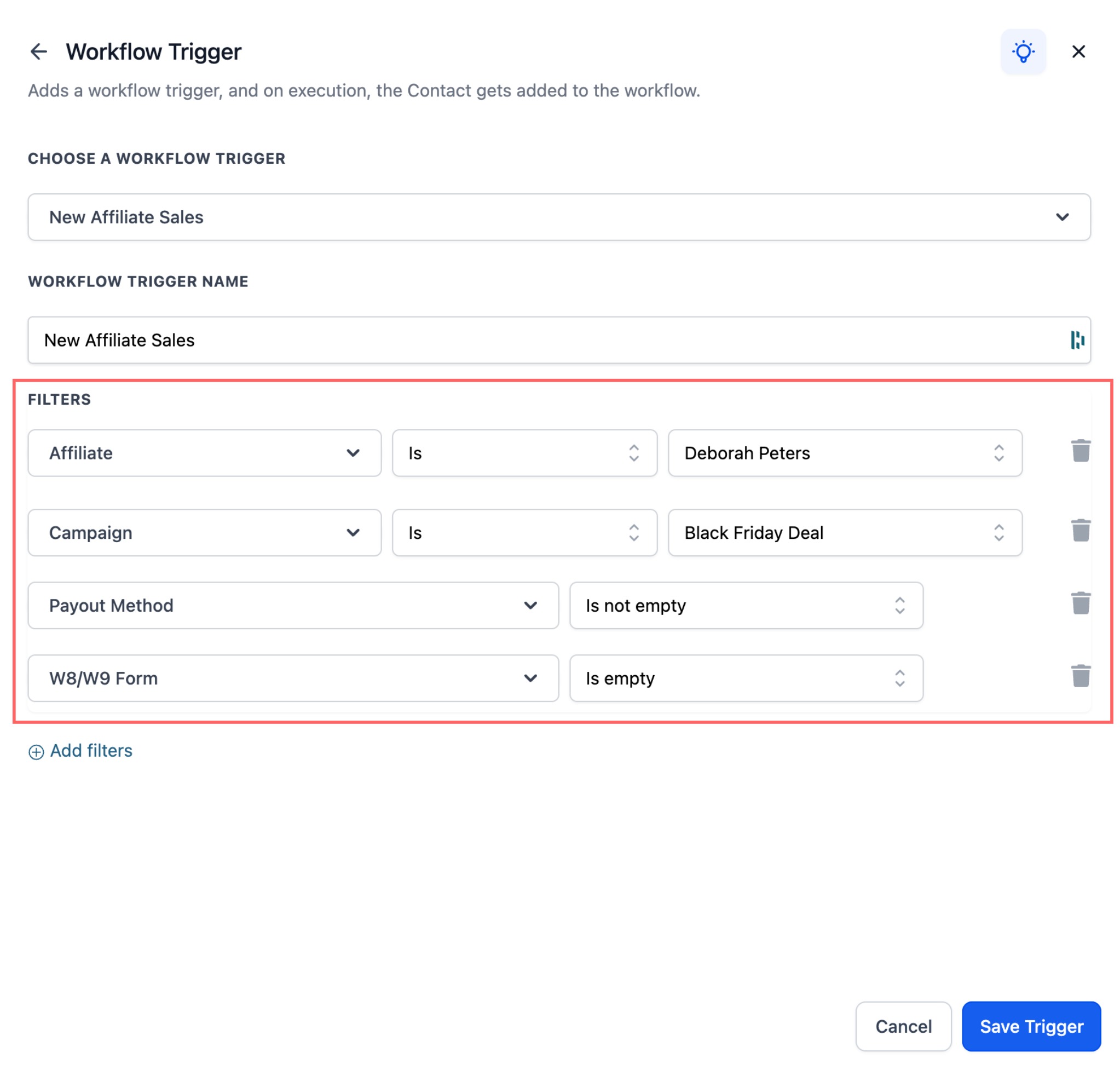
Filters allow you to control exactly which affiliate sales should start the workflow.
Available filters include:
- Affiliate – Trigger only when selected affiliates generate the sale.
- Campaign – Trigger only for specific affiliate campaigns.
- Payout Method Status – Trigger based on whether payout information has been completed.
- Tax Form Status – Trigger based on whether tax forms have been submitted.
Using filters allows you to build highly targeted automations for different affiliate programs and onboarding scenarios.
How to Set Up the Trigger
The New Affiliate Sale trigger can be added to any workflow and customized using optional filters.
Open Your Workflow
Navigate to:
Automations → Workflows
Create a new workflow or open an existing one.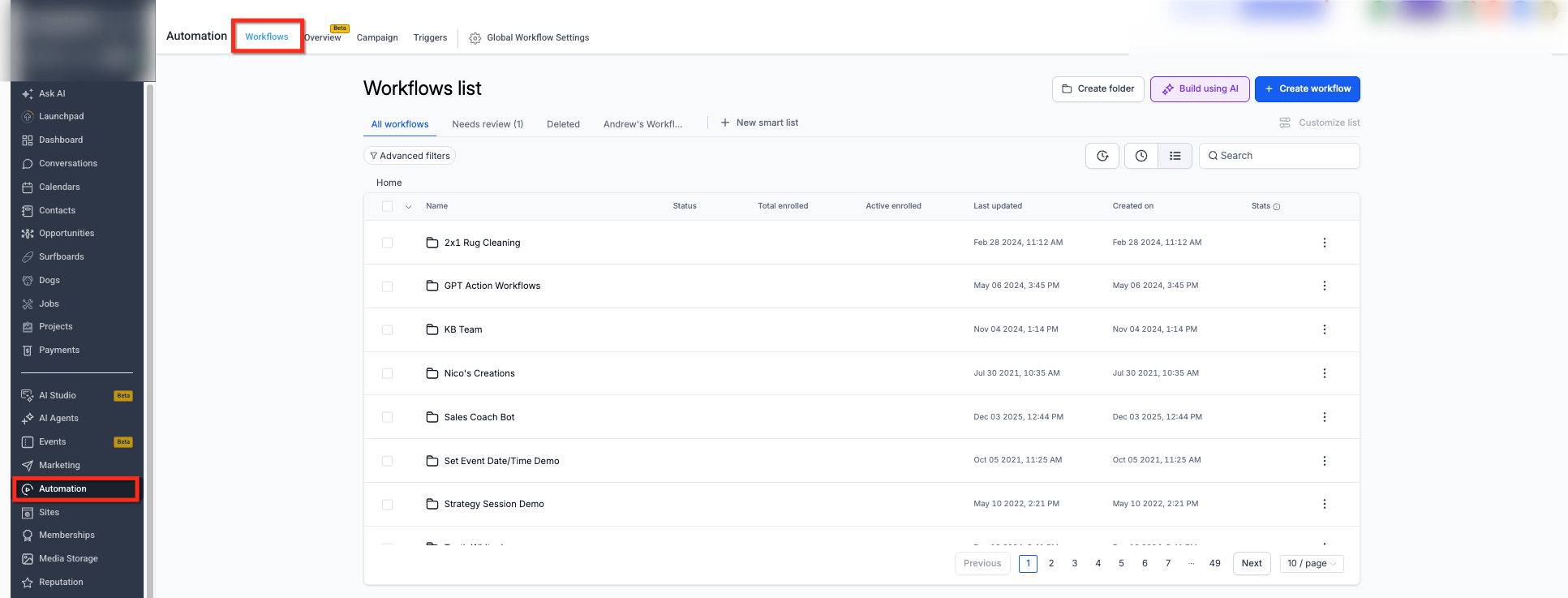
Add the Trigger
Click Add Trigger and select New Affiliate Sale.
Configure Trigger Filters
Choose any optional filters that should control when the workflow starts.
Examples include:
- Affiliate
- Campaign
- Payout Method Status
- Tax Form Status
Add Workflow Actions
After saving the trigger, add the actions you want the workflow to perform.
Examples include:
- Add a contact tag
- Create a task
- Send an internal notification
- Update custom fields
- Send follow-up emails
- Start another workflow
Save and publish the workflow when you’re finished.
Popular Use Cases
The New Affiliate Sale trigger can support many different automation scenarios.
Notify Your Team
Automatically notify your sales or support team whenever a new affiliate sale is recorded.
Example:
- Send an internal notification
- Create a follow-up task
- Update a dashboard
Tag Affiliate Customers
Automatically tag customers referred through affiliates.
Example tag:
Affiliate Customer
This makes it easier to segment customers for future campaigns and reporting.
Remind Affiliates to Complete Payout Information
Use the Payout Method Status filter to identify affiliates who have not completed their payout setup.
Example reminder:
“Complete your payout information so future commissions can be processed.”
Follow Up with Customers
Automatically send welcome emails, onboarding information, or post-purchase communications after an affiliate sale.
Remember that standard workflow communication actions typically send messages to the buyer’s contact record.
Known Behavior
Understanding how this trigger works helps prevent unexpected workflow behavior.
Buyer vs. Affiliate
The workflow commonly runs using the buyer’s contact record.
Because of this:
- Standard Send Email actions send emails to the buyer.
- Standard Send SMS actions send SMS messages to the buyer.
- Standard contact updates modify the buyer’s record.
If your workflow needs to communicate directly with the affiliate, use actions specifically designed for affiliate communication.
Community Points
If you’re awarding community points or badges, ensure the workflow is running on the appropriate community member before applying those actions.
The trigger does not automatically switch from the buyer’s contact record to the affiliate’s member profile.
Frequently Asked Questions
Q: When does the New Affiliate Sale trigger run?
The trigger runs whenever a successful affiliate sale is recorded, including one-time purchases, recurring sales, and manually tracked sales.
Q: Can I limit the trigger to specific affiliates?
Yes. Use the Affiliate filter to run the workflow only for selected affiliates.
Q: Can I limit workflows to specific campaigns?
Yes. The Campaign filter allows you to trigger workflows only for affiliate sales associated with selected campaigns.
Q: Does the workflow run on the affiliate or the buyer?
The workflow commonly runs on the buyer’s contact record. Standard workflow actions typically affect the buyer unless an affiliate-specific action is used.
Q: Can I remind affiliates to complete payout or tax information?
Yes. Use the Payout Method Status and Tax Form Status filters together with follow-up workflow actions.
Q: Does this trigger support recurring affiliate commissions?
Yes. The trigger works with one-time purchases, recurring affiliate sales, and manually tracked transactions.
Need Help?
If your workflow isn’t triggering as expected, first verify that the correct trigger has been selected, any configured filters match the affiliate sale, and the workflow is published.
If communications are being sent to the wrong person, remember that this trigger commonly runs on the buyer’s contact record. Review your workflow actions to confirm they’re appropriate for the intended recipient.
If you continue experiencing issues, collect screenshots of your workflow trigger, filters, workflow actions, and the affiliate sale before contacting support. Providing this information will help speed up troubleshooting and resolution.