
Entrance Animations for Sections, Rows and Columns
This article explains how to apply entrance animations to Sections, Rows, and Columns in the Page Builder, how LeadConnector automatically sequences animations as the visitor scrolls, and how to control animation playback on mobile devices.
You will learn how to preview animations before applying them, adjust timing and easing settings, and create cohesive page reveals without calculating delays manually.
What Are Entrance Animations for Layout Blocks?
Entrance animations allow Sections, Rows, and Columns in the Page Builder to animate into view as visitors scroll down the page. Instead of animating individual elements one at a time, you can animate entire layout blocks, and LeadConnector automatically sequences the animations in the order they appear on the page.
When a block scrolls into the viewport, it plays its entrance animation. The system waits for the parent block to finish before starting the child block's animation, so a Section animates first, then its Row, then the Column, and finally the content inside. This creates a cohesive, professional reveal without manual delay calculation.
Blocks remain visible after animating in, and content waiting its turn displays in its normal state rather than being hidden, ensuring the page remains readable throughout the animation sequence.
Key Benefits
Applying entrance animations to entire layout blocks delivers several advantages over animating individual elements:
Available Animation Types
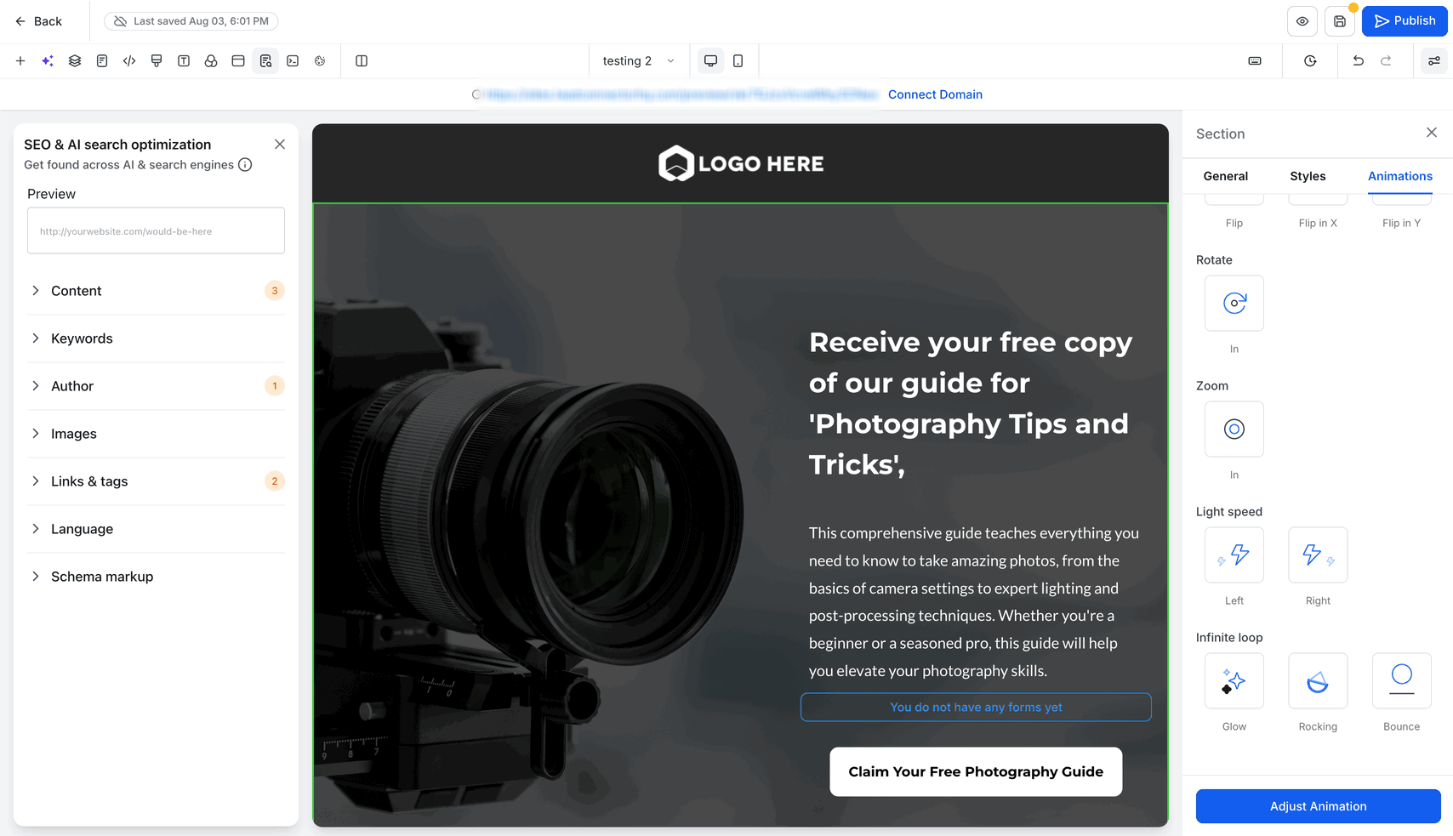
The Page Builder offers nine animation categories. Each category contains multiple directional or stylistic variants:
In, Up, Down, Left, Right
Up, Down, Left, Right
In, Up, Down, Left, Right
Flip, Flip In X, Flip In Y
In
In
Left, Right
Glow, Rocking, Bounce
Infinite Loop animations repeat continuously after the block scrolls into view. Use these sparingly to draw attention to specific elements.
Animation Settings
After selecting an entrance animation, you can fine-tune how the block animates into view using the following settings: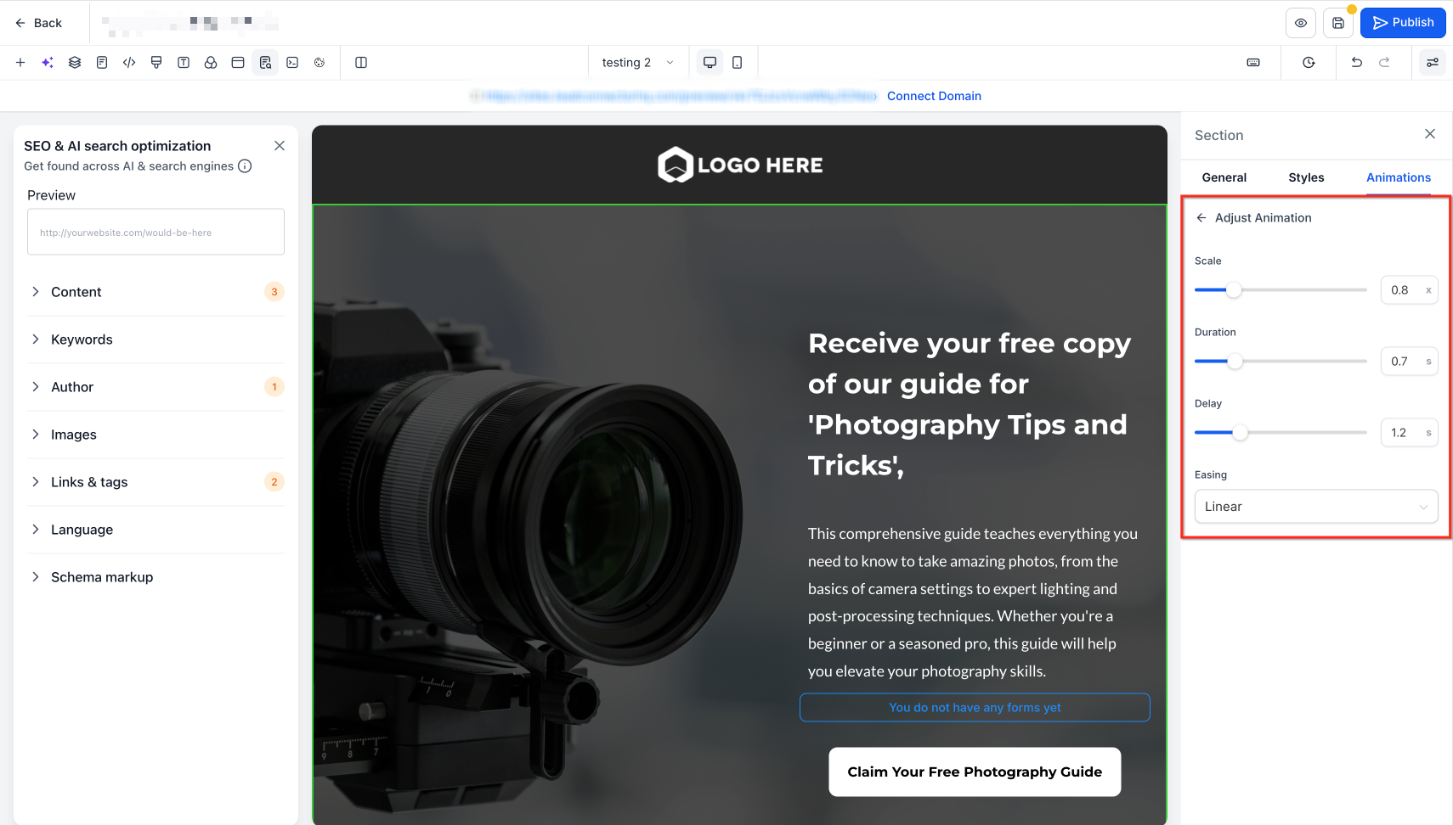
Adjust Duration and Easing together to match the tone of your page. Shorter durations with Ease-out create snappy reveals; longer durations with Ease-in-out feel more elegant.
How Automatic Sequencing Works
LeadConnector sequences animations based on the hierarchy of layout blocks. The system follows this order:
- Section animates first.
- Row inside the Section waits for the Section to finish, then animates.
- Column inside the Row waits for the Row to finish, then animates.
- Content (elements) inside the Column waits for the Column to finish, then animates.
This sequence is derived from the page structure, so when you add, remove, or reorder blocks, the timing updates automatically. You never calculate delays manually.
Blocks remain visible once they animate in, and content waiting its turn displays in its normal state rather than being hidden. This ensures the page remains readable throughout the animation sequence.
Pages already published benefit from automatic sequencing when they render. No re-save is required.
Controlling Animations on Mobile
Entrance animations are disabled on mobile devices by default. This keeps pages fast and avoids distracting motion on smaller screens where performance and readability are critical.
Each Section, Row, and Column includes an Enable animations on mobile toggle. Turn this toggle on for specific blocks when you want motion on phones. When a block's toggle is left off, blocks that still animate re-sequence around it, so the animation order remains correct on mobile.
Enabling animations on mobile can impact page load time and scrolling smoothness on lower-end devices. Use this toggle sparingly to preserve a good mobile experience.
How to Set Up Entrance Animations
Follow these steps to apply an entrance animation to a Section, Row, or Column in the Page Builder:
Click the Section, Row, or Column on the canvas that you want to animate.
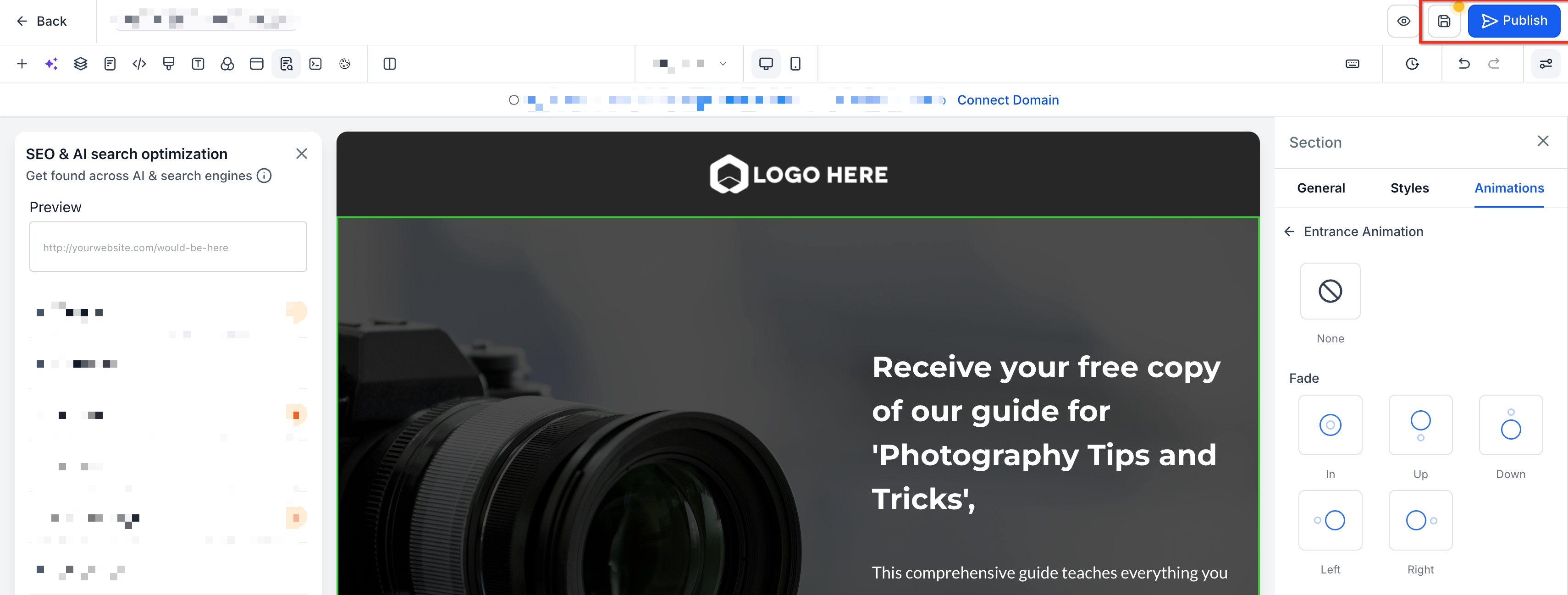
In the sidebar on the right, click the Animations tab.
Under Entrance Animation, you will see the available animation categories.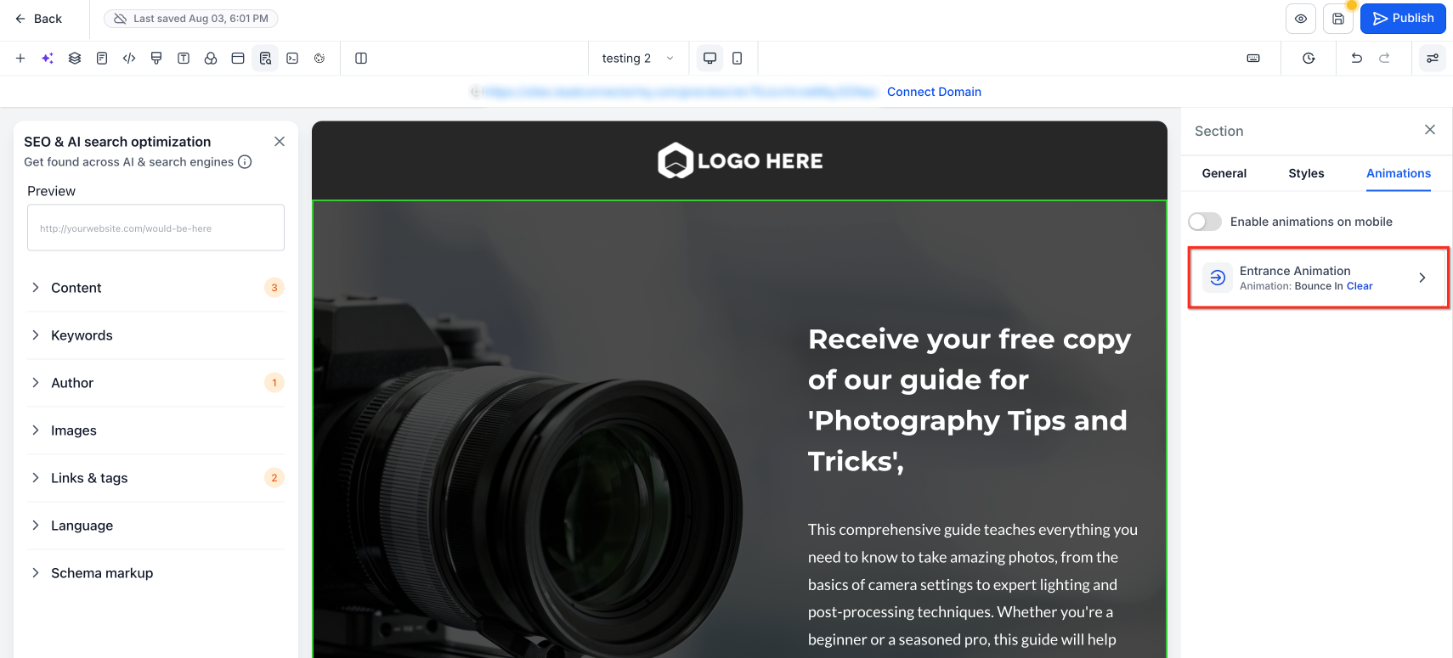
Hover your cursor over any entrance animation card. The animation plays on the selected block on the canvas.
Move your cursor away to clear the preview and compare other options.
Click the animation card you want to apply. The animation is saved to the block.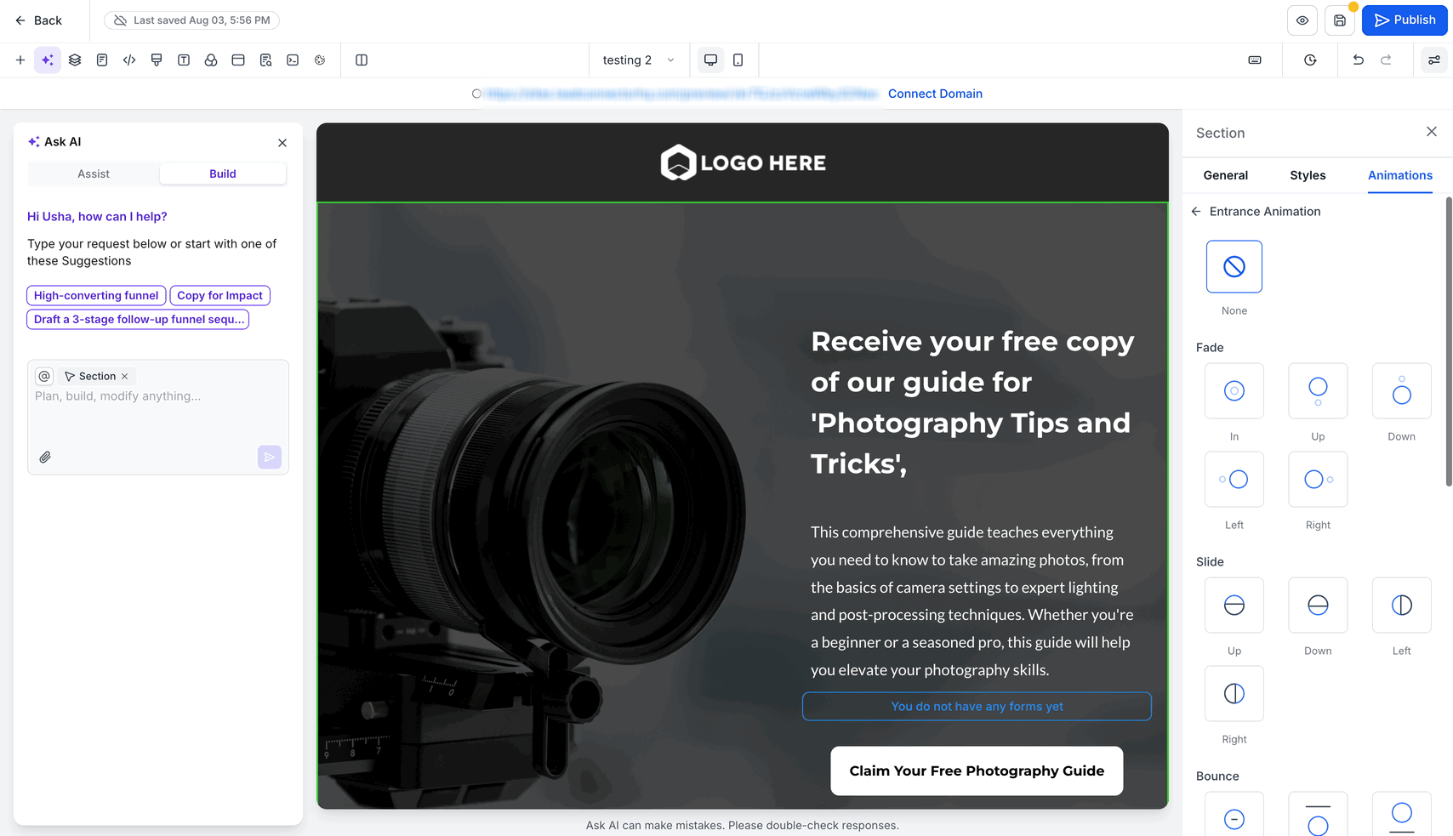
Use the sliders and dropdowns to adjust:
- Duration — 0.1s to 3s
- Delay — 0s to 5s
- Scale — 0.5× to 2×
- Easing — Linear, Ease-in, Ease-out, Ease-in-out
If you want the animation to play on mobile devices, turn on the Enable animations on mobile toggle in the Animations tab.
By default, this toggle is off to preserve mobile performance.
Click Save at the top of the builder.
Publish your page to see the animations in action. Scroll down the page to trigger each block's entrance animation.
If you encounter issues setting up entrance animations, try the following steps:
- Ensure the block you selected is a Section, Row, or Column. Entrance animations are not available for individual elements.
- Check that the Animations tab is open in the sidebar. If you do not see Entrance Animation options, verify that the block is selected on the canvas.
- If animations do not play on mobile, confirm that the Enable animations on mobile toggle is turned on for that block.
- If the animation sequence feels off, verify that parent blocks (Section → Row → Column) have their animations configured in the correct hierarchy.
- Refresh the builder canvas or re-open the page to reload the animation preview system if hover previews stop working.