Abandoned Checkouts: Manage, Export & Recover Lost Sales
This article explains how to use the Abandoned Checkouts page in LeadConnector to search, filter, export, and manage abandoned checkout records.
You'll also learn how to configure recovery notifications and share checkout links to help customers complete their purchases.
What Are Abandoned Checkouts?
Abandoned Checkouts occur when customers add products to their cart and begin the checkout process but leave before completing their purchase. LeadConnector saves these incomplete checkouts so you can review customer and cart details, monitor recovery progress, and encourage customers to return and complete their order.
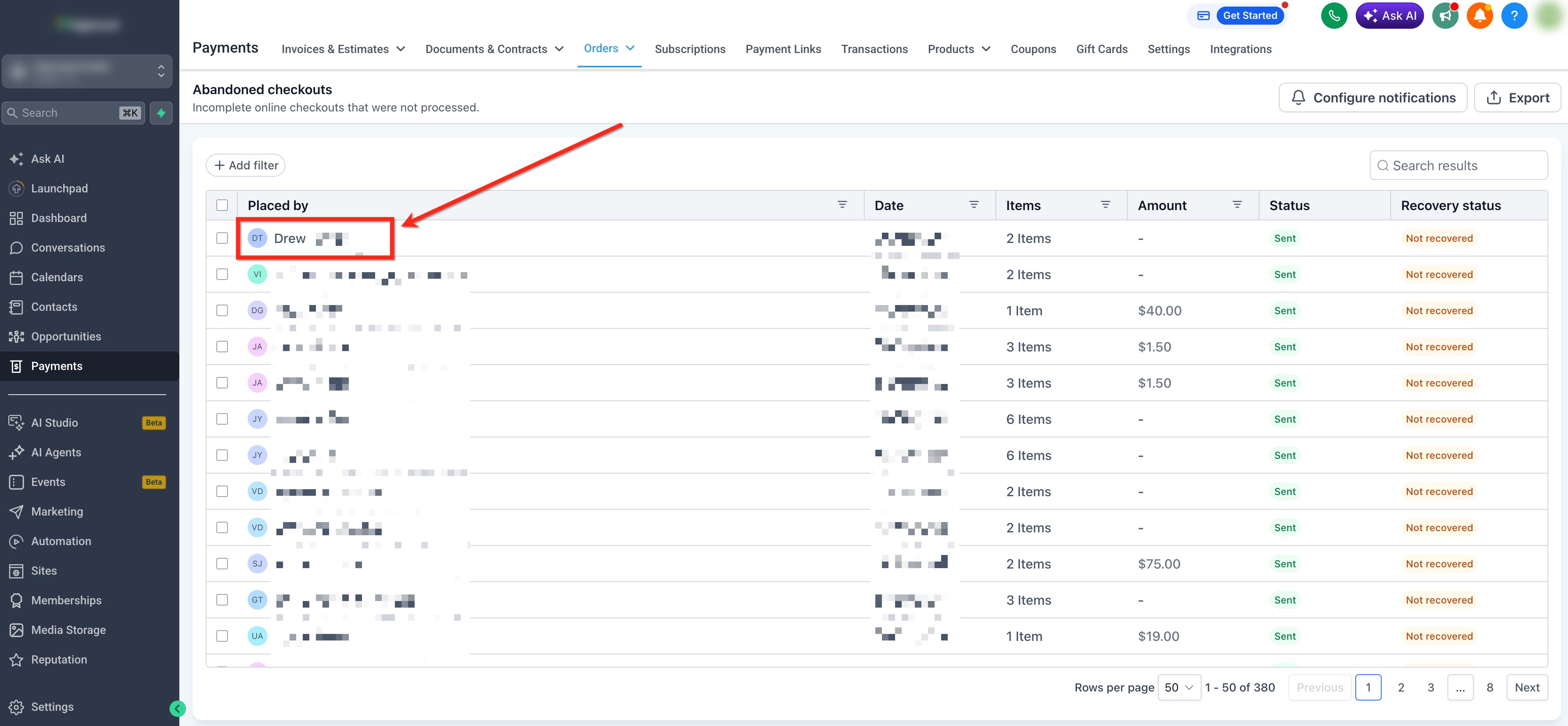
The Abandoned Checkouts page provides a centralized view of these records, allowing you to search, filter, export, and manage abandoned checkouts from one place. You can also review checkout details, configure abandoned cart notifications, and copy a recovery link to manually share with customers when needed.
Key Features of the Abandoned Checkouts Page
The Abandoned Checkouts page provides powerful tools to manage and recover lost sales. Key features include:
How to Access Abandoned Checkouts
Follow these steps to view and manage abandoned checkouts in your LeadConnector account.
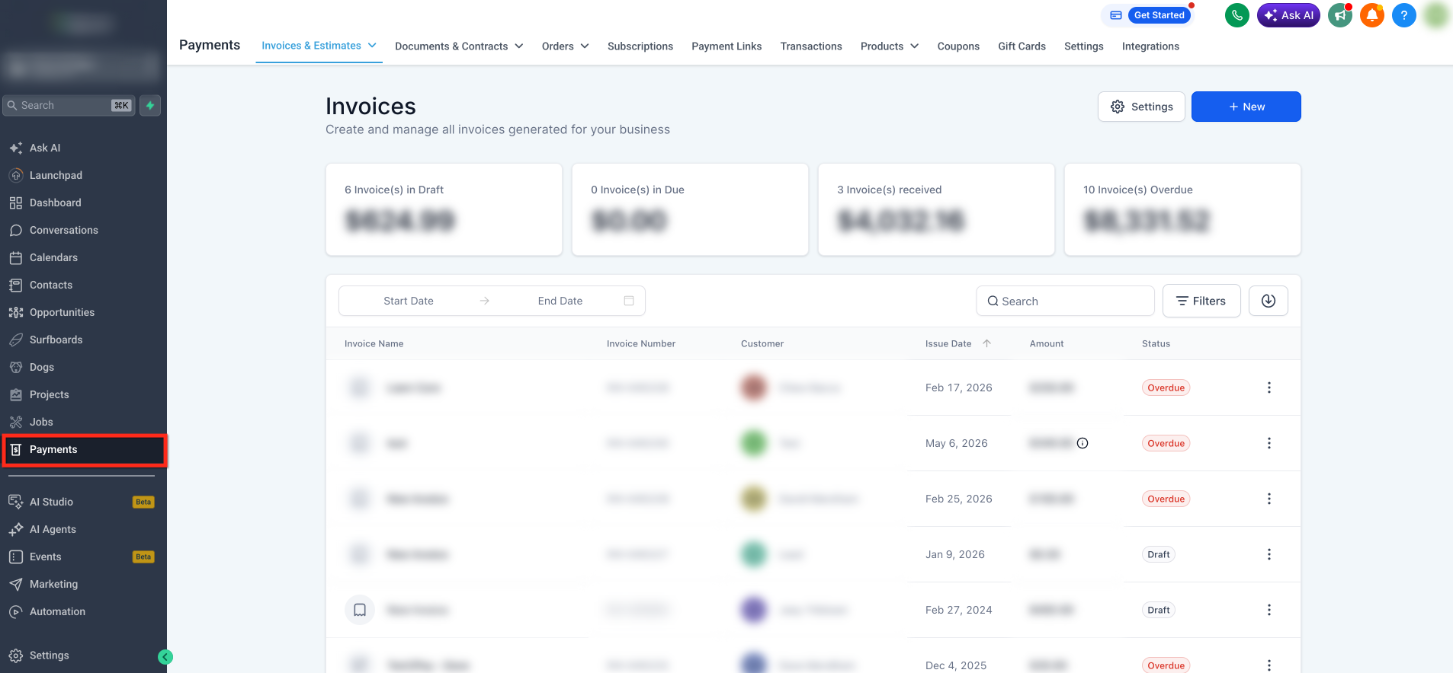
From the left navigation menu, click Payments.
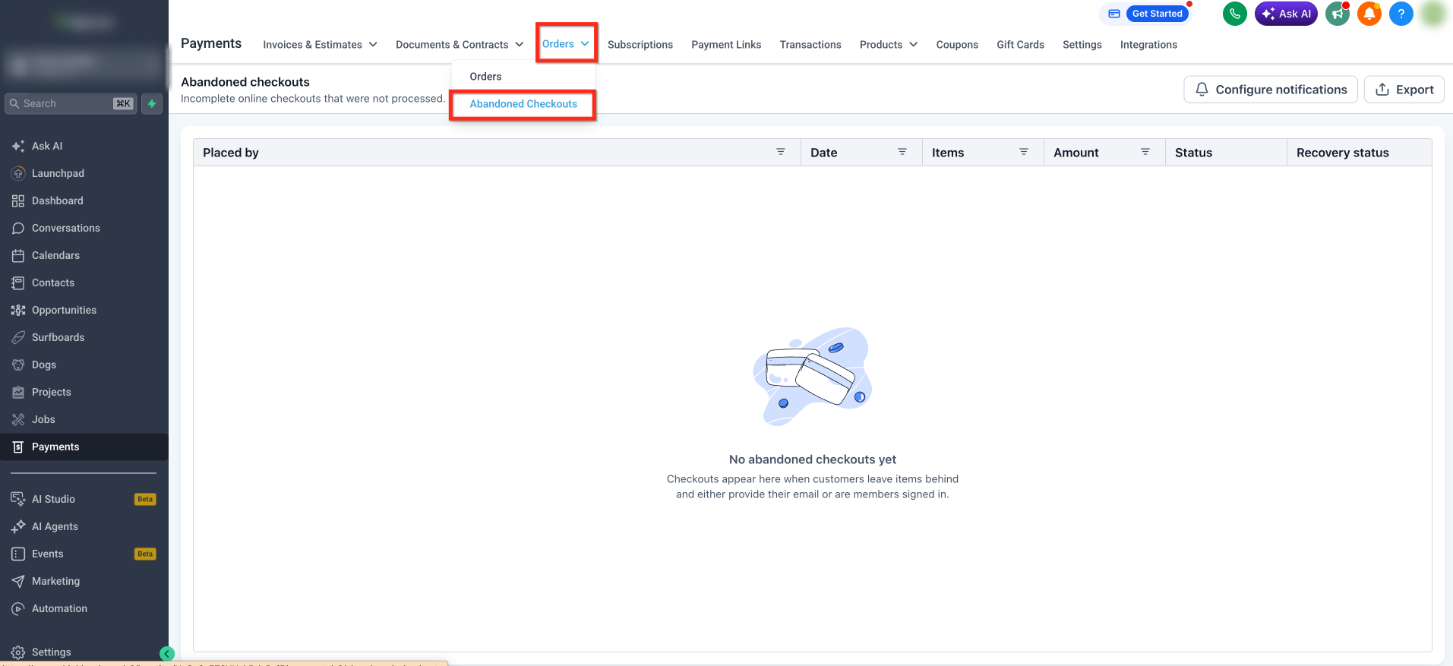
Hover over Orders then select Abandoned Checkouts from the dropdown to view all incomplete checkout records.
How to Search and Filter Records
Search and filter tools help you quickly locate abandoned checkouts based on customer information or recovery activity.
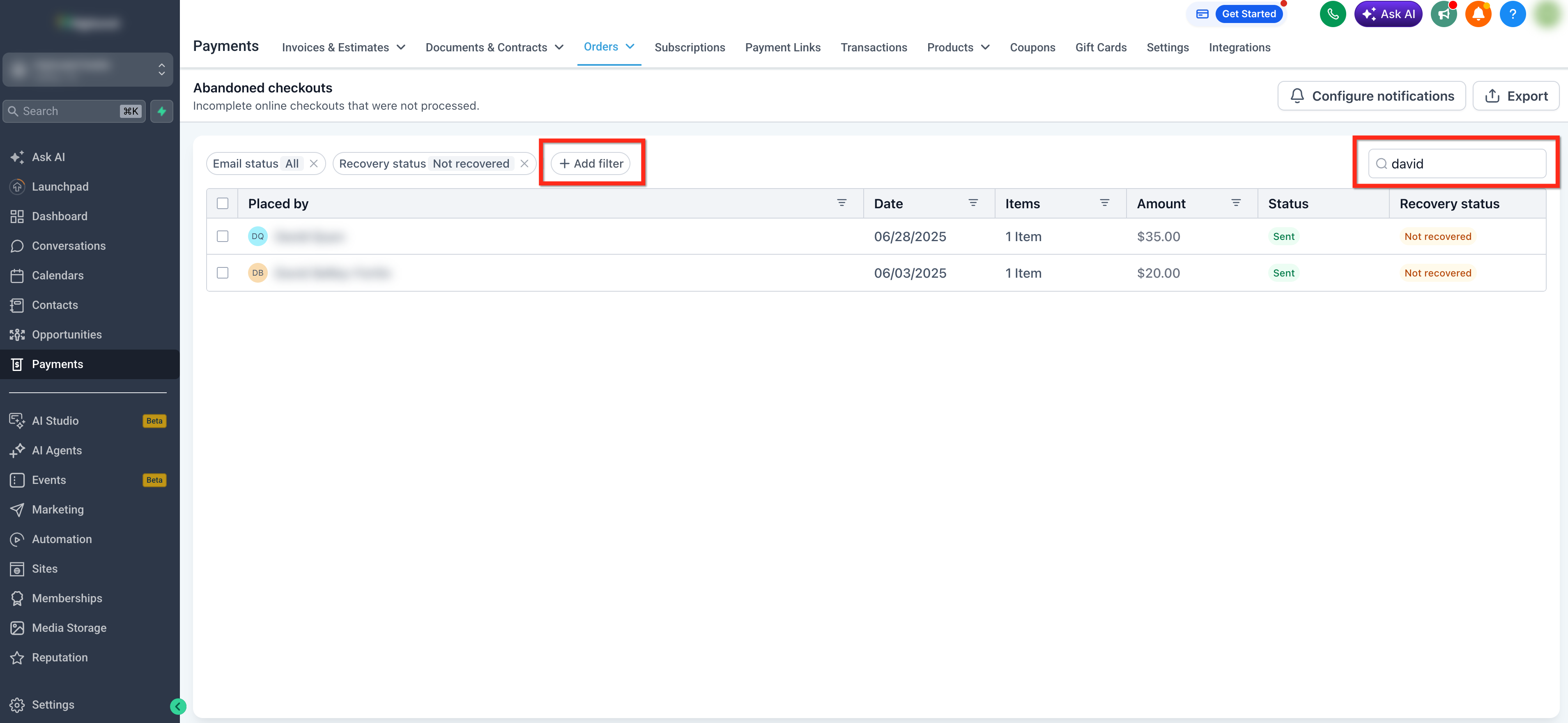
Enter a customer's name or email address in the search field.
Click Add Filter and choose one of the available filters (Email Status, Recovery Status, Date Range).
The table updates automatically to display only records that match your search and filter criteria.
How to Export Abandoned Checkout Records
Export abandoned checkout data as a CSV file for reporting, analysis, or record keeping. The export includes customer information, cart contents, product details, activity, and recovery information.
Use the checkboxes beside individual records to select one or more abandoned checkouts.
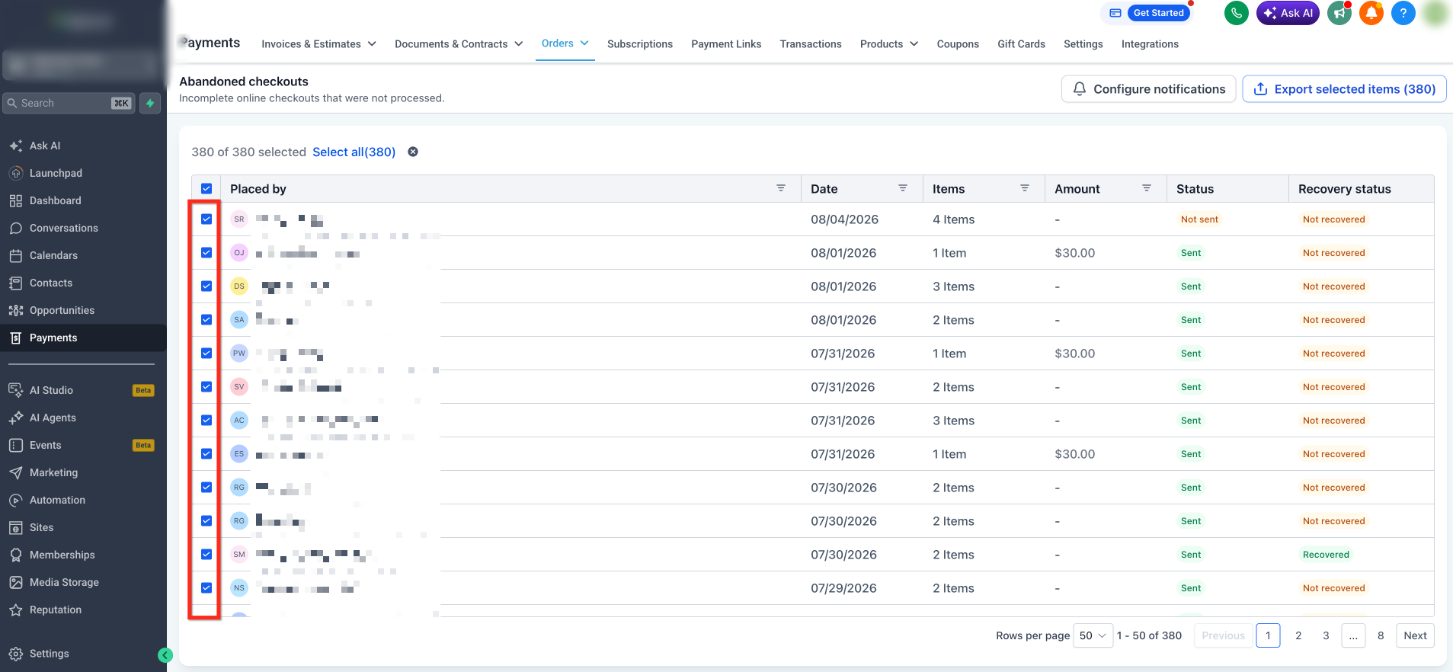
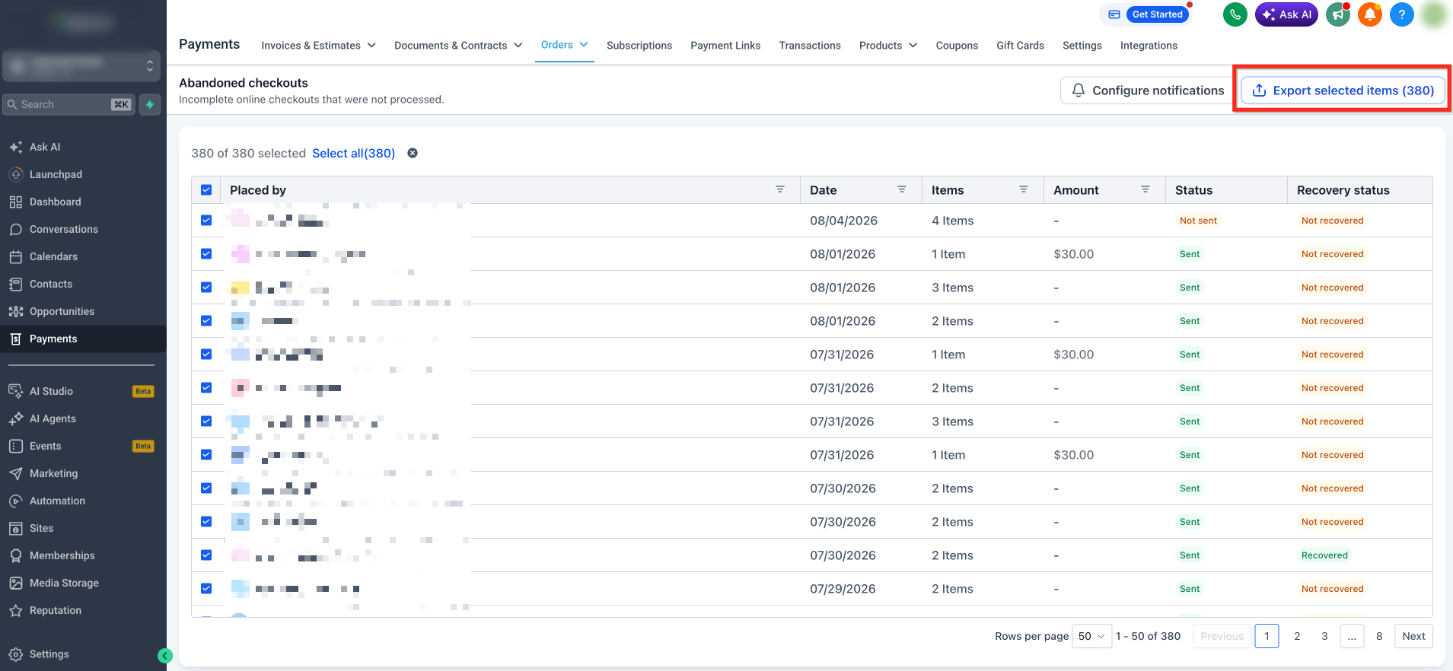
After selecting at least one record, click Export CSV.
- If the export contains 5,000 records or fewer, the CSV downloads immediately.
- If the export contains more than 5,000 records, LeadConnector processes the export and delivers the CSV file by email.
How to Configure Recovery Notifications
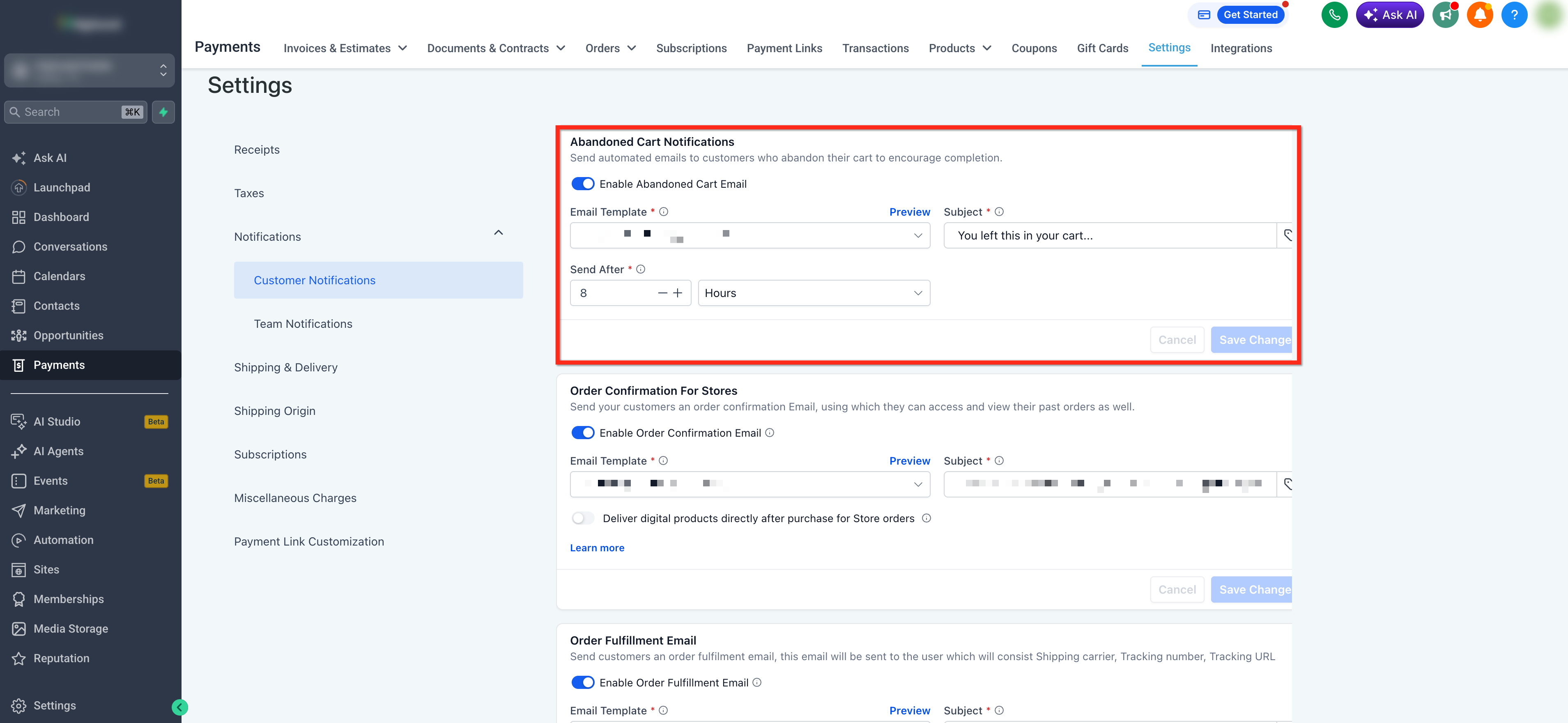
Configure automated recovery emails to remind customers about abandoned carts and encourage them to complete their purchases.
Click Configure Notifications from the Abandoned Checkouts page.
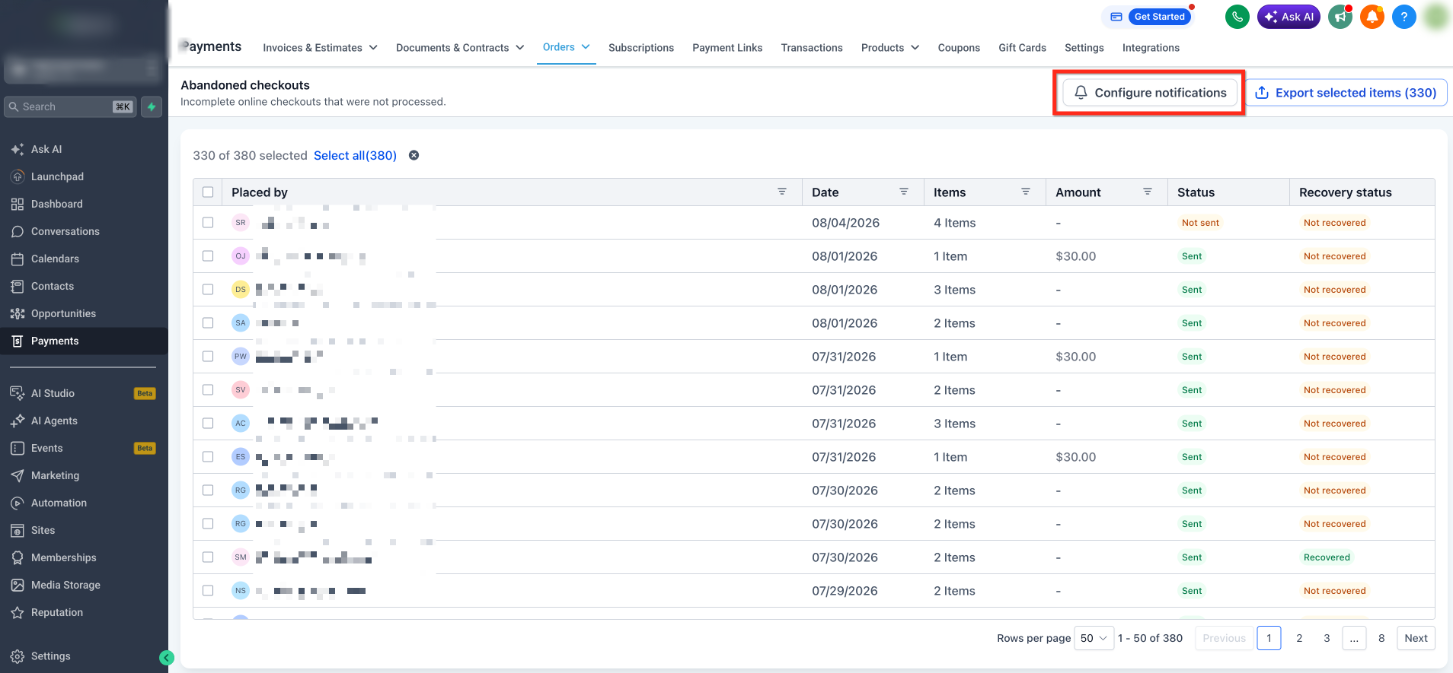
The button opens Abandoned Cart Notification Settings, where you can manage your recovery email configuration. Update the email template, subject line, and delivery timing for abandoned cart notifications, then save your changes.
How to Share Recovery Links
Recovery links allow customers to return directly to their abandoned checkout without starting over.
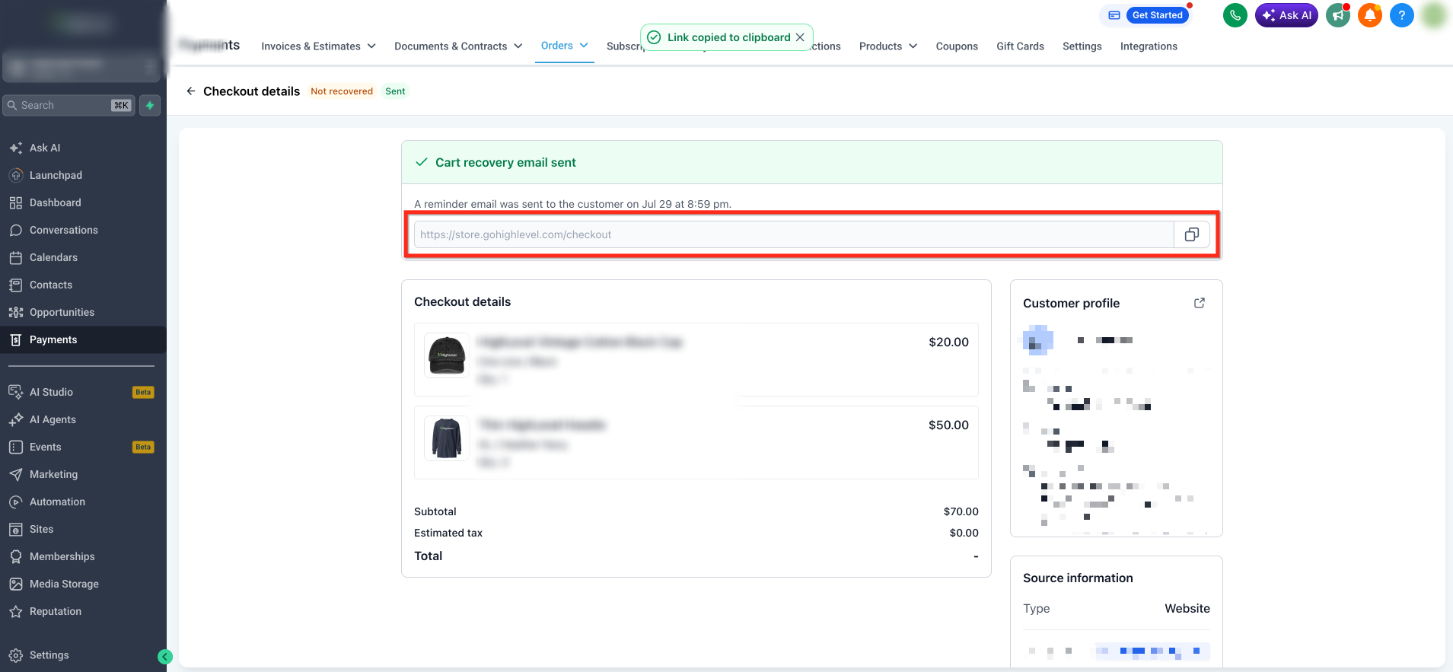
Select the abandoned checkout you want to review by clicking on the order's name.
Locate the checkout URL near the top of the details page and click the Copy icon.
You can then paste the recovery link into an email, SMS, or other message so the customer can quickly return to checkout and complete their purchase.