
Opportunities V2 Mobile Experience
This guide covers the enhanced Opportunities mobile experience, which delivers a modern, intuitive workspace designed to boost productivity and streamline deal-closing on the go.
You'll discover how to customize opportunity cards with over 40 fields, execute quick actions directly from your pipeline, and manage every aspect of your leads—from notes to appointments—in one unified view.
What is the Opportunities V2 Mobile Experience?
The Opportunities V2 mobile experience reimagines lead management for sales teams on the go. This update provides personalized card layouts and integrated functionality, giving you instant access to critical information and quick actions directly from your mobile device.
By consolidating everything you need into one modern workspace—from customizable fields to notes, tasks, and appointments—you spend less time navigating between screens and more time closing deals.
Key Benefits
This transformation is designed with your productivity in mind. By reducing unnecessary clicks and providing crucial details instantly, the enhanced mobile experience empowers your sales teams to close more deals.
Customizable Opportunity Cards
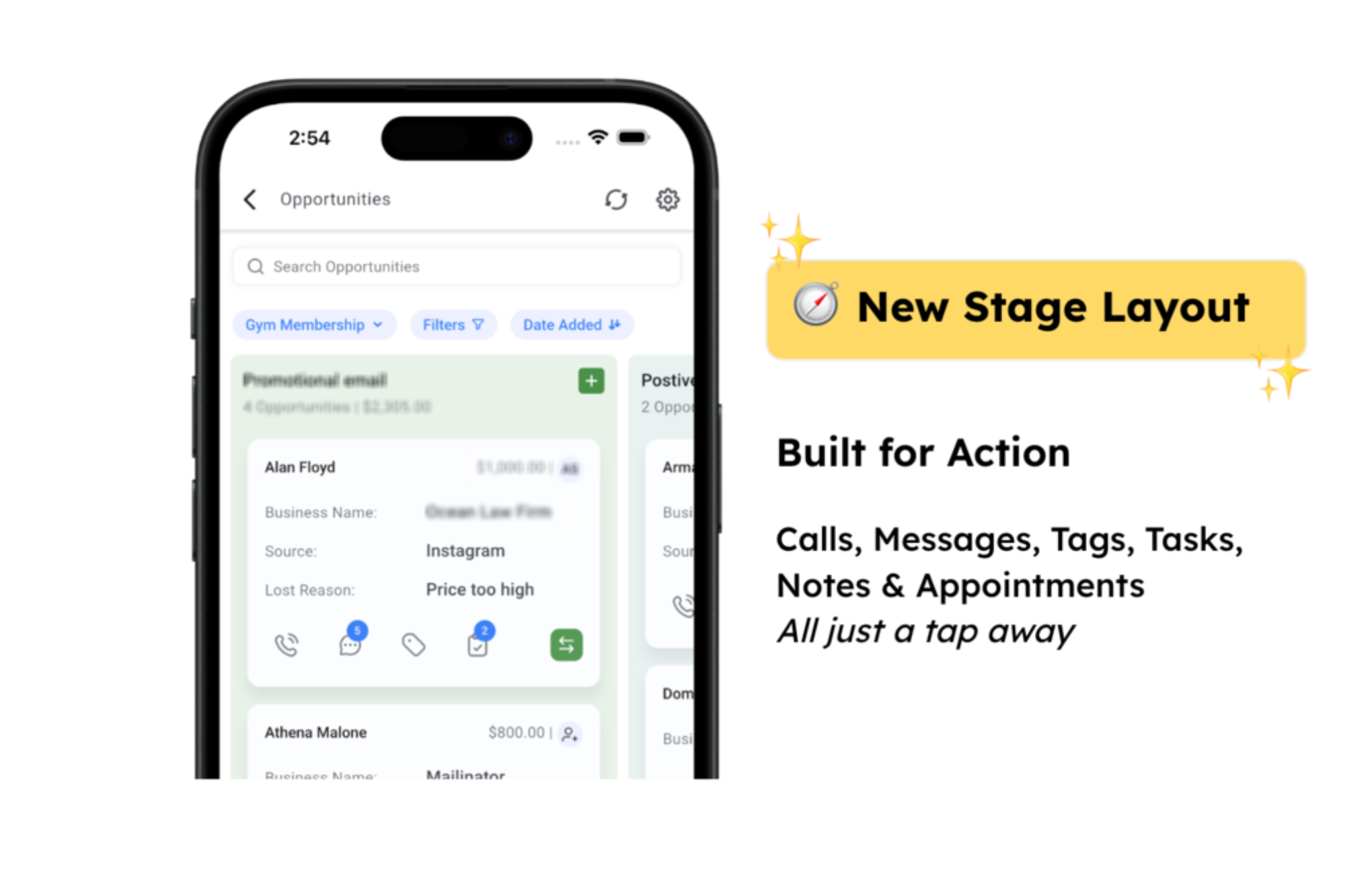
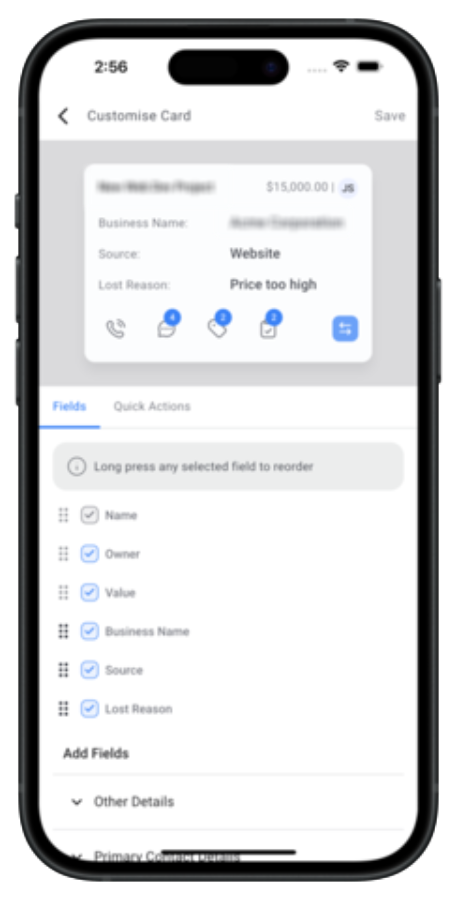
Tailor the mobile app's opportunity cards to suit your workflow. Choose from over 40 fields and quick actions so your pipeline displays only what matters most to your sales process.
You can display up to 4 custom fields on each card, plus 3 bonus fields—Name, Value, and Owner—which always appear on the top line when selected. Default fields include Name, Value, Owner, Source, Business, and Lost Reason.
Your customization choices apply only to the mobile app layout. Desktop and web views remain unchanged and maintain their own separate configurations.
Enhanced Pipeline View
The refreshed pipeline view puts all critical actions at your fingertips, eliminating the need to switch contexts or screens. You can interact with customized cards that allow direct actions such as calling, adding notes, tasks, or tags, and changing stages—all from the pipeline view.
Default quick actions include Message, Add Tag, Add Task, and Move Opportunity. Active badges display counters for conversations, notes, tasks, and tags so you never miss an update.
All-in-One Opportunity View
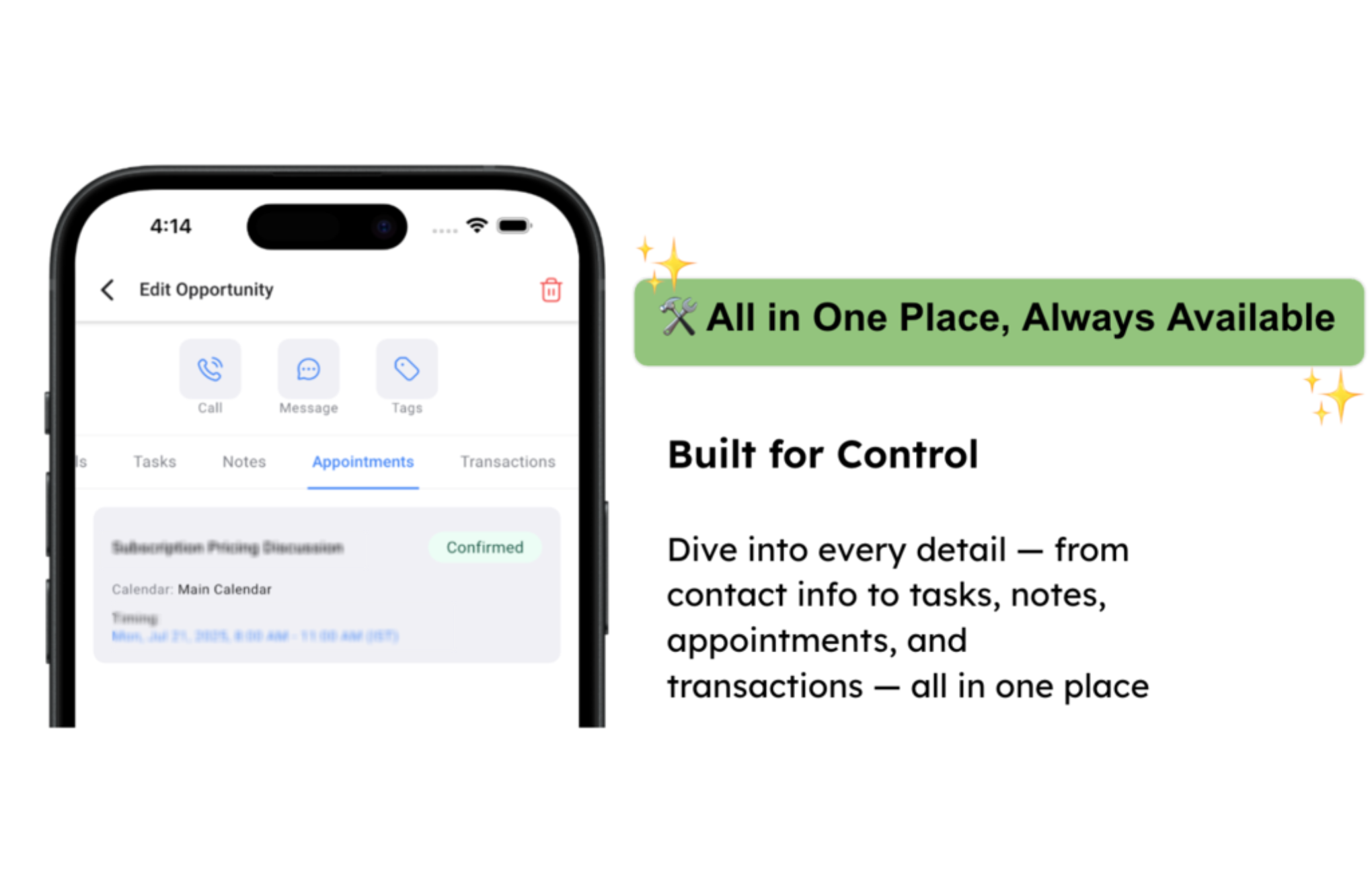
This consolidated view brings all aspects of lead information into one comprehensive screen. Every detail—whether it's call logs, messages, tasks, or appointments—is easily accessible without navigating away from the card.
Use top quick actions like call, message, and tag for speedy engagement. Toggle easily between integrated tabs for Details, Tasks, Notes, Appointments, and Transactions to manage everything in one place. Edit information, add updates, and track activity seamlessly.
How to Set Up Opportunities V2 Mobile
Setting up the enhanced mobile experience is straightforward and designed to get you up and running quickly. Follow these steps to customize your workflow for a faster, more efficient deal-closing process.
Open the mobile app and navigate to Opportunities → Settings → Customize Cards.
Choose from over 40 fields and a variety of quick actions. Activate your configuration by selecting up to 7 fields along with your preferred quick actions, then tap Save. Your personalized opportunity cards will refresh instantly.
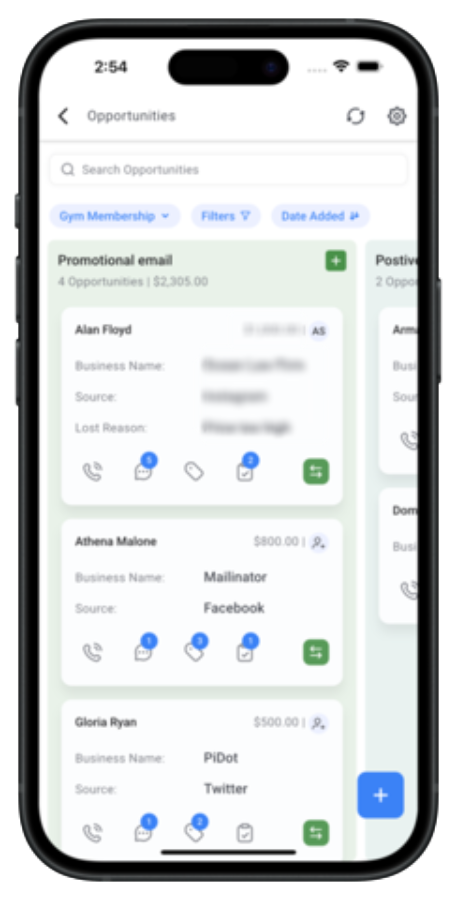
In the mobile app, navigate to Opportunities → Pipelines.
Explore the updated stages and interact with your customized cards. Execute quick actions such as calling, adding notes or tasks, tagging, and stage changes directly from the card.
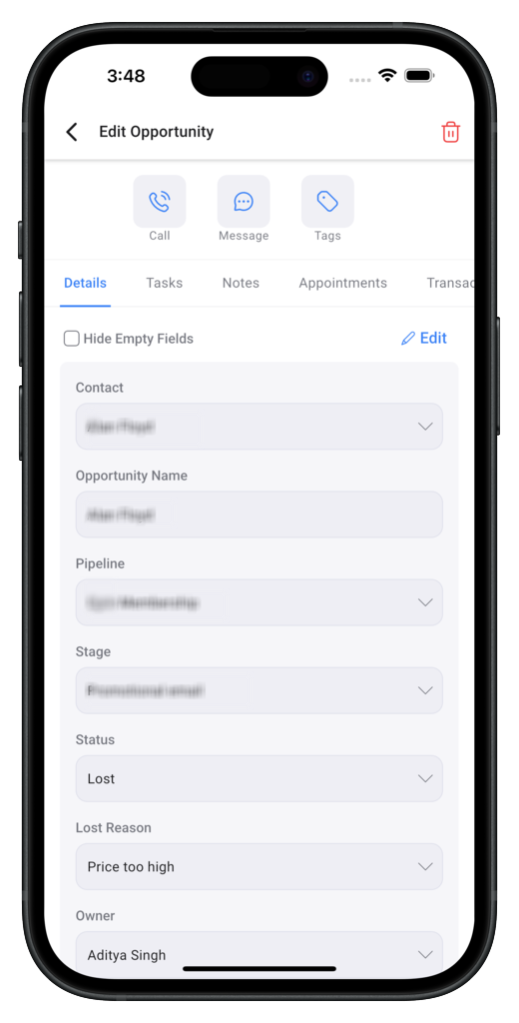
Tap any opportunity card within your pipeline to open the detailed view.
Use the top quick actions for immediate engagement (call, message, tag). Switch between tabs—Details, Tasks, Notes, Appointments, and Transactions—to manage every aspect of the opportunity in one unified screen.
You're all set! Your mobile opportunities are now customized for faster deal management. Watch for counters on conversations, notes, tasks, and tags so you never miss an update.
Frequently Asked Questions
If you encounter any issues while setting up or using the Opportunities V2 mobile experience, our support team is ready to assist.
- Open the mobile app and tap the Help icon to access in-app support resources.
- Contact your support team through the Support tab in your mobile settings.
- Visit the Help Center from your desktop to browse additional articles and guides.