
The GoKollab mobile app provides a native iOS and Android experience for accessing Communities, Courses, Events, and Chats. The Beta v2 redesign introduced faster navigation, improved media handling, and more reliable notifications. Version 26.04.140, released in April 2026, added contextual app update reminders, notification permission prompts, and improvements to Events and app stability. This guide explains the mobile experience, how to get started, and what changed in that release.
TABLE OF CONTENTS
- What Is the GoKollab Mobile App?
- Key Benefits
- Prerequisites and Limitations
- Navigation, Notifications, and Media
- What's New in Version 26.04.140?
- How to Set Up the GoKollab Mobile App
- Frequently Asked Questions
- Need Help?
What Is the GoKollab Mobile App?
GoKollab is a native mobile application for accessing Communities, Courses, Events, and Chats. It allows members to explore learning content, review discussions, follow events, and participate in supported conversations from iOS and Android devices.
The Beta v2 redesign replaced the earlier hybrid experience with a native mobile interface. This redesign focused on faster app loading, smoother navigation, improved notification handling, and better stability.
The app also uses Media Core to support image and video delivery. Subsequent releases have introduced additional improvements, including the features documented in the April 2026 update below.
Key Benefits
The mobile experience brings learning and community content together in one app. Native navigation, media improvements, and notification controls help members stay connected while using their mobile devices.
- Native mobile navigation: Move between available Courses, Communities, Events, and Chats.
- Improved loading performance: The original Beta v2 redesign reduced app startup times and improved navigation responsiveness.
- Reliable notifications: Receive supported alerts for messages, posts, comments, and course activity.
- Notification preferences: Review and manage supported alert categories through the app and device settings.
- Improved media delivery: Media Core supports image and video rendering for learning and community content.
- App update reminders: Receive contextual prompts when app updates are available.
- Stability improvements: App releases include fixes for notifications, animations, and other mobile experiences.
Performance note: The original Beta v2 documentation reported initial loading times of approximately 1.5–2 seconds, smoother 60 fps scrolling, and a 98% crash-free session rate. These were reported launch characteristics, not guarantees for every device or app version.
Prerequisites and Limitations
Before using the mobile app, make sure you have access to the relevant content and an installed app version supported by your device. Some features require network access or notification permissions.
- Supported platforms: GoKollab is available for supported iOS and Android devices.
- Existing access: You need access to a supported Community, Course, or Client Portal experience.
- Sign-in: Use your existing email and password or a supported one-time password sign-in method.
- Notifications: Push alerts require the appropriate permissions in your device settings.
- Network connection: New content and media streaming require an internet connection.
- Offline content: Previously loaded content may be cached, but full offline access is not documented.
- Version differences: Features, controls, and available content can vary between app versions.
Note: Version 26.04.140 is an earlier release. Check the Apple App Store or Google Play for the most recent version available for your device.
Navigation, Notifications, and Media
The native mobile experience provides access to learning and community content through supported navigation sections. Notification and media improvements help members follow activity and open available content.
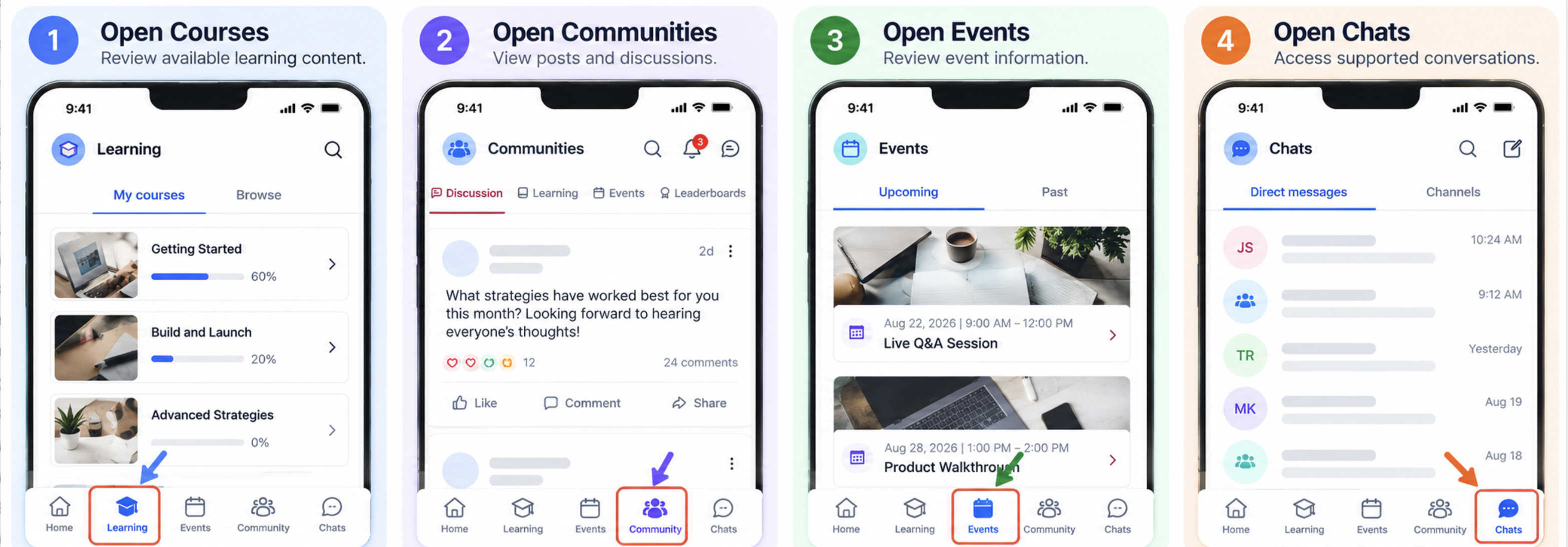
Intuitive Navigation
The Beta v2 redesign introduced a bottom-tab navigation structure for moving between the main content areas.
- Courses: Open available learning content and review lessons.
- Communities: Access discussions, posts, and group activity.
- Events: Review available events and related details.
- Chats: Open supported conversations and communicate with other members.
Select the relevant navigation tab to open its content. The visible options may depend on the content available to you and your installed app version.
Notifications and Alert Preferences
Supported push notifications provide updates about messages, comments, community posts, and course activity. Notification delivery depends on your app preferences, device permissions, and network connection.
Use Profile > Settings > Notifications to review available notification categories. You can also manage permissions in your device's notification settings.
Enhanced Media with Media Core
Media Core supports image and video delivery in the mobile experience. This includes supported media in Courses, Communities, and Events.
The native redesign introduced improvements intended to make media rendering and navigation smoother. Playback quality and loading times still depend on device performance and network conditions.
Performance and Stability
The original Beta v2 release focused on reducing startup delays, improving scrolling responsiveness, and addressing crashes. Later releases continued to introduce fixes across supported app features.
Keep the mobile app updated to receive the fixes and improvements available for your device.
What's New in Version 26.04.140?
Version 26.04.140, released on April 26, 2026, introduced contextual app-update and notification permission reminders. It also included an Events improvement and fixes related to animations, push notifications, and app stability.
Release note: The changes in this section are specific to the April 2026 release. They should not be confused with features introduced in earlier or later app versions.
App Update Reminders
Contextual update reminders help members identify when a newer app version is available. These reminders can guide users to the appropriate update action.
When an update reminder appears:
- Review the update message shown in the app.
- Follow the available on-screen instructions.
- Open the app's listing in the Apple App Store or Google Play if prompted.
- Install the available update.
- Reopen the app after the update completes.
You can also check for updates directly through your device's app store.
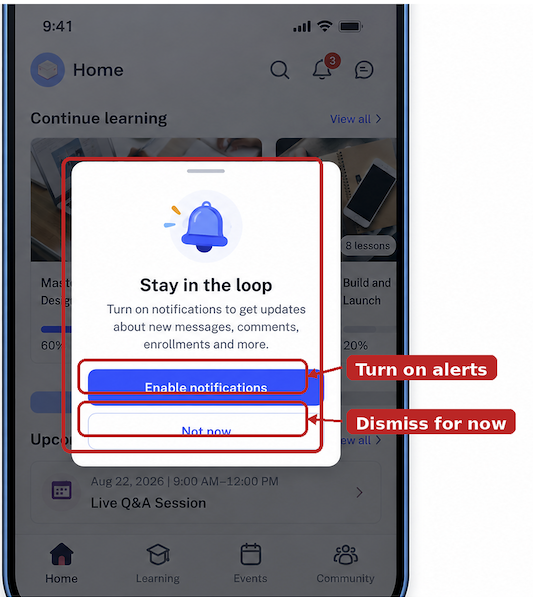
Notification Permission Reminders
Notification permission reminders help members review whether the app can display supported alerts. These reminders provide a way to enable notifications or dismiss the prompt.
- Review the notification reminder when it appears.
- Select Enable notifications to allow supported alerts.
- Follow any device permission prompt that appears.
- Alternatively, select Not now to dismiss the reminder.
You can review or change notification permissions later through your device settings.
Go Live Option in Events
The April 2026 release included a Go Live option in Events. This improvement relates to the Events experience and is separate from Live Sessions in Courses.
The available Events controls depend on the app experience and the event being accessed. This release summary does not establish a complete setup procedure for starting a live broadcast.
Push Notification and Stability Fixes
Version 26.04.140 also included improvements to animations, Firebase Cloud Messaging (FCM) push-notification delivery, and app stability.
- Animations: Refinements intended to improve transitions and responsiveness.
- Push notifications: Improvements to FCM notification delivery.
- Stability: Additional crash fixes intended to improve overall app reliability.
These changes were part of the April 2026 update. Later releases may include further notification and stability improvements.
How to Set Up the GoKollab Mobile App
Install or update the app, sign in using your existing access, and review your notification preferences. Once signed in, you can open the available learning and community sections.
Step 1: Install or Update the App
Use the official app store for your device to install GoKollab or check for an available update.
- Open the Apple App Store on iOS or Google Play on Android.
- Search for GoKollab.
- Open the app's listing.
- Select Get or Install for a new installation, or Update when an update is available.
- Open the app after installation or updating is complete.
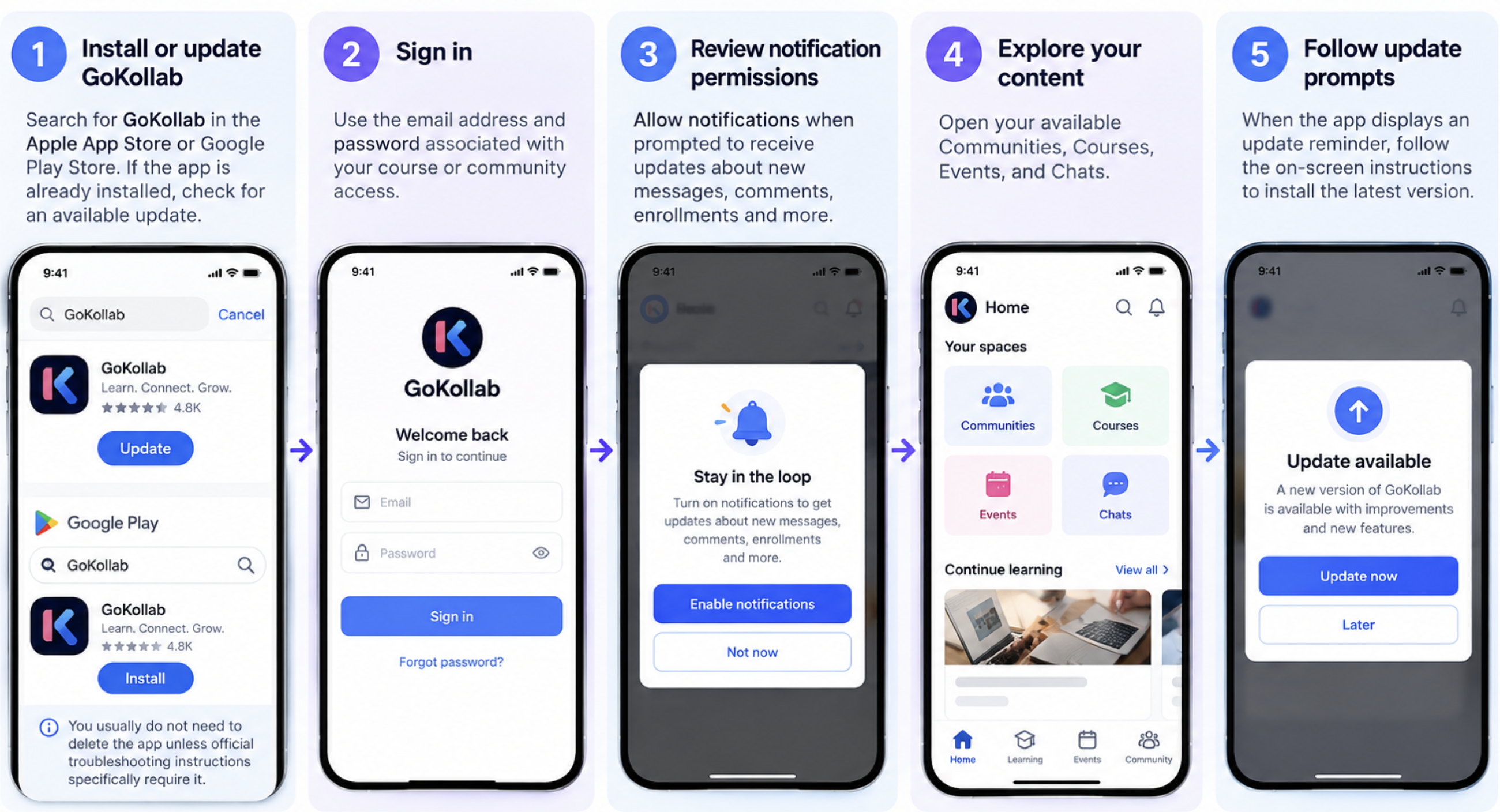
Note: The original Beta v2 migration used a new app package. If you still have the legacy installation, follow the applicable migration instructions. For an existing current installation, check for updates before reinstalling.
Step 2: Sign In
Use the credentials associated with your existing Community, Course, or Client Portal access.
- Open the installed app.
- Sign in using your registered email and password or the available one-time password option.
- Complete any prompted verification step.
- If multiple available domains are presented, select the one you want to open.
Step 3: Allow Notifications
Enabling supported notifications allows the app to display alerts when relevant activity occurs.
- Review the notification permission prompt when it appears.
- Select Enable notifications if you want to receive supported alerts.
- Follow the device's permission instructions.
You can change this permission later through your device settings.
Step 4: Customize Notification Preferences
Use the available in-app notification controls to review supported alert categories.
- Open Profile.
- Select Settings.
- Select Notifications.
- Adjust the available notification categories as needed.
Step 5: Explore Your Content
Once signed in, use the available navigation to open learning materials, community activity, events, and conversations.
- Open Courses to review available learning content.
- Open Communities to view posts and discussions.
- Open Events to review event information.
- Open Chats to access supported conversations.
Step 6: Keep the App Updated
Installing available updates helps you access supported improvements and fixes.
- Open the app's listing in the Apple App Store or Google Play.
- Check whether an Update option is available.
- Install the update when available.
- Follow any additional in-app update instructions.
Frequently Asked Questions
Q: Is version 26.04.140 the latest GoKollab release?
No. Version 26.04.140 was released in April 2026, and newer versions have been released since then. Check your device's app store for the most recent available update.
Q: What changed in version 26.04.140?
The update introduced contextual app-update reminders and notification permission prompts. It also included a Go Live option in Events, smoother animations, improved FCM push-notification delivery, and crash fixes.
Q: Are Live Sessions in Courses part of this update?
The version 26.04.140 release notes identify a Go Live option in Events. They do not identify Live Sessions in Courses as a feature introduced by this specific version.
Q: Do I need to reinstall the app?
The original Beta v2 migration required a new app package for users of the legacy app. If you already use the current app, check for updates first. Reinstall only when the applicable official instructions require it.
Q: Can I change which notifications I receive?
Yes. Open Profile > Settings > Notifications to review available notification categories. Device-level notification permissions can also be managed through your iOS or Android settings.
Q: Can I use the app offline?
Some previously loaded content may remain cached. A network connection is required to retrieve new content and stream media. Full offline functionality is not documented.
Q: Do I need existing access to use the app?
You need access to a supported Community, Course, or Client Portal experience. Sign in using the credentials associated with that access.
Q: Does activity synchronize between mobile and web?
Supported posts, comments, and course progress synchronize with the corresponding web experience. An internet connection is needed to send and retrieve new changes.
Need Help?
If you experience issues with sign-in, notifications, navigation, or media playback, confirm that you have a network connection and an updated app version. Review both in-app notification preferences and device notification permissions when troubleshooting missing alerts.
If the issue continues, contact support. Include your device type, installed app version, the feature you are trying to use, and a description of the problem.