
Manage DNS records and connect a domain you purchased through your account without using a separate domain provider. You can review the domain's status, add supported DNS records, and connect it to a Funnel, Website, Store, or Blog from one place.
TABLE OF CONTENTS
- What Is Purchased Domain Management?
- Supported DNS Records
- How to Manage a Purchased Domain
- How to Add a DNS Record
- How to Connect a Purchased Domain
- Using a Root Domain for Multiple Sites
- Frequently Asked Questions
- Need Help?
What Is Purchased Domain Management?
Purchased Domain Management gives you direct access to the settings for domains purchased through your account.
You can:
- Review domain status and renewal information.
- Add, edit, or remove supported DNS records.
- Connect the domain to a Funnel, Website, Store, or Blog.
- Manage common domain settings without signing in to a separate registrar.
Supported DNS Records
DNS records control where your domain sends website, email, and other internet traffic. Understanding the record type before making changes helps prevent interruptions to connected services.
- A: Points a hostname to an IPv4 address.
- CNAME: Points one hostname to another hostname.
- AAAA: Points a hostname to an IPv6 address.
- MX: Identifies servers responsible for receiving email.
- TXT: Stores text commonly used for verification and email authentication.
How to Manage a Purchased Domain
Open the purchased domain from Settings before adding DNS records or connecting it to a site.
Open Settings
From your account, select Settings.
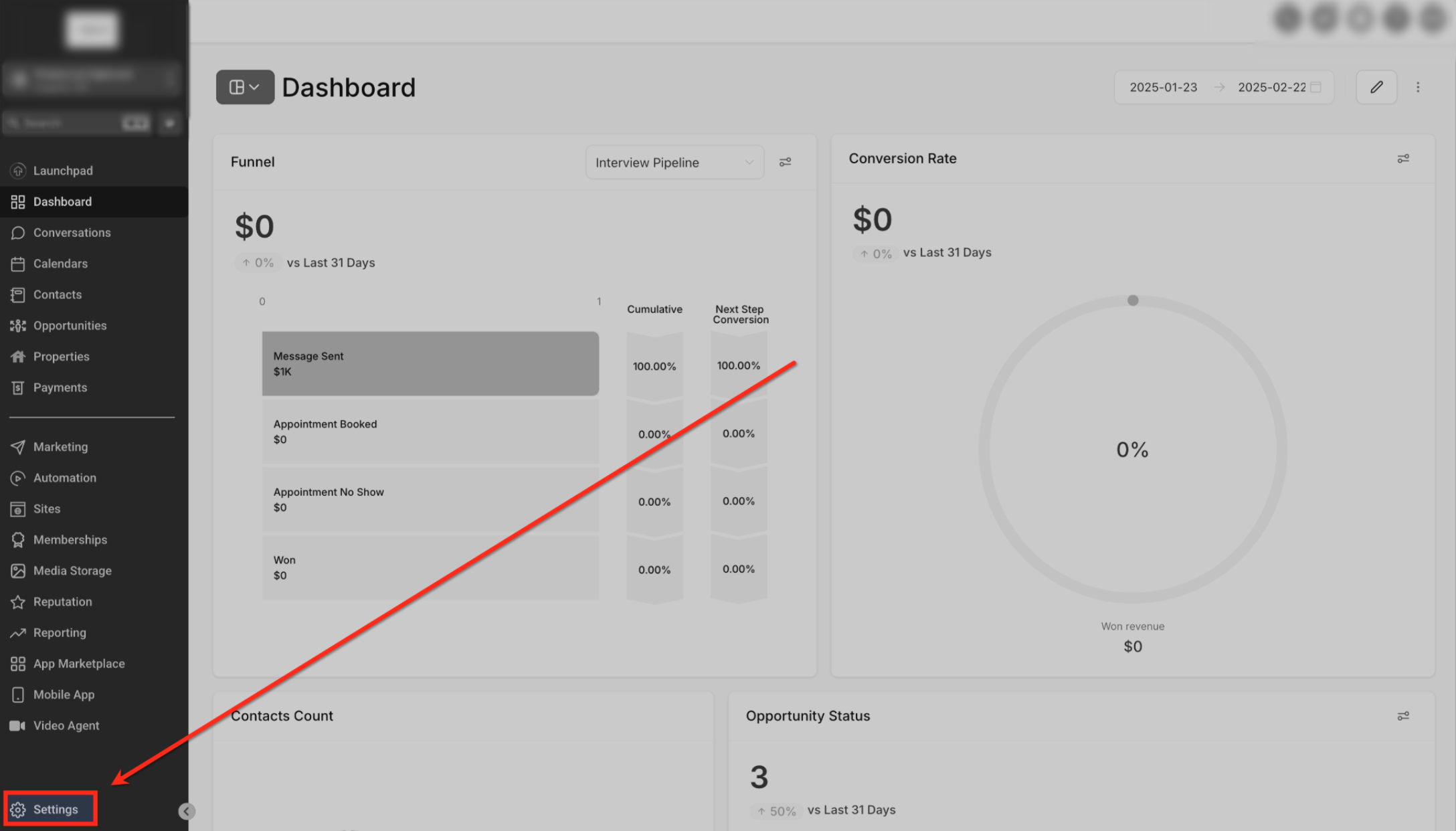
Select Settings from the main navigation to access your domain configuration options.
Locate the Purchased Domain
Open Domains and find the domain under Purchased Domains.
A newly purchased domain may temporarily display Setting up your Domain while configuration is being completed.
The Configure button may remain unavailable during this process.
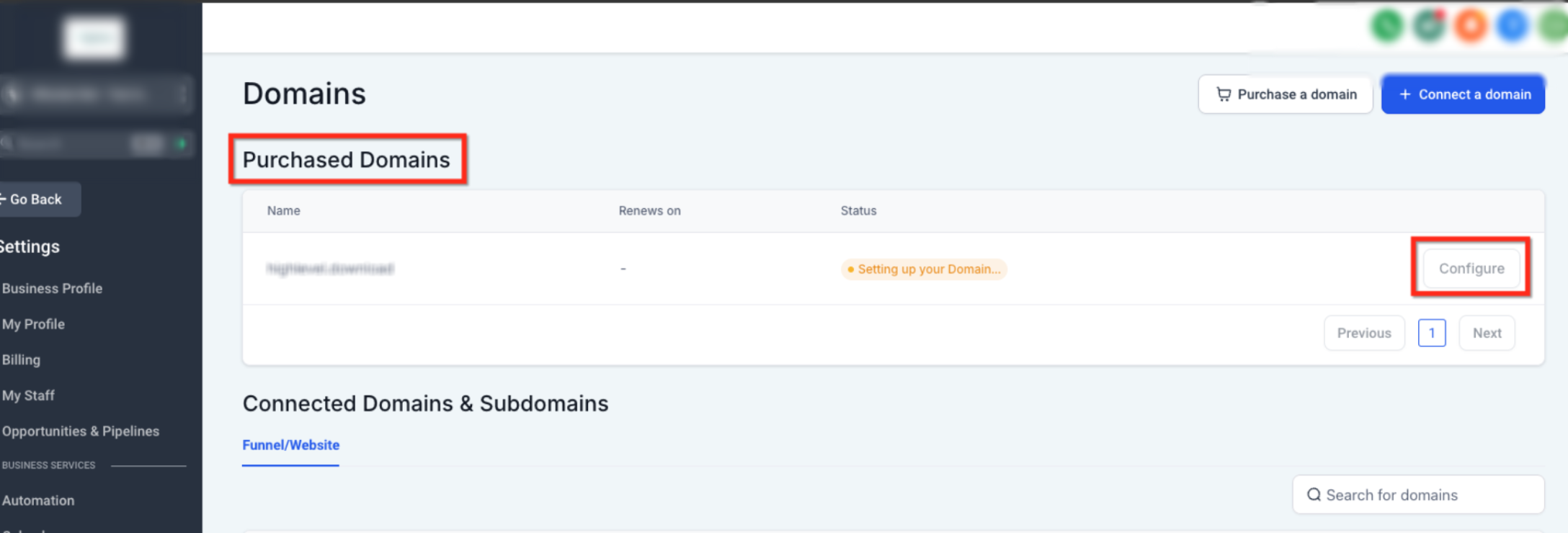
Locate your domain under Purchased Domains. If the domain is still being configured, wait for setup to complete before continuing.
Open the Active Domain
Once the domain displays Active, click Configure.
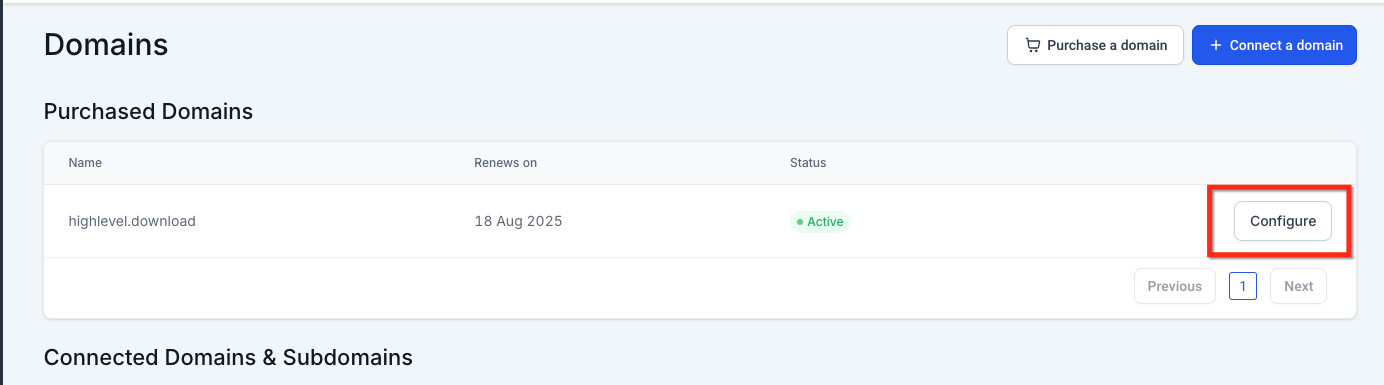
Confirm that the domain status is Active, then click Configure to open its DNS and connection settings.
How to Add a DNS Record
Add DNS records when another website, email, verification, or connected service provides specific DNS values that need to be added to your domain.
Open DNS Management
The domain configuration page displays your existing DNS records and available domain actions.
Click Add Record to create a DNS record.
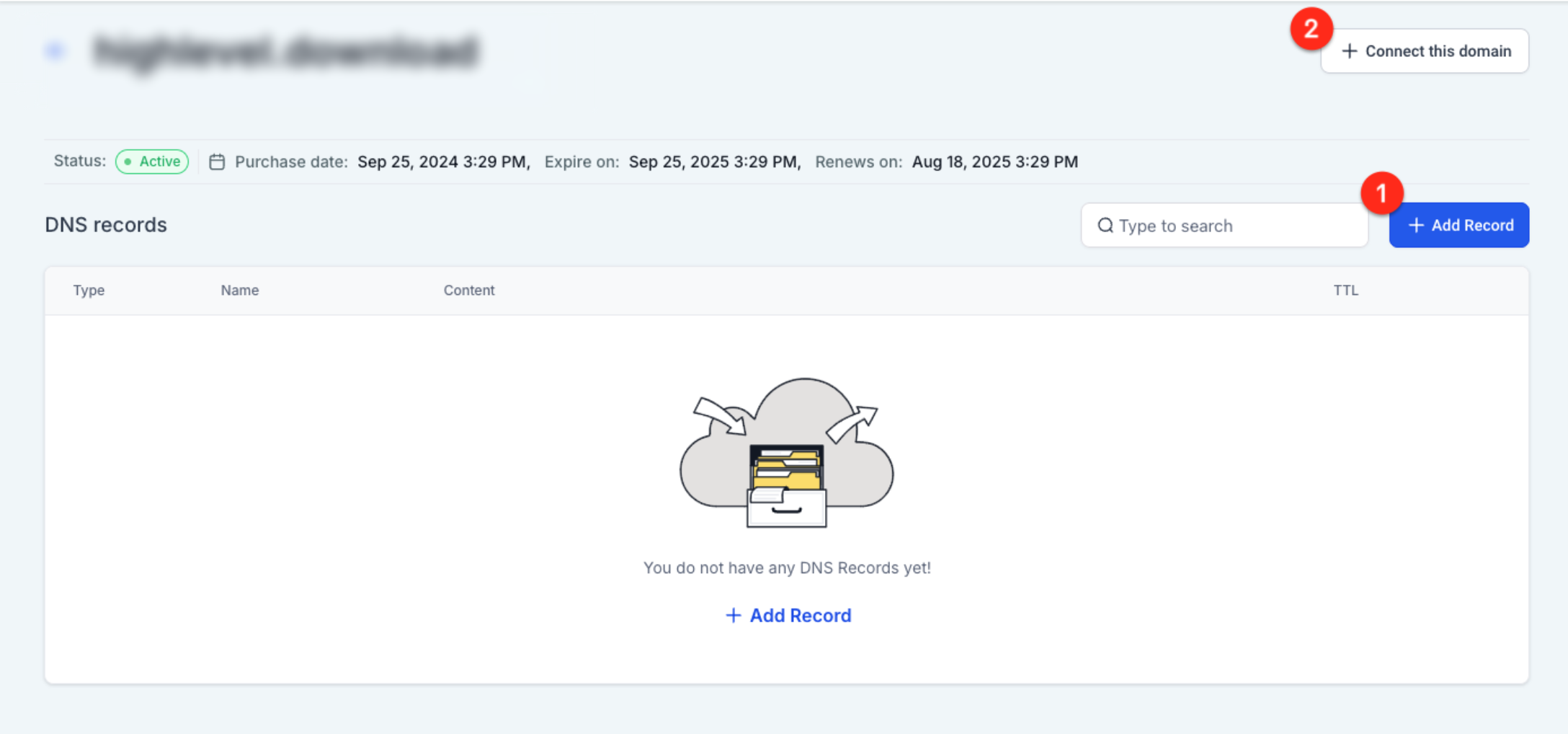
Open the purchased domain and click Add Record to manually create a new DNS entry.
Enter the DNS Record
Select the required Type, then enter the Name, destination or content value, and TTL provided by the service you're connecting.
Click Save when finished.
The fields displayed may change depending on the selected DNS record type.
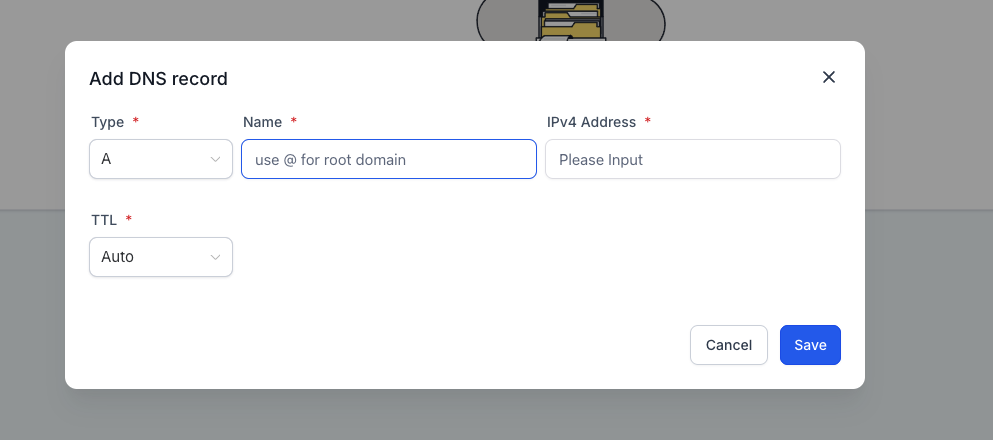
Enter the DNS values exactly as provided by the service you're connecting, then click Save.
Root Domain A Records
Avoid creating multiple A records for the same root hostname unless your configuration specifically requires them. Conflicting root records can prevent traffic from reaching the intended destination.
How to Connect a Purchased Domain
The guided domain connection lets you connect your purchased domain to supported site content without manually configuring each required connection record.
Start the Domain Connection
From the domain configuration page, click Connect this domain.
Confirm the domain or subdomain you want to use. When available, choose whether you also want to include the www version.
Click Continue.
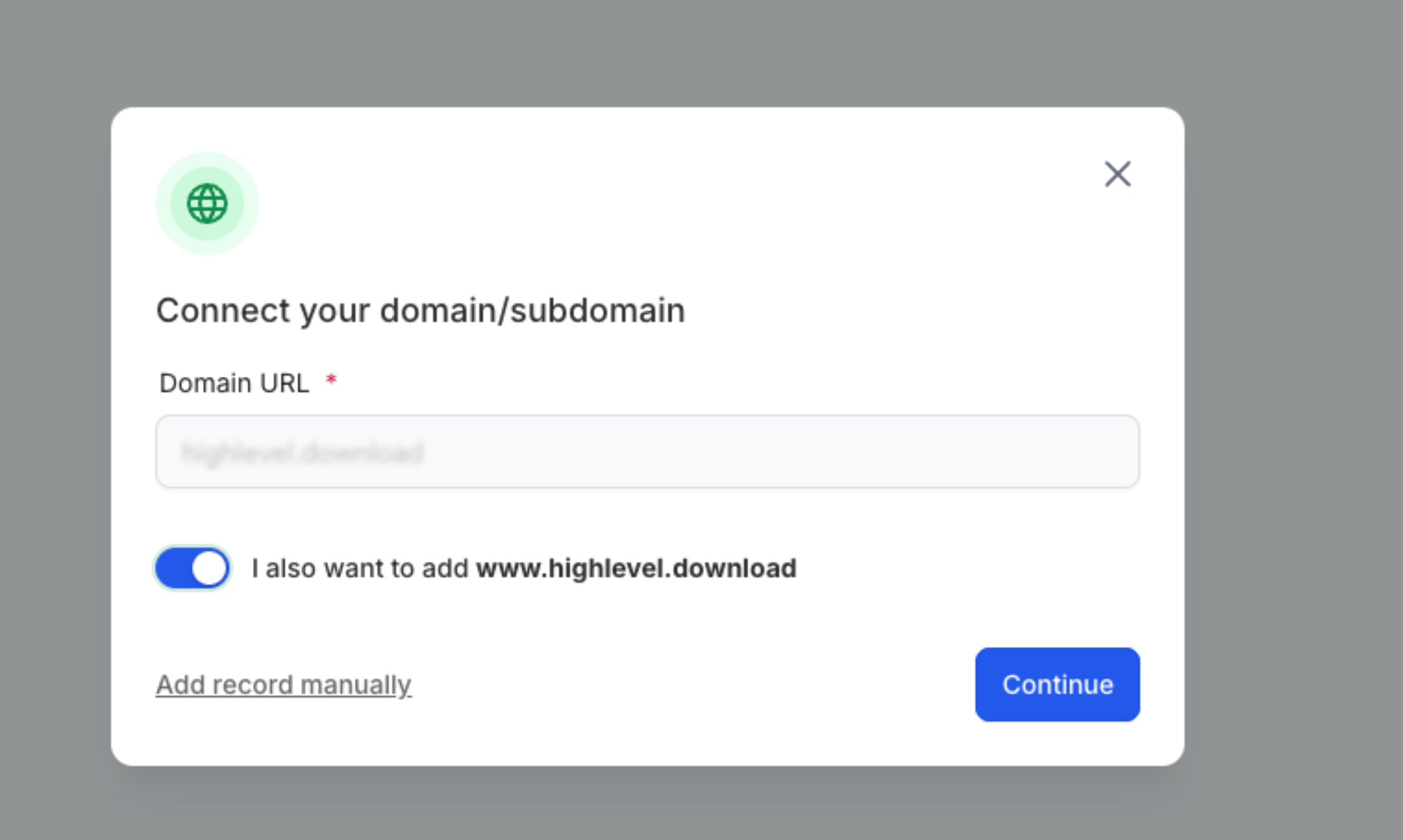
Confirm the domain you want to use, choose whether to include the www version when needed, and click Continue.
Select the Site
Choose what the domain should connect to:
- Funnel
- Website
- Store
- Blog
Select the specific asset from the available dropdown, review any additional options, and click Proceed to finish.
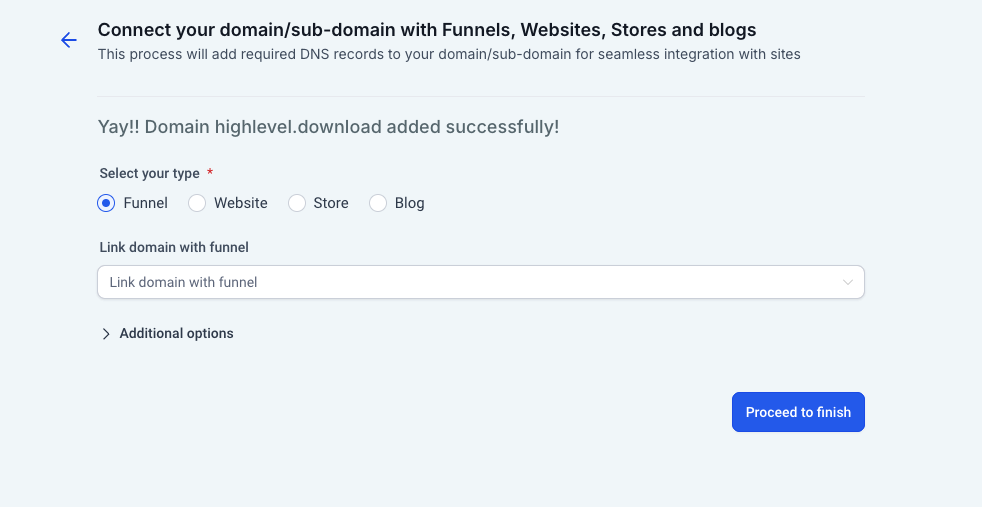
Select the type of site you want to connect, choose the specific asset, and click Proceed to finish.
Verify the DNS Records
After setup is complete, return to the domain configuration page and review the DNS records created for the connection.
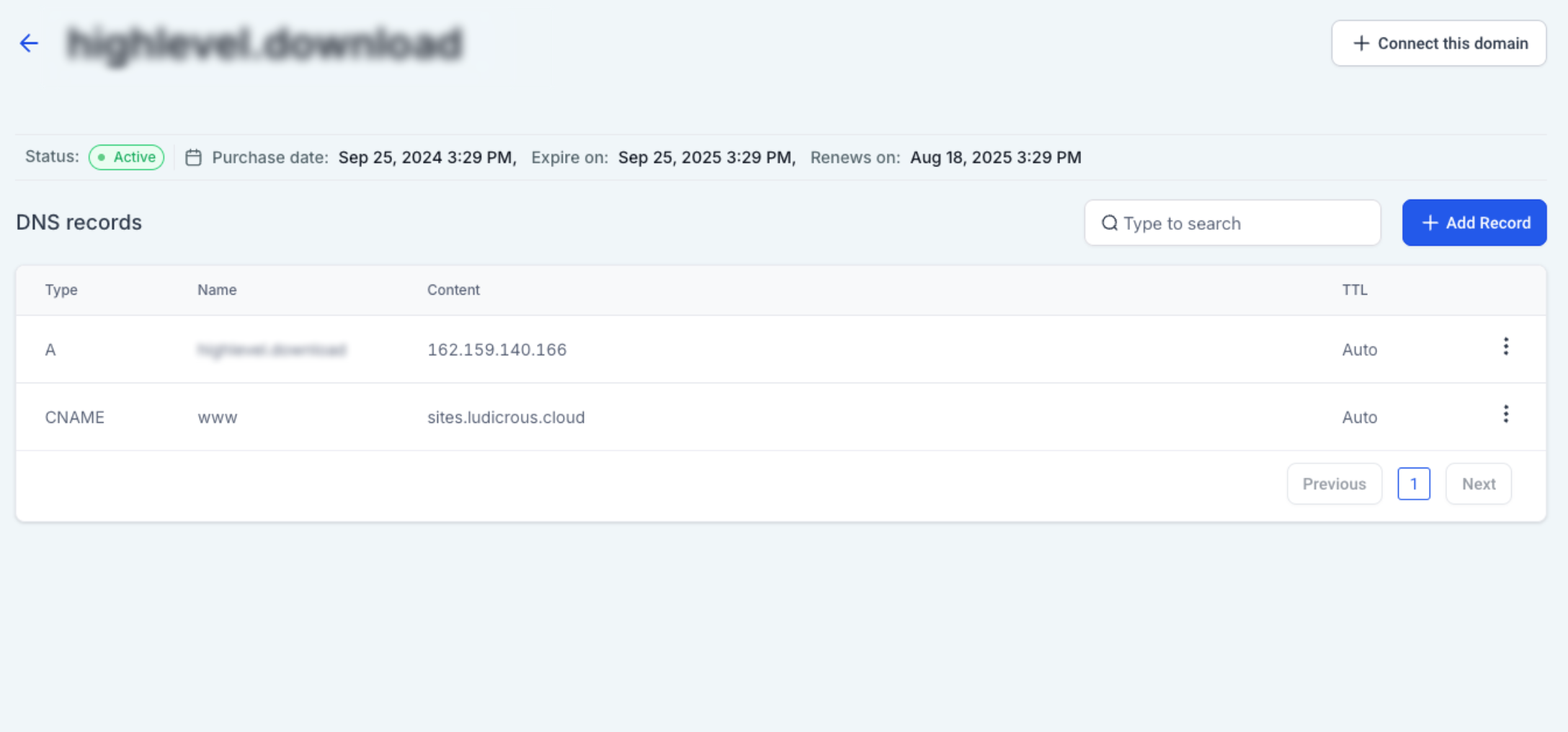
Review the DNS records after completing the connection and confirm that the expected records appear.
Using a Root Domain for Multiple Sites
A root domain should normally point to one primary destination. If you need different experiences under the same domain, use subdomains to keep each destination separate.
For example:
- www.example.com → Website
- store.example.com → Store
- blog.example.com → Blog
This prevents different site configurations from competing for the same root-domain DNS records.
Frequently Asked Questions
Q: Can I use these instructions for a domain purchased somewhere else?
No. These instructions are specifically for domains purchased directly through your account. An externally purchased domain must be configured using the external domain connection process.
Q: Which DNS records can I manage?
Supported record types include A, CNAME, AAAA, MX, and TXT.
Q: Why can't I click Configure after purchasing my domain?
The domain may still be completing its initial setup. Wait until its status changes to Active, then click Configure.
Q: Can I connect the same root domain to both a Funnel and Website?
A root domain should normally point to one primary destination. Use separate subdomains when different sites need their own addresses.
Q: Why isn't my domain working immediately after setup?
DNS updates can take time to propagate across the internet. Allow time for the changes to update before troubleshooting the configuration.
Q: Can changing DNS records affect my email?
Yes. DNS records can control email and other services in addition to websites. Avoid changing existing MX, TXT, CNAME, or other records unless you understand their purpose.
Need Help?
If your purchased domain is not connecting as expected, first check its status, DNS records, selected destination, and recent DNS changes.
Verify that:
- The domain status is Active.
- Required DNS records are present.
- DNS values were entered correctly.
- The domain is connected to the intended Funnel, Website, Store, or Blog.
- The same root hostname is not pointing to conflicting destinations.
- Enough time has passed for recent DNS changes to propagate.
If the issue continues, capture the domain status and current DNS records before contacting support. Avoid deleting or replacing records during troubleshooting unless you know which service they control.