
Screen Sharing Improvements in Meeting Rooms
Screen sharing is essential for collaboration during support sessions, presentations, training, and detailed client work. LeadConnector Meeting Rooms includes several enhancements to the screen sharing experience that make shared content clearer, easier to view, and more comfortable to navigate.
This article covers the new full-screen mode, zoom controls, system audio sharing, and improved streaming quality features available in Meeting Rooms.
What Are Screen Sharing Improvements?
Screen sharing improvements in LeadConnector Meeting Rooms provide participants with a more focused, flexible, and professional viewing experience when content is shared during meetings.
These enhancements include full-screen viewing, adjustable zoom controls, system audio sharing, and upgraded streaming quality to support sharper visuals and smoother motion. Together, these features help teams collaborate more effectively during presentations, training sessions, support calls, and live demonstrations.
Whether you're reviewing reports, troubleshooting issues, presenting slides, sharing videos, or collaborating in real time, these improvements make shared content easier to view, hear, and interact with.
Key Benefits
The screen sharing improvements in Meeting Rooms deliver several advantages for both presenters and participants:
Full-Screen Mode for Shared Screens
Participants can expand shared screens into full-screen mode for a more focused viewing experience. This feature helps eliminate distractions and provides maximum screen space when reviewing presentations, demonstrations, documents, dashboards, and other detailed content.
Full-screen mode is particularly useful when participants need to focus exclusively on shared content without the visual clutter of participant thumbnails, chat panels, or other meeting interface elements.
Use full-screen mode when reviewing detailed presentations, dashboards, or documents where maximum visibility is important. Exit full-screen mode at any time to return to the standard meeting view.
Zoom In and Zoom Out Controls
Shared screens include built-in zoom controls that allow participants to zoom in or out as needed. This feature improves readability for text-heavy content, makes it easier to view spreadsheets and reports, and provides better visibility of detailed interfaces and workflows.
Participants can adjust the viewing scale without affecting the presenter's screen, allowing each attendee to customize their viewing experience based on their display size and preferences.
Zoom adjustments only affect the participant's own view. The presenter's screen and other participants' views remain unchanged.
Screen Sharing with System Audio
Presenters can share their screens along with system audio during meetings. This capability makes it easier to present videos with sound, deliver training sessions and walkthroughs, demonstrate applications with audio output, and share multimedia content without requiring separate audio sources.
Participants can experience both visual content and audio exactly as intended by the presenter, ensuring that multimedia presentations, training videos, and application demonstrations are delivered with complete fidelity.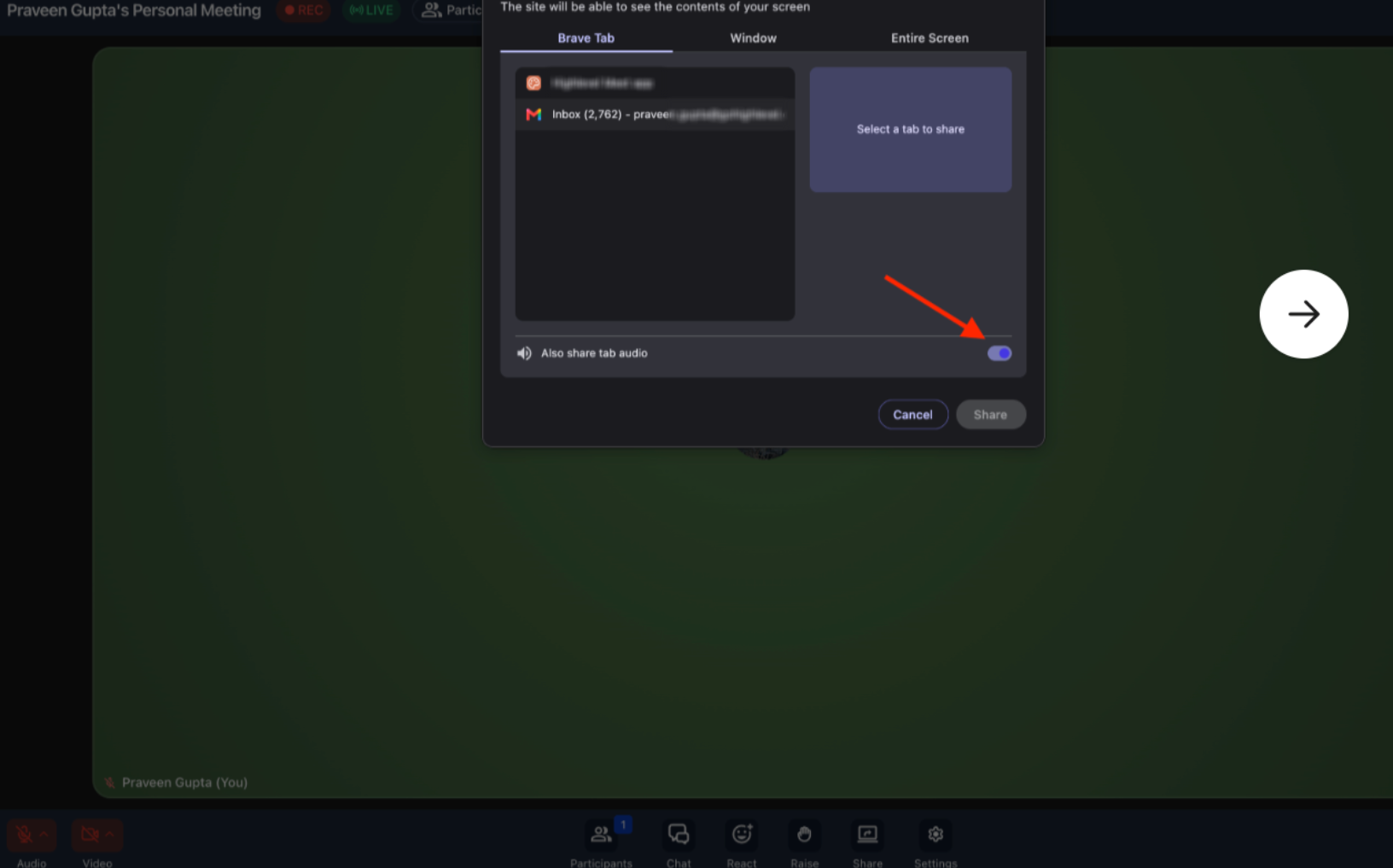
System audio sharing eliminates the need for workarounds like playing audio through your microphone, which often results in poor audio quality. Participants hear clear, synchronized audio directly from the shared content.
Improved Screen Sharing Quality
Screen sharing quality in Meeting Rooms has been upgraded to support up to 1080p resolution and 30 frames per second (FPS). This enhancement delivers sharper visuals, smoother motion, and a more professional viewing experience during presentations, demos, training sessions, and collaborative meetings.
Higher resolution and frame rate improve the clarity of shared content, making it easier for participants to read text, view detailed graphics, and follow demonstrations in real time. This is especially valuable when sharing design mockups, data visualizations, spreadsheets, and other content where detail matters.
For the best screen sharing quality, ensure you have a stable internet connection and close any unnecessary applications that may consume bandwidth during the meeting.
How to Use Screen Sharing Improvements
The screen sharing enhancements in Meeting Rooms are available to all participants during meetings. Follow the steps below to use each feature:
Join a Meeting Room session where screen sharing is active. When a participant begins sharing their screen, the shared content will appear in the meeting interface.
Click the full-screen button (typically located in the toolbar or shared screen controls) to expand the shared content to full-screen view. This removes distractions and maximizes the viewing area. Press the escape key or click the exit full-screen button to return to the standard meeting view.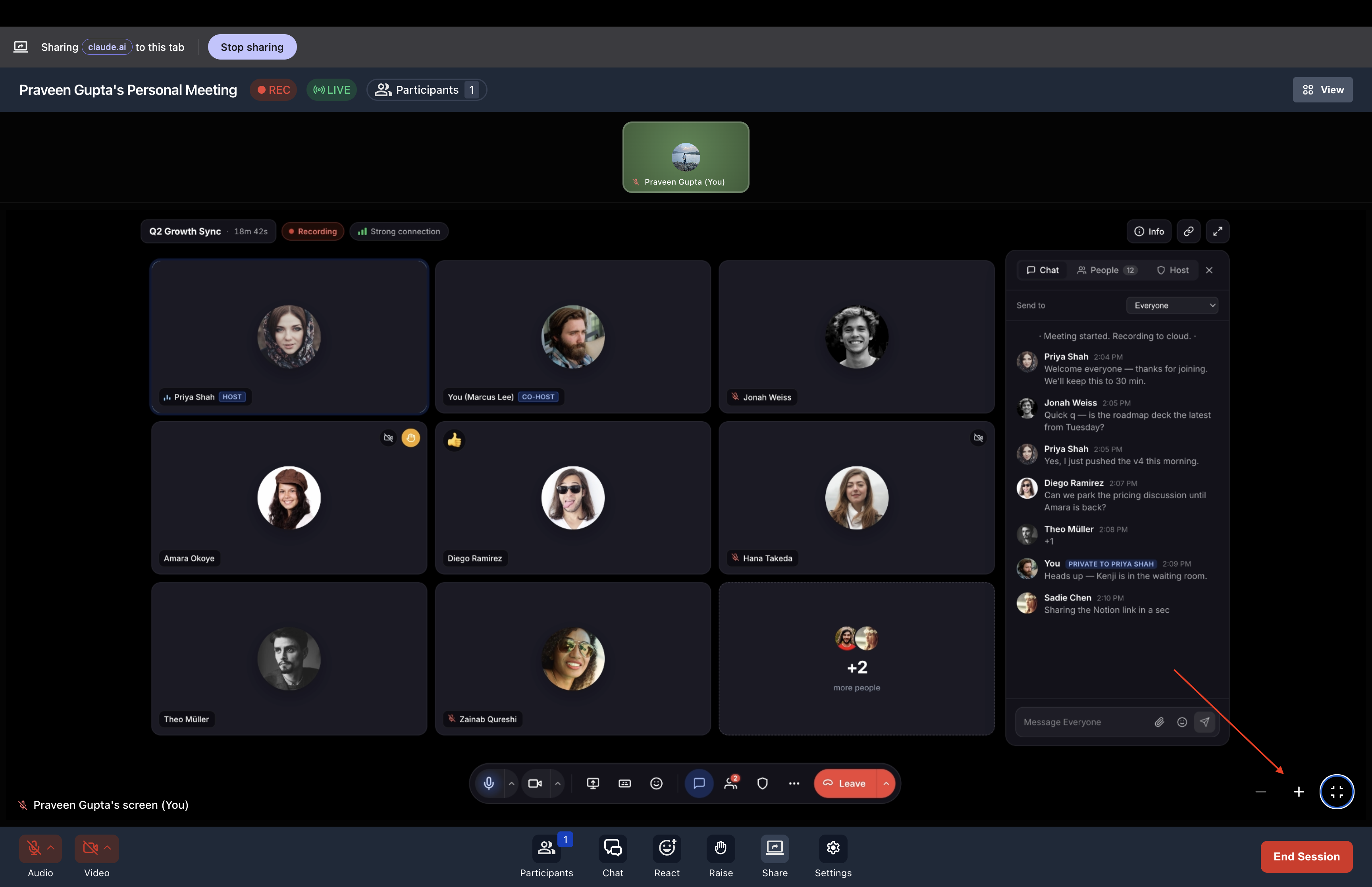
Locate the zoom in and zoom out controls (typically displayed as + and - buttons or a zoom slider). Click or adjust the controls to increase or decrease the magnification of the shared screen. Your zoom adjustment applies only to your view and does not affect the presenter or other participants.
If you are the presenter, click the screen sharing button in the meeting toolbar. Select the screen, window, or application you want to share. Enable the "Share system audio" or "Share computer sound" option before starting the screen share. Participants will receive both the visual content and audio from your system.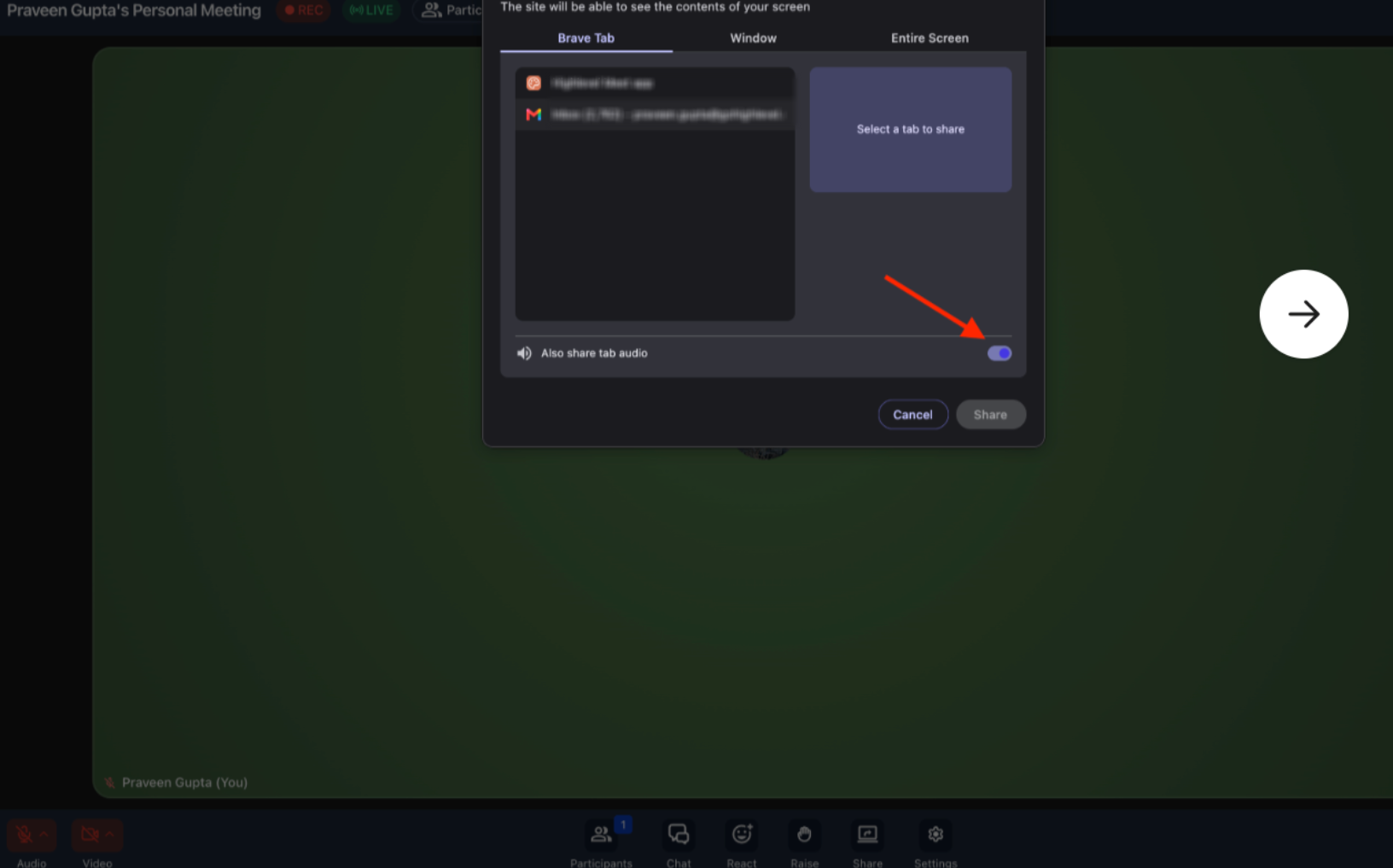
The improved streaming quality (up to 1080p at 30 FPS) is applied automatically during screen sharing. No additional configuration is required. For the best experience, ensure a stable internet connection and close unnecessary applications consuming bandwidth.
The exact location of controls (full-screen button, zoom controls, share audio option) may vary depending on your browser and operating system. Refer to the on-screen toolbar and screen sharing dialog for available options.
If you encounter any issues with screen sharing features in Meeting Rooms, try the following steps:
- Refresh your browser and rejoin the meeting.
- Check that your browser has permission to access screen sharing and system audio.
- Ensure you're using an up-to-date browser (Chrome, Firefox, Safari, or Edge).
- Test your internet connection — a stable connection improves streaming quality.
- Contact support if screen sharing controls are not appearing or features are unavailable.