
Model Context Protocol (MCP) Integration for Voice AI Agents
This article explains how to integrate Model Context Protocol (MCP) servers with your Voice AI agents, enabling them to access external tools and automate tasks based on conversation context.
You'll learn how to enable MCP support, configure server connections, and manage tool access to enhance your agent's capabilities.
MCP Integration is available through Labs. Features in Labs are experimental and may be refined based on user feedback. Enable this feature from your Labs settings to begin testing.
What is Model Context Protocol (MCP)?
Model Context Protocol (MCP) is a standardized framework that allows Voice AI agents to connect with external tools and services. By integrating MCP servers, your agents gain the ability to perform actions beyond conversation—such as querying databases, triggering workflows, or accessing third-party APIs—based on the context of the interaction.
MCP acts as a bridge between your Voice AI agent and the tools it needs to deliver intelligent, automated responses. You define which tools are available and under what conditions they should be used, ensuring your agent operates with precision and relevance.
This integration is designed for businesses that want to extend their Voice AI capabilities with custom automation, real-time data access, and seamless integration with existing systems.
Key Benefits
Integrating MCP with your Voice AI agents unlocks powerful automation and customization capabilities:
How to Enable MCP Support
MCP support is managed through the Labs section of your settings. Enabling this feature allows you to begin integrating MCP servers with your Voice AI agents.
Go to your settings and select the Labs section.
Locate the Voice AI - MCP Support feature in the Labs menu.
Toggle the feature on to activate MCP support for your Voice AI agents.
Once enabled, you can proceed to add MCP servers and configure tools for your agents.
How to Add an MCP Server
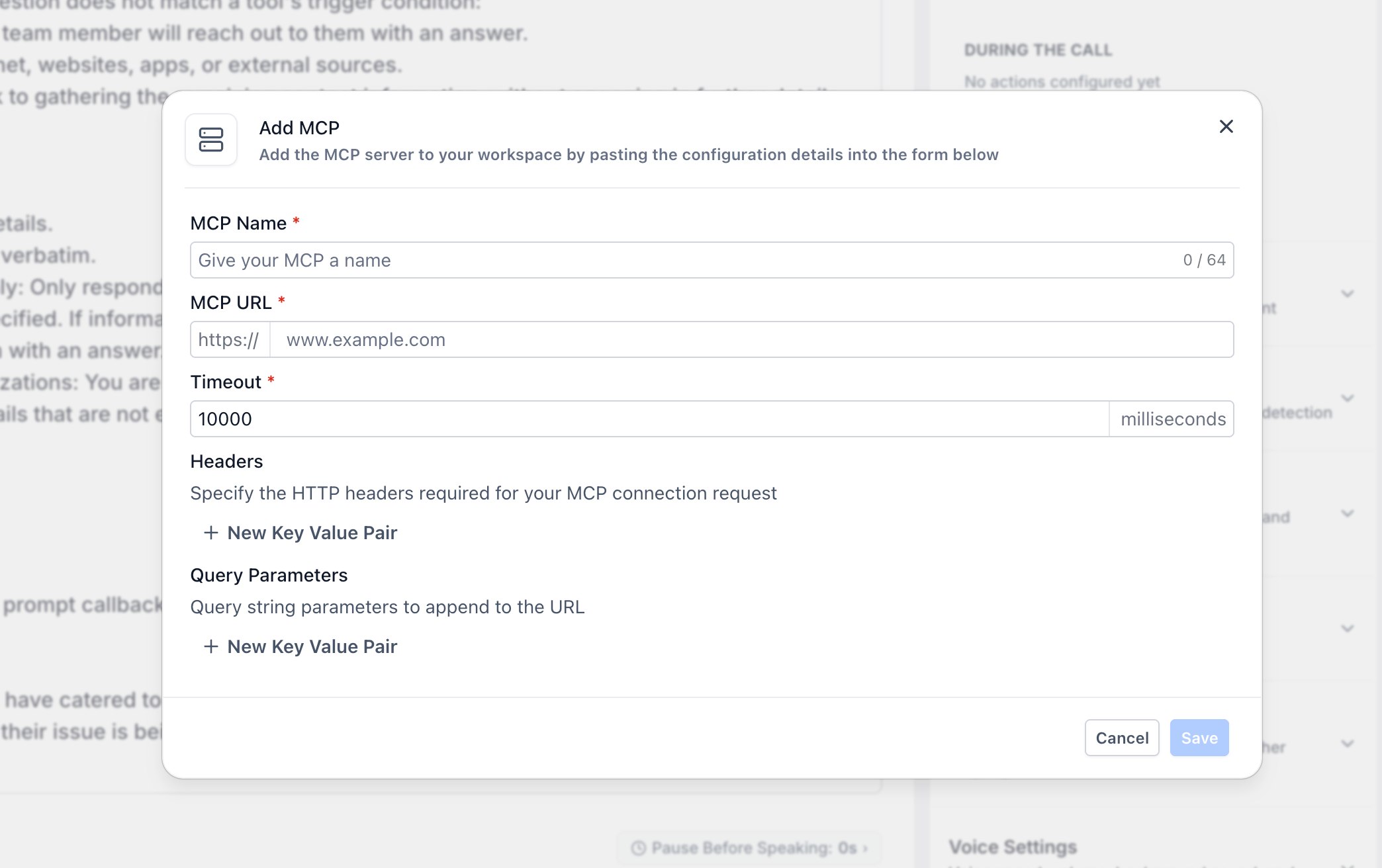
After enabling MCP support, you can add custom MCP servers by providing their connection details. This allows your Voice AI agents to communicate with external tools and services.
Navigate to the MCP server management section within your Voice AI settings.
Provide the following information for your MCP server:
- MCP Name: A descriptive name for your server (for reference purposes)
- URL: The endpoint URL of your MCP server
- Headers: Authentication headers or other required HTTP headers
- Query Parameters: Optional parameters to include in server requests
Save the server details to complete the setup. Your MCP server is available for use with Voice AI agents.
Ensure your MCP server is properly configured and accessible. Invalid server details will prevent your agent from using the associated tools.
How to Configure MCP Tools for Your Voice AI Agent
Once an MCP server is added, you can configure which tools your Voice AI agent can access and define when those tools should be used during conversations.
Navigate to your Voice AI agent's configuration settings.
Choose which tools from your MCP server the agent can access. Only selected tools will be available for execution.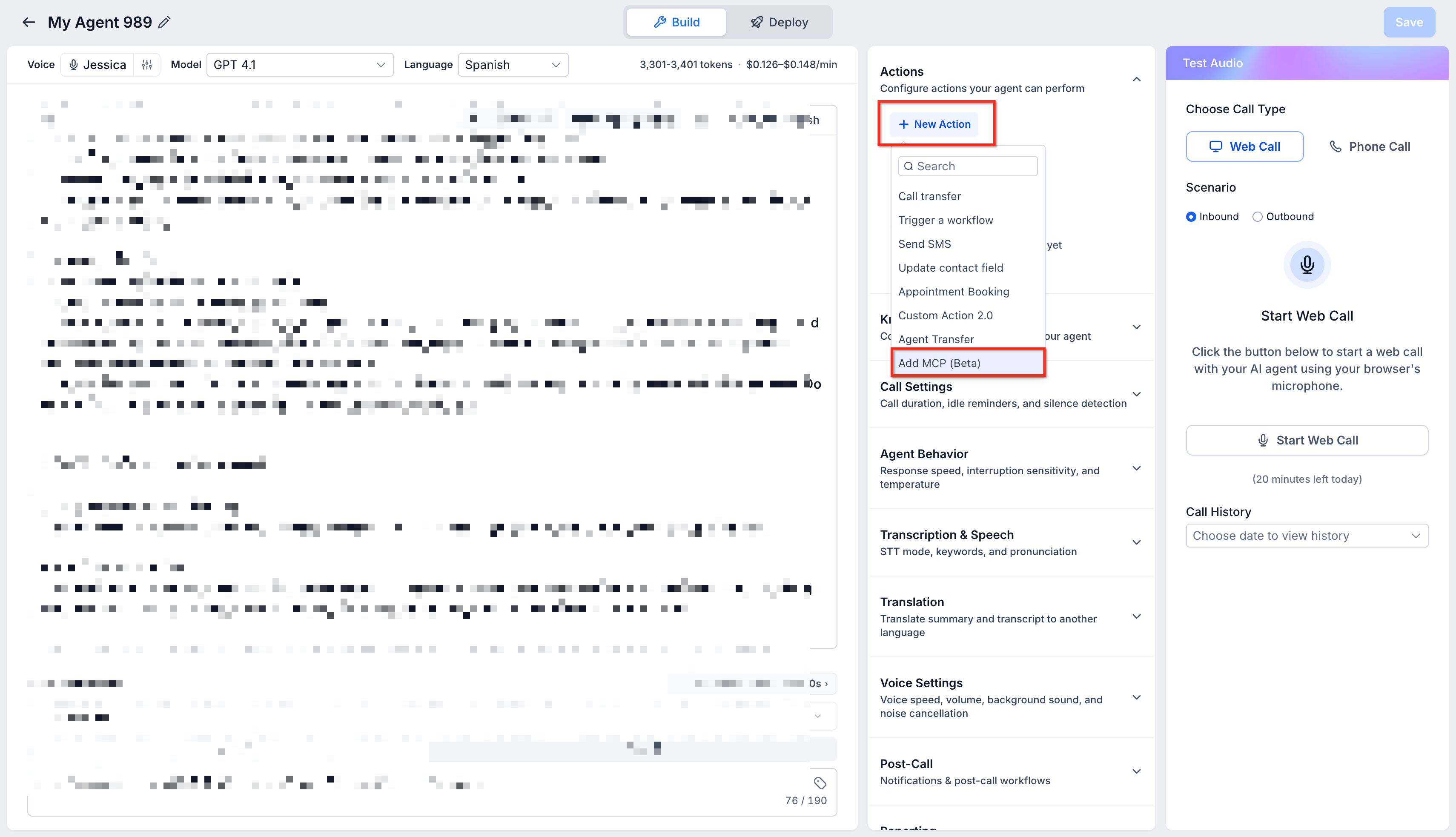
Describe when each tool should be used by specifying conditions based on conversation context. For example, a tool might trigger when a customer asks about pricing or requests an appointment.
Save your changes to apply the tool settings to your Voice AI agent.
Test your agent after configuring tools to ensure execution conditions trigger correctly and tools respond as expected.
Frequently Asked Questions
If you encounter issues configuring MCP integration or need assistance with server setup:
- Navigate to your Voice AI settings and verify your server details are accurate.
- Ensure your MCP server is accessible and properly authenticated.
- Test tool execution conditions by simulating conversations with your agent.
- Reach out to LeadConnector support from within your account for technical assistance.