
Ring Incoming Calls to Multiple Users lets several team members receive an incoming phone call at the same time. When one eligible team member answers, the caller connects to that person and the other ringing attempts stop. This feature helps businesses improve call coverage and reduce missed calls. This guide explains how simultaneous ringing works, how to configure recipients, and how to review unanswered-call settings.
TABLE OF CONTENTS
- What Is Multiple User Ring?
- Key Benefits
- Prerequisites and Limitations
- How Simultaneous Ringing Works
- How to Set Up Multiple User Ring
- Best Practices for Ring Groups
- Frequently Asked Questions
- Need Help?
What Is Multiple User Ring?
Multiple User Ring, also known as simultaneous ringing or ring groups, is a call distribution feature that lets multiple team members receive the same incoming call at the same time.
When a caller dials your business phone number and the applicable routing path reaches the configured team members, their eligible calling devices ring simultaneously. The first team member to answer connects with the caller, while the other active ringing attempts stop.
This feature is useful for sales teams, customer support departments, reception teams, and other situations where several people need to be available to handle incoming calls.
You can configure simultaneous ringing for individual phone numbers, allowing different business lines or departments to use different recipient selections.
Key Benefits
Allowing multiple team members to receive incoming calls improves your team's opportunity to answer promptly. Simultaneous ringing also provides more flexibility when individual recipients are unavailable.
- Faster Response Times: Multiple eligible team members can receive the same call, increasing the opportunity for someone to answer promptly.
- Reduced Missed Calls: If one team member is unavailable, another selected recipient may be able to answer.
- Improved Customer Experience: Callers have a better opportunity to reach an available team member without waiting for a single designated recipient.
- Better Team Collaboration: Several team members can participate in shared incoming-call coverage.
- Flexible Coverage: Teams can adjust their selected recipients to support different staffing needs.
- Simple Configuration: Manage additional recipients from the phone number's Call Forwarding settings.
- Scalable Distribution: Update the selected recipients as your team's responsibilities and availability change.
Prerequisites and Limitations
Before configuring simultaneous ringing, review the supported recipient limit, calling-device requirements, and routing behavior. These factors determine which team members can receive an incoming call.
Prerequisites
- Access to Settings > Phone System > Phone numbers.
- An existing phone number that you can configure for incoming calls.
- Team members available for selection under Ring More Team Members.
- Appropriate calling devices or receiving channels enabled for the selected users.
- An applicable incoming-call routing configuration and backup for unanswered calls.
Limitations and Important Considerations
- Additional Recipient Limit: You can select up to six additional team members using Ring More Team Members.
- Device Availability: Selected users must have an eligible receiving device or calling channel configured to receive the call.
- Routing Priority: Other applicable inbound routing rules may determine the destination before simultaneous team ringing occurs.
- First Answer: The first team member to answer connects with the caller. The other active ringing attempts stop.
- Incoming Call Timeout: If the applicable call-routing destination does not answer before the configured timeout, the call follows its selected backup.
- Separate Number Pool Configuration: Number-pool recipient selection is configured in the number pool's settings rather than through this individual-number procedure.
How Simultaneous Ringing Works
Simultaneous ringing allows eligible selected team members to receive an incoming call together. Understanding the difference between call-routing priority and team ringing helps you configure calls correctly.
Ring More Team Members
Ring More Team Members lets additional selected recipients receive an incoming call at the same time when the appropriate routing path applies.
- Additional Recipients: Add up to six additional team members to the phone number.
- Simultaneous Ringing: Eligible selected team members receive the incoming call through their configured calling devices.
- First Answer Connects: The first team member who answers is connected to the caller.
- Other Ringing Attempts Stop: After one recipient answers, the other active ringing attempts stop.
- Declined Calls: If one selected team member declines the call, the remaining eligible recipients can continue receiving it.
Routing Priority vs. Simultaneous Ringing
Inbound routing rules determine which destination or routing path handles an incoming call. After the applicable routing path is selected, eligible team members can ring together.
Routing priority does not mean that the additional selected users take turns receiving the call.
For example, an applicable IVR, workflow, or Voice AI configuration may handle a call before the normal team-ringing flow. Other phone-number and contact routing settings can also affect which destination receives a call.
What Happens When No One Answers?
If the incoming call remains unanswered until the configured timeout, the system follows the applicable backup configuration.
Available backup options include Voicemail and Voice AI. The selected backup determines what happens after the ringing period ends.
How to Set Up Multiple User Ring
Configure simultaneous ringing from the phone number's settings. The following steps explain how to enable additional recipients, review their devices, and configure unanswered-call handling.
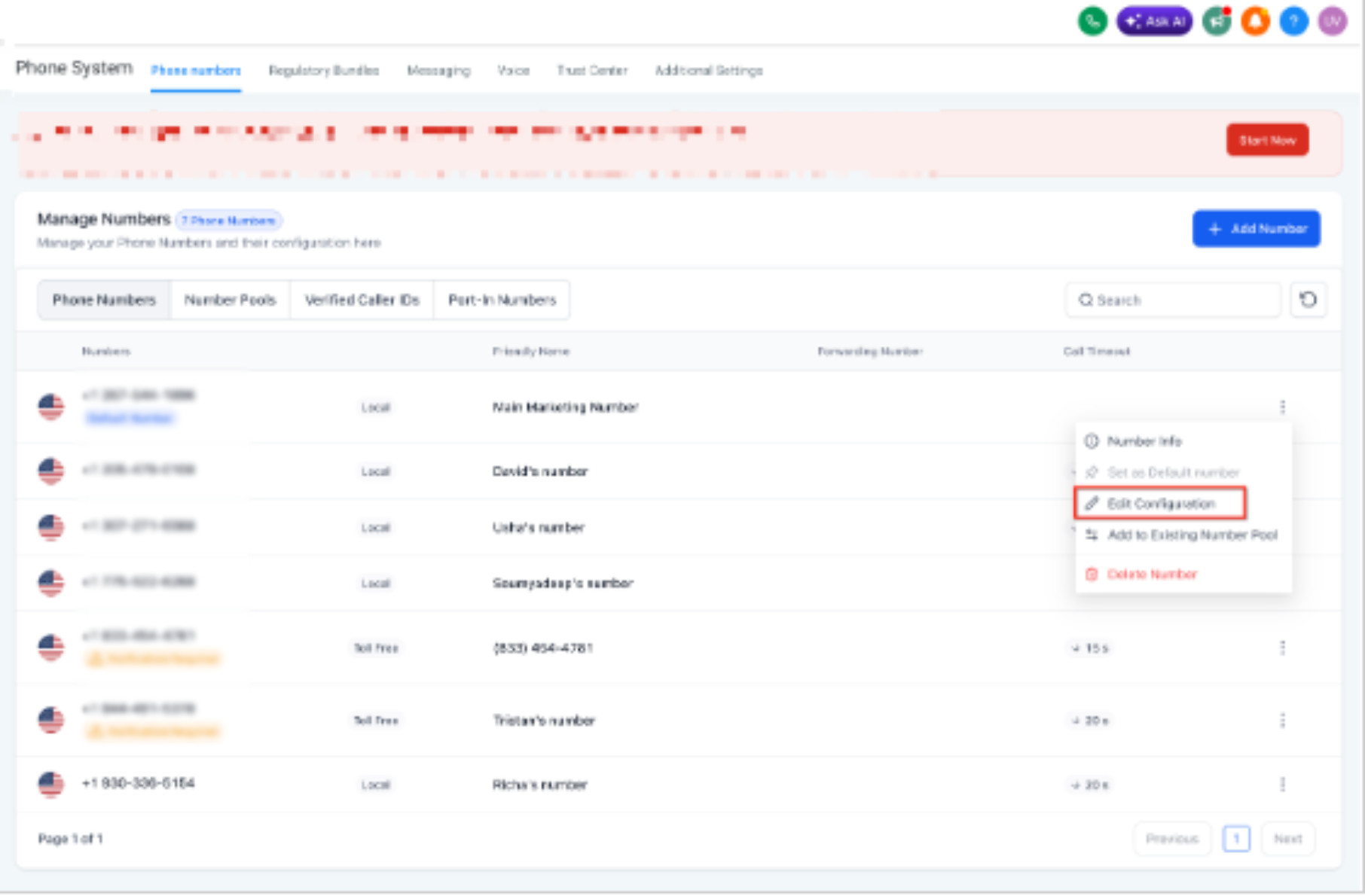
Step 1: Access Phone Settings
Open the configuration for the phone number that should ring multiple team members.
- Click Settings.
- Select Phone System.
- Open the Phone numbers tab.
- Locate the phone number you want to configure.
- Click the three-dot menu beside the number.
- Select Edit Configuration.
Step 2: Configure Call Forwarding
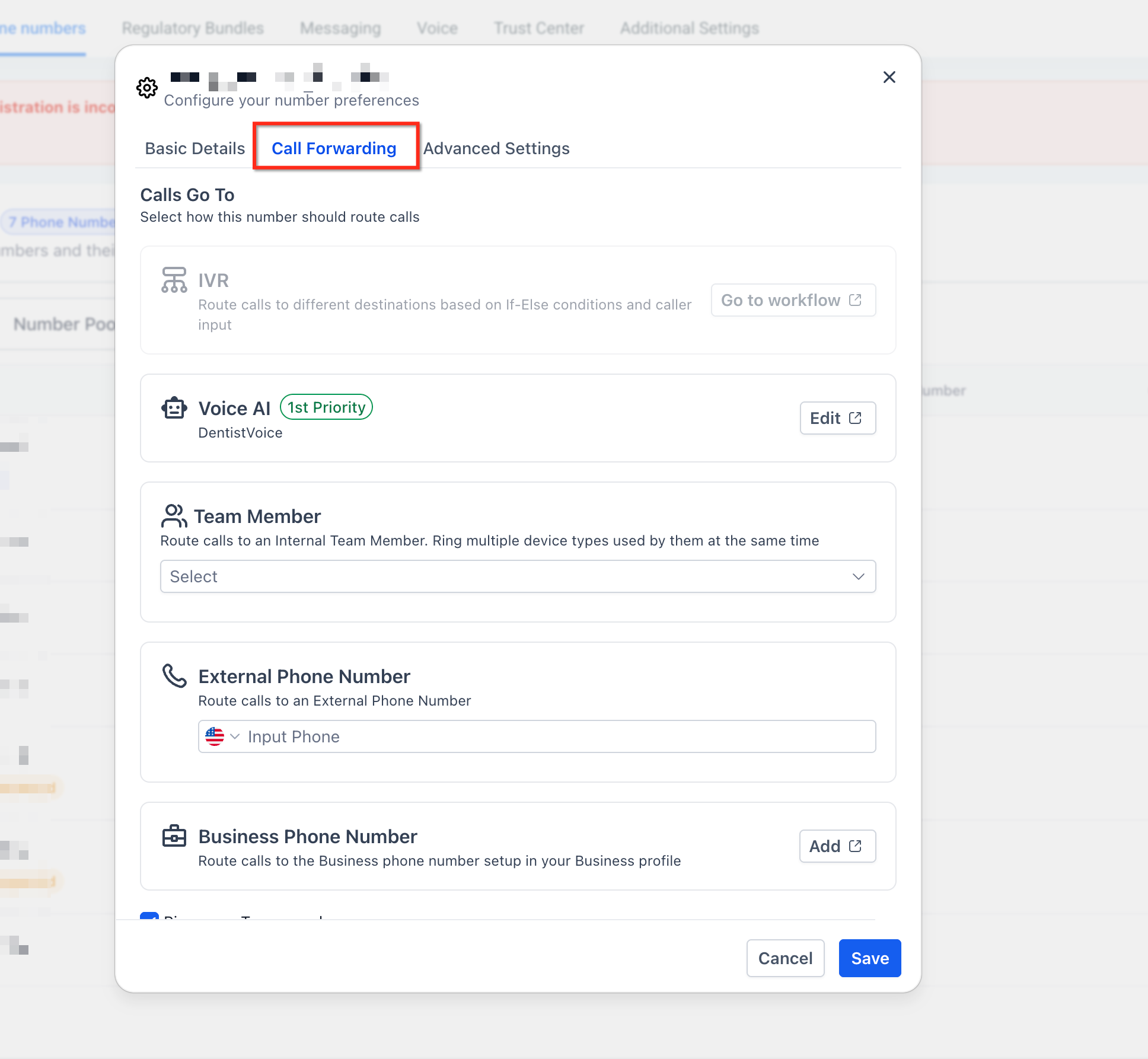
The Call Forwarding tab contains the controls for adding simultaneous recipients and reviewing applicable call destinations.
- Open the Call Forwarding tab.
- Review the applicable primary team member or incoming-call destination.
- Find Ring More Team Members.
- Enable Ring More Team Members.
Step 3: Select Team Members
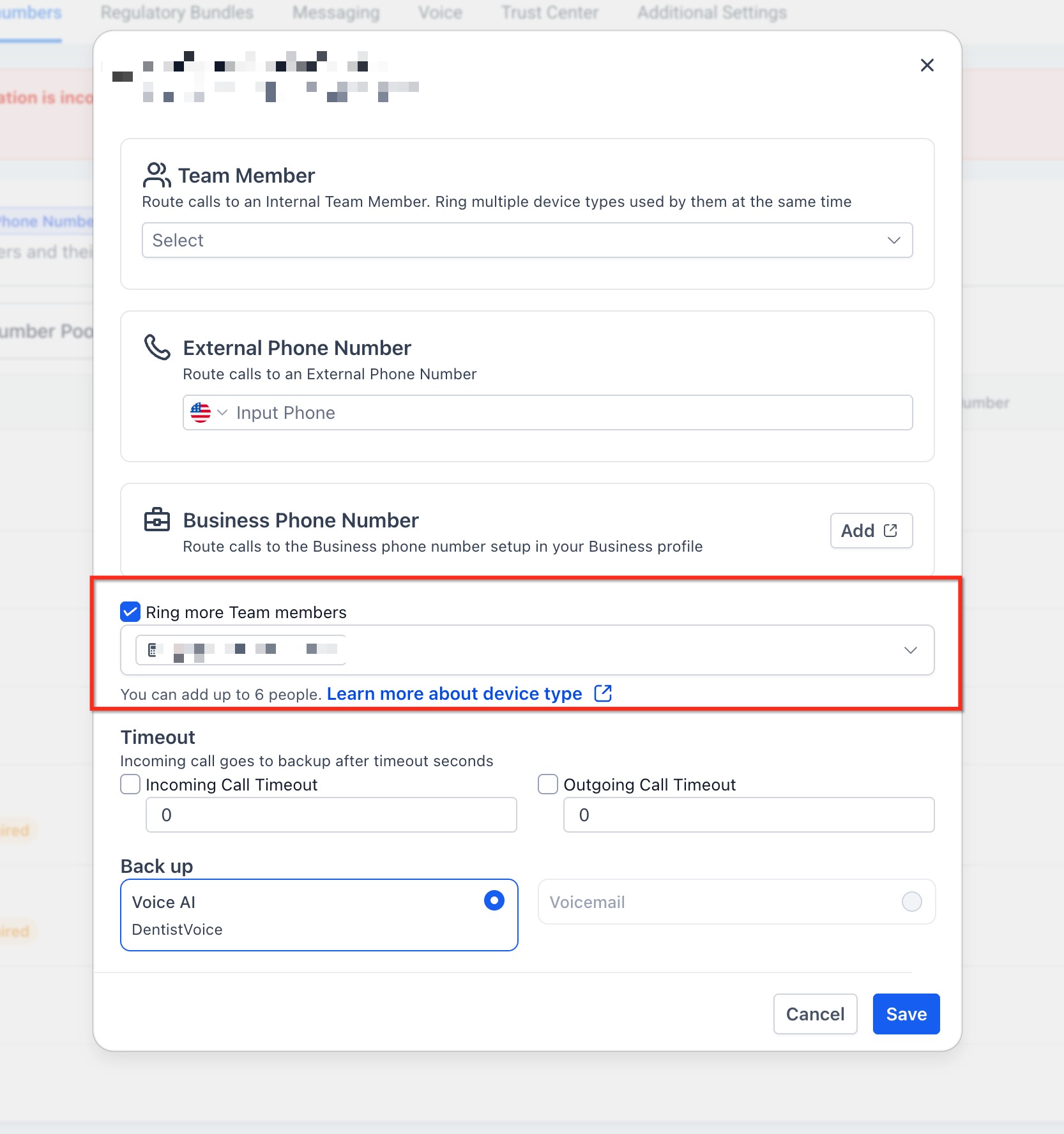
Choose the additional recipients who should receive incoming calls on the configured phone number.
- Open the user selector under Ring More Team Members.
- Select up to six additional team members.
- Review the selected users.
- Review the device indicators displayed beside their names.
The device indicators help identify which receiving devices the selected users have configured.
Step 4: Confirm Simultaneous Ringing
Review your recipients before saving to confirm that the intended team members are included.
- Confirm that Ring More Team Members is enabled.
- Review the list of additional recipients.
- Check the receiving-device indicators beside the selected users.
Eligible selected team members can ring at the same time. This setup does not require choosing a separate sequential or simultaneous ring strategy.
Step 5: Review Incoming Call Timeout
The Incoming Call Timeout controls how long the applicable call-routing destination can ring before the call moves to its configured backup.
- Find Incoming Call Timeout in the phone number's call settings.
- Review the configured timeout duration.
- Adjust the duration if necessary for your intended call-handling process.
The timeout setting does not establish a sequential order among the additional team members. Eligible recipients can still receive the same call simultaneously.
Step 6: Review the Backup for Unanswered Calls
Set or review the destination that should handle an incoming call when nobody answers before the timeout.
- Find the Backup setting in the phone number's call configuration.
- Review the available backup options.
- Select the appropriate backup, such as Voicemail or Voice AI.
- Confirm that the selected option matches your intended unanswered-call flow.
Backup behavior applies when the incoming call reaches the unanswered state under the configured routing rules.
Step 7: Save and Test
Save the updated configuration and make a test call to confirm that simultaneous ringing and unanswered-call handling work as expected.
- Click Save to apply the phone number configuration.
- Call the configured business phone number from an external phone.
- Confirm that the eligible selected team members receive the incoming call at the same time.
- Answer the call on one receiving device.
- Confirm that the caller connects and the other active ringing attempts stop.
- Place another test call and allow it to remain unanswered.
- Confirm that the call follows the configured timeout and backup behavior.
You can return to the phone number configuration to update recipients, timeout settings, and backup options as your needs change.
Best Practices for Ring Groups
Use the following recommendations to help maintain reliable simultaneous ringing and improve the way your team handles incoming calls.
- Verify Receiving Devices: Confirm that selected team members have their intended calling devices enabled and configured correctly.
- Review Incoming Call Timeout: Choose a timeout that gives team members enough time to answer while allowing unanswered calls to reach the configured backup.
- Select Appropriate Recipients: Choose team members who are responsible for handling the incoming calls and can reasonably be available.
- Review Device Indicators: Check the receiving-device information shown beside each selected user.
- Configure Different Business Numbers: Use different recipient selections for business phone numbers serving different departments or teams.
- Review Business-Hours Routing: Check applicable routing settings when call-handling requirements differ during and outside business hours.
- Test Regularly: Place test calls after making configuration changes to confirm that the intended recipients receive calls.
- Review Unanswered-Call Handling: Confirm that voicemail or Voice AI handles calls as intended when no team member answers.
- Monitor Call Activity: Review available call reporting information to identify missed calls and opportunities to improve coverage.
- Document Call Handling Procedures: Establish clear team guidance for answering, greeting callers, and escalating requests.
Monitor Ring Group Performance
Review call activity to understand how incoming calls are handled. If calls are missed, check recipients' availability, enabled devices, Incoming Call Timeout, and the configured backup.
Call Recording for Quality Reviews
If call recording is enabled for the phone number, recorded conversations can support quality reviews and team training.
Review the applicable recording settings and disclosure requirements before using call recordings for training or monitoring.
Using a Number Pool?
When incoming calls originate from a number pool, configure selected-user ringing in the number pool's settings rather than following the individual-number procedure above.
In the number-pool configuration, use Ring Incoming Call to selected Users to choose the recipients. Each recipient's configured receiving channel determines where their incoming calls ring.
For the complete number-pool procedure, refer to the knowledge-base article How to Set Up Call Tracking (Number Pool).
Frequently Asked Questions
Q: Can I add team members in different geographic locations or time zones to the same ring group?
Selected team members can participate from different geographic areas when they have eligible receiving devices configured. Review their working hours and availability before including them in a shared call-handling setup.
Q: What happens if all selected team members are busy or unavailable?
If no eligible recipient answers, the incoming call follows the configured timeout and backup behavior. Review Incoming Call Timeout and the selected Backup option to determine what happens next.
Q: How can I change which team members receive incoming calls?
Open the phone number's Edit Configuration settings, select the Call Forwarding tab, and review Ring More Team Members. Update the selected recipients and save the configuration.
Q: Does the caller know that multiple team members are receiving the call?
The caller dials the business phone number as usual. Simultaneous ringing sends the incoming call to the eligible selected recipients without requiring the caller to choose among them.
Q: How can I see which team member answered an incoming call?
When answering information is available in the mobile app, open Conversations, select a conversation containing the call, and long-press the call message. Select Details and look for Answered By in Message Details.
The field may display the teammate who answered or a masked phone number. Availability depends on the recorded call information.
Q: Can I use workflow automations with incoming call activity?
Yes. The Call Details workflow trigger can evaluate call information such as direction, status, and phone number.
For example, you can configure a workflow to respond to an unanswered incoming call with a follow-up action. Workflow conditions and actions are configured separately from the phone number's simultaneous-ringing settings.
Q: How many team members can I add to Ring More Team Members?
You can select up to six additional team members. These recipients can ring alongside the applicable primary team member when the call reaches the configured team-routing path.
Q: What types of devices can receive simultaneous incoming calls?
Eligible team members can receive calls through configured calling channels such as the Web App, Mobile App, Phone Number, and VoIP Deskphone.
The available receiving devices depend on each user's calling configuration.
Q: What happens if one team member declines the incoming call?
Declining the call for one team member does not automatically stop the remaining eligible recipients from receiving it. Other selected team members can still answer.
Q: Does simultaneous ringing also send text messages to every selected team member?
No. Ring More Team Members controls incoming phone-call ringing. Text messages use separate conversation and messaging settings.
Need Help?
If you have questions or need assistance with a feature, contact support for further guidance. To help resolve your issue efficiently, include a brief description of what you're trying to accomplish, the steps you've already taken, and any relevant screenshots or error messages.