
Ring Incoming Calls to Multiple Users
This article explains how to configure your phone number settings to ring multiple users simultaneously when a call comes in, improving your team's responsiveness and ensuring important calls are answered quickly.
You'll learn how to enable this feature, manage your team members, and understand how call routing works when multiple users are available.
What is Multi-User Call Ringing?
Multi-user call ringing allows you to configure your phone number so that incoming calls ring simultaneously across multiple team members. Instead of calls going to a single user, all designated users receive the call notification at the same time, and whichever team member answers first takes the call.
This feature is particularly valuable for businesses that prioritize rapid response times and want to ensure no customer call goes unanswered, even when specific team members are unavailable.
You can configure this setting on a per-number basis, giving you flexibility to set up different routing strategies for different business lines or departments.
Key Benefits
Implementing multi-user call ringing provides several advantages for your customer communication strategy:
How Call Routing Works
Understanding how the system routes calls when multiple users are configured helps you set expectations for your team:
When an incoming call arrives, the system sends a ring notification to all users configured on the number simultaneously. Each user sees the incoming call on their device at the same time.
The first team member to accept the call is connected to the caller. Once one user answers, the ringing stops for all other users and the call is no longer available to answer.
If none of the users answer the call within the configured timeout period, the call follows your standard voicemail or missed call handling settings.
How to Set Up Multi-User Call Ringing
Follow these steps to configure your phone number to ring multiple users simultaneously:
Go to Settings → Phone Numbers in your LeadConnector account. Locate the phone number you want to configure and click on it to open the settings panel.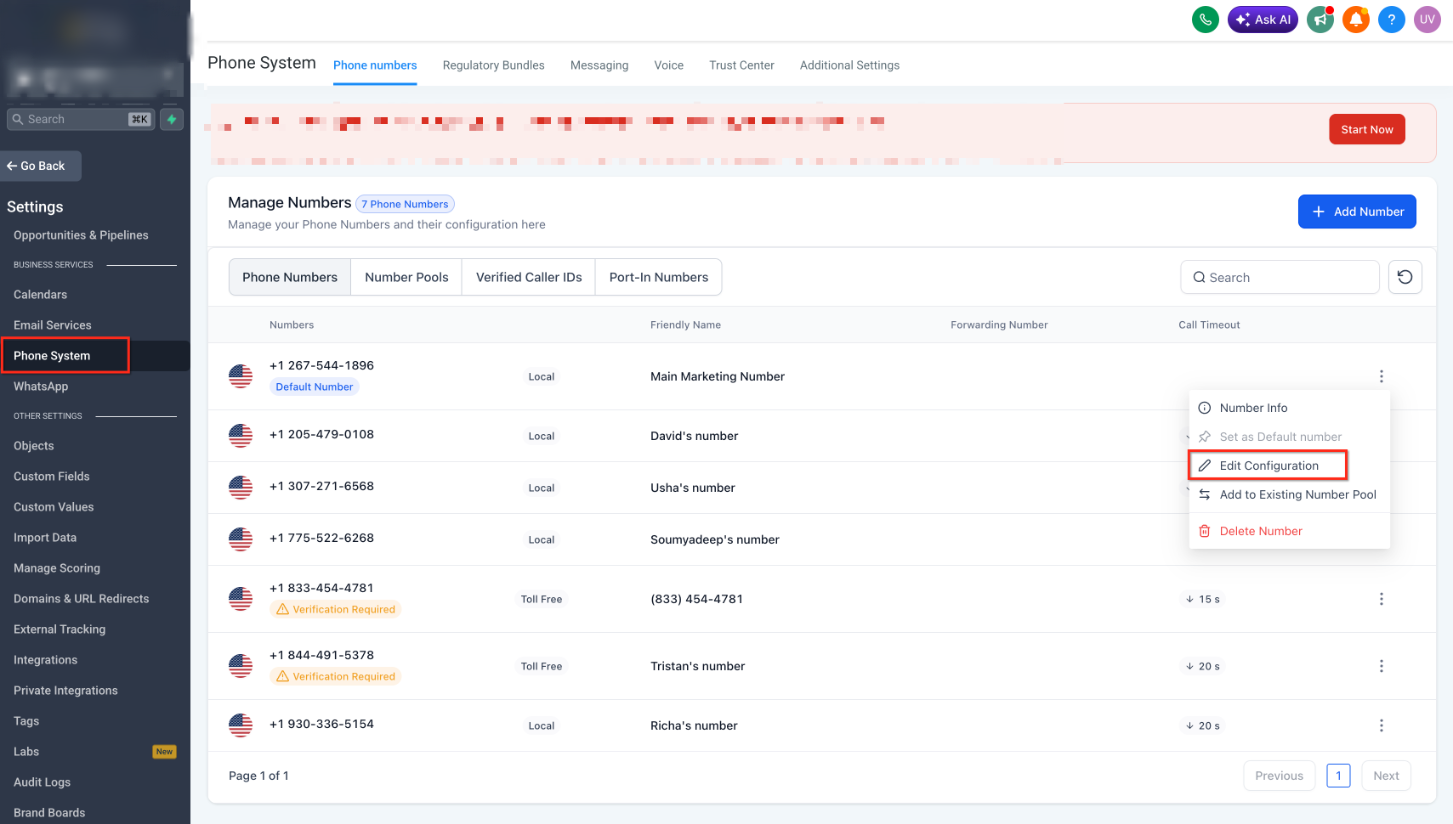
In the phone number settings, locate the Ring to Multiple Users toggle and enable it. This activates the multi-user ringing feature for this number.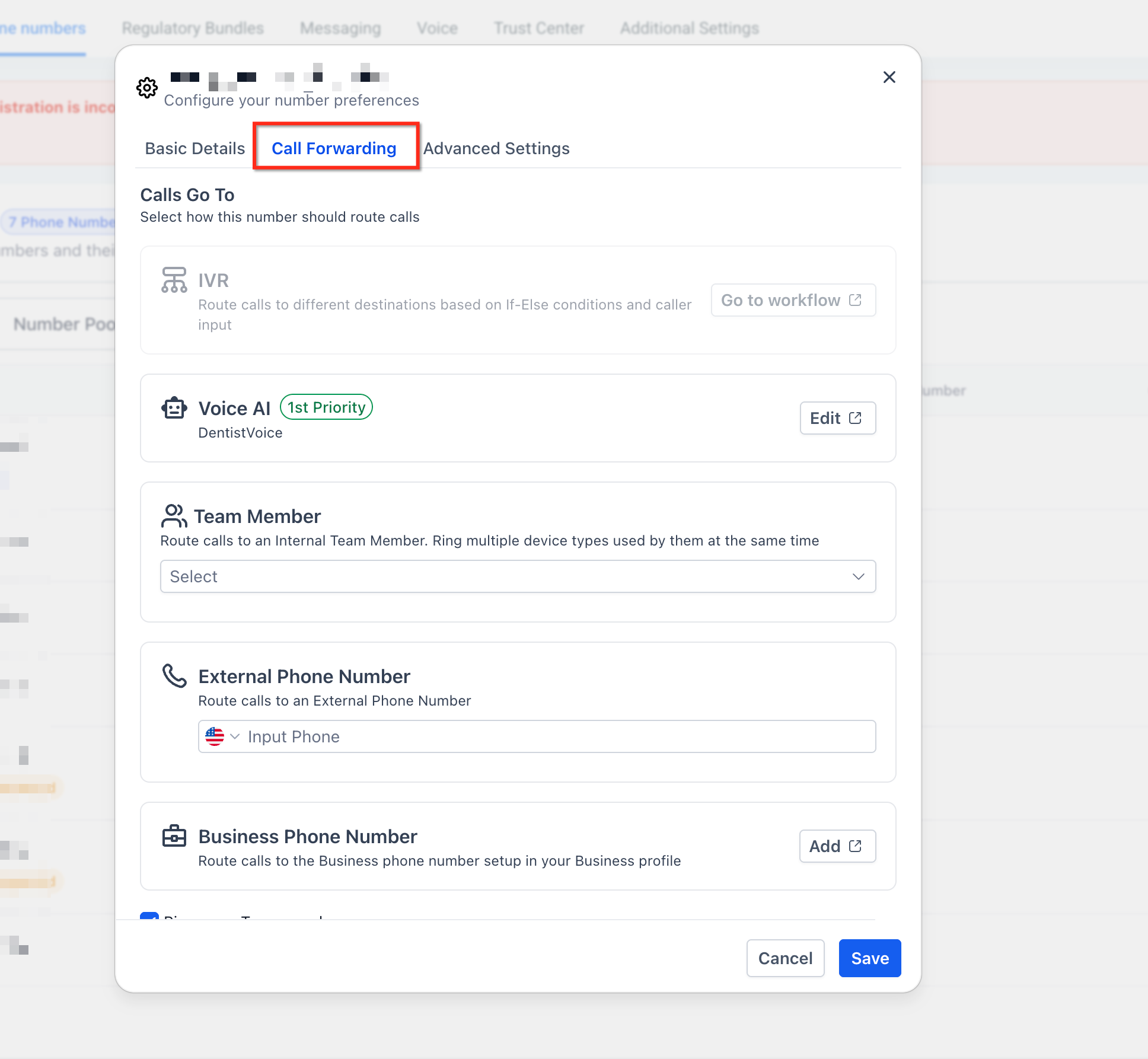
Choose which users should receive incoming calls to this number. Click the user selection dropdown and check the boxes next to each team member who should be included in the ring group.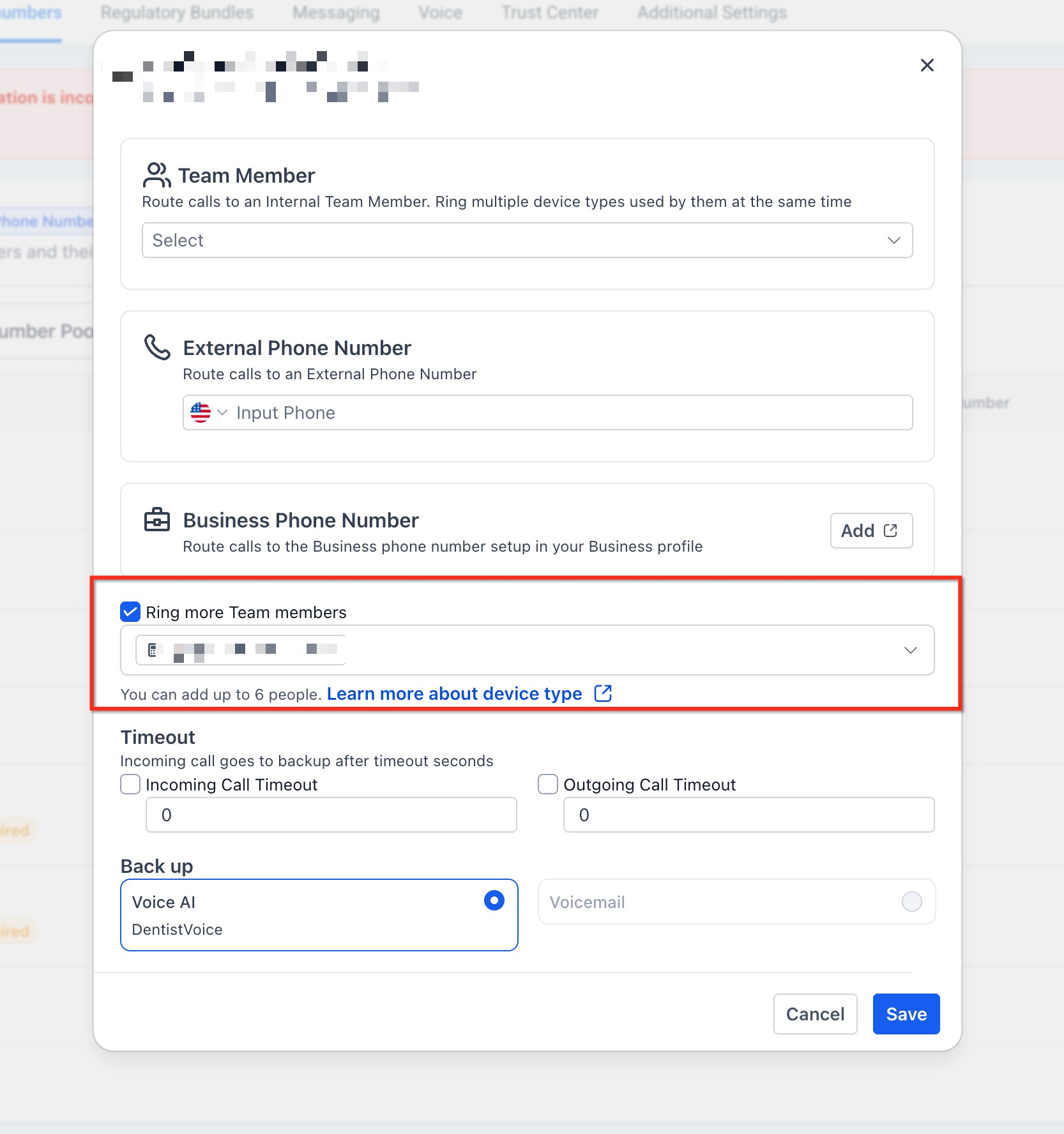
Click Save to apply your changes. The phone number will now ring all selected users simultaneously when an incoming call is received.
You can modify the list of users at any time by returning to the phone number settings and updating your selections. Changes take effect immediately.
Frequently Asked Questions
If you need assistance setting up multi-user call ringing or have questions about your phone system configuration:
- Navigate to Settings → Phone Numbers in your account to review your current configuration
- Check that all team members have their phone settings properly configured to receive calls
- Review your call logs to verify that calls are being distributed correctly
- Contact support through the in-app help widget for personalized assistance with your call routing setup